
Expired Hold Shelf Audit Workflow
This workflow is used when auditing items that appear on the Expired Hold Shelf but cannot be physically located where Alma indicates they should be.
When to Use This Workflow:
- During scheduled Expired Hold Shelf audits
- When a CLS (consortial) item is marked In Transit and in the Expired Hold Shelf queue but cannot be found
- When reconciling discrepancies between Alma status and physical item location
Why This Matters: Expired hold shelf items represent shared consortial responsibility. Prompt, consistent handling ensures accurate records, fair cost responsibility, and minimal impact on patrons and partner libraries.
Required Roles
- Fulfillment Operator
- Circulation Desk Manager
Workflow Overview
This process answers three key questions, in order:
- Can the item be found at either library?
- If not, is the item likely with the requesting patron?
- If still unresolved, who is responsible for resolution and cost?
1: Perform a Comprehensive Physical Search Begin with a physical and Alma-based search that includes all locations where the item could reasonably be found:
- Hold Shelf
- General Collection
- Any additional local locations relevant to your library
Unlike a traditional Patron Claimed Return investigation, only one thorough search per item is required for Reconciliation audit purposes.
2: Contact the Lending Library Once your local search is complete:
- Contact the lending library
- Request that they perform a corresponding search on their end
Why This Matters: Both the requesting and lending libraries must confirm the item’s absence before moving forward.
Note: If this audit is being completed as a part of the annual Reconciliation audit process, it will not be necessary to contact the lending library. As of December 2025 RSC members agreed that each library will conduct a physical search for every item listed on the Comprehensive Reconciliation CLS (Lost in Transit) and Expired Hold Shelf Report.
3: Evaluate Search Results At this point, one of three outcomes will occur:
Outcome A: Item Located at Either Library
- Stop further investigation
- Process the item using the standardized workflow: Discharging CLS Hold Shelf Items
Outcome B: Item Not Located at Either Library
- The item is likely in the possession of the requesting patron
- The item was likely not properly discharged or checked out at pickup
Note: Similar to ILLiad lending agreements, the lending library is ultimately responsible for compensating fellow libraries for Lost or Missing requested CLS materials
4: Patron Resolution (If Item Is Not Located): Determine Whether to Contact the Patron
The requesting library may choose to:
- Contact the patron before taking action, or
- Proceed directly with checking the item out to the patron’s account
Both approaches are acceptable; local policy may guide this decision.
5: Optional Send Initial Patron Notification; Suggested email language:
Hello,
The item you requested on XX/XX/XXXX titled “Lorem ipsum dolor sit amet” was not correctly checked out to your library account at the time of pickup. This item will be checked out to your account. If you have any concerns, please contact the XX Circulation Desk at XXXXXX@edu.
A library may choose to either wait a set number of days for a response or proceed with checking the item out to the requesting patron’s account
6: Check the Item Out to the Patron's Account in Alma This establishes a clear chain of responsibility moving forward.
7: Documenting the Action in Alma Add a Patron Pop-Up Note:
From the Patron Services screen: Fulfillment> Checkout/Checkin> Manage Patron Services, locate patron's account
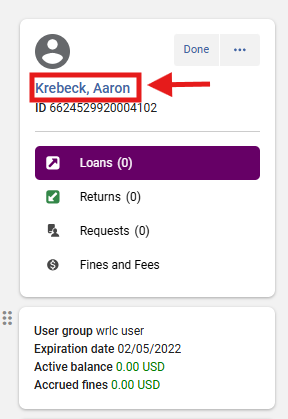
Click on patron's name to access their account
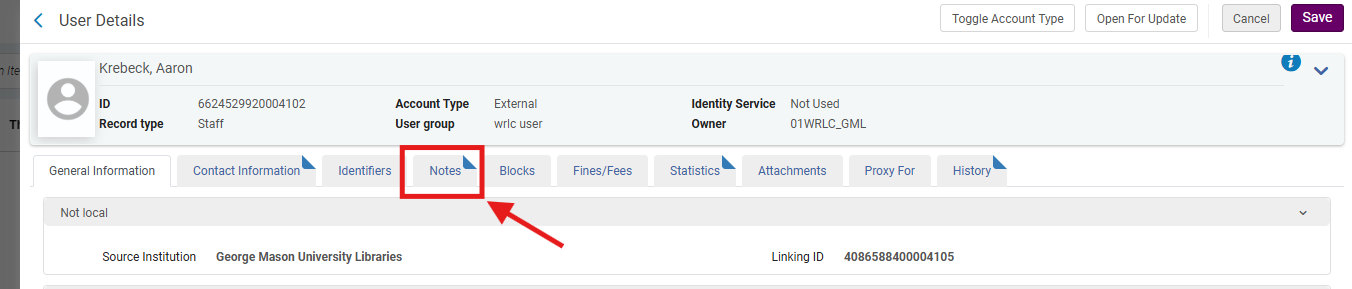
From the patron's User Details screen, select the <Notes> tab
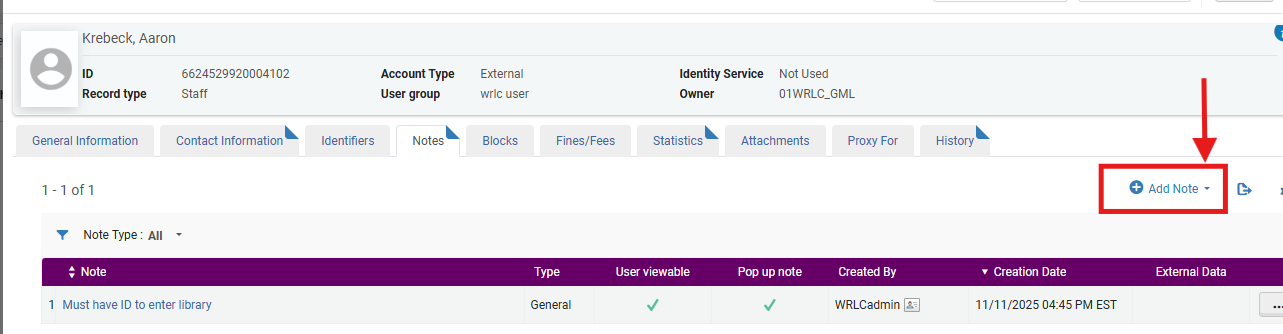
- Select the <Add Note> drop down menu
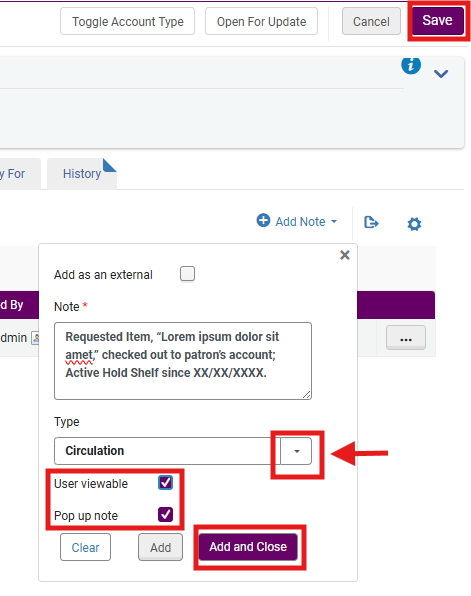
- In the Note field, enter:
- Requested Item, “Lorem ipsum dolor sit amet,” checked out to patron’s account; Active Hold Shelf since XX/XX/XXXX.
- (Use the date from the audit spreadsheet.)
- Set Type to <Circulation> from the drop-down menu
- Select both:
- <Pop Up Note>
- <User Viewable>
- Select <Add and Close>
- Select <Save> from the top right hand side of the screen
Note:
- Types are informational only and do not trigger Alma behavior. The list is standardized across institutions.
- Pop_up notes alert staff and patrons (if User Viewable option is engaged) but do not trigger a block to prevent borrowing
- Selecting <User Viewable> ensure the note is viewable in the patron's Primo My Library account
8: If the Patron Claims They Never Received the Item The patron’s home library will:
- Discharge the item from the patron’s account (if already added)
- Assume responsibility for the item
- Proceed using the standardized workflow: Discharging CLS Hold Shelf Items
Frequently Asked Questions (FAQs)
Why is only one search required?
- This workflow, when used in conjunction with the WRLC's RSC (Resource Sharing Committee) annual Reconciliation project, and completed by all participating WRLC AFN (Alma Fulfillment Network) libraries, replaces multi-week claimed return investigations with a single, documented audit.
Why does the requesting library assume responsibility?
- As with lending agreements, the requesting library is responsible for items borrowed on behalf of its patrons.
Why add a pop-up note?
- It alerts staff and patron to the context of the checkout and prevents confusion during future transactions.
What if the patron never responds?
- Libraries may proceed with checkout after a reasonable waiting period, per local policy.
No comments to display
No comments to display