
Discharging CLS Hold Shelf Items
This workflow explains how to properly discharge CLS (Consortium Library Services) Hold Shelf items in Alma so they are correctly routed back to their owning library and do not remain attached to outdated or unresolved requests. Before starting, determine which situation applies, each case requires a different Alma workflow:
- Item has NOT expired past the Hold Until date
- Item HAS expired past the Hold Until date
When to Use This Workflow
- When a CLS item was never picked up by the requesting patron
- When a CLS item has expired on the hold shelf
- When a CLS item must be returned to its owning institution
Why This Matters
If CLS hold shelf items are not discharged correctly:
- Requests may remain active incorrectly
- Items may circulate with unresolved requests
- Lending libraries may experience tracking or accountability issues
This workflow ensures clean request closure and correct transit routing.
Required Roles
- Fulfillment Operator
- Circulation Desk Manager
Part A: Hold Shelf Items That Have NOT Expired Past Hold Until Date
Force Alma to recognize the item as expired so it can be properly discharged and routed back to the owning library.
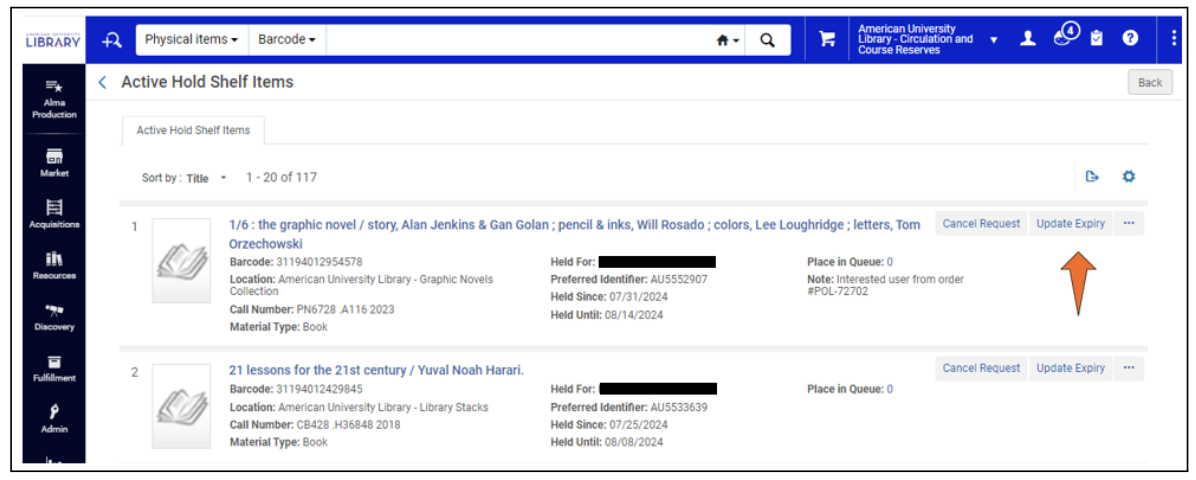
1: Locate the Item on the Active Hold Shelf Navigate to <Fulfillment > Resource Requests > Active Hold Shelf>
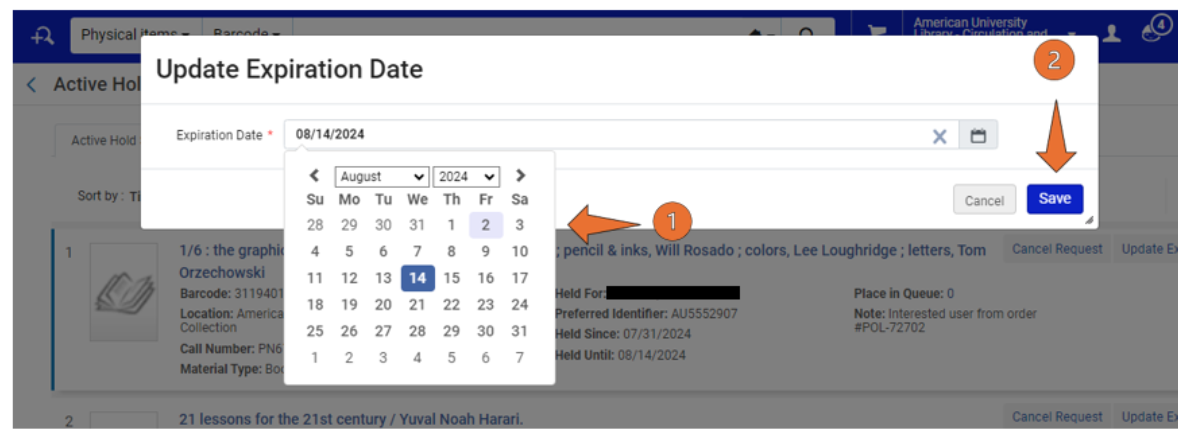
2: Manually Update the Expiration Date
- Click <Update Expiry> next to the item
- In the dialog box, enter yesterday’s date
- Click <Save>
- Why This Matters:
Alma only treats items as expired after the Hold Until date has passed.
Using yesterday’s date ensures Alma immediately recognizes the item as expired.
3: Alternative Location (If Updating from Lending Side) If the item must be managed from the lending/request side:
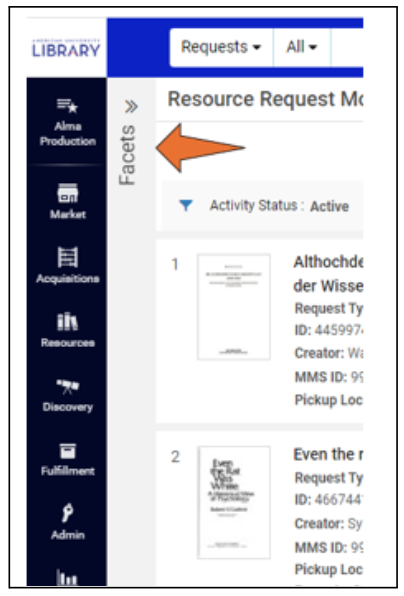
- Use the Facets panel and select <On Hold Shelf> under Process Type
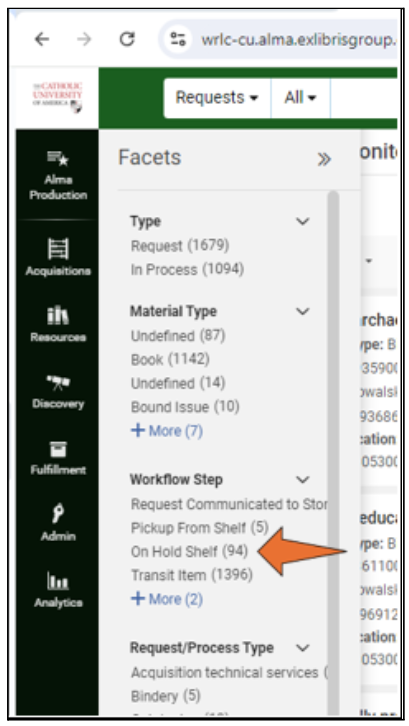
- Locate the item and repeat the expiration-date update above
4: Scan the Item In Navigate to <Fulfillment > Scan In Items>
- Scan the item barcode
- The item’s status should now update to <In Transit for Reshelving> with the owning library as destination.
5: Prepare Item for Courier
- Insert the CLS green courier routing slip
- Place the item with outgoing materials for delivery to the owning library
Part B: Hold Shelf Items That HAVE Expired Past Hold Until Date
Important: This section applies only to items already listed on the Expired Hold Shelf.
1: Use Scan In Items (Required)
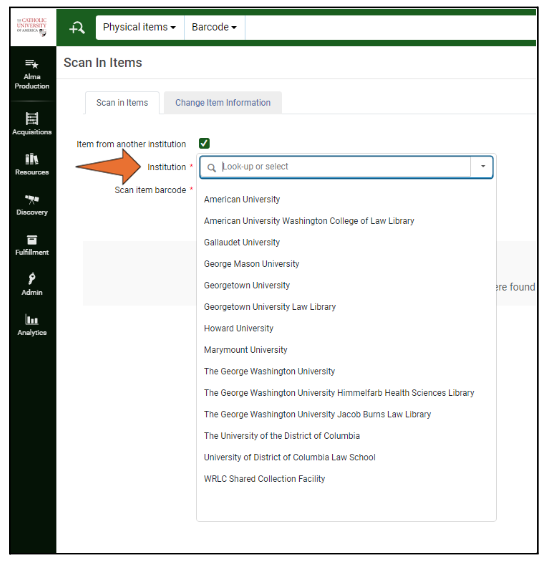
Why This Matters: If the item was never checked out, Return Items cannot be used. Scan In Items ensures Alma processes the item correctly.
2: If an Active Request Still Remains After Scanning Choose one of the following options:
Option A: Update Expiry and Scan Again
- As previously detailed, manually update the expiration date to yesterday
- Scan the item in again
The request should clear, and the item should route to the owning library.
Option B: Cancel the Active Request
The item should now route In Transit for Reshelving to the owning library.
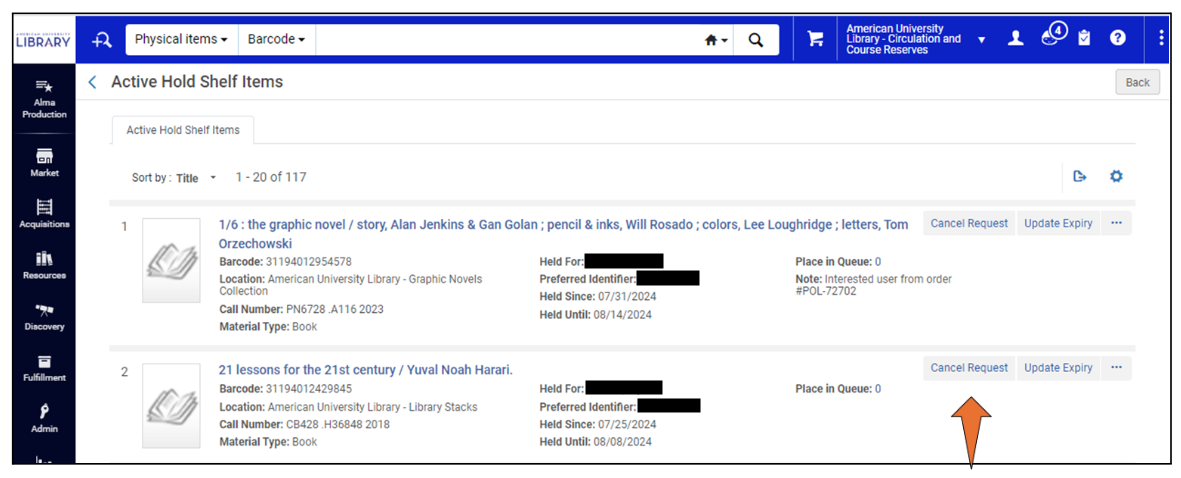
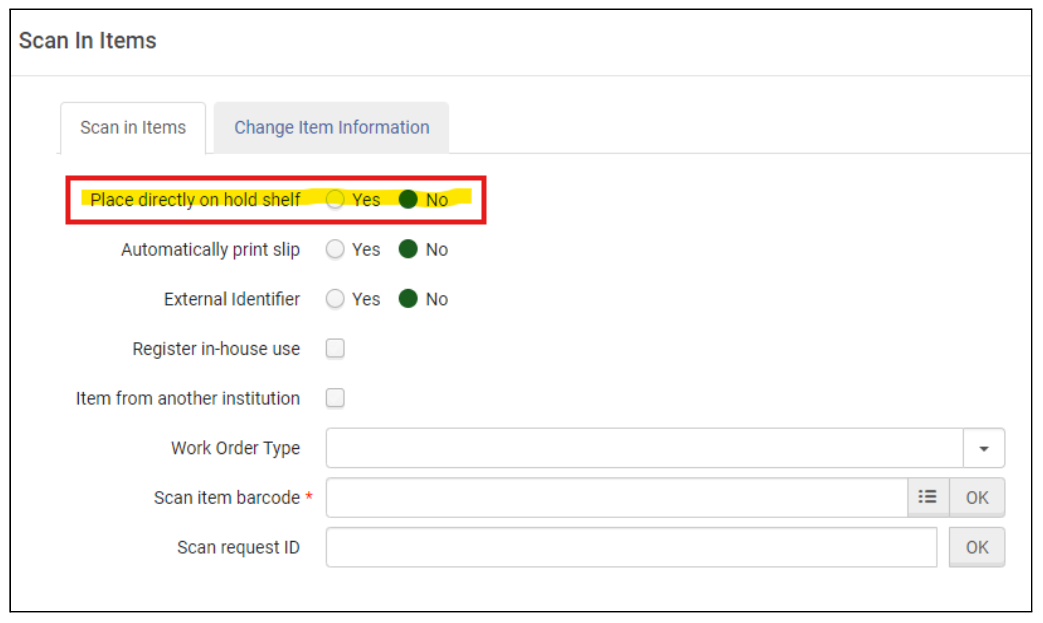
Part C: Place Directly on Hold Shelf (Configuration Awareness) Some institutions have an additional option on their Scan In Items page to toggle Place Directly on Hold Shelf, while others do not.
The option adds a Hold Processing status
- Hold Processing:
- Does not notify the patron
- Does not make the item ready for pickup
Best Practice: When expiring or returning CLS items, set Place Directly on Hold Shelf = No.
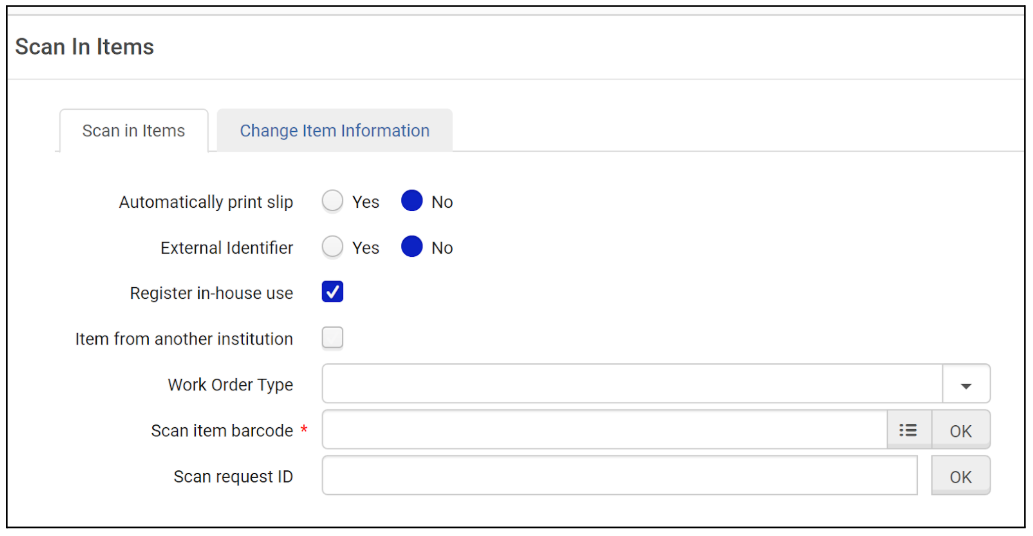
- No option to Place Directly on Hold Shelf
- Option to Place Directly on Hold Shelf
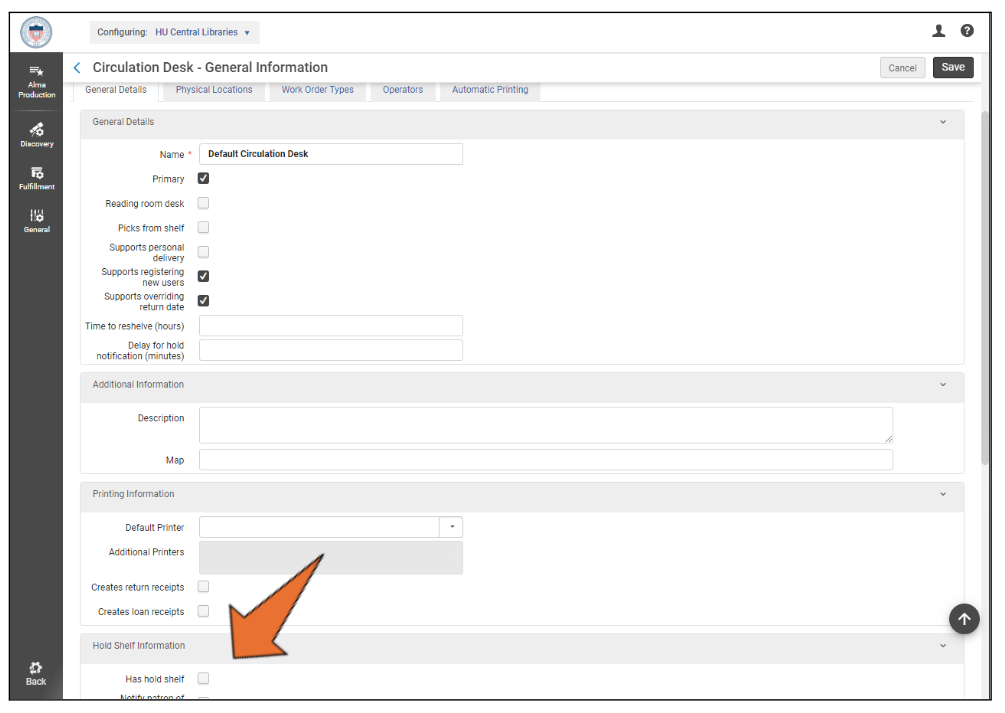
9: Configuration Path (Administrative Awareness Only) This step is informational only for most staff
- Configuration > Fulfillment > Library Management>
- Select library → Circulation Desk List
- Select Circulation Desk
- Under Hold Shelf Information, enable Has Hold Shelf
Best Practices and Critical Notes (Read Carefully)
- Always use Scan In Items before returning CLS items to prevent lingering requests
- Only use CLS green routing slips for outbound CLS items. The green routing slips signify that an item is no longer needed.
- If an item comes back to the home institution with a green routing slip, but it still has an active request attached to it, it should be assumed that the item is no longer needed regardless of the request date:
- Cancel the request
- Scan the item again
- Destination should list only one institution
- If both lending and borrowing institutions appear, a request is still attached
Notes and Frequently Asked Questions
Why can’t I just return the item normally?
- Because Return Items only works if the item was actually checked out.
Why is yesterday’s date used?
- Alma only recognizes expiration after the Hold Until date passes.
What if I forget to scan the item?
- The request may remain open, causing routing and accountability issues.
Why are CLS green slips required?
- They signal to courier staff that the item is no longer needed by the borrowing library.
What if the destination lists multiple libraries?
- A request is still active; cancel it and scan again.
No comments to display
No comments to display