Consortium Loan Services (CLS)/ Automated Fulfillment Network (AFN)
The Washington Research Library Consortium (WRLC) supports resource sharing among its nine member institutions. One essential component of this work is Consortium Loan Services (CLS), which allows libraries to request, lend, and borrow materials from one another.
All WRLC libraries use the Ex Libris Alma Library Management System to manage their collections and fulfillment workflows. Within Alma, all CLS activity is handled through the Alma Fulfillment Network (AFN). The AFN is the technical structure that routes requests, tracks items in transit, and manages the lending and borrowing process.
As you work through this chapter, keep in mind that the terms CLS and AFN refer to the same overall service. CLS describes the consortium-wide loan program, while AFN describes the system functionality that makes it possible. For clarity and consistency, this chapter will use these acronyms interchangeably.
- Fulfillment Units and the AFN
- Consortial Partners in CLS/AFN
- AFN Network Zone Configurations
- AFN Institution Zone Configurations
- Faculty Due Date Maintenance
- Linked Patron Accounts
- Standard Opening Hours
- Discharging CLS Hold Shelf Items
- Expired Hold Shelf Audit Workflow
- Weekly Request Status Exception Report
- Display Logic Rules for the AFN/CLS Request Form in Primo
- Resource Sharing Form (Delivery Fields) in Primo
- CLS Lost In Transit | Expired Hold Shelf Reconciliation Audit 2026
- Long Lost Consortium Loan Services (CLS) Audit
Fulfillment Units and the AFN
In a consortial (shared) environment using an Alma Network Zone (NZ), a Network Fulfillment Unit is used to manage circulation policies that apply across multiple institutions, such as consortial loan (CLS/AFN) transactions.
-
Function: It is possible for an Institution-only Fulfillment Unit to incorporate rules from a Network Fulfillment Unit (like the 'WRLC Fulfillment Network'). This allows for centralized management of shared policies.
-
Example: In your consortium, the 'WRLC Fulfillment Network' is the single NZ fulfillment unit containing all rules specific to CLS/AFN transactions.
For more information on the rules and TOUs used in the WRLC Fulfillment Network fulfillment unit, please see the Fulfillment Unit section of the AFN Network Zone Configurations page of the WRLC Alma Wiki.
How to Allow AFN Requests for an IZ Fulfillment Unit
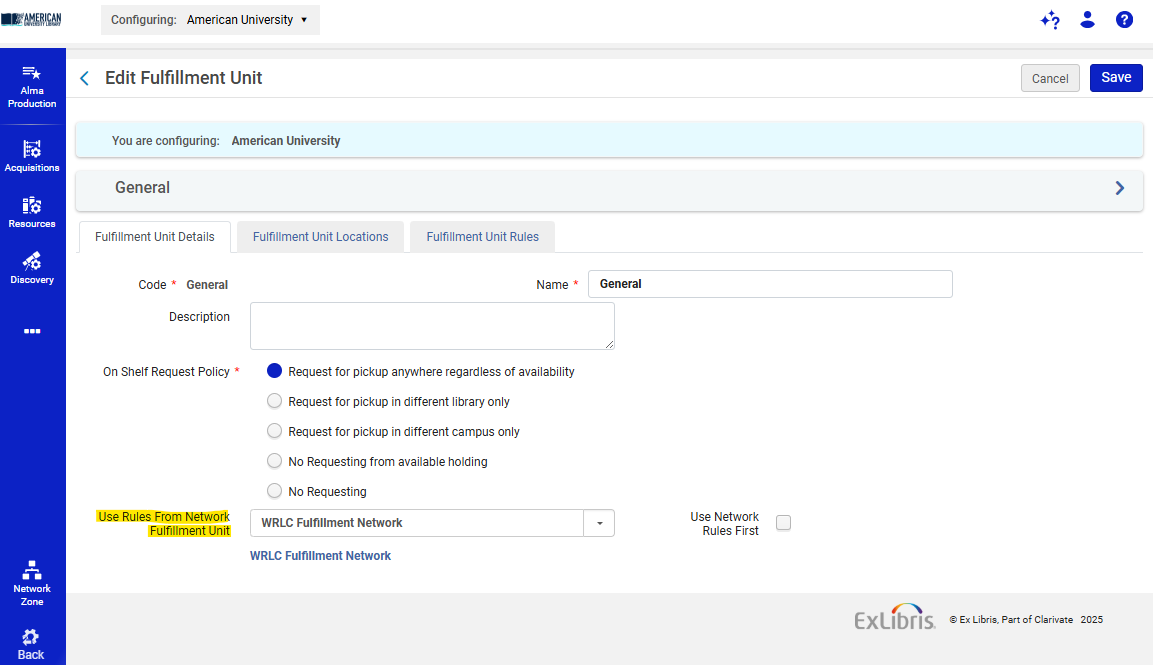
To configure the use of Network Zone rules in a specific Fulfillment Unit,
- Go to Configuration > Fulfillment > Physical Fulfillment > Fulfillment Units
- Edit the specific Fulfillment Unit you wish to make available for AFN requests
- On the Fulfillment Unit Details tab, choose the WRLC Fulfillment Network from the drop-down menu in the Fulfillment Unit configuration page, under the option Use Rules From Network Fulfillment Unit.
- Do not checkmark 'Use Network Rules First.'
Rules configured for your IZ Fulfillment Unit will be applied first, THEN rules configured in the 'WRLC Fulfillment Network' Fulfillment Unit will be applied
How to Prevent AFN Requests for an IZ Fulfillment Unit
To configure the prevention of AFN requests to a specific Fulfillment Unit,
- Go to Configuration > Fulfillment > Physical Fulfillment > Fulfillment Units
- Edit the specific Fulfillment Unit you wish to NOT make available for AFN requests
- On the Fulfillment Unit Details tab, make sure the Use Rules From Network Fulfillment Unit option is left blank.
- Go to the Fulfillment Unit Rules tab, then choose Request from the Type drop-down menu.
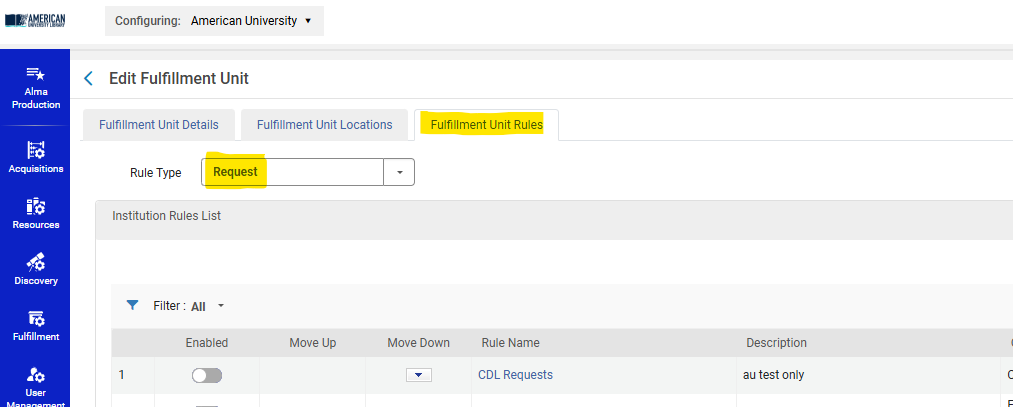
5. Add a Rule like the following:
Input Parameters :
-
-
- User Group = wrlc user
-
Output Parameters :
-
-
- TOU = No FN Requesting
-
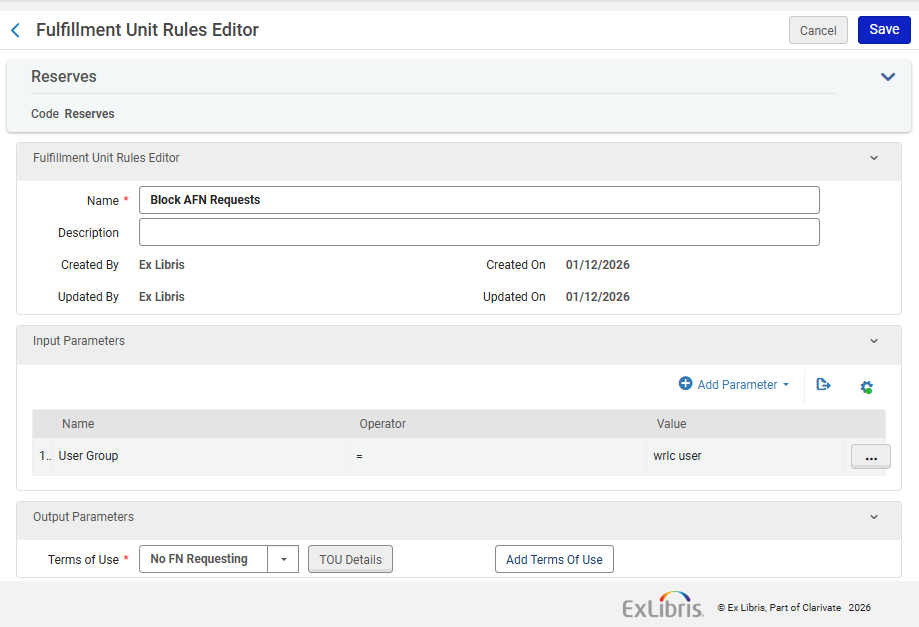
Note that the TOU 'No FN Requesting' is managed in the Network Zone.
Similarly, if you wish to create Fulfillment Rules that target WRLC patrons only, you can add rules to a Fulfillment unit with an Input Parameter of User Group = 'wrlc user'
For 'Borrowing Only' Institution Zones
If your entire Institution Zone is a Borrowing Only institution (you do not lend your items via CLS/AFN loans), you do not need additional configurations in your IZ. The Network-managed configurations found in the WRLC's Rota Templates and Partner Profiles already prevent other WRLC patrons from requesting your institution's items.
For a full list for all WRLC partners that only borrow in the AFN, see the Consortial Partners in CLS/AFN page.
Consortial Partners in CLS/AFN
Lending and Borrowing Partners
These partners are configured in the ROTA for the "Consortium Book Borrowing"
- American University - 01WRLC_AMU
- Catholic University of America - 01WRLC_CAA
- Gallaudet University - 01WRLC_GAL
- George Mason University - 01WRLC_GML
- Georgetown University - 01WRLC_GUNIV
- George Washington University - 01WRLC_GWA
- Howard University - 01WRLC_HOW
- Marymount University - 01WRLC_MAR
- University of the District of Columbia - 01 WRLC_DOC
- Washington Research Library Consortium (SCF) - 01WRLC_SCF
Borrowing Partners*
- American University, Washington College of Law - 01WRLC_AMULAW
- Catholic University of America, Columbus School of Law - 01WRLC_CUALAW
- Georgetown University Law Center - 01WRLC_GUNIVLAW
- George Washington University School of Medicine and Health (Himmelfarb Health Sciences Library) - 01WRLC_GWAHLTH
- George Washington University Law School (Jacob Burns Law Library) - 01WRLC_GWALAW
- University of the District of Columbia, David A. Clarke School of Law - 01WRLC_DOCLAW
- Trinity Washington University - 01WRLC_TRN
*Borrowing partners do not lend via CLS although they may lend via ILL requests and other methods.
AFN Network Zone Configurations
The following Automated Fulfillment Network (AFN) configurations are set in the WRLC Network Zone. Most of the settings are visible (and not editable) in the Institution Zones; the only one that is not visible in the Institution Zone is the Institutions Relations configuration.
Locate Profiles
Configuration > Fulfillment > Resource Sharing > Locate Profiles
This configuration pertains to
- Borrower + Lender Institutions
- Borrower Only Institutions (see blue note below)
For the WRLC AFN, a locate profile defines how the AFN searches a particular institution's catalog. Locate Profiles are associated with a specific resource sharing partner profile.
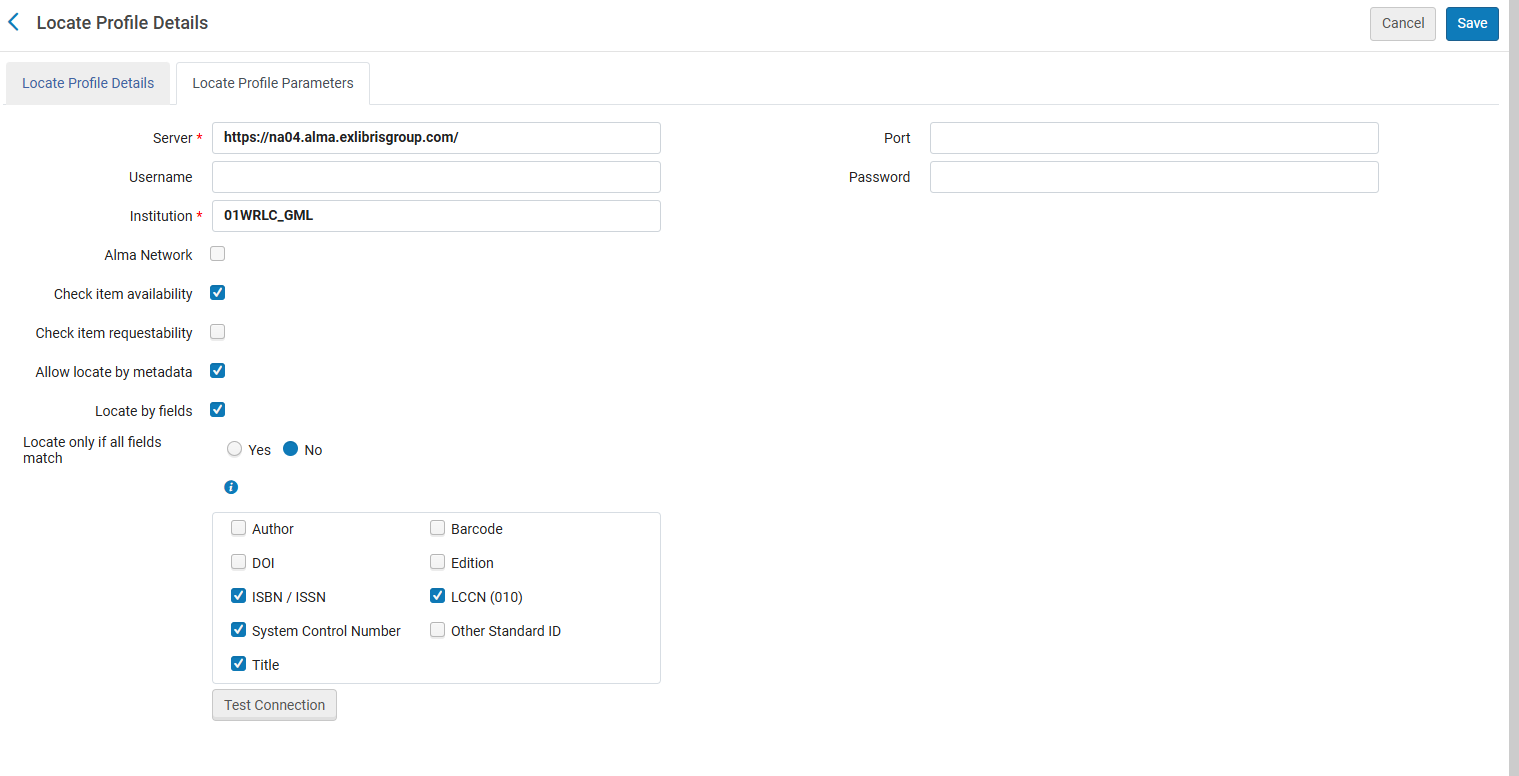
- Alma Network is NOT checked. This is to allow the search against each institution's local catalog, instead of only searching records linked to the NZ.
- Check item availability is checked. This sees whether an item is available in the institution. If it is not, the institution will not be added to the rota for the request
- Check item requestability is not checked. Not checking this option ensures that the Is Requestable for Physical Resource Sharing policy and the Is Requestable for Digital Resource Sharing policy of the TOUs is consulted instead of the Is Requestable policy of the TOUs. For more information, see the Automated Fulfillment Network Requests page on the Alma Knowledge Center.
- For Borrowing-Only institutions, the Check item requestability is checked in order to facilitate the self-ownership borrowing process. Please see the Information box below for more details.
- Allow locate by metadata locates an item based on the metadata listed below; a match is successful if any field listed below matches the bib record. This option allows borrowers that share an NZ to create requests for records not linked to the NZ. It also allows hold requests to be converted to AFN requests
- ISBN / ISSN
- System Control Number
- Title
- LCCN
Borrowing-Only Institutions also have Locate Profiles configured in the NZ. Even though they are not one of the potential lending partners, a Locate Profile is used to first locate a borrowing request in the borrower's catalog prior to sending the request to potential partners. This type of search determine whether a patron's resource request may be filled by local inventory, or whether the request must be directed to an external resource sharing partner as part of the locate process. This is specifically stated in the Locating Items for Resource Sharing page on the Alma Knowledgebase.
For more information, see the Alma Knowledgebase page Configuring Locate Profiles.
Workflow Profiles
Configuration > Fulfillment > Resource Sharing > Workflow Profiles
Workflows control the actions that can be performed on the borrowing and lending request task lists for the defined partner; Workflow Profiles are associated with a specific resource sharing partner profile.
There is one workflow each for borrowing and lending. Below are the borrowing and lending configurations for the WRLC AFN
CLS Borrowing RS
This configuration pertains to
- Borrower + Lender Institutions
- Borrower Only Institutions

CLS Lending RS
This configuration pertains to
- Borrower + Lender Institutions

For more information, see the Alma Knowledgebase page Configuring Workflow Profiles
Institutions Relations
Configuration > General > Network Groups > Institutions Relations
Please note that this configuration is NOT viewable in the Institution Zone.
This configuration pertains to
- Borrower + Lender Institutions
- Borrower Only Institutions
These relation configurations determine if items belonging to an institution can be checked out/in or delivered to other institutions.

- From: the institution whose fulfillment network behavior is configured
- To: the institution(s) who participate in the fulfillment process; in the case of the WRLC, the value All signifies all Institution Zones in the WRLC NZ
- Circulate For is checked; this specific institution can check out and check in items belonging to all of the other institutions
- Deliver To is checked; this specific institution can send its own items to all of the other institutions for pick up.
For more information, see the Alma Knowledgebase page Configuring Pick Up Anywhere/Return Anywhere
Sending Borrowing Request Rules
Configuration > Fulfillment > Resource Sharing > Sending Borrowing Request Rules
This configuration pertains to
- Borrower + Lender Institutions
- Borrower Only Institutions
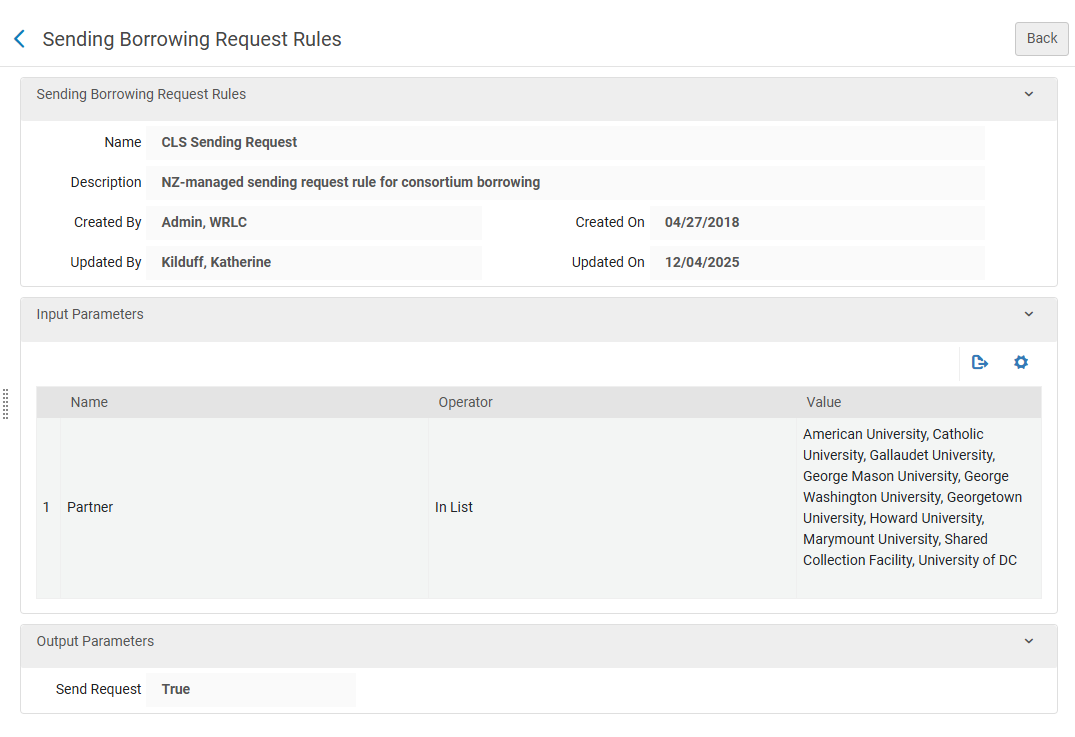
Sending Borrowing Request Rules dictate when a borrowing request is sent automatically to an active partner institution without staff intervention.
The WRLC Network Zone has two Rules that are enforced before the IZ-only rules. The first is the No Photocopy rule, and the second is the CLS Sending Request rule. The NZ rules are applied to requests in this order.
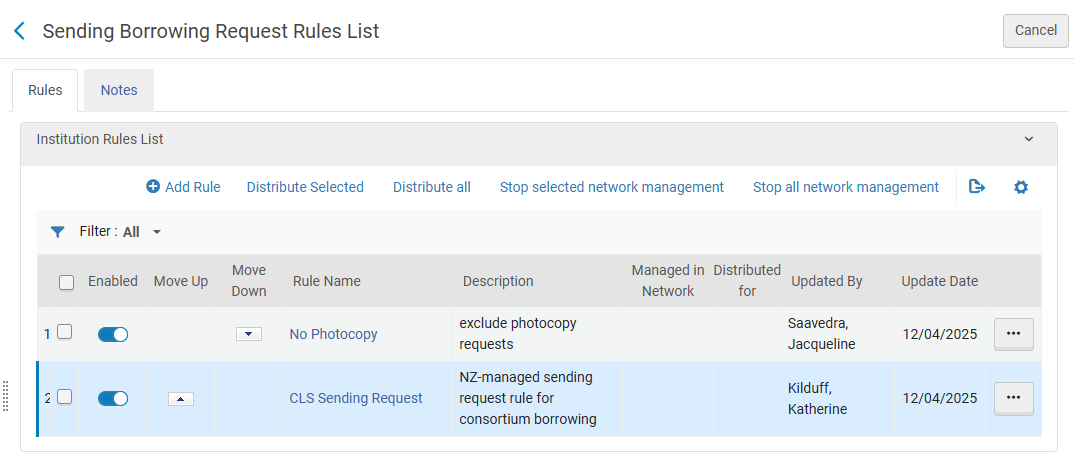
- No Photocopy
- Input Parameters
- Name = Requested Format
- Operator = '='
- Value = Physical non-returnable
- Output Parameters
- Send Request = False
- Input Parameters
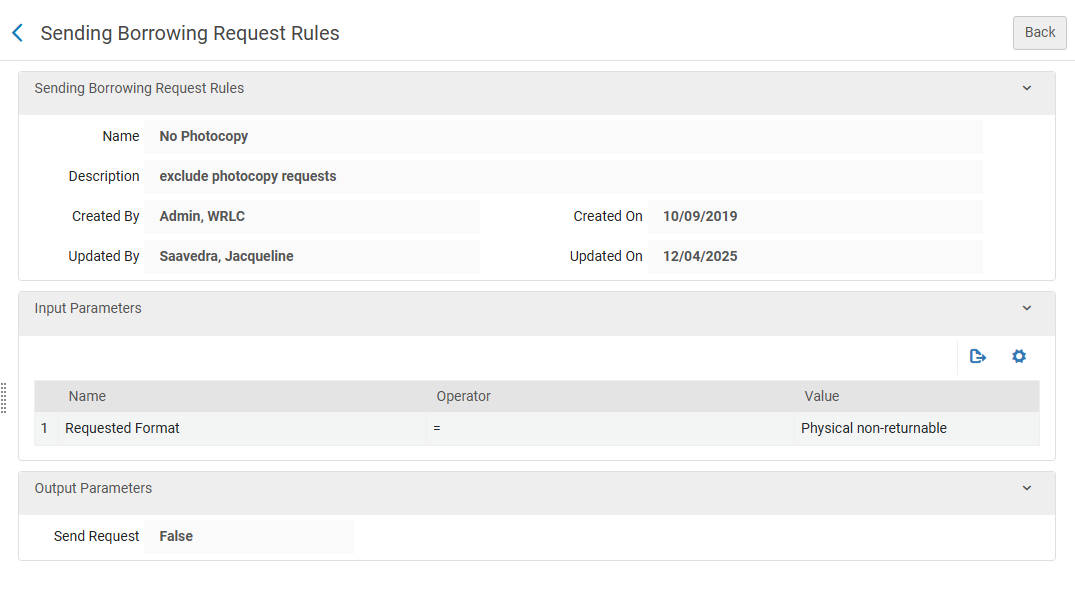
- CLS Sending Request
- Input Parameters
- Name = Partner
- Operator = In List
- Value = American University, Catholic University, Gallaudet University, George Mason University, George Washington University, Georgetown University, Howard University, Marymount University, Shared Collection Facility, University of DC
- Output Parameters
- Send Request = True
- Input Parameters
For more information, see the Alma Knowledgebase page Configuring Sending Borrowing Request Rules
Resource Sharing Partners
Fulfillment > Resource Sharing > Partners
This configuration pertains to
- Borrower + Lender Institutions
- Borrower Only Institutions
Partner profiles define the types of request and communication sent to a specific institution. The profile also defines the Locate Profile and the Workflow Profiles for an institution.
For a list of all partner profiles in the WRLC AFN, as well as their borrowing and lending preferences, see the Consortial Partners in CLS/AFN page.
Typical Partner Profile for a Borrowing AND Lending WRLC Institution

- Profile Type equals Fulfillment Network to signify the AFN
- Locate Profile specifies the Locate Profile (how Alma searches their catalog for a matching item) that should be used for this institution.
- Supports Borrowing / Lending is checkmarked for the WRLC Institutions that lend and borrow in the AFN
- Borrowing / Lending Workflow specifies the Workflow Profile (actions that can be performed on the borrowing and lending request task lists for the defined partner) that is used for borrowing and/or lending in the AFN
For a full list for all WRLC partners that both borrow and lend in the AFN, see the Consortial Partners in CLS/AFN page.
Typical Partner Profile for a Borrowing ONLY WRLC Institution
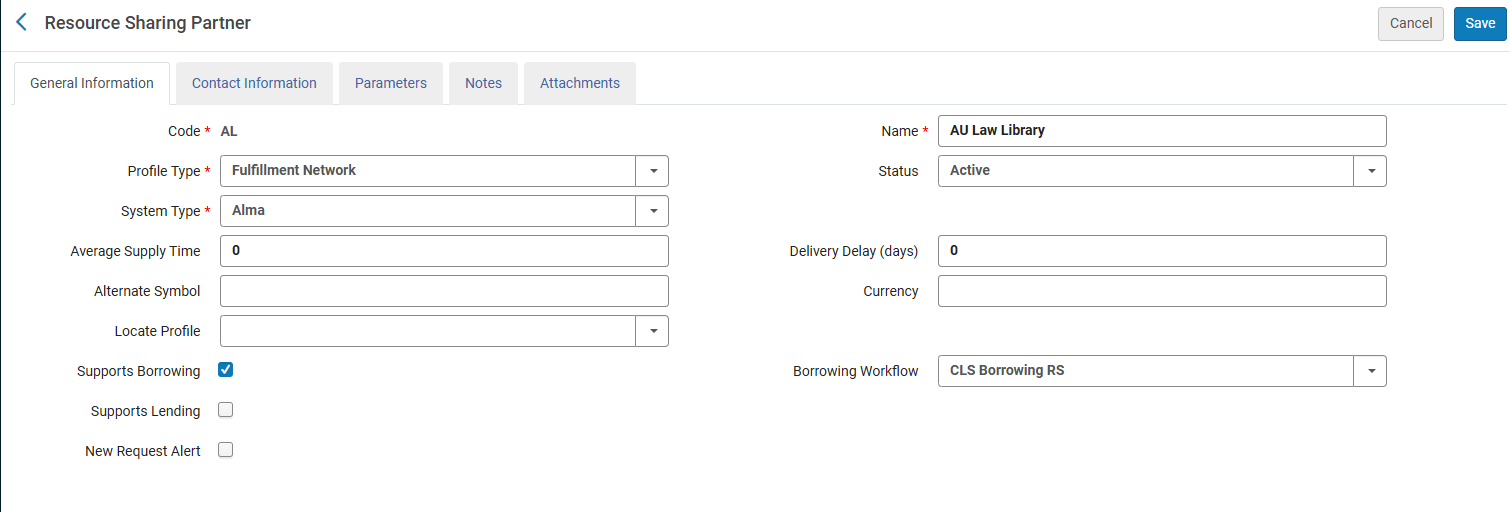
- Profile Type equals Fulfillment Network to signify the AFN
- Locate Profile is left BLANK (because the library does not lend items, there is no need for Alma to search their catalog via a Locate Profile).
- Supports Borrowing is checkmarked for the WRLC Institutions that ONLY borrow from other AFN partners (they do not lend their own materials to other partners)
- Borrowing Workflow specifies the Workflow Profile (actions that can be performed on the borrowing and lending request task lists for the defined partner) that is used for borrowing in the AFN
For a full list for all WRLC partners that only borrow in the AFN, see the Consortial Partners in CLS/AFN page.
Borrowing only partners do not lend via CLS although they may lend via ILL requests and other methods.
For more information, see the Alma Knowledgebase page Configuring a Resource Sharing Partner
Rota Templates
Fulfillment > Resource Sharing > Rota Templates
This configuration pertains to
- Borrower + Lender Institutions
- Borrower Only Institutions
A rota template specifies the list of partners that are queried to see if a particular borrowing request can be fulfilled. The rota template for the WRLC AFN (named CLS-Physical) only lists the institutions in the WRLC that lend items in the AFN (for a full list of lending institutions in the WRLC, see the Consortial Partners in CLS/AFN page); this rota is a non-ordered template, meaning requests are sent to partners in a random order.


For more information, see the Alma Knowledgebase page Configuring Rota Templates page.
Fulfillment Unit
Configuration > Fulfillment > Physical Fulfillment > Fulfillment Units
This configuration pertains to
- Borrower + Lender Institutions
The Fulfillment Unit named WRLC Fulfillment Network (code WRLC_FN) sets the rules by which items circulate in the fulfillment network. This NZ-managed Fulfilment unit is applied to the each Institution's Fulfillment Unit for items requestable and loanable via the WRLC AFN. For more information on how to configure the use of Network Zone rules in a specific Fulfillment Unit, please see the Network Fulfillment Units (Consortial Environments) section of the Fulfillment units and Fulfillment Rules page of the WRLC Alma Wiki.
WRLC-FN Fulfillment Unit Details
- On shelf Request Policy = Request for pickup anywhere regardless of availability
The above settings means all pickup locations that are allowed according to the Pickup Locations policy of the requesting TOU are available, regardless of whether the item is on the shelf.
WRLC-FN Fulfillment Unit Rules
Loan rule type
WRLC Faculty Lending
-
-
- IF the patron's profile has 1) a user group of wrlc user, and 2) a job category of WRLC Faculty, AND the item is a material type of Issue, Book, or Music Score, THEN the Terms of Use applied to the loan is WRLC Faculty Lending TOU
-

WRLC FN Lending
-
-
- IF the patron's profile has a user group of wrlc user AND the item has a material type of Issue, Book, or Music Score, THEN the Terms of Use applied to the loan is WRLC FN Lending TOU
-

WRLC Media Lending
-
-
- IF the patron's profile has a user group of wrlc user AND the item has a material type of Other, Audio cassette, Audiobook, Blu-Ray, Blu-Ray And DVD, CD-ROM, Compact Disc, DAT (Digital Audio Tape), DVD, DVD-ROM, Video Disk, Video Recording, Video Recording (Other), or Video Cassette, THEN the Terms of Use applied to the loan is WRLC Media Lending TOU
-

Request rule type
WRLC FN Requesting
-
-
- IF the patron's profile has a user group of wrlc user AND the item has a material type of Issue, Book, or Music Score, THEN the Terms of Use applied to the request is WRLC FN Requesting TOU
-

WRLC Media Requesting
-
-
- IF the patron's profile has a user group of wrlc user AND the item has a material type of Other, Audio cassette, Audiobook, Blu-Ray, Blu-Ray And DVD, CD-ROM, Compact Disc, DAT (Digital Audio Tape), DVD, DVD-ROM, Video Disk, Video Recording, Video Recording (Other), or Video Cassette, THEN the Terms of Use applied to the request is WRLC Media Requesting TOU
-

WRLC Limited Requesting
-
-
- IF the patron's profile has a user group of wrlc user AND the item has a material type of Book, Bound Issue, Issue, or Microfilm, THEN the Terms of Use applied to the request is WRLC Limited Requesting TOU
-

For more information, see the Alma Knowledgebase page Configuring Fulfillment Units
Terms of Use
Configuration > Fulfillment > Physical Fulfillment > Terms of Use and Policies
Terms of Use refers to a list of policies that define the institutional services that will be provided or terminated. Terms of Use are assigned to specific Fulfillment Unit Rules.
WRLC-FN Terms of Use
Below are the Terms of Use owned by the Network Zone and affiliated with the WRLC-FN Fulfillment Unit
Loan TOUs
WRLC Faculty Lending
Terms for lending to Faculty in the CLS fulfillment network. This TOU is applied to the WRLC Faculty Lending Loan rule.
| Policy Type | Policy Name | Policy Description |
| Is Loanable | Loanable | Loanable |
| Is Recallable | Recall Allowed | Recall is possible |
| Due Date | CLS - Faculty | End-of-term loan for faculty |
| Requested Item Due Date | 14 day limit if request exists | Limit new loans to 14 days if another request on the same item |
| Recall Period | 14 Days Recall Period | 14 Days Recall Period |
| Renew Fee | No Renewal Fee | Default No Renewal Fee |
| Lost Item Fine | No Lost Item Fine | Default Lost Item fine - per RSAC 10/5/2022 |
| Lost Item Replacement Fee | CLS $110 replacement fee | Default replacement fee for WRLC-FN Lending TOU 8/20/2018 |
| Lost Item Replacement Fee Refund Ratio | 100 Percent Lost Item Refund | Default lost item replacement refund |
| Maximum Fine | CLS $25 maximum fine | Max fine for WRLC FN Lending TOU 8/20/2018 |
| Overdue Fine | CLS no overdue fine | Daily overdue fine removed 4/15/2019 |
| Recalled Overdue Fine | CLS $5/day recalled item fine | Overdue for recalled items for WRLC FN Lending TOU 8/20/2018 |
| Grace Period | CLS 39 day grace period. | Extension of grace period before Lost Item Fine |
| Is Renewable | Renewable | Is item renewable |
| Maximum Renewal Period | CLS 16 mo max renewal | Faculty maximum renewal period for WRLC FN Lending TOU, approved by RSC 4/17/2026 |
| Closed Library Due Date Management | Move Due Time to Next Open Time | When the Library will close before the Due Time of a short loan, lengthen the due time to the Library's next opening time |
| Cancelled Recall Due Date | Restore to original due date | This option will take the due date of the loan before the recall was done on the loan |
| Overdue Notification Fine Type 1 | No Overdue Fine | Default value - No Overdue Fine |
| Overdue Notification Fine Type 2 | No Overdue Fine | Default value - No Overdue Fine |
| Overdue Notification Fine Type 3 | No Overdue Fine | Default value - No Overdue Fine |
| Overdue Notification Fine Type 4 | No Overdue Fine | Default value - No Overdue Fine |
| Overdue Notification Fine Type 5 | No Overdue Fine | Default value - No Overdue Fine |
| Block When Overdue | No block when overdue | Do not create a block when overdue |
| Maximum Period for Overdue Block | No Maximum Block Period | No Maximum Block Period for Block When Overdue |
| Reloan Limit | No Reloan Limit | No Reloan Limit |
| Time frame when loan renewal is allowed | No limit | Do not limit the time in which renewal is allowed |
WRLC FN Lending
Terms for lending in the CLS fulfillment network. This TOU is applied to the WRLC FN Lending Loan rule.
| Policy Type | Policy Name | Policy Description |
| Is Loanable | Loanable | Loanable |
| Is Recallable | Recall Allowed | Recall is possible |
| Due Date | 6 wk general loan | 6 week general loan |
| Requested Item Due Date | 14 day limit if request exists | Limit new loans to 14 days if another request on the same item |
| Recall Period | 14 Days Recall Period | 14 Days Recall Period |
| Renew Fee | No Renewal Fee | Default No Renewal Fee |
| Lost Item Fine | No Lost Item Fine | Default Lost Item fine - per RSAC 10/5/2022 |
| Lost Item Replacement Fee | CLS $110 replacement fee | Default replacement fee for WRLC-FN Lending TOU 8/20/2018 |
| Lost Item Replacement Fee Refund Ratio | 100 Percent Lost Item Refund | Default lost item replacement refund |
| Maximum Fine | CLS $25 maximum fine | Max fine for WRLC FN Lending TOU 8/20/2018 |
| Overdue Fine | CLS no overdue fine | Daily overdue fine removed 4/15/2019 |
| Recalled Overdue Fine | CLS $5/day recalled item fine | Overdue for recalled items for WRLC FN Lending TOU 8/20/2018 |
| Grace Period | CLS 39 day grace period. | Extension of grace period before Lost Item Fine, approved by LDC 05/2025 |
| Is Renewable | Renewable | Is item renewable |
| Maximum Renewal Period | CLS 24 wk max renewal | Maximum student renewal period for WRLC FN Lending TOU, approved by RSC 4/17/2026 |
| Closed Library Due Date Management | Move Due Time to Next Open Time | When the Library will close before the Due Time of a short loan, lengthen the due time to the Library's next opening time |
| Cancelled Recall Due Date | Restore to original due date | This option will take the due date of the loan before the recall was done on the loan |
| Overdue Notification Fine Type 1 | No Overdue Fine | Default value - No Overdue Fine |
| Overdue Notification Fine Type 2 | No Overdue Fine | Default value - No Overdue Fine |
| Overdue Notification Fine Type 3 | No Overdue Fine | Default value - No Overdue Fine |
| Overdue Notification Fine Type 4 | No Overdue Fine | Default value - No Overdue Fine |
| Overdue Notification Fine Type 5 | No Overdue Fine | Default value - No Overdue Fine |
| Block When Overdue | No block when overdue | Do not create a block when overdue |
| Maximum Period for Overdue Block | No Maximum Block Period | No Maximum Block Period for Block When Overdue |
| Reloan Limit | No Reloan Limit | No Reloan Limit |
| Time frame when loan renewal is allowed | No limit | Do not limit the time in which renewal is allowed |
WRLC Media Lending
Terms for media loans in the CLS fulfillment network. This TOU is applied to the WRLC Media Lending Loan rule.
| Policy Type | Policy Name | Policy Description |
| Is Loanable | Loanable | Loanable |
| Is Recallable | No Recall | Default Recall is not possible |
| Due Date | 1 week media loan | 7 day loan period for WRLC media lending TOU |
| Requested Item Due Date | No Requested Due Date | Default value - No Requested Item Due Date |
| Recall Period | No Recall Due Date | Default Recall Due date - none |
| Renew Fee | No Renewal Fee | Default No Renewal Fee |
| Lost Item Fine | No Lost Item Fine | Default Lost Item fine - per RSAC 10/5/2022 |
| Lost Item Replacement Fee | CLS $110 replacement fee | Default replacement fee for WRLC-FN Lending TOU 8/20/2018 |
| Lost Item Replacement Fee Refund Ratio | 100 Percent Lost Item Refund | Default lost item replacement refund |
| Maximum Fine | CLS $25 maximum fine | Max fine for WRLC FN Lending TOU 8/20/2018 |
| Overdue Fine | CLS $5/day overdue media fine | Overdue fine for WRLC FN Media 8/20/2018 |
| Recalled Overdue Fine | No Recall Overdue Fine | Default Value for recalled overdue fine |
| Grace Period | No Grace | Default value for Grace |
| Is Renewable | Not Renewable | Item not renewable |
| Maximum Renewal Period | No Maximum Renew Period | Default Maximum Renewal Period |
| Closed Library Due Date Management | Move Due Time to Next Open Time | When the Library will close before the Due Time of a short loan, lengthen the due time to the Library's next opening time |
| Cancelled Recall Due Date | Keep due date | No change to the due date |
| Overdue Notification Fine Type 1 | No Overdue Fine | Default value - No Overdue Fine |
| Overdue Notification Fine Type 2 | No Overdue Fine | Default value - No Overdue Fine |
| Overdue Notification Fine Type 3 | No Overdue Fine | Default value - No Overdue Fine |
| Overdue Notification Fine Type 4 | No Overdue Fine | Default value - No Overdue Fine |
| Overdue Notification Fine Type 5 | No Overdue Fine | Default value - No Overdue Fine |
| Block When Overdue | No block when overdue | Do not create a block when overdue |
| Maximum Period for Overdue Block | No Maximum Block Period | No Maximum Block Period for Block When Overdue |
| Reloan Limit | No Reloan Limit | No Reloan Limit |
| Time frame when loan renewal is allowed | No limit | Do not limit the time in which renewal is allowed |
In Library Use Only - Periodicals (Loan TOU)
Terms that can be used for loan fulfillment rules associated with locations that are 'in library use only' for CLS/AFN patrons.
| Policy Type | Policy Name | Policy Description |
| Is Loanable | Loanable | Loanable |
| Is Recallable | No Recall Allowed | Default Recall is not possible |
| Due Date | 2 week loan | 14 day loan period for WRLC "In Library Use Only" Lending TOU |
| Requested Item Due Date | No Requested Due Date | Default value - No Requested Item Due Date |
| Recall Period | No Recall Due Date | Default Recall Due date - none |
| Renew Fee | No Renewal Fee | Default No Renewal Fee |
| Lost Item Fine | CLS $10.00 Lost Item Fine | Lost item fine put in place after removal of Overdue Fines (4/15/2019) |
| Lost Item Replacement Fee | CLS $110 replacement fee | Default replacement fee for WRLC-FN Lending TOU 8/20/2018 |
| Lost Item Replacement Fee Refund Ratio | 100 Percent Lost Item Refund | Default lost item replacement refund |
| Maximum Fine | CLS $25 maximum fine | Max fine for WRLC FN Lending TOU 8/20/2018 |
| Overdue Fine | CLS $5/day overdue media fine | Overdue fine for WRLC FN Media 8/20/2018 |
| Recalled Overdue Fine | No Recall Overdue Fine | Default Value for recalled overdue fine |
| Grace Period | No Grace | Default value for Grace |
| Is Renewable | Renewable | Is item renewable |
| Maximum Renewal Period | No Maximum Renew Period | Default Maximum Renewal Period |
| Closed Library Due Date Management | Move Due Time to Next Open Time | When the Library will close before the Due Time of a short loan, lengthen the due time to the Library's next opening time |
| Cancelled Recall Due Date | Keep due date | No change to the due date |
| Overdue Notification Fine Type 1 | No Overdue Fine | Default value - No Overdue Fine |
| Overdue Notification Fine Type 2 | No Overdue Fine | Default value - No Overdue Fine |
| Overdue Notification Fine Type 3 | No Overdue Fine | Default value - No Overdue Fine |
| Overdue Notification Fine Type 4 | No Overdue Fine | Default value - No Overdue Fine |
| Overdue Notification Fine Type 5 | No Overdue Fine | Default value - No Overdue Fine |
| Block When Overdue | No block when overdue | Do not create a block when overdue |
| Maximum Period for Overdue Block | No Maximum Block Period | No Maximum Block Period for Block When Overdue |
| Reloan Limit | No Reloan Limit | No Reloan Limit |
| Time frame when loan renewal is allowed | No limit | Do not limit the time in which renewal is allowed |
Request TOUs
WRLC FN Requesting
Terms for requests in the CLS fulfillment network. This TOU is applied to the WRLC FN Requesting Request rule.
| Policy Type | Policy Name | Policy Description |
| Is Requestable | Requestable | Requestable |
| Pickup Locations |
Pickup At Any Institution* Please see A note about Rapido institutions for more details |
Pickup At Any Institution |
| Hold Shelf Period | 14 day Hold Shelf (Covid default) | Longer hold shelf time due to library restrictions. |
| Is Digitizable | Is Digitizable | Default value for Digitizable |
| Is Requestable for Physical Resource Sharing | Requestable for Physical Resource Sharing | Requestable for Physical Resource Sharing |
| Is Requestable for Digital Resource Sharing | Requestable for Digital Resource Sharing | Requestable for Digital Resource Sharing |
| Request Priority | Medium | Medium |
| On Shelf Request Policy | Use fulfillment unit definition | Use fulfillment unit definition |
| Personal Delivery | Personal Delivery - None | Do not deliver items at all |
| Personal Delivery Fee | Personal Delivery Fee - No Fee | Personal Delivery is not charged with a fee |
| Automatically convert to resource sharing | Do not convert to resource sharing | Do not convert to resource sharing |
| Digitization Fee per Digitization | No Fee | Digitization request is not charged with a fee |
| Digitization Fee per page | No Fee | Digitization request is not charged with a fee per page |
WRLC Media Requesting
Terms for media requests (requestable but not digitizable) in the CLS fulfillment network. This TOU is applied to the WRLC Media Requesting Request rule.
| Policy Type | Policy Name | Policy Description |
| Is Requestable | Requestable | Requestable |
| Pickup Locations |
Pickup At Any Institution* Please see A note about Rapido institutions for more details |
Pickup At Any Institution |
| Hold Shelf Period | 7 day Hold Shelf | Default value for HoldShelfPeriod |
| Is Digitizable | Not Digitizable | Not Digitizable |
| Is Requestable for Physical Resource Sharing | Not requestable for Physical Resource Sharing | Not requestable for Physical Resource Sharing |
| Is Requestable for Digital Resource Sharing | Not requestable for Digital Resource Sharing | Not requestable for Digital Resource Sharing |
| Request Priority | Medium | Medium |
| On Shelf Request Policy | Use fulfillment unit definition | Use fulfillment unit definition |
| Personal Delivery | Personal Delivery - None | Do not deliver items at all |
| Personal Delivery Fee | Personal Delivery Fee - No Fee | Personal Delivery is not charged with a fee |
| Automatically convert to resource sharing | Do not convert to resource sharing | Do not convert to resource sharing |
| Digitization Fee per Digitization | No Fee | Digitization request is not charged with a fee |
| Digitization Fee per page | No Fee | Digitization request is not charged with a fee per page |
WRLC Limited Requesting
Terms for limited requests (digitizable but not requestable) in the CLS fulfillment network. This TOU is applied to the WRLC Limited Requesting Request rule.
| Policy Type | Policy Name | Policy Description |
| Is Requestable | Not Requestable | Default value is not requestable |
| Pickup Locations |
Pickup At Any Institution* Please see A note about Rapido institutions for more details |
Pickup At Any Institution |
| Hold Shelf Period | 10 day Hold Shelf | Default value for HoldShelfPeriod (per RSAC) |
| Is Digitizable | Is Digitizable | Default value for Digitizable |
| Is Requestable for Physical Resource Sharing | Not requestable for Physical Resource Sharing | Not requestable for Physical Resource Sharing |
| Is Requestable for Digital Resource Sharing | Requestable for Digital Resource Sharing | Requestable for Digital Resource Sharing |
| Request Priority | Medium | Medium |
| On Shelf Request Policy | Use fulfillment unit definition | Use fulfillment unit definition |
| Personal Delivery | Personal Delivery - None | Do not deliver items at all |
| Personal Delivery Fee | Personal Delivery Fee - No Fee | Personal Delivery is not charged with a fee |
| Automatically convert to resource sharing | Do not convert to resource sharing | Do not convert to resource sharing |
| Digitization Fee per Digitization | No Fee | Digitization request is not charged with a fee |
| Digitization Fee per page | No Fee | Digitization request is not charged with a fee per page |
No FN Requesting
Terms that can be used for fulfillment rules associated with locations that are not requestable via CLS/AFN.
| Policy Type | Policy Name | Policy Description |
| Is Requestable | Not Requestable | Default value is not requestable |
| Pickup Locations |
Anywhere |
Default value for Pickup - Anywhere |
| Hold Shelf Period | 10 day Hold Shelf | Default value for HoldShelfPeriod (per RSAC) |
| Is Digitizable | Not Digitizable | Not Digitizable |
| Is Requestable for Physical Resource Sharing | Not requestable for Physical Resource Sharing | Not requestable for Physical Resource Sharing |
| Is Requestable for Digital Resource Sharing | Requestable for Digital Resource Sharing | Requestable for Digital Resource Sharing |
| Request Priority | Medium | Medium |
| On Shelf Request Policy | Use fulfillment unit definition | Use fulfillment unit definition |
| Personal Delivery | Personal Delivery - None | Do not deliver items at all |
| Personal Delivery Fee | Personal Delivery Fee - No Fee | Personal Delivery is not charged with a fee |
| Automatically convert to resource sharing | Do not convert to resource sharing | Do not convert to resource sharing |
| Digitization Fee per Digitization | No Fee | Digitization request is not charged with a fee |
| Digitization Fee per page | No Fee | Digitization request is not charged with a fee per page |
In Library Use Only - Periodicals (Request TOU)
Terms that can be used for request fulfillment rules associated with locations that are 'in library use only' for CLS/AFN patrons.
| Policy Type | Policy Name | Policy Description |
| Is Requestable | Requestable | Requestable |
| Pickup Locations |
In own Institution |
|
| Hold Shelf Period | 14 day Hold Shelf | Covid default (Longer than hold shelf due to library restrictions) |
| Is Digitizable | Is Digitizable | Default value for Digitizable |
| Is Requestable for Physical Resource Sharing | Requestable for Physical Resource Sharing | Requestable for Physical Resource Sharing |
| Is Requestable for Digital Resource Sharing | Requestable for Digital Resource Sharing | Requestable for Digital Resource Sharing |
| Request Priority | Medium | Medium |
| On Shelf Request Policy | Use fulfillment unit definition | Use fulfillment unit definition |
| Personal Delivery | Personal Delivery - None | Do not deliver items at all |
| Personal Delivery Fee | Personal Delivery Fee - No Fee | Personal Delivery is not charged with a fee |
| Automatically convert to resource sharing | Do not convert to resource sharing | Do not convert to resource sharing |
| Digitization Fee per Digitization | No Fee | Digitization request is not charged with a fee |
| Digitization Fee per page | No Fee | Digitization request is not charged with a fee per page |
A note about Rapido Institutions
For Rapido institutions, the Request TOU setting (specifically the "Pickup at Institution" value) controls the pickup options that appear in both Alma AND Primo. When you set the TOU to "Pickup at Institution" Rapido will only show the patron's own institution as a valid pickup option, and other institutions in your network won't appear on the list.
For non-Rapido institutions, however, Primo does NOT use the TOU settings when displaying pickup locations in the Primo request form; it uses the Resource Sharing Form configuration (described in the Resource Sharing Form page of the WRLC Alma Wiki)) instead. Unlike Rapido institutions, TOU settings for non-Rapido institutions pertains to staff-side requests in Alma, not to patron-side requests in Primo. In this case, the list of AFN partner institutions will still appear in Primo regardless of the request TOUs unless you explicitly restrict them using the Resource Sharing Request Form configuration.
Please see Salesforce case #08203423 for more details.
AFN Institution Zone Configurations
The following Automated Fulfillment Network (AFN) configurations are set in each WRLC Institution Zone. Settings will look slightly different depending on whether the Institution Zone is both a lender and borrower in the WRLC AFN, or if they are only a borrower. The below configurations are clearly marked as to whether they apply to all CLS libraries, r to only the borrower + lender libraries (and not to borrower-only librariess).
For a list of all partner profiles in the WRLC AFN, as well as their borrowing and lending preferences, see the Consortial Partners in CLS/AFN page.
For information on how to edit the CLS Request link in Primo, see the Display Logic Rules for the AFN/CLS Request Form in Primo page.
Resource Sharing Library
Configuration > Configuring drop-down menu = [choose your institution's Main Library] > Fulfillment > Library Management > Library Details
This configuration pertains to
- Borrower + Lender Institutions
- Borrower Only Institutions
Your resource sharing library is the library where your temporary borrowing and lending locations are housed. For the WRLC AFN, your institution's Main Library is the designated Resource Sharing Library.
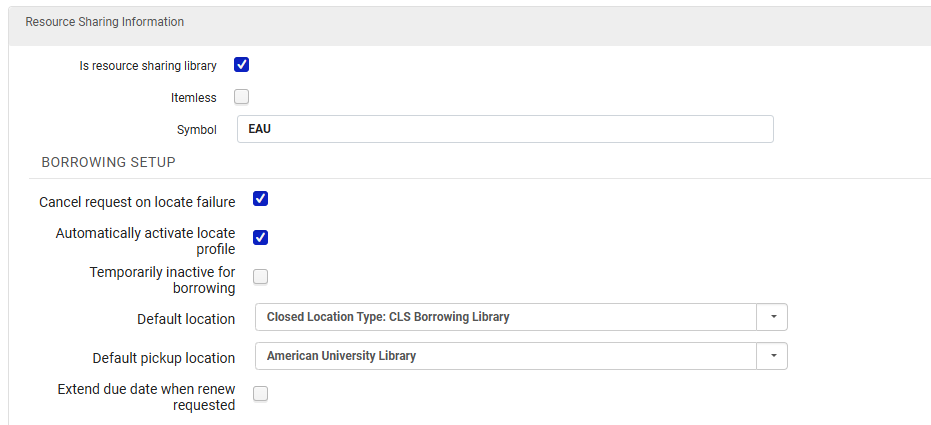
Resource Sharing Information section
- Is Resource Sharing Library = Yes
- Itemless = No
- Symbol = [ISO symbol]
Borrowing Setup section
- Cancel request on locate failure = Yes
- Automatically activate locate profile = Yes
- Temporarily inactive for borrowing = No
- This can be switched to Yes for a specific period of time, for example if the Library is closed
- Default location = CLS Borrowing Library
- Default pickup location = [Institution's Library]
- Extend due date when renew requested = No
Lending Setup section
Please note that the Lending Setup portion of the Resource Sharing section is NOT used by the WRLC AFN. This is because our AFN handles all lending requests as regular hold requests within the owning Institution's IZ; they are NOT considered true lending requests by Alma. For more information, see the Alma Knowledgebase page Automated Fulfillment Network Requests (AFN)

Similarly, the AFN follows the settings in each Institution's Locate Profile to find a matching item, NOT the settings in the Lending Setup section of the Library Details page. This is because our AFN handles all lending requests as regular hold requests within the owning Institution's IZ; they are NOT considered true lending requests by Alma.

For more information, see the Alma Knowledgebase page Configuring Parameters of a Resource Sharing Library
Temporary Resource Sharing Locations
Configuration > Configuring drop-down menu = [choose your institution's Main Library] > Fulfillment > Locations > Physical Locations
This configuration pertains to
- Borrower + Lender Institutions
- Borrower Only Institutions
- CLSBORR (CLS Borrowing Library location)
- Item records for AFN items borrowed from other libraries will be given the temporary borrowing location CLSBORR.
- IZs that only borrow in the WRLC AFN will only have the CLSBORR location configured in their IZ. For a list of all partner profiles in the WRLC AFN, as well as their borrowing and lending preferences, see the Consortial Partners in CLS/AFN page.
- CLSLEND (CLS Lending Library location)
- Although there is a location named CLSLEND, it is NOT used in the AFN workflow. Items lent out via AFN will have a status of Loan, but will not be given a temporary location. Meanwhile, items lent out in either Peer 2 Peer or Rapido requests are given the CLSLEND temporary location.

For more information, see the Alma Knowledgebase page Configuring Physical Locations
Temp Item Creation Rule
Configuration > Configuring drop-down menu = [choose your institution's Main Library] > Fulfillment >Library Management > Temporary Item Creation Rules
-
This configuration pertains to
- Borrower + Lender Institutions
These are rules that dictate what location and item policy are given to temporary item records created by AFN requests.
- Rule Name = Temporary item rule
- Location = CLSBORR
- Item Policy = 4 week loan

Please note that the length of loans are dictated by TOUs and fulfillment units, NOT the item policy assigned to CLS items
For more information, see the Alma Knowledgebase page Configuring Temporary Item Creation Rules
Fulfillment Units
Configuration > Fulfillment > Physical Fulfillment > Fulfillment Units > Edit Fulfillment Unit > Fulfillment Unit Details tab
This configuration pertains to
- Borrower + Lender Institutions
- Borrower Only Institutions
Fulfillment Units are one or more physical locations in an institution that follow the same fulfillment policies. Similarly, the Network Zone has a fulfillment unit for WRLC's AFN, that dictates the rules by which items circulate in the fulfillment network.
For information on how to apply the NZ Fulfillment rules for AFN requests to IZ-only Fulfilment Units, please see the Network Fulfillment Units (Consortial Environments) section of the Fulfillment units and Fulfillment Rules page of the WRLC Alma Wiki.
For more information, see the Alma Knowledgebase page Configuring Fulfillment Units
Request Pickup Configuration
Configuration > Fulfillment > Physical Fulfillment > Request Pickup Configuration
This configuration pertains to
- Borrower + Lender Institutions
The following 2-3 request pickup rules are configured for each Institution Zone that lends their library's items in the CLS/AFN. These rules control how and when both AFN and SCF requests expire.
The first request rule should always be WRLC SCF Requests, followed by WRLC AFN/CLS Requests. The third request rule, General Request Pickup Rule, is configured if there are no other request pickup rules used by the Institution Zone.
When the item's expiration time arrives, the Requests - Handle Expiration Step job cancels the requests. For more information, please see the Fulfillment Jobs Configuration section of the AFN Institution Zone Configurations page on the WRLC Alma Wiki.

WRLC SCF Requests pickup rule
When a request is made for an item in the Shared Collections Facility, two copies of that request are created in WRLC's network; the original request in the owning Institution's IZ, and a second copy of the request in the SCF IZ. This rule ensures that both copies have the same expiration date.
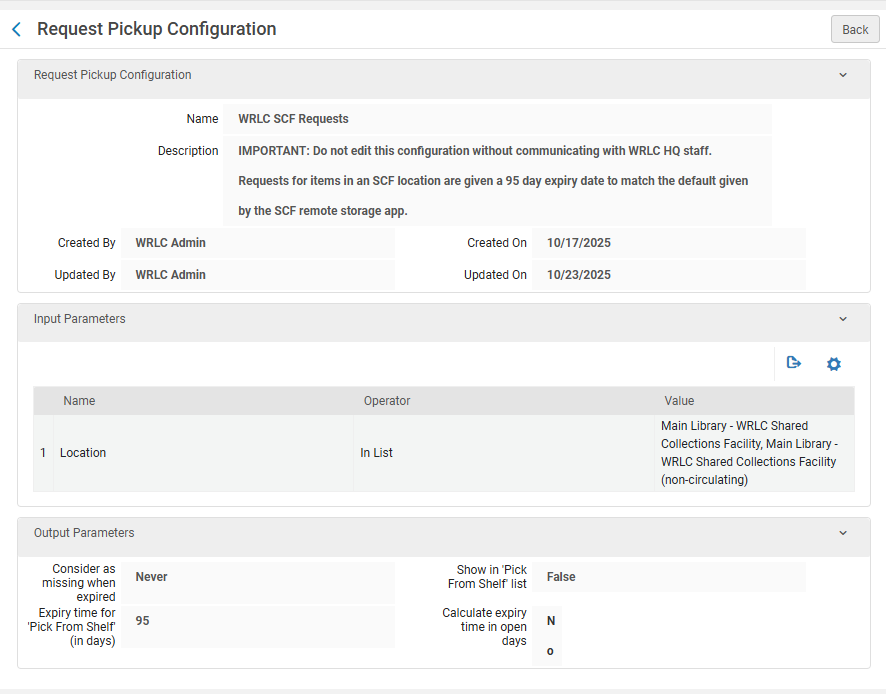
- Input Parameters
- Name - Location
- Operator - In List
- Value - ALL Remote Storage locations configured in the IZ
- Output Parameters
- Consider as missing when expired - Never
- Expiry time for 'Pick From Shelf' (in days) - 95*
- Show in 'Pick From Shelf' list - False
- Calculate expiry time in open days - No
*This number is to match the expiry time automatically given by the SCF Remote Storage app when requests are copied from the owning Institution Zone to the Shared Collections Facility Institution Zone. For more information about the Remote Storage Applications, please see the Remote Storage App chapter in the WRLC Alma Wiki.
WRLC AFN/CLS Requests pickup rule
This rule ensures that each CLS/AFN request is given 5 days to be filled before the request is marked as expired by Alma.

- Input Parameters
- Name - User Group
- Operator - '='
- Value - wrlc user
- Output Parameters
- Consider as missing when expired - Never
- Expiry time for 'Pick From Shelf' (in days) - 5
- Show in 'Pick From Shelf' list - True
- Calculate expiry time in open days - Yes
General Request Pickup Rule
This third request rule is only configured IF there are no other request pickup rules active in the Institution Zone. This rule is primarily used to prevent Alma's out-of-the-box configurations (7 day expiry, mark as missing when expired) being applied to all requests.
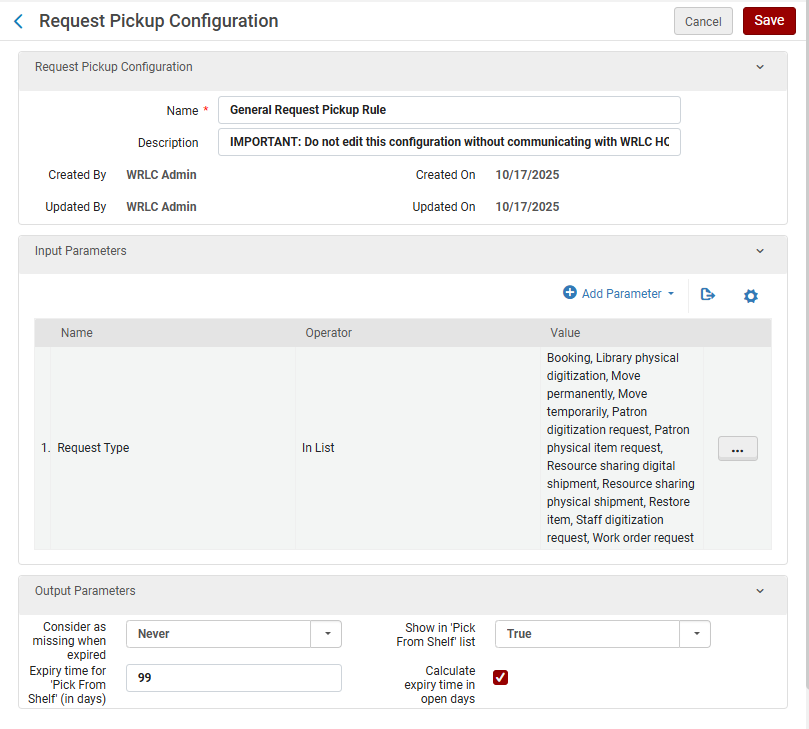
- Input Parameters
- Name - Request Type
- Operator - In List
- Value - Boking, Library physical digitization, Move permanently, Move temporarily, Patron digitization request, Patron physical item request, Resource sharing digital shipment, Resource sharing physical shipment, Restore item, Staff digitization request, Work order request
- Output Parameters
- Consider as missing when expired - Never
- Expiry time for 'Pick From Shelf' (in days) - 99
- Show in 'Pick From Shelf' list - True
- Calculate expiry time in open days - Yes
Rota Assignment Rules
Configuration > Fulfillment > Resource Sharing > Rota Assignment Rules
This configuration pertains to
- Borrower + Lender Institutions
- Borrower Only Institutions
Rota Assignment Rules assign Rota Templates to specific requests, based on specified criteria.
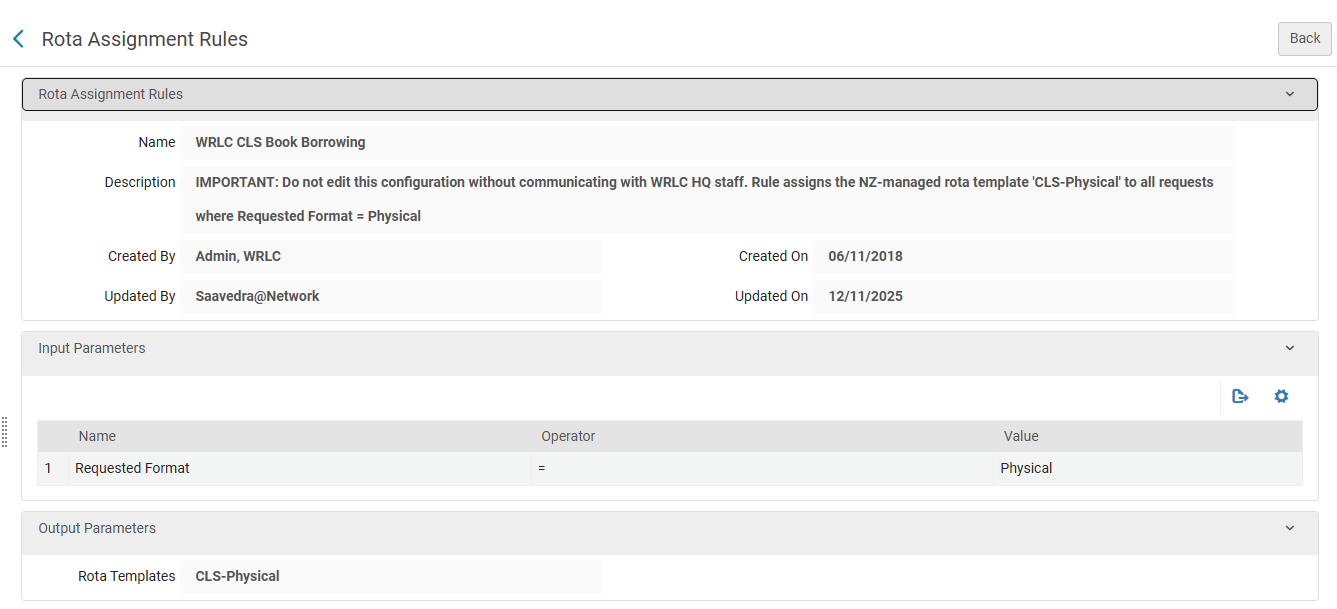
There are two WRLC Rota Assignment Rules configured in each Institution Zone in our consortium. These rules use the Rota Templates configured in the WRLC Network Zone.
These rules can be in any order, though both should always be above Lender of Last Resort rules configured in your IZ.
- WRLC CLS Book Borrowing
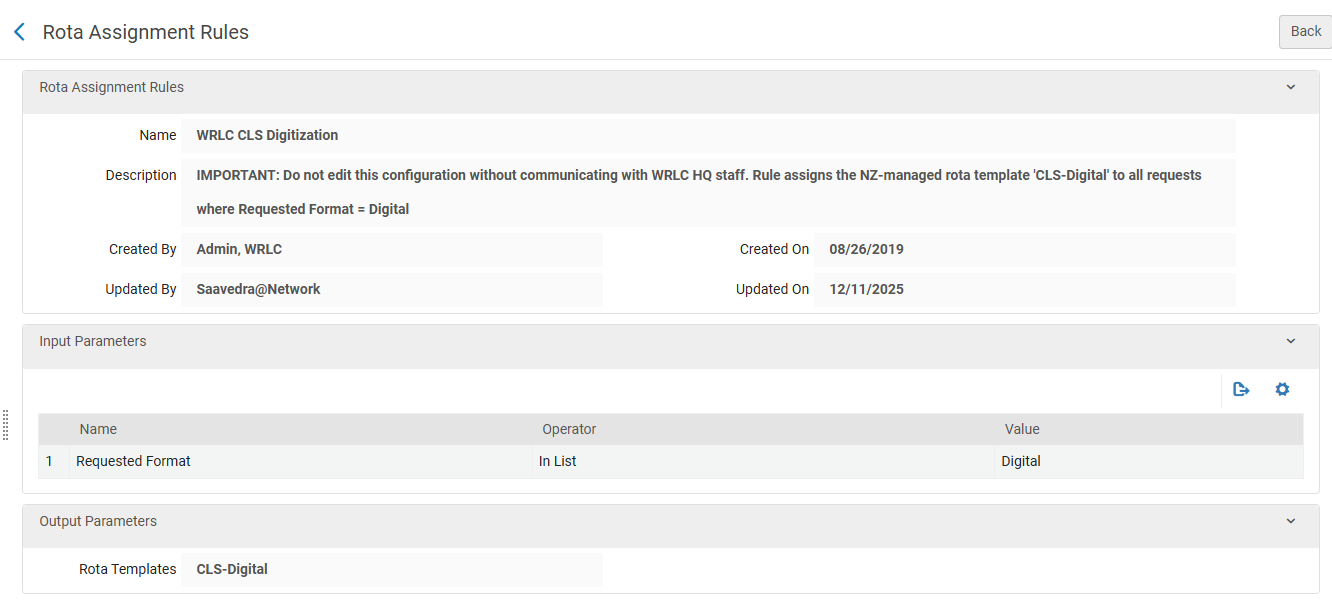
- WRLC CLS Digitization * (please note that, although this Rota Assignment Rule is active, the NZ Rota Template it uses is currently inactive)
The priority of Institution rules versus Network rules is determined by the network_rota_assignment_rules_precedence setting found in Configuration > Fulfillment > General > Other Settings. The default setting for WRLC is FALSE (IZ rules take precedent over NZ rules). For a full list of all recommended Other Settings configurations for a WRLC Institution Zone, please see the Institution Zone Configuration page on the WRLC Alma Wiki.
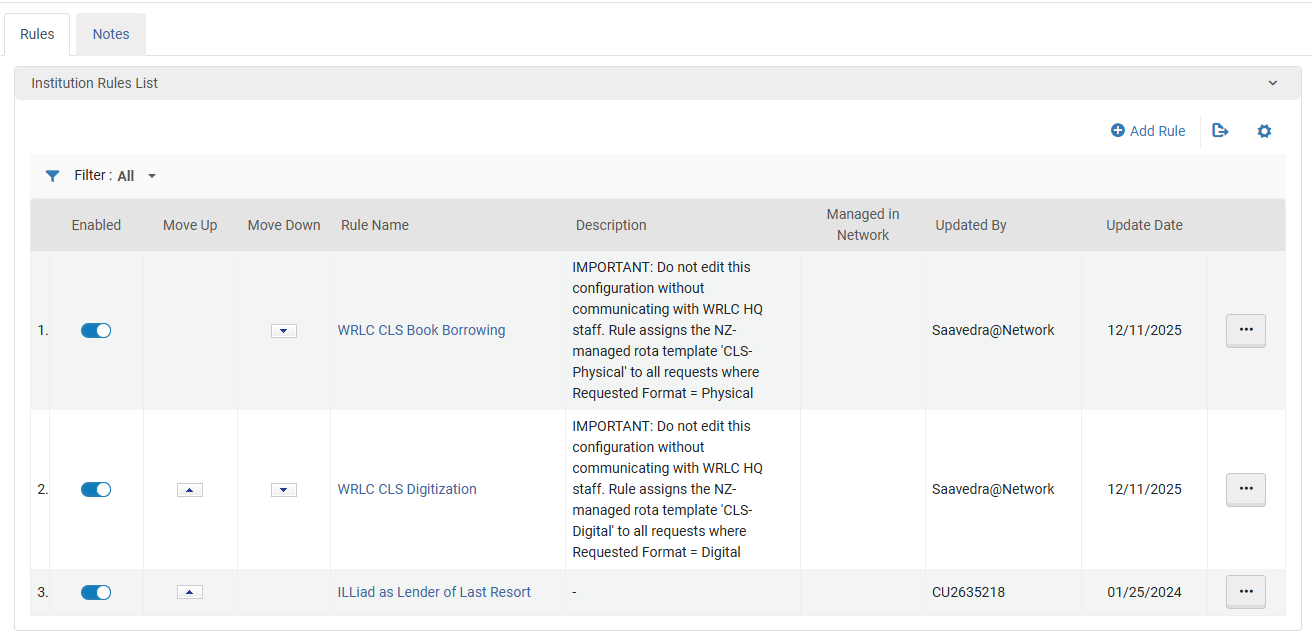
WRLC CLS Book Borrowing
-
- Input Parameters
- Name - Requested Format
- Operator - =
- Value - Physical
- Output Parameters
- Rota Templates - CLS-Physical
- Input Parameters
WRLC CLS Digitization
- Input Parameters
- Name - Requested Format
- Operator - In List
- Value - Digital
- Output Parameters
- Rota Templates - CLS-Digital * (this NZ-managed Rota Template is currently inactive)
For more information, see the Alma Knowledgebase page Configuring Rota Assignment Rules
Fulfillment Jobs Configuration
Configuration > Fulfillment > General > Fulfillment Jobs Configuration
-
This configuration pertains to
- Borrower + Lender Institutions
Below are the Fulfillment jobs that must be active for libraries that lend their library's items in the CLS/AFN.
Requests - Handle Expiration Job
This job should be active only for libraries that lend their library's items in the CLS/AFN.
The job cancels requests when the expiration date for a request has passed AND the status of the request is one of the following :
- Pick from shelf
- Communicated to Remote Storage
Expiration dates are configured according to an Institution's Request Pickup Rules. For more information on how these should be configured for the AFN, please see the Request Pickup Configuration section of the AFN Institution Zone Configurations page on the WRLC Alma Wiki.
Loans - Overdue and Lost Item
This job should be active for libraries that lend their library's items in the CLS/AFN.
The job both notifies patrons about overdue loans, and changes a loan's status to Lost; the parameters for each of these actions is dictated by the configuration of your Institution Zones Overdue and Lost Loan profiles. For more information about these in relation to CLS, please see the Overdue and Lost Loan Profiles section of the WRLC Alma Wiki.
For more information, see the Alma Knowledgebase page Configuring Fulfillment Jobs.
Overdue and Lost Loan Profiles
Configuration > Fulfillment > General > Overdue and Lost Loan Profiles
-
This configuration pertains to
- Borrower + Lender Institutions
The overdue and lost loan profiles monitor long overdue loans and turn them into lost loans when applicable. The profiles send reminders to the patron as well as create replacement fines. The fine amount is determined by the items Terms of Use.
The following Change to Lost profile is configured in each Institution Zone that lends their library's items in the CLS/AFN. This profile ensures that any WRLC patrons with overdue items from your institution will be sent an email notifying them that their item is overdue by 40 days and the item has now been changed to a Lost status. This change in status marks the item as Lost, and adds a $110 replacement fee to their account (as configured in the AFN's Terms of Use).
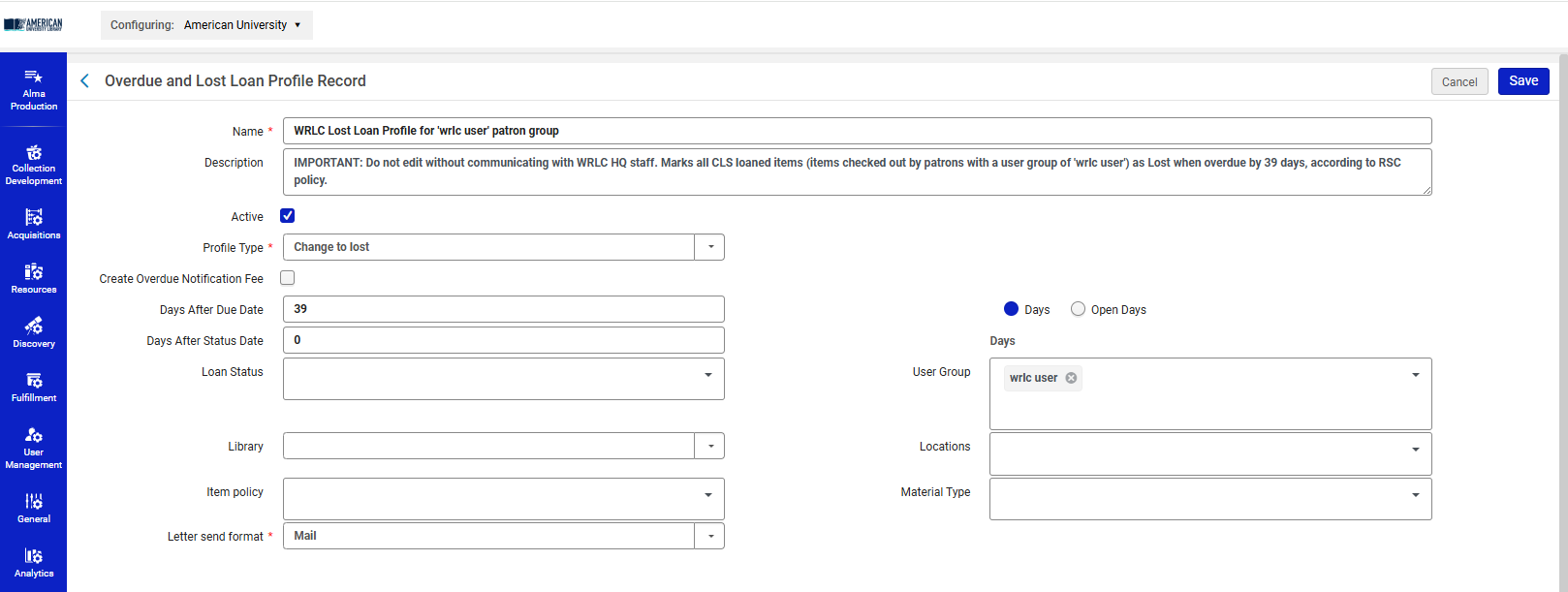
Name : WRLC Lost Loan Profile for 'wrlc user' patron group
Description : IMPORTANT: Do not edit without communicating with WRLC HQ staff. Marks all CLS loaned items (items checked out by patrons with a user group of 'wrlc user') as Lost when overdue by 39 days, according to RSC policy.
Active : Checked
Profile Type : Change to Lost
Days after due date : 39
Notices will be send the following day (on the 40th day)
Days : Checked (do not check 'Open Days')
User Group : wrlc user
Please note that if any of the settings above are left blank, the field will apply to all in the category. For example, if the User Group field is left blank, this profile will be applied to all user groups in your Institution Zone.
For more information, see the Alma Knowledgebase page Configuring Overdue and Lost Loan Profiles page.
Faculty Due Date Maintenance
Each IZ that participates in consortial lending needs to maintain the fixed due date on their calendars for patrons in "wrlc user" user group with the "WRLC Faculty" job category. This is done 3 times a year so that Faculty can have loans that last the semester. The dates are changed about 6 weeks prior to the expiration of the current due date.
The designated due dates are January 31st for the Fall semester, May 31st for the Spring semester, and September 30th for the Summer sessions.
The dates are changed on the following schedule:
- January 31 due date is set on about August 15th.
- May 31st due date is set on about December 15th.
- September 30th due date is set on about April 15th.
Procedure: Update the Faculty Due Date
The following procedure assumes that the "End of Term WRLC Faculty" date is configured at and inherited from the Institution's Calendar. All Libraries under the IZ that have this date on their calendar will be updated by the procedure below.
If you do not have this date configured on the Institution Calendar, you will need to select the individual Libraries that have this date and update them individually following the same basic procedure except at the Library level.
Go To: Alma --> Configuration --> General --> Libraries --> Add a Library or Edit Library Information
Select the Calendar Management tab. Click on the ellipsis to Edit the "End of Term WRLC Faculty" date. Select Edit.
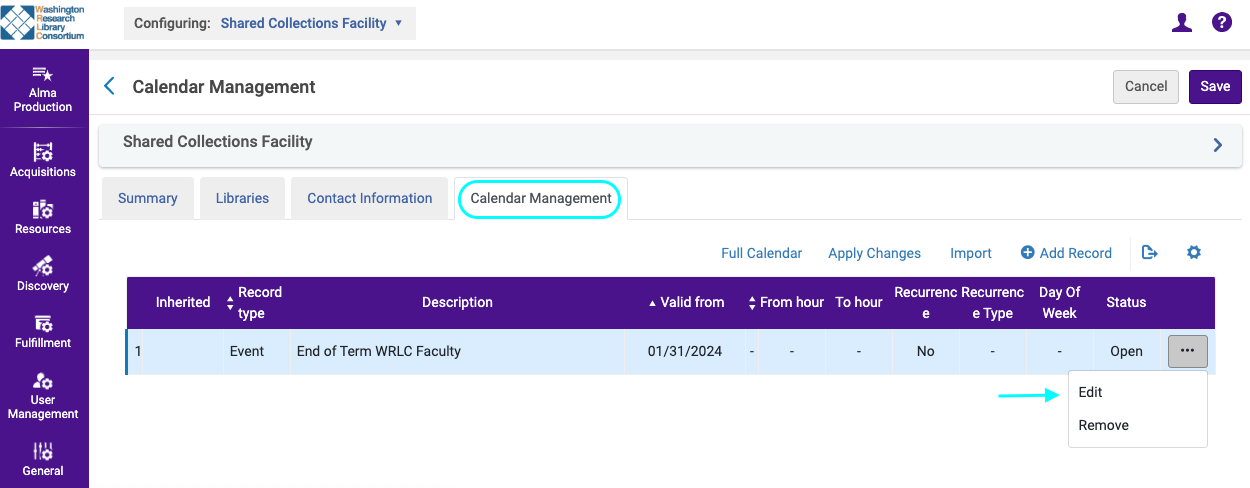
Click on the calendar button on the right. Select the new "End of Term WRLC Faculty" date. Then Save.
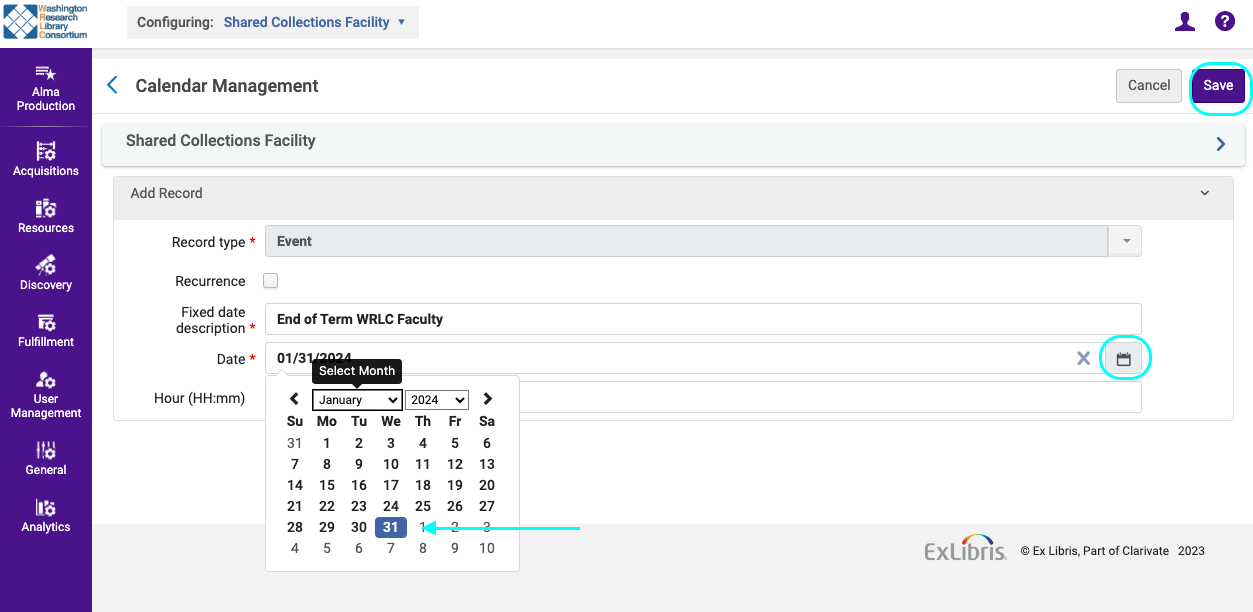
After saving, make sure that you "Apply Changes"!
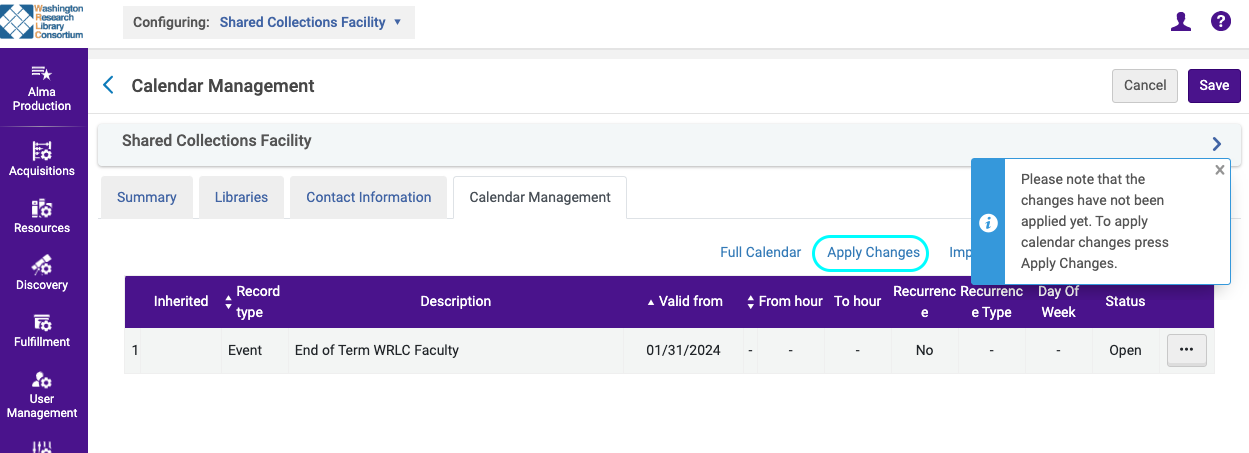
You will be notified once you submitted the job to apply the changes.
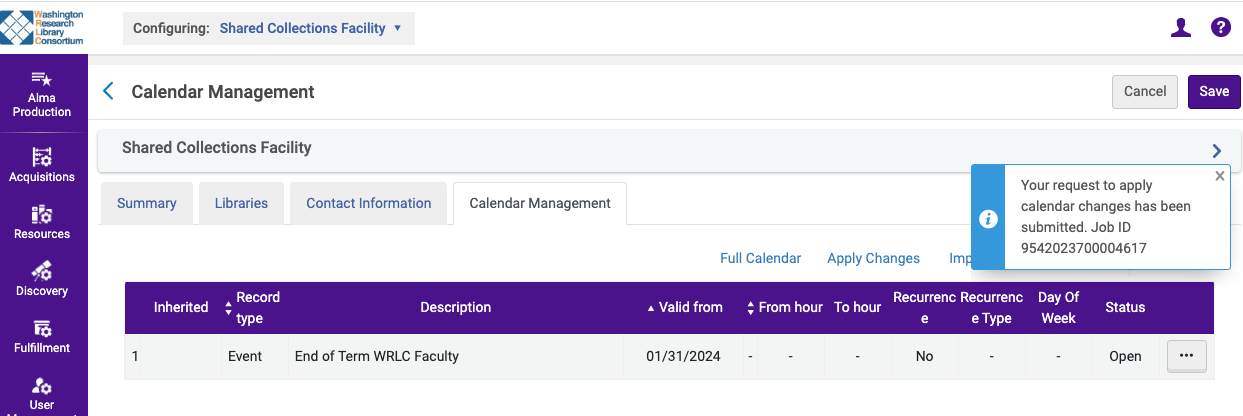
The "End of Term WRLC Faculty" date is now updated.
Linked Patron Accounts
How to update a Linked Patron Account
Patron linked accounts can be updated in several ways.
- If a patron renews an item on loan from partner institution, the patron's expiry date will automatically be updated to match the expiry date at the home institution.
- If a patron requests a new item from a partner institution, the patron's expiry date will automatically be updated to match the expiry date at the home institution.
- A staff member can manually force an update to a linked patron's expiry date by using "Manage Patron Services".
Fulfillment --> Checkout/Checkin --> Manage Patron Services --> Patron Services page
-
-
- Select "Find user in other institution", select the appropriate institution.
- Scan patron's ID or search for patron and select appropriate one.
- "Find User" (This will force an update to the patron's linked account.
-
How Linked Patron Accounts are configured
Linked Account Rules (Institution Zone)
Each institution in the WRLC network has configured a WRLC Fulfillment Network Patron linked account rule in their Institution Zone (minus Catholic University Law school, which does not borrow nor lend using the WRLC AFN).
Below are the recommended configurations for the WRLC Fulfillment Network Patron linked account rule, found in
Configuration > User Management > Collaborative Networks > Linked Account Rules
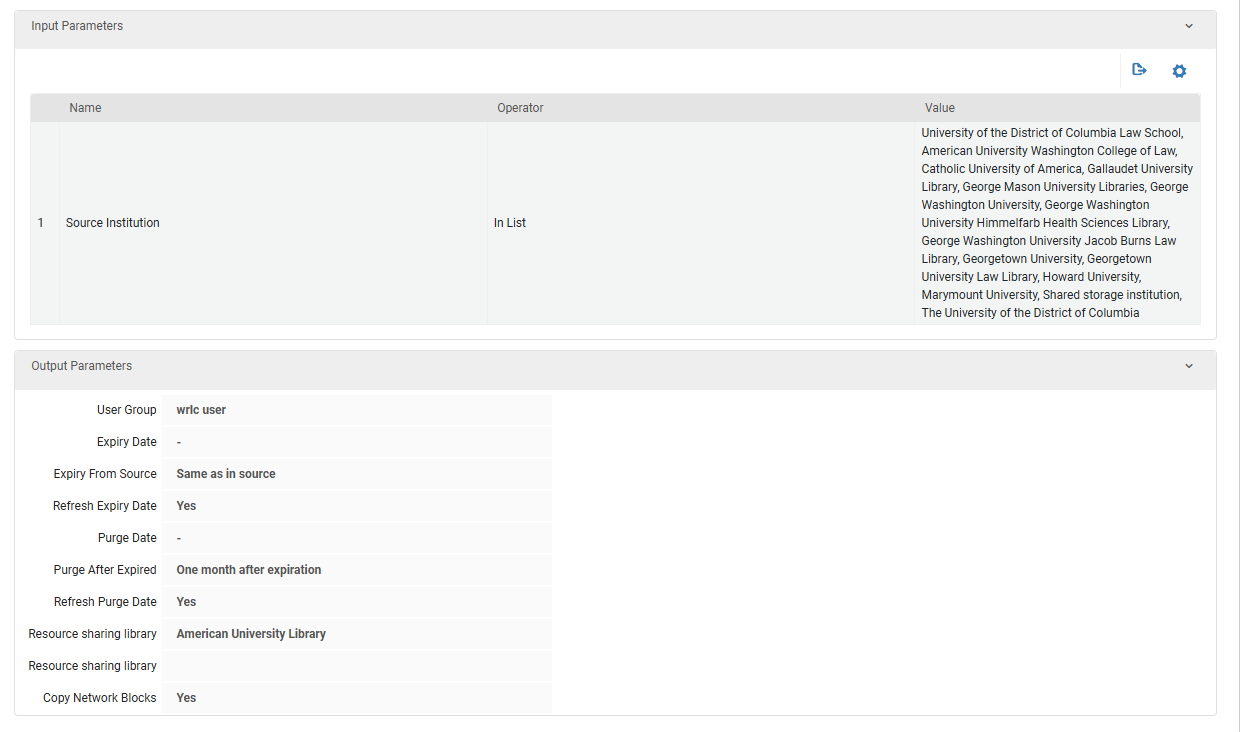
- Input Parameters
- Name = Source Institution
- Operator = In List
- Value = all institutions in the WRLC Network except for Catholic Law
- Output Parameters
- User Group = wrlc user
- Expiry Date = NULL
- Expiry from Source = Same as in source
Copies Expiry Date from the patron account in the patron's Home Institution
-
- Refresh Expiry Date = Yes
When set to 'Yes', the corresponding date is recalculated each time the linked record is refreshed from the source institution
-
- Purge Date = NULL
- Purge After Expired = One month after expiration
The above sets the Purge Date; the account will only be purged if the 'Purge User Records' job is run
-
- Refresh Purge Date = Yes
When set to 'Yes', the corresponding date is recalculated each time the linked record is refreshed from the source institution
-
- Resource Sharing Library = [your institution's resource sharing library]
- Copy Network Blocks = Yes
When set to 'Yes', Alma will delete all the current network blocks that exist on the linked account and re-create them each time the linked record is refreshed. Blocks can only be placed on linked accounts if they are configured in the User Block Definitions and User Block Descriptions section.
For more information, please see the Configuring Linked Account Rules page on the Alma Knowledgebase.
Linked Account Shared Fields (Network Zone)
The configuration that determines which fields in the user account are shared in linked accounts is managed in the WRLC Network Zone. Below is the current configuration.
| Field Name | Shared |
| First Name | True |
| Middle Name | True |
| Last Name | True |
| Pin Number | False |
| Job Title | True |
| Job Description | True |
| Preferred Language | True |
| Birth Date | True |
| Expiry Date | True |
| Purge Date | True |
| Email List | True |
| Address List | False |
| Phone List | False |
| Preferred First Name | True |
| Preferred Middle Name | True |
| Preferred Last Name | True |
For more information, please see the Configuring Linked Account Shared Fields page on the Alma Knowledgebase.
Standard Opening Hours
Impact on Due Dates
A library's Standard Opening Hours along with other events in their calendar can affect item due dates and renewal dates. It is good practice to review the Standard Opening Hours each semester when you may be adding specific events, exceptions or holidays.
A library's Standard Opening Hours are always set at the library level. (They do not "inherit" from the institutional calendar.) The "Valid from" date to the "Valid to" date is set to 3 years. If the "Valid to" date is approaching, this can shorten due dates for items that would otherwise get a much longer loan period.
The procedure to update the "Valid to" dates in your library's calendar is fairly simple. You must have the role of Fulfillment Administrator (or General Administrator).
Updating the Standard Opening Hours
The following procedure assumes that you have the role of Fulfillment Administrator (or General Administrator) and you have selected a valid Library from the top of the Configuration page.
Go To: Alma --> Configuration --> Fulfillment --> Library Management --> Opening Hours

Find the calendar entries of type "Standard opening hours". (You can arrange the record types alphabetically by clicking on the Record type column header.) Select the ellipsis at the right of the first entry.

Select Edit on the first Standard opening hours entry.

Select Save. This will automatically update the "from" and “to” date. (You do not need to make any changes.)

Repeat this for the remaining 6 Standard Opening Hours entries.
As with all calendar updates, "Apply Changes"!

Discharging CLS Hold Shelf Items
This workflow explains how to properly discharge CLS (Consortium Library Services) Hold Shelf items in Alma so they are correctly routed back to their owning library and do not remain attached to outdated or unresolved requests. Before starting, determine which situation applies, each case requires a different Alma workflow:
- Item has NOT expired past the Hold Until date
- Item HAS expired past the Hold Until date
When to Use This Workflow
- When a CLS item was never picked up by the requesting patron
- When a CLS item has expired on the hold shelf
- When a CLS item must be returned to its owning institution
Why This Matters
If CLS hold shelf items are not discharged correctly:
- Requests may remain active incorrectly
- Items may circulate with unresolved requests
- Lending libraries may experience tracking or accountability issues
This workflow ensures clean request closure and correct transit routing.
Required Roles
- Fulfillment Operator
- Circulation Desk Manager
Part A: Hold Shelf Items That Have NOT Expired Past Hold Until Date
Force Alma to recognize the item as expired so it can be properly discharged and routed back to the owning library.
1: Locate the Item on the Active Hold Shelf Navigate to <Fulfillment > Resource Requests > Active Hold Shelf>
2: Manually Update the Expiration Date
- Click <Update Expiry> next to the item
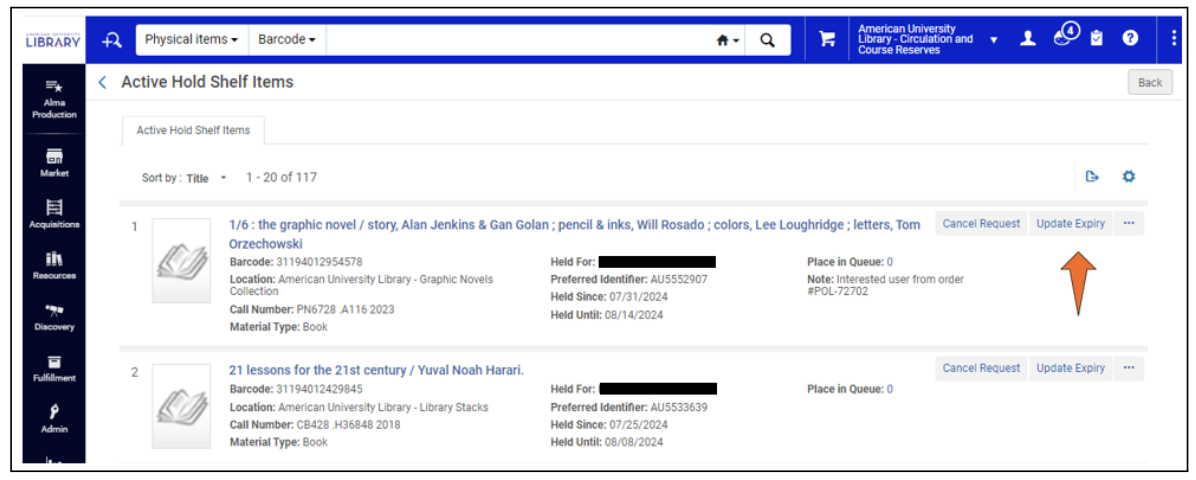
- In the dialog box, enter yesterday’s date
- Click <Save>
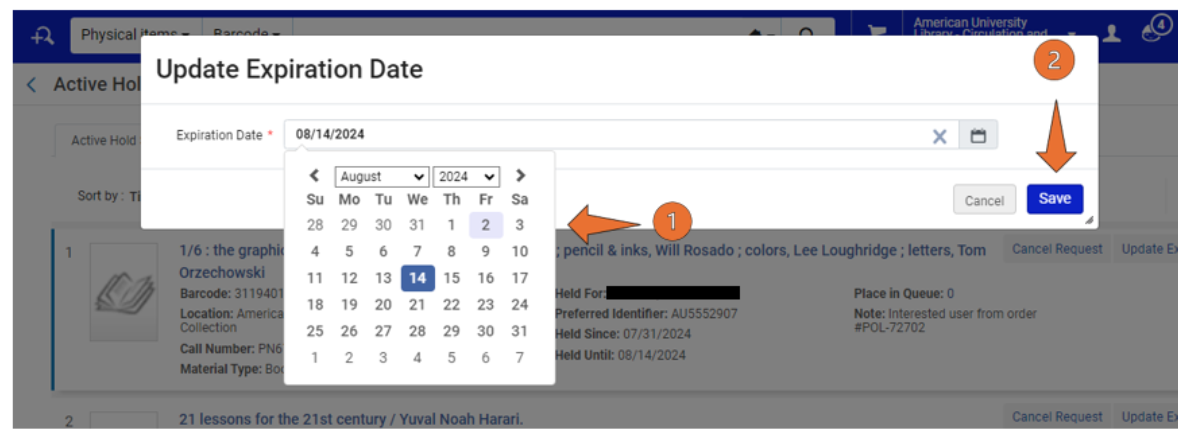
- Why This Matters:
Alma only treats items as expired after the Hold Until date has passed.
Using yesterday’s date ensures Alma immediately recognizes the item as expired.
3: Alternative Location (If Updating from Lending Side) If the item must be managed from the lending/request side:
- Use the Facets panel and select <On Hold Shelf> under Process Type
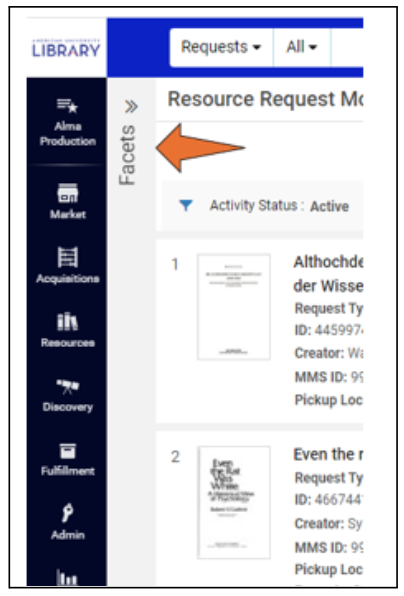
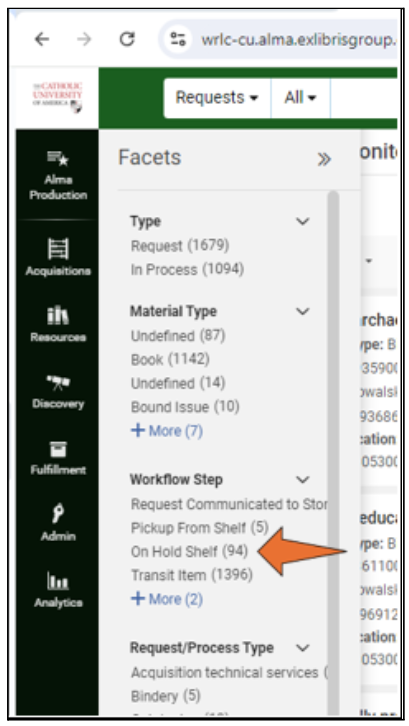
- Locate the item and repeat the expiration-date update above
4: Scan the Item In Navigate to <Fulfillment > Scan In Items>
- Scan the item barcode
- The item’s status should now update to <In Transit for Reshelving> with the owning library as destination.
5: Prepare Item for Courier
- Insert the CLS green courier routing slip
- Place the item with outgoing materials for delivery to the owning library
Part B: Hold Shelf Items That HAVE Expired Past Hold Until Date
Important: This section applies only to items already listed on the Expired Hold Shelf.
1: Use Scan In Items (Required)
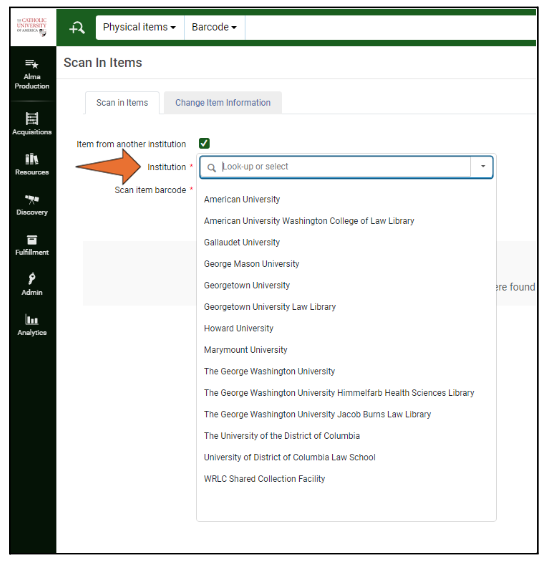
Why This Matters: If the item was never checked out, Return Items cannot be used. Scan In Items ensures Alma processes the item correctly.
2: If an Active Request Still Remains After Scanning Choose one of the following options:
Option A: Update Expiry and Scan Again
- As previously detailed, manually update the expiration date to yesterday
- Scan the item in again
The request should clear, and the item should route to the owning library.
Option B: Cancel the Active Request
The item should now route In Transit for Reshelving to the owning library.
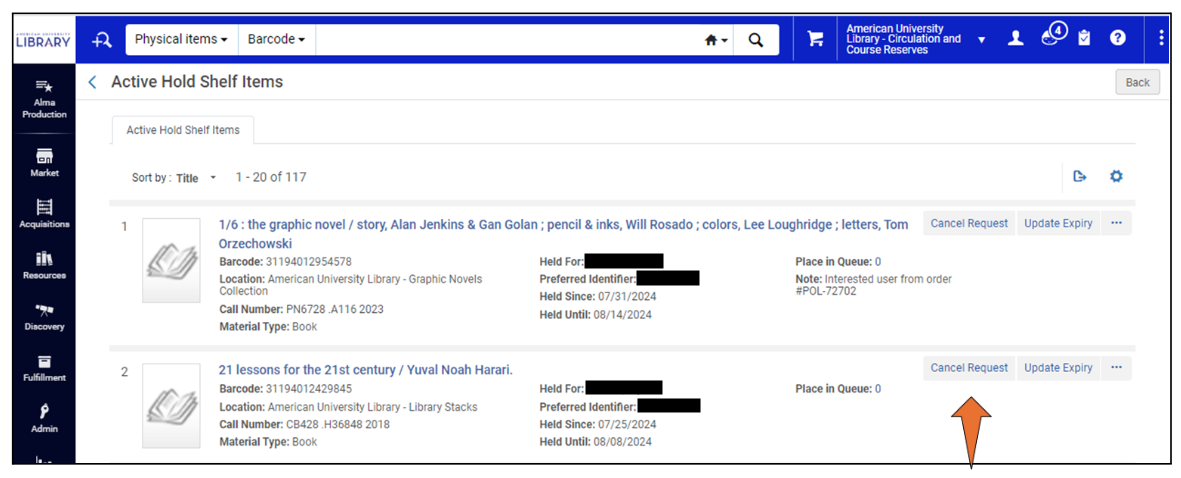
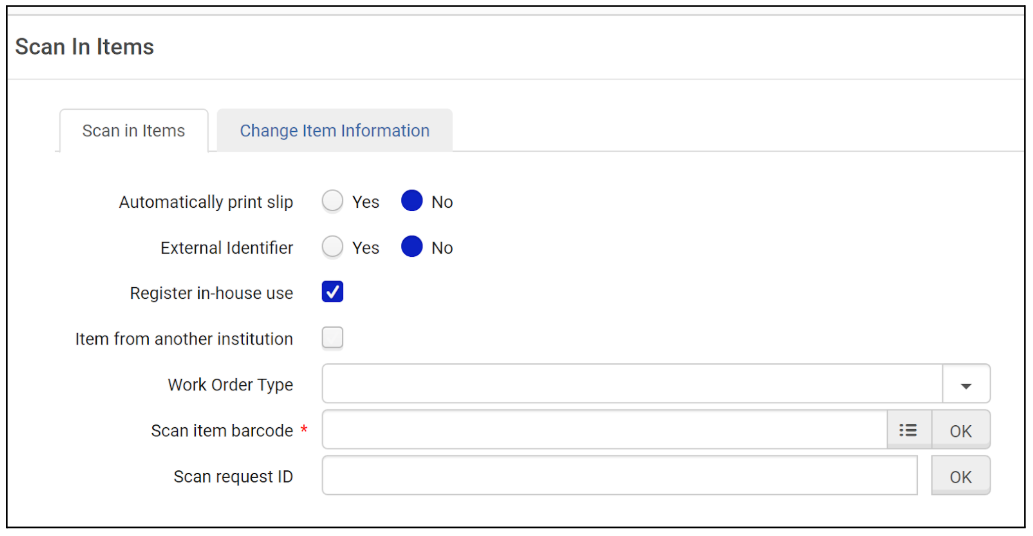
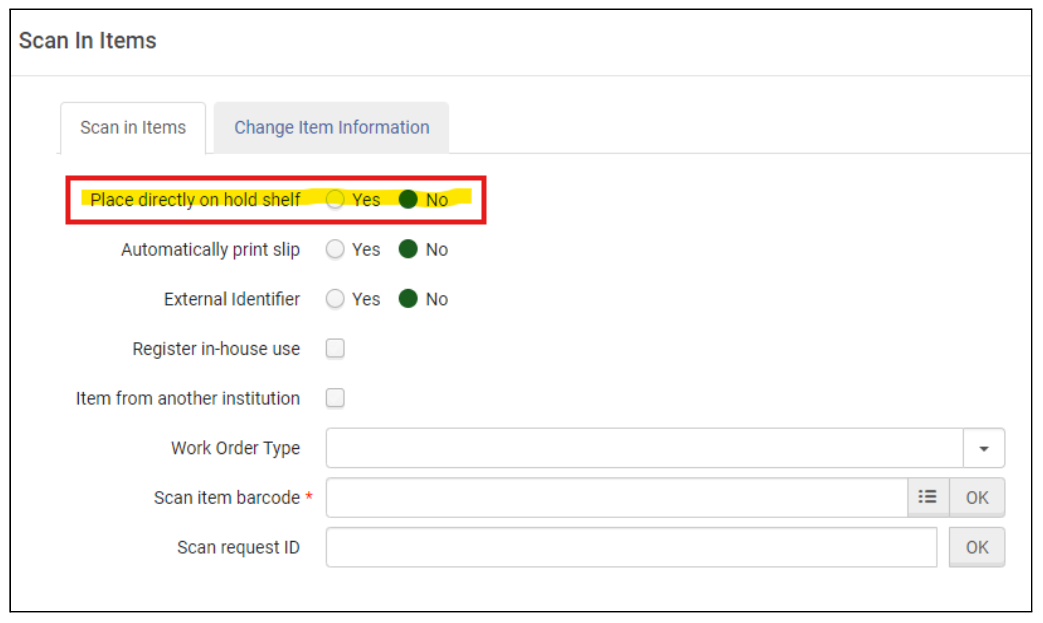
Part C: Place Directly on Hold Shelf (Configuration Awareness) Some institutions have an additional option on their Scan In Items page to toggle Place Directly on Hold Shelf, while others do not.
The option adds a Hold Processing status
- Hold Processing:
- Does not notify the patron
- Does not make the item ready for pickup
Best Practice: When expiring or returning CLS items, set Place Directly on Hold Shelf = No.
- No option to Place Directly on Hold Shelf
- Option to Place Directly on Hold Shelf
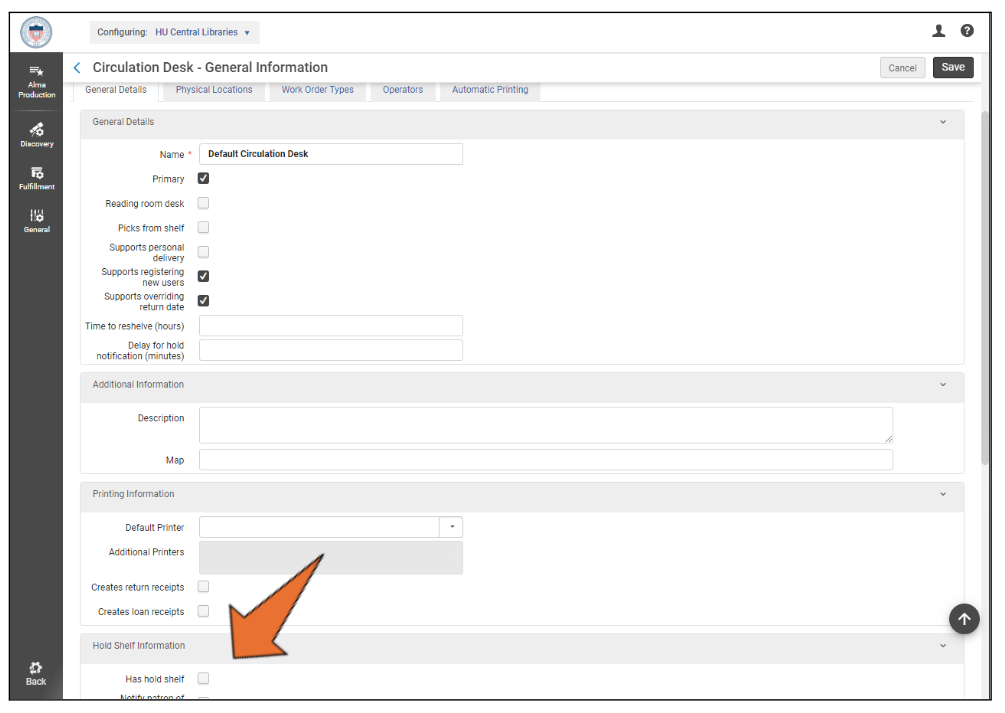
9: Configuration Path (Administrative Awareness Only) This step is informational only for most staff
- Configuration > Fulfillment > Library Management>
- Select library → Circulation Desk List
- Select Circulation Desk
- Under Hold Shelf Information, enable Has Hold Shelf
Best Practices and Critical Notes (Read Carefully)
- Always use Scan In Items before returning CLS items to prevent lingering requests
- Only use CLS green routing slips for outbound CLS items. The green routing slips signify that an item is no longer needed.
- If an item comes back to the home institution with a green routing slip, but it still has an active request attached to it, it should be assumed that the item is no longer needed regardless of the request date:
- Cancel the request
- Scan the item again
- Destination should list only one institution
- If both lending and borrowing institutions appear, a request is still attached
Notes and Frequently Asked Questions
Why can’t I just return the item normally?
- Because Return Items only works if the item was actually checked out.
Why is yesterday’s date used?
- Alma only recognizes expiration after the Hold Until date passes.
What if I forget to scan the item?
- The request may remain open, causing routing and accountability issues.
Why are CLS green slips required?
- They signal to courier staff that the item is no longer needed by the borrowing library.
What if the destination lists multiple libraries?
- A request is still active; cancel it and scan again.
Expired Hold Shelf Audit Workflow
This workflow is used when auditing items that appear on the Expired Hold Shelf but cannot be physically located where Alma indicates they should be.
When to Use This Workflow:
- During scheduled Expired Hold Shelf audits
- When a CLS (consortial) item is marked In Transit and in the Expired Hold Shelf queue but cannot be found
- When reconciling discrepancies between Alma status and physical item location
Why This Matters: Expired hold shelf items represent shared consortial responsibility. Prompt, consistent handling ensures accurate records, fair cost responsibility, and minimal impact on patrons and partner libraries.
Required Roles
- Fulfillment Operator
- Circulation Desk Manager
Workflow Overview
This process answers three key questions, in order:
- Can the item be found at either library?
- If not, is the item likely with the requesting patron?
- If still unresolved, who is responsible for resolution and cost?
1: Perform a Comprehensive Physical Search Begin with a physical and Alma-based search that includes all locations where the item could reasonably be found:
- Hold Shelf
- General Collection
- Any additional local locations relevant to your library
Unlike a traditional Patron Claimed Return investigation, only one thorough search per item is required for Reconciliation audit purposes.
2: Contact the Lending Library Once your local search is complete:
- Contact the lending library
- Request that they perform a corresponding search on their end
Why This Matters: Both the requesting and lending libraries must confirm the item’s absence before moving forward.
Note: If this audit is being completed as a part of the annual Reconciliation audit process, it will not be necessary to contact the lending library. As of December 2025 RSC members agreed that each library will conduct a physical search for every item listed on the Comprehensive Reconciliation CLS (Lost in Transit) and Expired Hold Shelf Report.
3: Evaluate Search Results At this point, one of three outcomes will occur:
Outcome A: Item Located at Either Library
- Stop further investigation
- Process the item using the standardized workflow: Discharging CLS Hold Shelf Items
Outcome B: Item Not Located at Either Library
- The item is likely in the possession of the requesting patron
- The item was likely not properly discharged or checked out at pickup
Note: Similar to ILLiad lending agreements, the lending library is ultimately responsible for compensating fellow libraries for Lost or Missing requested CLS materials
4: Patron Resolution (If Item Is Not Located): Determine Whether to Contact the Patron
The requesting library may choose to:
- Contact the patron before taking action, or
- Proceed directly with checking the item out to the patron’s account
Both approaches are acceptable; local policy may guide this decision.
5: Optional Send Initial Patron Notification; Suggested email language:
Hello,
The item you requested on XX/XX/XXXX titled “Lorem ipsum dolor sit amet” was not correctly checked out to your library account at the time of pickup. This item will be checked out to your account. If you have any concerns, please contact the XX Circulation Desk at XXXXXX@edu.
A library may choose to either wait a set number of days for a response or proceed with checking the item out to the requesting patron’s account
6: Check the Item Out to the Patron's Account in Alma This establishes a clear chain of responsibility moving forward.
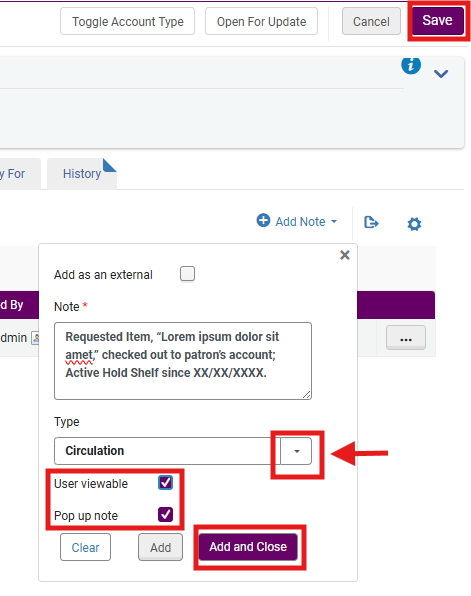
7: Documenting the Action in Alma Add a Patron Pop-Up Note:
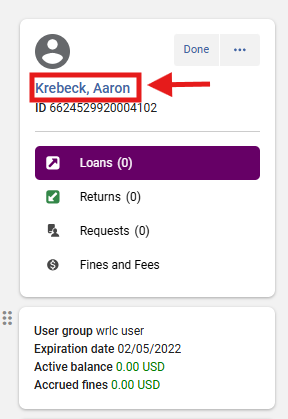
From the Patron Services screen: Fulfillment> Checkout/Checkin> Manage Patron Services, locate patron's account
Click on patron's name to access their account
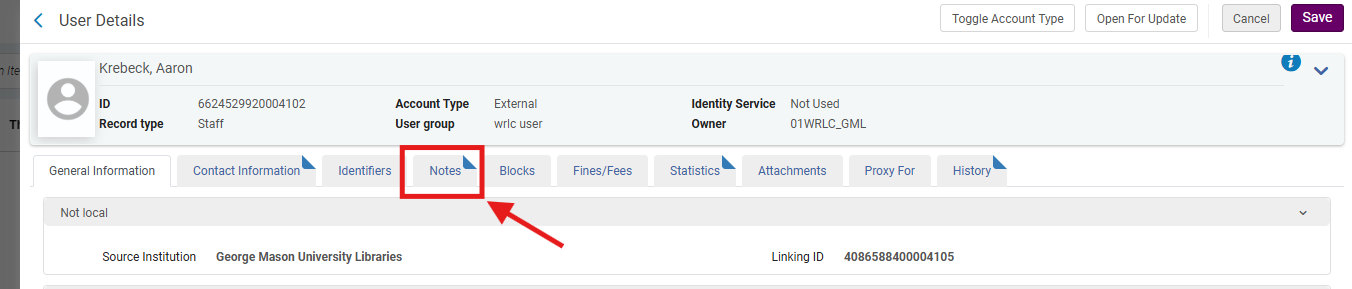
From the patron's User Details screen, select the <Notes> tab
- Select the <Add Note> drop down menu
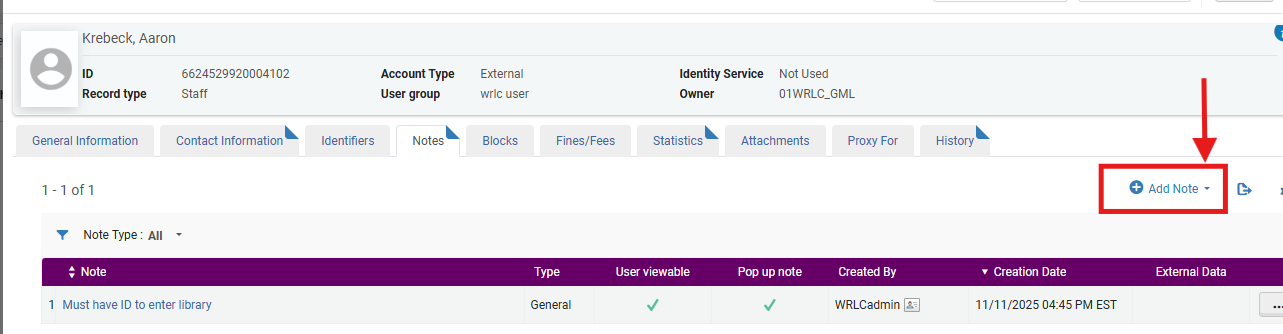
- In the Note field, enter:
- Requested Item, “Lorem ipsum dolor sit amet,” checked out to patron’s account; Active Hold Shelf since XX/XX/XXXX.
- (Use the date from the audit spreadsheet.)
- Set Type to <Circulation> from the drop-down menu
- Select both:
- <Pop Up Note>
- <User Viewable>
- Select <Add and Close>
- Select <Save> from the top right hand side of the screen
Note:
- Types are informational only and do not trigger Alma behavior. The list is standardized across institutions.
- Pop_up notes alert staff and patrons (if User Viewable option is engaged) but do not trigger a block to prevent borrowing
- Selecting <User Viewable> ensure the note is viewable in the patron's Primo My Library account
8: If the Patron Claims They Never Received the Item The patron’s home library will:
- Discharge the item from the patron’s account (if already added)
- Assume responsibility for the item
- Proceed using the standardized workflow: Discharging CLS Hold Shelf Items
Frequently Asked Questions (FAQs)
Why is only one search required?
- This workflow, when used in conjunction with the WRLC's RSC (Resource Sharing Committee) annual Reconciliation project, and completed by all participating WRLC AFN (Alma Fulfillment Network) libraries, replaces multi-week claimed return investigations with a single, documented audit.
Why does the requesting library assume responsibility?
- As with lending agreements, the requesting library is responsible for items borrowed on behalf of its patrons.
Why add a pop-up note?
- It alerts staff and patron to the context of the checkout and prevents confusion during future transactions.
What if the patron never responds?
- Libraries may proceed with checkout after a reasonable waiting period, per local policy.
Weekly Request Status Exception Report
The Weekly Request Status Exception report reflects requests that have stalled in the rota the previous week. It is an opportunity to see what material is outstanding and reach out to the library staff at the IZ where the request is waiting. This report is run weekly at 6am on Monday and can be configured to be sent directly to a preferred email.
Once you contact the library staff where the request is stalled, they can then investigate why it has not been fulfilled and, if the item is not available, cancel the request so that it can be moved along the rota to the next IZ where the item is available.
Display Logic Rules for the AFN/CLS Request Form in Primo
The Display Logic Rules configuration page determines when and for whom various Primo links appear for patrons, including the link to the CLS Request Form; this is referred to as the Resource Sharing Request.
The pathfinder to display logic rules: Configuration> Fulfillment> Discovery Interface Display Logic> Display Logic Rules
In general, WRLC libraries are allowed to make in-house decisions and independently configure their own Display Logic Rules. However, below are some helpful configuration rules for the CLS Request Form
Hide the CLS Request Link from specific user groups
This rule will hide the CLS Request link (referred to as the Resource Sharing Request on this configuration page) from view for patrons whose accounts have a specific user group. This is a helpful if specific users are not allowed to place CLS requests (for example, alumni).
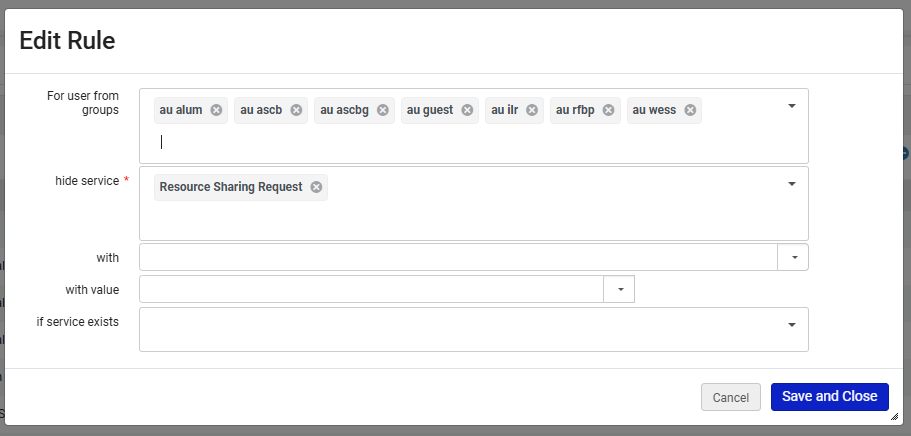
- For user from groups : list of all user groups
- hide service : Resource Sharing Request
Hide the CLS Request Link when your Institution's copy is available for a Hold Request
This rule will hide the CLS Request link (referred to as the Resource Sharing Request on this configuration page) from view when the following conditions are met:
- Your institution has a copy of this title
- Your institution's copy has a status of Available
- The patron is allowed to place a Hold on your institution's copy
This is helpful when you only want CLS requests to be placed for items your institution does not have already available to a patron.
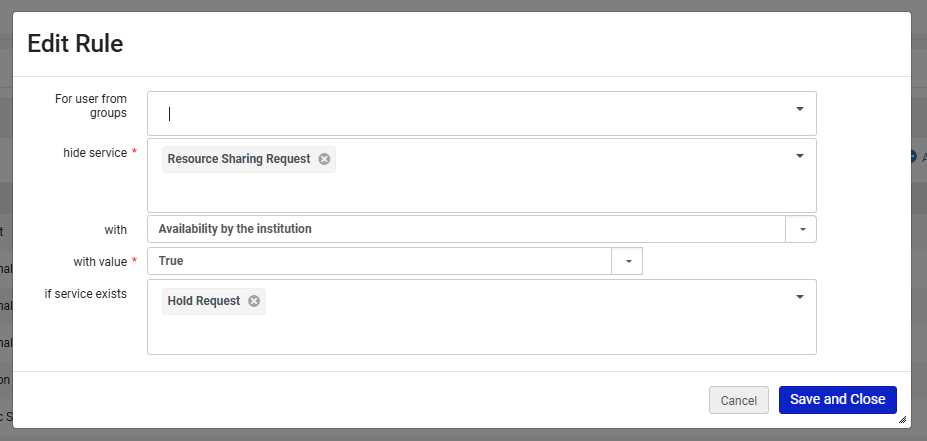
- hide service : Resource Sharing Request
- with : Availability by the institution
- with value : True
- if service exists : Hold Request
For more information about Display Logic Rules, see the Configuring Display Logic Rules page on the Alma Knowledgebase
Resource Sharing Form (Delivery Fields) in Primo
Information about configuring the Delivery Fields section of the Resource Sharing Form in Primo can be found on the Resource Sharing Form (Delivery Fields) page of the WRLC Alma Wiki. These configuration settings determine which (if any) pickup locations are displayed to patrons when they request items in Primo VE.
CLS Lost In Transit | Expired Hold Shelf Reconciliation Audit 2026
On an annual basis, WRLC AFN (Alma Fulfillment Network) libraries, that participate in CLS (Consortium Loan Services), conduct an annual Reconciliation Audit to identify and resolve materials that have an outstanding In Transit status and Expired Hold Shelf status.
These items may be:
-
Temporarily misplaced
-
Delayed in transit
-
Incorrectly Checked Out/ In or routed
-
Permanently lost
This process mirrors long-established interlibrary loan practices whereas the requesting/borrowing institution is ultimately responsible for materials that cannot be located after a documented search.
Why This Process Exists
- To ensure accurate shared collection records
- To fairly assign financial responsibility for lost materials
- To confirm that every reasonable effort has been made to physically locate items before replacement costs are assessed
Comprehensive Reconciliation Report 2026(link)
- Includes CLS items (In Transit status) and Expired Hold Shelf items; January 1, 2025- December 31, 2025
- At the December RSC meeting, RSC agreed that each library will conduct a comprehensive physical search for every item listed on the report
RSC Agreed Audit Timeline
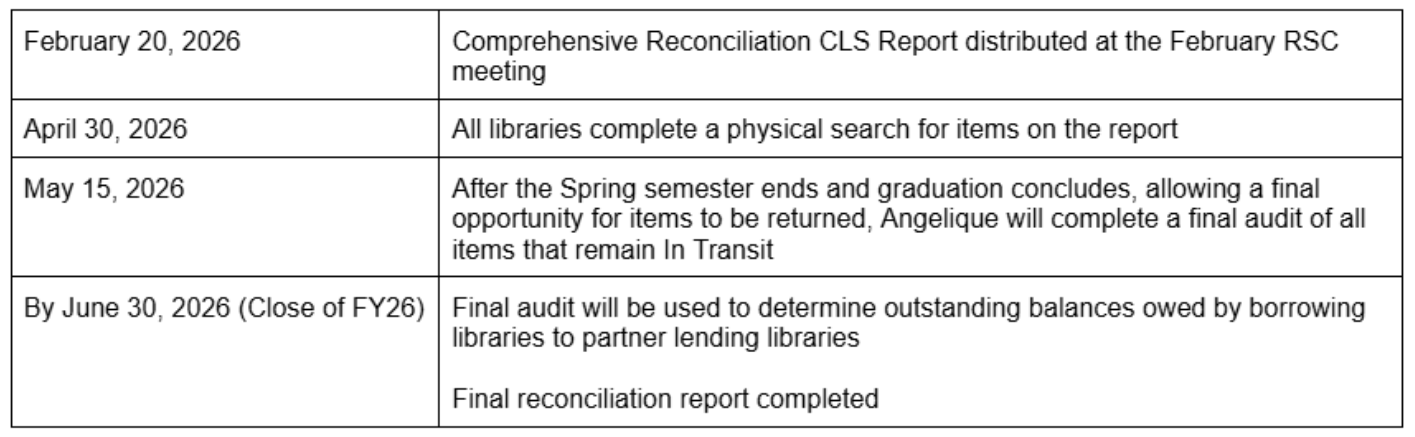
1: Receive the Reconciliation Report At the February meeting, the RSC liaison will provide the Comprehensive Reconciliation Report to all participating libraries. The report includes associated bibliographic and item identifiers.
2: Create a Local Copy of the Spreadsheet Make a copy of the provided spreadsheet for your home library.
- Use this copy to reformat per your libraries search procedures
- Do not edit the original consortium file
3: Conduct a Physical Search for Each Item For every item listed, conduct a thorough physical search, which may include:
- Hold shelves
- General collections
- Reshelving areas
- Known problem locations (e.g., sorting areas, processing shelves)
- This includes items identified as Expired Hold Shelf Items:
4: Item is Located
- Enter 1 in the F=1/NF=0 column
- Found items should be Checked In to the appropriate Circulation Desk; follow all in-house CLS processing guidelines
- Once completed, the item's Status should reflect as <Item In Place>
- If it belongs to a fellow CLS lending library, it should processed and routed as per usual: How to Check In Items: How to Check in AFN Items
5: Item is Not Located Enter 0 in the F=1/NF=0 column
6: Managing Expired Hold Shelf Items Similar to CLS items, Expired Hold Shelf Items are often mis-shelved in the Stacks
- If Item is located
- Discharging CLS Hold Shelf Items: Part B: Hold Shelf Items That HAVE Expired Past Hold Until Date
- If item is NOT located
- Expired Hold Shelf Audit Workflow: Patron Resolution (If Item Is Not Located)
Note: Patron Resolution is entirely at the requesting libraries' discretion. Similar to outstanding CLS material, item's not checked out to the requesting patron's account will be added to the final audit of items owed to the lending library.
7: Record Search Results (Required Format) In the first column of the spreadsheet, record the outcome of your search:
- Enter 1 if the item is Found
- Enter 0 if the item is Not Found
8: Complete Searches by the Deadline All physical searches must be completed no later than May 15th. This ensures:
- Adequate time for review and auditing
- Completion before the end of the academic year fiscal year
9: Submit Your Results Email your completed spreadsheet to: carson@wrlc.org
Important Requirements:
- Use only this numeric method
- Do not highlight cells
- Do not add notes, comments, or alternate symbols
Long Lost Consortium Loan Services (CLS) Audit
Consortium Loan Services (CLS) Agreed Policies
These policies guide WRLC’s handling of lost Consortium Loan Services (CLS) materials. Consistent with Interlibrary Loan (ILL) practice, responsibility for replacing borrowed material rests with the patron’s home institution.
Why This Process Exists
-
Fairly assign financial responsibility for lost CLS materials
-
Confirm that reasonable efforts have been made to retrieve items before Lost Item Replacement costs are assessed
-
Establish a consistent process for addressing Long Lost CLS items
Background
Due to the Alma migration, COVID and pandemic-era campus logistics, local circulation desk payment workflow changes, and related factors, WRLC's lending libraries accumulated a backlog of lost CLS items dating back to 2018. These items had not been systematically reviewed or resolved.
In addition, not all member libraries are able to collect fees. Because of this, the consortium will focus on resolving outstanding lost-item records between institutions instead of pursuing patron payments to the lending institutions.
In April 2026, the Resource Sharing Committee’s Long Lost Fine/Fee (LLFF) Task Force developed a policy proposal to address lost CLS materials and submitted it to the Library Directors Council (LDC) for approval.
The LLFF Task Force proposed aligning CLS lost-item handling with existing ILL practices. Under this approach, member institutions reconcile replacement fees for CLS items lost by their patrons when those items are not returned within an established timeframe. All inter-institutional accounting and logistics would be managed centrally by WRLC Headquarters.
LDC Approved Policy Direction
In May 2026, the LDC approved the LLFF Task Force proposal. RSC also voted on how to address the existing backlog, which years to prioritize first, and the timeline for future long-lost item audits. The approved approach includes:
-
A one-time payment for the backlog of CLS Lost Item Replacement fees dating from 2018-2025
-
A regular Lost and Paid schedule for future CLS items lost by member institutions’ patrons
-
An accelerated timeline for moving items from Lost to Lost and Paid, as finalized by the LLFF Task Force and RSC
-
Annual inter-institutional payments coordinated by WRLC, regardless of the final Lost and Paid timeline
Lost and Paid Process
Per CLS agreed policies, items age into Lost status in Alma when they are 40 days overdue. Under the Long Lost CLS audit process, items that remain in Lost status for three to six months are reviewed and resolved through the steps below.
The process shifts responsibility for replacement fees from the lending library to the patron's home institution, which manages patron billing according to local practices.
-
In the lending IZ, the Lost Item Replacement Fee is removed from the linked WRLC user account, and the item is marked Lost and Paid
-
The Lost Item Replacement Fee is then applied to the patron’s account at their home library
-
The patron’s home institution assumes responsibility for reimbursing the lending library
-
WRLC centrally manages inter-consortial invoicing for CLS Lost Item Replacement Fees, and these amounts are added to each library’s annual assessment
-
The patron reimburses their home library according to local practices, such as direct payment through Alma, bursar billing, etc.
-
Consistent with ILL practice, Lost and Paid items are considered non-returnable, and the fee remains on the patron’s account even if the item is later returned
Patron Notifications
WRLC will manage pre-charge patron notifications beginning one month before the Lost and Paid process outlined above
Notifications will be sent from a WRLC-managed email address and will include patron-specific information, such as:
-
Patron name
-
Lost item list
-
Loan details
Based on each library’s preference, WRLC will support two notification templates:
-
A replacement-fee notice for patrons subject to charges
-
A reminder-only notice for faculty, staff, or exempt patron groups
Patron replies will be routed directly to each institution’s preferred circulation email address.
Invoicing and Institutional Balances
WRLC will manage invoicing for CLS Lost Item Replacement fees. Balances will be applied to each institution’s annual consortium assessment. Member libraries are responsible for working with their patrons to recover payment for lost material that has been added to the patron’s home library account.
2026 Audit Timeline
- June 2026 CLS loan reports were shared with all Alma Fulfillment Network (AFN) libraries that participate in CLS lending, as well as corresponding university professional libraries that borrow from AFN libraries but do not lend material. The reports identify lost items borrowed by patrons at each institution and owed to the AFN lending libraries.
- August 2026 WRLC will manage borrower notifications for lost CLS items. Emails will be tailored to each patron and will include:
-
Patron name
-
Lost item title or titles
-
Relevant loan details
-
Based on each AFN lending library’s preference, WRLC can provide two notification templates:
-
-
Replacement-fee notices for patrons subject to charges
-
Reminder-only notices for faculty, staff, or exempt patron groups
-
During this period, library staff will work with their patrons to retrieve and return lost material.
- October 1, 2026 The window for retrieved material to be returned to the lending libraries will close. Per the new policy:
-
In the lending library’s IZ, the Lost Item Replacement Fee of $110.00 will be removed from the linked WRLC user account
-
Item's status will be updated to Lost and Paid in the owning library's IZ
-
The Lost Item Replacement Fee will be added to the patron’s home library account, including item details such as title, barcode, and loan information
-
Patron will be notified that the item has been paid for by their home institution
-
- February 1, 2027 The Spring 2027 Long Lost CLS audit will resolve items that aged into Lost status between January 1, 2026, and November 15, 2026.
- Post-February 2027, the audit procedure will transition to RSC’s approved semester-based schedule
|
Long Lost Item (loans that have aged into Lost status) |
WRLC Patron notifications |
Final Return Date |
Marked as Lost and Paid at Lending IZ |
|
|
Spring Semester |
Nov 16- April 15 |
April- May |
June 1 |
June 2 |
|
Summer Semester |
April 16- August 15 |
August - Sept |
October 1 |
October 2 |
|
Fall Semester |
August 16- Nov 15 |
Dec- Jan |
February 1 |
February 2 |
Frequently Asked Questions
-
Who is responsible when a CLS item is lost?
-
The patron’s home institution is responsible for reimbursing the lending library once the item has been marked as Lost for 3-6 months. This approach aligns CLS lost-item handling with existing Interlibrary Loan practice.
-
- Will patrons be notified before charges are applied?
- Yes. WRLC will send pre-charge notifications beginning about one month before the Lost and Paid process. Notices will include patron-specific information, such as the patron’s name, lost item title or titles, and relevant loan details. Patron replies will go directly to the institution’s preferred circulation email address.
-
Are all patrons charged the same way?
-
No. Each home institution manages patron billing according to its own local practices. WRLC can support either a replacement-fee notice for patrons subject to charges or a reminder-only notice for faculty, staff, or other exempt patron groups.
-
- What if the item is returned after it is marked Lost and Paid?
- Once an item is marked Lost and Paid, it is considered non-returnable. The replacement fee remains on the patron’s home library account until it is resolved by the home library
- Are replacement copies accepted?
- No. Similar to if an item is returned after it is marked Lost and Paid, it is no longer eligible for for replacement consideration
- How will libraries be invoiced?
- WRLC will centrally manage inter-institutional invoicing for CLS Lost Item Replacement Fees. Amounts owed will be added to each institution’s annual consortium assessment. Member libraries are responsible for working with their own patrons to recover payment locally.