
Discharging CLS Hold Shelf Items
This workflow explains how to properly discharge CLS (Consortium Library Services) Hold Shelf items in Alma so they are correctly routed back to their owning library and do not remain attached to outdated or unresolved requests. Before starting, determine which situation applies, each case requires a different Alma workflow:
When to Use This Workflow
Why This Matters
If CLS hold shelf items are not discharged correctly:
This workflow ensures clean request closure and correct transit routing.
Required Roles
Part A: Hold Shelf Items That Have NOT Expired Past Hold Until Date
Force Alma to recognize the item as expired so it can be properly discharged and routed back to the owning library.
1: Locate the Item on the Active Hold Shelf Navigate to <Fulfillment > Resource Requests > Active Hold Shelf>
Locate the CLS item that needs to be discharged
2: Manually Update the Expiration Date
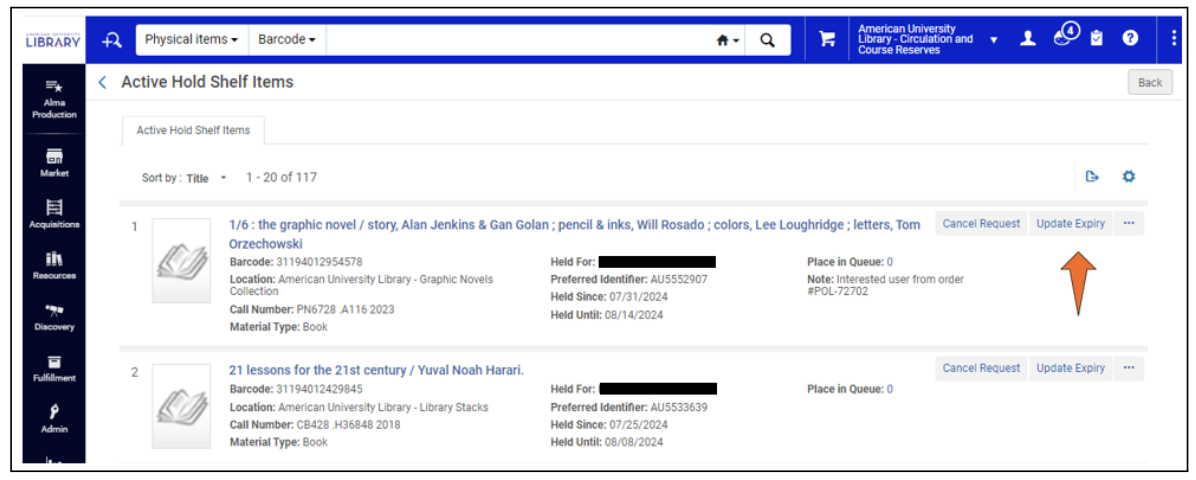
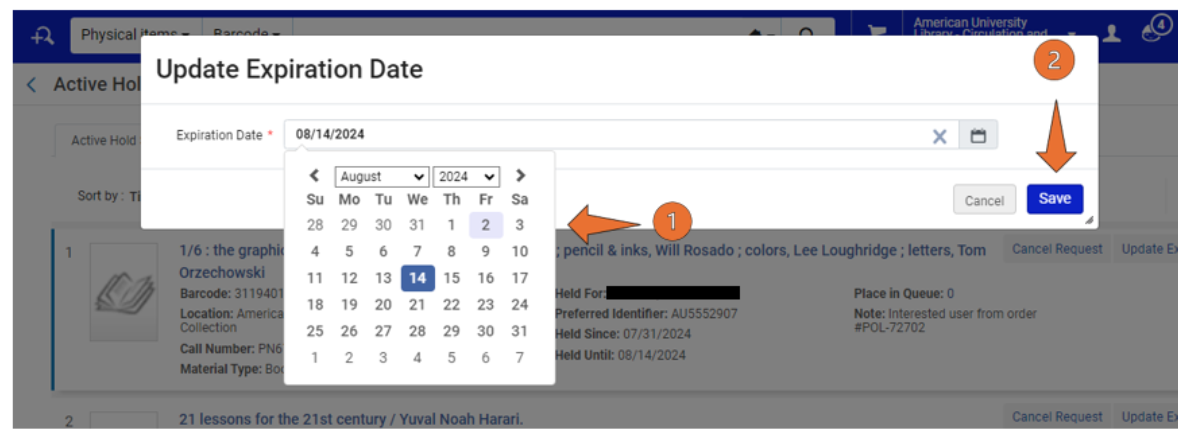
Alma only treats items as expired after the Hold Until date has passed.
Using yesterday’s date ensures Alma immediately recognizes the item as expired.
3: Alternative Location (If Updating from Lending Side) If the item must be managed from the lending/request side:
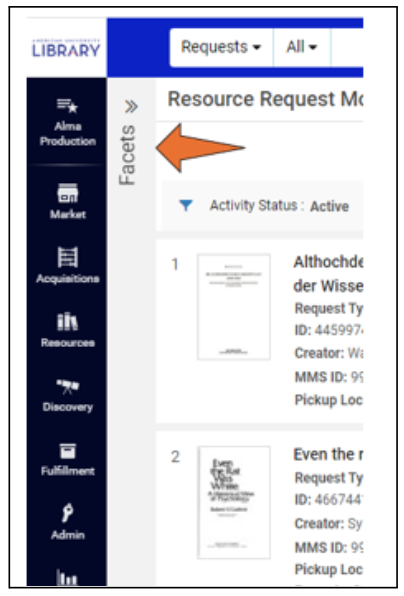
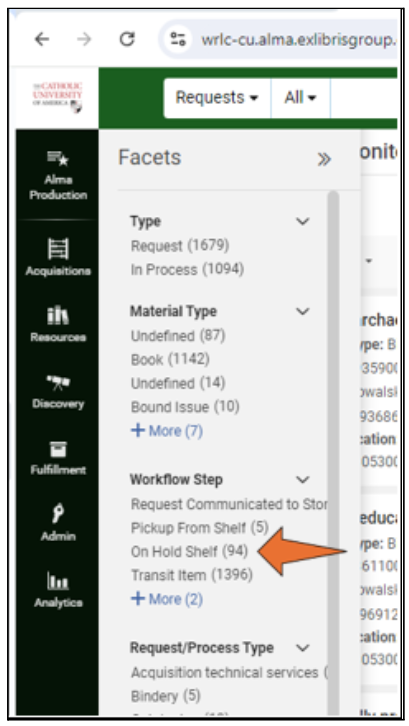
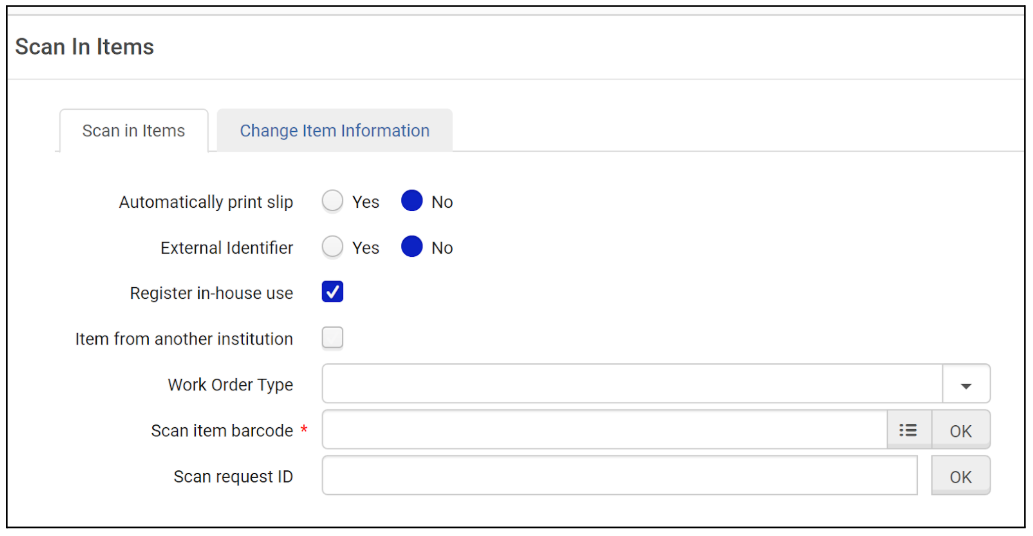
4: Scan the Item In Navigate to <Fulfillment > Scan In Items>
5: Prepare Item for Courier
Part B: Hold Shelf Items That HAVE Expired Past Hold Until Date
Important: This section applies only to items already listed on the Expired Hold Shelf.
1: Use Scan In Items (Required)
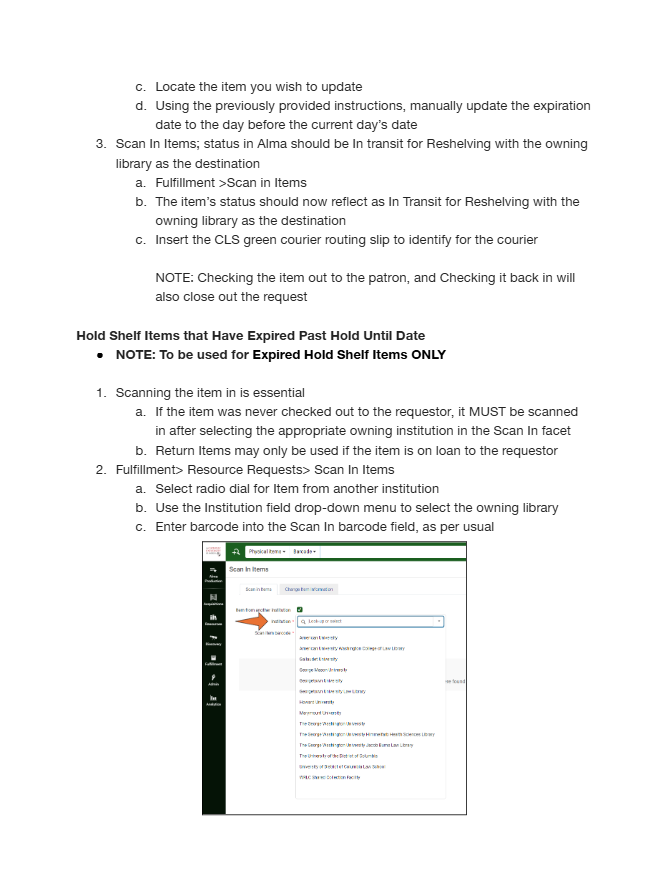
Navigate to Fulfillment > Resource Requests > Scan In Items> Select <Item from another institution> Use the Institution dropdown to select the owning library Scan the item barcode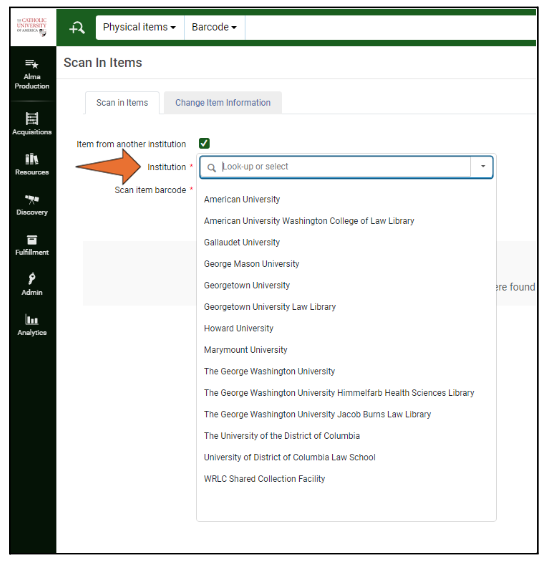
Why This Matters: If the item was never checked out, Return Items cannot be used. Scan In Items ensures Alma processes the item correctly.
2: If an Active Request Still Remains After Scanning Choose one of the following options:
Option A: Update Expiry and Scan Again
The request should clear, and the item should route to the owning library.
Option B: Cancel the Active Request
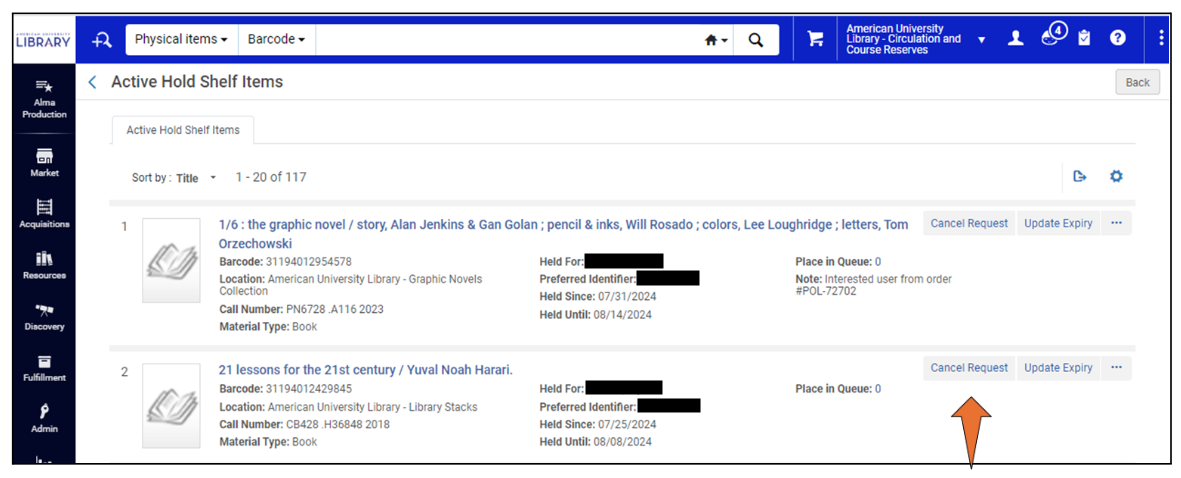
Navigate to <Fulfillment > Resource Requests > Active Hold Shelf> Locate the item the patron no longer wants Click <Cancel Request> Select a Cancellation Reason Uncheck <Notify User> if appropriate Click <Confirm>The item should now route In Transit for Reshelving to the owning library.
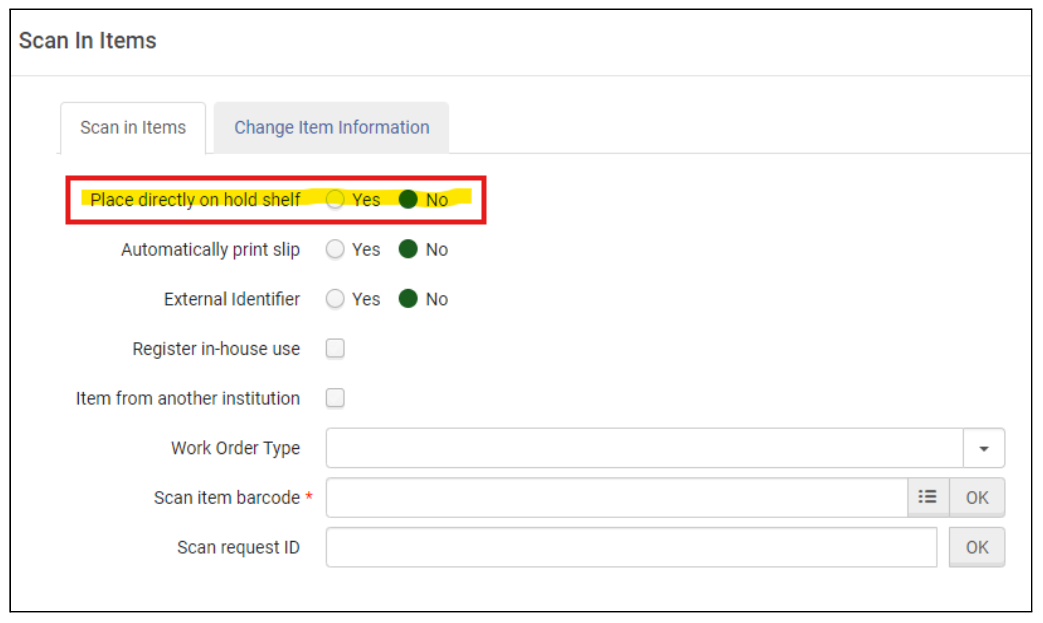
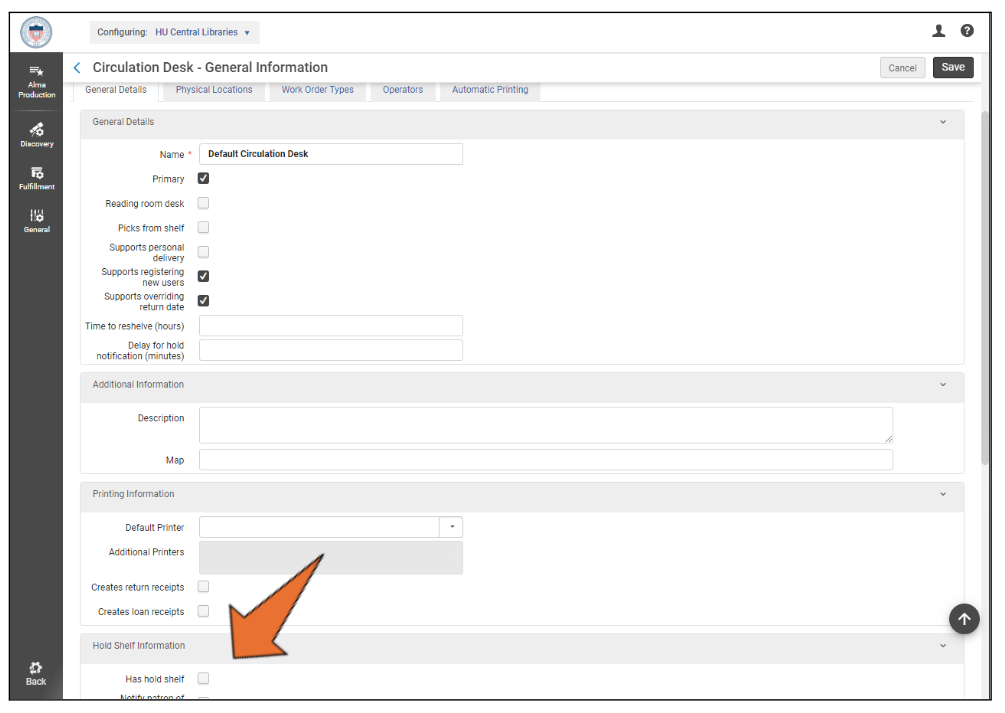
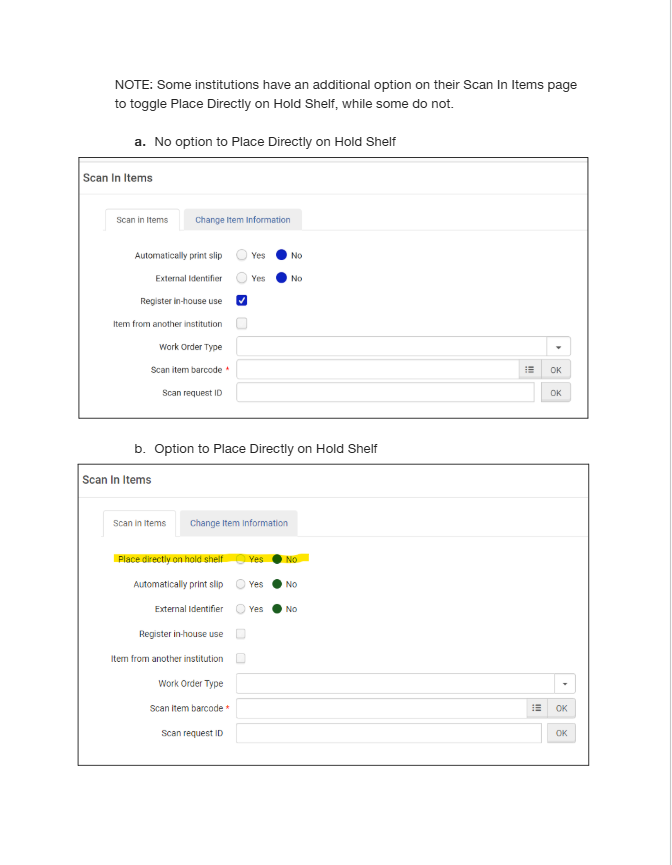
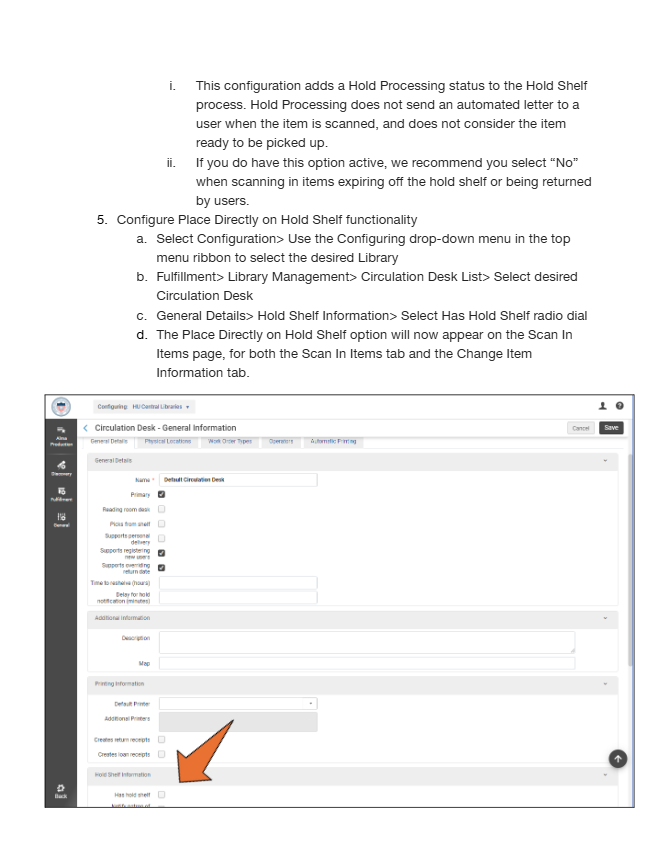
Part C: Place Directly on Hold Shelf (Configuration Awareness) Some institutions have an additional option on their Scan In Items page to toggle Place Directly on Hold Shelf, while others do not.
The option adds a Hold Processing status
Best Practice: When expiring or returning CLS items, set Place Directly on Hold Shelf = No.
Best Practices and Critical Notes (Read Carefully)
If an item comes back to the home institution with a green routing slip, but it still has an active request attached to it, it should be assumed that the item is no longer needed regardless of the request date:
Notes and Frequently Asked Questions
Why are CLS green slips required?
What if the destination lists multiple libraries?