
Item's Home Institution: Lost and Paid Status
This workflow explains how to process a Lost item as Lost and Paid in Alma when a patron has paid the replacement fee, allowing the system to:
-
Remove the item from the patron’s Active Loans
-
Mark the item’s process type as Lost and Paid
-
Resolve the loan without requiring the item to be returned
Use this workflow when:
-
A patron pays for a Lost item and will not be returning it
-
Staff need to finalize the loan and remove it from the patron’s account
-
Replacement costs have been collected and the item is considered permanently lost
Note: Without using the Lost and Paid functionality, items may remain on the patron’s account in Lost status even after payment, leading to confusion and inaccurate loan records.
Required Roles
-
Fulfillment Operator
-
Circulation Desk Manager
1: Locate the Patron Record Navigate to Fulfillment > Checkout/Checkin > Manage Patron Services> Search for and open the patron record
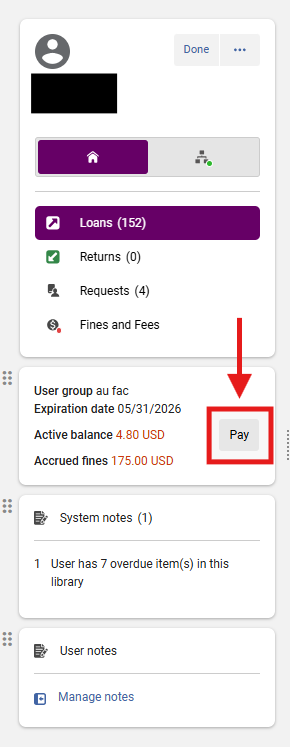
2: Access the Payment Screen Select the <Pay> button next to the Active Balance
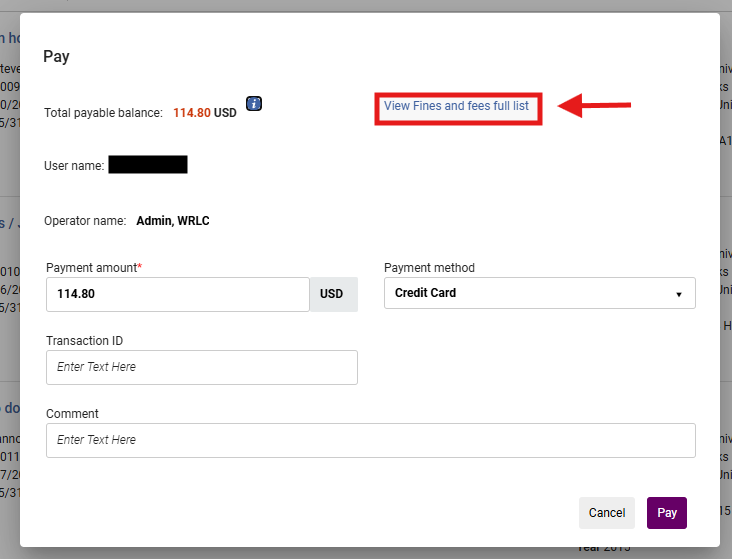
5: Select <View Fines and fees full list> Selecting specific fines ensures that only the intended lost item charge is processed and that other fines are not accidentally paid or altered
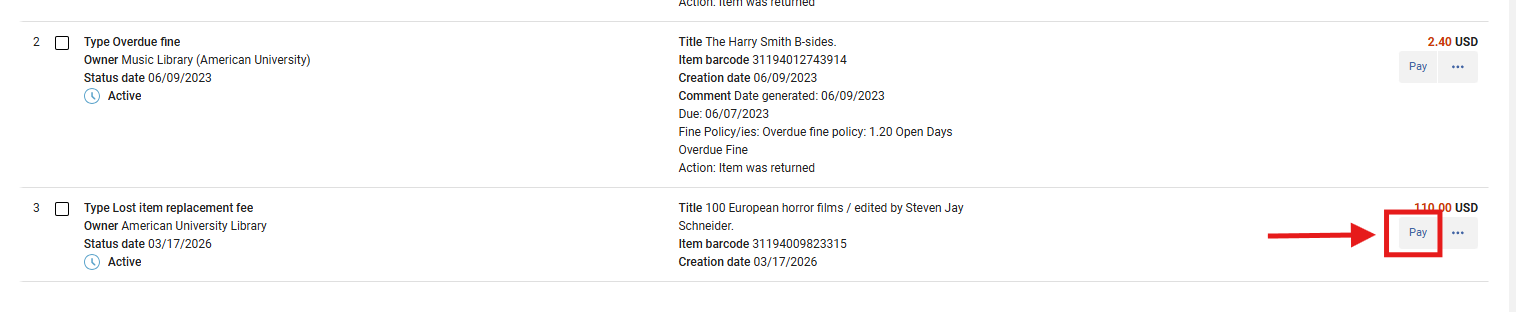
6. My Institution - Fines and Fees Locate the Lost item from the resulting list Fines and Fee full list; Select Pay for the specific item you wish to resolve
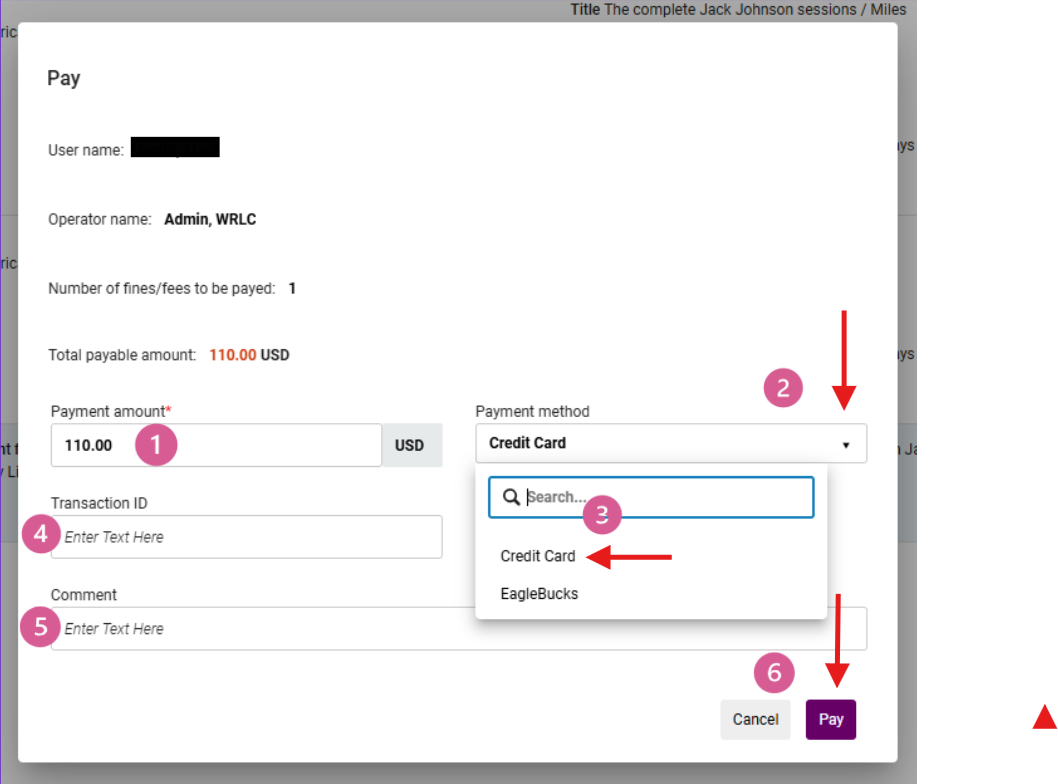
7: Process the Payment
- Confirm that the Lost Replacement Fee is reflecting as expected
- Use the <Payment Method> drop-down menu to select the desired form of payment
- Select the desired form of payment from the available options
- Per your library's policy standards, if required, enter a Transaction ID
- Per your library's policy standards, if required, enter a Comment
- Select <Pay>
8: Confirm Loan Closure After payment:
-
A display confirmation notification will publish on the right-hand side of the screen with a confirmation note indicating the item has been successfully paid
- The Loan record will update to Paid and the fine amount will reflect a zero balance
-
The item is removed from the patron’s active loans list
-
The item’s process type changes to: Lost and Paid


What Happens Automatically
When configured correctly and applied to Alma-native lost loans:
- The loan is closed
- The item is no longer associated with the patron
- The replacement fee is recorded as paid
- The item remains in a non-circulating lost status
Frequently Asked Questions
-
Why didn’t the item disappear from the patron’s account after payment?
-
The close_paid_lost_loan parameter may not be enabled, or the item may be a migrated lost loan.
-
-
What does “Lost and Paid” mean?
-
The patron has paid for the item, and the loan is closed without requiring return.
-
-
Can the item still be returned later?
-
Yes. If returned, staff may need to:
-
Adjust or refund fees
-
Update item status manually
-
-
Lost and Paid Credit?
Once a fee is fully paid and converted into a credit/refund situation, Alma treats it differently from ordinary fines and fees. Many staff discover they cannot simply “waive” or “delete” the resulting credit through the UI:
- Item ages into Lost status or is manually updated to Lost by library staff
- Patron pays replacement fee
- Loan changes to “Lost and Paid.”
- Patron later returns the item
- Alma interprets the return as grounds for a refund/credit based on the Lost Item Replacement Fee Refund Ratio policy.
- The item returns to “Item in place.”
- Alma posts a credit to the patron account
If a library has configured the <Lost Item Replacement Fee Refund Ratio> to 100%, then the full Lost Item Replacement Fee Refund will appear as a credit on the patron's account if the item is paid then returned at a later date.
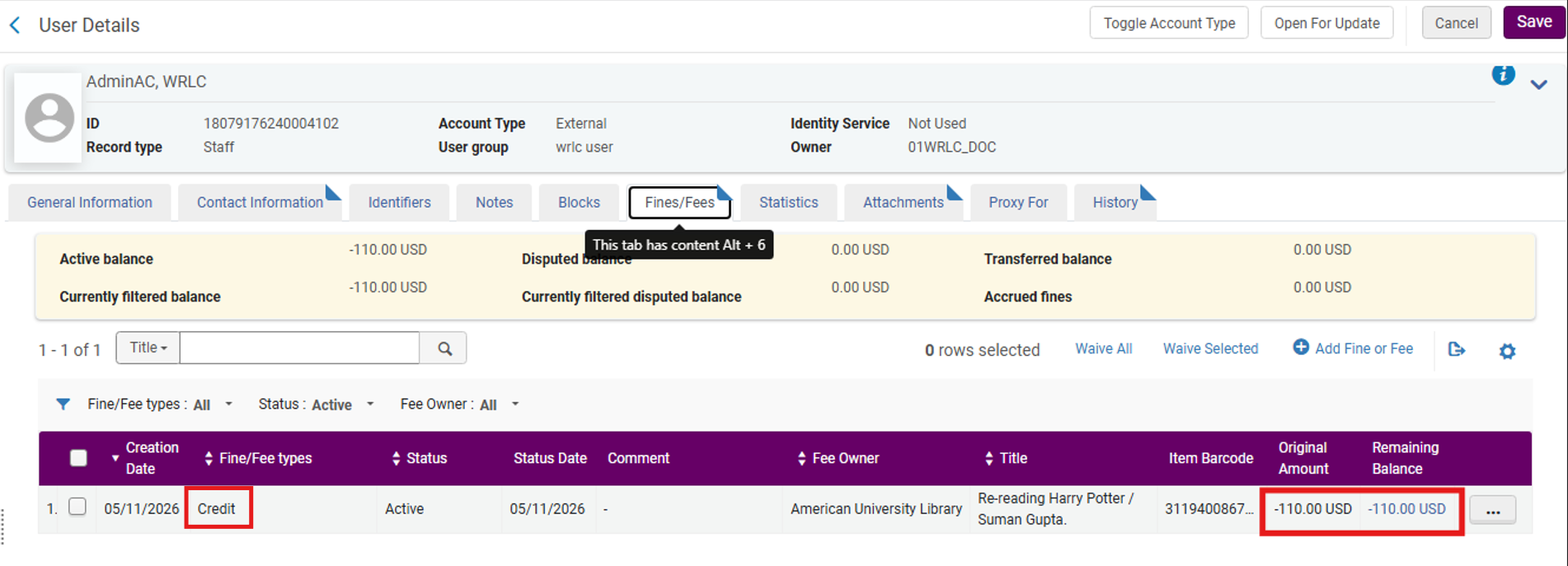
If this is not the desired configuration, then the <Lost Item Replacement Fee Refund Ratio> should be configured to a zero amount.
Configure Refund Ratio from 100% to 0%
- Set <Terms of Use Type> to Loan
- Locate the desired TOU (for example: WRLC FN Lending)
- From the row action menu, select Edit
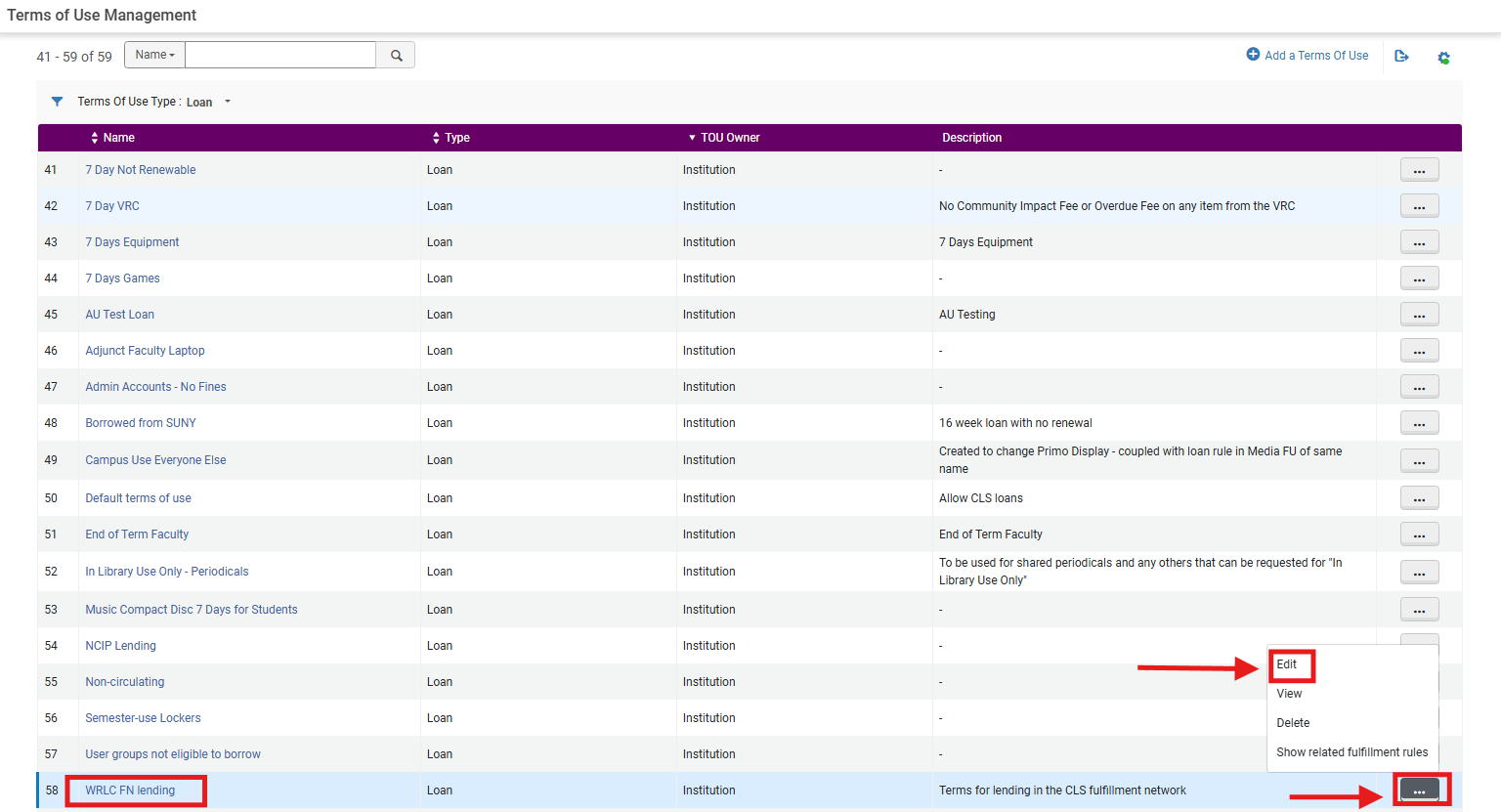
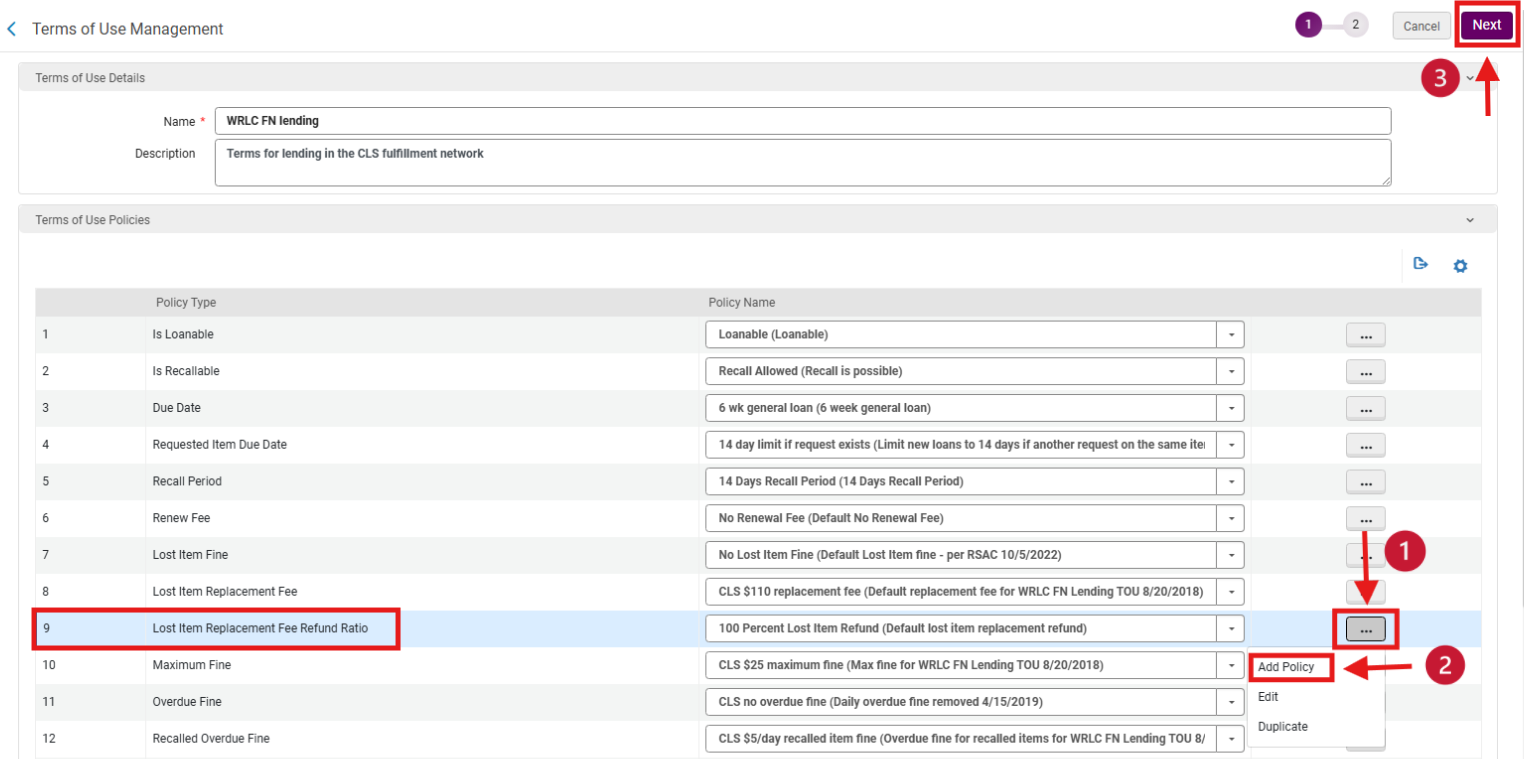
2. Add a new Lost Item Replacement Fee Refund Ratio policy, from the <Terms of Use Policies> menu:
- Locate Policy Type: <Lost Item Replacement Fee Refund Ratio>
- From the action row drop-down menu, select Add Policy
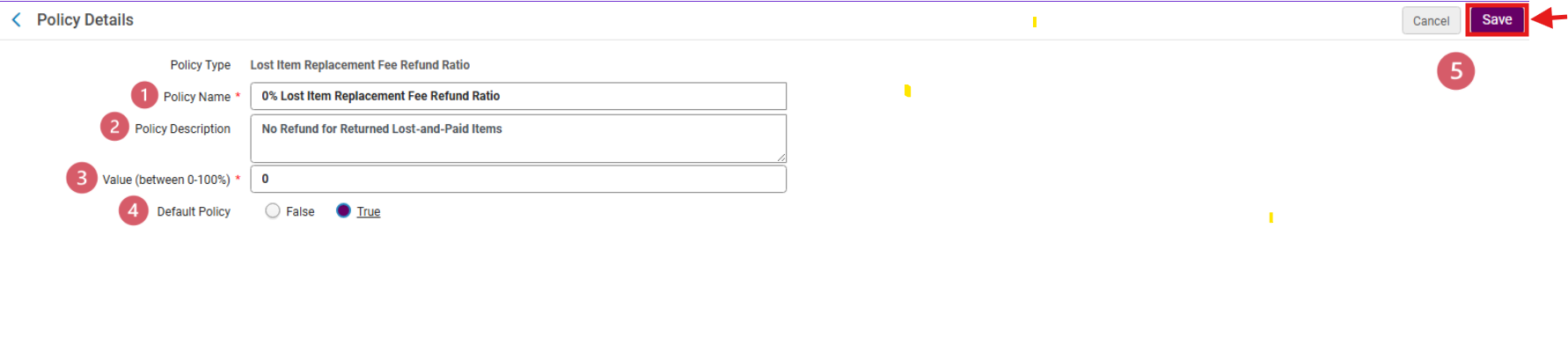
3. Configure the new policy, on the <Policy Details> page:
- Enter new Policy Name <0% Lost Item Replacement Fee Refund Ratio>
- Enter a Policy Description if desired
- In the <Value (between 0-100%)> field enter 0
- If appropriate to library policy, set <Default Policy> = True
- Select Save
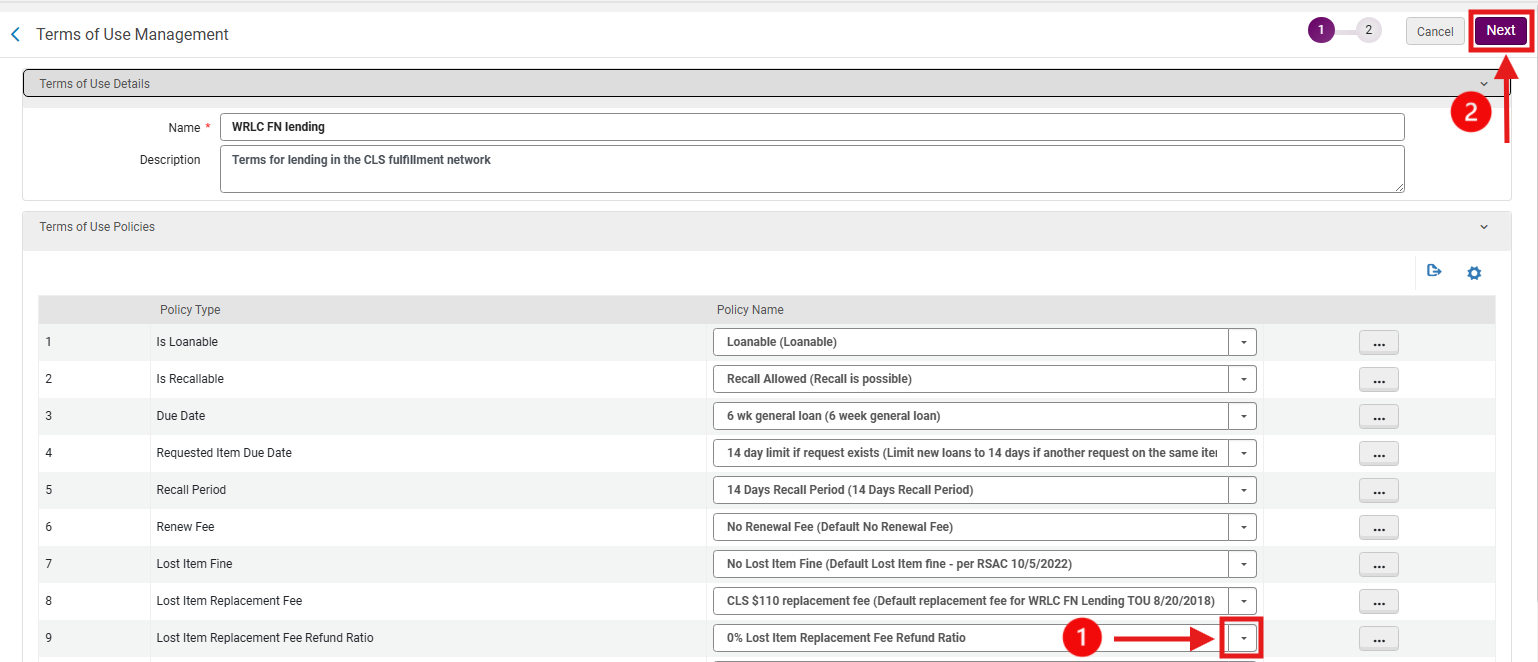
4. Apply the new policy using the Policy Name drop-down menu, select the newly configured<0% Lost Item Replacement Fee Refund Ratio>; select Next
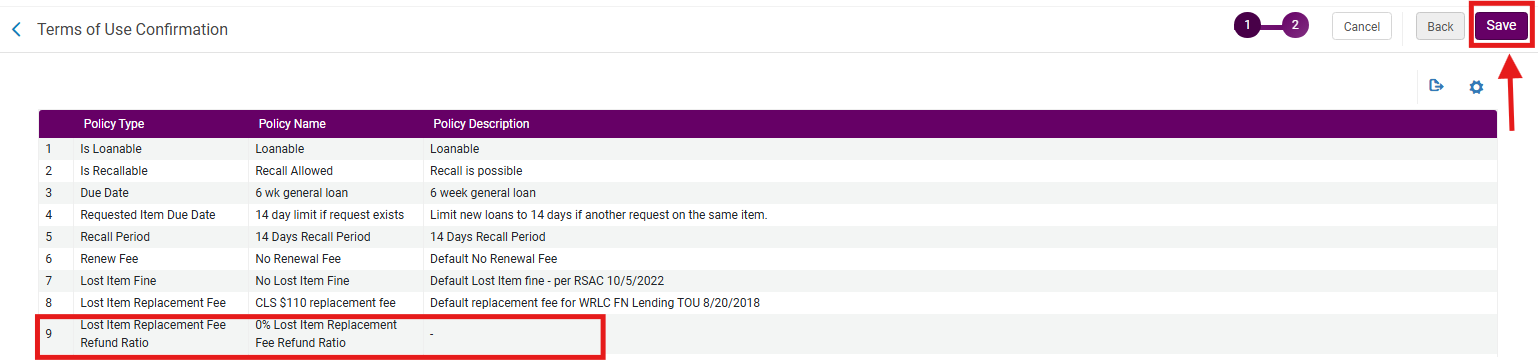
5. Save the updated Terms of Use on the Terms of Use Confirmation page, confirm that the <Lost Item Replacement Fee Refund Ratio> policy has been updated; select Save
Frequently Asked Questions
Why didn’t the item disappear from the patron’s account after payment?Theclose_paid_lost_loanparameter may not be enabled, or the item may be a migrated lost loan.
What does “Lost and Paid” mean?The patron has paid for the item, and the loan is closed without requiring return.
Can the item still be returned later?Yes. If returned, staff may need to:Adjust or refund feesUpdate item status manually