Item's Home Institution: Lost and Paid Status
This workflow explains how to process a Lost item as Lost and Paid in Alma when a patron has paid the replacement fee, allowing the system to:
-
Remove the item from the patron’s Active Loans
-
Mark the item’s process type as Lost and Paid
-
Resolve the loan without requiring the item to be returned
Use this workflow when:
-
A patron pays for a Lost item and will not be returning it
-
Staff need to finalize the loan and remove it from the patron’s account
-
Replacement costs have been collected and the item is considered permanently lost
Note: Without using the Lost and Paid functionality, items may remain on the patron’s account in Lost status even after payment, leading to confusion and inaccurate loan records.
Required Roles
-
Fulfillment Operator
-
Circulation Desk Manager
1: Locate the Patron Record Navigate to Fulfillment > Checkout/Checkin > Manage Patron Services> Search for and open the patron record
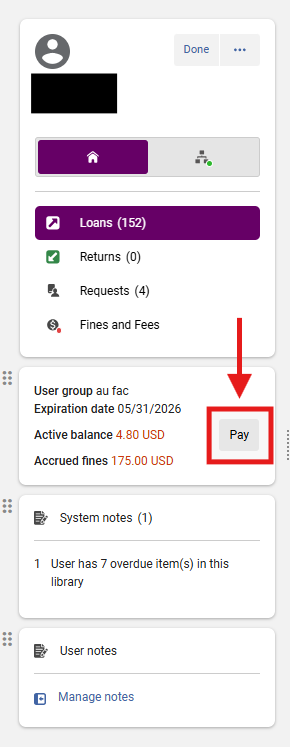
2: Access the Payment Screen Select the <Pay> button next to the Active Balance
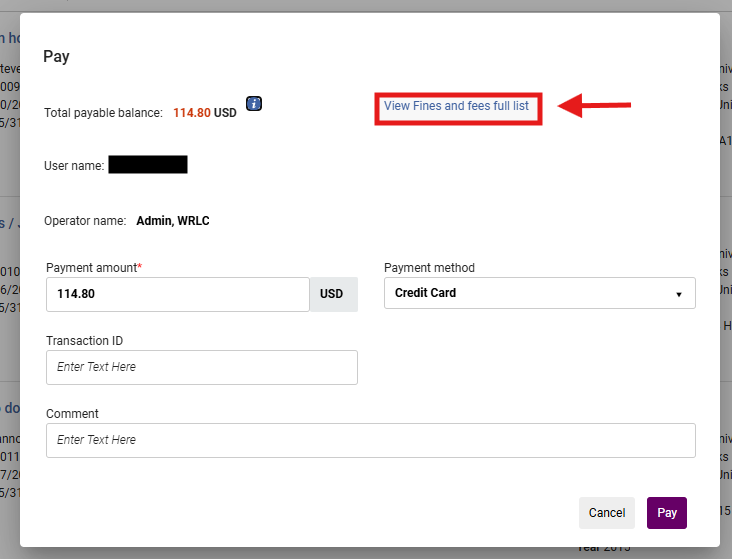
5: Select <View Fines and fees full list> Selecting specific fines ensures that only the intended lost item charge is processed and that other fines are not accidentally paid or altered
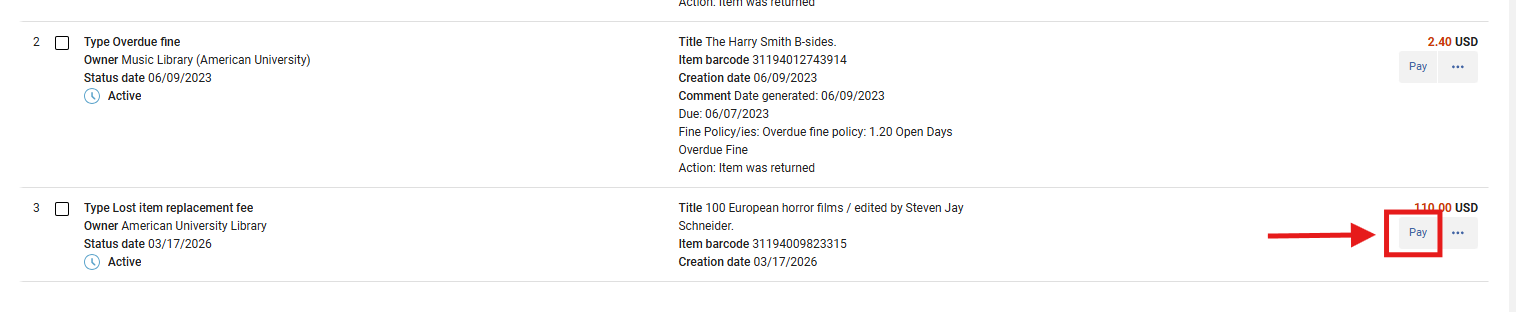
6. My Institution - Fines and Fees Locate the Lost item from the resulting list Fines and Fee full list; Select Pay for the specific item you wish to resolve
7: Process the Payment
- Confirm that the Lost Replacement Fee is reflecting as expected
- Use the <Payment Method> drop-down menu to select the desired form of payment
- Select the desired form of payment from the available options
- Per your library's policy standards, if required, enter a Transaction ID
- Per your library's policy standards, if required, enter a Comment
- Select <Pay>
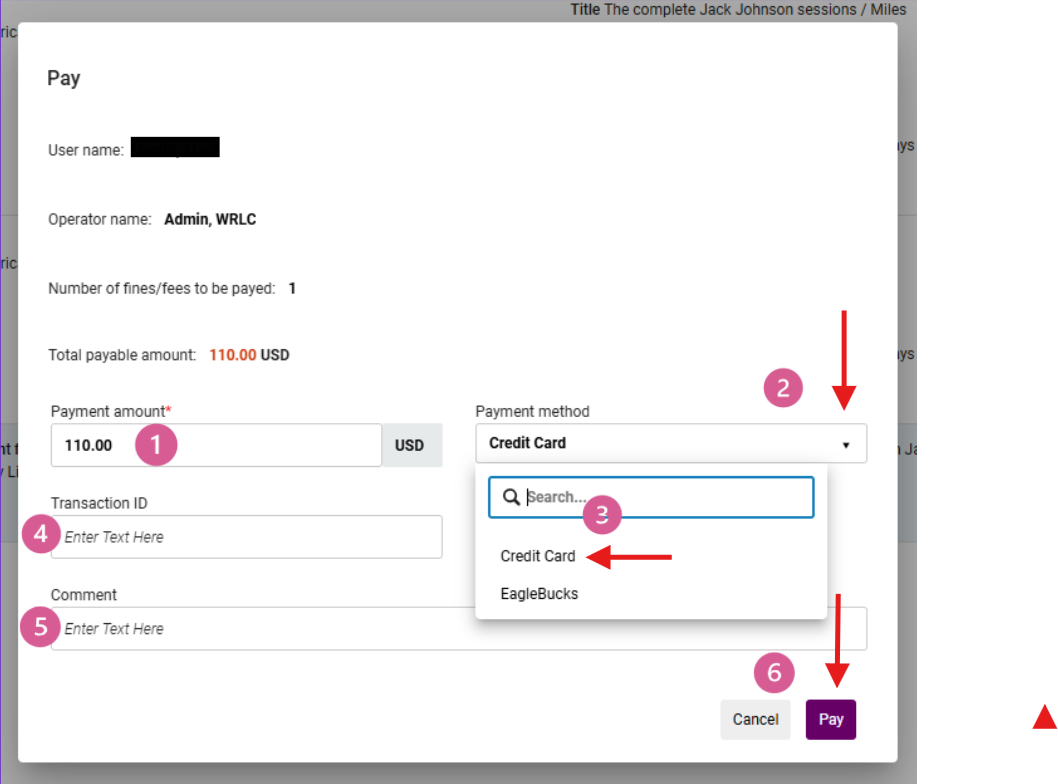
8: Confirm Loan Closure After payment:
-
A display confirmation notification will publish on the right-hand side of the screen with a confirmation note indicating the item has been successfully paid
- The Loan record will update to Paid and the fine amount will reflect a zero balance
-
The item is removed from the patron’s active loans list
-
The item’s process type changes to: Lost and Paid


What Happens Automatically
When configured correctly and applied to Alma-native lost loans:
- The loan is closed
- The item is no longer associated with the patron
- The replacement fee is recorded as paid
- The item remains in a non-circulating lost status
Frequently Asked Questions
-
Why didn’t the item disappear from the patron’s account after payment?
-
The close_paid_lost_loan parameter may not be enabled, or the item may be a migrated lost loan.
-
-
What does “Lost and Paid” mean?
-
The patron has paid for the item, and the loan is closed without requiring return.
-
-
Can the item still be returned later?
-
Yes. If returned, staff may need to:
-
Adjust or refund fees
-
Update item status manually
-
-
Lost and Paid Credit?
Once a fee is fully paid and converted into a credit/refund situation, Alma treats it differently from ordinary fines and fees. Many staff discover they cannot simply “waive” or “delete” the resulting credit through the UI:
- Item ages into Lost status or is manually updated to Lost by library staff
- Patron pays replacement fee
- Loan changes to “Lost and Paid.”
- Patron later returns the item
- Alma interprets the return as grounds for a refund/credit based on the Lost Item Replacement Fee Refund Ratio policy.
- The item returns to “Item in place.”
- Alma posts a credit to the patron account
If a library has configured the <Lost Item Replacement Fee Refund Ratio> to 100%, then the full Lost Item Replacement Fee Refund will appear as a credit on the patron's account if the item is paid then returned at a later date.
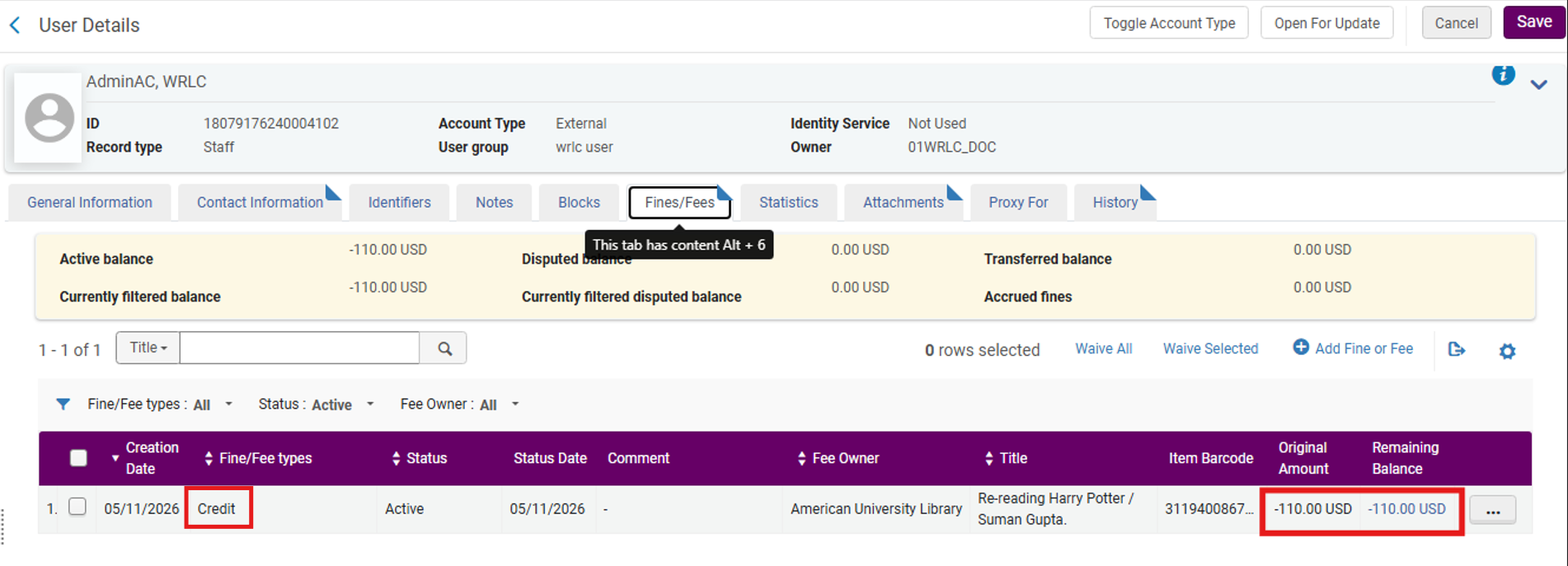
If this is not the desired configuration, then the <Lost Item Replacement Fee Refund Ratio> should be configured to a zero amount.
Configure Refund Ratio from 100% to 0%
- Set <Terms of Use Type> to Loan
- Locate the desired TOU (for example: WRLC FN Lending)
- From the row action menu, select Edit
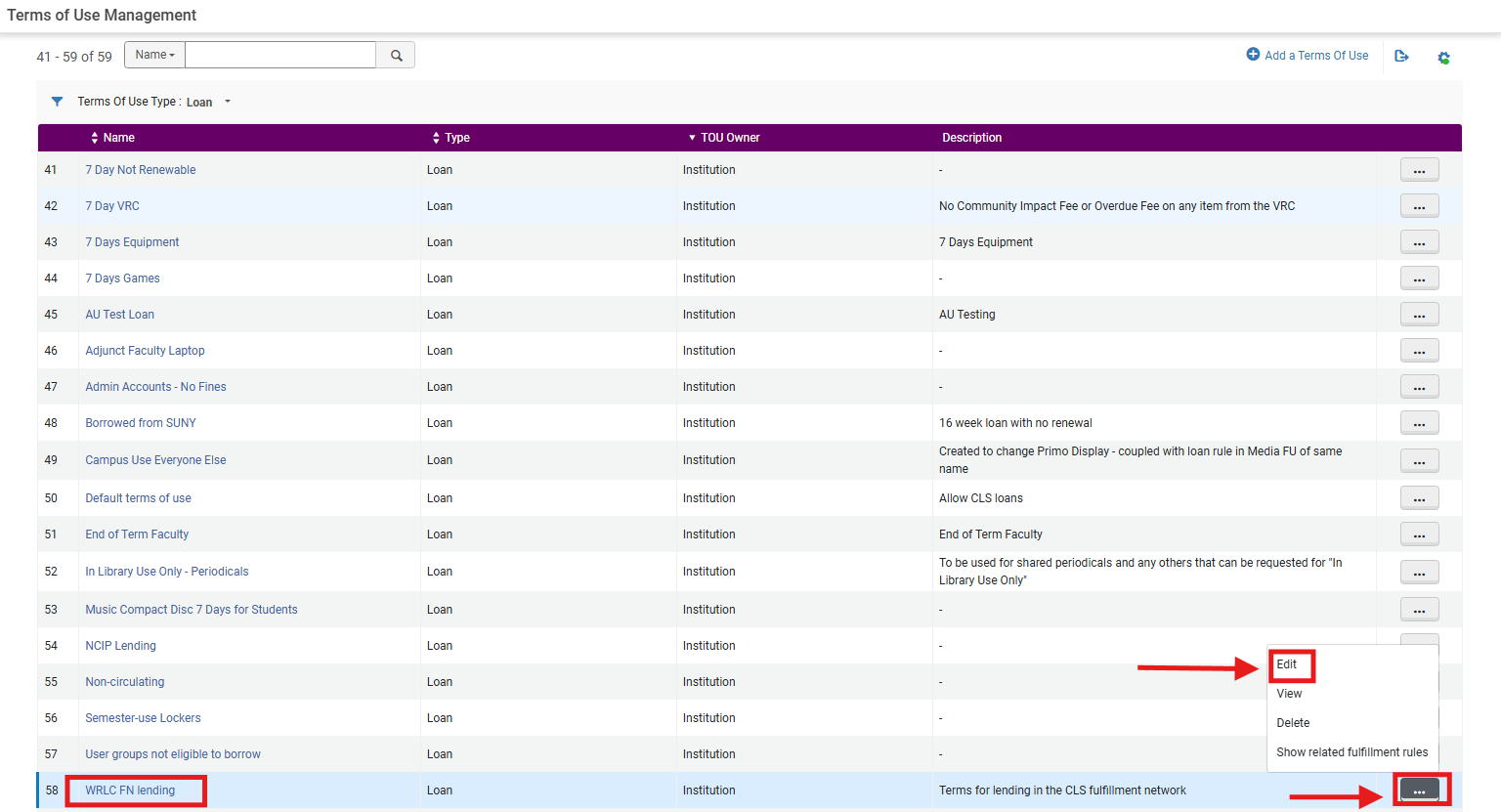
2. Add a new Lost Item Replacement Fee Refund Ratio policy, from the <Terms of Use Policies> menu:
- Locate Policy Type: <Lost Item Replacement Fee Refund Ratio>
- From the action row drop-down menu, select Add Policy
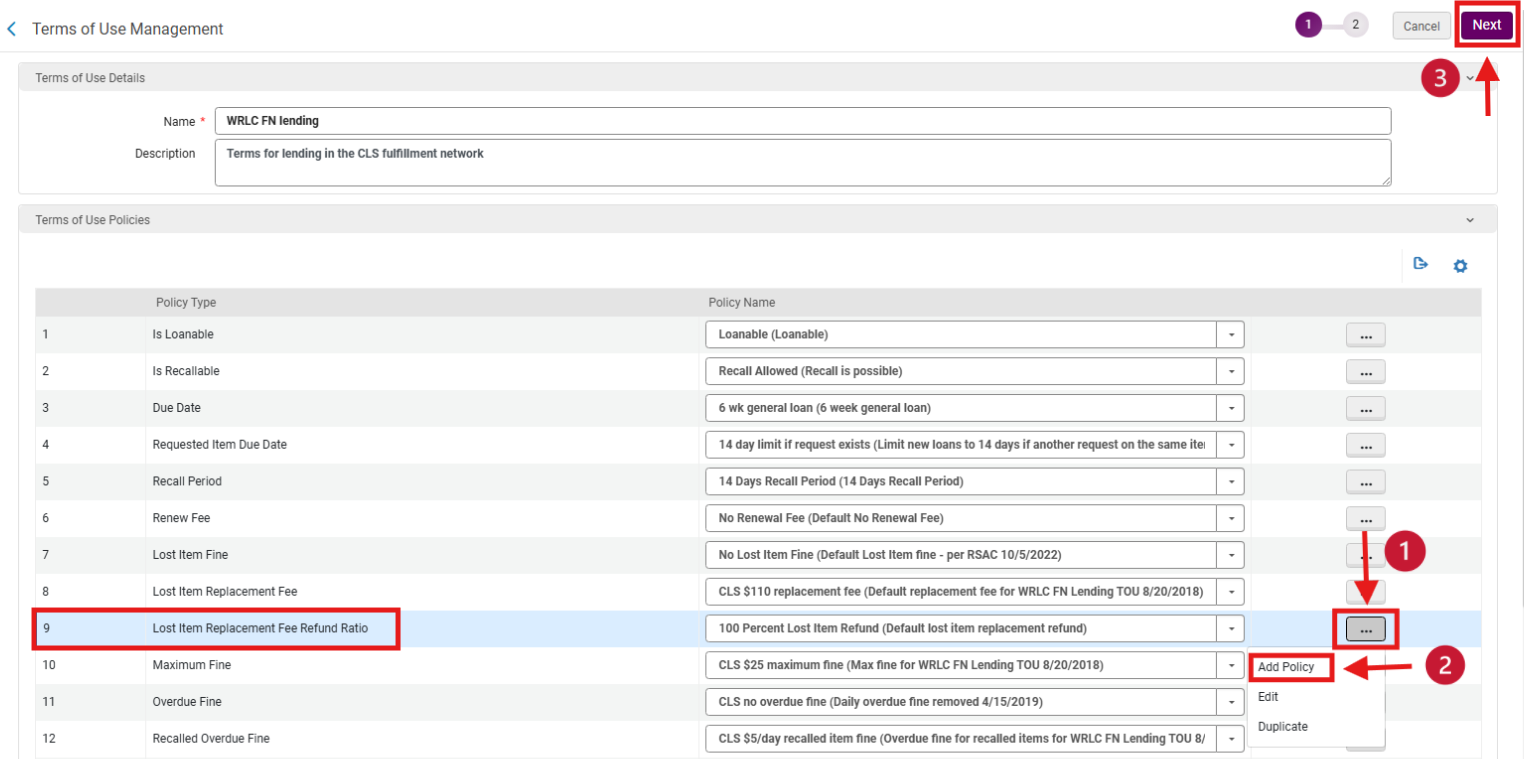
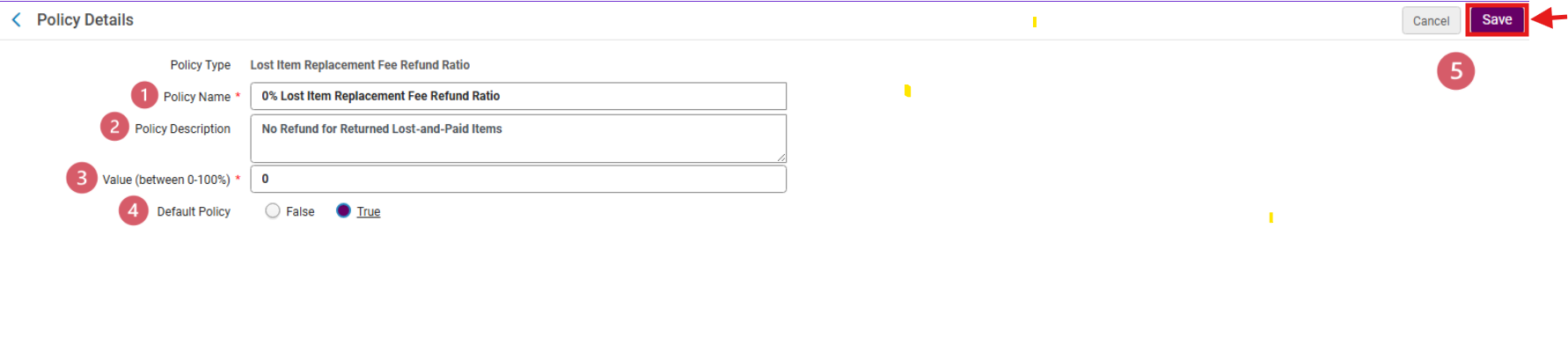
3. Configure the new policy, on the <Policy Details> page:
- Enter new Policy Name <0% Lost Item Replacement Fee Refund Ratio>
- Enter a Policy Description if desired
- In the <Value (between 0-100%)> field enter 0
- If appropriate to library policy, set <Default Policy> = True
- Select Save
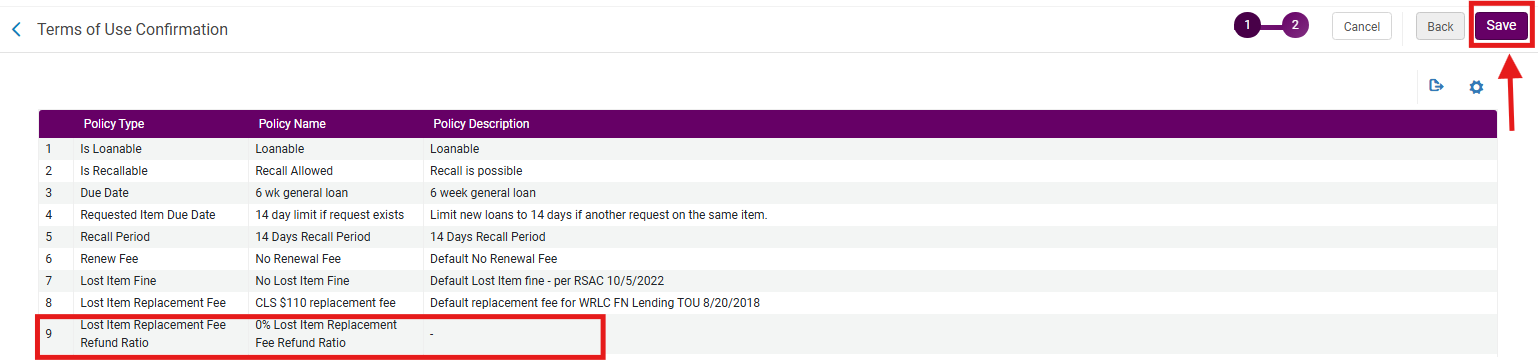
4. Apply the new policy using the Policy Name drop-down menu, select the newly configured<0% Lost Item Replacement Fee Refund Ratio>; select Next
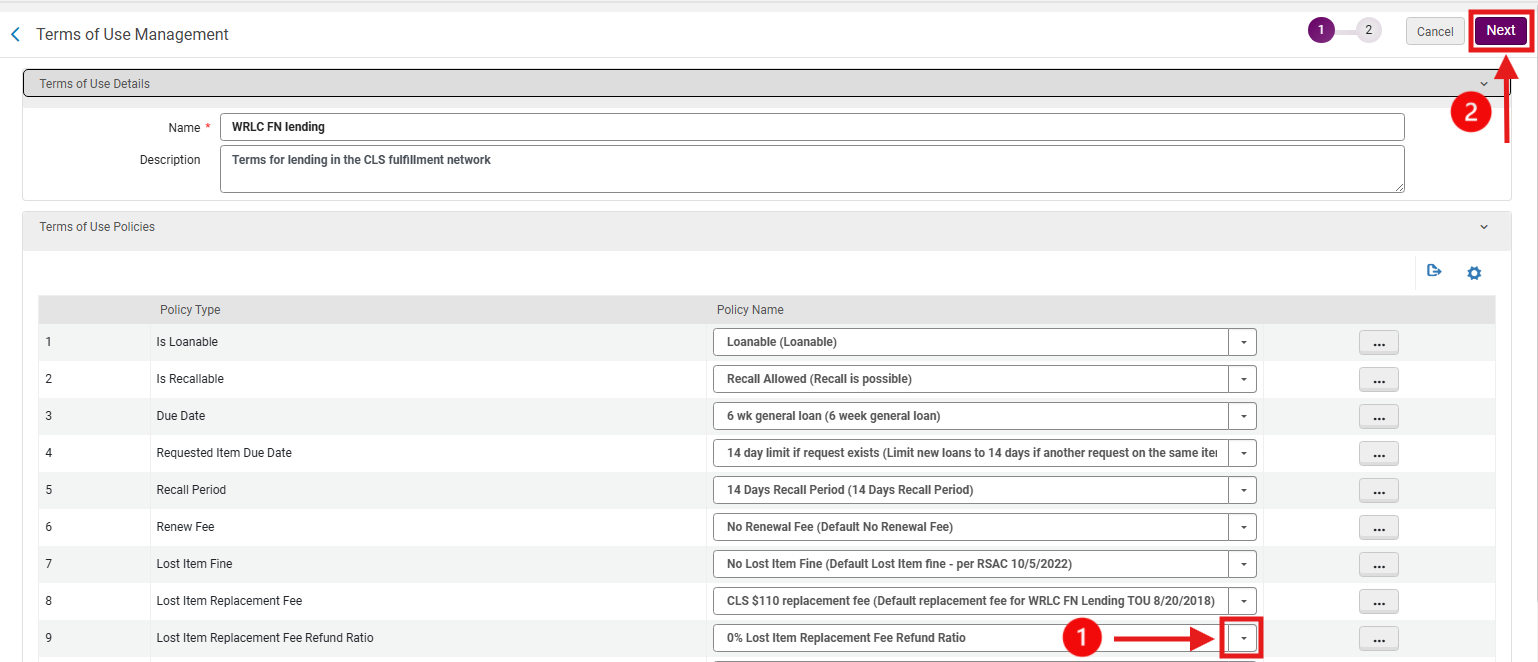
5. Save the updated Terms of Use on the Terms of Use Confirmation page, confirm that the <Lost Item Replacement Fee Refund Ratio> policy has been updated; select Save