
How to Process Loaned Peer to Peer (P2P) Items
This section covers how to process outgoing P2P lending requests: printing pull slips, retrieving items, and shipping them to the borrowing library. Alma relies on consistent slip printing, item scanning, and shipment processing to maintain the lending side of the Resource Sharing workflow.
Thank you to George Washington University for sharing their workflow processes.
Required Roles
- Fulfillment Operator
- Circulation Desk Manager
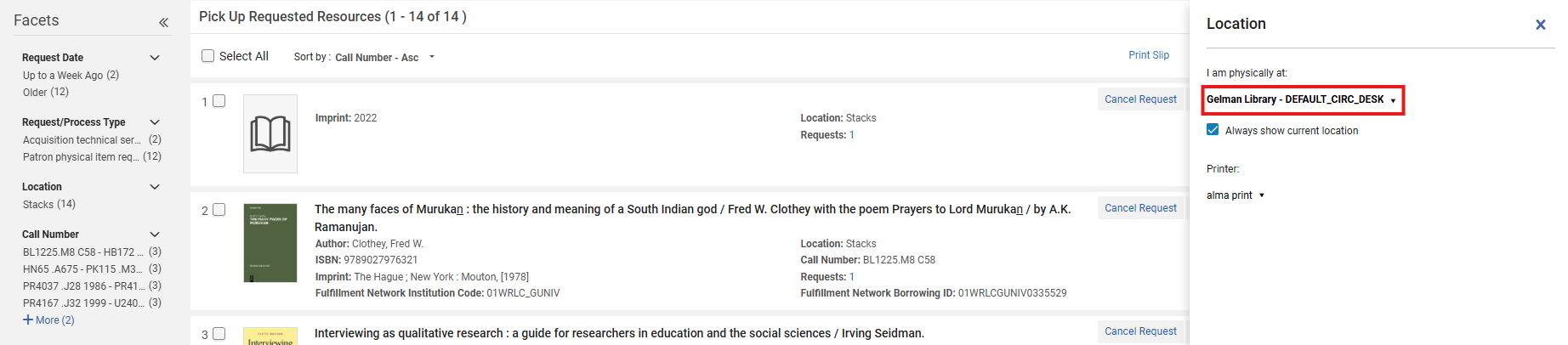
1: Print Pull Slips for Lending Requests Navigate to Fulfillment > Resource Requests> Pick From Shelf>
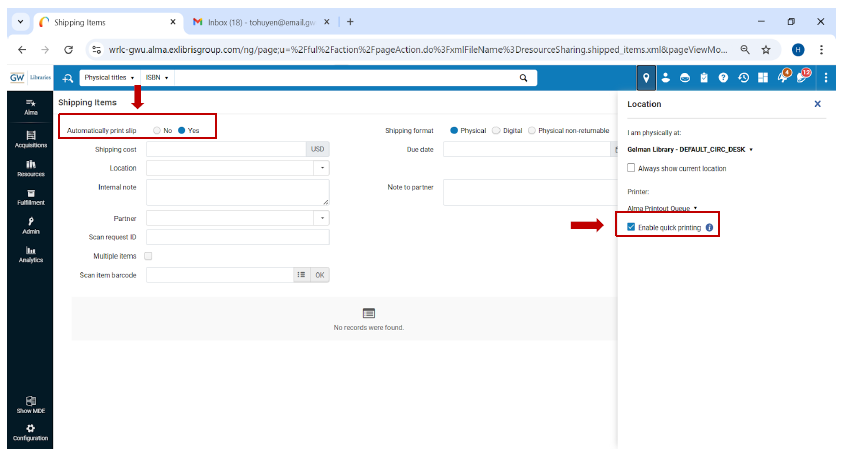
- Verify you are at the correct Circulation Desk location and that Quick Printing, if available, is enabled; Quick Printing functionality provides streamlined print-based workflows
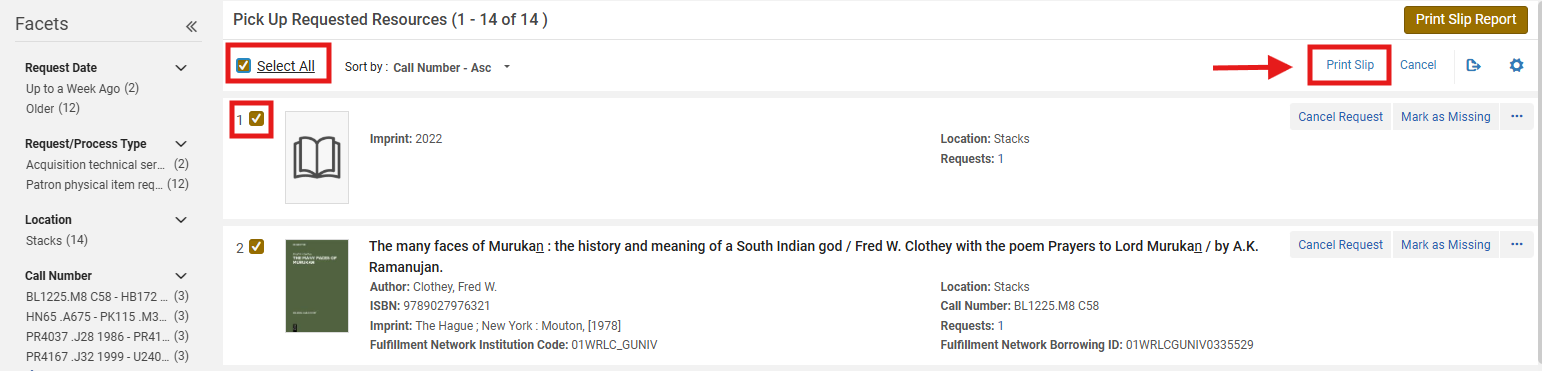
2: Retrieve Items from the Shelves Use printed pulling slips to gather items.
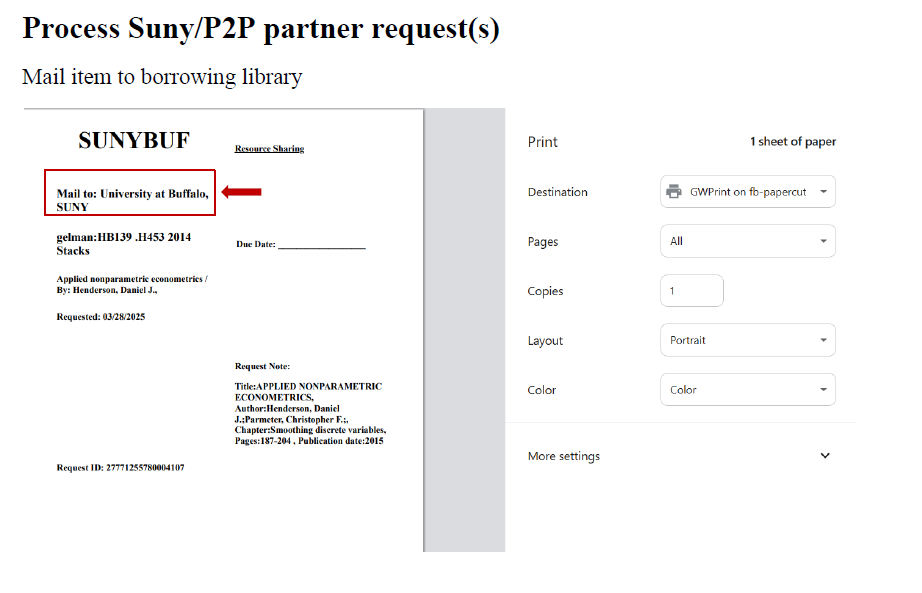
3: Begin the Shipping Workflow Navigate to Fulfillment > Resource Sharing > Shipping Items
4: Configure Quick Printing for Shipping Slips Set Automatically print slip to Yes; Enable Quick Printing.
5: Prepare Item for Shipping Insert the Resource Sharing Shipping Slip Letter generated by Alma Shipping Slip; Follow yoru library's local workflow for mailing Resource Sharing items