
How to Process Borrowed Peer to Peer (P2P) Items
This workflow explains how to process books borrowed from partnering Peer to Peer (P2P) libraries.
Thank you George Washington University for sharing your workflow processes.
When to Reference This Document:
- When books arrive via delivery or mail from partnering P2P institutions.
- When processing newly received items so they can be placed on the hold shelf for WRLC patrons.
- When returning borrowed item to partnering P2P institutions.
- When ensuring paperwork, routing slips, and Alma request metadata all match.
Required Roles
- Fulfillment Operator
- Circulation Desk Manager
Part I: Incoming Books
1: Verify Paperwork and Item Barcode
- Locate paperwork inside the P2P-loaned item
- Confirm barcode on book matches the barcode on the accompanying paperwork
2: Open Receiving Items Navigate to Fulfillment > Resource Sharing > Receiving Items>
3: Enter the External Identifier Locate the External Identifier information provided on the paperwork and click <OK>.
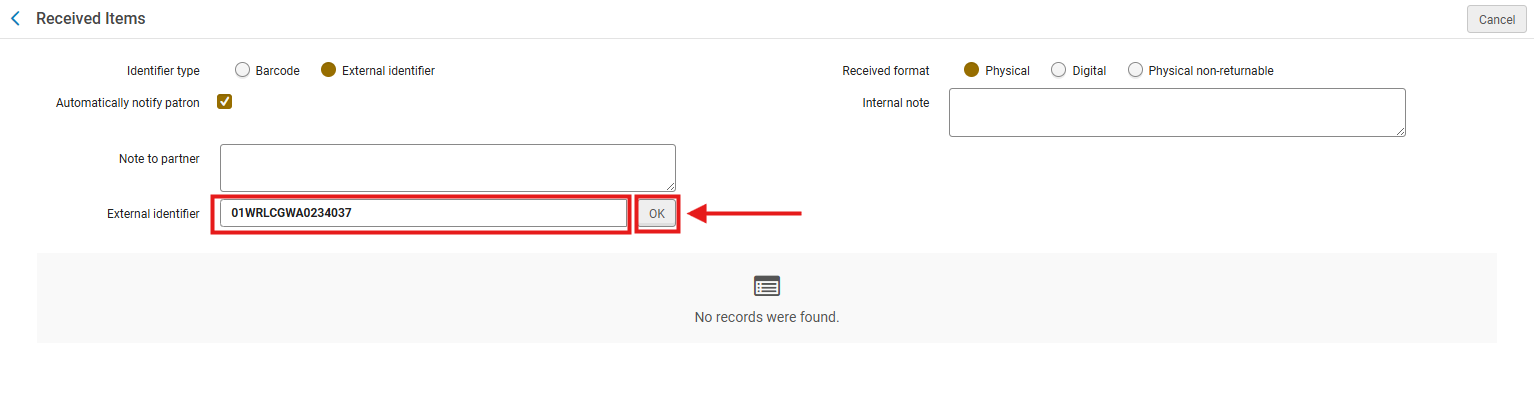
Note: Ex Libris identifies the External Identifier as the primary matching key between the item and the borrowing request.
4: Assign a Temporary Barcode The temporary barcode ties the physical item to the local inventory system while maintaining the lending institution’s original barcode.
- A pop-up will appear prompting for a Temporary barcode.
- Enter the item’s actual barcode.
- Click <Save>
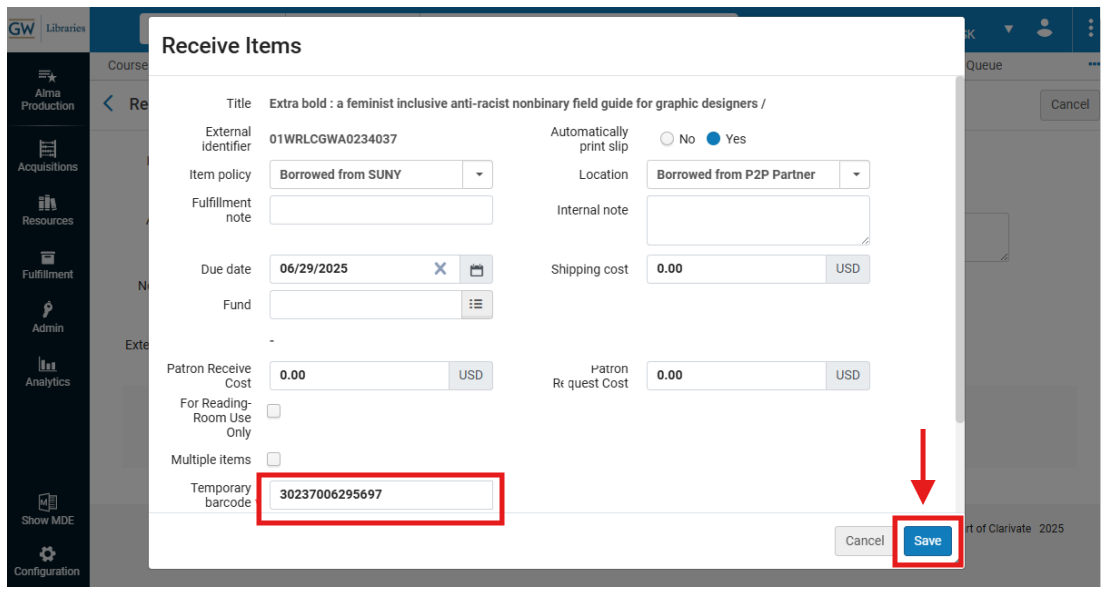
5: Print the Book Slip After saving, Alma generates the Resource Sharing Receive Slip (if Quick Printing is enabled); Click <Print>
6: Prepare the item for the Hold Shelf Follow your libraries' procedures to prepare the item for the Hold Shelf
- Note GW Procedures: Create the Hold Strap
- Cut the printed slip lengthwise to form a strap.
- Tape it around the item’s cover so the patron name and Hold Until Date are visible.
7: Place Item on the Hold Shelf Follow your libraries' Hold Shelf procedures to shelve the incoming item for patron pickup.
Part II: Returning Books
1: Open Return Items Navigate to Fulfillment > Checkout/Checkin> Return Items>
2: Scan the Item Barcode Ensure My Institution is selected and Scan the item barcode
- Select <OK>
Note: Be sure to not use the External Identifier

3: Confirm Transit Destination Alma displays a pop-up indicating Transit Destination to the lending partner; Click <OK>
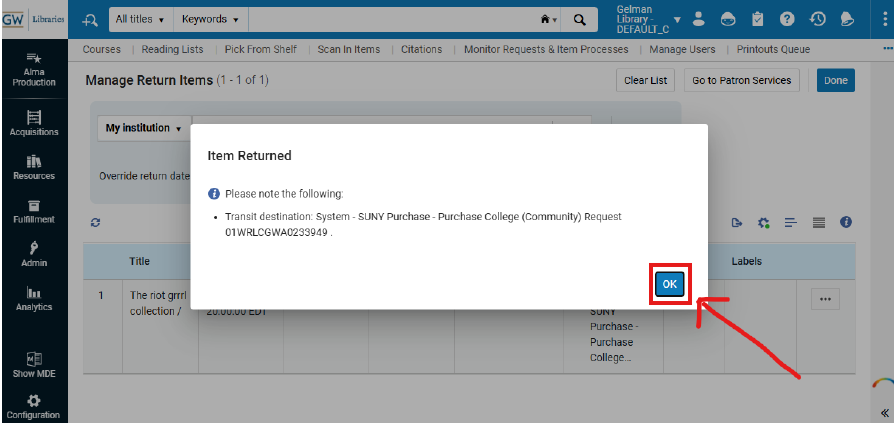
Note: This step triggers Alma’s Resource Sharing workflow to update to In Transit for the lending library- acknowledging transit is essential for accurate tracking.
4: Print the Return Slip If you have enabled Quick Printing, Alma should automatically generate the "Resource Sharing Return Slip Letter; Click Print.
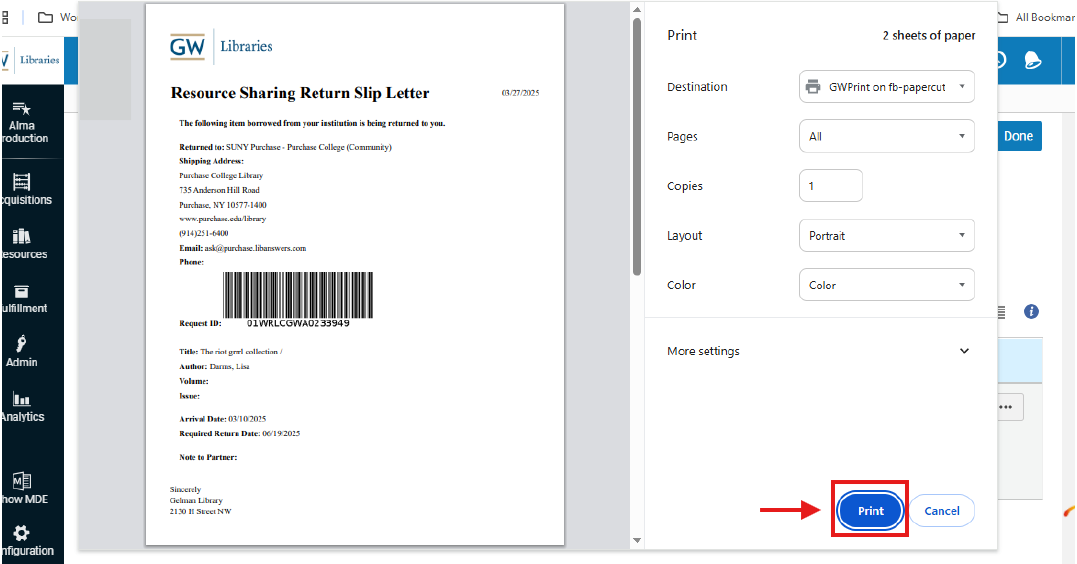
5: Prepare the Item for Shipment or Shelf Routing Insert the printed slip into the item. Follow your libraries' mailing procedures