
Affiliate Library Configuration
1. Create user group
- Configuration > User Management > User Details > User Groups
- + Add Row
- Choose a code and a description (preferably [Affiliate Library] Patron)
- Choose Add Row, and then Save the table
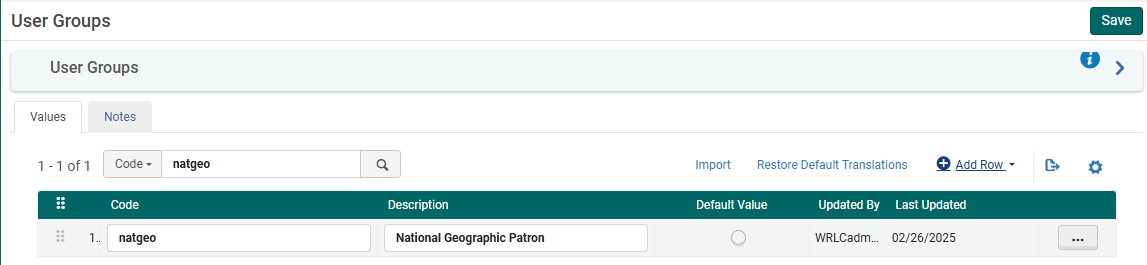
2. Apply user record group to a specific type
- Configuration > User Management > User Details > User Record Type/User Group
- + Add Row
- Choose the user group created in step #1, then choose a record type of Staff, Public, and Organization
- Choose Add Row, and then Save the table

3. Associate library location with Fulfillment Unit
- Configuration > Fulfillment > Physical Fulfillment > Fulfillment Units
- Edit the Fulfillment Unit Library Delivery Only
- Choose the Fulfillment Unit Locations tab
- Attach to the list the location(s) associated with the affiliate library
- Save the Fulfillment Unit
4. Associate user group with Fulfillment Unit
- Configuration > Fulfillment > Physical Fulfillment > Fulfillment Units
- Edit the Fulfillment Unit Library Delivery Only
- Choose the Fulfillment Unit Rules tab
- Choose the Rule Type Loan from the drop down menu
- Edit the Library Delivery Loan rule
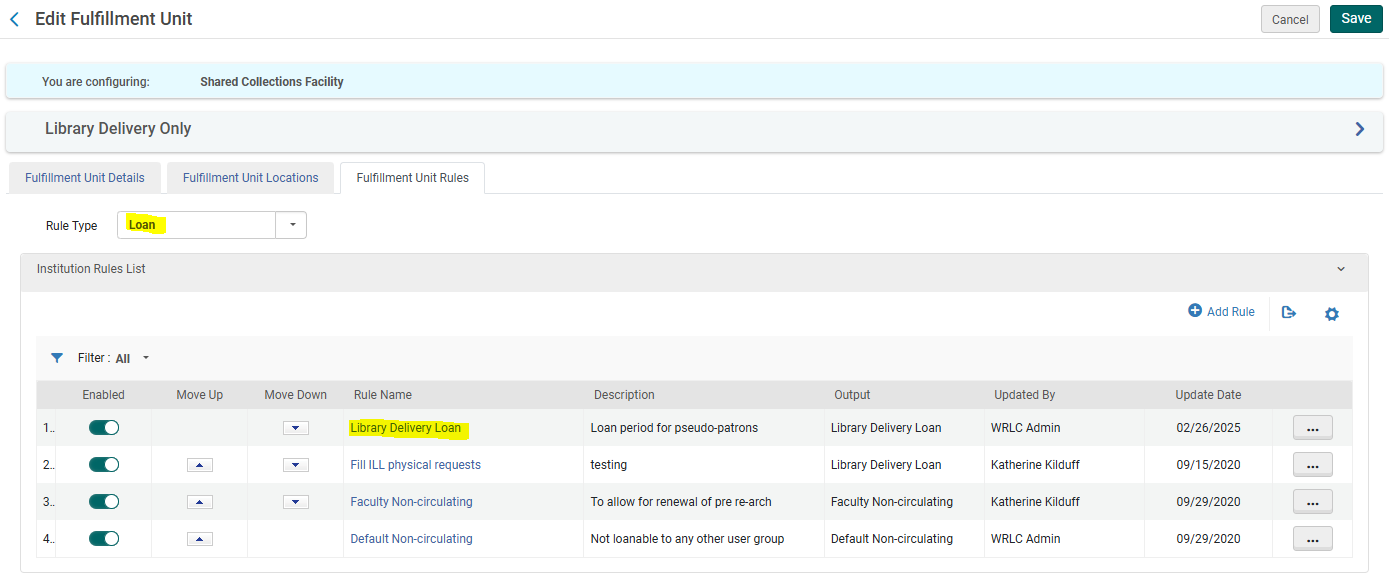
- Add the user group created in step #1 to the list of User Groups in the Input Parameters
- Save the Fulfillment Unit
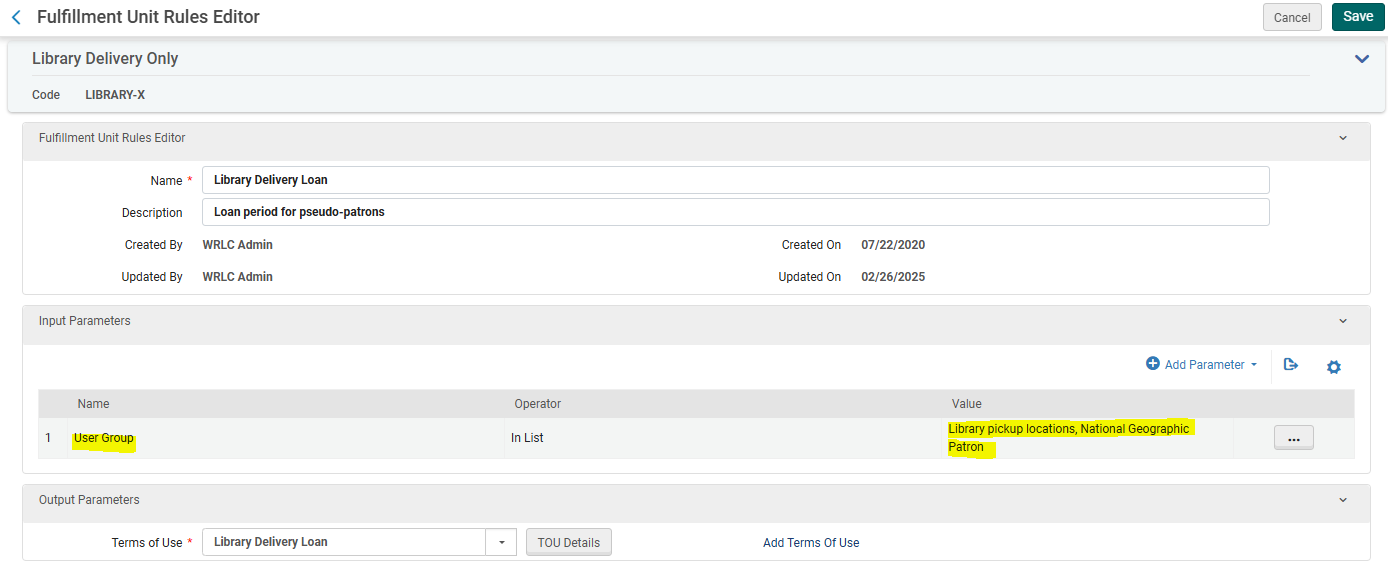
- Go back to the Fulfillment Unit Rules tab
- Now choose the Rule Type Request from the drop down menu
- Edit the Library Delivery Request rule
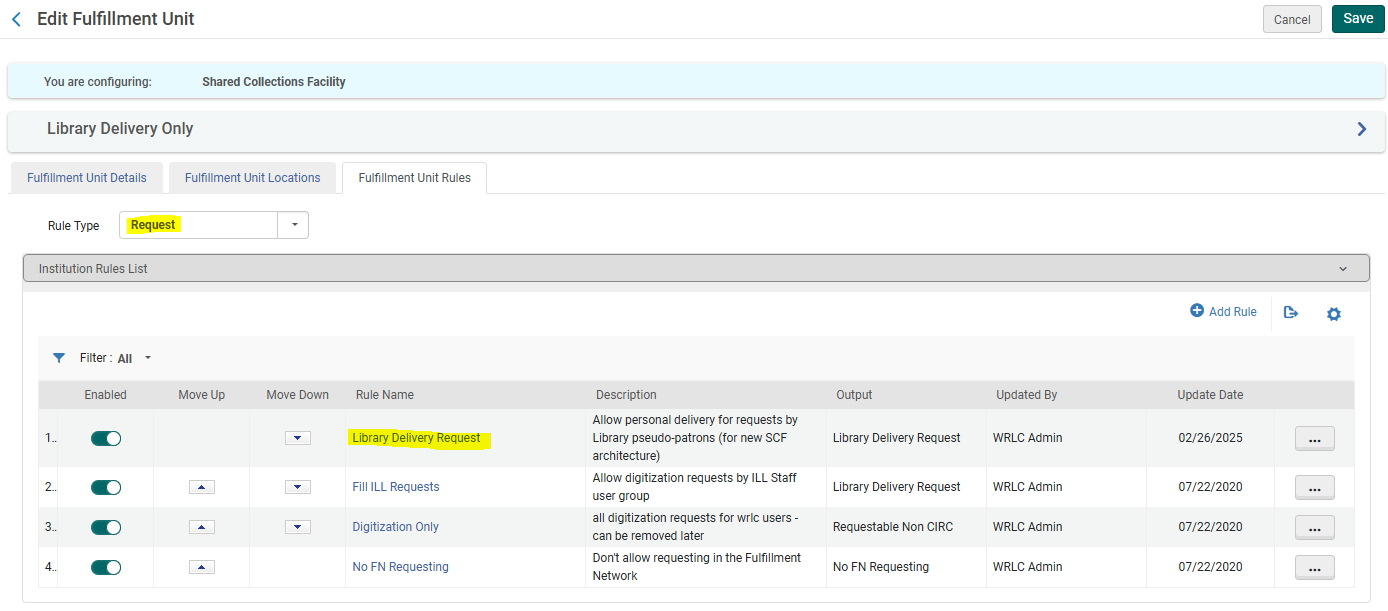
- Add the user group created in step #1 to the list of User Groups in the Input Parameters
- Save the Fulfillment Unit
5. Create a restricted search group for Primo VE
- Configuration > Discovery > Search Configuration > Restricted Search Groups
- + Add Restricted Search Group
- Choose a code, a name (preferably [Affiliate Library Name] Affiliate Library), and a description

- Add the Restricted Search Condition of:
- Search Index = Location
- Operator = Equals
- Value = all library locations associated with affiliate library

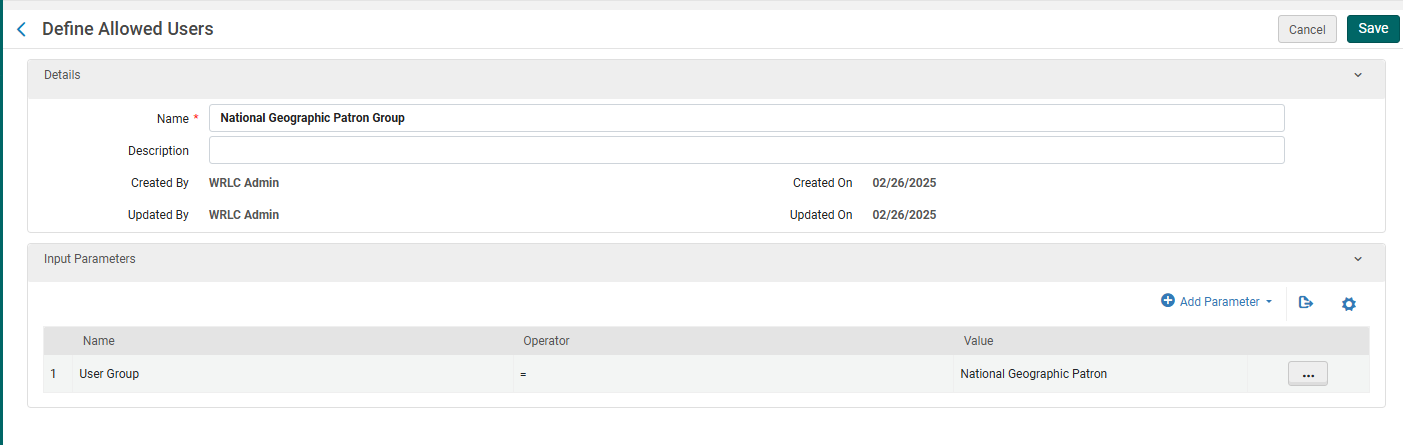
- Add the following Allowed Users:
- Patron Group Rule
- Name = [Affiliate Library] Patron Group
- Input Parameter
- Name = User Group
- Operator = "="
- Value = all user groups created in step #1
- Patron Group Rule
-
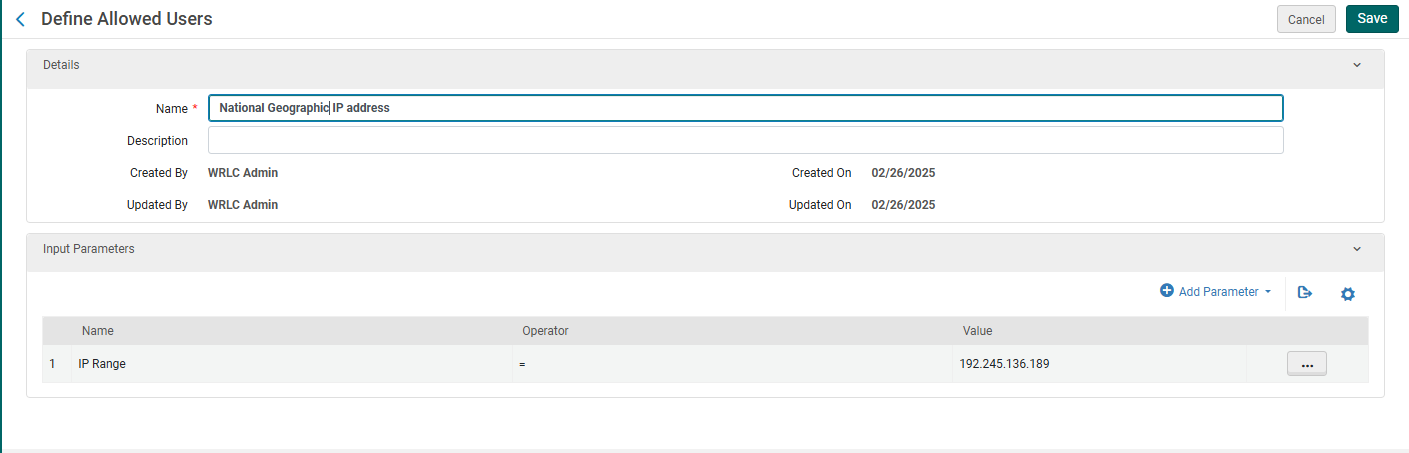
- IP Address Rule
- Name = [Affiliate Library] IP Address
- Input Parameter
- Name = IP Range
- Operator = "="
- Value = [IP range of affiliate library]
- IP Address Rule
- Save the Restricted Search Group Definition
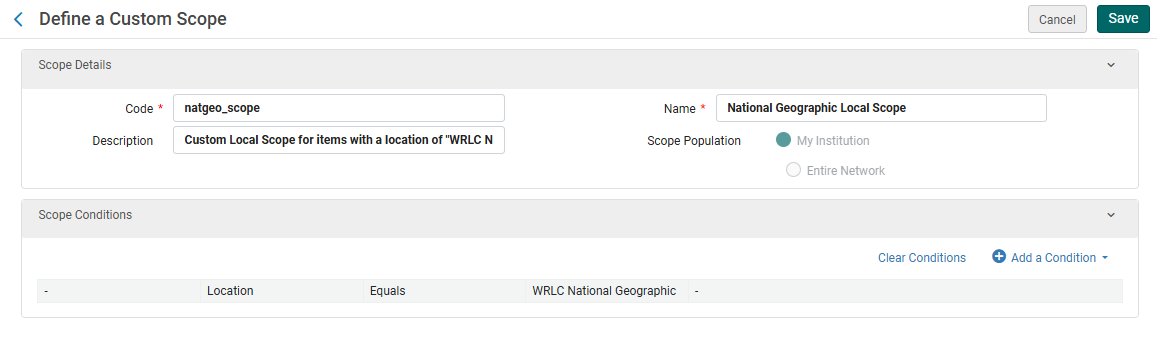
6. Create a custom local data search scope
7. Create a search profile
8. Create a Primo VE view for affiliate library users

Create user profile(s)
Update letter configuration for pull slip