
Requesting Booth Special Collections Material From SCF via Alma
Requesting Booth items from SCF via Alma
Initial Alma setup
Log in to Alma at https://library.georgetown.edu/alma (this will use your GU credentials)
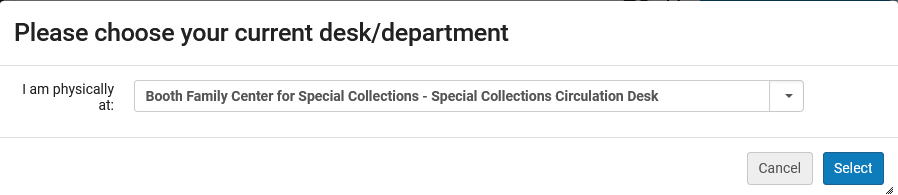
On the "Please choose your current desk/department" popup, select "Booth Family Center for Special Collections - Special Collections Circulation Desk" and click Select.
Next, click the location icon (like a map pin) from the top toolbar, and make sure the "Enable quick printing" box is checked. You can also use the location icon to verify that your location is set as the Booth Circulation Desk.

Placing the request
Finding the item
First, you need to make sure the search type dropdown box for the search bar says "Physical items"--it's possible to do other types of searches and find what you need, but this way makes it easiest to find the "Request" button.

When you change to a "Physical items" search, the second dropdown box usually defaults to Barcode.
If you have the barcode for the item you want, paste it in and hit your enter key or click the magnifying glass to perform the search.

If you don't have the barcode, you'll need to change that second dropdown box to something else (probably Title), and search that way.

Tip: Once you've clicked on a dropdown box, you can start typing the word you want and the options will automatically reduce in number. Once you've selected something, Alma will keep that at the top of the list for easier use later (it remembers up to five selections).
Depending on how much of a title you search and how many copies Georgetown owns, you may see results that aren't from Booth. You can use the Facets pane on the left (you may need to click the double carat >> to keep it open) to narrow down your results, either by selecting Booth from the list under Library, or by clicking on the blue "Library Scope: All" button (see Library Scope section below).
Requesting the item
Once you've found the item you want to request, click the "Request" button.

You will be taken to the "Create Request" page, where you need to choose:
-
Request Type = Move temporarily
-
To = Booth Family Center for Special Collections
The rest of the fields are optional; providing a note may be helpful for staff to know who requested the item and/or why.
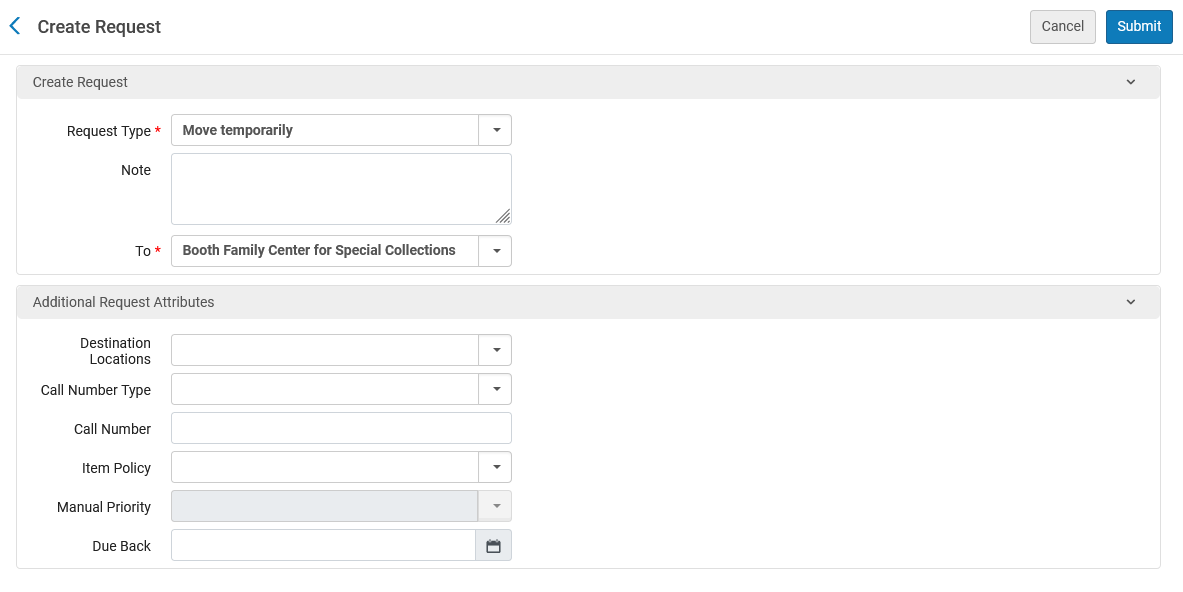
When you're satisfied, click "Submit".
You'll leave the "Create Request" page and return to your search results. If all went well, a green confirmation message will briefly appear.

If you don't notice the confirmation message, you can look at the item you requested to confirm the "Process type" is now "Requested" and there's a new field that says "Requests: 1".

While the item is in process, you can click on that request number (the "1") and you'll see the "Resource Request Monitoring" screen, which has additional details about the request.
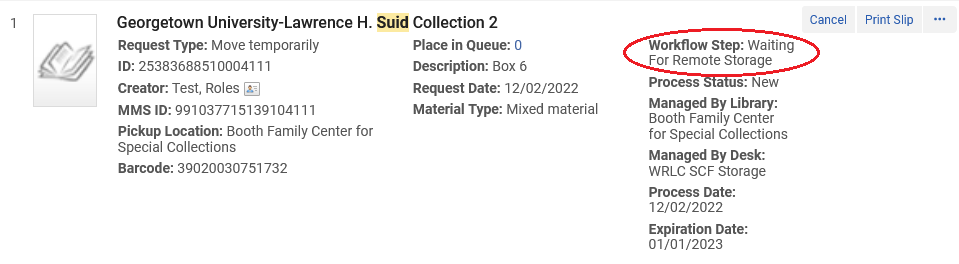
The key piece is the "Workflow Step". The step can be:
-
Waiting For Remote Storage (until the next time requests are communicated to SCF; occurs at noon and midnight daily)
-
Request Communicated to Storage (after the request has been sent to SCF)
Receiving the item at Booth
When the item has physically arrived at Booth, you need to tell Alma that it has arrived and where it's going to 'live' temporarily.
In Alma, click on Fulfillment, then choose "Scan In Items". (You can star it for easier use; see Quick Links section below.)

On the "Scan In Items" screen, click the "Change Item Information" tab.
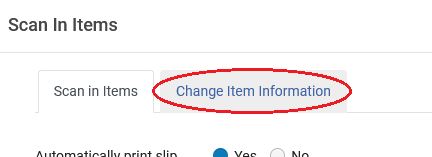
On the Change Item Information form:
-
Change Type = Temporary
-
Location = [whichever Booth location makes sense for internal workflows]
-
Check Requests = unchecked
Then scan the item barcode into the "Scan item barcode" field.

You'll see a confirmation below the form, with the Destination "Reshelve". Alma now knows this item is temporarily housed in Booth, and the move request has been marked complete.

You can confirm this by searching the barcode in Alma and examining the information that comes up. The "Temporary Location" will say whatever location you selected, and you won't see a "Requests" line anymore.
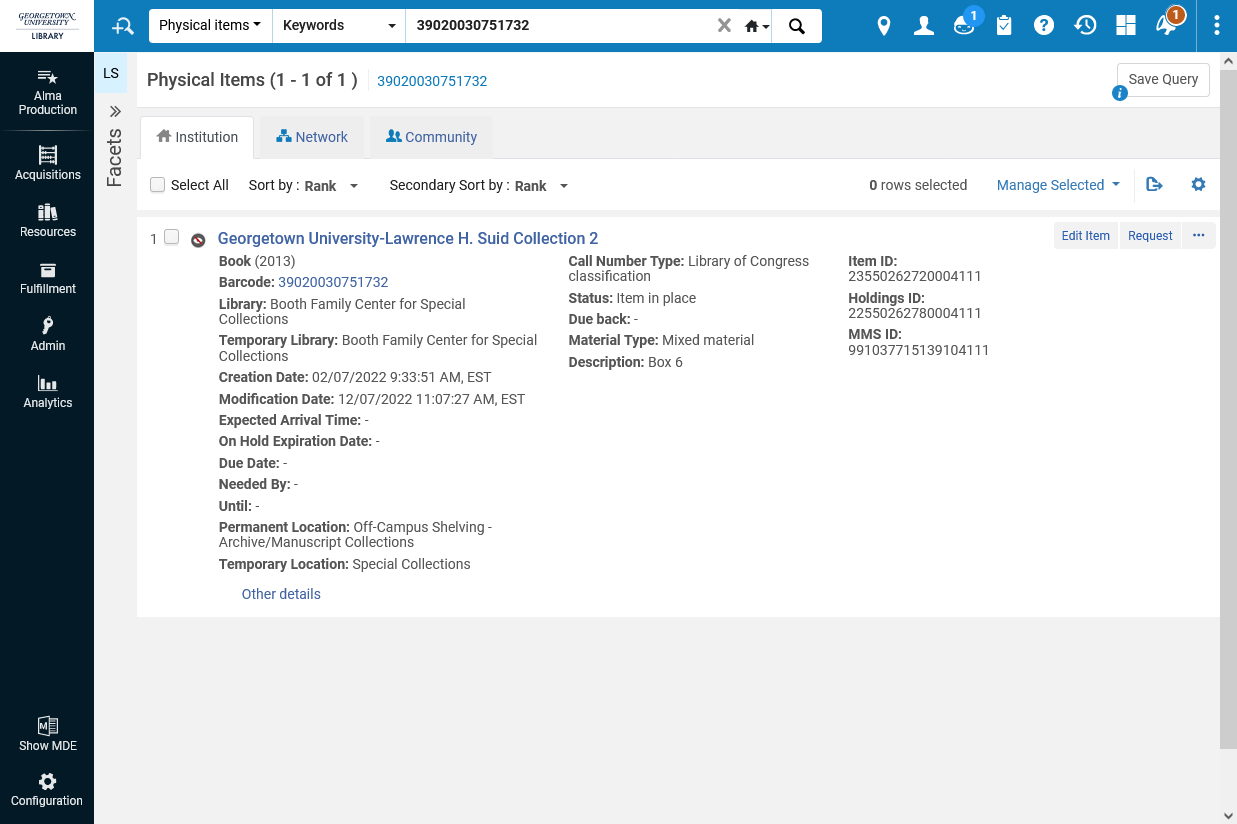
The temporary location will also appear in HoyaSearch, if the record is visible (this example is not).
Returning the item to SCF
When you're ready to send the item back, you need to tell Alma that it's going 'home' to the SCF.
In Alma, click on Fulfillment, then choose "Scan In Items". (You can star it for easier use; see Quick Links section below.)
On the "Scan In Items" screen, click the "Change Item Information" tab.
On the "Change Item Information" form:
-
Change Type = Restore
When you select "Restore" as the type, the rest of the form will disappear and the only other field remaining is for scanning the item barcode.

When you scan the item barcode, the action will be confirmed in the table below the form.

The important portion is the "Destination: WRLC SCF Storage". Now Alma knows the item is returning to storage. If you search the item in Alma (and HoyaSearch), you'll see that the "Process type" is "Transit", and the "Requests" line has reappeared.

This is Alma's way of saying that the item is traveling back to be reshelved where it normally lives. The process type and request will remain until the item is received at the SCF and scanned in to acknowledge that it's been returned.
Handy Alma customizations
Library Scope selection for search results
Depending on how much of a title you search and how many copies Georgetown owns, you may see results that aren't from Booth.
From a search results screen, use the Facets pane on the left (you may need to click the double carat >> to keep it open) to narrow down your results, either by selecting Booth from the list under Library, or by clicking on the blue "Library Scope: All" button. The "Scope Configuration" panel will appear and you can check the box for Booth, then click Apply.
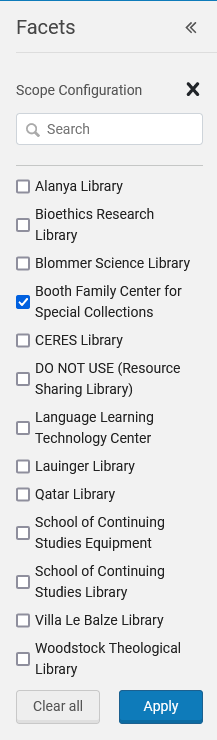
Modifying your Library Scope should persist for future searches.
Quick Links (star a menu option)
If there are common tasks you perform within the Alma menus, you may want to 'star' that menu item and have it appear like a bookmark rather than navigating the menus every time.
When you have an Alma menu open, hover over the link you'd like to bookmark and you should see a greyed out star next to it.
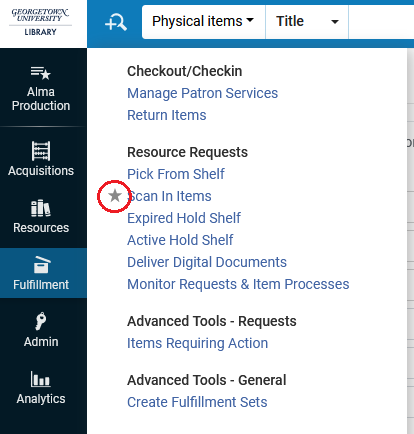
Click on the star (not the link), and it should turn blue.
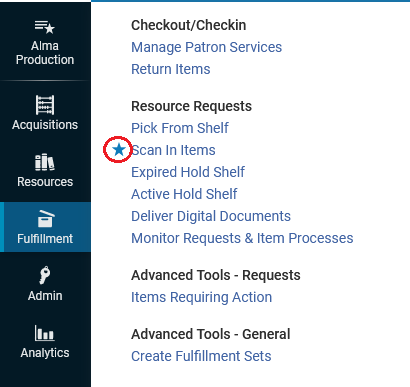
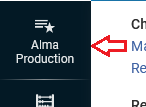
Once one or more menu links have a blue star beside them, click on the icon that says Alma Production below it.


The number of visible quick links you can have depends on how long the names of the menu links are.
No comments to display
No comments to display