# Affiliate Library Configuration in the SCF

##### 1. Create user group

- Configuration &gt; User Management &gt; User Details &gt; User Groups
- + Add Row
- Choose a code and a description (preferably \[*Affiliate Library\] Patron*)
- Choose ***Add Row***, and then ***Save*** the table

[![aff_lib_config1.PNG](https://alma-documentation-bookstack.azurewebsites.net/uploads/images/gallery/2025-02/scaled-1680-/aff-lib-config1.PNG)](https://alma-documentation-bookstack.azurewebsites.net/uploads/images/gallery/2025-02/aff-lib-config1.PNG)

##### 2. Apply user record group to a specific type

- Configuration &gt; User Management &gt; User Details &gt; User Record Type/User Group
- + Add Row
- Choose the user group created in step #1, then choose a record type of ***Staff***, ***Public***, and ***Organization***
- Choose ***Add Row***, and then ***Save*** the table

[![aff_lib_config2.PNG](https://alma-documentation-bookstack.azurewebsites.net/uploads/images/gallery/2025-02/scaled-1680-/aff-lib-config2.PNG)](https://alma-documentation-bookstack.azurewebsites.net/uploads/images/gallery/2025-02/aff-lib-config2.PNG)

##### 3. Associate library location with Fulfillment Unit

- Configuration &gt; Fulfillment &gt; Physical Fulfillment &gt; Fulfillment Units
- ***Edit*** the Fulfillment Unit ***Affiliate Library***
- Choose the ***Fulfillment Unit Locations*** tab
- Attach to the list the location(s) associated with the affiliate library
- ***Save*** the Fulfillment Unit

<p class="callout info">The Request TOU ("Library Delivery Request') used is what sets the terms for Home Delivery; because of this TOU, all requests made for these items are automatically home delivery requests.</p>

##### 4. Prevent affiliate user group from requesting other SCF materials

Depending on the rules in place for the affiliate library patrons, they may not be allowed to request WRLC items at the SCF; in that case, you will need to include the affiliate library patron user group to the appropriate Fulfillment Unit rules.

The specific rules that need to be edited can be found listed below :

1. **Fulfillment Unit :** Library Delivery Only 
    1. **Rule Type** : Request
    2. **Rule Name** : Affiliate Library Patrons No Requesting
    3. Add affiliate library patron user group to the rule
2. **Fulfillment Unit** : Regular 
    1. **Rule Type** : Request
    2. **Rule Name** : Affiliate Library Patrons No Requesting
    3. Add affiliate library patron user group to the rule


##### 5. Create Provenance Code for affiliate library items

- Configuration &gt; Resources &gt; General &gt; Provenance Code
- + Add Row
- Choose a code and a description
- Save the Provenance Code table


##### 6. Create a restricted search group for Primo VE

This restricted search group will not allow non-affiliate library users (ex. Trinity users) to view the affiliate library's items in the SCF's instance of Primo.

- Configuration &gt; Discovery &gt; Search Configuration &gt; Restricted Search Groups
- + Add Restricted Search Group
- Choose a code, a name (preferably \[*Affiliate Library Name\] Affiliate Library*), and a description

[![aff_lib_config6.PNG](https://alma-documentation-bookstack.azurewebsites.net/uploads/images/gallery/2025-02/scaled-1680-/aff-lib-config6.PNG)](https://alma-documentation-bookstack.azurewebsites.net/uploads/images/gallery/2025-02/aff-lib-config6.PNG)

- Add the ***Restricted Search Condition*** of: 
    - Search Index = Location
    - Operator = Equals
    - Value = all library locations associated with affiliate library

[![aff_lib_config7.PNG](https://alma-documentation-bookstack.azurewebsites.net/uploads/images/gallery/2025-02/scaled-1680-/aff-lib-config7.PNG)](https://alma-documentation-bookstack.azurewebsites.net/uploads/images/gallery/2025-02/aff-lib-config7.PNG)

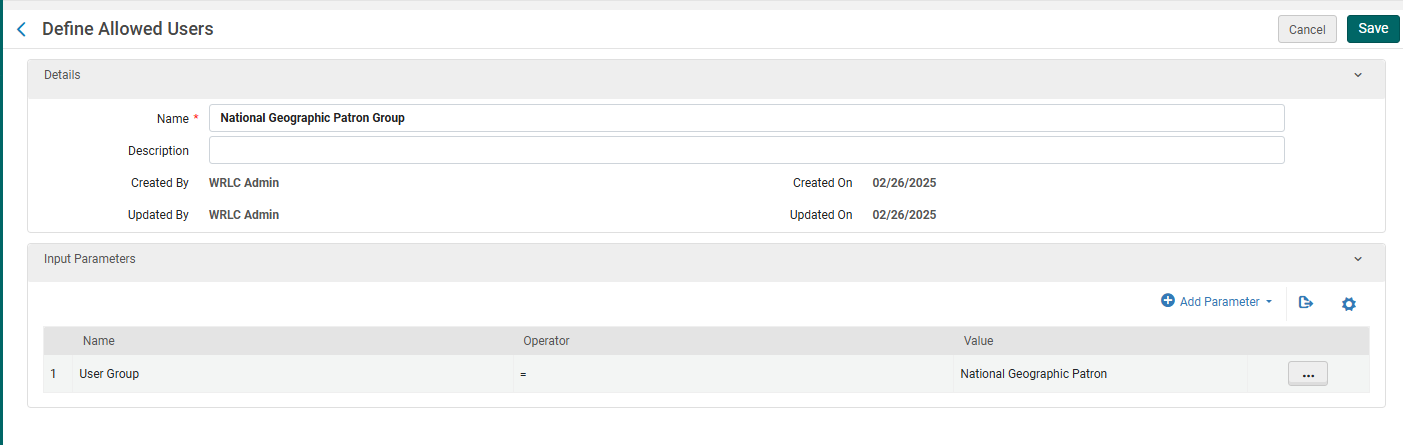
- Add the following ***Allowed Users***: 
    - Patron Group Rule 
        - Name = \[Affiliate Library\] Patron Group
        - Input Parameter 
            - Name = User Group
            - Operator = "="
            - Value = all user groups created in step #1

[![aff_lib_config8.PNG](https://alma-documentation-bookstack.azurewebsites.net/uploads/images/gallery/2025-02/scaled-1680-/aff-lib-config8.PNG)](https://alma-documentation-bookstack.azurewebsites.net/uploads/images/gallery/2025-02/aff-lib-config8.PNG)
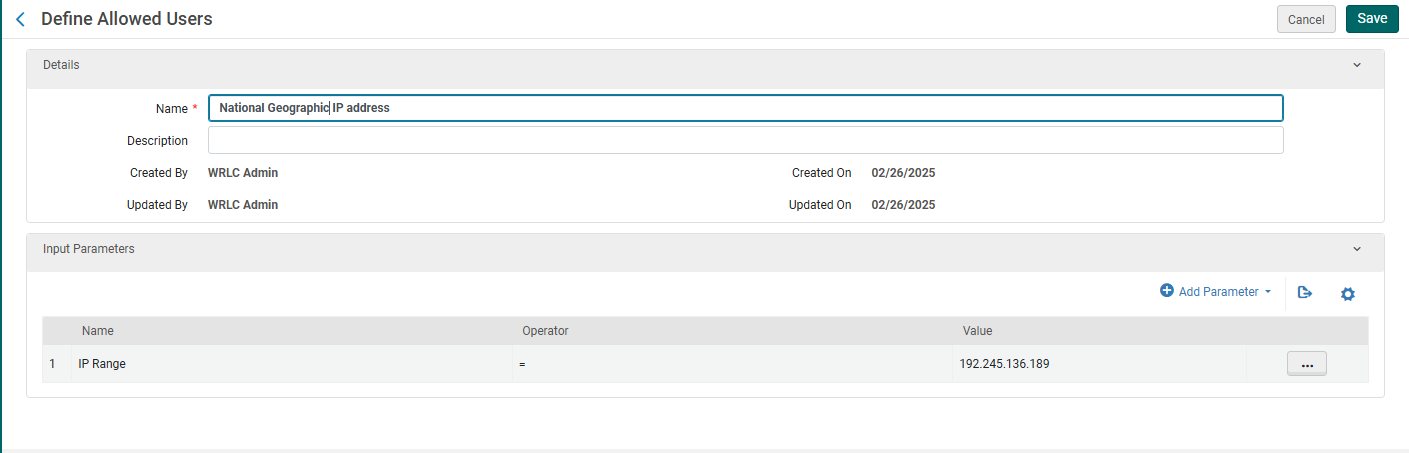
- - IP Address Rule 
        - Name = \[Affiliate Library\] IP Address
        - Input Parameter 
            - Name = IP Range
            - Operator = "="
            - Value = \[IP range of affiliate library\]
- ***Save*** the Restricted Search Group Definition

[![aff_lib_config9.PNG](https://alma-documentation-bookstack.azurewebsites.net/uploads/images/gallery/2025-02/scaled-1680-/aff-lib-config9.PNG)](https://alma-documentation-bookstack.azurewebsites.net/uploads/images/gallery/2025-02/aff-lib-config9.PNG)

##### 7. Create a Hide rom Network definition

This definition will prevent the affiliate library's bibliographic and item records from appearing in the other Primo instances in our Network.

- Configuration &gt; Discovery &gt; Search Configuration &gt; Hide from Network definitions
- + Add Hide from Network Definition
- Choose a code and a name
- Then add the following Condition: 
    - Search Index = Inventory &gt; Location
    - Operator = Equals
    - Value = Location(s) associated with affiliate library
- ***Add Condition***, then ***Save*** the Custom Scope


##### 8. Create a custom local data search scope

- Configuration &gt; Discovery &gt; Search Configuration &gt; Search Profiles
- Choose the ***Custom Local Data Scopes*** tab
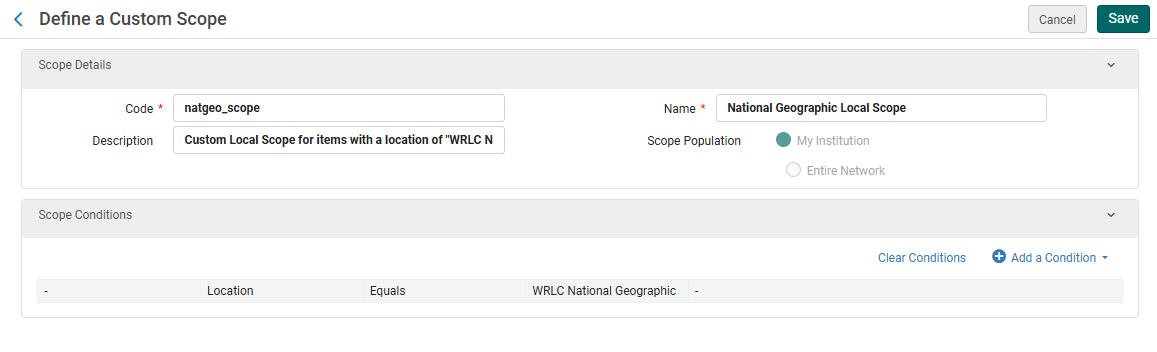
- + Add a Custom Scope
- Choose a code and a name
- Then add the following Scope Condition: 
    - Search Index = Inventory &gt; Location
    - Operator = Equals
    - Value = Location(s) associated with affiliate library
- ***Add Condition***, then ***Save*** the Custom Scope

[![aff_lib_config10.PNG](https://alma-documentation-bookstack.azurewebsites.net/uploads/images/gallery/2025-02/scaled-1680-/aff-lib-config10.PNG)](https://alma-documentation-bookstack.azurewebsites.net/uploads/images/gallery/2025-02/aff-lib-config10.PNG)
##### 9. Create a search profile

- Configuration &gt; Discovery &gt; Search Configuration &gt; Search Profiles
- Choose the ***Search Profiles*** tab
- + Add a Search Profile
- Choose a code and a display name
- Then add the following scope: 
    - Select Scope Type = Custom (Local Data)
    - Select Custom Scope = the custom scope created in step #6
- Click ***Add and close***, then ***Save*** the Custom Search Profile


##### 10. Create a Primo VE view for affiliate library users

- <span style="font-family: -apple-system, BlinkMacSystemFont, 'Segoe UI', Oxygen, Ubuntu, Roboto, Cantarell, 'Fira Sans', 'Droid Sans', 'Helvetica Neue', sans-serif; font-size: 14px; font-style: normal; font-variant-ligatures: normal; font-variant-caps: normal; font-weight: 400;">Configuration &gt; Discovery &gt; Display Configuration &gt; Configure Views</span>
- <span style="font-family: -apple-system, BlinkMacSystemFont, 'Segoe UI', Oxygen, Ubuntu, Roboto, Cantarell, 'Fira Sans', 'Droid Sans', 'Helvetica Neue', sans-serif; font-size: 14px; font-style: normal; font-variant-ligatures: normal; font-variant-caps: normal; font-weight: 400;">+ Add View</span>
- <span style="font-family: -apple-system, BlinkMacSystemFont, 'Segoe UI', Oxygen, Ubuntu, Roboto, Cantarell, 'Fira Sans', 'Droid Sans', 'Helvetica Neue', sans-serif; font-size: 14px; font-style: normal; font-variant-ligatures: normal; font-variant-caps: normal; font-weight: 400;">Choose a code and a name</span>
- <span style="font-family: -apple-system, BlinkMacSystemFont, 'Segoe UI', Oxygen, Ubuntu, Roboto, Cantarell, 'Fira Sans', 'Droid Sans', 'Helvetica Neue', sans-serif; font-size: 14px; font-style: normal; font-variant-ligatures: normal; font-variant-caps: normal; font-weight: 400;">Choose the following settings as you work through the configuration pages</span>
    - <span style="font-family: -apple-system, BlinkMacSystemFont, 'Segoe UI', Oxygen, Ubuntu, Roboto, Cantarell, 'Fira Sans', 'Droid Sans', 'Helvetica Neue', sans-serif; font-size: 14px; font-style: normal; font-variant-ligatures: normal; font-variant-caps: normal; font-weight: 400;">***General*** tab &gt; ***Discovery Network Settings*** section</span>
        - <span style="font-family: -apple-system, BlinkMacSystemFont, 'Segoe UI', Oxygen, Ubuntu, Roboto, Cantarell, 'Fira Sans', 'Droid Sans', 'Helvetica Neue', sans-serif; font-size: 14px; font-style: normal; font-variant-ligatures: normal; font-variant-caps: normal; font-weight: 400;">Display locations from member institutions = No</span>
        - <span style="font-family: -apple-system, BlinkMacSystemFont, 'Segoe UI', Oxygen, Ubuntu, Roboto, Cantarell, 'Fira Sans', 'Droid Sans', 'Helvetica Neue', sans-serif; font-size: 14px; font-style: normal; font-variant-ligatures: normal; font-variant-caps: normal; font-weight: 400;">Include member institution physical inventory in facets = Never</span>

<span style="font-family: -apple-system, BlinkMacSystemFont, 'Segoe UI', Oxygen, Ubuntu, Roboto, Cantarell, 'Fira Sans', 'Droid Sans', 'Helvetica Neue', sans-serif; font-size: 14px; font-style: normal; font-variant-ligatures: normal; font-variant-caps: normal; font-weight: 400;">[![aff_lib_config11.PNG](https://alma-documentation-bookstack.azurewebsites.net/uploads/images/gallery/2025-02/scaled-1680-/aff-lib-config11.PNG)](https://alma-documentation-bookstack.azurewebsites.net/uploads/images/gallery/2025-02/aff-lib-config11.PNG)</span>

- <span style="font-family: -apple-system, BlinkMacSystemFont, 'Segoe UI', Oxygen, Ubuntu, Roboto, Cantarell, 'Fira Sans', 'Droid Sans', 'Helvetica Neue', sans-serif; font-size: 14px; font-style: normal; font-variant-ligatures: normal; font-variant-caps: normal; font-weight: 400;">***Links Menu*** tab</span>
    - <span style="font-family: -apple-system, BlinkMacSystemFont, 'Segoe UI', Oxygen, Ubuntu, Roboto, Cantarell, 'Fira Sans', 'Droid Sans', 'Helvetica Neue', sans-serif; font-size: 14px; font-style: normal; font-variant-ligatures: normal; font-variant-caps: normal; font-weight: 400;">Only activate the following links</span>
        - <span style="font-family: -apple-system, BlinkMacSystemFont, 'Segoe UI', Oxygen, Ubuntu, Roboto, Cantarell, 'Fira Sans', 'Droid Sans', 'Helvetica Neue', sans-serif; font-size: 14px; font-style: normal; font-variant-ligatures: normal; font-variant-caps: normal; font-weight: 400;">Library Search</span>
        - <span style="font-family: -apple-system, BlinkMacSystemFont, 'Segoe UI', Oxygen, Ubuntu, Roboto, Cantarell, 'Fira Sans', 'Droid Sans', 'Helvetica Neue', sans-serif; font-size: 14px; font-style: normal; font-variant-ligatures: normal; font-variant-caps: normal; font-weight: 400;">Collections Discovery (if they have collections in the SCF IZ)</span>
        - <span style="font-family: -apple-system, BlinkMacSystemFont, 'Segoe UI', Oxygen, Ubuntu, Roboto, Cantarell, 'Fira Sans', 'Droid Sans', 'Helvetica Neue', sans-serif; font-size: 14px; font-style: normal; font-variant-ligatures: normal; font-variant-caps: normal; font-weight: 400;">URL leading to the affiliate library website</span>
- <span style="font-family: -apple-system, BlinkMacSystemFont, 'Segoe UI', Oxygen, Ubuntu, Roboto, Cantarell, 'Fira Sans', 'Droid Sans', 'Helvetica Neue', sans-serif; font-size: 14px; font-style: normal; font-variant-ligatures: normal; font-variant-caps: normal; font-weight: 400;">***Search Profile Slots*** tab</span>
    - <span style="font-family: -apple-system, BlinkMacSystemFont, 'Segoe UI', Oxygen, Ubuntu, Roboto, Cantarell, 'Fira Sans', 'Droid Sans', 'Helvetica Neue', sans-serif; font-size: 14px; font-style: normal; font-variant-ligatures: normal; font-variant-caps: normal; font-weight: 400;">+ Add a Slot</span>
        - <span style="font-family: -apple-system, BlinkMacSystemFont, 'Segoe UI', Oxygen, Ubuntu, Roboto, Cantarell, 'Fira Sans', 'Droid Sans', 'Helvetica Neue', sans-serif; font-size: 14px; font-style: normal; font-variant-ligatures: normal; font-variant-caps: normal; font-weight: 400;">Choose a code and a name</span>
        - <span style="font-family: -apple-system, BlinkMacSystemFont, 'Segoe UI', Oxygen, Ubuntu, Roboto, Cantarell, 'Fira Sans', 'Droid Sans', 'Helvetica Neue', sans-serif; font-size: 14px; font-style: normal; font-variant-ligatures: normal; font-variant-caps: normal; font-weight: 400;">Select the search profile created in step #7</span>
        - <span style="font-family: -apple-system, BlinkMacSystemFont, 'Segoe UI', Oxygen, Ubuntu, Roboto, Cantarell, 'Fira Sans', 'Droid Sans', 'Helvetica Neue', sans-serif; font-size: 14px; font-style: normal; font-variant-ligatures: normal; font-variant-caps: normal; font-weight: 400;">Click Save</span>
    - <span style="font-family: -apple-system, BlinkMacSystemFont, 'Segoe UI', Oxygen, Ubuntu, Roboto, Cantarell, 'Fira Sans', 'Droid Sans', 'Helvetica Neue', sans-serif; font-size: 14px; font-style: normal; font-variant-ligatures: normal; font-variant-caps: normal; font-weight: 400;">Deactivate all other search slots</span>
- <span style="font-family: -apple-system, BlinkMacSystemFont, 'Segoe UI', Oxygen, Ubuntu, Roboto, Cantarell, 'Fira Sans', 'Droid Sans', 'Helvetica Neue', sans-serif; font-size: 14px; font-style: normal; font-variant-ligatures: normal; font-variant-caps: normal; font-weight: 400;">***Advanced Search Configuration*** tab &gt; ***List of Indexes*** section</span>
    - <span style="font-family: -apple-system, BlinkMacSystemFont, 'Segoe UI', Oxygen, Ubuntu, Roboto, Cantarell, 'Fira Sans', 'Droid Sans', 'Helvetica Neue', sans-serif; font-size: 14px; font-style: normal; font-variant-ligatures: normal; font-variant-caps: normal; font-weight: 400;">Deactivate all indexes associated with Course Reserves</span>
    - <span style="font-family: -apple-system, BlinkMacSystemFont, 'Segoe UI', Oxygen, Ubuntu, Roboto, Cantarell, 'Fira Sans', 'Droid Sans', 'Helvetica Neue', sans-serif; font-size: 14px; font-style: normal; font-variant-ligatures: normal; font-variant-caps: normal; font-weight: 400;">Checkmark ***Enable for Basic Search***</span>
- <span style="font-family: -apple-system, BlinkMacSystemFont, 'Segoe UI', Oxygen, Ubuntu, Roboto, Cantarell, 'Fira Sans', 'Droid Sans', 'Helvetica Neue', sans-serif; font-size: 14px; font-style: normal; font-variant-ligatures: normal; font-variant-caps: normal; font-weight: 400;">***Brief Results*** tab &gt; ***Facets*** section</span>
    - <span style="font-family: -apple-system, BlinkMacSystemFont, 'Segoe UI', Oxygen, Ubuntu, Roboto, Cantarell, 'Fira Sans', 'Droid Sans', 'Helvetica Neue', sans-serif; font-size: 14px; font-style: normal; font-variant-ligatures: normal; font-variant-caps: normal; font-weight: 400;">Deactivate all facets associated with Course Reserves</span>
- <span style="font-family: -apple-system, BlinkMacSystemFont, 'Segoe UI', Oxygen, Ubuntu, Roboto, Cantarell, 'Fira Sans', 'Droid Sans', 'Helvetica Neue', sans-serif; font-size: 14px; font-style: normal; font-variant-ligatures: normal; font-variant-caps: normal; font-weight: 400;">***Manage Customization Package*** tab</span>
    - <span style="font-family: -apple-system, BlinkMacSystemFont, 'Segoe UI', Oxygen, Ubuntu, Roboto, Cantarell, 'Fira Sans', 'Droid Sans', 'Helvetica Neue', sans-serif; font-size: 14px; font-style: normal; font-variant-ligatures: normal; font-variant-caps: normal; font-weight: 400;">Using Primo Studio, change appearance, logo etc. of Primo to match the colors and logo of the affiliate library</span>
- <span style="font-family: -apple-system, BlinkMacSystemFont, 'Segoe UI', Oxygen, Ubuntu, Roboto, Cantarell, 'Fira Sans', 'Droid Sans', 'Helvetica Neue', sans-serif; font-size: 14px; font-style: normal; font-variant-ligatures: normal; font-variant-caps: normal; font-weight: 400;">***Save*** the new Primo view</span>

##### 11. Create user profile(s)

- <span style="font-family: -apple-system, BlinkMacSystemFont, 'Segoe UI', Oxygen, Ubuntu, Roboto, Cantarell, 'Fira Sans', 'Droid Sans', 'Helvetica Neue', sans-serif; font-size: 14px; font-style: normal; font-variant-ligatures: normal; font-variant-caps: normal; font-weight: 400;">When creating user profiles for affiliate libraries, make sure the following fields have the correct values:</span>
    - <span style="font-family: -apple-system, BlinkMacSystemFont, 'Segoe UI', Oxygen, Ubuntu, Roboto, Cantarell, 'Fira Sans', 'Droid Sans', 'Helvetica Neue', sans-serif; font-size: 14px; font-style: normal; font-variant-ligatures: normal; font-variant-caps: normal; font-weight: 400;">***General Information*** tab</span>
        - <span style="font-family: -apple-system, BlinkMacSystemFont, 'Segoe UI', Oxygen, Ubuntu, Roboto, Cantarell, 'Fira Sans', 'Droid Sans', 'Helvetica Neue', sans-serif; font-size: 14px; font-style: normal; font-variant-ligatures: normal; font-variant-caps: normal; font-weight: 400;">Primary ID = work email address</span>
        - <span style="font-family: -apple-system, BlinkMacSystemFont, 'Segoe UI', Oxygen, Ubuntu, Roboto, Cantarell, 'Fira Sans', 'Droid Sans', 'Helvetica Neue', sans-serif; font-size: 14px; font-style: normal; font-variant-ligatures: normal; font-variant-caps: normal; font-weight: 400;">User Group = user group created in step #1</span>
        - <span style="font-family: -apple-system, BlinkMacSystemFont, 'Segoe UI', Oxygen, Ubuntu, Roboto, Cantarell, 'Fira Sans', 'Droid Sans', 'Helvetica Neue', sans-serif; font-size: 14px; font-style: normal; font-variant-ligatures: normal; font-variant-caps: normal; font-weight: 400;">Password = create a temporary password for the user, checkmark ***Force password change on next login***</span>
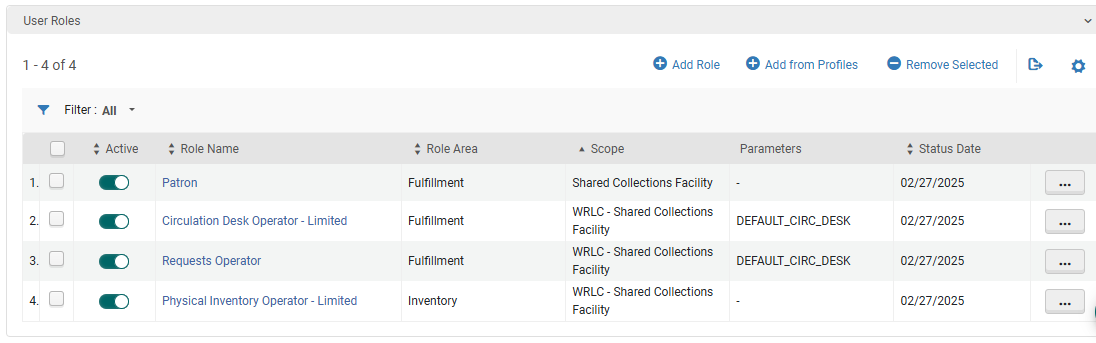
        - <span style="font-family: -apple-system, BlinkMacSystemFont, 'Segoe UI', Oxygen, Ubuntu, Roboto, Cantarell, 'Fira Sans', 'Droid Sans', 'Helvetica Neue', sans-serif; font-size: 14px; font-style: normal; font-variant-ligatures: normal; font-variant-caps: normal; font-weight: 400;">User Roles (the following are necessary to allow for users to log into the SCF IZ and create requests through Alma)</span>
            - <span style="font-family: -apple-system, BlinkMacSystemFont, 'Segoe UI', Oxygen, Ubuntu, Roboto, Cantarell, 'Fira Sans', 'Droid Sans', 'Helvetica Neue', sans-serif; font-size: 14px; font-style: normal; font-variant-ligatures: normal; font-variant-caps: normal; font-weight: 400;">Patron</span>
            - <span style="font-family: -apple-system, BlinkMacSystemFont, 'Segoe UI', Oxygen, Ubuntu, Roboto, Cantarell, 'Fira Sans', 'Droid Sans', 'Helvetica Neue', sans-serif; font-size: 14px; font-style: normal; font-variant-ligatures: normal; font-variant-caps: normal; font-weight: 400;">Circulation Desk Operator - Limited</span>
            - <span style="font-family: -apple-system, BlinkMacSystemFont, 'Segoe UI', Oxygen, Ubuntu, Roboto, Cantarell, 'Fira Sans', 'Droid Sans', 'Helvetica Neue', sans-serif; font-size: 14px; font-style: normal; font-variant-ligatures: normal; font-variant-caps: normal; font-weight: 400;">Requests Operator</span>
            - <span style="font-family: -apple-system, BlinkMacSystemFont, 'Segoe UI', Oxygen, Ubuntu, Roboto, Cantarell, 'Fira Sans', 'Droid Sans', 'Helvetica Neue', sans-serif; font-size: 14px; font-style: normal; font-variant-ligatures: normal; font-variant-caps: normal; font-weight: 400;">Physical Inventory Operator - Limited</span>

<span style="font-family: -apple-system, BlinkMacSystemFont, 'Segoe UI', Oxygen, Ubuntu, Roboto, Cantarell, 'Fira Sans', 'Droid Sans', 'Helvetica Neue', sans-serif; font-size: 14px; font-style: normal; font-variant-ligatures: normal; font-variant-caps: normal; font-weight: 400;">[![aff_lib_config12.PNG](https://alma-documentation-bookstack.azurewebsites.net/uploads/images/gallery/2025-02/scaled-1680-/aff-lib-config12.PNG)](https://alma-documentation-bookstack.azurewebsites.net/uploads/images/gallery/2025-02/aff-lib-config12.PNG)</span>

- - <span style="font-family: -apple-system, BlinkMacSystemFont, 'Segoe UI', Oxygen, Ubuntu, Roboto, Cantarell, 'Fira Sans', 'Droid Sans', 'Helvetica Neue', sans-serif; font-size: 14px; font-style: normal; font-variant-ligatures: normal; font-variant-caps: normal; font-weight: 400;">***Contact Information*** tab</span>
        - <span style="font-family: -apple-system, BlinkMacSystemFont, 'Segoe UI', Oxygen, Ubuntu, Roboto, Cantarell, 'Fira Sans', 'Droid Sans', 'Helvetica Neue', sans-serif; font-size: 14px; font-style: normal; font-variant-ligatures: normal; font-variant-caps: normal; font-weight: 400;">Add address of affiliate library as the work address</span>

##### 12. Update letter configuration for pull slip

- Configuration &gt; General &gt; Letters &gt; Letters Configuration
- Search for the letter titled ***Ful Resource Request Slip Letter***, choose ***Edit***
- Edit the XSL around line 100 to include the following example
- Click ***Save Draft***
- Click ***Save***

```
<!--   Internal Alma request from affiliate institution [Insert affiliate library here}   -->
<xsl:when test="(notification_data/user_for_printing/user_group='[User Group Code]')">
<font size ="40px;">[Affiliate Library Name]</font>
</xsl:when>
```