The Request TOU ("Library Delivery Request') used is what sets the terms for Home Delivery; because of this TOU, all requests made for these items are automatically home delivery requests.
##### 4. Prevent affiliate user group from requesting other SCF materials Depending on the rules in place for the affiliate library patrons, they may not be allowed to request WRLC items at the SCF; in that case, you will need to include the affiliate library patron user group to the appropriate Fulfillment Unit rules. The specific rules that need to be edited can be found listed below : 1. **Fulfillment Unit :** Library Delivery Only 1. **Rule Type** : Request 2. **Rule Name** : Affiliate Library Patrons No Requesting 3. Add affiliate library patron user group to the rule 2. **Fulfillment Unit** : Regular 1. **Rule Type** : Request 2. **Rule Name** : Affiliate Library Patrons No Requesting 3. Add affiliate library patron user group to the rule ##### 5. Create Provenance Code for affiliate library items - Configuration > Resources > General > Provenance Code - + Add Row - Choose a code and a description - Save the Provenance Code table ##### 6. Create a restricted search group for Primo VE This restricted search group will not allow non-affiliate library users (ex. Trinity users) to view the affiliate library's items in the SCF's instance of Primo. - Configuration > Discovery > Search Configuration > Restricted Search Groups - + Add Restricted Search Group - Choose a code, a name (preferably \[*Affiliate Library Name\] Affiliate Library*), and a description [](https://alma-documentation-bookstack.azurewebsites.net/uploads/images/gallery/2025-02/aff-lib-config6.PNG) - Add the ***Restricted Search Condition*** of: - Search Index = Location - Operator = Equals - Value = all library locations associated with affiliate library [](https://alma-documentation-bookstack.azurewebsites.net/uploads/images/gallery/2025-02/aff-lib-config7.PNG) - Add the following ***Allowed Users***: - Patron Group Rule - Name = \[Affiliate Library\] Patron Group - Input Parameter - Name = User Group - Operator = "=" - Value = all user groups created in step #1 [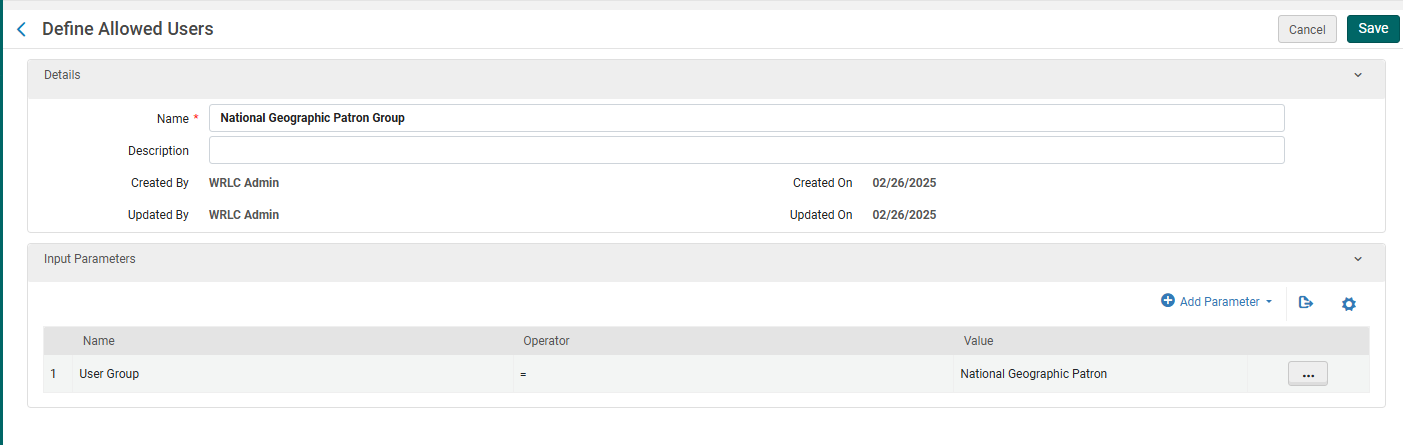](https://alma-documentation-bookstack.azurewebsites.net/uploads/images/gallery/2025-02/aff-lib-config8.PNG) - - IP Address Rule - Name = \[Affiliate Library\] IP Address - Input Parameter - Name = IP Range - Operator = "=" - Value = \[IP range of affiliate library\] - ***Save*** the Restricted Search Group Definition [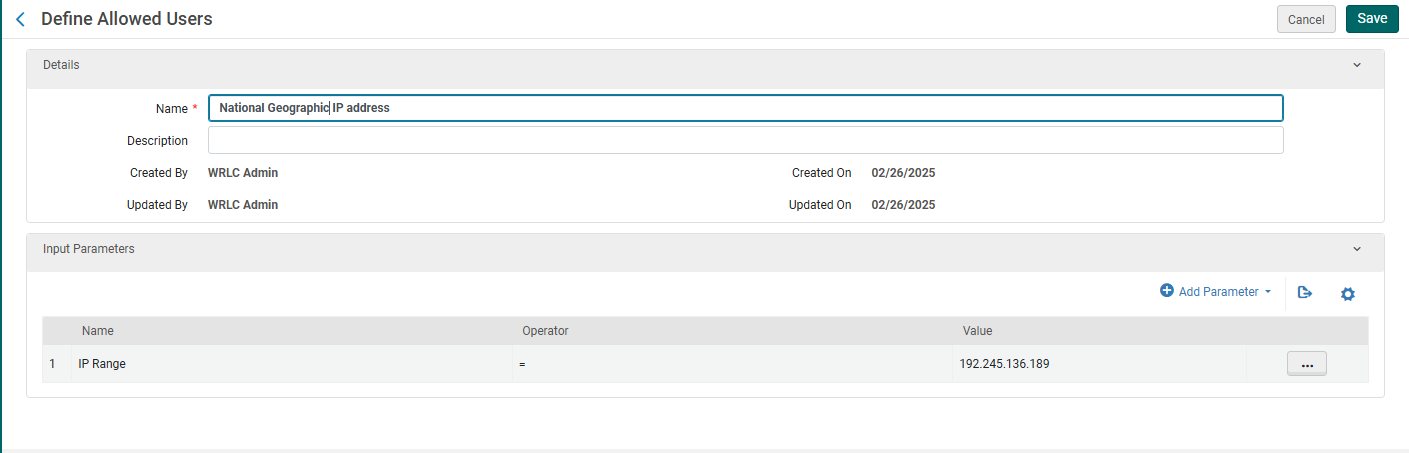](https://alma-documentation-bookstack.azurewebsites.net/uploads/images/gallery/2025-02/aff-lib-config9.PNG) ##### 7. Create a Hide rom Network definition This definition will prevent the affiliate library's bibliographic and item records from appearing in the other Primo instances in our Network. - Configuration > Discovery > Search Configuration > Hide from Network definitions - + Add Hide from Network Definition - Choose a code and a name - Then add the following Condition: - Search Index = Inventory > Location - Operator = Equals - Value = Location(s) associated with affiliate library - ***Add Condition***, then ***Save*** the Custom Scope ##### 8. Create a custom local data search scope - Configuration > Discovery > Search Configuration > Search Profiles - Choose the ***Custom Local Data Scopes*** tab - + Add a Custom Scope - Choose a code and a name - Then add the following Scope Condition: - Search Index = Inventory > Location - Operator = Equals - Value = Location(s) associated with affiliate library - ***Add Condition***, then ***Save*** the Custom Scope [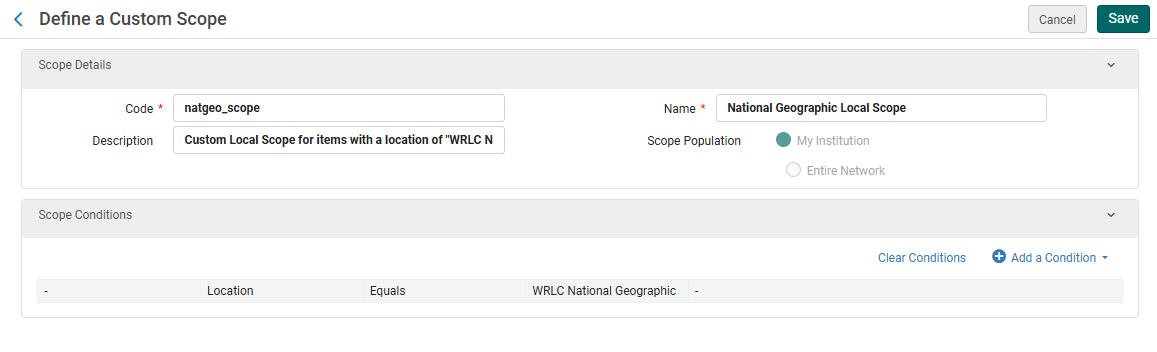](https://alma-documentation-bookstack.azurewebsites.net/uploads/images/gallery/2025-02/aff-lib-config10.PNG) ##### 9. Create a search profile - Configuration > Discovery > Search Configuration > Search Profiles - Choose the ***Search Profiles*** tab - + Add a Search Profile - Choose a code and a display name - Then add the following scope: - Select Scope Type = Custom (Local Data) - Select Custom Scope = the custom scope created in step #6 - Click ***Add and close***, then ***Save*** the Custom Search Profile ##### 10. Create a Primo VE view for affiliate library users - Configuration > Discovery > Display Configuration > Configure Views - + Add View - Choose a code and a name - Choose the following settings as you work through the configuration pages - ***General*** tab > ***Discovery Network Settings*** section - Display locations from member institutions = No - Include member institution physical inventory in facets = Never [](https://alma-documentation-bookstack.azurewebsites.net/uploads/images/gallery/2025-02/aff-lib-config11.PNG) - ***Links Menu*** tab - Only activate the following links - Library Search - Collections Discovery (if they have collections in the SCF IZ) - URL leading to the affiliate library website - ***Search Profile Slots*** tab - + Add a Slot - Choose a code and a name - Select the search profile created in step #7 - Click Save - Deactivate all other search slots - ***Advanced Search Configuration*** tab > ***List of Indexes*** section - Deactivate all indexes associated with Course Reserves - Checkmark ***Enable for Basic Search*** - ***Brief Results*** tab > ***Facets*** section - Deactivate all facets associated with Course Reserves - ***Manage Customization Package*** tab - Using Primo Studio, change appearance, logo etc. of Primo to match the colors and logo of the affiliate library - ***Save*** the new Primo view ##### 11. Create user profile(s) - When creating user profiles for affiliate libraries, make sure the following fields have the correct values: - ***General Information*** tab - Primary ID = work email address - User Group = user group created in step #1 - Password = create a temporary password for the user, checkmark ***Force password change on next login*** - User Roles (the following are necessary to allow for users to log into the SCF IZ and create requests through Alma) - Patron - Circulation Desk Operator - Limited - Requests Operator - Physical Inventory Operator - Limited [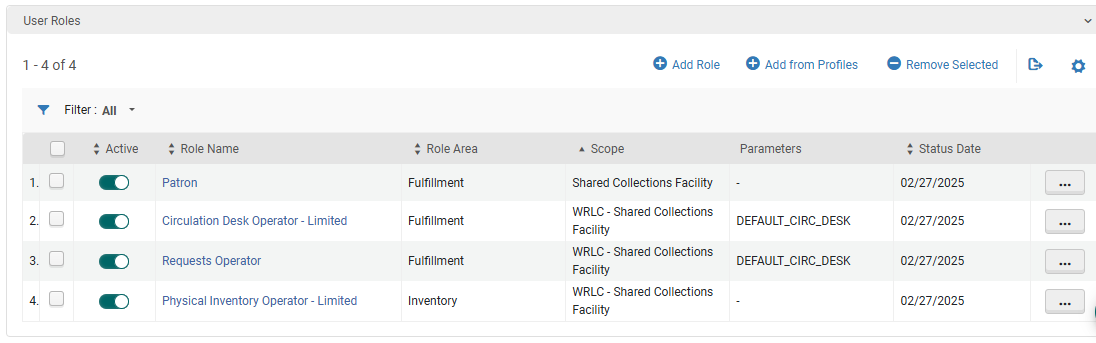](https://alma-documentation-bookstack.azurewebsites.net/uploads/images/gallery/2025-02/aff-lib-config12.PNG) - - ***Contact Information*** tab - Add address of affiliate library as the work address ##### 12. Update letter configuration for pull slip - Configuration > General > Letters > Letters Configuration - Search for the letter titled ***Ful Resource Request Slip Letter***, choose ***Edit*** - Edit the XSL around line 100 to include the following example - Click ***Save Draft*** - Click ***Save*** ```| ***User Group*** | ***User Group Code*** | ***Type*** | ***Notes*** |
| Library pickup locations | *wrlclib* | Internal | Patron accounts that represent each library pickup location. When SCF items owned by one of our partner institutions are requested, they are checked out to these patron accounts in the SCF IZ. For more information about these accounts, please see the [Patron Accounts for Libraries page](https://alma-documentation-bookstack.azurewebsites.net/books/shared-collections-facility-scf-institution-zone/page/patron-accounts-for-libraries) on the Alma Wiki. For more information on the workflow of SCF requests, please see the [Requests in the Remote Storage App page](https://alma-documentation-bookstack.azurewebsites.net/books/shared-collections-facility-scf-institution-zone/page/requests-in-the-remote-storage-app) on the Alma Wiki. |
| WRLC HQ Staff | *db wrlc* | Internal | Accounts for staff who work at WRLC headquarters. |
| Trinity Faculty | *tr fac* | External | Accounts for Trinity University faculty. Imported via SIS. For more information on circulation workflows for Trinity, see the [How to Bring up a Patron and Check Items Out page](https://alma-documentation-bookstack.azurewebsites.net/books/fulfillment/page/how-to-bring-up-a-patron-record-and-check-items-out) on the Alma Wiki. |
| Trinity Student | *tr stud* | External | Accounts for Trinity University students. Imported via SIS. For more information on circulation workflows for Trinity, see the [How to Bring up a Patron and Check Items Out page](https://alma-documentation-bookstack.azurewebsites.net/books/fulfillment/page/how-to-bring-up-a-patron-record-and-check-items-out) on the Alma Wiki. |
| Trinity Staff | *tr staf* | Internal | Accounts for Trinity University staff. Manually created by staff at WRLC headquarters. For more information on circulation workflows for Trinity, see the [How to Bring up a Patron and Check Items Out page](https://alma-documentation-bookstack.azurewebsites.net/books/fulfillment/page/how-to-bring-up-a-patron-record-and-check-items-out) on the Alma Wiki. |
| National Geographic Patron | *natgeo* | Internal | Accounts for staff at our affiliate library, National Geographic. For more information on configuring affiliate libraries, see the [Affiliate Library Configuration page](https://alma-documentation-bookstack.azurewebsites.net/books/wrlc-hq/page/affiliate-library-configuration-in-the-scf) on the Alma Wiki. For more information on Affiliate Libraries at the WRLC, see the [Affiliate Libraries page](https://alma-documentation-bookstack.azurewebsites.net/books/fulfillment/chapter/affiliate-libraries) on the Alma Wiki. |
| wrlc user | *wrlcuser* | External (Linked) | Accounts for patrons from our partner libraries who have requested items owned by WRLC (primarily WRLC Shared Monographs) from the SCF IZ. |
| AU Staff | *au staf* | Internal | User group used by Ex Libris account (unable to delete or edit the account) |
| User Category Type Description | User Category Type Code | Statistical Category Description | Statistical Category Code |
| INSTITUTION | Patron's Home Institution | American University | AMU |
| INSTITUTION | Patron's Home Institution | American University Washington College of Law | AMULAW |
| INSTITUTION | Patron's Home Institution | Catholic University of America | CUA |
| INSTITUTION | Patron's Home Institution | GW - Himmelfarb Health Sciences Library | HIMM |
| INSTITUTION | Patron's Home Institution | GW - Jacob Burns Law Library | GWLAW |
| INSTITUTION | Patron's Home Institution | Gallaudet University | GAL |
| INSTITUTION | Patron's Home Institution | George Mason University | GMU |
| INSTITUTION | Patron's Home Institution | George Washington University | GWU |
| INSTITUTION | Patron's Home Institution | Georgetown Law School | GULAW |
| INSTITUTION | Patron's Home Institution | Georgetown University | GU |
| INSTITUTION | Patron's Home Institution | Howard University | HU |
| TYPE | Account type | Interlibrary Loan Account | ILL |
| TYPE | Account type | Library Account | LIBRARY |
| INSTITUTION | Patron's Home Institution | Marymount University | MU |
| TYPE | Account type | Patron Account | PATRON |
| TYPE | Account type | Patron Linked Account | LINK |
| INSTITUTION | Patron's Home Institution | UDC - Law School | UDCLAW |
| INSTITUTION | Patron's Home Institution | University of the District of Columbia | UDC |
| INSTITUTION | Patron's Home Institution | WRLC SCF | WRLC |
| **System** | **Set** | **Updates** | **Description** | **Frequency** |
| Alma Scheduled Jobs | Patron accounts where user group = empty AND job category = empty | User Group changed from empty to 'tri stud' | Students accounts are not given a user group when they are first imported to the SCF IZ; a job is scheduled to run every week (Mondays at 2am) that adds the 'tr stud' user group to a logical set containing new users where user group = empty, and job category = empty. | Weekly Monday at 2am |
| Alma Scheduled Jobs | Bib records where Linked to NZ = No AND Current Location of attached item is NOT wrlc shrm wrlc natg AND Provenance Code is NOT WRLC AND Suppressed = No AND Has Inventory = Yes | Suppress bib records in set | Bibliographic records for 'copied' items (item records that are copies from the Owning Institution's IZ) should always be suppressed. If an item is linked to an NZ Bib, the holdings records are automatically suppressed in the SCF IZ, ***however***, bib records not linked to the NZ should be imported as suppressed. This scheduled job makes sure that any unsuppressed, unlinked bib records of 'copied' items are suppressed. | Every 3 months on day 1 at 4am |
| Alma Scheduled Jobs | Holdings records where Has Items = No | Delete the holdings record | Delete any holdings records that do not have items attached. | Monthly on 2nd Monday at 2am |
| Alma Scheduled Jobs | Bib records where Has Inventory = No | Delete the bib record | Delete any bib records that do not have items/holdings attached. | Monthly on 3rd Monday at 2am |
| **Parameter Key** | **Parameter Value** | **Notes** |
| auto\_renew\_loan\_days\_after\_due\_date | 0 | The days period to auto renew item\_loans after loan ends |
| auto\_renew\_loan\_days\_before\_due\_date | 7 | The days period to auto renew item\_loans before loan ends |
| close\_paid\_lost\_loan | true | Activate the Lost and Paid status for a lost or replacement fee closed. |
| enable\_request\_during\_loan\_for\_different\_policy | true | When user has an active loan, enable him to request the resource with a different loan period policy |
| force\_empty\_temp\_location\_when\_disabled | true | When set to true, clearing the temporary location status will also clear the temporary location and library data |
| generate\_resource\_sharing\_temp\_barcode | false | |
| ill\_item\_creation\_lib\_code | ILL | |
| send\_courtesy\_notices\_behavior | DD\_ON\_EXACT\_DEFINED\_DAY | Controls the behavior of the 'Notifications - Send Courtesy Notices and Handle Loan Renewals' job. Options are: DD\_ON\_EXACT\_DEFINED\_DAY, DD\_WITHIN\_RANGE\_ONCE, DD\_WITHIN\_RANGE\_DAILY. |
| should\_report\_active\_requests | false | Should active requests be reported in notification |
| should\_report\_in\_process\_requests | true | Should in-process requests be reported in notification |
| should\_report\_on\_hold\_shelf\_requests | false | Should on-hold-shelf requests be reported in notification |