# Network Zone Maintenance
# Configuration of CDI Settings for Shared Electronic Collections
CDI settings for electronic collections in the Network Zone are individually configured for each Institution Zone that has access to a specific collection.
#### CDI Inheritance Parameter
In order for each IZ to inherit the configured CDI settings for NZ shared e-collections, the ***cdi\_consortia\_inheritance*** parameter must be set to ***Y*** (for Yes) in the Configuration > Resources > General > Other Settings page.
[](https://alma-documentation-bookstack.azurewebsites.net/uploads/images/gallery/2023-12/shared-e-resources4.PNG)
####
#### Notes on CDI
- Full-text activation in Alma consists of two parts : link resolver/link in record for full-text access, and search in CDI (flagged as full-text available)
- All full text collections that are active in Alma will be searchable by default, regardless of what their search activation status is
- You can have search in CDI without full-text links, but you cannot have full-text links without search in CDI unless you suppress it from being flagged as available in CDI
- If a collection is activated for a specific group of IZs, then CDI search is automatically active as well, even if the settings for CDI search activation status are set to No or None
- Full-text suppress means the full-text links (either linkresolver or link-in-record) are activated, but search in CDI is not active, because the resource is suppressed from being flagged as available in CDI.
- Do not show as full-text available in CDI even if active in Alma is the full-text suppress setting
- Can be used only if set on the same level (i.e. for the same groups) as the full-text activation
- This setting is recommended for e-books in order to cut down on duplicate e-book records
- It is recommended to set the We subscribe to only some titles in this collection to Yes for collections with Linkresolver full-text linking; this reduces errors in CDI linking
- CDI-only full text activation appears when Available for CDI search is set to Yes and the full-text linking is Link in Record. For use when your collection is inactive in Alma, you have the option to mark it as "Available Online" only in CDI. ([https://knowledge.exlibrisgroup.com/Alma/Product\_Documentation/010Alma\_Online\_Help\_(English)/Electronic\_Resource\_Management/060\_Alma\_Single\_Activation\_Source\_for\_CDI/020Single\_Activation\_with\_the\_Fully\_Flexible\_Setting#The\_.E2.80.9CCDI-only\_full\_text\_activation.E2.80.9D\_Option](https://knowledge.exlibrisgroup.com/Alma/Product_Documentation/010Alma_Online_Help_(English)/Electronic_Resource_Management/060_Alma_Single_Activation_Source_for_CDI/020Single_Activation_with_the_Fully_Flexible_Setting#The_.E2.80.9CCDI-only_full_text_activation.E2.80.9D_Option))
####
#### Resources
1. [Single Activation with the Fully Flexible Setting](https://knowledge.exlibrisgroup.com/Alma/Product_Documentation/010Alma_Online_Help_(English)/Electronic_Resource_Management/060_Alma_Single_Activation_Source_for_CDI/020Single_Activation_with_the_Fully_Flexible_Setting#The_.E2.80.9CCDI-only_full_text_activation.E2.80.9D_Option)
2. [Single Activation with the Fully Flexible Setting - Consortia](https://knowledge.exlibrisgroup.com/Alma/Product_Documentation/010Alma_Online_Help_(English)/Electronic_Resource_Management/060_Alma_Single_Activation_Source_for_CDI/030Single_Activation_with_the_Fully_Flexible_Setting_-_Consortia)
3. [CDI - Setting CDI Attributes (ODIN)](https://www.odin.nodak.edu/training/electronic-resources/cdi-setting-cdi-attributes)
#### Current WRLC NZ settings
##### Collections with Book or Journal linking level and Linkresolver
CDI Tab : for each IZ listed in the Group Settings tab for this particular collection, the settings should be as follows
1. CDI Search Activation Status = Active (this setting actually doesn't matter because all full text collections that are active in Alma will be searchable by default, regardless of what their search activation status is)
2. We subscribe to only some titles in this collection = Yes
3. Do not show as full-text available in CDI even if active in Alma = Check for Yes
#####
##### Collections with Book or Journal and Link in record
CDI Tab : for each IZ listed in the Group Settings tab for this particular collection, the settings should be as follows
1. CDI Search Activation Status = Active (this setting actually doesn't matter because all full text collections that are active in Alma will be searchable by default, regardless of what their search activation status is)
2. CDI-only full text activation = Do not check
3. We subscribe to only some titles in this collection = No
4. Do not show as full-text available in CDI even if active in Alma = Check for Yes
##### Collections with Article or Issue linking level and Linkresolver
CDI Tab : for each IZ listed in the Group Settings tab for this particular collection, the settings should be as follows
1. CDI Search Activation Status = Active (this setting actually doesn't matter because all full text collections that are active in Alma will be searchable by default, regardless of what their search activation status is)
2. We subscribe to only some titles in this collection = Yes
3. Do not show as full-text available in CDI even if active in Alma = Do not check
##### Collections with Article or Issue linking level and Link in record
CDI Tab : for each IZ listed in the Group Settings tab for this particular collection, the settings should be as follows
1. CDI Search Activation Status = Active (this setting actually doesn't matter because all full text collections that are active in Alma will be searchable by default, regardless of what their search activation status is)
2. CDI-only full text activation = Do not check
3. We subscribe to only some titles in this collection = No
4. Do not show as full-text available in CDI even if active in Alma = Do not check
##### Database Collections with Link in Record
CDI Tab : for each IZ listed in the Group Settings tab for this particular collection, the settings should be as follows
1. CDI Search Activation Status = Active (this setting actually doesn't matter because all full text collections that are active in Alma will be searchable by default, regardless of what their search activation status is)
2. CDI-only full text activation = Do not check
3. Do not show as full-text available in CDI even if active in Alma = Do not check
# Letters managed in the Network Zone
#### Pull Slip
The Pull Slip is managed for our partners to provide consistency for the displayed location codes. These codes are use to direct the physical items to the patron's selected pickup location.
Notes:
- The SCF's Pull Slip has further modifications to allow the letter to be used for ILLiad physical item requests that come to the SCF via the ILLiad Addon. Currently, only GW is using the ILLiad Addon for this purpose.
- The SCF's Pull Slip has further logic modifications to try to determine if a request created by the SCFapp is of request\_type "MOVE\_TO\_TEMPORARY" or "RESOURCE\_SHARING\_PHYSICAL\_SHIPMENT". (We are hopeful that Ex Libris will provide this information if/when they update the SCFapp for integration with Rapido(GM).)
- The SCF's Pull Slip is not managed in the Network Zone.
#### 'On Hold Shelf' Letter
The On Hold Shelf Letter is managed in the Network Zone so that specific library instructions can be provided to the patron on when and how material can be picked up. The original format of the letter only provided instructions from the owning library. These instruction were not specific to the pickup location that the patron selected.
# Local Authority Headings Workflows
The following are the workflows used by the WRLC Consortial Network Zone Manager to oversee, edit, and update the local authority records in the WRLC Network Zone environment.
### Replacement Headings
For subject headings that the Metadata Cmmittee approves as replacements, a local Library of Congress authority record is created and saved in the WRLC Network Zone; the new, approved term is the preferred term in the authority record, and the previous term is the non-preferred term in the record. The existing subject heading in Network Zone-linked bibliographic records will then be changed through the Preferred Term Correction job that runs daily in the Alma NZ.
- Look up the authority record in the Alma Community Zone.
- Open the CZ record, then chose the ***Copy*** option to copy the record into the Network Zone.
- Search for the newly copied authority record in the NZ.
- Open the record in the Metadata Editor, and make the following changes :
- Delete the existing 040 field. Replace it with the 040 field below
```
$$a CAO $$f WRLC local LCSH
```
- - Update the 15X field with the new term
- Remove any 45X fields with $$w nne and $a \[previous term\], then add the previous term to a 45X field
- If any 45X fields exist that contain the previous term, duplicate them and swap in the old term with the new term if they don't already exist
- Remove all 6XX fields that mention old term
- Add the following two 667 fields
```xml
$$a Local WRLC heading approved by the WRLC Metadata Committee on [insert date of approval]. The Library of Congress subject heading "[insert old heading]" is changed to "[insert new heading]" by the daily Preferred Term Correction job. For more information, see the "Local WRLC Subject Headings" section of the Network Zone Bibliographic Record Policies document.
```
```
$$a At the time this local authority record was added "[insert old heading]" was the authorized Library of Congress Subject Heading.
```
- Update 78X fields with new term if necessary
- Delete 035 field with prefix (LIBRARY\_OF\_CONGRESS)
- Then Save the record. Do not import records, the headings will not link to an imported authority record unless that authority record is opened and saved in the Metadata Editor.
- Follow instructions for CZ records (see appropriate section below)
### Supplemental Headings
1. Create local authority record. Save as a Local WRLC authority record in the NZ
2. Add normalization rules to the WRLC transform 650 to 650 subf 2 local subf 5 CAO normalization rule
3. Create set of NZ records containing original LCSH
4. Run normalization rule on the set
5. After 24 hours, check the results of the set to make sure the local headings are linked to their local authority records.
6. Follow instructions for CZ records (see appropriate section below).
### Community Zone Local Headings
Library of Congress subject headings cannot be edited in Community Zone records. That being said, local fields can be added to CZ records. Hence why both replacement and supplement headings are added to CZ records as local supplemental fields in this workflow. If institutions do not want to display the original subject headings in their instances of Primo, they can write Primo display rules to mask the previous heading and only display the new local term in the CZ record.
- Write normalization rule with title “WRLC CZ \[New Heading\] Local LCSH”. Below is an example of a norm rule that adds a supplemental 690 field to a record if there exists a 650 or 651 field containing the phrase "America, Lake"
```
rule "WRLC CZ 650 subfield z Ontario, Lake Local LCSH"
priority 10
when
not exists "690.{-,7}.z.Ontario, Lake*"
then
copyfield "650" to "690" if (exists "650.{-,0}.z.America, Lake*")
replaceContents "690.z.America, Lake" with "Ontario, Lake"
changeSecondIndicator "690" to "7" if (exists "690.z.Ontario, Lake*")
removeSubfield "690.0" if (exists "690.z.Ontario, Lake*")
addSubfield "690.9.local" if (exists "690.{-,7}.z.Ontario, Lake*")
addSubfield "690.5.CAO" if (exists "690.{-,7}.z.Ontario, Lake*")
end
#########################
rule "WRLC CZ 651 subfield a Ontario, Lake Local LCSH"
priority 9
when
not exists "690.{-,7}.a.Ontario, Lake*"
then
copyfield "651" to "690" if (exists "651.{-,0}.a.America, Lake*")
replaceContents "690.a.America, Lake" with "Ontario, Lake"
changeSecondIndicator "690" to "7" if (exists "690.a.Ontario, Lake*")
removeSubfield "690.0" if (exists "690.a.Ontario, Lake*")
addSubfield "690.9.local" if (exists "690.{-,7}.a.Ontario, Lake*")
addSubfield "690.5.CAO" if (exists "690.{-,7}.a.Ontario, Lake*")
end
```
- Create a logical set of all CZ records with the following parameters :
- Is Linked = Yes (if run in the NZ, this will ensure all records are CZ records)
- AND
- Subjects (LC) Contains Phrase "previous term"
- Run the normalization rule on the set (choose the job 'WRLC Normalization Rule', then choose the appropriate norm rule from the drop down menu when saving the configurations of the job).
- Save the job as a recurring job (to run every 2 months on the 15th)
- Consortial NZ Manager will review results of scheduled jobs every 2 months
### Documentation
WRLC Local Subject Headings tracking spreadsheet : [Replacement and Supplemental Heading Tracking](https://docs.google.com/spreadsheets/d/1jiYpDAwBkSQ3hLTJu7abU3YwgI65MhtoiI-EW9VYXsk/edit?usp=sharing)
Testing document : [Local Authority Records](https://docs.google.com/document/d/17UJaiUszoWfY8flcVEeti4KaH4qrQUhkkJI_BVYpbBc/edit)
# Creating New NZ Analytics Users
WRLC staff can fill out the NZ Analytics agreement form (which can be found [here](https://alma-documentation-bookstack.azurewebsites.net/books/analytics/page/nz-analytics-accounts)) in order to have a user account created for them in WRLC's NZ Alma; this is so that they can access NZ Analytics and create queries and reports.
Once a staff member fills out the form, an email is sent to the relevant WRLC staff. When creating an NZ Alma user account for accessing Analytics, the user account should have the following settings:
- Primary Identifier = work email address
- User group = WRLC Analytics User
- Expiration date = the date given by the staff member on the Google Form; if none is given, set a date for 2 years from now
- Password, Verify Password
- Give them a temporary password
- Checkmark 'Force password change on next login'
- User Roles
- Choose the Add from Profiles button
- Then choose the 'Designs Analytics' profile in order to give the user all of the necessary roles
# User Groups in the Network Zone
There are two user groups in the Network Zone Alma.
| ***User Group*** | ***User Group Code*** | ***Type*** | ***Notes*** |
| WRLC HQ Staff | wrlchq | Internal | User group for all staff working at WRLC HQ |
| WRLC Analytics User | wrlcanalytics | Internal | User group for patron accounts created solely for the use of NZ Analytics.
For more information, see the [Creating New NZ Analytics Users page](https://alma-documentation-bookstack.azurewebsites.net/books/wrlc-hq/page/creating-new-nz-analytics-users) on the Alma Wiki.
|
# How to Activate a CZ Collection in the Network Zone
Below are instructions on how to activate a Community Zone (CZ) collection in the Network Zone.
If you are activating a collection that will be used for AUTOHOLDINGS, please follow the instructions given on the [Alma Knowledgebase](https://knowledge.exlibrisgroup.com/Alma/Product_Documentation/010Alma_Online_Help_(English)/090Integrations_with_External_Systems/030Resource_Management) for that particular vendor!
1\. Search for the electronic collection in the CZ[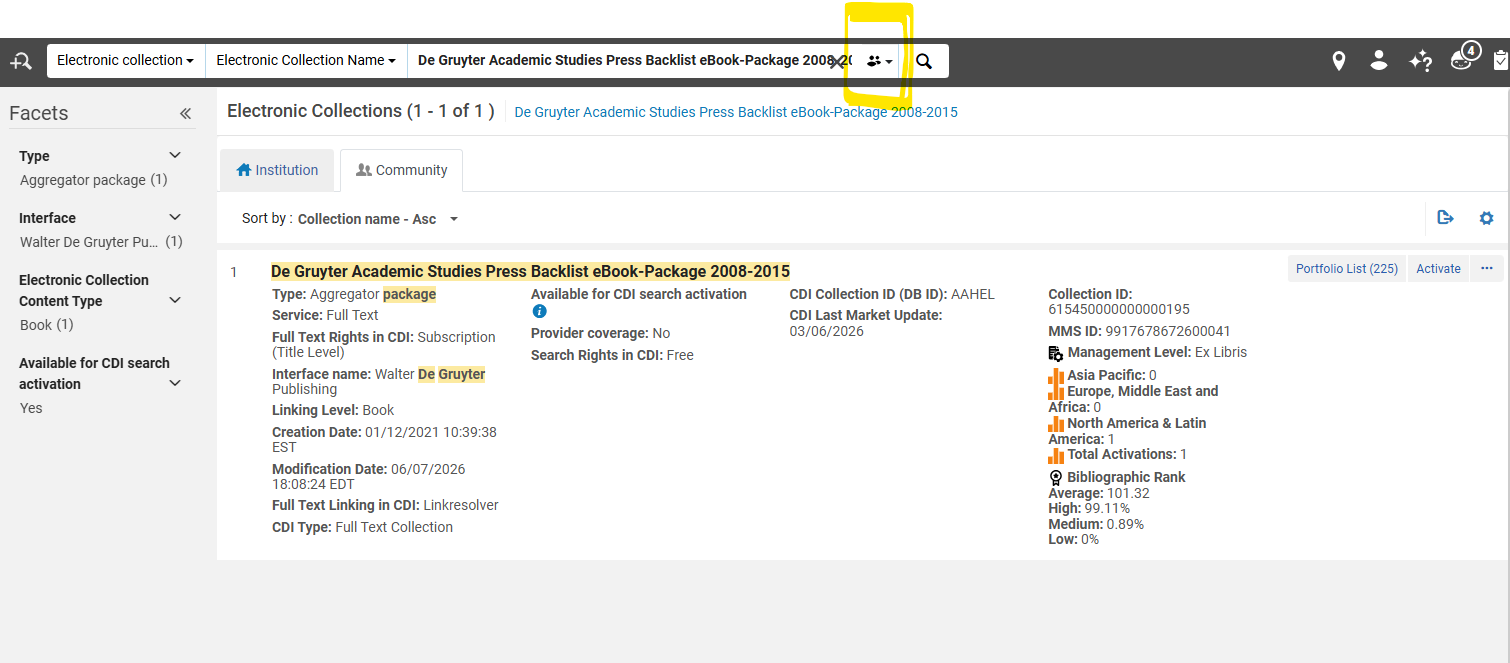](https://alma-documentation-bookstack.azurewebsites.net/uploads/images/gallery/2026-06/f7Iimage.png)
2\. Choose the Activate option for the collection.
3\. In the **Electronic Collection and Services Setup** page :
a. Under the **Local Electronic Collection Information** section
i. Add the **Public Name (override)** to be the same name as the collection, with '*(WRLC)'* added at the end of the name. This will help consortial staff identify the collection as a WRLC managed electronic collection.
ii. Checkmark **Mark Bib as suppressed**. This ensures that the bibliographic record that describes the collection is suppressed from Primo; it does NOT suppress the portfolios attached to the collection.
iii. **Electronic Collection Proxy enabled = No**. This ensures that a proxy is not added to the URL for the entire electronic collection; it does NOT remove a proxy from the portfolios attached to the collection.
[](https://alma-documentation-bookstack.azurewebsites.net/uploads/images/gallery/2026-06/screenshot-2026-06-12-100039.png)
b. Under the **Central Discovery Index Information** section
i. **CD Search activation status = Active**
ii. **We subscribe to only some titles in this collection = Yes**
Please note that the above setting may be changed later, depending on the linking settings of the collection. When first activating a collection, it is safest to set this criteria to 'Yes."
iii. IF collection includes only ebooks, Checkmark Do not show as Full Text available in CDI even if active in Alma.
IF collection includes journals, do not checkmark Do not show as Full Text available in CDI even if active in Alma.
[](https://alma-documentation-bookstack.azurewebsites.net/uploads/images/gallery/2026-06/screenshot-2026-06-12-100053.png)
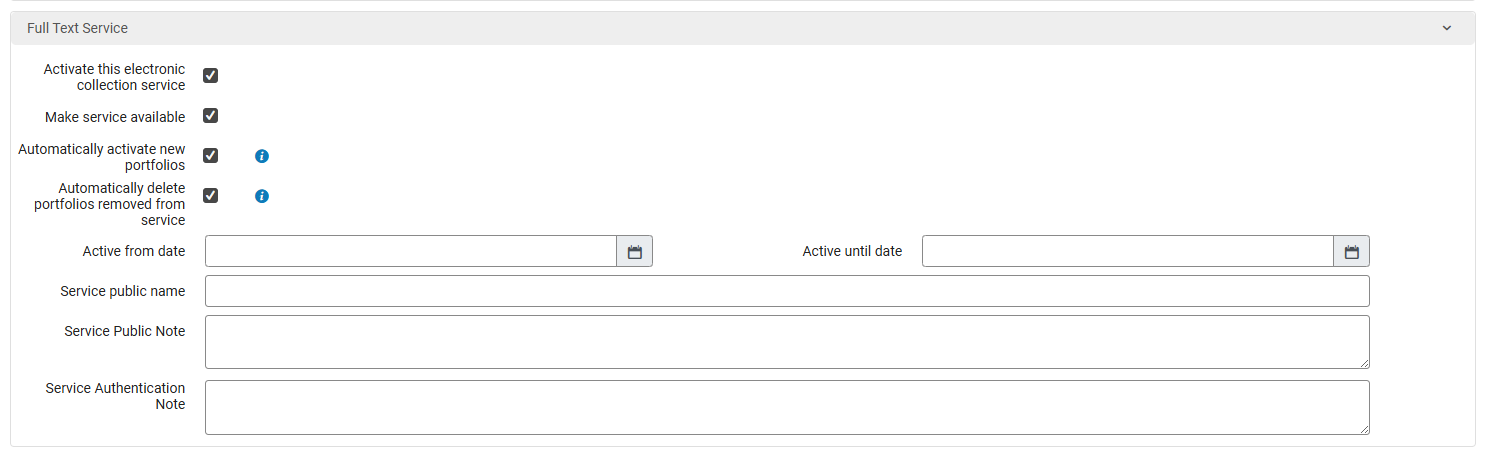
c, Under the F**ull Text Service** section
i. Checkmark the following options
- - - Activate this electronic collection service
- Make service available
- Automatically delete portfolios removed from service
ii. For the following option...
- - - Automatically activate new portfolios : only checkmark if NOT setting up an autoholdings collection, AND if all portfolios in the collection are available through our subscription.
All remaining options can be left blank.
[](https://alma-documentation-bookstack.azurewebsites.net/uploads/images/gallery/2026-06/screenshot-2026-06-12-100207.png)
ii. Then click Next.
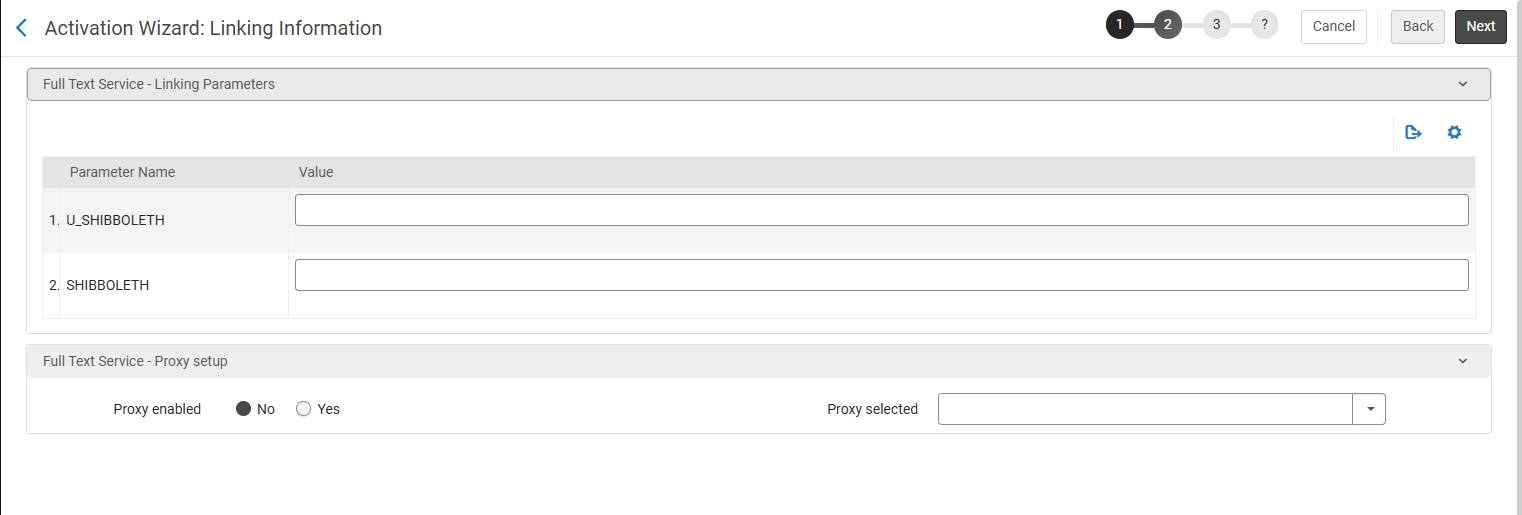
4\. In the **Linking Information** page :
a, Under the **Full Text Service - Linking Parameters** section
i. Leave all parameters blank
b. Under the **Full Text Service - Proxy setup** section
i. **Proxy enabled = No**. If the collection requires a proxy, the proxy settings for each individual Institution will be set later in the workflow.
[](https://alma-documentation-bookstack.azurewebsites.net/uploads/images/gallery/2026-06/screenshot-2026-06-12-101016.png)
ii. Then click Next
5\. In the **Select Activation Method** page :
a. **Activate all - Activation of the complete electronic collection with no selection of portfolios** : choose if all portfolios in the collection are available through our subscription.
b. **Manual activation - activate electronic collection and manually select portfolios** : choose this option if you are activating a collection that will be used for autoholdings.
b. Then click Next
6\. Review the **Activation Summary** page and make sure everything looks accurate. Click **Activate** to activate the collection. This will trigger an Activation job to run.
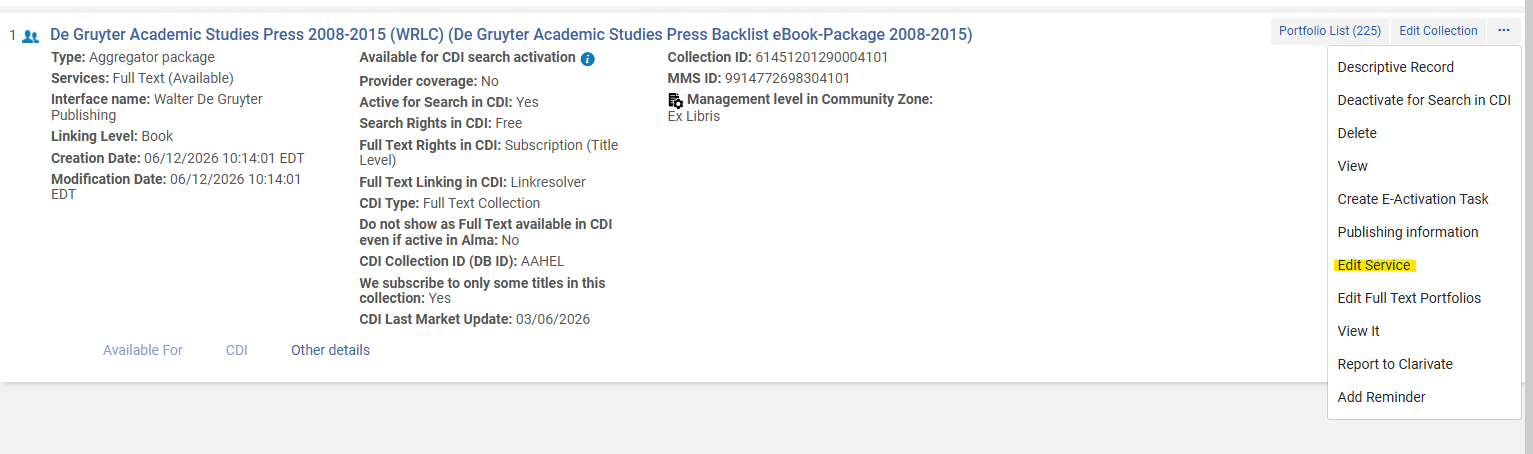
7\. At this point, you will be brought back to your original Alma search page. Find the collection you just activated, and click on the house icon to view the same collection in the Network Zone (as opposed to the Community Zone).
8\. Click on the ellipsis button, then choose **Edit Service**
[](https://alma-documentation-bookstack.azurewebsites.net/uploads/images/gallery/2026-06/screenshot-2026-06-12-102625.png)
a. Go to the **Linking** tab
i. Under the **General Linking Information** section
IF a proxy is necessary for this resource, select Proxy enabled = Yes, then leave the Proxy selected drop down menu blank
IF a proxy is NOT necessary for this resource, leave Proxy enabled = No.
[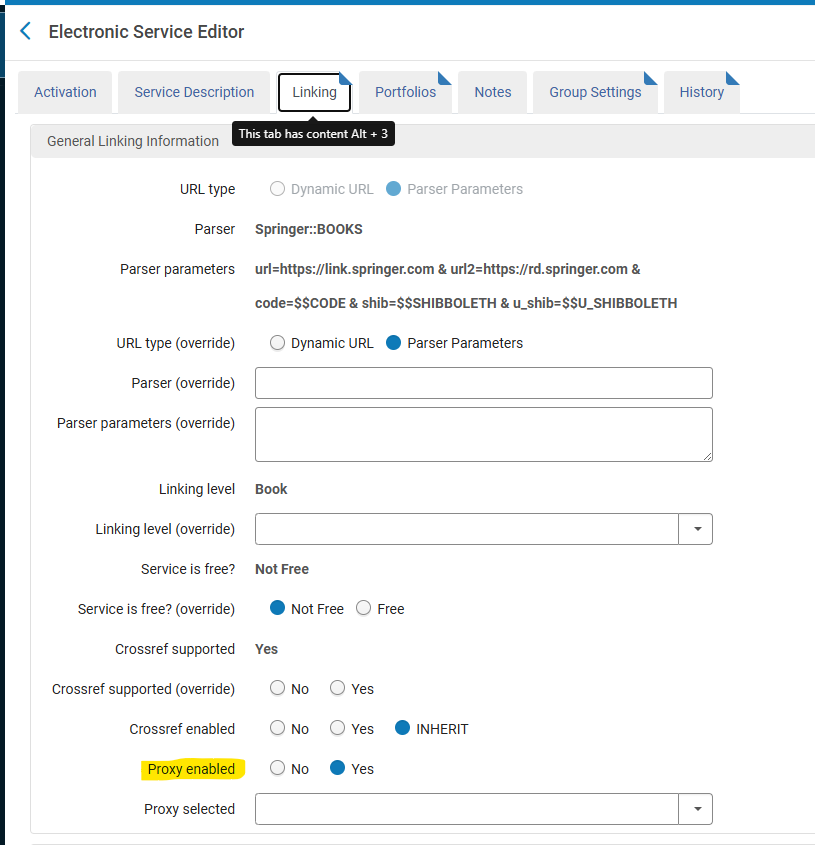](https://alma-documentation-bookstack.azurewebsites.net/uploads/images/gallery/2026-06/screenshot-2026-06-15-112612.png)
b. Go to the **Group Settings** tab
i. Click **Add Settings For Group** to add each institution that has access to the collection.
ii. IF a proxy is necessary for this resource, select Resource Default for the Proxy Enabled configuration
IF a proxy is NOT necessary, select No for the Proxy Enabled configuration;
Do NOT choose Yes for Proxy Enabled. This setting is only for proxies configured in the Network Zone, and WRLC does not configure proxies in our NZ.
iii. Proxy Selected is left blank.
iv. Click Save, and repeat for each institution.
[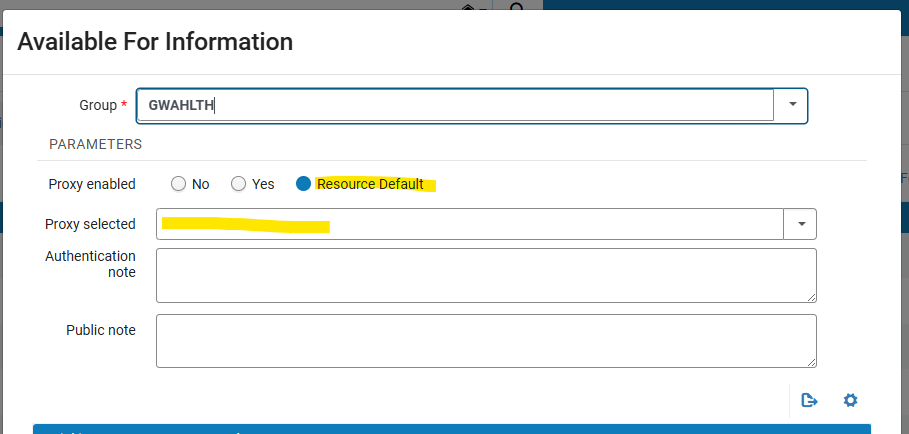](https://alma-documentation-bookstack.azurewebsites.net/uploads/images/gallery/2026-06/screenshot-2026-06-15-112530.png)
If you choose **Proxy Enabled = Resource Default**, the settings applied to this institution will be defined by the settings in the Linking tab of the service (what was chosen in step *a.i.* of these instructions). Proxy settings set at the portfolio and collection levels can also affect whether a proxy is applied; for a full table of Proxy Relationships, please see the [Proxy Relationships Alma Knowledgebase page](https://knowledge.exlibrisgroup.com/Alma/Product_Documentation/010Alma_Online_Help_(English)/Electronic_Resource_Management/051Link_Resolver/030Access_to_Services#Proxy_Relationships).
v. Once you have configured each Institution, click Save on the Electronic Service Editor page.
Please note that there is also a Group Settings tab in the Edit Collection page; the Electronic Service page is the only one that should be edited for Group Settings.
c. Afterwards, you should be brought back to the Alma search page with a view of the electronic collection.
9\. From here, click Edit Collection
[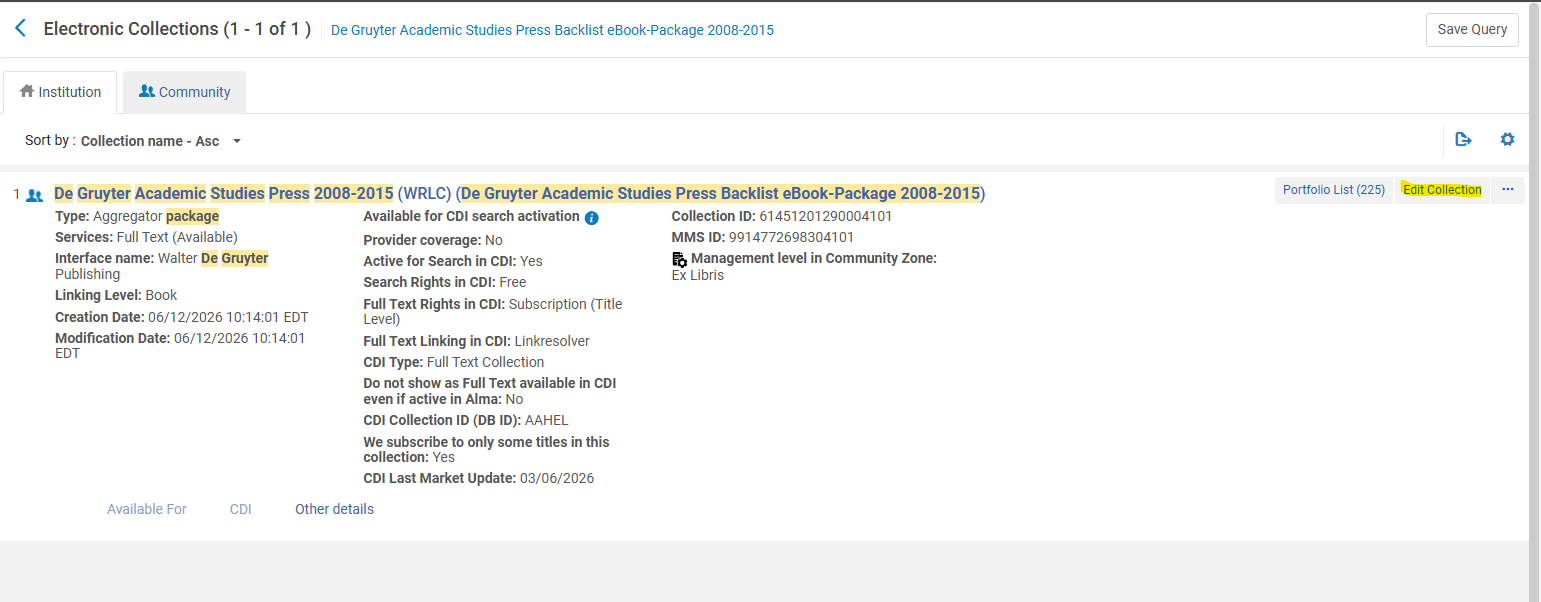](https://alma-documentation-bookstack.azurewebsites.net/uploads/images/gallery/2026-06/screenshot-2026-06-12-102237.png)
Go to the CDI tab and follow the instructions for setting CDI settings for electronic collections found on the [Configuration of CDI Settings for Shared Electronic Collections](https://alma-documentation-bookstack.azurewebsites.net/books/wrlc-hq/page/configuration-of-cdi-settings-for-shared-electronic-collections) page on the Alma Wiki.
# Temporarily removing partner from CLS
In the case of an emergency, it is possible to temporarily remove a partner Institution Zone from the Consortium Loan Service (CLS) / Automated Fulfillment Network (AFN) rota, in order to prevent their school's items from being requestable.
The following steps are done on the Alma Network Zone.
1. Go to **Fulfillment > Resource Sharing > Partners**
2. Find the Institution in the list of partners. Specifically search for Profile Type of Fulfillment Network. Once found, click on the ellipsis button, then **Edit**
3. Under the **General Information** tab, choose **Inactive** from the **Status** drop down menu. Then press **Save**.[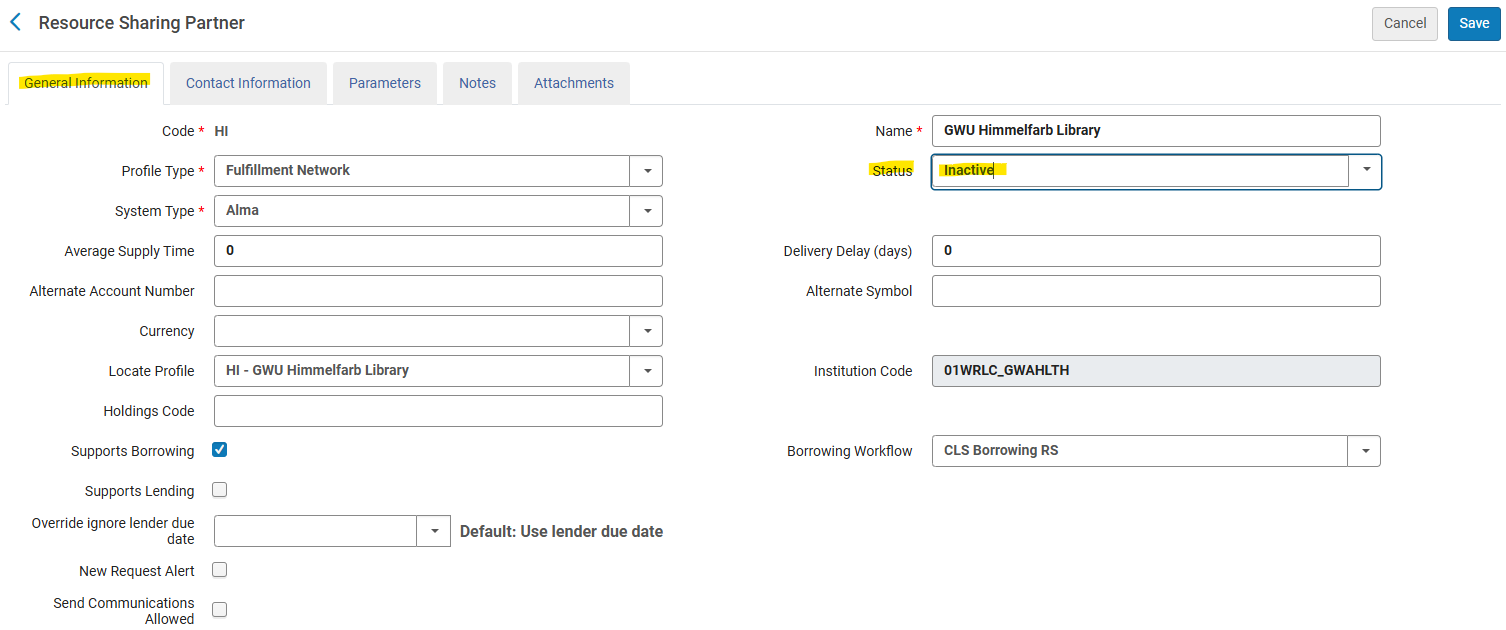](https://alma-documentation-bookstack.azurewebsites.net/uploads/images/gallery/2026-09/screenshot-2026-09-04-111939.png)
4. Then go to **Fulfillment > Resource Sharing > Rota Templates**
5. Click on the ellipsis button, then **Edit** for the **Consortium Book Borrowing** rota template
6. Go to the **Template Members** tab
7. Find the Institution in the member list, click on the ellipsis button, then choose **Remove**. Click **Save**.[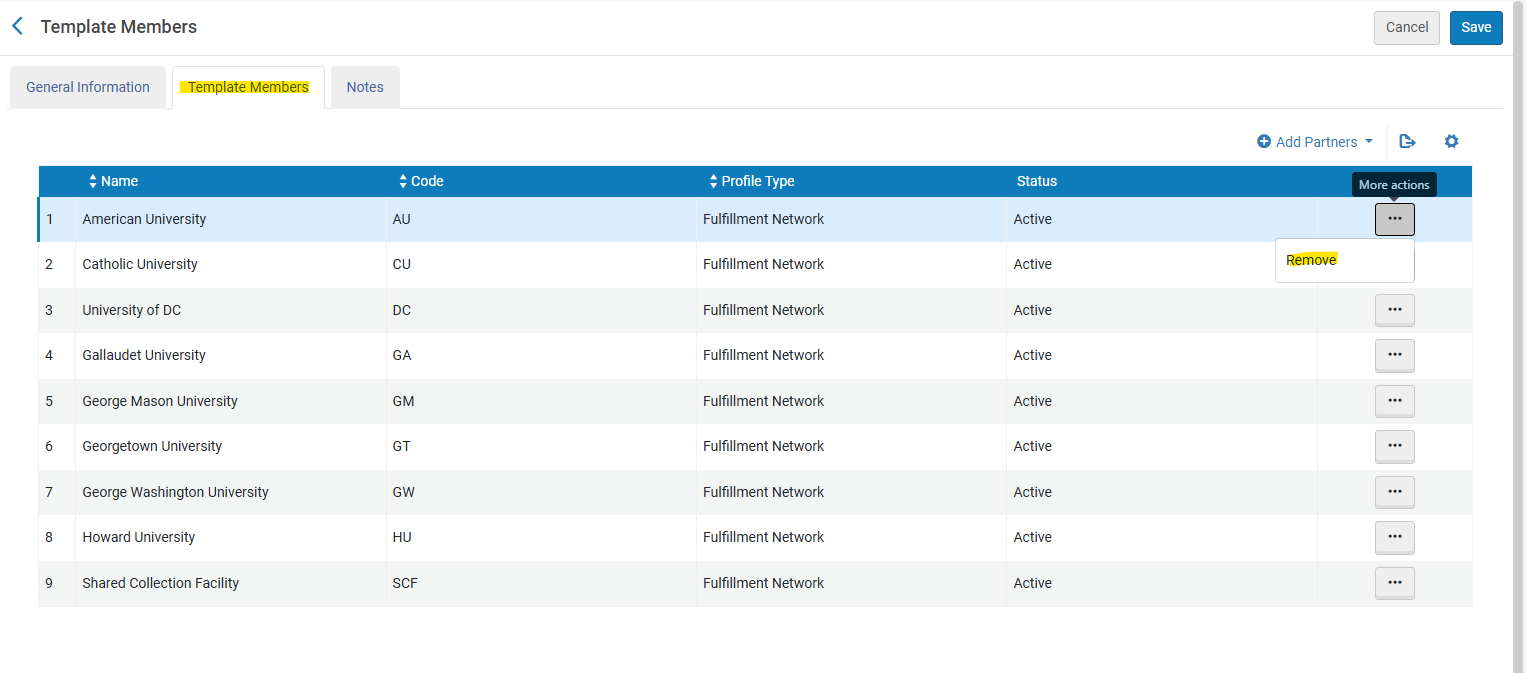](https://alma-documentation-bookstack.azurewebsites.net/uploads/images/gallery/2026-09/screenshot-2026-09-04-112312.png)
8. In order to distribute these changes to the Network partners, go to **Fulfillment >Advanced Tools - General > Distribute Resource Sharing Network Configuration**. When the pop-up appears, click the **Confirm** button.
The steps above will successfully prevent the institution's items from being requested by the other consortial partners.
In order to prevent the institution's patrons from placing CLS/AFN requests, one extra step needs to be done in the Institution's Institution Zone.
1. Go to their Institution Zone; then go to **Configuration > General > Add a Library or Edit a Library**
2. Go to the **Libraries** tab. For each library that is a Resource Sharing library, do the following:
1. Click on the name of the Library
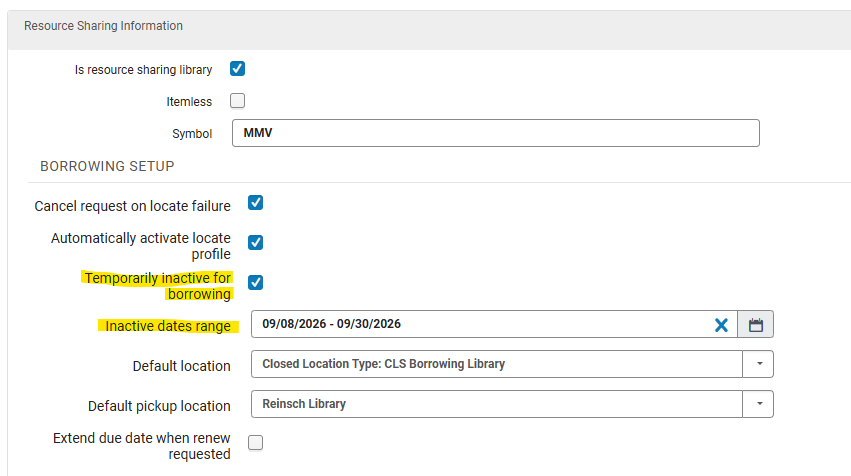
2. In the **Resource Sharing** section under the **Summary** tab, check **Temporarily inactive for borrowing**. If possible, set the dates in which patrons will be unable to borrow consortial items, then click **Save**.
3. Repeat for other resource sharing libraries configured in the Institution Zone.
[](https://alma-documentation-bookstack.azurewebsites.net/uploads/images/gallery/2026-09/screenshot-2026-09-08-104523.png)