Remote Storage App
How the SCF remote storage app works for accessions, requests, loans, etc.
- Accessions in the Remote Storage App
- Requests in the Remote Storage App
- Remote Storage App Configuration
- Loans in the Remote Storage App
- How to find Job IDs for the Remote Storage App
Accessions in the Remote Storage App
Accessions Workflow
The following accessions workflow is configured for all WRLC Institution Zones except UDC Law and CU Law.

- Update item in owning IZ (location is changed from a regular location to an SCF location)
- Publishing job runs in owning IZ (once a day, usually around midnight); the job sends a file of item information from an Alma set to a specific SFTP folder
- The Job Finish Webhook Integration Profile in the owning IZ sends out a webhook when the publishing job finishes.
- The Remote Storage app recognizes the webhook from the list of approved job webhooks in the configuration file. The app then opens and processes the file from the SFTP folder.
- The app first checks if the barcode exists in the SCF IZ. If it doesn’t, it looks for a matching bibliographic record, then a holdings record (in that order). If found, those records are used; if not, they are created in the same order. Details on the metadata added to the bibliographic and holdings records are provided in the Metadata changes in the SCF IZ section below
- Item is created. Details on the metadata added to the item records are provided in the Metadata changes in the SCF IZ section below
Assumptions made in the Accessions Workflow
- Change of barcode is not allowed
- Need to have configuration file of all remote storage locations per library per institution
- Item needs to have the following changes
- Barcode = X + item barcode
- Provenance = item's Institution Code
- Clear PO Line
- Holding default data is in configuration file (default is used if holdings/location is NOT found in configuration file)
- Need to update the item from the SCF and do not modify the following fields : barcode, provenance, location, storage location id, Internal Note 1, Item Call Number
- Publishing profile will need to be configured in each institution to send all item changes for any item in the remote storage (set based on locations that are remote storage + item level publishing)
Set for SCF Data Prep in Alma
Every participating WRLC Institution Zone has a Physical Items set that searches for all item records with either a temporary or permanent location at the Shared Collections Facility. Each set has an Internal Note stating DO NOT DELETE.
This set is used for the SCF Data Preparation Profile.
SCF Data Preparation Publishing Profile in Alma
A publishing profile (called the "SCF Data Preparation Profile") in the owning IZ exports a MARC XML file containing new, deleted, and updated items found in a specific Alma set ("Set for SCF Data Prep").
The XML file names are :
Institution abbreviation + iz2scf + yyyymmdd + two-digit number + Alma Process ID + new or delete
ex. au_iz2scf_2025060308_18906688690004102_new
The job is run daily, usually at night or early in the morning
A webhook is sent by the SCF Job Finish Webhook Integration Profile when the publishing job finishes. The job ID is listed in the config file for the app, letting the app know that this is a job that it should look out for. When the app recognizes the job id for the publishing profile, the app examines the file of items published and goes to work creating or updating the items in the SCF IZ.
Do not edit this profile without communicating with WRLC Central staff. If you save edits, it will change the Job ID, which is what the Remote Storage App looks for in the Job Finish Webhook. Editing this profile requires finding the new Job ID, and then updating the configuration JSON file with the new information.
SFTP for SCF App
Webhook Integration Profiles
There are two Webhook integration profiles important to the SCF accessions workflow.
-
SCF Job Finish Webhook Integration Profile in the owning Institution Zone
-
Sends out a webhook for every job that finishes running in the Institution Zone. The SCF app searches for the job id (publishing_job_id) in the conf.json file and the institution is selected according to it.
-
-
SCF Loans Webhooks Integration Profile in the SCF IZ
-
Sends out a webhook for requests and loans in the SCF IZ. The SCFapp changes the status of the owning institution’s item record based on the changes made in the SCF IZ. For more information, see the Loans page and the Requests page.
-
You can see a list of Webhook logs in Alma (Ellipsis button, View Log), and can also see the publishing job id in the Webhooks log for the publishing profile. Webhook secret in integration profile should be the same as that listed in the config file.
Loans for published items
When an item is published to the SCF IZ, a loan is automatically created for the item. It is loaned to a dummy patron account with a patron type of Library pickup locations.
The name of the account will often be Deliver to : [IZ abbreviation], for example Deliver to: CU.
The Primary ID of these user profiles is the IZ code, followed by a dash (no spaces), and then the code for the library, for example 01WRLC_GWA-SCRC.
The Primary ID for the dummy accounts cannot be edited, they are integral to the remote storage app code.
When an item is scanned in at the SCF IZ for initial processing, the remote storage app sees the Remove Loan webhook sent from the SCF IZ by the SCF Loans Webhooks Integration Profile, and the app removes any in transit status’s on the item in the owning IZ.
Metadata changes in the SCF IZ
Bib records
The bibliographic records not linked to the NZ will be given an 035 field with the prefix of the IZ code (ex. 01WRLC_AMU) followed by the owning IZ’s MMS ID
Holdings records
A new holdings record will be created for the item in the SCF IZ if there isn't a pre existing holdings record attached to the bib with the same location code.
Item records
- A provenance Code is added that corresponds to the owning IZ
- An X is added to the end of the barcode
- The PO Line is cleared
Requests in the Remote Storage App
Requests Workflow
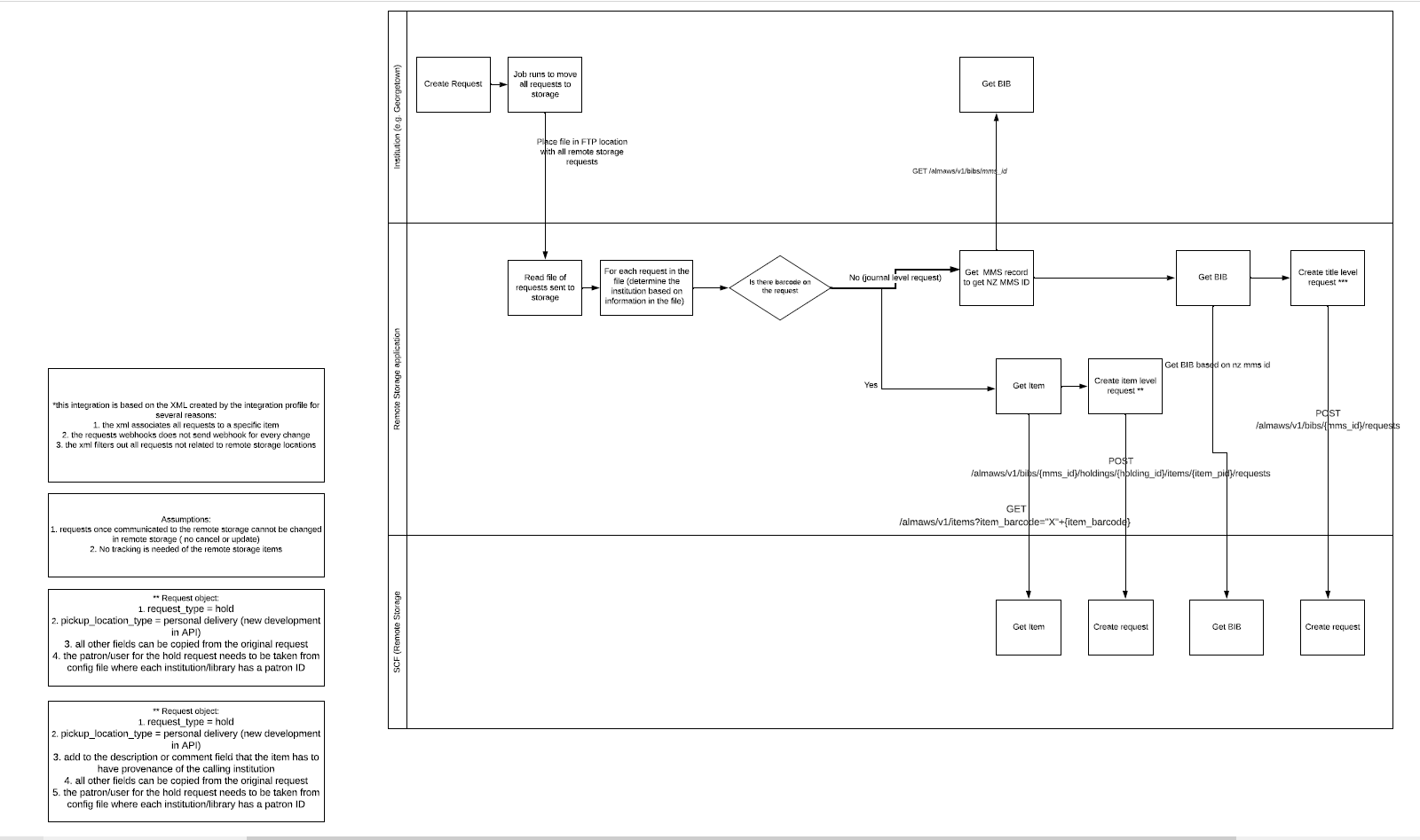
Assumptions made in the Requests Workflow
- XML associates all requests to a specific item
- Requests webhook does not send webhook for every change
- XML file filters out all requests not related to remote storage locations
- Requests once communicated to the SCF IZ cannot be changed
- No tracking is needed of the remote storgae items
- The request type is a Hold
- The pickup locaiton type is a personal delivery
- All other fields can be copied from the original request
- The patron/user for the hold request needs to be taken from the config file where each institution/library has a Patron ID
- Item n the SCF IZ must have provenance of the calling institution
Integration Profile
The Integration Profile used for Requests is configured in every participating Institution Zone in the WRLC Network
-
Shared Collections Facility Integration Profile :
-
This is a Remote Storage type integration profile. It runs twice daily (at noon and at midnight) and sends a file of all requests made to items with a Remote Storage location to an SFTP server for the remote storage app to process. The app searches for the job id (publishing_job_id) in the conf.json file.
-
Do not edit this profile without communicating with WRLC Central staff. If you save edits, it will change the Job ID, which is what the Remote Storage App looks for in the Job Finish Webhook. Editing this profile requires finding the new Job ID, and then updating the configuration JSON file with the new information.
SFTP for SCF App
The S/FTP Definition configured in Alma is named "SFTP for SCF App". This is the destination where the publishing profile exports the daily item information file and where the Requests file is also sent.
In this Integration Profile, the specified subdirectory is "Alma" (or "AlmaRSA-PSB" for sandbox environments).
Each Integration Profile for requests uses a subdirectory in the format:
[Institution Code]/requests
ex.01WRLC_AMU/requests
After each sandbox refresh, the sandbox environment must be updated with the correct subdirectory.
Additionally, the SFTP server information in the app configuration file must exactly match the details specified in the S/FTP Definition.
Requests Process for Physical Items
- When a patron makes a request for an item at the SCF, the item is given a status of Waiting for Remote Storage in the owning Institution’s IZ. The item in the owning IZ also has a process type of Requested.
- If the requester is from a different Institution than the Institution that owns the item, the request will appear under both the Monitor Requests & Item Processes page (without a workflow assigned) and the Borrowing Requests page in the IZ of the requester, with a status of Request sent to Partner; the partner that is listed is the owning IZ, not the SCF IZ.
- The Shared Collections Facility Integration Profile in each owning Institution Zone runs twice daily (once at noon, and again at midnight), and transfers requests to the SCF IZ. In the SCF IZ, the item is given a status of Pick from shelf; it is “requested” by the patron account associated with the pickup location.
- Once the request has successfully transferred to the SCF IZ, the status of the item in the owning IZ is changed to Request Communicated to Storage, until the item is scanned at the requester’s IZ; then the item is placed on their Hold Shelf. The item record will have a process type of Hold Shelf, even if the Hold Shelf is at another Institution other than the owning Institution.
- When the item is scanned in the SCF IZ (after being picked up from the shelf by the SCF specialists), it is automatically loaned to the patron account associated with the requesting library (Deliver To : [Pickup IZ]). This is because all of the Library pickup patron accounts in the SCF IZ are governed by the Library Delivery fulfillment rule that is configured under the Limited Request fulfillment unit for Library pickup patron accounts. The SCF copy of the item remains on loan until the item is returned to the SCF.
- When item is scanned in at the non-SCF Institution Zone, the item is given a status of Transit for Reshelving.
- When the returned item is scanned in at the SCF, not only is the Loan in the SCF IZ removed, but the In Transit status in the owning IZ is also removed due to the webhook sent via the SCF Loans Webhooks Profile Integration Profile, and processing done by the SCF app. For more information on Loans and the remote storage app, see the Loans page.
Requests Process for Digitization
- When a patron makes a request for an item at the SCF, the item is given a status of Waiting for Remote Storage in the owning Institution’s IZ. The item in the owning IZ also has a process type of Requested.
- The Shared Collections Facility Integration Profile in each owning Institution Zone runs twice daily (once at noon, and again at midnight), and transfers requests to the SCF IZ. In the SCF IZ, the item is given a status of Pick from shelf
- IF the digitization request is a Rapido request, it is “requested” by the patron account associated with the pickup location. Once the request has successfully transferred to the SCF IZ, the status of the item in the owning IZ is changed to Request Communicated to Storage.
- IF the digitization request is an ILLiad request transferred to Alma via the ILLiad Add-On, it is requested by a linked account associated with the original requester; because these are requests created by the ILLiad Add-On, these "patron" accounts are accounts for each institution's ILL department. Once the request has successfully transferred to the SCF IZ, the request in the owning IZ is cancelled.
- The SCF specialists then fill the request by scanning the requested pages, and uploading the PDF to the request in the SCF IZ Alma. Alma then sends an email to the preferred email address associated with the requesting patron in the SCF IZ; this will be either the patron account associated with the pickup location, or the accounts for each institution's ILL department. The ILL staff from each school then fill the request via their own workflows for digitization.
Remote Storage App Configuration
Configuration Files
There are two configuration files found on the scfapp@sftp.wrlc.org :
- Live production environment (home/SCFApp/Alma/conf.json)
- Sandbox (home/SCFApp/AlmaRSA-PSB/conf.json)
This JSON file gives the remote storage app important information regarding institution, library, and location codes, as well as API keys, publishing profile IDs, etc.
What exactly is found in the configuration file?
- SCF SFTP server information
- Default location code for items in the SCF IZ (wrlc stor)
- API keys for all WRLC Institution Zones
- Publishing Profile IDs and Job IDs for each IZ (information on how to find these can be found on the How to find Job IDs for the Remote Storage App page)
- Institution and Library codes for each IZ
- Remote Storage Location codes for each IZ
If any changes are made to anything listed above, the configuration file must be updated. Changes made to this file requires a reloading of the Remote Storage App
Logs
Logs for both the production and sandbox environment are found on WRLC's Azure site
- Live production environment | https://scf-remote-storage-app-dpaaf5gccdgra9fn.scm.eastus2-01.azurewebsites.net/newui/logs (Application > logstream)
- Past Logs for Production Environment : https://wrshields.wrlc2k.wrlc.org/api/kudo/login.php?next=%2Fapi%2Fkudo%2Findex.php
Sandbox | https://aladin-sp.wrlc.org/login?service=webappvfs (alma-remote-storage-app-psb/AlmaRSA-PSB/logs)URL for sandbox logs no longer working
The log will have thread numbers - each request/action is given a specific thread number. if there are many requests at once, the thread numbers are an easy way to keep track of one request
Error logs are found in Path: home/LogFiles/ YYYY_MM_DD_XXXXXXXXX_default_docker.log files. If there are many errors within the timeframe, the file can reach its size limit and be written over, resulting in the loss of log data. If this occurs, WRLC can locate the missing logs in Azure's admin portal.
SCFTP for SCF App S/FTP Definition
The S/FTP Definition configured in Alma is named "SFTP for SCF App". This is the destination where the publishing profile exports the daily item information file and where the Requests file is also sent.
The specified subdirectory is "Alma" (or "AlmaRSA-PSB" for sandbox environments).
The SCF Data Preparation Publishing Profile for accessions uses a subdirectory in the format:
[Institution Code]/items
ex.01WRLC_AMU/items
The Shared Collections Facility Integration Profile for requests uses a subdirectory in the format:
[Institution Code]/requests
ex.01WRLC_AMU/requests
After each sandbox refresh, the sandbox environment must be updated with the correct subdirectory.
Integration Profiles
There are three Integration Profiles used for the Remote Storage App.
The two listed below are in each participating Institution's IZ
Do not edit this profile without communicating with WRLC Central staff. If you save edits, it will change the Job ID, which is what the Remote Storage App looks for in the Job Finish Webhook. Editing this profile requires finding the new Job ID, and then updating the configuration JSON file with the new information.
- SCF Job Finish Webhook Integration Profile
- Profile Type: Webhook
-
Sends out a webhook for every job that finishes running in the Institution Zone. The remote storage app searches for the job id (publishing_job_id) in the conf.json file and the institution is selected according to it.
- Relevant Workflows:
The profile listed below is in the SCF IZ
- SCF Loans Webhooks Integration Profile
- Profile Type: Webhook
-
Sends out a webhook for loans in the SCF IZ. The SCFapp changes the status of the owning institution’s item record based on the changes made in the SCF IZ.
- Relevant Workflows
Set for SCF Item records
Every participating WRLC Institution Zone has a Physical Items set that searches for all item records with either a temporary or permanent location at the Shared Collections Facility. Each set has an Internal Note stating DO NOT DELETE.
This set is used for the SCF Data Preparation Profile.
Publishing Profile
A publishing profile (called the "SCF Data Preparation Profile") in the owning IZ exports a MARC XML file containing new, deleted, and updated items found in a specific Alma set ("Set for SCF Data Prep").
The XML file names are :
Institution abbreviation + iz2scf + yyyymmdd + two-digit number + Alma Process ID + new or delete
ex. au_iz2scf_2025060308_18906688690004102_new
The job is run daily, usually at night or early in the morning
A webhook is sent by the SCF Job Finish Webhook Integration Profile when the publishing job finishes. The job ID is listed in the config file for the app, letting the app know that this is a job that it should look out for. When the app recognizes the job id for the publishing profile, the app examines the file of items published and goes to work creating or updating the items in the SCF IZ.
Do not edit this profile without communicating with WRLC Central staff. If you save edits, it will change the Job ID, which is what the Remote Storage App looks for in the Job Finish Webhook. Editing this profile requires finding the new Job ID, and then updating the configuration JSON file with the new information.
Loans in the Remote Storage App
Loans Workflow
Changes in Loan status made in the SCF IZ are directly communicated to the owning IZ through a Webhook Integration Profile configured in the SCF IZ.
Changes in Loan status made in the owning IZ are NOT communicated to the SCF IZ. The process only runs one way : from SCF IZ to owning IZ.
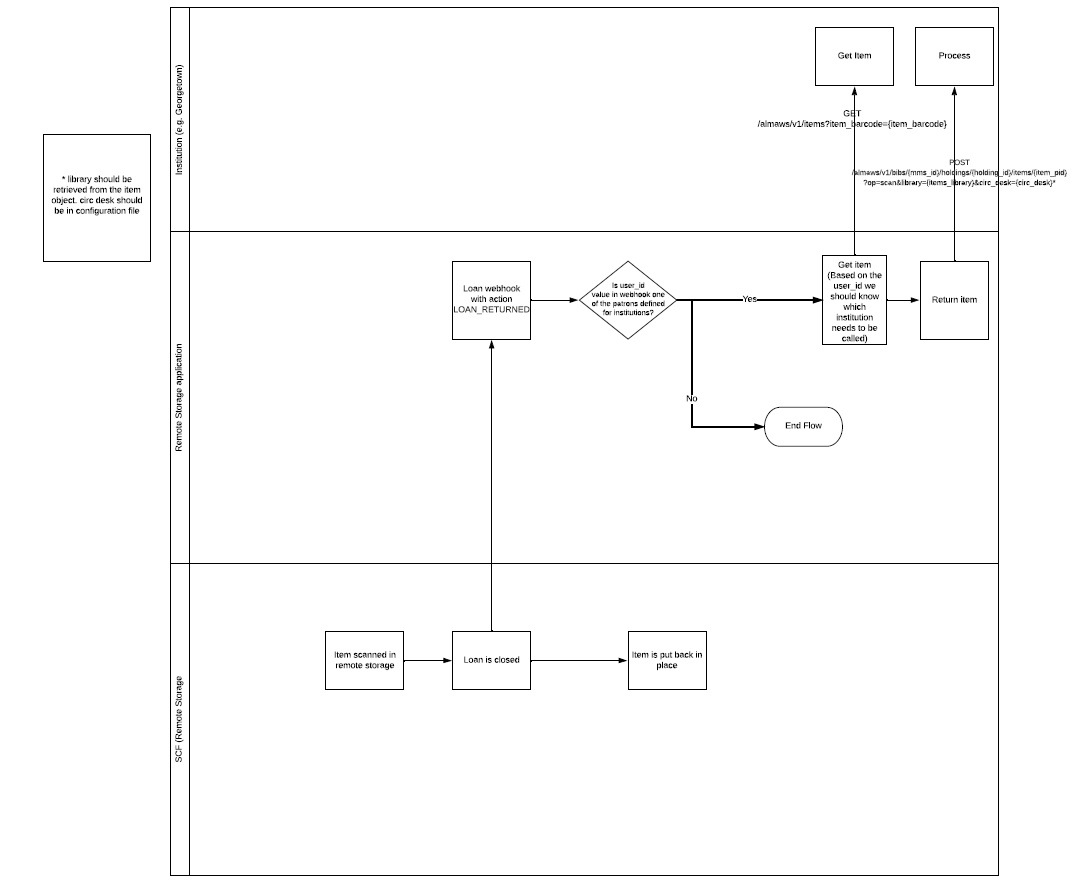
- Item scanned in SCF IZ, loan is closed
- Webhook for the Loan Returned action is sent out
- If the user_id value in the webhook equals the Primary ID of the dummy library account in the SCF IZ. If the institution code and library code in the Primary ID exist in the configuration file, the remote storage app will process the return
- The remote storage app finds the item in the owning IZ (based on the information in the Primary ID of the patron account, the app knows which institution needs to be called), and returns the item
Webhook Integration Profile
The webhook profile used for Loans is configured in the SCF IZ.
-
SCF Loans Webhooks Integration Profile in the SCF IZ
-
Sends out a webhook for requests and loans originating in the SCF IZ. The remote storage app changes the status of the owning institution’s item record based on the changes made in the SCF IZ.
-
For the Webhook profiles, you can see list of Webhook logs in Alma (Ellipsis, View Log), and can also see the publishing job id in the Webhooks log for the publishing profile. Webhook secret in integration profile the same as that listed in the config file.
Loans for recently accessioned items
When an item is published to the SCF IZ, a loan is automatically created for the item. It is loaned to a dummy patron account with a patron type of Library pickup locations.
The name of the account will often be Deliver to : [IZ abbreviation], for example Deliver to: CU.
The Primary ID of these user profiles is the IZ code, followed by a dash (no spaces), and then the code for the library, for example 01WRLC_GWA-SCRC.
The Primary ID for the dummy accounts cannot be edited, they are integral to the remote storage app code.
When an item is scanned in at the SCF IZ for initial processing, the remote storage app sees the Remove Loan webhook sent from the SCF IZ by the SCF Loans Webhooks Integration Profile, and the app removes any in transit status’s on the item in the owning IZ.
Loans for requested SCF items
Requests made for SCF items are transferred to the SCF IZ by the remote storage app (for a full description of this workflow, please see the Requests page).
In the transfer process, the SCF copy of the item is requested in the SCF IZ by the dummy patron account associated with each library in the WRLC. The account used takes into consideration both the Primo/ Alma instance where the request originated, and the pickup location of the requested item.
For example, if an item was requested from GW's IZ for pickup at Gelman, the item in the SCF IZ would be requested by the dummy library account with the code 01WRLC_GWA-gelman
When the requested item is scanned at the SCF IZ, the item is automatically loaned to the dummy library account, and the loan webhooks are sent to the remote storage app via the SCF Loans Webhooks Profile in the SCF IZ.
How to find Job IDs for the Remote Storage App
The SCF Job Finish Webhook Integration Profile sends out a webhook every time a job finishes running in the Institution Zone. The Remote Storage App receives all of the webhooks and specifically looks for the webhooks with a Job ID that is listed in the configuration JSON file.
The specific Job IDs the app is looking for are for the Shared Collections Facility Integration Profile (exports a file of requests to an SCF SFTP folder) and for the SCF Data Preparation Publishing Profile (exports a file of new SCF items).
It is important to keep these Job IDs accurate and up-to-date; Request and Accession workflows are reliant on them.
If either the Integration Profile or the Publishing Profile are edited in Alma, the Job ID changes. It is essential to communicate with WRLC Staff before editing any of these two profiles.
Follow the workflows detailed below to find the correct Job ID used in the Remote Storage App's configuration file.
Publishing Profile Job ID
- Go to Alma > Resources > Publishing > Publishing Profiles
- Find the SCF Data Preparation Profile, then choose Edit
- Copy the Profile ID (found on the top line next to the Profile Name)
- Copy the API key for this Institution Zone listed in the configuration JSON file
- Create a URL following this formula:
https://api-na.hosted.exlibrisgroup.com/almaws/v1/conf/jobs?
+ apikey=[insert API key here]
+ &profile_id=[insert Profile ID here]
EXAMPLE:
https://api-na.hosted.exlibrisgroup.com/almaws/v1/conf/jobs?apikey=x123x&profile_id=12345- In the resulting XML code, find the value for the id element (it is usually the letter S followed by a 17 digit number). That is the Job ID for the publishing profile
For more information, see the Google spreadsheet Publishing Profile info
Request Integration Profile Job ID
- Copy the API key for this Institution Zone listed in the configuration JSON file
- Create a URL following this formula:
https://api-na.hosted.exlibrisgroup.com/almaws/v1/conf/integration-profiles?
+ apikey=[insert API key here]
+ &type=REMOTE_STORAGE
EXAMPLE:
https://api-na.hosted.exlibrisgroup.com/almaws/v1/conf/integration-profiles?apikey=x123x&type=REMOTE_STORAGE- In the resulting XML code, find and copy the value for the id element (it is usually a 16 digit number)
- Using the id number, create a URL following this formula:
https://api-na.hosted.exlibrisgroup.com/almaws/v1/conf/jobs?
+ apikey=[insert API key here]
+ &profile_id=[insert Profile ID here]
EXAMPLE:
https://api-na.hosted.exlibrisgroup.com/almaws/v1/conf/jobs?apikey=l8xxdd61599bea484b8d8b7d84a722da788e&profile_id=10385500680004107- In the resulting XML code, find the value for the id element (it is usually the letter S followed by a 17 digit number). That is the Job ID for the publishing profile