# WRLC Storage Reshelving Procedures for BOOKS 2026
### WRLC Storage Reshelving Procedures for BOOKS 2026
#### 1. Scanning Procedures
Aim scanner and press the trigger to scan each barcode
- - - - Scan the tray location barcode on the tray then the item barcode on the book.
- If more than one book need to go in the same tray, the tray location barcode will need to be scanned again.
#### 2. Retrieving Items from Scanner
- Plug the Opticon Scanner to the computer
- Click on OPN Companion Application
- Click on “get barcodes”
- A txt file titled “Barcodes” will automatically appear on desktop listing the barcodes that were just scanned
- Click on “delete barcodes” then “yes” to proceed \*THIS IS VERY IMPORTANT!
- Click on “close” then close the window
- Open the “Barcodes” file and remove extra space at the end (be sure the cursor is at the end of the last barcode)
- Save the file as text to:
C:\\Users\\your last name\\WRLC\\WRLC COMMON - Documents\\1\_Storage Refiles\\Alma\\Books\\Row x & x
File name is the date that list was created
Ex. notepad\_row 31and32\_7\_12\_16
- Delete the “Barcodes” file **\*THIS IS VERY IMPORTANT!**
#### 3. Uploading reshelved items
Use the SCF Processing website to upload reshelved books. If you needed to leave your desk briefly, it will be a good idea to refresh the page when you comes back before starting work to ensure everything is ready to proceed.
When items have been uploaded it means:
- The message, "SCF Hold Shelf" in Internal Note 3 has been cleared
- The Item is in temporary location has been switched to "No"
- The temporary library of "WRLC - Shared Collections Facility" has been removed
- The temporary location of "SCF Hold Shelf" has been removed
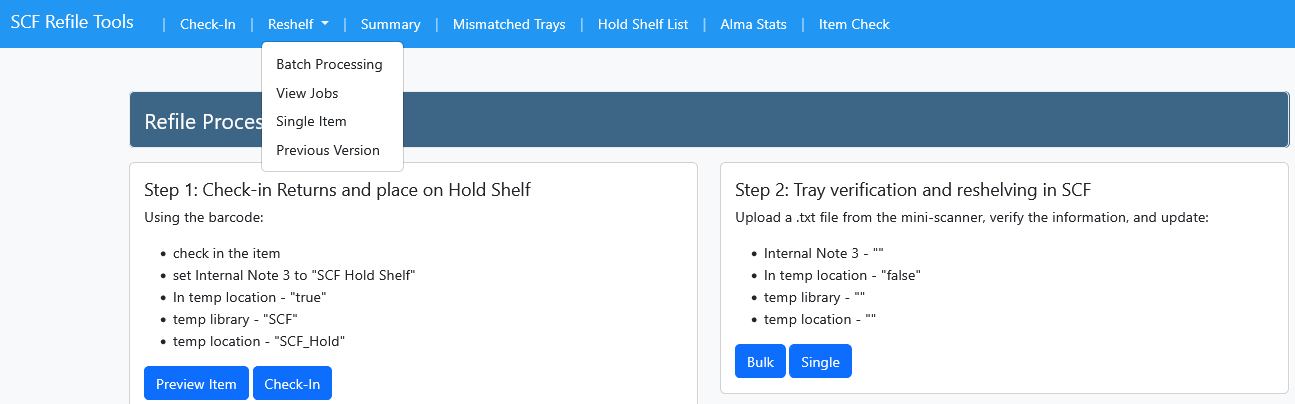
On the main menu of the SCF Processing website, go to "Refile Processing" then click on "Home".
For now, click on "Batch Processing" in the top drop-down menu.
[](https://alma-documentation-bookstack.azurewebsites.net/uploads/images/gallery/2026-05/image.png)
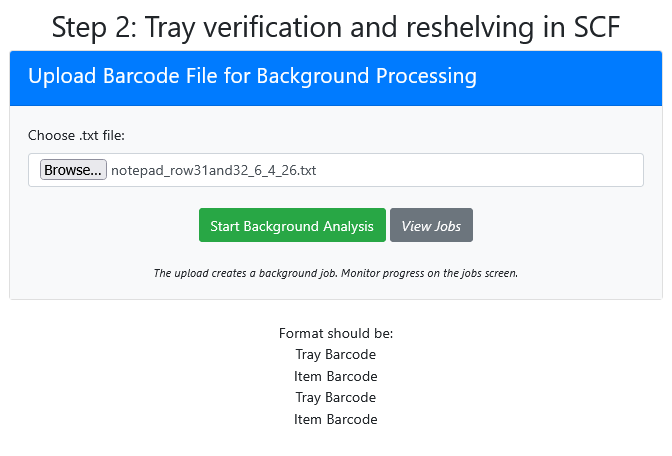
Select the file that was just created after uploading the items from the portable scanner.
[](https://alma-documentation-bookstack.azurewebsites.net/uploads/images/gallery/2026-06/RL6image.png)
Click on "Start Background Analysis"
You will see the progress of the job. In the next few screenshots they show the progress...
Checking, Ready to Refile
The "Check Progress" column will show how many items are being processed. It will process items 10 at a time until all are completed.
#### **Job in progress...**
[](https://alma-documentation-bookstack.azurewebsites.net/uploads/images/gallery/2026-06/image.png)
[](https://alma-documentation-bookstack.azurewebsites.net/uploads/images/gallery/2026-06/3Plimage.png)
##### **All done!**
[](https://alma-documentation-bookstack.azurewebsites.net/uploads/images/gallery/2026-06/5i4image.png)
Once completed, you will see "View Checked Items" and "Complete Refile" buttons.
If "Mismatched Tray Errors" and "Items Not Yet Checked in" do not contain errors, then you may proceed with the "Complete Refile"
##### **Mismatched Tray Errors**
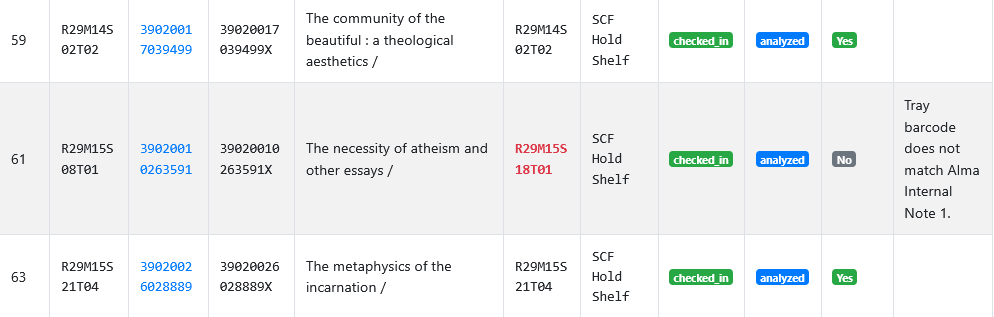
If a number shows up in the "Mismatched Tray Errors" column, click on "View Checked Items"
Locate the problematic item and retrieve the item then give it to the supervisor. Proceed with the refile.
[](https://alma-documentation-bookstack.azurewebsites.net/uploads/images/gallery/2026-06/Etrimage.png)
Click on "Back to Jobs" to resume the refile.
##### **Items Not Yet Checked In**
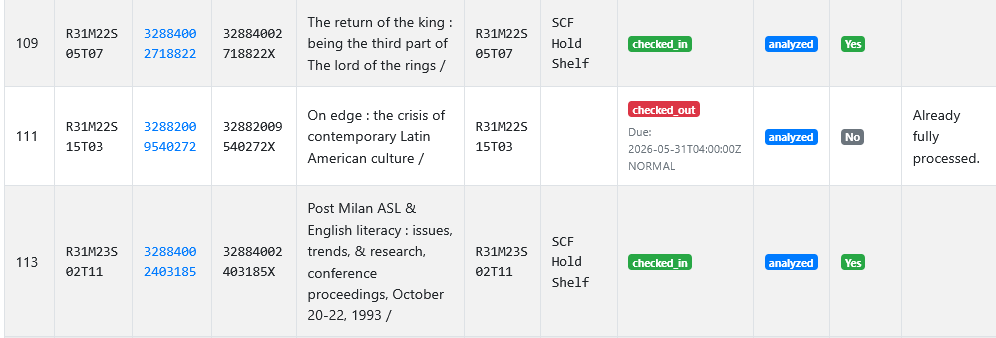
If a number shows up in the "Items Not Yet Checked In" column, click on "View Checked Items"
Locate the problematic item and retrieve the item then give it to the supervisor. Proceed with the refile.
[](https://alma-documentation-bookstack.azurewebsites.net/uploads/images/gallery/2026-06/6a0image.png)
Click on "Back to Jobs" to resume the refile.
##### **Already Fully Processed**
If a number shows up in the "Already Fully Processed" column, at this point disregard this.
This may means that "SCF Hold Shelf" was never applied to Internal Note 3. But since the items are showing up on the list, it is safe to assume that they were just placed into the trays.
Click on "Back to Jobs" to resume the refile.
When ready, click the "Complete Refile" button to finish the process.
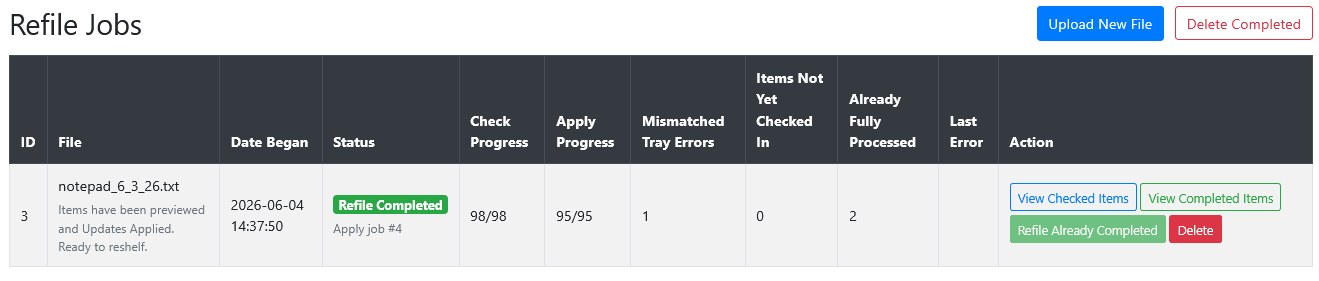
You will see the progress of the job. In the next few screenshots they show the progress...
Applying Refile Refile Completed
#### **Job in progress...**
[](https://alma-documentation-bookstack.azurewebsites.net/uploads/images/gallery/2026-06/17wimage.png)
##### **All done!**
[](https://alma-documentation-bookstack.azurewebsites.net/uploads/images/gallery/2026-06/Diwimage.png)
When done, the Status Column will show "Refile Completed" and the "Apply Progress" column will be filled in.