# Using Book Pavilion & Article Exchange for GM-ILL Article Requests
##### **Book Pavilion**
[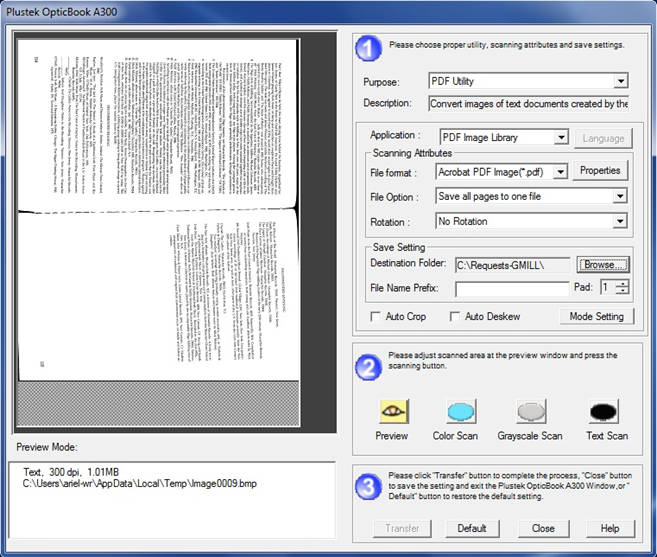](https://alma-documentation-bookstack.azurewebsites.net/uploads/images/gallery/2024-03/8G6image.png)
-Check the destination folder and select C:\\Requests-GMILL if needed
-Put ILL # in the “File Name Prefix” field
-Put the request form on the scanner and click on “Preview” to scan then adjust the dotted lines to fit the paper
-Scan the request form… if it is upside-down, click on the blue X to cancel then scan again
-Click on “Preview” to scan the first page of article and adjust the dotted lines to fit the page\*
(if the book is small enough, ok to scan 2 pages at once)
- If scanning two pages, change to “no rotation”
-Scan the first page…if it is upside-down, click on the blue X to cancel then scan again the scan the rest of pages
-Click on “Transfer”
\*If a book or pages are too fragile or the binding is too tight to scan:
- First option: Try using the CZUR scanner and see if it works. If not then proceed with the second option.
- Second option: add a "SCF Digitization Request" book strap to the book and add a message to the strap. Insert the request form in the book then send it to the requesting library. Also, add a transit message to Internal Note 3 (for example: SCF in transit to GM ILL, 3/13/2024).
##### **Article Exchange**
-Use OCLC Article Exchange in Firefox
-Log onto AE if necessary
-“Select a file to drop” message will appear
-Click on “Browse” to get the file then a window will open with the files (C:\\Requests-GMILL)
-Double-click the appropriate file (each filename will have “1” at the end…ignore it)
-Click on “Drop file”
-The message saying “Your drop was successful!” should appear
-Move the mouse pointer (finger) to “email a notification” and right-click and select, “open link in new window”
-It will lead to Gmail and open a message…add the following information
To: illloan@gmu.edu
Subject: ILL # xxxxxxx
-Send the email then close the window
\- Fold the request form and put it back in the book