DRAFT Troubleshooting Missing SCF Pull Slips
At noon and midnight each day, requests for SCF items are exported from the other WRLC Alma Institution Zones (IZs). The Remote Storage App imports these requests into the SCF IZ, where pull slips are then generated and printed.
If pull slips are not printed at the expected times, there are several possible causes. Follow the troubleshooting flow below to identify the source of the issue, then refer to the detailed instructions in the appropriate section.
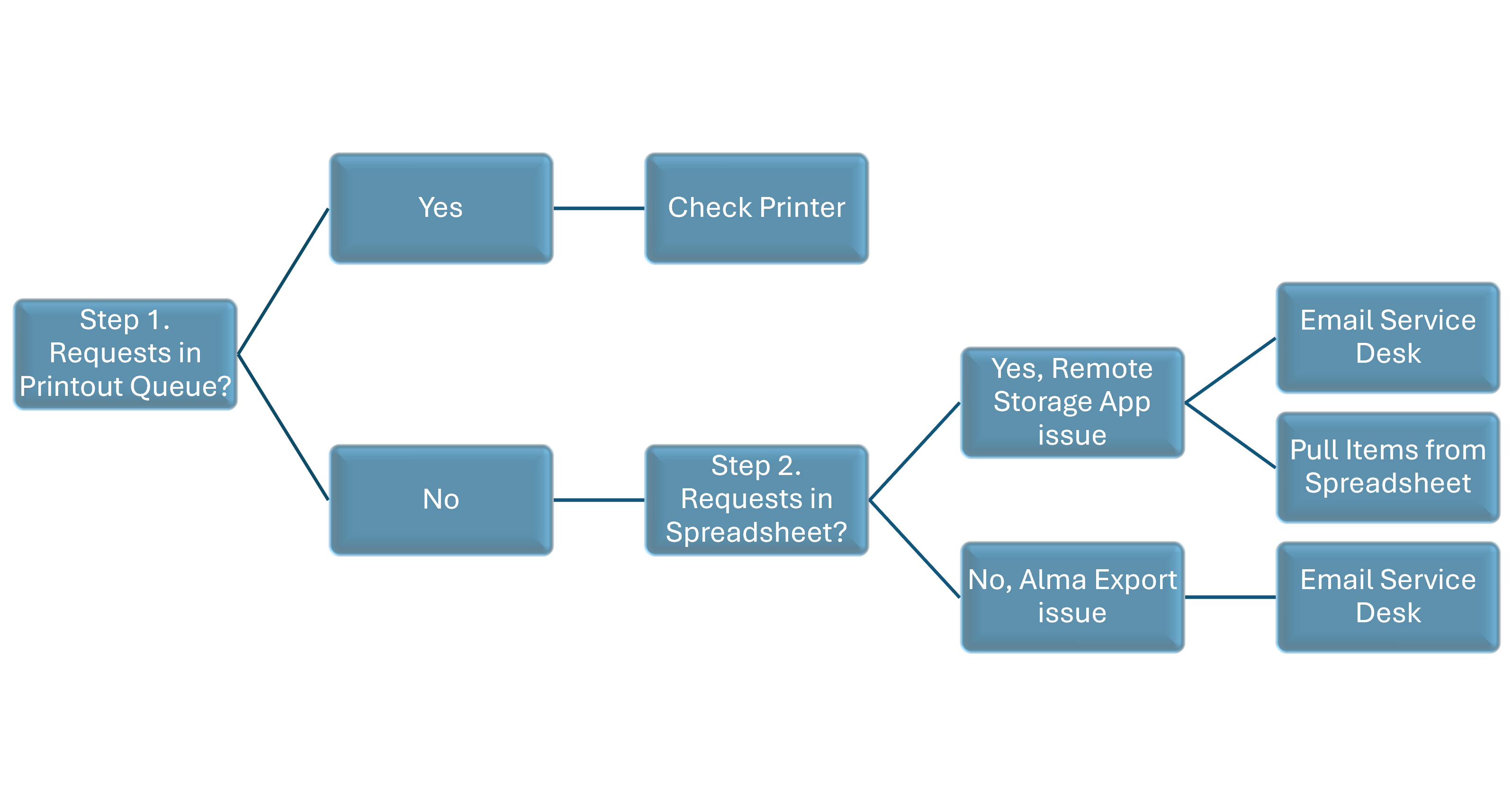
Figure 1. Overview of the troubleshooting process for missing SCF pull slips.
The flowchart above provides a high-level overview of the process. Detailed instructions for each step are provided below.
Step 1: Check the Printouts Queue in the SCF Institution Zone
Full instructions for viewing the Printouts Queue can be found here: Printouts Queue in Alma
View the Printouts Queue
- In Alma, go to Admin > Printing > Printouts Queue
- In the filters, select Printed by = ALL and Status = ALL
Important: A document with a Status of Printed in Alma only indicates that the pull slip was successfully sent to the printer via email. It does not confirm that the printer actually printed the slip.
IF requests are listed as Printed
Please follow the instructions in the attached PDF 'Alma Print Issue Checks'.
IF requests are not listed in the Printouts Queue, or if some expected requests are missing
Proceed to Step 2: Check the Spreadsheet of SCF Requests.
Step 2: Check the Spreadsheet of SCF Requests
If requests are missing from the Printouts Queue, they have not yet been imported into the SCF IZ. The next step is to determine whether the requests were successfully exported from the other WRLC Alma IZs.
Generate the Spreadsheet of SCF Requests
1.In Alma, open the Cloud App Center (the icon in the upper-right corner of the screen).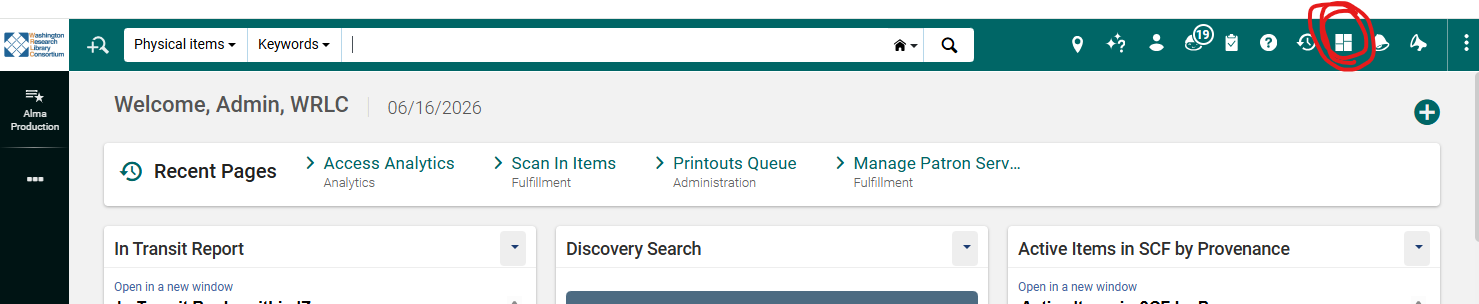
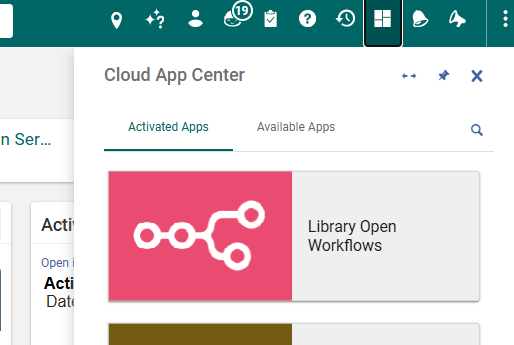
2.Select Library Open Workflows.
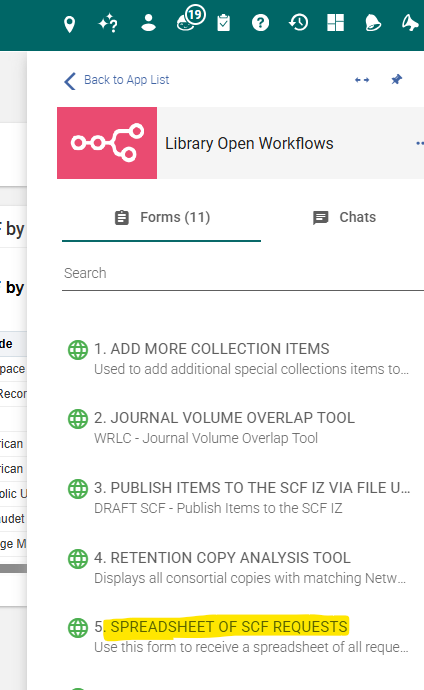
3.From the list of forms, select SPREADSHEET OF SCF REQUESTS.
4.Enter your email address and select the appropriate time period.
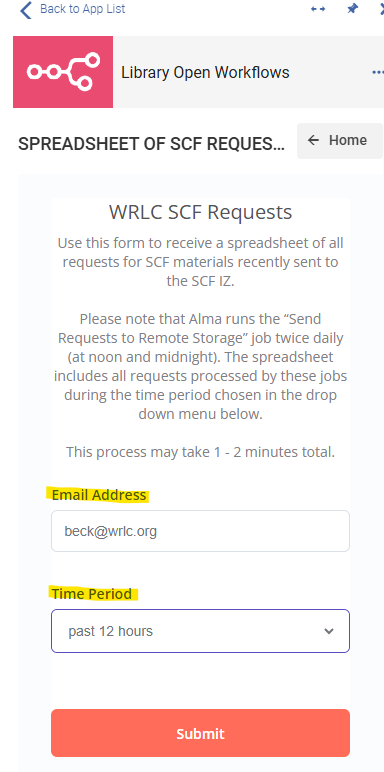
5.Click Submit.
Within 1–2 minutes, you will receive an email containing a spreadsheet of all SCF requests that Alma exported during the selected time period.
IF the requests are listed in the spreadsheet
The requests were successfully exported from the other Alma IZs, but they were not processed by the Remote Storage App.
In this case:
-
Send an email to servicedesk@wrlc.org describing the issue.
-
Begin pulling the requested items using the information in the spreadsheet.
Note: WRLC's ability to resolve issues with the Remote Storage App may be limited.
IF the requests are NOT listed in the spreadsheet
The requests were not exported from the originating Alma IZs.
In this case:
-
Send an email to servicedesk@wrlc.org describing the issue.
Note: WRLC's ability to resolve issues with Alma exports may be limited.