# Library Open Workflows
Library Open Workflows (LibOW) is Ex Libris’ workflow automation platform for Alma libraries. It is based on the workflow automation tool n8n, and has been adapted by Ex Libris to work securely within the Alma environment.
At WRLC, LibOW is managed by WRLC HQ and is used to create automated processes that handle routine tasks — such as moving data between systems, generating reports, sending notifications, or updating records — without complex custom programming. Workflows may run across the entire Network Zone or be limited to a specific institution, depending on the need.
LibOW is intended to reduce repetitive manual work and support consortium-wide operations through shared, reusable solutions. Member libraries are encouraged to propose use cases for consideration by WRLC HQ. These workflows are documented openly, and designed to be transparent about what they do and what systems they affect.
This section of the wiki serves as the central hub for LibOW at WRLC, explaining how the platform is used and documenting active workflows.
# How to Share a Use Case with WRLC HQ
#### Overview
WRLC welcomes ideas from the community about Alma workflows and integrations that could work better, faster, or more reliably. This page explains how to share a use case with WRLC HQ using the **Community Use Case Suggestion Form**—the primary way to propose workflow improvements, automation ideas, or Alma-adjacent process changes.
You do not need to be technical to submit a use case. If something feels manual, repetitive, or harder than it should be, that’s exactly the kind of feedback we want to hear.
#### What is this form?
- Workflow issues or challenges they encounter
- Opportunities for automation or process improvement
- Ideas that could benefit one institution or multiple institutions
These submissions help WRLC:
- Identify repetitive, time-consuming, or error-prone processes
- Understand real-world pain points across institutions
- Prioritize Library Open Workflow (LibOW) automations that deliver the most impact
#### Why submit a use case?
When you submit a use case, you’re helping to:
- Improve workflows not just for yourself, but for the broader WRLC community
- Surface shared challenges that may not be visible at the central office
- Shape where WRLC focuses its LibOW development time
Even ideas that don’t turn into an immediate workflow still help inform future priorities and improvements.
#### Where to find it
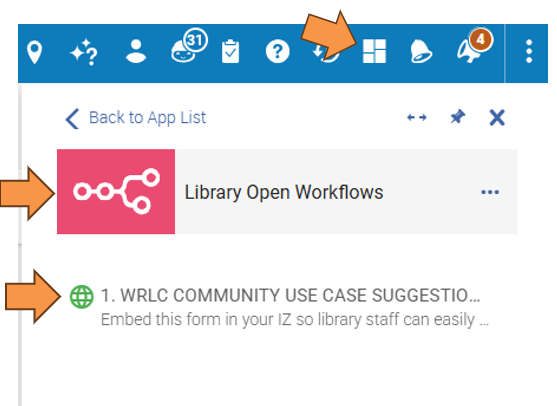
The **WRLC Community Use Case Suggestion Form** is available directly within Alma as a **Cloud App**. This allows you to submit ideas while you are already working in Alma—no separate login or external tools are required.
Before using the form for the first time, you will need to **activate the Library Open Workflows Cloud App**.
##### First-Time Setup: Activating the Library Open Workflows Cloud App
If you have not previously used the Library Open Workflows Cloud App, follow these steps to activate it:
1. Open **Alma**.
2. Click the **Cloud Apps** icon in the Alma menu bar.
3. Select **Available Apps**.
4. Locate **Library Open Workflows** by either:
- **Browsing** the list of available apps, or
- **Searching** using the **magnifying glass** icon and typing keyword *Library*.
5. Select **Library Open Workflows** from the list.
6. Click **Activate**.
7. Click **Open**.
Once activated, the Cloud App will remain available in your **Activated Apps** list.
##### Accessing the Use Case Suggestion Form
After activating the Cloud App, accessing the form only takes a few clicks:
1. Open **Alma**.
2. Click the **Cloud Apps** icon.
3. Select **Library Open Workflows** from the **Activated Apps** list.
4. Choose **WRLC Community Use Case Suggestion Form**.
#### Who can access the form?
The Cloud App is available to Alma users with standard administrator, manager, and operator roles. For a full list of roles, [click here](https://docs.google.com/document/d/1ZnOOShDz1rGmY4W_SxqJL_BrvqZhXy0pY5Jq1LuS45o/edit?usp=sharing).
#### How to Submit a Use Case
The form asks a series of questions designed to provide WRLC HQ staff with enough context to evaluate, design, and (when possible) build a workflow. Below is what each question is asking—and why it matters:
**1. Your name**
So we can follow up with you if something is unclear, missing, or worth exploring further.
**2. Your Institution (IZ)**
Helps us understand whether an issue is local to one institution or shared across multiple IZs, which is a key prioritization factor.
**3. Your Email Address**
So we can follow up if something is unclear, missing, or worth exploring further. We won’t spam you.
**4. Summary of the Issue or Challenge**
This is the high-level “what’s broken?” description. Think of it as the elevator pitch for the problem.
**5. Desired Goal or Outcome**
This tells us what “better” looks like to you. Sometimes the same problem can be solved in multiple ways—knowing the goal helps us design the right approach.
*Example: “Automatically notify the team when a report contains a specific value.”*
**6. Current Workflow Description**
Understanding the current steps helps us see:
- - - Where time is being spent
- Where errors creep in
- Which steps might be automated, simplified, or removed
If you would prefer to document this information as part of your attached file, simply note that fact here.
**7. Current Workflow Frequency**
How often a process happens directly affects the likely impact of an automation.
**8. Stakeholders**
Knowing who else benefits helps us assess broader community value—especially for workflows that could support multiple teams or roles or institutions.
**9. Urgency**
Urgency helps us distinguish between:
- - - Nice-to-have improvements
- Significant efficiency gains
- Issues that block work or create real risk
**10. Process Time**
Even rough estimates help us understand potential time savings and return on effort.
**11. Additional Comments**
This is your space to add context that didn’t fit elsewhere—constraints, edge cases, or “things that always go wrong.”
**12. Supporting Documentation (Optional but Very Helpful)**
You may upload ***one file (up to 4 MB)*** to support your submission.
Helpful examples include:
- - - Screenshots of Alma workflows or settings
- Sample reports or exports
- Marked-up documents showing how data should look
- Step-by-step notes you already use for training or documentation
Attachments are optional, but they significantly speed up understanding and design, especially for complex workflows.
#### What to Expect After You Submit
Once submitted:
- Your use case is logged and reviewed by the WRLC LibOW team
- We may contact you if clarification or additional detail would help
- Submissions are prioritized based on multiple factors, including:
- Urgency
- Time savings or efficiency gains
- Number of institutions or stakeholders affected
- Feasibility and complexity
- Alignment with current capacity and initiatives
Not all submissions will result in a workflow build, and some strong ideas may not be addressed immediately as priorities evolve. Even when a workflow is not built right away, every submission helps inform future LibOW development and highlights shared needs across the community.
The team will do its best to keep the community informed of progress through direct outreach, the [WRLC Newsletter](https://www.wrlc.org/newsletter), and updates to the [Workflow Catalog](https://alma-documentation-bookstack.azurewebsites.net/books/library-open-workflows/chapter/workflow-catalog).
#### Help or Follow-up
- Need help submitting a use case?
- Want to add additional information after submitting?
- Have questions about the status of a request?
- Experiencing issues with the form?
Please contact the [WRLC Service Desk using these instructions.](https://alma-documentation-bookstack.azurewebsites.net/books/support-assistance/page/reporting-an-issue)
# Workflow Catalog
This chapter provides a comprehensive catalog of automated workflows and cloud applications built by the WRLC HQ.
# Add or Remove WRLC Retention
Processes a user-uploaded CSV of barcodes to bulk add or remove WRLC retention commitments across institutions, then emails a summary of results.
#### At a glance
- **Status:** Active
- **Applies consortium-wide?:** Yes — processes barcodes across multiple Alma Institution Zones via subworkflows
- **Runs on:** Alma Institution Zones (via Network routing in subworkflows)
- **Trigger:** Manual form submission with CSV upload
- **Primary outcome:** Bulk adds or removes WRLC retention flags on item records.
- **Who receives results:** The email address provided in the form submission.
---
#### Why this exists
WRLC retention commitments must be applied or removed at scale when retention decisions change. Performing this manually in Alma would require record-by-record updates across multiple institutions.
This workflow enables controlled bulk processing by:
- Accepting a structured CSV upload
- Confirming the number of records before execution
- Calling standardized subworkflows for each barcode
- Emailing a clear results summary
It centralizes retention management while preserving audit visibility.
---
#### What it does
- Presents a web form allowing staff to:
- Choose **Add WRLC Retention** or **Remove WRLC Retention**
- Upload a CSV file (maximum 4,000 barcodes)
- Provide an email address for results
- Counts rows in the uploaded file.
- Displays a confirmation screen showing:
- Number of barcodes detected
- Whether retention will be added or removed
- After confirmation:
- Processes each row individually.
- Calls the appropriate subworkflow:
- [**Subworkflow – Add WRLC Retention**](https://alma-documentation-bookstack.azurewebsites.net/books/library-open-workflows/page/subworkflow-add-wrlc-retention)
- [**Subworkflow – Remove WRLC Retention**](https://alma-documentation-bookstack.azurewebsites.net/books/library-open-workflows/page/subworkflow-remove-wrlc-retention)
- Aggregates results (successes and errors).
- Sends a formatted summary email.
---
#### Where it runs
- **Alma IZ(s):**
- Dynamically determined per row using the “Institution Code” column in the CSV.
- **Systems touched:**
- Alma APIs (via subworkflows)
- Email (sent from `reports@wrlc.org`)
- **Reports / queries used:** None
---
#### How it works
##### Logic overview
1\. Form Submission
The workflow begins with a form requiring:
- Dropdown selection:
- Add WRLC Retention
- Remove WRLC Retention
- CSV upload (must contain ≤ 4,000 rows)
- Email address
Required CSV format:
⚠️ The workflow does **not validate header names**; it assumes:
- First row is header.
- First column = Barcode.
- Second column = Institution Code.
---
2\. Row Counting & Review Step
Before processing:
- The uploaded file is decoded from base64.
- Blank lines are removed.
- Header row is subtracted from count.
- A confirmation screen displays:
- Number of barcodes detected.
- Whether retention will be added or removed.
This confirmation step prevents accidental bulk updates.
---
3\. Branch Based on User Selection
An **If** node evaluates the dropdown choice:
- If **Add WRLC Retention** → calls:
- `Subworkflow – Add WRLC Retention`
- Otherwise → calls:
- `Subworkflow – Remove WRLC Retention`
Each CSV row triggers one subworkflow execution (`mode: each`).
⚠️ Errors are set to `continueRegularOutput`, meaning:
- Processing continues even if some rows fail.
- Failures are captured and summarized later.
---
4\. Subworkflow Processing
Each row:
- Routes to the correct Institution Zone.
- Retrieves the item by barcode.
- Adds or removes WRLC retention fields.
- Returns success or error information.
(Full logic documented in the respective subworkflow entries, [Add WRLC Retention](https://alma-documentation-bookstack.azurewebsites.net/books/library-open-workflows/page/subworkflow-add-wrlc-retention) and [Remove WRLC Retention](https://alma-documentation-bookstack.azurewebsites.net/books/library-open-workflows/page/subworkflow-remove-wrlc-retention))
---
5\. Aggregate Results
After all rows are processed:
The **Summarize results** node:
- Counts total processed rows.
- Counts successful updates.
- Collects error details.
- Attempts multiple barcode fallbacks:
- `_inputBarcode`
- `item_data.barcode`
- `Barcode`
Errors are retained even if barcode is missing.
---
6\. Email Results
Sends an HTML-formatted email containing:
- Total processed
- Successful updates
- Error count
- Detailed error list (if any)
From address: `reports@wrlc.org`
Recipient: Email provided in form
---
##### If results exist
- Each barcode is processed independently.
- Successful updates are counted.
- Errors are listed individually.
- User receives detailed summary email.
##### If no results
- If file contains zero data rows:
- Processing completes immediately.
- Email reflects zero processed.
- If all rows fail:
- Email lists all errors.
- Workflow does not halt due to individual row failures.
---
#### Artifacts produced
- Updated Alma item records (via subworkflows).
- Summary email to submitting user.
- No files, sets, or spreadsheets are created.
# Create WRLC Long Lost Fines data table
#### At a glance
- **Status:** Active
- **Environment / Tags:** Live, Network Zone, Analytics, CLS Long Lost Items
- **Applies consortium-wide?:** **Yes.** The workflow uses WRLC Network Zone Analytics reports and a shared WRLC Institution Information table to build a centralized dataset for all participating institutions.
- **Runs on:** WRLC Alma Network Zone
- **Trigger:** Automatically runs at the end of each semester:
- **April 30** – Creates the **Spring** semester data table
- **August 30** – Creates the **Summer** semester data table
- **November 30** – Creates the **Fall** semester data table
- **Primary outcome:** Creates and populates a semester-specific data table containing all current Long Lost CLS items that will be used by the remaining Long Lost CLS workflows.
- **Who receives results:** WRLC HQ staff receive a confirmation email indicating that the data table has been successfully created and populated.
---
#### Why this exists
The Long Lost CLS workflow consists of several independent workflows that all operate on the same set of patron and loan data. Rather than querying Alma Analytics repeatedly, this workflow creates a centralized data table at the end of each semester containing every active Long Lost CLS item.
By establishing a single working dataset, subsequent workflows can update, enrich, and track records throughout the semester while ensuring they are all referencing the same information.
---
## What it does
- Runs automatically at the end of each semester.
- Creates a new LibOW data table named for the current semester (for example, **Long Lost CLS Items Report Fall 2026**).
- Retrieves the current Long Lost CLS dataset from the WRLC Alma Analytics report.
- Reformats the loan and due dates into a user-friendly format while preserving the original date values.
- Looks up each patron's home institution and adds the corresponding institution code.
- Retrieves the patron's home account information through the subworkflow '[Retrieve Patron Home Account Through Linked Account](https://alma-documentation-bookstack.azurewebsites.net/books/library-open-workflows/page/subworkflow-retrieve-patron-home-account-from-linked-account)'.
- Maps Analytics fields into the standardized data table structure used by the remainder of the Long Lost CLS workflows.
- Inserts one row into the data table for every qualifying Long Lost CLS loan.
- Sends a confirmation email to WRLC HQ staff summarizing the successful creation of the data table.
---
#### Where it runs
**Alma environment**
- WRLC Alma Network Zone
**Systems touched**
- Alma Analytics
- LibOW Data Tables
- LibOW subworkflow [Retrieve Patron Home Account Through Linked Account](https://alma-documentation-bookstack.azurewebsites.net/books/library-open-workflows/page/subworkflow-retrieve-patron-home-account-from-linked-account)
- Gmail
**Reports and data sources**
- Alma Analytics report:
- **WRLC Long Lost CLS Items**
- `/shared/Washington Research Library Consortium (WRLC) Network/Reports/Requests and Fulfillment`
- WRLC Institution Information data table
- [**Retrieve Patron Home Account from Linked Account** subworkflow](https://alma-documentation-bookstack.azurewebsites.net/books/library-open-workflows/page/subworkflow-retrieve-patron-home-account-from-linked-account)
---
#### How it works
##### Logic overview
1. A scheduled trigger starts the workflow at the beginning of a semester.
2. The workflow identifies which semester is ending and names the new data table accordingly.
3. A new data table is created with all columns required for downstream Long Lost CLS processing.
4. The workflow retrieves the current Long Lost CLS records from Alma Analytics.
5. Loan and due dates are reformatted for reporting purposes.
6. Each patron's home institution code is added by referencing the WRLC Institution Information table.
7. A subworkflow retrieves the patron's home account information ([Retrieve Patron Home Account Through Linked Account](https://alma-documentation-bookstack.azurewebsites.net/books/library-open-workflows/page/subworkflow-retrieve-patron-home-account-from-linked-account))
8. All data is standardized into the LibOW data table schema.
9. Every record is inserted into the newly created data table.
10. WRLC HQ staff receive a confirmation email with the table name, number of imported rows, and creation timestamp.
##### If results exist
Each Long Lost CLS record becomes a row in the semester's data table, creating the working dataset used by downstream Long Lost CLS workflows.
##### If no results exist
A new data table is still created, but no rows are inserted. A confirmation email is still sent indicating that the workflow completed successfully.
#### Artifacts produced
- A LibOW data table named using the pattern:
`Long Lost CLS Items Report `
- Confirmation email sent to WRLC HQ staff containing:
- Data table name
- Number of rows imported
- Date and time of creation
# CU Law: New Borrowing Request Notification
Notifies CU Law staff when an ILL request is submitted via Primo.
#### At a glance
- **Status:** Active
- **Environment / Tags:** Live; Community Use Case
- **Applies consortium-wide?:** No
- **Runs on:** CU Law Alma production environment
- **Trigger:** Event-driven. It starts whenever Alma reports a **REQUESTS** update.
- **Primary outcome:** Sends an email to a shared staff inbox when a new interlibrary loan borrowing request is created.
- **Who receives results:** `csl-circ@cua.edu`
#### Why this exists
When a patron submits an interlibrary loan request through Primo, Alma creates the borrowing request, but staff may not see it until they manually check Alma. This workflow closes that gap by sending an email notification as soon as a qualifying new borrowing request is created. For member library staff, that means faster response time and less repeated checking of Alma when nothing new has arrived.
#### What it does
- Listens for Alma **REQUESTS** update events.
- Checks whether the event is specifically a newly created request.
- Checks whether the request is specifically a **borrowing** request in resource sharing.
- Stops immediately if the event does not meet both conditions.
- For matching requests, looks up the patron record in Alma using the requester’s primary user ID.
- Pulls the patron’s full name and user group so the email is more useful to staff.
- Sends an HTML email from `LibOW@wrlc.org` to the CU Law shared circulation inbox.
- Uses the subject line **“New ILL Request in Alma (CU LAW)”**.
- Includes request details in the email body, including material type, requester, title, author, volume, issue, and part.
- Converts Alma material type codes in the email body so `BK` displays as **BOOK** and `CR` displays as **ARTICLE**.
#### Where it runs
- **Alma IZ(s):** CU Law production
- **Systems touched:**
- **Alma Trigger** for request events
- **Alma API** to retrieve patron details
- **Alma Mail** to send the notification email
- **Reports / queries used:**
- No Alma Analytics report is used.
- Alma API call: `get/almaws/v1/users/{user_id}` in the **users** area.
#### How it works
- **If results exist:**
If the incoming Alma event says the request was created **and** the resource sharing status is `REQUEST_CREATED_BOR`, the workflow looks up the patron and sends the notification email.
- **If no results:**
If either condition is not met, the workflow follows the false branch to **No Operation, do nothing** and ends without sending any email.
**Artifacts produced:**
The output is an HTML email notification sent to the shared inbox.
# Delete NZ Bibs and Sets from Scheduled Jobs
This workflow automatically processes sets created by two scheduled Network Zone cleanup jobs, runs Alma’s Delete Bibliographic Records job against those sets, and notifies the NZ Manager of the results. If the deletion succeeds, LibOW removes the now-unneeded set, completing the cleanup process without staff intervention.
## At a glance
- **Status:** Active
- **Environment / Tags:** Network Zone; Live
- **Applies consortium-wide?:** Likely yes — inferred from Network Zone tag and NZ Production credentials
- **Runs on:** Alma Network Zone
- **Trigger:** Runs whenever an Alma job finishes
- **Primary outcome:** Automatically deletes bibliographic records from sets created by two scheduled Alma identification jobs, then deletes the set if the delete job succeeds.
- **Who receives results:** NZ Manager at `saavedra@wrlc.org`
## Why this exists
This workflow helps keep the Network Zone cleaner by automating a follow-up step after scheduled Alma jobs identify bibliographic records that are no longer used in the Network Zone. Instead of requiring staff to manually locate the set, run the delete job, confirm the results, and remove the set afterward, LibOW handles those steps automatically.
## What it does
- Watches for completed Alma jobs.
- Checks whether the completed job is one of two specific scheduled Network Zone identification jobs.
- If the job does not match, the workflow stops.
- If the job matches, it retrieves the completed job’s details.
- Searches Alma for the itemized bibliographic set created by that job.
- Runs Alma’s **Delete Bibliographic Records** job on that set.
- Sends an email with the delete job results.
- If the delete job completes successfully, the workflow deletes the set.
- If the delete job does not complete successfully, the set is not deleted.
## Where it runs
- **Alma IZ(s):** Network Zone / NZ Production
- **Systems touched:** Alma APIs; Gmail
- **Credentials referenced:** NZ Production Alma APIs; Generic LibOW Gmail credentials
## How it works
### Logic overview
- **If the completed Alma job matches one of the two configured scheduled job IDs:**
The workflow retrieves the job instance details, finds the set created by that job, runs the delete bibliographic records job, emails the results, and deletes the set if the delete job succeeds.
- **If the completed Alma job does not match:**
The workflow does nothing.
- **If the delete bibliographic records job succeeds:**
The workflow deletes the set.
- **If the delete bibliographic records job does not succeed:**
The workflow sends the email results but does not delete the set.
### Artifacts produced
- **Email notification** to the NZ Manager with:
- Job name
- Job ID
- Status
- Submit time
- End time
- Set size
- Number of records deleted
# Managing Named Users in Alma: Multi-Step Process
## Step 1 - Find Alma Users Without Expiration Dates
Based on [Code from Github](https://github.com/uri-libraries/eluna-devday2026)
### At a glance
Status: In-Process
Workflow ID: 9hWFoIOOCuguN86e
Version: 95997d36-81cc-43b3-9d5a-811a6960d07c
Environment / Tags: User Record Management; NZ Sandbox; NZ Production
Applies consortium-wide?: No
Runs on: NZ Sandbox and a second selectable Alma environment labeled NZ Production
Trigger: A LibOW web form submitted on demand; there is no automatic schedule.
Primary outcome: Scans Alma user records and emails a CSV listing accounts whose expiry\_date is missing or blank.
Who receives results: shields@wrlc.org
### Why this exists
User records without an expiration date may remain eligible longer than intended and can be difficult to locate through routine review. This workflow gives staff a repeatable audit that can be run against a selected Alma environment, first on a limited set of records for testing or across all available users.
The results provide the starting CSV for later workflows that assign purge dates and manage expired accounts.
### What it does
• Presents a form where the operator chooses NZ Sandbox or NZ Production and enters the maximum number of users to scan.
• Treats a maximum of 0 as “scan all available users”; positive values are capped at 10,000.
• Routes the request to the Alma node associated with the selected environment.
• Requests full Alma user records in pages of up to 100.
• Checks each returned user for an absent, null, blank, or empty-object expiry\_date.
• Extracts the Primary ID, preferred or first email address, and patron group for matching users.
• Stores matching rows and internal page-state rows in the users\_missing\_expiration LibOW data table.
• Continues requesting pages until it reaches the selected limit or Alma’s total record count.
• Builds a CSV report and emails it when matches exist.
• Sends a no-results email when no matching users are found.
### Where it runs
Alma IZ(s)
• NZ Sandbox
• A second branch labeled NZ Production
Systems touched
• LibOW / n8n: Hosts the form and coordinates the workflow.
• Alma Users API: Retrieves full user records. An API is a controlled way for one system to request data from another.
• LibOW Data Tables: Temporarily stores matching rows and page-state information.
• Gmail: Delivers the report or no-results notice.
Credentials referenced
• NZ Sandbox - Alma APIs - Read Only
• SCF Sandbox - Alma APIs - Read Only
• Gmail Credentials - Generic LibOW
Reports / queries used
No Alma Analytics report is used.
The workflow queries the Alma Users API with:
• Full expansion
• Page size up to 100
• Offset-based pagination
LibOW data table:
• users\_missing\_expiration
### How it works
Logic overview
The workflow validates the form, creates a timestamp-based run ID, and starts at offset zero. A Switch node selects the environment-specific Alma API node. Each response page is inspected in JavaScript rather than with a visual filter, allowing the workflow to detect several ways an expiration field can be missing or empty.
A page-state row records the next offset and whether more records remain. After the final page, the workflow retrieves all rows for the current run, removes the internal state rows, and creates the report.
If results exist:
The workflow creates and emails a CSV containing:
• Primary ID
• Email Address
• Patron Type
The email includes the run ID, selected environment, number of users scanned, and number of users without an expiration date.
If no results exist:
The workflow sends an email confirming completion and reporting that zero users without an expiration date were found. No attachment is sent.
CSV filename pattern:
alma-users-missing-expiration-<run ID>.csv
---
## Step 2: Add Purge Dates to Alma Users from CSV
### At a Glance
Status: In-Process
Workflow ID: WToSDYo9SCv2iZux
Version: 492f03e1-ca18-4316-8507-97642e38075a
Environment / Tags: User Record Management; SCF Sandbox credential
Applies consortium-wide?: No
Runs on: SCF Sandbox Alma environment
Trigger: A LibOW web form submitted on demand; there is no automatic schedule.
Primary outcome: Applies a selected purge date to Alma users listed in an uploaded Step 1 CSV and emails a detailed audit report.
Who receives results: shields@wrlc.org
### Why this exists
Step 1 identifies accounts that lack an expiration date. This workflow provides a controlled follow-up process for assigning a purge date to those accounts. It requires an uploaded CSV, a selected date, a processing limit, and explicit confirmation before any Alma record is changed.
The workflow retrieves each complete Alma user record before updating it, reducing the risk of unintentionally replacing unrelated user data.
### What it does
• Presents a form for a CSV upload, purge date, maximum number of users, and confirmation checkbox.
• Validates the date, confirmation, file upload, and processing limit.
• Converts the selected date to Alma’s YYYY-MM-DDZ format.
• Reads the uploaded CSV and requires a Primary ID column.
• Removes blank and duplicate Primary IDs and applies the maximum-user limit.
• Processes one user at a time.
• Retrieves the complete Alma user record by Primary ID.
• Changes only the purge\_date field and submits the complete user object back to Alma.
• Records GET failures, update failures, and successful updates without stopping the remaining rows.
• Creates a CSV audit report and emails the completion summary.
### Where it runs
Alma IZ(s)
• SCF Sandbox
Systems touched
• LibOW / n8n: Hosts the submission form, CSV processing, loop, and reporting logic.
• Alma Users API: Retrieves and updates full Alma user records.
• Gmail: Sends the completion summary and audit report.
Credentials referenced
• SCF Sandbox - Alma APIs - Read & Write
• Gmail Credentials - Generic LibOW
Reports / queries used
No Alma Analytics report is used.
Input requirement:
CSV column: Primary ID
Alma operations:
• Get one complete user record
• Update one complete user record
### How it works
Logic overview
The form submission is validated before processing begins. The CSV is converted into one LibOW item per unique Primary ID, subject to the maximum-user safety limit. A loop retrieves the complete user, makes a deep copy, changes purge\_date, and sends the updated record through the Alma API node.
Each iteration returns a final success or failure row. The loop’s completed output is checked against the number of queued users before the final report is created.
If results exist
This workflow always produces an audit result for every queued row:
• Successful users are marked Success.
• Retrieval or update failures are marked Failed, with the failure stage and available error details.
The workflow emails the CSV audit report after processing completes.
If no results exist
The workflow does not have a separate no-results branch. It stops with an error when the uploaded CSV has no data rows or contains no usable Primary IDs.
---
## Step 3: Alma Expiration Checker
### At a glance
Status: In-Process
Workflow ID: JjlojFEXPvTm7D06
Version: d93597a4-ef2b-43d3-afe8-ca234c4b4d2b
Environment / Tags: User Record Management; NZ Sandbox; NZ Production
Applies consortium-wide?: No
Runs on: NZ Sandbox and a second selectable Alma environment labeled NZ Production
Trigger: A LibOW web form submitted on demand; there is no automatic schedule.
Primary outcome: Finds users whose expiration date is on or before a selected date and emails CSV and JSON reports.
Who receives results: shields@wrlc.org
### Why this exists
After purge dates have been assigned, staff need a repeatable way to identify accounts that have reached or passed an expiration threshold. This workflow scans a selected Alma environment and produces a reviewable list without changing user records.
The output CSV is designed to serve as the input for the later deactivation workflow.
### What it does
• Presents a form for Alma environment, expiration cutoff date, and maximum users to scan.
• Treats 0 as “scan all users.”
• Converts the selected date to the end of that calendar day.
• Routes the request to the selected environment’s Alma node.
• Retrieves full Alma user records in pages of up to 50.
• Reads multiple possible expiration-field names and parses date-only or ISO date formats.
• Includes users whose expiration date is on or before the selected cutoff date.
• Collects Primary ID, first name, last name, preferred email, and expiration date.
• Continues through pages until the selected limit or total Alma user count is reached.
• Emails CSV and JSON reports when matches exist, or a no-results notice otherwise.
### Where it runs
Alma IZ(s)
• NZ Sandbox
• A second branch labeled NZ Production
Systems touched
• LibOW / n8n: Hosts the form, pagination, date comparison, and report creation.
• Alma Users API: Retrieves full user records.
• Gmail: Sends reports or a no-results notice.
Credentials referenced
• NZ Sandbox - Alma APIs - Read Only
• SCF Sandbox - Alma APIs - Read Only
• Gmail Credentials - Generic LibOW
Reports / queries used
No Alma Analytics report is used.
Alma Users API configuration:
• Full user expansion
• Page size up to 50
• Offset-based pagination
### How it works
Logic overview
The form validates the selected environment, cutoff date, and scan limit. The cutoff is stored as 23:59:59.999 UTC on the chosen date, so users expiring at any time on that date are included.
The workflow accumulates matching users across Alma pages. Pagination continues until all selected users have been examined. The final report builder creates both CSV and JSON versions of the matching records.
If results exist
The workflow emails two attachments:
1\. A CSV report with:
• primary\_id
• first\_name
• last\_name
• email
• expiration\_date
2\. A JSON report containing the same matching user records.
If no results exist
The workflow sends a completion email reporting that no expired users were found. It does not attach CSV or JSON files.
---
## Step 4: Deactivate Alma Users from Step 3 CSV
### At a glance
Status: In-Process
Workflow ID: H6EbLWv8vYyUf1AY
Version: 1ed30e19-195a-42f1-97be-a9cc0bdb16eb
Environment / Tags: User Record Management; NZ Sandbox; NZ Production
Applies consortium-wide?: No
Runs on: NZ Sandbox and NZ Production
Trigger: A LibOW web form submitted on demand; there is no automatic schedule.
Primary outcome: Changes users listed in the Step 3 CSV to INACTIVE, assigns the PurgePending user group, and emails an audit report.
Who receives results: shields@wrlc.org
### Why this exists
Step 3 identifies accounts that have reached or passed the selected expiration threshold. Step 4 performs the controlled account change: it deactivates the selected users and places them in the PurgePending Alma user group.
Because this workflow modifies patron records, it includes an explicit confirmation checkbox, environment selection, and a maximum-user testing limit.
### What it does
• Presents a form for the Step 3 CSV, Alma environment, maximum users, and deactivation confirmation.
• Treats a maximum of 0 as “process all CSV rows.”
• Validates the file, environment, limit, and confirmation.
• Reads primary\_id values from the Step 3 CSV and removes blanks and duplicates.
• Processes one user at a time.
• Retrieves the complete user record from the selected Alma environment.
• Skips a user only when the account is already INACTIVE and already belongs to PurgePending.
• Otherwise sets status to INACTIVE and user group to PurgePending.
• Removes fields known to cause update errors, filters unsupported phone types, and deduplicates identifiers.
• Updates the full Alma user record and records success, skip, retrieval failure, or update failure.
• Creates CSV and JSON audit reports and emails them after the loop completes.
Where it runs
Alma IZ(s)
• NZ Sandbox
• NZ Production
Systems touched
• LibOW / n8n: Hosts the form, file processing, loop, record preparation, and reporting.
• Alma Users API: Retrieves and updates complete user records.
• Gmail: Sends the completion report and attachments.
Credentials referenced
• NZ Sandbox - Alma APIs - Read & Write
• NZ Production - Alma APIs - Read & Write
• Gmail Credentials - Generic LibOW
Reports / queries used
No Alma Analytics report is used.
Input CSV must contain one of these user identifier headings:
• primary\_id
• Primary ID
• user\_id
• User ID
Alma operations:
• Get User Details
• Update User Details
### How it works
Logic overview
The workflow turns each unique identifier in the uploaded file into one loop item. A Switch node chooses the correct environment-specific GET credential. The complete user record is inspected before any change is made.
If the user is already inactive and in PurgePending, the workflow records a skip. Otherwise, it prepares a full update payload that changes the status and group while retaining the rest of the user data. A second environment Switch sends that payload to the corresponding update node.
All terminal paths return a final audit row to the loop. The report builder verifies that the number of final rows equals the number of queued users.
If results exist
Every queued user produces one of these outcomes:
• Success: Alma accepted the update.
• Skipped: The user was already inactive and already in PurgePending.
• Failed: The user could not be retrieved or updated.
The workflow emails CSV and JSON audit reports containing these results.
If no results exist
There is no separate no-results email branch. The workflow stops with an error if the uploaded CSV has no rows or contains no usable user identifiers.
Artifacts produced
Filename patterns:
deactivation\_results\_<environment>\_<run ID>.csv
deactivation\_report\_<environment>\_<run ID>.json
CSV columns:
• primary\_id
• status
• stage
• http\_status
• reason
• tracking\_id
• processed\_at
---
## Step 5: Check PurgePending Users
### At a glance
Status: In-Process
Workflow ID: iCDoBVA4jONrRGWc
Version: efa5b58e-02ac-4e3a-83f3-569ae76405cd
Environment / Tags: User Record Management; NZ Sandbox; NZ Production
Applies consortium-wide?: No
Runs on: NZ Sandbox and NZ Production
Trigger: A LibOW web form submitted on demand; there is no automatic schedule.
Primary outcome: Reviews uploaded Alma users, identifies those in PurgePending or DEL, classifies their expiration status, and emails CSV and JSON reports.
Who receives results: shields@wrlc.org
### Why this exists
After user accounts have been deactivated and moved into a purge-oriented user group, staff need a verification step before any later deletion or cleanup process. This workflow provides a read-only audit of the selected accounts.
It distinguishes users that are expired, not yet expired, missing an expiration date, assigned to another group, or unavailable through the API.
### What it does
· Presents a form for a CSV or TXT file, Alma environment, and maximum number of users.
· Treats 0 as “check all uploaded IDs.”
· Accepts the Step 4 results CSV or a single-column list of Alma Primary IDs.
· Recognizes several identifier headings and removes blank or duplicate IDs.
· Processes one user at a time.
· Retrieves the complete user from the selected read-only Alma credential.
· Checks whether the user group is exactly PurgePending or DEL.
· Classifies matching users as EXPIRED, NOT\_EXPIRED, or NO\_EXPIRY.
· Counts users in other groups and users that could not be retrieved.
· Creates a CSV containing the PurgePending and DEL analysis and a JSON file containing the full summary.
· Emails both files after all IDs have been checked.
Where it runs
Alma IZ(s)
· NZ Sandbox
· NZ Production
Systems touched
· LibOW / n8n: Hosts the form, uploaded-file processing, loop, classification, and report creation.
· Alma Users API: Retrieves complete user records without modifying them.
· Gmail: Sends the analysis and summary.
Credentials referenced
· NZ Sandbox - Alma APIs - Read Only
· NZ Production - Alma APIs - Read Only
· Gmail Credentials - Generic LibOW
Reports / queries used
No Alma Analytics report is used.
Accepted input formats:
· CSV
· TXT
· Step 4 results CSV
· Single-column identifier list
Recognized identifier headings:
· primary\_id
· Primary ID
· user\_id
· User ID
· ID
### How it works
Logic overview
Each unique uploaded identifier becomes one loop item. A Switch node selects the appropriate Alma environment. The returned user record is inspected for its user-group code and expiration date.
Only users whose group code is exactly PurgePending or DEL are included in the CSV analysis. Users in other groups and API failures are retained in the JSON summary and counted in the email.
Expiration comparison uses the current UTC calendar date:
· Earlier than today: EXPIRED
· Today or later: NOT\_EXPIRED
· Missing or unreadable date: NO\_EXPIRY
If results exist
The workflow always produces an analysis package when valid IDs were queued.
The CSV includes only PurgePending and DEL users with:
· Primary ID
· User Group
· Expiry Date
· Status
The JSON summary also includes:
· Users in other groups
· Failed API retrievals
· Counts for each classification
If no results exist
There is no separate no-results branch. If no uploaded IDs belong to PurgePending or DEL, the CSV contains only its header row, while the JSON and email report zero matching users and include the other-group or failure counts.
---
## Step 6 - Find Inactive PurgePending Alma Users
# At a glance
| Status
| Inactive
|
| Workflow ID
| fdQ4jR6mvGdGdXB7
|
| Version
| 48c34d9b-6201-4058-8498-d0831d8e5ce5
|
| Environment / Tags
| User Record Management; NZ Sandbox; NZ Production
|
| Applies consortium-wide?
| No
|
| Runs on
| NZ Sandbox and NZ Production
|
| Trigger
| On-demand LibOW web form; no automatic schedule
|
| Primary outcome
| Finds Alma users whose status is INACTIVE and whose user group code is PurgePending, then emails the results.
|
| Who receives results
| shields@wrlc.org
|
Automatically generates a daily Excel report of all OCLC multi-match bibliographic records from the previous day’s NZ import jobs.
#### At a glance
- **Status:** Active
- **Environment / Tags:** Network Zone
- **Applies consortium-wide?:** Yes *(The workflow operates in the Alma Network Zone and reports on Network Zone import jobs.)*
- **Runs on:** Alma Network Zone (NZ)
- **Trigger:** Scheduled — runs **daily at 10:30 PM**
- **Primary outcome:** Generates a spreadsheet listing all **OCLC multi-match bibliographic records** from the previous day’s import jobs.
- **Who receives results:** No direct notification; results are written to a shared Excel workbook.
---
#### Why this exists
When OCLC import jobs encounter **multi-matches**, Alma cannot automatically determine which existing record should be updated. These records require review.
This workflow creates a structured, review-ready spreadsheet listing all multi-match records from the previous day’s OCLC import jobs, including:
- OCLC number
- Network ID
- Institution holdings
- Import profile type
- Title
This supports consortium-level quality control and faster resolution of ambiguous matches.
---
#### What it does
- Runs nightly.
- Identifies specific OCLC import jobs by job ID.
- Retrieves completed job instances from the previous day.
- Excludes FTP-related job variants.
- Retrieves all **multi-match records** from those jobs.
- Splits comma-separated Network IDs into one row per record.
- Retrieves full NZ bib records for each match.
- Parses MARC XML to extract:
- First 035$a OCLC number
- All AVA fields (institution holdings)
- Produces one row per holding per bib.
- Removes duplicate institution holdings.
- Creates a new dated worksheet in Excel.
- Appends formatted rows to a structured table.
---
#### Where it runs
- **Alma IZ(s):**
- Alma **Network Zone**
- **Systems touched:**
- Alma APIs (read-only for job data and matches; read/write for bib retrieval)
- Microsoft Excel (Office 365)
- **Reports / queries used:** None (operates directly on Alma job APIs)
---
#### How it works
##### Logic overview
1\. Schedule & Date Setup
- Runs daily at **10:30 PM**.
- Calculates **yesterday’s date**.
- Uses that date to retrieve completed job instances.
---
2\. Identify Relevant Import Jobs
- Uses a hard-coded list of OCLC import job IDs.
- Retrieves job instances submitted yesterday.
- Keeps only those with status **COMPLETED\_SUCCESS**.
- Filters out instances whose name contains **“w/FTP:”**.
⚠️ If import profile IDs change, this workflow must be updated.
---
3\. Retrieve Multi-Match Records
- Calls Alma’s job matches endpoint with population = `MULTI_MATCHES`.
- Extracts:
- Incoming record ID
- MMS Ids (comma-separated list)
- Job name (used to determine import type)
- Submission date
- Determines **Import Type** (Deleted, Merged, New, Updated) using pattern matching on job name.
⚠️ If naming conventions change, import type detection may break.
---
4\. Separate Network IDs
- Splits comma-separated MMS IDs into **one row per Network ID**.
- This is required for downstream bib-level processing.
---
5\. Retrieve and Parse Bib Records
For each Network ID:
- Retrieves the full NZ bib record.
- Parses MARC XML using regex to extract:
- First 035$a beginning with `(OCoLC)`
- All AVA fields:
- subfield 0 → MMS Id (institution-level)
- subfield a → Institution code
Returns one row per AVA field (institution holding).
⚠️ Assumptions:
- MARC structure remains consistent.
- Only the first `(OCoLC)` number is used.
- Regex-based MARC parsing may fail if XML structure changes.
---
6\. Normalize and Deduplicate
- Merges import metadata with parsed MARC data.
- Removes duplicate rows based on MMS Id (institution holding).
- Prepares structured fields for Excel.
---
7\. Excel Output
For each run:
1. Creates a **new worksheet** named with yesterday’s date (`yyyy-MM-dd`).
2. Waits 15 seconds (ensures Excel sheet creation completes).
3. Appends a header row.
4. Creates a table.
5. Appends all processed rows.
Columns written:
- Network Id
- OCLC Number in Alma
- Incoming Record Id
- Title
- MMS Id
- Institution
- Import Profile
- Import Date
Network IDs and MMS IDs are written as text to prevent numeric reformatting.
---
If results exist
- A new worksheet is created for the date.
- Each multi-match record appears as one row per institution holding.
- Spreadsheet becomes a permanent audit record for review.
If no results
- A new worksheet is still created.
- Only the header row is present.
- No data rows are appended.
---
##### Artifacts produced
- **Excel workbook:**
*OCLC Multi Match List*
- One worksheet per day.
- Structured table with normalized fields.
No emails or additional reports are generated.
# Reassign Retention for Lost and Paid CLS Items
After each Long Lost CLS processing cycle, this workflow reviews Lost and Paid items that were previously designated as WRLC Retention copies. When possible, it transfers the Retention designation to another eligible consortium copy and records the outcome in the Long Lost CLS data table.
#### At a glance
- **Status:** Active
- **Environment / Tags:** Network Zone; CLS Long Lost Items
- **Applies consortium-wide?:** Yes
- **Runs on:** WRLC HQ’s LibOW Network Zone environment, with actions performed against applicable member-library Alma Institution Zones
- **Trigger:** Scheduled three times each year:
- February 4 at 7:00 a.m. for the previous fall semester
- June 4 at 7:00 a.m. for the spring semester
- October 4 at 7:00 a.m. for the summer semester
- **Primary outcome:** Reviews CLS items marked Lost and Paid, attempts to transfer WRLC Retention responsibility to another eligible consortium copy, records the outcome, and sends WRLC staff a spreadsheet for review.
- **Who receives results:** A WRLC administrator receives an email and spreadsheet through the generic LibOW Gmail account.
#### Why this exists
Some CLS items that become Lost and Paid are also designated as WRLC Retention copies. Because a lost item can no longer reliably serve as the consortium’s retained copy, its retention responsibility may need to be transferred to another eligible copy.
This workflow identifies affected items, gathers their current consortium and retention information, attempts to reassign WRLC Retention where appropriate, and records the result in the Long Lost CLS data table. It also produces a consolidated report so WRLC staff can review cases that require manual action, including WRLC Permanent items and titles for which no replacement retention copy is available.
#### What it does
- Runs after each semester’s Long Lost CLS processing cycle and identifies the semester associated with the scheduled run.
- Retrieves active loan records from the applicable Long Lost CLS data table.
- Processes each item individually using its barcode.
- Calls the [**Look up consortial item by barcode**](https://alma-documentation-bookstack.azurewebsites.net/books/library-open-workflows/page/subworkflow-look-up-consortial-item-by-barcode) subworkflow to retrieve current information about the item and its associated bibliographic record across the consortium.
- Updates the item’s record in the data table with current information, including:
- Final item status
- Retention status and reason
- Network identifier and network record type
- MMS ID
- Item description
- Sorts each item into one of three categories:
- **WRLC Retention**
- **WRLC Permanent**
- **Not marked for Retention**
- For WRLC Retention items, calls the [**Reassign WRLC Retention**](https://alma-documentation-bookstack.azurewebsites.net/books/library-open-workflows/page/subworkflow-reassign-wrlc-retention) subworkflow to determine whether retention can be transferred to another eligible consortium copy.
- For WRLC Permanent items, records that the item requires separate review rather than attempting automatic reassignment.
- For items without a retention designation, records that no retention action is required.
- Saves the reassignment result in the Long Lost CLS data table.
- Retrieves the updated active-loan records and prepares a consolidated spreadsheet.
- Emails the spreadsheet to a WRLC administrator with explanations of the possible reassignment statuses and instructions for completing any remaining manual work.
#### Where it runs
- **LibOW environment:** WRLC HQ Network Zone
- **Alma IZs:** Multiple member-library Institution Zones may be consulted or updated, depending on the owning institution and the location of eligible consortium copies.
- **Systems touched:**
- LibOW data tables
- Alma item and bibliographic information through subworkflows
- Member-library Alma Institution Zones through the retention-reassignment subworkflow
- Gmail for delivery of the final report
- **Subworkflows used:**
- [**Look up consortial item by barcode**](https://alma-documentation-bookstack.azurewebsites.net/books/library-open-workflows/page/subworkflow-look-up-consortial-item-by-barcode)
- [**Reassign WRLC Retention**](https://alma-documentation-bookstack.azurewebsites.net/books/library-open-workflows/page/subworkflow-reassign-wrlc-retention)
- **Credential label referenced:**
- Gmail Credentials – Generic LibOW
- **Reports / queries used:** No Alma Analytics report is called directly. The workflow reads from and updates a Long Lost CLS Items Report data table maintained in LibOW.
#### How it works
##### Logic overview
- **If active Long Lost CLS records exist:**
Each item is looked up, its current consortium and retention information is recorded, and it is routed according to its retention designation.
- **If the item is marked WRLC Retention:**
The workflow calls the retention-reassignment subworkflow. That subworkflow attempts to locate another eligible consortium copy and returns the reassignment result.
- **If the item is marked WRLC Permanent:**
The workflow does not automatically transfer the designation. It records **WRLC Permanent status** so the item can be reviewed and handled individually.
- **If the item is not marked for retention:**
The workflow records **Not marked for Retention** and takes no further retention action.
- **If retention cannot be reassigned automatically:**
The returned status is recorded in the data table and included in the spreadsheet for WRLC staff review.
- **If no active records exist:**
No items continue through the processing path. The workflow does not contain a separate no-results notification, so no spreadsheet or email is produced.
##### Artifacts produced
- **File type:** Excel workbook
- **File naming pattern:** `lost-and-paid-items-YYYY-MM-DD.xlsx`
- **Email subject:** `WRLC Long Lost CLS – All Lost and Paid items`
- **Recipient:** WRLC administrator
- **Follow-up:** The email directs WRLC staff to review items requiring manual retention or permanent-status work, update the LibOW data table where necessary, and then run the separate workflow that distributes Lost and Paid item lists to cataloging departments.
# Reassign WRLC Retention Form
A form that allows SCF staff to reassign WRLC Retention from the scanned barcode to another eligible item in the consortium.
#### At a glance
- **Status:** Active
- **Environment / Tags:** Live
- **Applies consortium-wide?:** Yes
- **Runs on:** The Alma Institution Zone associated with the staff member submitting the form
- **Trigger:** An authenticated staff member submits the “Reassign WRLC Retention” form
- **Primary outcome:** Reassigns a WRLC Retention commitment from a scanned item to another eligible consortium copy
- **Who receives results:** The staff member who submitted the form sees the result directly in the form
#### Why this exists
When a library can no longer retain the copy originally committed for WRLC Retention, the retention commitment may need to be transferred to another eligible copy in the consortium. This form gives staff a straightforward way to initiate that reassignment by entering the original item’s barcode.
The workflow verifies that the barcode belongs to an existing item and that the item is currently marked for WRLC Retention before attempting any changes. It then reports clearly whether the reassignment succeeded or why it could not be completed.
#### What it does
- Presents an authenticated form requiring the barcode of the item whose retention commitment should be reassigned.
- Uses the authenticated staff member’s institution code as the `owner_of_item_code`, identifying the Alma Institution Zone in which the submitted barcode should be found.
- Sends the barcode and institution code to the [**Look up consortial item by barcode**](https://alma-documentation-bookstack.azurewebsites.net/books/library-open-workflows/page/subworkflow-look-up-consortial-item-by-barcode) subworkflow.
- Checks whether the barcode was found in the submitting institution’s Alma IZ.
- Stops and displays a **Barcode Not Found** message if no matching item exists in that IZ.
- Checks whether the item’s retention reason is exactly **WRLC Retention**.
- Stops and displays a **Not a Retention Item** message if the item is not currently committed for WRLC Retention.
- Sends eligible items to the [**Reassign WRLC Retention**](https://alma-documentation-bookstack.azurewebsites.net/books/library-open-workflows/page/subworkflow-reassign-wrlc-retention) subworkflow, which attempts to transfer the retention commitment to another qualifying consortium copy.
- Displays a success message, including the submitted barcode and reassignment details, when the retention commitment is transferred.
- Displays an error message with the barcode, title, and returned status when the reassignment cannot be completed.
#### Where it runs
- **Alma IZ(s):** The submitting staff member’s institution is identified dynamically through Alma authentication. The workflow is not limited to a single named IZ.
- **Systems touched:**
- LibOW’s authenticated web form
- The **WRLC Institution Information** data table
- The [**Look up consortial item by barcode**](https://alma-documentation-bookstack.azurewebsites.net/books/library-open-workflows/page/subworkflow-look-up-consortial-item-by-barcode) subworkflow
- The [**Reassign WRLC Retention**](https://alma-documentation-bookstack.azurewebsites.net/books/library-open-workflows/page/subworkflow-reassign-wrlc-retention) subworkflow
- Alma services used by those subworkflows
- **Reports / queries used:** None
#### How it works
##### Logic overview
1. A staff member signs in through Alma authentication and submits an item barcode.
2. The workflow captures the barcode and the institution code supplied by the authentication session.
3. The consortial-item lookup subworkflow retrieves information about the submitted item.
4. The workflow routes the result into one of three paths:
- **Barcode not found:** It looks up the institution’s display name in the WRLC Institution Information data table and tells the user that the barcode was not found in that Institution Zone.
- **Item is not marked for WRLC Retention:** It displays the item’s barcode, title, current retention status, and retention reason without making a change.
- **Eligible retention item:** It calls the retention-reassignment subworkflow.
5. After the reassignment attempt, the workflow examines the returned `reassign_retention_status`.
6. A status beginning with **“Retention reassigned to item”** produces a success confirmation. Any other status produces an error response explaining that retention was not reassigned.
- **If results exist:** The workflow verifies the item’s retention reason and, when eligible, attempts to reassign its WRLC Retention commitment.
- **If no results exist:** The workflow stops without making changes and tells the user that the barcode was not found in the submitting institution’s Alma IZ.
- **If the item is not a WRLC Retention item:** The workflow stops without making changes and shows the item’s current retention information.
- **If reassignment fails:** The workflow displays the status returned by the reassignment subworkflow along with the item’s barcode and title.
**Artifacts produced:** The workflow produces an on-screen success or error response for the form submitter.
# Remove Duplicate Retention Items
This workflow identifies duplicate WRLC Retention commitments that can occur after bibliographic records are merged and preserves a single Retention commitment for each title. It automatically removes the duplicate commitments (including corresponding SCF copies when applicable) and emails a summary of the results.
#### At a glance
- **Status:** Active
- **Environment / Tags:** Network Zone; Live; Analytics
- **Applies consortium-wide?:** Yes
- **Runs on:** WRLC Alma Network Zone, with updates made to affected Institution Zone and Shared Collections Facility items
- **Trigger:** Started manually through a LibOW form
- **Primary outcome:** Identifies duplicate WRLC Retention commitments created after bibliographic records are merged, preserves one commitment per Network Zone record, and removes the duplicates.
- **Who receives results:** The staff member who submits the form receives an email at the address they provide.
#### Why this exists
When bibliographic records are merged, items from multiple records may become associated with the same Network Zone record. This can result in more than one item carrying a WRLC Retention commitment for the same title.
This workflow helps maintain the consortium’s retention data by preserving one Retention commitment for each Network Zone record and removing the additional commitments. When an affected item has a corresponding copy in the Shared Collections Facility, the workflow also removes the Retention commitment from that SCF copy.
#### What it does
- A staff member submits a Network Zone set ID and an email address through the workflow form.
- The submitted set should contain the bibliographic records that need to be reviewed. The form recommends using a set of recently merged records to reduce processing time.
- The workflow retrieves every member of the supplied Network Zone set.
- For each bibliographic record, it runs an Alma Analytics report to retrieve items for monographs carrying WRLC Retention commitments.
- The workflow determines whether more than one Retention item is associated with the same Network Zone record.
- When duplicates are found, the workflow groups the items by Network ID and selects one Retention commitment to preserve. An SCF copy is given preference when the retained item is selected.
- The remaining Retention commitments are sent to the [**Subworkflow – Remove WRLC Retention**](https://alma-documentation-bookstack.azurewebsites.net/books/library-open-workflows/page/subworkflow-remove-wrlc-retention) workflow for removal.
- When an item is stored remotely, the workflow also sends the corresponding SCF barcode—created by adding `X` to the owning institution’s barcode—to the removal subworkflow.
- After processing, the workflow emails the submitter either a spreadsheet showing the outcome for each item or a message confirming that no duplicates were found.
#### Where it runs
- **Alma IZ(s):**
- WRLC Network Zone
- Affected member Institution Zones
- WRLC Shared Collections Facility IZ, when a corresponding SCF copy exists
- **Systems touched:**
- Alma Analytics
- Gmail
- **Reports / queries used:**
- **Analytics folder:** `/shared/Washington Research Library Consortium (WRLC) Network/Reports/Retention Reassignment`
- **Analytics report:** `Duplicate Retention Analysis`
- The report is filtered by the Network ID of each bibliographic record in the submitted set.
- In the report, the results are also filtered by the following criteria:
- Lifecycle = Active
- Committed to Retain = Yes
- Retention Reason = WRLC Retention
- Description is null
- **Referenced credential labels:**
- `NZ Production - Alma APIs - Read & Write`
- `Gmail Credentials - Generic LibOW`
#### How it works
##### Logic overview
- **If results exist:**
The workflow groups Retention items by Network ID, preserves one item for each record, and removes the Retention commitment from the remaining items. When applicable, it also removes the commitment from corresponding SCF copies. The results are combined into an Excel spreadsheet and emailed to the submitter.
- **If no results exist:**
The workflow makes no changes and emails the submitter to confirm that no bibliographic records with duplicate WRLC Retention items were found in the supplied set.
- **If the workflow encounters an error:**
Execution is passed to the configured LibOW error workflow.
##### Artifacts produced
When duplicate Retention commitments are found, the workflow produces an Excel spreadsheet containing item information and a **Status** column. Status values include:
- `Retention preserved`
- `Retention removed`
The spreadsheet may include:
- Network ID
- Institution code
- Barcode
- Permanent and temporary location information
- Remote-storage status
- Retention processing status
The workflow export does not define a specific filename for the spreadsheet.
# SCF - Add More Collection Items
#### At a glance
**Status:** Active
**Environment / Tags:** SCF Workflow
**Applies consortium-wide?:** No / likely institution-specific
**Inferred:** The workflow appears to be specific to SCF because the workflow name, tag, and Alma credentials all reference SCF. The export does not show a broader consortium-wide tag or multiple institution-specific branches.
**Runs on:** SCF Production Alma tenant / IZ
**Inferred:** The workflow uses credentials named **“SCF Production - Alma APIs - Read Only”** and **“SCF Production - Alma APIs - Read & Write.”** The export does not explicitly list an Alma institution code or IZ name.
**Trigger:** Manual web form submission. A staff user submits a form titled **“Add More Collection Items”** with a required **Model Barcode** field.
**Primary outcome:** Creates a new Alma item record on the same bibliographic record and holding as an existing “model” item, using selected values entered or edited by the staff user.
**Who receives results:** The person using the form sees either a success message or a barcode error message in the form interface. No email recipients are listed.
---
## Why this exists
This workflow helps staff create additional special collections item records in Alma when those new items should be attached to an existing bibliographic record and holding. Instead of requiring staff to manually build the new Alma item from scratch, the workflow uses an existing item as a model, copies its Alma structure, removes system-specific fields that should not be reused, and applies a new barcode and selected description/enumeration values.
Member libraries should care because this makes SCF collection maintenance more consistent, reduces repetitive cataloging work, and lowers the risk of creating new item records on the wrong bibliographic or holdings record.
---
## What it does
- Presents a staff-facing form called **“Add More Collection Items.”**
- Requires the user to enter a **Model Barcode**.
- Looks up the existing Alma item that matches that barcode.
- If the barcode lookup fails, the workflow stops and shows a **Barcode error** message with the Alma error returned by the lookup.
- If the barcode lookup succeeds, the workflow prepares a review form using data from the existing Alma item.
- The review form asks for:
- **New Barcode** — required
- **Enumeration A** — optional
- **Description** — required
- The workflow also carries forward hidden values for:
- model MMS ID
- model holding ID
- original barcode
- After the review form is submitted, the workflow normalizes the entered fields by trimming extra spaces.
- It retrieves the original model item again using the original barcode.
- It builds a new Alma item payload by copying the model item, removing system-specific item identifiers, replacing the barcode, and applying the submitted enumeration and description.
- It creates the new item in Alma under the same bibliographic record and holding as the model item.
- It shows a success message with the title and new barcode, and reminds the user that the new item still needs a tray location in **Internal Note 1** and the **Item Call Number** fields.
---
## Where it runs
**Alma IZ(s):** SCF Production Alma tenant / IZ
**Inferred:** The workflow export identifies SCF Production credentials but does not explicitly state an Alma institution code or IZ name.
**Systems touched:**
- **n8n form interface** — used to collect the model barcode and later the new item details.
- **Alma APIs** — Alma is the library services platform where bibliographic, holdings, and item records live. This workflow uses Alma APIs to retrieve the model item and create the new item.
- **Alma item records** — the workflow reads an existing item and creates a new item attached to the same bibliographic and holdings record.
**Reports / queries used:** None.
The workflow does not use Alma Analytics reports or saved queries.
**Credentials referenced:**
- **SCF Production - Alma APIs - Read Only**
- **SCF Production - Alma APIs - Read & Write**
No secrets, tokens, or API keys are included here.
---
## How it works
### Logic overview
1. **On form submission**
The workflow begins when a user submits the **Add More Collection Items** form with a required **Model Barcode**.
2. **Retrieve item using barcode**
The workflow searches Alma for an item matching the submitted model barcode.
3. **Barcode error path**
If Alma returns an error, the workflow sends the user to a **Barcode error** response page. The message displays the Alma error text and offers a restart form button.
4. **Prepare Review Form**
If the barcode lookup succeeds, the workflow extracts useful values from the model item, including:
- collection title
- original barcode
- alternative call number
- internal note 1
- enumeration A
- enumeration B
- chronology I
- chronology J
- description
- MMS ID
- holding ID
5. **Review/edit form**
The workflow displays a second form asking the user to provide or confirm the new item’s:
- new barcode
- enumeration A
- description
The form description shows the collection title, MMS ID, and holding ID for context.
6. **Normalize Submitted Item Fields**
The workflow trims spaces from the submitted values and requires the new barcode to be present.
7. **Retrieve Item 2**
The workflow retrieves the original model item again using the original barcode.
8. **Build Create Payload**
The workflow copies the model item, removes system fields that should not be reused, and then applies the new submitted values.
Removed system fields include:
- item PID
- item barcode from the model record
Replaced or updated fields include:
- barcode
- enumeration A
- description
9. **Create Item**
The workflow posts the new item to Alma using the model item’s MMS ID and holding ID.
10. **Success response**
The workflow displays a success page confirming that another item record was created and showing the new barcode.
### If results exist
If Alma finds the model barcode, the workflow continues to the review form, lets the user enter the new item details, and then creates a new Alma item record attached to the same bib and holding as the model item.
### If no results exist
If Alma cannot retrieve an item for the submitted model barcode, the workflow follows the error path and displays a **Barcode error** response. The export does not define a separate “no results” branch; failed lookup behavior is handled through the Alma API error output.
### Artifacts produced
**Alma item record:** A new item record is created in Alma.
**Files or reports:** None.
**Email output:** None.
**Naming pattern:** No report or file naming pattern is present in the workflow export.
---
## Inferences / verification notes
- **Inferred:** This appears to be an SCF-specific workflow, not a consortium-wide workflow, based on the workflow name, tag, and SCF Production Alma credential names.
- **Inferred:** The workflow appears to run in the SCF Production Alma tenant / IZ, but the export does not explicitly list an Alma IZ code.
- **Unknown:** The referenced error workflow exists by ID in the settings, but its name and behavior are not included in this export.
- **Unknown:** The export does not identify who is authorized to access the form beyond the form trigger’s Alma authentication setting.
- **Unknown:** The export does not include a build date. The tag was created on **2025-11-04** and updated on **2026-04-01**, but those dates should not be treated as the workflow build date without checking the workflow export or n8n history.
# SCF - Publish Items to the SCF IZ via File Upload
#### At a glance
- **Status:** Active
- **Environment / Tags:** Live; SCF Workflow
- **Applies consortium-wide?:** Yes
- **Runs on:** SCF Institution Zone, with source records retrieved from selected WRLC member Institution Zones
- **Trigger:** Staff submit a LibOW form with a barcode text file, owning Institution Zone, and email address
- **Primary outcome:** Copies eligible item records from a selected member Institution Zone into the SCF Institution Zone.
- **Who receives results:** The email address entered on the form receives a completion report.
#### Why this exists
This workflow supports SCF processing by giving staff a structured way to publish batches of member-library items into the SCF Institution Zone when the remote storage app has failed to publish them. Instead of processing items one at a time, staff can upload a text file of barcodes and let the workflow check, copy, and report on the results.
#### What it does
- Presents a form titled **Import Items to the SCF IZ via File Upload**.
- Requires a `.txt` barcode file, an owning Institution Zone, and an email address.
- Reads the uploaded file and counts the submitted barcodes.
- Shows a confirmation page before processing begins.
- Converts the selected institution name into the corresponding Alma institution code using the LibOW data table 'WRLC Institution Information'.
- Checks whether each item already exists in the SCF IZ.
- For items not already in SCF, retrieves the item and bib data from the owning Institution Zone.
- Maps owning locations to SCF locations when needed.
- Calls the [**Subworkflow: Create Items in SCF IZ**](https://alma-documentation-bookstack.azurewebsites.net/books/library-open-workflows/page/subworkflow-create-items-in-scf-iz) to create eligible items in SCF.
- Sends a completion email with counts for submitted, imported, already-existing, and errored items.
#### Where it runs
- **Alma IZ(s):**
- SCF Institution Zone
- Selected WRLC member Institution Zones, including American University, Catholic University, Gallaudet University, George Mason University, Georgetown University, George Washington University, Howard University, Marymount University, University of the District of Columbia, and related law libraries.
- **Systems touched:**
- LibOW / n8n form
- 'WRLC Institution Information' data table in LibOW
- Alma APIs
- Alma Network node
- Gmail
- Subworkflow: Create Items in SCF IZ
- **Reports / queries used:** None listed as Alma Analytics reports or saved queries in the workflow export.
#### How it works
##### Logic overview
- **If the item already exists in the SCF IZ:**
The workflow marks it as already found in SCF and does not attempt to recreate it.
- **If the item does not exist in the SCF IZ:**
The workflow retrieves the item by barcode from the selected owning Institution Zone, retrieves the related bib record, gathers the fields needed for SCF creation, maps the location, and sends the prepared record to the SCF item-creation subworkflow.
- **If the barcode is not found in the owning Institution Zone:**
The workflow records an error for that barcode and includes it in the final report.
- **If other errors occur:**
The workflow uses the configured workflow-level error workflow.
##### Artifacts produced
- **User-facing completion page:** Confirms that processing has started and that a job report will be emailed.
- **Email report:** Sent to the address entered on the form.
- **Email subject pattern:** `Publish Items to the SCF IZ Workflow Complete YYYY-MM-DD`
- **Email contents:** Summary counts for submitted barcodes, imported items, items already in SCF, and errors or skipped items. If errors exist, the email includes barcode-level details.
# SCF - Update Internal Note 1
A form is used to input and update the Internal Note 1 field in both the Shared Collections Facility (SCF) IZ and the IZ that owns the item.
#### At a glance
- **Status:** Active
- **Applies consortium-wide?:** No
- **Runs on:** SCF Production Alma environment, with conditional updates to owning Institution Zones *(Inferred from credential labels and network logic; you may want to check the workflow export.)*
- **Trigger:** Manual form submission — staff enter a barcode and tray location via a web form
- **Primary outcome:** Updates **Internal Note 1** on an item record with a tray location, in SCF and (when applicable) the owning institution’s Alma IZ.
- **Who receives results:** The submitting staff member (on-screen success or error message)
#### Why this exists
Shared Collections Facility (SCF) staff need a fast, reliable way to record **tray location information** on physical items in both the SCF Institution Zone and the IZ of the Owning Institution. This workflow provides a simple form-based tool that updates the Alma item’s *Internal Note 1* and *Item Call Number* field without requiring staff to navigate full Alma item editing screens, while also keeping owning institutions’ records in sync when appropriate. However, this needs to be two separate workflows for quality control.
#### What it does
- Presents a simple form asking staff to enter an **item barcode**.
- Looks up the item in Alma using that barcode.
- Determines whether the item belongs only to SCF or also has an owning Institution Zone (IZ).
- Prompts the user to enter a **Tray Location**.
- Writes the tray location into the item’s **Internal Note 1** field.
- Updates:
- SCF’s item record, and
- the owning IZ’s item record *when the item belongs to a WRLC member institution*.
- Displays a clear success or error message explaining what was updated.
#### Where it runs
- **Alma IZ(s):**
- Shared Collections Facility (SCF) Institution Zone
- Owning WRLC member Institution Zones (conditional)
- **Systems touched:**
- **Alma APIs** — used to retrieve and update item records
- **Alma Network Zone logic** — used to identify and route updates to the owning IZ
- **Reports / queries used:** None (no Alma Analytics usage)
#### How it works
##### Logic overview
**Execution flow (plain language):**
1. **Form submission**
- Staff submit a barcode via a web form titled *“Update Internal Note 1.”*
2. **Retrieve item using barcode**
- Alma API retrieves the item record from SCF.
- If the barcode is invalid or not found, the workflow stops and shows an error.
3. **Owning IZ check**
- The workflow checks the item’s *provenance* value.
- If the provenance matches a known WRLC member IZ code, the item is treated as having an owning IZ.
- Otherwise, it is treated as an SCF-only item.
4. **Tray location entry**
- Staff are prompted to enter a **Tray Location**, with the item title shown for confirmation.
5. **Update logic**
- The tray location is written to `item_data.internal_note_1`.
- For SCF-only items:
- The item is updated in SCF only.
- For items with an owning IZ:
- The item is updated in SCF.
- The workflow retrieves the owning IZ’s item record and updates it as well.
6. **Completion**
- A success message confirms where the update occurred.
- If the SCF update succeeds but the owning IZ update fails, a partial-success error message is shown.
##### If results exist
- The item is found and updated.
- **Internal Note 1** is overwritten with the entered tray location.
- A success message clearly states whether the update occurred:
- in SCF only, or
- in both SCF and the owning Institution Zone.
##### If no results
- If the barcode lookup fails:
- The workflow stops immediately.
- The user sees a descriptive error message returned from Alma.
- No updates are made.
##### Artifacts produced
- **Updated Alma item records**
- Field affected: `Internal Note 1`
- No reports, files, or emails are generated.
# SCF - Update Internal Note 3
A form is used to input and update the Internal Note 3 field in the Shared Collections Facility (SCF) IZ only for local informational purposes.
#### At a glance
- **Status:** Active
- **Applies consortium-wide?:** No
- **Runs on:** SCF Production Alma environment
- **Trigger:** Manual form submission — staff enter a barcode and note text via a web form
- **Primary outcome:** Updates **Internal Note 3** on an item record with a tray location, in SCF and (when applicable) the owning institution’s Alma IZ.
- **Who receives results:** The submitting staff member (on-screen success or error message)
#### Why this exists
Shared Collections Facility (SCF) staff need a fast way to put notes about the current status and whereabouts of an item in the SCF processing area. This workflow provides a simple form-based tool that allows better internal tracking.
#### What it does
- Presents a simple form asking staff to enter an **item barcode**.
- Looks up the item in the SCF IZ using that barcode.
- Prompts the user to enter some text (ex. Item on Refile Shelf)
- Writes the information into the item’s **Internal Note 3** field.
- Updates SCF’s item record
- Displays a clear success or error message explaining what was updated.
#### Where it runs
- **Alma IZ(s):**
- Shared Collections Facility (SCF) Institution Zone
- **Systems touched:**
- **Alma APIs** — used to retrieve and update item records
- **Reports / queries used:** None (no Alma Analytics usage)
#### How it works
##### Logic overview
**Execution flow (plain language):**
1. **Form submission**
- Staff submit a barcode via a web form titled *“Update Internal Note 3.”*
2. **Retrieve item using barcode**
- Alma API retrieves the item record from SCF.
- If the barcode is invalid or not found, the workflow stops and shows an error.
-
3. **Tray location entry**
- Staff are prompted to enter note text, with the item title shown for confirmation.
4. **Update logic**
- The tray location is written to `item_data.internal_note_3`in the SCF IZ
- The item is updated in SCF only.
5. **Completion**
- A success message confirms where the update occurred.
##### If results exist
- The item is found and updated.
- **Internal Note 3** is overwritten with the entered tray location.
- A success message clearly states whether the update occurred
##### If no results
- If the barcode lookup fails:
- The workflow stops immediately.
- The user sees a descriptive error message returned from Alma.
- No updates are made.
##### Artifacts produced
- **Updated Alma item records**
- Field affected: `Internal Note 3`
- No reports, files, or emails are generated.
# SCF - Update Item Call Number
A form is used to input and update the Item Call Number field in both the Shared Collections Facility (SCF) IZ and the IZ that owns the item.
#### At a glance
- **Status:** Active
- **Applies consortium-wide?:** No
- **Runs on:** SCF Production Alma environment, with conditional updates to owning Institution Zones *(Inferred from credential labels and network logic; you may want to check the workflow export.)*
- **Trigger:** Manual form submission — staff enter a barcode and tray location via a web form
- **Primary outcome:** Updates Item Call Number on an item record with a tray location, in SCF and (when applicable) the owning institution’s Alma IZ.
- **Who receives results:** The submitting staff member (on-screen success or error message)
#### Why this exists
Shared Collections Facility (SCF) staff need a fast, reliable way to record **tray location information** on physical items in both the SCF Institution Zone and the IZ of the Owning Institution. This workflow provides a simple form-based tool that updates the Alma item’s *Internal Note 1* and *Item Call Number* field without requiring staff to navigate full Alma item editing screens, while also keeping owning institutions’ records in sync when appropriate. However this needs to be two separate workflows for quality control.
#### What it does
- Presents a simple form asking staff to enter an **item barcode**.
- Looks up the item in Alma using that barcode.
- Determines whether the item belongs only to SCF or also has an owning Institution Zone (IZ).
- Prompts the user to enter a **Tray Location**.
- Writes the tray location into the item’s Item Call Number field.
- Updates:
- SCF’s item record, and
- the owning IZ’s item record *when the item belongs to a WRLC member institution*.
- Displays a clear success or error message explaining what was updated.
#### Where it runs
- **Alma IZ(s):**
- Shared Collections Facility (SCF) Institution Zone
- Owning WRLC member Institution Zones (conditional)
- **Systems touched:**
- **Alma APIs** — used to retrieve and update item records
- **Alma Network Zone logic** — used to identify and route updates to the owning IZ
- **Reports / queries used:** None (no Alma Analytics usage)
#### How it works
##### Logic overview
**Execution flow (plain language):**
1. **Form submission**
- Staff submit a barcode via a web form titled *“Update Item Call Number.”*
2. **Retrieve item using barcode**
- Alma API retrieves the item record from SCF.
- If the barcode is invalid or not found, the workflow stops and shows an error.
3. **Owning IZ check**
- The workflow checks the item’s *provenance* value.
- If the provenance matches a known WRLC member IZ code, the item is treated as having an owning IZ.
- Otherwise, it is treated as an SCF-only item.
4. **Tray location entry**
- Staff are prompted to enter a **Tray Location**, with the item title shown for confirmation.
5. **Update logic**
- The tray location is written to `item_data.alternative_call_number`.
- \*\*note - item call number field was originally called alternative call number in early Alma releases and that name persists in the data library
- For SCF-only items:
- The item is updated in SCF only.
- For items with an owning IZ:
- The item is updated in SCF.
- The workflow retrieves the owning IZ’s item record and updates it as well.
6. **Completion**
- A success message confirms where the update occurred.
- If the SCF update succeeds but the owning IZ update fails, a partial-success error message is shown.
##### If results exist
- The item is found and updated.
- **Item Call Number** is overwritten with the entered tray location.
- A success message clearly states whether the update occurred:
- in SCF only, or
- in both SCF and the owning Institution Zone.
##### If no results
- If the barcode lookup fails:
- The workflow stops immediately.
- The user sees a descriptive error message returned from Alma.
- No updates are made.
##### Artifacts produced
- **Updated Alma item records**
- Field affected: `Item Call Number`
- No reports, files, or emails are generated.
# SCF - Spreadsheet of exported SCF Requests
#### At a glance
· **Status:** Active
· **Environment / Tags:** Live; SCF Workflow
· **Applies consortium-wide?:** Shared Collections Facility IZ only
· **Runs on:** Alma APIs
· **Trigger:** Staff submit an authenticated form
· **Primary outcome:** Creates and emails a spreadsheet of recent SCF request exports.
· **Who receives results:** The email address entered in the form
#### Why this exists
This workflow lets staff quickly receive a spreadsheet of recent requests for SCF materials without manually checking multiple SFTP folders or parsing Alma request export files. It supports visibility into requests sent to SCF and helps staff confirm what Alma processed during recent “Send Requests to Remote Storage” job runs.
#### What it does
This workflow lets staff request a spreadsheet of recent SCF material requests. A staff member selects a time period and enters an email address. The workflow then looks for SCF request files from that period, turns the request data into a spreadsheet, and emails it to the requester.
If no recent request files are found, the workflow tells the user that no requests were found instead of sending a blank spreadsheet.
#### Where it runs
· **Alma IZ(s):**SCF IZ
· **Systems touched:**
· n8n form
· WRLC SFTP server
· Alma remote storage request export files
· Gmail
· **Credentials referenced:**
· WRLC SFTP server
· `Gmail Credentials - Generic LibOW`
#### How it works
##### Logic overview
1. A staff member submits the **WRLC SCF Requests** form.
2. The workflow reads the selected time period.
3. It calculates a cutoff timestamp based on that time period.
4. It formats today’s date for use in the email subject.
5. It creates a list of SCF SFTP request folders to check.
6. It lists files in each folder.
7. It filters the results to keep only recent files modified after the cutoff time.
8. The workflow checks whether any matching files were found.
9. If files were found:
- It downloads the request files from SFTP.
- It extracts XML content from the files.
- It transforms the XML into request text.
- It parses that text into structured request fields.
- It converts the parsed data into an Excel spreadsheet.
- It emails the spreadsheet to the address submitted in the form.
- It displays a success message.
10. If no files were found:
- It displays a “No requests found” message.
- It explains that either no requests were made or Alma’s remote storage jobs may not have run as scheduled.
##### Artifacts produced
· **Spreadsheet attachment:** `SCF Requests`
· **Email subject pattern:** `Incoming SCF Requests yyyy-MM-dd`
· **Email recipient:** The address entered in the form
# Subworkflow – Add Long Lost Fine
Creates a standardized WRLC Long Lost replacement fine in the patron's home Alma Institution Zone and returns the new fine ID and amount to the calling workflow.
#### At a glance
- **Status:** Active
- **Environment / Tags:** Network Zone, Live, CLS Long Lost Items
- **Applies consortium-wide?:** Yes
- **Runs on:** WRLC Alma Institution Zones (the patron's home Institution Zone)
- **Trigger:** Executed by another workflow
- **Primary outcome:** Creates a WRLC Long Lost replacement fine on a patron's Alma account and returns the fine ID and amount.
- **Who receives results:** The calling workflow (no emails or reports are generated).
---
#### Why this exists
This subworkflow centralizes the logic to create WRLC Replacement Fines in different Institution Zones.
---
#### What it does
- **Required input:**
- `home_primary_id` – Patron's primary identifier
- `patron_home_institution_code` – Patron's home Alma institution code
- `patron_home_institution` – Patron's home institution name
- `owner_of_item` – Institution that owns the long lost item
- `title` – Item title
- `barcode` – Item barcode
- `reformatted_loan_date` – Original loan date (MM-DD-YYYY)
- `reformatted_due_date` – Original due date (MM-DD-YYYY)
- Connects to the patron's home Alma Institution Zone using the supplied institution code.
- Creates a **$110** active WRLC Long Lost replacement fine on the patron's account using the Alma Create Fine/Fee API.
- Includes a standardized fine comment indicating:
- the item is no longer eligible for return,
- which institution paid the replacement cost,
- which institution the patron now owes,
- the item title, loan date, due date, and barcode.
- Retrieves the Alma-generated fine ID and amount after the fine is created.
- **Returns:**
- `fine_id` – Alma identifier for the newly created fine
- `fine_amount` – Amount of the fine that was created
- All original input fields
---
#### Where it runs
- **Alma IZ(s):** Any WRLC Institution Zone identified by the incoming `patron_home_institution_code`
- **Systems touched:**
- LibOW Alma Network node
- Alma Users API (Create Fine/Fee)
- **Reports / queries used:** None
---
#### How it works
##### Logic overview
- The workflow is invoked by another workflow and receives the required patron and item information.
- The Alma Network node connects to the appropriate Institution Zone based on the patron's home institution.
- A request body is constructed containing:
- Fine type
- Active status
- $110 replacement amount
- A standardized comment containing the institution names, title, loan date, due date, and barcode
- The Alma Create Fine/Fee API creates the fine on the patron's account.
- The workflow extracts the Alma-generated fine ID and amount.
- Those values are added to the original input and returned to the parent workflow.
##### If results exist
- The newly created `fine_id` and `fine_amount` are returned to the calling workflow, along with all original input fields.
##### If no results
- If the Alma API does not successfully create a fine, the API node is configured to continue returning data so that the calling workflow can inspect and handle the response rather than terminating unexpectedly.
##### Artifacts produced
None. The workflow creates a fine directly in Alma and returns data to the calling workflow.
# Subworkflow – Add WRLC Retention
This subworkflow applies a WRLC retention commitment to a specified item by setting the retention-related fields in Alma for a given barcode and institution.
#### At a glance
- **Status:** Active ([parent workflow](https://alma-documentation-bookstack.azurewebsites.net/books/library-open-workflows/page/add-or-remove-wrlc-retention) is Active)
- **Applies consortium-wide?:** Yes
- **Runs on:** Alma Institution Zones via Network routing
- **Trigger:** Executed by another workflow (subworkflow only; no independent trigger)
- **Primary outcome:** Applies WRLC retention to the item and, when eligible, records the commitment on the Network Zone bibliographic record.
- **Who receives results:** No direct output; results are returned to the calling workflow.
---
#### Why this exists
WRLC retention commitments must be recorded consistently on Alma items. For items whose bibliographic records are linked to the Network Zone, the commitment can also be represented by a 583 field on the shared bibliographic record. This subworkflow gives calling workflows a reusable way to make those updates.
---
#### What it does
- - Receives a `Barcode` and `Institution Code` from a calling workflow.
- Uses the institution code to route item retrieval and updates to the appropriate Alma Institution Zone.
- Retrieves the item and sets **Committed to Retain** to Yes and **Retention Reason** to `WRLCRetentionDONOTDELETE` (WRLC Retention).
- Clears the item’s **Retention Note** only when its current value is exactly `Duplicate`. Other retention notes are preserved.
- Saves the updated item, then retrieves its Institution Zone bibliographic record to check for a Network Zone link.
- If the record is linked to the Network Zone **and** the institution code is not `01WRLC_SCF`, looks up the institution’s OCLC code and adds a 583 retention field to the Network Zone bibliographic record.
- Returns the barcode and institution code at the end of the Network Zone update path.
---
#### Where it runs
- - **Alma IZ(s):** Selected dynamically from the supplied `Institution Code`; the workflow does not select all institutions at once. The Network Zone bibliographic update excludes items supplied with institution code `01WRLC_SCF`.
- **Systems touched:** Alma item and bibliographic APIs; Alma Network routing; the LibOW **WRLC Institution Information** data table, used to look up an institution’s OCLC code.
- **Reports / queries used:** None.
---
#### How it works
##### Logic overview
1. A calling workflow supplies `Barcode` and `Institution Code`.
2. The workflow retrieves the item in the selected Institution Zone. It applies the WRLC retention values and saves the item. A retention note of exactly `Duplicate` is cleared; any other note remains.
3. The workflow retrieves the Institution Zone bibliographic record. It proceeds with a Network Zone update only if the linked record type is `NZ` and the supplied institution code is not `01WRLC_SCF`.
4. For an eligible record, it retrieves the institution’s OCLC code from the **WRLC Institution Information** data table, retrieves the Network Zone bibliographic record, adds a 583 field, and saves the record. The field includes the OCLC code, the supplied barcode, and the workflow’s configured retention statement.
5. After that update, the final node returns `Barcode` and `Institution Code` to the calling workflow.
---
##### If results exist
The item is marked for WRLC retention. If the bibliographic record also meets the Network Zone conditions, the workflow adds a 583 field to that record. The workflow contains no check for an existing matching 583 field before adding one.
##### If no results
If the bibliographic record is not linked to the Network Zone, or the institution code is `01WRLC_SCF`, the Network Zone update path does not run. The item update has already been attempted, but that path has no separate final output node.
Item retrieval, item update, and the retention code nodes are configured to continue with regular output on error. The export does not establish that a missing item or failed update will be handled successfully; the calling workflow should inspect the result. An error workflow is configured, but its behavior is **Unknown (not in workflow export)**.
---
#### Artifacts produced
- An updated Alma item record with the WRLC retention values.
- When eligible, an updated Network Zone bibliographic record with an added 583 field.
- No files, sets, spreadsheets, or email notifications.
# Subworkflow - Create Items in SCF IZ
#### At a glance
· **Status:** Active
· **Environment / Tags:** SCF Workflow
· **Applies consortium-wide?:** No, specific to Shared Collections Facility Institution Zone
· **Runs on:** SCF Production Alma IZ
· **Trigger:** Runs only when called by another workflow
· **Primary outcome:** Creates or locates an SCF IZ bib/holding, then creates an item in that holding.
· **Who receives results:** Returns a success or error result to the calling workflow.
#### Why this exists
This subworkflow supports shared print / SCF item creation by moving item data from a calling workflow into the SCF Alma institution zone. It helps ensure that an item can be represented in SCF with the correct bib, holding, location, provenance, and barcode pattern.
#### What it does
- Receives item, bib, institution, location, and linking data (Network Id) from another workflow.
- Preserves the incoming barcode for later error reporting
- Searches SCF Alma for a matching bib record.
- If a matching bib exists, retrieves the first bib and checks its holdings.
- If no matching bib exists and the record is NZ-linked, creates an SCF IZ bib from the NZ record.
- If no matching bib exists and the record is not NZ-linked, creates a new SCF IZ bib using the provided bib record, adding a local 035 field for the owning institution and MMS ID.
- Checks whether a holding already exists in SCF for the target SCF location.
- If no matching holding exists, creates a suppressed SCF holding.
- Builds a new item request body by clearing local-only fields, appending `X` to the barcode, setting provenance to the owning institution code, and setting library/location to SCF values.
- Creates the item in Alma and returns either `successfully imported` or an error message.
#### Where it runs
· **Alma IZ(s):** SCF Production Alma IZ
· **Systems touched:** Alma APIs
· **Credentials referenced:** SCF Production - Alma APIs - Read & Write
· **Reports / queries used:** None
#### How it works
##### Logic overview
1. Search for the bib in the SCF IZ
2. **If a matching SCF bib is found:** the workflow retrieves that bib, checks for an SCF holding at the requested location, creates a holding if needed, then creates the item.
3. **If no matching SCF bib is found but the source is NZ-linked:** the workflow creates an SCF IZ bib from the NZ MMS ID, then creates the holding and item.
4. **If no matching SCF bib is found and the source is not NZ-linked:** the workflow creates a new SCF IZ bib from the supplied bib record, adds a local 035 field, then creates the holding and item.
5. **If an Alma create step fails:** the workflow returns an error result with the barcode, error type, and error message.
6. **If item creation succeeds:** the workflow returns the barcode and `successfully imported`.
**Artifacts produced:** No files or reports. The output is structured JSON returned to the calling workflow.
# Subworkflow - Look Up Active Loans
Looks up the current status of a loan in the item's owning Alma Institution Zone and returns the updated loan\_status field to the calling workflow.
#### At a glance
- **Status:** Active
- **Environment / Tags:** Network Zone, Live, CLS Long Lost Items
- **Applies consortium-wide?:** Yes
- **Runs on:** WRLC Alma Network Zone, dynamically connecting to the owning Institution Zone (IZ) based on the item's owning institution.
- **Trigger:** Executed by another Library Open Workflow as a reusable subworkflow.
- **Primary outcome:** Retrieves the current loan status for a specific Alma loan and replaces the existing `loan_status` field in the workflow data with the latest value from Alma.
- **Who receives results:** No direct recipients. The updated data is returned to the calling workflow.
---
#### Why this exists
Many workflows need to determine whether a loan is still active before taking additional action. Rather than duplicating the same Alma API call across multiple workflows, this subworkflow provides a single reusable component that retrieves the most current loan status directly from the owning institution's Alma environment.
This simplifies workflow maintenance while ensuring all dependent workflows use the same logic to verify loan status.
---
#### What it does
- Accepts three required input fields from the calling workflow:
- `owner_of_item_code` – the institution code for the library that owns the item.
- `item_loan_id` – the Alma loan ID.
- `user_primary_identifier` – the patron's primary identifier.
- Uses the **owner\_of\_item\_code** to connect to the correct Alma Institution Zone.
- Looks up the specified loan using the patron identifier and loan ID.
- Retrieves the loan's current status directly from Alma.
- Continues processing even if the loan cannot be found or the API returns an error.
- Replaces the incoming `loan_status` field with the value returned by Alma.
- Returns all other input fields unchanged to the calling workflow.
---
#### Where it runs
- **Alma IZ(s):** Any WRLC member Institution Zone. The destination IZ is selected dynamically using the `owner_of_item_code` provided by the calling workflow.
- **Systems touched:**
- Alma APIs (Users → Loans)
- Alma Network routing
- **Reports / queries used:** None
---
#### How it works
##### Logic overview
1. The subworkflow is called by another workflow.
2. The Alma Network node routes the API request to the Institution Zone that owns the item.
3. The workflow retrieves the loan using the patron identifier and loan ID.
4. The API node is configured to **Always Output Data** and **Continue on Error**, allowing the workflow to continue even if the loan cannot be found.
5. The returned `loan_status` value replaces the existing field in the input data.
6. All remaining input fields pass through unchanged to the calling workflow.
##### If results exist
- The subworkflow receives the required input fields from a parent workflow.
- The Alma Network node connects to the Institution Zone that owns the item.
- The workflow retrieves the specified loan using the patron identifier and loan ID.
- The current `loan_status` is extracted from the API response.
- The workflow returns all original fields, with the `loan_status` field replaced by the current value from Alma.
##### If no results
- The Alma API node is configured to **Always Output Data** and **Continue on Error**, allowing the workflow to complete even if the loan cannot be found.
- The calling workflow receives the original data structure and can determine how to handle the missing loan information.
**Artifacts produced:** None. This workflow returns updated data to the calling workflow and does not generate reports, files, or emails.
# Subworkflow - Look up Consortial Item by Barcode
Standard lookup subworkflow used to retrieve item and bibliographic information from the owning Alma Institution Zone. Reuse this workflow instead of duplicating Alma API calls across parent workflows.
#### At a glance
- **Status:** Active
- **Environment / Tags:** Network Zone, Live
- **Applies consortium-wide?:** **Yes.** The workflow dynamically switches to the owning institution based on the `owner_of_item_code` passed into the workflow, allowing it to work across participating WRLC institution zones.
- **Runs on:** WRLC Network Zone Library Open Workflows instance; executes Alma API calls against the owning Institution Zone.
- **Trigger:** Executed by another workflow (subworkflow). It does not run on its own.
- **Primary outcome:** Retrieves key information about a consortial item using its barcode and returns standardized item and bibliographic information to the calling workflow.
- **Who receives results:** No direct recipients. The returned data is passed back to the parent workflow.
---
#### Why this exists
Many workflows need to retrieve information about a consortial item before taking further action. Rather than duplicating the same Alma API calls across multiple workflows, this subworkflow centralizes that process.
Given an item's barcode and owning institution code, it automatically connects to the correct Alma Institution Zone, retrieves the item record and associated bibliographic record, and returns a consistent set of fields for use by the calling workflow. Because the workflow always returns data—even when an item cannot be found—parent workflows can handle missing records consistently without needing additional error-handling logic.
---
#### What it does
- Accepts two required inputs:
- `owner_of_item_code`
- `barcode`
- Uses the owner institution code to connect to the appropriate Alma Institution Zone.
- Retrieves the physical item record using the barcode.
- Retrieves the associated bibliographic record using the item's MMS ID.
- Extracts several commonly used item fields, including:
- item process status
- retention status
- retention reason
- item description
- Extracts bibliographic identifiers, including:
- MMS ID
- Network ID
- Network ID type
- Preserves all incoming fields from the parent workflow.
- Returns the enriched record back to the calling workflow for additional processing.
---
#### Where it runs
- **Alma IZ(s):** Any WRLC Institution Zone specified by the incoming `owner_of_item_code`
- **Systems touched:**
- Alma APIs
- Library Open Workflows (LibOW)
- **Reports / queries used:** None
---
#### How it works
##### Logic overview
1. The workflow is called by another workflow.
2. The calling workflow supplies:
- the item's barcode
- the owning institution code.
3. The workflow switches context to the appropriate Alma Institution Zone.
4. It looks up the physical item by barcode.
5. If an item is found, it retrieves the associated bibliographic record using the item's MMS ID.
6. Selected item and bibliographic fields are added to the original input.
7. The enriched record is returned to the parent workflow.
##### If results exist
The workflow returns the original input together with:
- `final_item_status`
- `retention_status`
- `retention_reason`
- `description`
- `mms_id`
- `network_type`
- `network_id`
These values replace any existing values with the same field names while preserving all other incoming data.
##### If no results
The **Retrieve Item by Barcode** and **Retrieve Bib** nodes are configured to **Always Output Data**, so the workflow continues running even if one or both Alma API calls do not return a record. In this case, the returned fields (such as `mms_id`, `network_id`, or retention information) will typically be blank, while the original input fields are still passed back to the calling workflow. This allows the parent workflow to determine how to handle missing items without the subworkflow failing.
**Artifacts produced:** None. This workflow returns data only; it does not generate reports, files, or emails.
# Subworkflow - Reassign WRLC Retention
# Subworkflow – Remove WRLC Retention
This subworkflow removes WRLC retention commitments from a specified item by clearing retention-related fields in Alma for a given barcode and institution.
#### At a glance
- **Status:** Inactive ([parent workflows](https://alma-documentation-bookstack.azurewebsites.net/books/library-open-workflows/page/add-or-remove-wrlc-retention) are Active)
- **Applies consortium-wide?:** Yes *(*
- **Runs on:** Alma Institution Zones via Network routing
- **Trigger:** Executed by another workflow (subworkflow only; no independent trigger)
- **Primary outcome:** Clears the item’s retention commitment and reason, and removes a matching NZ 583 field when applicable
- **Who receives results:** No direct output; results are returned to the calling workflow.
---
#### Why this exists
WRLC retention commitments are recorded on Alma items and, for bib records linked to the Network Zone, may also be recorded in a 583 field on the NZ bib. This subworkflow gives parent workflows a consistent way to remove those records when a commitment is withdrawn.
---
#### What it does
- Receives `Barcode` and `Institution Code` from the calling workflow.
- Uses `Institution Code` to route the item lookup and update to the appropriate Alma Institution Zone.
- Retrieves the item by barcode, sets `committed_to_retain` to **No**, and clears `retention_reason`.
- Updates the item in Alma.
- Retrieves the item’s IZ bib and checks whether it is linked to an NZ bib.
- If the bib is NZ linked and `Institution Code` is **not** `01WRLC_SCF`, retrieves the NZ bib and removes a 583 field whose `$x` matches the input barcode. It then updates the NZ bib.
- The subworkflow does **not** clear `retention_note`. It also does not check whether the item currently has a WRLC retention commitment before changing its item fields.
---
#### Where it runs
- **Alma IZ:** Selected dynamically from the input `Institution Code`; the workflow does not run across all network members.
- **Alma NZ:** Updated only when the item’s IZ bib is linked to the NZ and the institution code is not `01WRLC_SCF`.
- **Systems touched:** Alma item and bib APIs, Alma Network routing, and the WRLC Institution Information data table.
- **Reports / queries used:** None
---
#### How it works
##### 1. Input and routing
The **“When Executed by Another Workflow”** trigger passes through the input from the parent workflow. The expected fields are `Barcode` and `Institution Code`. **Alma Network** uses `Institution Code` to select the IZ, and **“Retrieve Item by Barcode”** looks up the item there. Missing or incorrect input may prevent the intended item from being updated.
##### 2. Item update
**“Remove WRLC Retention Code”** changes these fields in the retrieved item JSON:
| Item field | Value written |
|---|
item_data.committed_to_retain.value | 'false' |
item_data.committed_to_retain.desc | No |
item_data.retention_reason.value | Empty string |
item_data.retention_reason.desc | Empty string |
**“Update Item Info”** writes the modified item back to its Alma IZ. The code assumes `committed_to_retain` and `retention_reason` are present in the retrieved item structure.
##### 3. NZ bib update
After the item update, **“Retrieve Bib”** gets the item’s IZ bib. The workflow proceeds to NZ 583 removal only when the bib’s linked record type is `NZ` and `Institution Code` is not `01WRLC_SCF`.
On that path, the workflow looks up the institution in the **WRLC Institution Information** data table, retrieves the linked NZ bib, and uses **“Remove 583 Field”** to match a 583 field by its `$x` barcode. **“Update Bib Record”** writes the resulting bib back to Alma. If no 583 field matches the barcode, the removal step leaves the bib’s 583 fields unchanged.
The SCF exception assumes that the retention commitment is managed through the owning institution’s item and its NZ-linked bib.
---
##### If results exist
- If the barcode identifies an item, the subworkflow updates that item’s `committed_to_retain` and `retention_reason` fields in the selected Institution Zone.
- If the item’s bib is linked to the Network Zone and the institution is not `01WRLC_SCF`, the subworkflow also looks for a 583 field whose $x matches the barcode. If found, it removes that field and updates the NZ bib.
- Results are returned to the calling workflow; no separate notification is sent.
##### If no results exist
- If the barcode does not identify an item, no retention fields are cleared. The item retrieval node is configured to continue on error, but the following code expects an item record, so the parent workflow should not assume the removal succeeded.
- If the bib is not linked to the NZ, or the institution is `01WRLC_SCF`, the item update can still occur; the NZ bib path is skipped.
- If no 583 $x matches the barcode, no 583 field is removed.
---
#### Artifacts produced
- An updated Alma item record.
- When eligible, an updated Network Zone bibliographic record without a corresponding 583 field.
- No files, sets, spreadsheets, or email notifications.
# Subworkflow - Retrieve Patron Home Account from Linked Account
Looks up a patron's Home Institution account information (Primary ID and User Group) from the preferred email address in the patron's linked account.
#### At a glance
- **Status:** Active
- **Environment / Tags:** Network Zone, Live, CLS Long Lost Items
- **Applies consortium-wide?:** Yes
- **Runs on:** WRLC Alma Network Zone and the patron's home Alma Institution Zone
- **Trigger:** Executed by another workflow (subworkflow)
- **Primary outcome:** Looks up a patron's home institution account using the email address stored on a linked account and returns the patron's Home Institution Primary ID and User Group.
- **Who receives results:** No direct recipients. The results are returned to the calling workflow.
---
#### Why this exists
Many consortium workflows begin with information from a linked patron account rather than the patron's actual home institution account. Some Alma APIs require the Home Institution Primary ID in order to create fines, update user records, or perform other patron-related actions.
This subworkflow provides a reusable way to locate the patron's home account using their preferred email address, eliminating duplicate logic across multiple workflows and ensuring subsequent workflow steps operate on the correct user record.
---
#### What it does
- Receives data from another LibOW workflow.
- Uses the supplied Home Institution code to connect to the appropriate Alma Institution Zone.
- Searches that Institution Zone for a user whose preferred email matches the incoming email address.
- Retrieves the complete Alma user record for the matching patron.
- Extracts the patron's Home Institution Primary ID and the patron's User Group.
- Adds those values to the existing workflow data.
- Returns the enriched data back to the calling workflow.
- Continues processing even if the user cannot be found, allowing the parent workflow to determine how to handle missing results.
---
#### Where it runs
- **Alma IZ(s):** Any WRLC member Institution Zone specified by the incoming `patron_home_institution_code`
- **Systems touched:**
- Alma APIs (Users API)
- Alma Network node
- **Reports / queries used:** None
---
#### How it works
##### Logic overview
1. The subworkflow is called by another workflow.
2. The Alma Network node switches context to the patron's Home Institution using the supplied institution code.
3. The workflow searches for a user whose preferred email matches the supplied email address.
4. Once a matching user is found, the workflow retrieves the complete user record.
5. The Home Institution Primary ID and User Group are extracted.
6. Those values are added to the original input before the data is returned to the parent workflow.
##### If results exist
- The workflow returns the original input fields plus:
- `home_primary_id`
- `home_user_group`
##### If no results
- The Alma API nodes are configured to continue processing even if no matching user is found or an API error occurs.
- No alternate branch is defined. The calling workflow is responsible for determining how to handle missing output.
**Artifacts produced:** None. This workflow does not generate reports, files, emails, or other output artifacts.
# Subworkflow – Waive Linked Account Fines for CLS Long Lost Items
Waives a CLS Long Lost replacement fine in a patron's linked account within the lending Institution Zone. Returns the waiver status so the parent workflow can verify whether the fine was successfully removed before adding the replacement fine to the patron's home account.
#### At a glance
- **Status:** Active
- **Environment / Tags:** Network Zone, Live, CLS Long Lost Items
- **Applies consortium-wide?:** Yes
- **Runs on:** WRLC Network Zone, against the Alma Institution Zone specified by the incoming **Institution Code**
- **Trigger:** Called by another Library Open Workflow (subworkflow); it does not run on its own.
- **Primary outcome:** Waives a CLS Long Lost replacement fine in a patron's linked account and returns the status of the waiver along with the original input data.
- **Who receives results:** No direct recipients. The output is returned to the parent workflow for additional processing.
---
#### Why this exists
As part of the WRLC CLS Long Lost Items process, replacement fines must be waived from the patron's linked account while an equivalent replacement fine is added to the patron's home institution. This subworkflow standardizes the waiver process so that parent workflows can waive fines in any participating Institution Zone using the same logic.
---
#### What it does
- Accepts the following input fields from a parent workflow:
- **Institution Code**
- **User Primary Identifier**
- **Fine Fee Id**
- **Remaining Amount**
- Uses the **Institution Code** to connect to the appropriate Alma Institution Zone.
- Calls the Alma Fines and Fees API to waive the specified fine for the patron.
- Waives the **remaining balance** of the fine.
- Records a standard waiver comment indicating that the linked-account fine has been waived and re-added to the patron's home account.
- Continues processing even if the Alma API returns an error.
- Captures either:
- the successful waiver status returned by Alma, or
- the error message returned by Alma if the waiver fails.
- Adds a new output field named **Linked Account Fine Status** while preserving all original input fields.
- Returns the updated record to the calling workflow.
---
#### Where it runs
- **Alma IZ(s):** Any participating WRLC Institution Zone specified by the incoming **Institution Code**
- **Systems touched:**
- Alma APIs (Fines and Fees API)
- Alma Network routing node
- **Reports / queries used:** None
---
#### How it works
##### Logic overview
- The parent workflow passes the required patron and fine information into this subworkflow.
- The workflow routes the API call to the Institution Zone identified by the incoming Institution Code.
- The Alma API attempts to waive the specified fine using the remaining balance as the waiver amount.
- The workflow is configured to continue even if the API returns an error.
- An Edit Fields node creates a **Linked Account Fine Status** field by:
- using the returned status when the waiver succeeds, or
- using the Alma error message when the waiver fails.
- The workflow returns all original fields plus **Linked Account Fine Status** to the parent workflow.
##### If results exist
The fine is successfully waived and **Linked Account Fine Status** contains the status returned by Alma (for example, indicating that the waiver completed successfully).
##### If no results
If the waiver cannot be completed, the workflow still returns the original data. **Linked Account Fine Status** contains the Alma error message so the parent workflow can determine how to handle the failure.
**Artifacts produced:** None. This subworkflow returns data only; it does not create files, reports, or send emails.
# Trinity Students/Faculty update purge dates
Creates a set of non-expired patron accounts for Trinity University faculty and students in the Shared Collections Facility (SCF) IZ and updates their purge date to a date 18 months in the future.
#### At a glance
- **Status:** Active
- **Environment / Tags:** SCF Workflows; Live
- **Applies consortium-wide?:** No
- **Runs on:** SCF Production Alma environment
- **Trigger:** Scheduled — runs at **5:30 AM on the 1st day, every 4 months**
- **Primary outcome:** Builds a current logical set of Trinity faculty/students and runs an Alma job to **set a purge date 18 months out** for those users.
- **Who receives results:** No direct distribution (no email/report delivery in workflow export)
#### Why this exists
Libraries often need user accounts to remain available for active patrons, while ensuring inactive/expired accounts are queued for cleanup according to policy. This workflow automates a repeatable “maintenance” step: it identifies current Trinity faculty/students (based on user group and expiry date) and sets a future purge date, reducing manual intervention and helping keep user data lifecycle rules consistent.
#### What it does
- Runs on a schedule (every four months).
- Captures **today’s date** in `YYYY-MM-DD` format.
- Creates an Alma **logical set** named `Current Trinity Faculty and Students `.
- The set’s query targets Alma user records where:
- user group is **Trinity Faculty** or **Trinity Student** (`tr fac` / `tr stud`), **and**
- **expiry date is after today**.
- Calculates a date **18 months from today**.
- Converts that 18-months-from-now date into a **Unix millisecond timestamp**.
- Runs an Alma “Update/Notify Users – via API” job (job id `M148`) against the created set.
- Sets the job name dynamically to:
`Update/Notify Users - via API - `
- Updates **only** the user **Purge Date** (enabled), leaving other update options disabled.
#### Where it runs
- **Alma IZ(s):** Shared Collections Facility (SCF) Institution Zone
- **Systems touched:**
- **Alma APIs** (Ex Libris Alma REST APIs) — used here to create a logical set and run a configured Alma job.
- **Reports / queries used:**
- Alma logical set query (embedded in the set creation):
- `USER where USER ((user_group OUTER_EQUAL (tr fac or tr stud)) AND USER (expiry_date AFTER ))`
#### How it works
##### Logic overview
**Execution order (nodes):**
1. **Schedule Trigger**
- Role: Starts the workflow on a timed schedule.
- Key behavior: “Runs at 5:30am on day 1 every 4 months.”
2. **Today’s Date (Date & Time → formatDate)**
- Role: Produces today’s date formatted as `yyyy-MM-dd`.
- Output used in the set name and set query.
3. **Create Logical Set (Alma API → POST /almaws/v1/conf/sets)**
- Role: Creates a logical set of current Trinity faculty/students.
- Key configuration:
- Set name pattern: `Current Trinity Faculty and Students `
- Type: `LOGICAL`
- Content: `USER`
- Query: Trinity faculty/student user groups with expiry date after today
- **Credential label referenced:** `SCF Production - Alma APIs - Read & Write`
4. **Date in 18 Months (Date & Time → addToDate)**
- Role: Computes a date 18 months after today.
5. **Unix Ms Date (Date & Time → formatDate)**
- Role: Converts the 18-month future date into a Unix millisecond timestamp (`x`).
- Output feeds the purge date value used by the Alma job.
6. **Run Job (Alma API → POST /almaws/v1/conf/jobs/{job\_id} with op=run, job\_id=M148)**
- Role: Runs an Alma job against the logical set, updating user fields.
- Key configuration that affects behavior:
- Targets `set_id` from “Create Logical Set”
- **Purge Date update is enabled** (`UPDATE_User_Information_Purge_Date_Active = true`)
- Purge date value is the Unix ms timestamp for “today + 18 months”
- Most other update options are explicitly disabled (e.g., status/user group/roles/notifications are not activated)
##### If results exist
- Alma creates the logical set with matching users, then runs the job on that set.
- For each user in the set, the job updates the **Purge Date** to **18 months from the run date** (expressed as a Unix ms timestamp in the job parameters).
##### If no results
- The workflow still creates the logical set and runs the Alma job.
- Expected behavior is that the job completes with **0 affected records** (no special branching, alerts, or alternate path in the workflow export).
#### Artifacts produced
- **Alma logical set** created each run:
- Naming pattern: `Current Trinity Faculty and Students `
- No files, emailed outputs, or stored reports are produced by this workflow
# WRLC - Journal Volume Overlap Tool
At a glance
- **Status:** Active
- **Environment / Tags:** Analytics
- **Applies consortium-wide?:** Yes
- **Runs on:** Alma Network Zone (NZ) and Shared Storage Facility (SCF) Alma environments
- **Trigger:** Manual web form—runs when a user submits a barcode *or* ISSN
- **Primary outcome:** Displays all SCF-held volumes for a given journal title based on barcode or ISSN lookup
- **Who receives results:** The user who submitted the form (interactive display in browser)
---
## Why this exists
When processing journal volumes for accession into the Shared Collections Facility (SCF), staff need to quickly determine whether volumes of the same title are already held.
This workflow provides a fast, self-service lookup tool that eliminates the need for manual searching across Alma. It helps staff:
- Avoid duplicating volumes already held at SCF
- Make informed retention and accession decisions
- Save time during intake and processing
---
## What it does
- Presents a web form asking the user to enter either:
- A **barcode**, or
- An **ISSN** (but not both)
- Checks whether a barcode was entered
- If **no barcode is provided**, treats the request as an ISSN lookup
- If **a barcode is provided**, performs a barcode-based lookup first
- Queries Alma Analytics reports to retrieve matching SCF holdings
- Uses two different Analytics queries depending on input type
- Collects results including: ISSN, title, barcode, call number, description, and provenance
- Formats results into a simple HTML table
- Displays results directly in the browser
- Shows a clear message if the lookup cannot be performed (e.g., missing ISSN)
---
## Where it runs
- **Alma IZ(s):**
- Network Zone (NZ)
- Shared Storage Facility (SCF) institution
- **Systems touched:**
- Alma Analytics (reporting system used to query library data)
- n8n web form interface
- **Reports / queries used:**
- `/shared/Washington Research Library Consortium (WRLC) Network/Reports/CannedReports`
- *VOLUMES HELD AT SCF - Barcode Lookup*
- `/shared/Shared storage institution/Reports/SCF Reports`
- *VOLUMES HELD AT SCF - ISSN*
---
## How it works
### Logic overview
1. User submits the form with either a barcode or ISSN
2. Workflow checks whether the barcode field is empty
3. Branches into one of two paths:
#### Barcode path
- Runs **Barcode Lookup** report in the Network Zone
- Then runs **ISSN Lookup** in SCF (to retrieve all volumes for the same title)
- Formats results into an HTML table
- Displays results
#### ISSN path
- Runs **ISSN Lookup** directly in SCF
- Formats results into an HTML table
- Displays results
---
### If results exist
- All matching SCF volumes are displayed in a table with:
- ISSN
- Title
- Barcode
- Item call number
- Description (e.g., volume/issue info)
- Provenance code
- A count of total results is shown at the top
---
### If no results
- The results table displays a row stating:
**“No results found.”**
- If the lookup fails due to missing or invalid ISSN:
- User sees an error message:
> “It appears your item did not have a valid ISSN for lookup. You may need to do a more detailed Alma search.”
---
### Artifacts produced
- **No files generated**
- Output is a **dynamic HTML results page** displayed immediately to the user
- Includes a restart button to run another search
# WRLC - Retention Copy Analysis Tool
At a glance
- **Status:** Active
- **Environment / Tags:** Analytics
- **Applies consortium-wide?:** Yes (Inferred)
- **Runs on:** Alma Network Zone (NZ) (Inferred)
- **Trigger:** Manual web form—runs when a user submits a barcode
- **Primary outcome:** Displays all copies of a title (same Network ID) along with retention and processing details
- **Who receives results:** The user who submitted the form (interactive display in browser)
---
## Why this exists
When evaluating retention commitments across the consortium, staff need to understand how many copies of a title exist and which institution is responsible for retaining them.
This workflow provides a quick way to analyze all copies tied to the same **Network ID** (i.e., the same bibliographic record or edition). It helps staff:
- Identify which institution has committed to retain a title
- Review retention decisions before making changes
- Understand duplication across partner libraries
- Support retention reassignment workflows
---
## What it does
- Presents a web form asking the user to enter a **barcode**
- Uses the barcode to look up the associated item in Alma Analytics
- Extracts the **Network ID** (shared bibliographic identifier) for that item
- Uses the Network ID to retrieve **all matching copies** across the consortium
- Pulls detailed data for each copy, including:
- Title
- Barcode
- Process type (e.g., item status)
- Retention commitment status
- Retention reason
- Call number
- Fulfillment note
- Institution name
- Formats results into a table for easy review
- Displays the results directly in the browser
- Shows an error message if no valid Network ID is found
---
## Where it runs
- **Alma IZ(s):**
- Network Zone (NZ)
- **Systems touched:**
- Alma Analytics (reporting system used to query library data)
- n8n web form interface
- **Reports / queries used:**
- `/shared/Washington Research Library Consortium (WRLC) Network/Reports/CannedReports`
- *Retention Reassignment Form - Barcode Lookup*
- *Retention Reassignment Form*
---
## How it works
### Logic overview
1. User submits a barcode via the form
2. Workflow runs **Barcode Lookup** report to retrieve item data
3. Extracts the **Network ID** from the result
4. Runs a second Analytics query using that Network ID to find all related copies
5. Branches based on whether the Network ID lookup succeeds
---
### If results exist
- All matching copies (same Network ID) are displayed in a table
- Each row includes:
- Title
- Barcode
- Process type
- Retention commitment (Yes/No)
- Retention reason
- Call number
- Fulfillment note
- Owning institution
- A total result count is shown at the top
---
### If no results
- If the Network ID cannot be found or is invalid:
- User sees an error message:
> “Your item does not appear to have a valid network ID. You may need to do a more detailed search in Alma.”
- If no matching copies are returned:
- The table displays:
**“No results found.”**
---
### Artifacts produced
- **No files generated**
- Output is a **dynamic HTML results page** displayed immediately to the user
- Includes a restart option to run another search
# UDC Barcode Update Form
#### At a glance
· **Status:** Active
· **Environment / Tags:** Community Use Case
· **Applies consortium-wide?:** No
· **Runs on:** UDC Institution Zone (`01WRLC_DOC`)
· **Trigger:** Staff submit a LibOW form called **Update Barcode**
· **Primary outcome:** Helps staff update an item barcode only when the item is committed to retain; otherwise, it sends the item to Cataloging for review.
· **Who receives results:** The staff member using the form receives an on-screen success, routing, or error message.
#### Why this exists
This workflow gives staff a quick form-based way to update an item barcode in Alma while protecting retained materials from accidental mishandling. It checks the item’s retention status before allowing a barcode update, and it routes items that are not marked for retention to Cataloging instead of updating them directly.
#### What it does
· A staff member opens the **Update Barcode** form and enters or scans the item’s current barcode.
· The workflow runs against the UDC Alma IZ.
· It retrieves the Alma item record using the submitted barcode.
· If Alma cannot find or retrieve the item, the staff member receives an error message and can restart the form.
· The workflow checks whether the item is marked **Committed to Retain**.
· If the item is committed to retain, the form displays item details and asks the staff member to enter the new barcode.
· The workflow updates the Alma item record with the new barcode.
· After the update, it scans the item in at the configured UDC circulation desk.
· If the update fails, the staff member receives an error message and can restart the form.
· If the item is not committed to retain, the workflow adds a work order and tells the staff member to send the item to Cataloging.
#### Where it runs
· **Alma IZ(s):** `01WRLC_DOC`
· **Systems touched:**
· n8n forms
· Alma APIs
· Alma Network configuration
· **Reports / queries used:** None
· **Credentials referenced:**
· `NZ Production - Alma APIs - Read & Write`
· `NZ Sandbox - Alma APIs - Read & Write`
####
#### How it works
##### Logic overview
· **Start:** The workflow begins when a staff member submits the **Update Barcode** form with the item’s current barcode.
· **Institution context:** The Alma Network node is configured for `01WRLC_DOC`, rather than all network members.
· **Retrieve item:** The workflow uses the submitted barcode to retrieve the Alma item record.
· **If item retrieval fails:** The workflow displays an error message with Alma’s returned error text.
· **If item is committed to retain:** The workflow displays item details, including title, author, publication date, location, temporary location, retention status, retention reason, and retention note. The staff member then enters a new barcode.
· **Update item:** The workflow copies the existing item record, replaces the barcode value with the new barcode, and sends the updated item record back to Alma.
· **If barcode update succeeds:** The workflow scans the item in at library `DCVN` and circulation desk `DEFAULT_CIRC_DESK`, then displays a success message confirming the new barcode.
· **If barcode update fails:** The workflow displays an error message with Alma’s returned error text.
· **If item is not committed to retain:** The workflow adds a work order for library `DCVN`, department `TECH`, work order type `AcqWorkOrder`, status `Physical Processing`, and tells the staff member to send the item to Cataloging.
#####
##### Artifacts produced
None. The workflow does not create files, reports, spreadsheets, or email notifications. It produces on-screen form completion messages only.
# Update Item Description with Excel
#### At a glance
- **Status:** Active
- **Environment / Tags:** Network Zone
- **Applies consortium-wide?:** No — the workflow processes one selected Institution Zone per run
- **Runs on:** One Alma Institution Zone chosen by the user at submission time
- **Trigger:** Manual form submission with CSV upload
- **Primary outcome:** Bulk updates item description, enumeration, and chronology fields on Alma item records from a CSV file.
- **Who receives results:** The email address provided in the form submission
#### Why this exists
Staff sometimes need to update item description fields in bulk, especially for serials, multipart items, or other records where description, enumeration, and chronology need to be corrected or added consistently. Doing this one item at a time in Alma is slow and error-prone. This workflow provides staff at HQ an upload form that applies those updates via the Network Zone in bulk for a selected Institution Zone, and then emails a summary of the results.
#### What it does
- Presents a form where staff choose an **Institution Zone**, upload a **CSV file**, and enter an **email address**.
- Accepts CSV files with up to **4,000 barcodes**.
- Counts the number of data rows in the uploaded file.
- Shows a confirmation screen before processing begins.
- Routes processing to the selected Institution Zone.
- Retrieves each item by barcode.
- Merges the Alma item record with the spreadsheet row.
- Updates item fields from the CSV:
- Description
- Enumeration A–H
- Chronology I–M
- Blanks those Alma fields if a corresponding spreadsheet column is missing or empty.
- Writes the updated item back to Alma.
- Summarizes successes and errors.
- Emails the submitting user a results summary.
#### Where it runs
- **Alma IZ(s):** Select one of the 16 IZs in our Network Zone
- **Systems touched:**
- Alma APIs
- Alma Network routing
- Email via Alma letter API
- **Reports / queries used:** None
#### How it works
##### Logic overview
1\. Form submission
The workflow begins with a form titled **Update Item Record with Excel**.
Required inputs:
- **Institution Zone** dropdown
- **Upload file of barcodes** (`.csv`)
- **Email**
The form description specifies that the CSV should contain:
- first column header: `Barcode`
- remaining headers: `Description`, `Enum A - H`, `Chron I - M`
2\. Pre-processing and confirmation
The workflow reads the uploaded CSV and counts non-blank lines, subtracting the header row to calculate the number of barcodes. It then shows a review screen telling the user how many barcodes were detected and that the selected item records will be updated in Alma.
This is a confirmation step only. It does not validate the CSV headers beyond assuming the first row is a header row.
3\. Extract CSV rows
A separate branch extracts the CSV contents into rows for processing. This branch is merged back after the user confirms submission.
4\. Route to the selected Institution Zone
After confirmation, the workflow uses the selected **Institution Zone** value to route API calls through the Alma Network node to the correct institution.
5\. Retrieve each item by barcode
For each CSV row, the workflow retrieves the Alma item record using the barcode in that row.
6\. Build the update payload
The workflow combines the spreadsheet row with the retrieved Alma item record, then updates these Alma item fields from the spreadsheet columns:
- `description` from **Description**
- `enumeration_a` through `enumeration_h` from **Enum A** through **Enum H**
- `chronology_i` through `chronology_m` from **Chron I** through **Chron M**
Important behavior:
- Spreadsheet-only columns are removed from the payload before the item is sent back to Alma.
- If a column is present but blank, the Alma field is set to blank.
- If a column is missing entirely, the Alma field is also set to blank.
This means the workflow is not just adding values; it can also clear existing Description / Enum / Chron values.
7\. Update Alma item records
The workflow sends the modified item record back to Alma using the item update endpoint.
8\. Summarize results and email the user
After all item updates complete, the workflow counts:
- total processed
- successful updates
- errors
It then emails the submitting user a summary report.
##### If results exist
- Matching item records are updated in the selected Institution Zone.
- Description / enumeration / chronology values are overwritten from the CSV.
- The user receives an email summarizing how many records were processed successfully and how many errors occurred.
##### If no results
- If a barcode cannot be retrieved or an update fails, processing continues for the remaining rows.
- Errors are captured and included in the results summary.
- The workflow does not stop on individual row failures.
#### Artifacts produced
- Updated Alma item records
- Email summary sent to the submitting user
- No spreadsheets, sets, or reports are created by the workflow itself
# SCF - Rebarcode Georgetown Special Collections
This workflow changes the barcode of a Georgetown University Special Collections item housed at the Shared Collections Facility (SCF). It updates the item in both the SCF and Georgetown Alma Institution Zones.
#### At a glance
- **Status:** Active
- **Environment / Tags:** Live; SCF Workflow
- **Applies consortium-wide?:** No. It is configured for Georgetown University Special Collections items at SCF.
- **Runs on:** SCF Institution Zone and Georgetown University Institution Zone
- **Trigger:** A staff member submits the rebarcoding form
- **Primary outcome:** Updates the item’s barcode in both Alma Institution Zones
- **Who receives results:** The person using the form sees a success or error message; no email is sent
---
#### Why this exists
Georgetown Special Collections items housed at SCF have item records in both Institution Zones. When an item is rebarcoded, both records need the corresponding new barcode so staff can continue to identify the item in each zone.
#### What it does
- The staff member enters the item’s **Original Barcode** as recorded in the SCF Institution Zone, including the final `X`.
- The workflow looks up the SCF item and displays its title, item description, and current barcode for review.
- The staff member enters the **New Barcode** for SCF, again including the final `X`.
- The workflow updates the barcode on the SCF item record.
- It removes the final `X` from the original and new barcodes to obtain the corresponding Georgetown barcodes.
- It routes the next steps to the Georgetown University Institution Zone, looks up the item by its original Georgetown barcode, and updates that item with the new Georgetown barcode.
- The form displays the resulting barcodes in both Institution Zones. If an Alma lookup or update returns an error, the form displays the error instead.
#### Where it runs
- **Alma IZ(s):** SCF and Georgetown University (`01WRLC_GUNIV`)
- **Systems touched:** Alma item records through Alma APIs; the LibOW form and execution log
- **Reports / queries used:** None
#### How it works
**Logic overview:** The workflow updates SCF first, then Georgetown. The SCF barcode includes a final `X`; the Georgetown barcode is derived by removing that final `X`. The workflow uses the original barcode without `X` to find the Georgetown item.
**If results exist:** When the item lookups and both updates succeed, the form confirms the new SCF and Georgetown barcodes. If the Georgetown lookup or update returns an error after the SCF update succeeds, the form displays the Georgetown error and states that the SCF item was already updated.
**If no results exist:** There is no separate “no results” branch. The item lookup nodes have error paths that display Alma’s error message if a lookup returns an error. The export does not establish what the form displays if a lookup returns an empty response without an error.
**Artifacts produced:** No files or reports. The form displays a success or error message.
# Resource Hub
This page brings together materials to support learning, adoption, and ongoing use of LibOW across WRLC.
- [Expanding Services for Alma - WRLC Town Hall Presentation - April 2026.pdf](https://alma-documentation-bookstack.azurewebsites.net/attachments/60)
- [Ex Libris Developer Network: LibOW Blogs](https://developers.exlibrisgroup.com/blog/?tag=library-open-workflows/)
- [LibOW Release Notes](https://developers.exlibrisgroup.com/libraryopenworkflows/release-notes/)
- [LibOW Nodes](https://developers.exlibrisgroup.com/libraryopenworkflows/nodes/)
- [Harvard University's LibOW Wiki](https://harvardwiki.atlassian.net/wiki/x/Eo2wBQ)
- [DDA Dropped Title LibOW Example from Los Rios](https://answers.library.losrios.edu/lrcq/faq/436051)