Georgetown University
Policies, Configurations, and Workflows specific to this university and its IZ. Note: this content may also be applicable to other IZs or may be similar enough to serve as templates for other IZs.
- Resource Sharing
- Equipment and Booking
- Configurations
- Terms of Use and Rules
- Booking request creation
- Booking workflows for staff
- Equipment cataloging
- Resources
- Primo NDE UI
Resource Sharing
Requesting Booth Special Collections Material From SCF via Alma
Requesting Booth items from SCF via Alma
Initial Alma setup
Log in to Alma at https://library.georgetown.edu/alma (this will use your GU credentials)
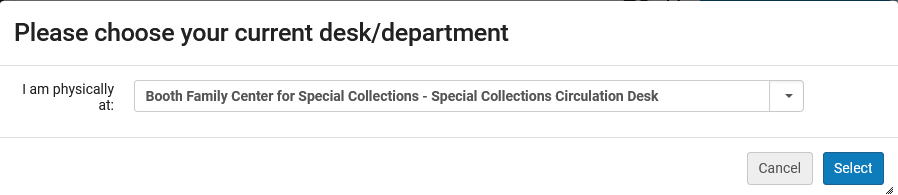
On the "Please choose your current desk/department" popup, select "Booth Family Center for Special Collections - Special Collections Circulation Desk" and click Select.
Next, click the location icon (like a map pin) from the top toolbar, and make sure the "Enable quick printing" box is checked. You can also use the location icon to verify that your location is set as the Booth Circulation Desk.

Placing the request
Finding the item
First, you need to make sure the search type dropdown box for the search bar says "Physical items"--it's possible to do other types of searches and find what you need, but this way makes it easiest to find the "Request" button.

When you change to a "Physical items" search, the second dropdown box usually defaults to Barcode.
If you have the barcode for the item you want, paste it in and hit your enter key or click the magnifying glass to perform the search.

If you don't have the barcode, you'll need to change that second dropdown box to something else (probably Title), and search that way.

Tip: Once you've clicked on a dropdown box, you can start typing the word you want and the options will automatically reduce in number. Once you've selected something, Alma will keep that at the top of the list for easier use later (it remembers up to five selections).
Depending on how much of a title you search and how many copies Georgetown owns, you may see results that aren't from Booth. You can use the Facets pane on the left (you may need to click the double carat >> to keep it open) to narrow down your results, either by selecting Booth from the list under Library, or by clicking on the blue "Library Scope: All" button (see Library Scope section below).
Requesting the item
Once you've found the item you want to request, click the "Request" button.

You will be taken to the "Create Request" page, where you need to choose:
-
Request Type = Move temporarily
-
To = Booth Family Center for Special Collections
The rest of the fields are optional; providing a note may be helpful for staff to know who requested the item and/or why.
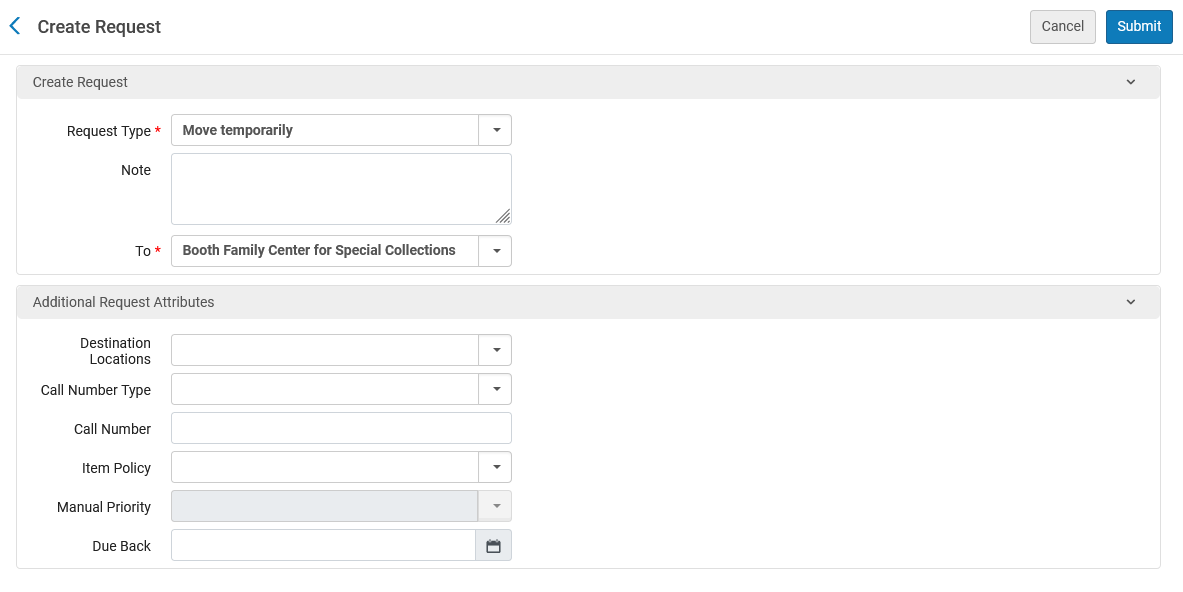
When you're satisfied, click "Submit".
You'll leave the "Create Request" page and return to your search results. If all went well, a green confirmation message will briefly appear.

If you don't notice the confirmation message, you can look at the item you requested to confirm the "Process type" is now "Requested" and there's a new field that says "Requests: 1".

While the item is in process, you can click on that request number (the "1") and you'll see the "Resource Request Monitoring" screen, which has additional details about the request.
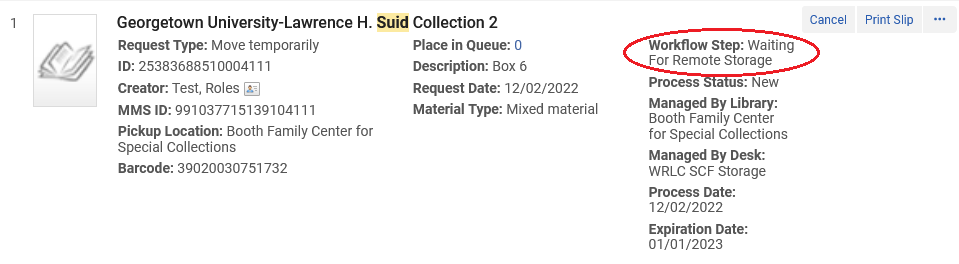
The key piece is the "Workflow Step". The step can be:
-
Waiting For Remote Storage (until the next time requests are communicated to SCF; occurs at noon and midnight daily)
-
Request Communicated to Storage (after the request has been sent to SCF)
Receiving the item at Booth
When the item has physically arrived at Booth, you need to tell Alma that it has arrived and where it's going to 'live' temporarily.
In Alma, click on Fulfillment, then choose "Scan In Items". (You can star it for easier use; see Quick Links section below.)

On the "Scan In Items" screen, click the "Change Item Information" tab.
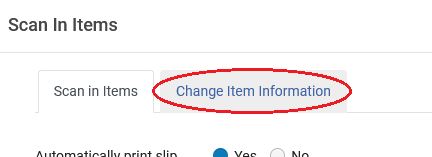
On the Change Item Information form:
-
Change Type = Temporary
-
Location = [whichever Booth location makes sense for internal workflows]
-
Check Requests = unchecked
Then scan the item barcode into the "Scan item barcode" field.

You'll see a confirmation below the form, with the Destination "Reshelve". Alma now knows this item is temporarily housed in Booth, and the move request has been marked complete.

You can confirm this by searching the barcode in Alma and examining the information that comes up. The "Temporary Location" will say whatever location you selected, and you won't see a "Requests" line anymore.
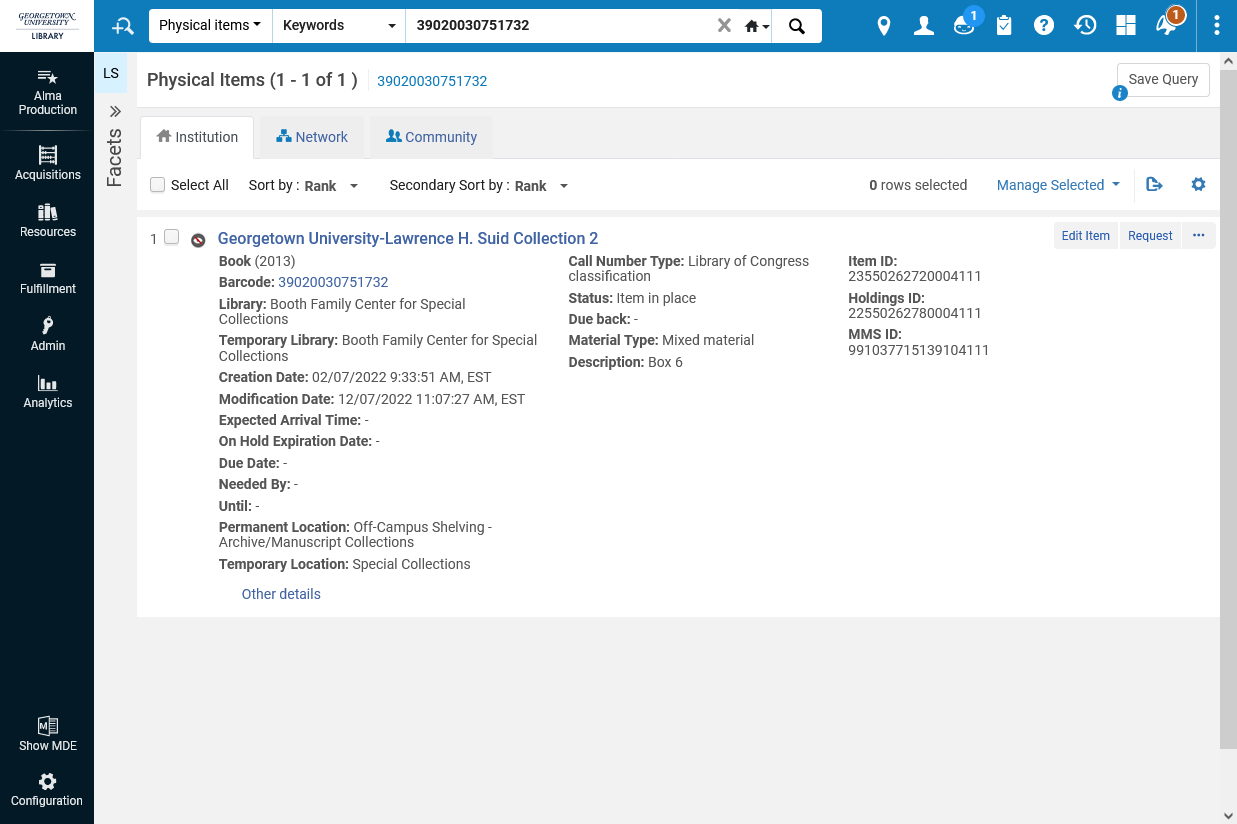
The temporary location will also appear in HoyaSearch, if the record is visible (this example is not).
Returning the item to SCF
When you're ready to send the item back, you need to tell Alma that it's going 'home' to the SCF.
In Alma, click on Fulfillment, then choose "Scan In Items". (You can star it for easier use; see Quick Links section below.)
On the "Scan In Items" screen, click the "Change Item Information" tab.
On the "Change Item Information" form:
-
Change Type = Restore
When you select "Restore" as the type, the rest of the form will disappear and the only other field remaining is for scanning the item barcode.

When you scan the item barcode, the action will be confirmed in the table below the form.

The important portion is the "Destination: WRLC SCF Storage". Now Alma knows the item is returning to storage. If you search the item in Alma (and HoyaSearch), you'll see that the "Process type" is "Transit", and the "Requests" line has reappeared.

This is Alma's way of saying that the item is traveling back to be reshelved where it normally lives. The process type and request will remain until the item is received at the SCF and scanned in to acknowledge that it's been returned.
Handy Alma customizations
Library Scope selection for search results
Depending on how much of a title you search and how many copies Georgetown owns, you may see results that aren't from Booth.
From a search results screen, use the Facets pane on the left (you may need to click the double carat >> to keep it open) to narrow down your results, either by selecting Booth from the list under Library, or by clicking on the blue "Library Scope: All" button. The "Scope Configuration" panel will appear and you can check the box for Booth, then click Apply.
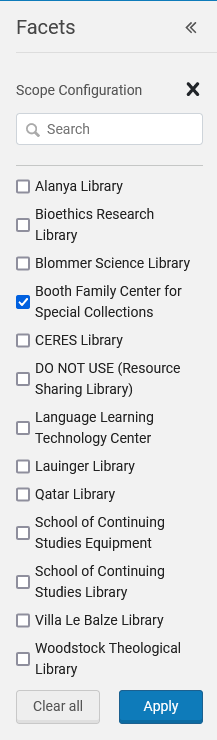
Modifying your Library Scope should persist for future searches.
Quick Links (star a menu option)
If there are common tasks you perform within the Alma menus, you may want to 'star' that menu item and have it appear like a bookmark rather than navigating the menus every time.
When you have an Alma menu open, hover over the link you'd like to bookmark and you should see a greyed out star next to it.
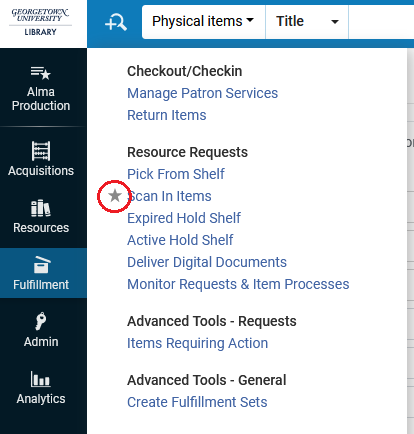
Click on the star (not the link), and it should turn blue.
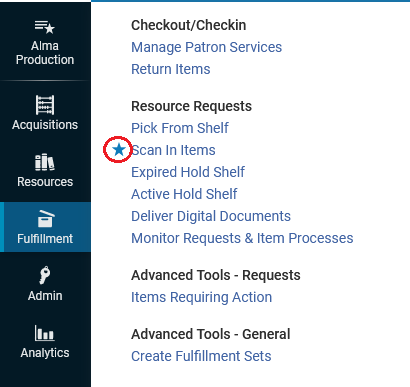
Once one or more menu links have a blue star beside them, click on the icon that says Alma Production below it.
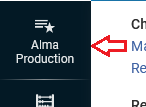


The number of visible quick links you can have depends on how long the names of the menu links are.
Equipment and Booking
GU currently has three collections of audiovisual equipment in Alma and uses booking for one collection of equipment and also our Digital Media Studio room reservations.
This documentation includes the cataloging, fulfillment policies, and suggested workflows from our internal staff wiki.
Configurations
Initial setup pieces like cataloging template, local thumbnail configuration, and custom resource type setup.
Alma Setup
Booking-related parameters
Configuration > Fulfillment > General > Other Settings
- allow_same_day_booking : false (not the default)
- enable_booking_workflow : true (this is the default)
Cataloging
Equipment
New location: steq - Stacks Equipment (assigned to the Short Loan Fulfillment Unit)
Digital Media Studios
New location: studios - Digital Media Studios (assigned to the Short Loan Fulfillment Unit)
New item policy: Studio
Equipment Bib record template
The LDR and 008 values were from the existing Books template, so it's not properly correct from a cataloger point of view. These records are saved to our IZ only and not shared with the NZ.
245 10 $$a [name of the equipment]
500 __ $$a [any notes/descriptive information about brand/model/etc. that you want in the record to help patrons find it and know they have the right thing]
956 42 $$u [URL of a thumbnail image; if you don't have one, delete this field]
996 __ $$a equipment
Fulfillment
New Overdue and Lost Loan Profiles
Specifically for the Stacks Equipment location and Equipment item policy
- Overdue notices at 1 day & 6 days overdue
- 1 Day overdue also applies "Overdue Item" block to the patron's account
- Lost at 7 days overdue
- When the item becomes lost the Overdue block is removed but the patron is now blocked due to owing the replacement cost
For Studios: Lost Loan Profile
Name : Lost Lau Studio Key
Description : Lost if not returned before close
Active : Yes
Profile Type : Change to lost
Create Overdue Notification Fee : No
Days After Due Date : 0 Days
Days After Status Date : 0 Days
Loan Status : [blank]
User Group : [blank]
Library : Lauinger Library
Locations : Lauinger Library - Digital Media Studios (studios)
Item policy : [blank]
Material Type : [blank]
Letter send format : Mail
Request Pickup Configuration
Name: Booking requests for Digital Media Studios
Input Parameters:
Request Type = Booking
Location = Lauinger Library - Digital Media Studios
Output Parameters:
- Consider as missing when expired = Never
- Show in 'Pick From Shelf' list = False
- Expiry time for 'Pick From Shelf' (in days) = -
- Calculate expiry time in open days = No
--
Name: Booking requests for Lau Equipment
Input Parameters: Request Type = Booking
Output Parameters:
- Consider as missing when expired = Never
- Show in 'Pick From Shelf' list = True
- Expiry time for 'Pick From Shelf' (in days) = 3
- Calculate expiry time in open days = Yes
Process Type Exception rules
Added at the top of the list of Booking rules to prevent requests on lost/missing items
Name: missing exception for studios
Description: prevent bookings on missing keys
Input Parameters:
- Location = Lauinger Library - Digital Media Studios
- Process Type InList Lost, Lost and paid, Missing
Output Parameters: Default terms of use (not bookable)
--
Name: process type exception [equipment]
Description: prevent bookings on lost/missing items
Input Parameters:
- Process Type InList Lost, Lost and paid, Missing
- Location = Lauinger Library - Stacks Equipment
Output Parameters: Default terms of use (not bookable)
Request Reminder Notice
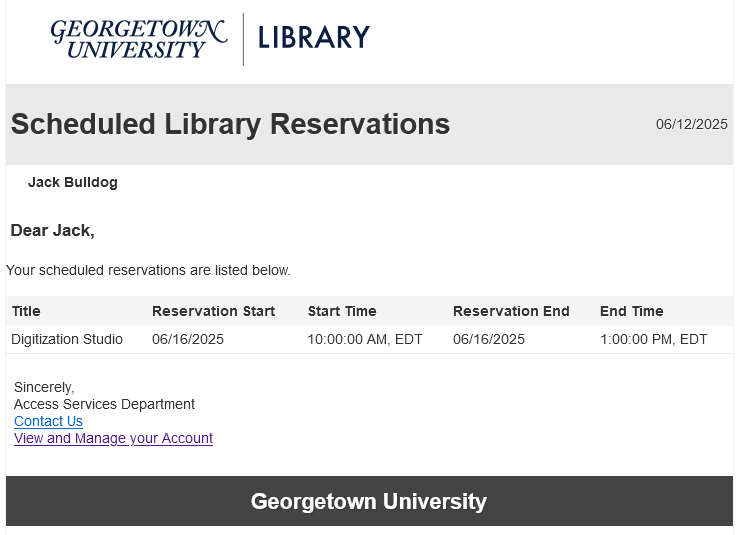
We've adapted the Ful Requests Report Letter to send a daily reminder to patrons of their upcoming reservations for equipment and our digital media studios.
Configuration > Fulfillment > General > Fulfillment Jobs Configuration > Requests - Send report job, select all request types:
- Non active requests
- Requests in process
- Requests on hold shelf
The requests letter XSL includes a terminate clause for non-booking requests, so the job always reports "Completed with Errors"
Letter XSL was heavily customized to remove the distinctions between types of requests and list the requests by start date/time.
Ful Requests Report Letter full XSL
<?xml version="1.0" encoding="utf-8"?>
<xsl:stylesheet version="1.0"
xmlns:xsl="http://www.w3.org/1999/XSL/Transform">
<xsl:include href="header.xsl" />
<xsl:include href="senderReceiver.xsl" />
<xsl:include href="mailReason.xsl" />
<xsl:include href="footer.xsl" />
<xsl:include href="style.xsl" />
<xsl:template match="/">
<html>
<xsl:if test="notification_data/languages/string">
<xsl:attribute name="lang">
<xsl:value-of select="notification_data/languages/string"/>
</xsl:attribute>
</xsl:if>
<head>
<title>
<xsl:value-of select="notification_data/general_data/subject"/>
</title>
<xsl:call-template name="generalStyle" />
</head>
<body>
<xsl:attribute name="style">
<xsl:call-template name="bodyStyleCss" /> <!-- style.xsl -->
</xsl:attribute>
<xsl:call-template name="head" /> <!-- header.xsl -->
<xsl:call-template name="senderReceiver" /> <!-- SenderReceiver.xsl -->
<xsl:call-template name="toWhomIsConcerned" />
<div class="messageArea">
<div class="messageBody">
<!-- Don't send notice for non-booking requests -->
<xsl:choose>
<xsl:when test="(notification_data/non_active_requests/ful_request_interpated/request_type = 'BOOKING') or (notification_data/process_requests/ful_request_interpated/request_type ='BOOKING') or (notification_data/hold_shelf_requests/ful_request_interpated/request_type ='BOOKING')">
<h>@@please_find_below@@</h>
</xsl:when>
<xsl:otherwise>
<xsl:message terminate="yes">this is not a booking request!</xsl:message>
</xsl:otherwise>
</xsl:choose>
<br />
<br />
<table role='presentation' cellspacing="0" cellpadding="5" border="0" class="listing">
<xsl:attribute name="style">
<xsl:call-template name="mainTableStyleCss" />
</xsl:attribute>
<tr>
<xsl:attribute name="style">
<xsl:call-template name="headerTableStyleCss" /> <!-- style.xsl -->
</xsl:attribute>
<th>@@title@@</th>
<th>Reservation Start</th>
<th>Start Time</th>
<th>Reservation End</th>
<th>End Time</th>
</tr>
<xsl:for-each select="notification_data/hold_shelf_requests/ful_request_interpated|notification_data/process_requests/ful_request_interpated|notification_data/non_active_requests/ful_request_interpated">
<xsl:sort select="start_time" />
<xsl:if test="request_type='BOOKING'">
<tr>
<td><xsl:value-of select="title_display"/></td>
<td><xsl:value-of select="start_time"/></td>
<td><xsl:value-of select="booking_start_time"/></td>
<td><xsl:value-of select="end_time"/></td>
<td><xsl:value-of select="booking_end_time"/></td>
</tr>
</xsl:if>
</xsl:for-each>
</table><br />
<table>
<tr><td><xsl:call-template name="signature" /></td></tr>
</table>
</div>
</div>
<xsl:call-template name="lastFooter" /> <!-- footer.xsl -->
</body>
</html>
</xsl:template>
</xsl:stylesheet>
On Hold Shelf notice booking-specific text for equipment
required WRLC ticket, as the On Hold Shelf Letter is controlled centrally
<xsl:when test="contains(notification_data/request/delivery_address, 'Lauinger')">

<xsl:choose>

<xsl:when test="contains(notification_data/request/request_type, 'BOOKING')">

Your booked item will be held until the circulation desk closes on your requested pick up day.

</xsl:when>

<xsl:otherwise>

     @@note_item_held_until@@ <xsl:value-of select="notification_data/request/work_flow_entity/expiration_date"/>.

</xsl:otherwise>

</xsl:choose>
Loan and Booking Terms of Use
(see Terms of Use page for details)
Loan Receipt studio-specific text
(excerpt from the full Loan Receipt Letter)
<xsl:if test="(/notification_data/loans_by_library/library_loans_for_display/item_loans/overdue_and_lost_loan_notification_display/item_loan/physical_item/item_policy='studio')">
<tr><td bgcolor="yellow">
NOTE: You will be charged for any damage to the room and/or any items removed from the space. If there is any damage to the space, or missing equipment, at the start of reservation, please report it to digitalscholarship@georgetown.edu immediately to avoid being charged.<br/>
</td></tr>
</xsl:if>
(then comes the list of loaned items)
Primo Configurations
Equipment local resource type (996)
Configuration > Discovery > Display Configuration > Resource Types Configuration > Add/Edit Resource Type Configuration > Custom Local Resource Types tab
Code : equipment
Display Singular Label : Equipment
Display Plural Label : Equipment
MARC mapping : 996 $a equipment (Use Regular Expression : false)
Thumbnail template configuration (956)
Configuration > Discovery > Display Configuration > Thumbnail configuration > Add New Template
Template Name : local thumbnail
Template : $$LinkingParameter1
LinkingParameter Configuration
Field : 956 | Ind1 : 4 | Ind2 : 2 | Subfield : u
Use Field : Always
Normalization : No normalization
This setup is the most basic possible configuration and also allows us to selectively override book cover images that are incorrect.
Labels
Configuration > Discovery > Display Configuration > Labels > Request labels
- almaRequest.startDate : Reservation Start
- almaRequest.endDate : Reservation End
- almaRequest.checkAvailiability : Check Availability Calendar<p></p> [adds space between the link and the rest of the request form]
- 400307 : Same day requests cannot be accepted. Please choose a date in the future.
Considering adding a form description specifically to the booking form (almaBookingRequest.formDescription), but haven't so far.
Additional Considerations
Library Hours
The time our service desk opens varies depending on the day of the week, which caused some unexpected issues with the booking duration initially selected (3 days). This is why the booking duration currently in use for equipment is 76 hours instead of 72.
We also set our service desk hours in Alma to begin 30 minutes after staff are scheduled to arrive so that patrons aren't expecting to pick up their equipment (or check out the Digital Media Studio keys) the instant the library opens.
Title-level vs. Item-level requests
One of the goals of setting up our equipment in Alma was to allow patrons to place requests without needing to select a particular item. This also allows requests to be filled by whichever item is currently on the shelf automatically. Having it work this way REQUIRES that nothing be put into the Item Description field. As soon as you put anything in the Description, even if multiple items have the same Description, that changes the request process to be item-specific.
Terms of Use and Rules
Terms of Use and Rules used for equipment for each of the libraries: Lauinger & Capitol Campus, GU-Q (Qatar), and SCS. Lauinger & Capitol Campus are the only ones using Booking.
Lauinger & Capitol Campus
Summary: Most items are bookable (requestable for specific dates, up to 3 days at a time), all are loanable (i.e. do not require a booking to borrow the item, though bookings are recommended).
Booking (Requesting)
Equipment Hour-based Loan Items (2-Hour, 4-Hour)
Chargers, power banks, etc. = Not Bookable
|
Name |
Operator |
Value |
|
Item Policy |
In List |
4-Hour Reserve, Overnight ; 2-Hour Reserve, No overnight |
|
Location |
In List |
Lauinger Library - Stacks Equipment, Capitol Campus Library - Equipment |
|
Output |
|
Default terms of use (not bookable) |
Equipment 3-Day Items
|
Name |
Operator |
Value |
|
Location |
In List |
Lauinger Library - Stacks Equipment, Capitol Campus Library - Equipment |
|
User Group |
In List |
Continuing Ed & Prof Development, Graduate Student, Library Staff, Non-Tenure Line Faculty, Senior, Staff, Staff/AAP Retiree, Tenure Line Faculty/Emeritus Faculty, Undergraduate |
|
Item Policy |
= |
Equipment |
|
Output |
|
Lau Equipment 3 day Booking ToU |
Equipment 3 day Booking ToU Output terms
-
Booking release time : 25 Hours
-
Is item bookable : Item is bookable
-
Maximum allowed booking length : 3 Days(ish) Allowed (3 days + 4 hours for circ desk opening time variations)
-
Preview period : 24 Hours
-
Pickup locations : Pickup only in owning library
-
Future limit : 30 Day Future Limit
-
Back to back booking : No limit
-
Purged request fee : No purged request fee
-
Booking resolution : Days plus overnight
-
Closed library booking management : Attempt expanding if within maximum allowed booking length
Lauinger Digital Media Studios
|
Name |
Operator |
Value |
|
Location |
= |
Lauinger Library - Digital Media Studios |
|
User Group |
In List |
Continuing Ed & Prof Development, Graduate Student, Library Staff, Non-Tenure Line Faculty, Senior, Staff, Staff/AAP Retiree, Tenure Line Faculty/Emeritus Faculty, Undergraduate, Visiting Researcher |
|
Output |
|
Lau Room 3 hour booking |
Lau Room 3 hour booking Output terms
-
Booking release time : No booking release time
-
Is item bookable : Item is bookable
-
Maximum allowed booking length : 3 Hours booking
-
Preview period : 30 minutes
-
Pickup locations : Pickup only in owning library
-
Future limit : 30 Day Future Limit
-
Back to back booking : No limit
-
Purged request fee : No purged request fee
-
Booking resolution : Default booking resolution - Minutes
-
Closed library booking management : Adjust booking time to be during open times only. When the Library is closed during the entire requested booking period, the request will be blocked.
Loan
Equipment 2-Hour Items
Currently only used for power banks
|
Name |
Operator |
Value |
|
Item Policy |
In List |
2-Hour Reserve, No Overnight |
|
Location |
In List |
Lauinger Library - Stacks Equipment, Capitol Campus Library - Equipment |
|
User Group |
In List |
Continuing Ed & Prof Development, Graduate Student, Library Staff, Non-Tenure Line Faculty, Senior, Staff, Staff/AAP Retiree, Tenure Line Faculty/Emeritus Faculty, Undergraduate |
|
Output |
|
2-Hour Lau Equipment Loan |
2-Hour Equipment Loan Output terms
-
Is Loanable : Loanable
-
Is Recallable : No Recall
-
Due Date : 2 Hours loan
-
Lost Item Fine : No Lost Item Fine
-
Lost Item Replacement Fee : 200.00 Lost Item Replacement Fee
-
Lost Item Replacement Fee Refund Ratio : 100 Percent Lost item refund
-
Maximum Fine : 70.00 Maximum Fine
-
Overdue Fine : 1.00 Open Hours overdue fine
-
Grace Period : No Grace
-
Is Renewable : Not Renewable
-
Closed Library Due Date Management : Move Due Time to Upcoming Closing Time
Equipment 4-Hour Items
e.g. charging cords
|
Name |
Operator |
Value |
|
Item Policy |
In List |
4-Hour Reserve, Overnight |
|
Location |
In List |
Lauinger Library - Stacks Equipment, Capitol Campus Library - Equipment |
|
User Group |
In List |
Continuing Ed & Prof Development, Graduate Student, Library Staff, Non-Tenure Line Faculty, Senior, Staff, Staff/AAP Retiree, Tenure Line Faculty/Emeritus Faculty, Undergraduate |
|
Output |
|
4-Hour Lau Equipment Loan |
4-Hour Equipment Loan Output terms
-
Is Loanable : Loanable
-
Is Recallable : No Recall
-
Due Date : 4 Hours loan
-
Lost Item Fine : No Lost Item Fine
-
Lost Item Replacement Fee : 200.00 Lost Item Replacement Fee
-
Lost Item Replacement Fee Refund Ratio : 100 Percent Lost item refund
-
Maximum Fine : 70.00 Maximum Fine
-
Overdue Fine : 1.00 Open Hours overdue fine
-
Grace Period : No Grace
-
Is Renewable : Not Renewable
-
Closed Library Due Date Management : Move Due Time to Next Open Time
Equipment 3-Day Loan
|
Name |
Operator |
Value |
|
Item Policy |
In List |
Equipment |
|
Location |
In List |
Lauinger Library - Stacks Equipment, Capitol Campus Library - Equipment |
|
User Group |
In List |
Continuing Ed & Prof Development, Graduate Student, Library Staff, Non-Tenure Line Faculty, Senior, Staff, Staff/AAP Retiree, Tenure Line Faculty/Emeritus Faculty, Undergraduate |
|
Output |
|
3-Day Lau Equipment Loan |
3-Day Equipment Loan Output terms
-
Is Loanable : Loanable
-
Is Recallable : No Recall
-
Due Date : 3 Days (Exact Days)
-
Lost Item Fine : No Lost Item Fine
-
Lost Item Replacement Fee : 200.00 Lost Item Replacement Fee
-
Lost Item Replacement Fee Refund Ratio : 100 Percent Lost item refund
-
Maximum Fine : 70.00 Maximum Fine
-
Overdue Fine : 1.00 Open Hours overdue fine
-
Grace Period : 1 Hour grace period
-
Is Renewable : Not Renewable
-
Maximum Renewal Period : 9 Day Renewal (3-day loan + 2 renewals) (Note: this allows staff discretion to renew items by overriding the ‘not renewable’ block)
-
Closed Library Due Date Management : Move due time to next open time
Lauinger Digital Media Studios Loan
|
Name |
Operator |
Value |
|
Location |
= |
Lauinger Library - Digital Media Studios |
|
User Group |
In List |
Continuing Ed & Prof Development, Graduate Student, Library Staff, Non-Tenure Line Faculty, Senior, Staff, Staff/AAP Retiree, Tenure Line Faculty/Emeritus Faculty, Undergraduate, Visiting Researcher |
|
Output |
|
3-Hour Loan, No Overnight |
3-Hour Loan, No Overnight Output terms
-
Is Loanable : Loanable
-
Is Recallable : No Recall
-
Due Date : 3 Hours loan
-
Lost Item Fine : No Lost Item Fine
-
Lost Item Replacement Fee : 200.00 Lost Item Replacement Fee
-
Lost Item Replacement Fee Refund Ratio : 100 Percent Lost item refund
-
Maximum Fine : No maximum fine
-
Overdue Fine : No overdue fine
-
Grace Period : 30 minutes
-
Is Renewable : Not Renewable
-
Closed Library Due Date Management : Move Due Time to Upcoming Closing Time
GU-Q (Qatar)
Summary: Innovation Lab items do not circulate. Everything else does. No requesting/booking.
Request
Items are not requestable.
Loan
Innovation Lab non-circulating
|
Name |
Operator |
Value |
|
Location |
= |
Qatar Library - Innovation Lab |
|
Output |
|
Non-circulating |
Qatar Equipment 3-Day Loan
|
Name |
Operator |
Value |
|
Item Policy |
= |
Equipment |
|
Material Type |
= |
Equipment |
|
Location |
= |
Qatar Library - Circulation Desk |
|
Output |
|
3-Day Loan (Qatar) |
3-Day Loan (Qatar) Output terms:
-
Is Loanable : Loanable
-
Is Recallable : No Recall
-
Due Date : 3 Days
-
Lost Item Fine : No Lost Item Fine
-
Lost Item Replacement Fee : 110.00 Lost Item Replacement Fee
-
Lost Item Replacement Fee Refund Ratio : 100 Percent Lost item refund
-
Overdue Fine : No Overdue Fine
-
Grace Period : 1 Hour grace period
-
Is Renewable : Not Renewable
-
Closed Library Due Date Management : Move due time to next open time
Qatar Equipment 28-Day Loan
|
Name |
Operator |
Value |
|
Item Policy |
= |
Equipment |
|
Material Type |
= |
E-reader |
|
Location |
= |
Qatar Library - Circulation Desk |
|
Output |
|
4-Week Loan (Qatar equip) |
4-Week Loan (Qatar equip) Output terms:
-
Is Loanable : Loanable
-
Is Recallable : No Recall
-
Due Date : 28 Days (4 weeks; uses Days unit of measurement)
-
Lost Item Fine : No Lost Item Fine
-
Lost Item Replacement Fee : 110.00 Lost Item Replacement Fee
-
Lost Item Replacement Fee Refund Ratio : 100 Percent Lost item refund
-
Overdue Fine : No Overdue Fine
-
Grace Period : 3 exact days grace period
-
Is Renewable : Not Renewable
-
Closed Library Due Date Management : Move due time to next open time
SCS
Summary: All items are loanable for 7 days. No requesting/booking.
Request
Items are not requestable.
Loan
|
Name |
Operator |
Value |
|
User Group |
In List |
Continuing Ed & Prof Development, Graduate Student, Library Staff, Non-Tenure Line Faculty, Senior, Staff, Staff/AAP Retiree, Tenure Line Faculty/Emeritus Faculty, Undergraduate |
|
Location |
= |
SCS Equipment |
|
Output |
|
7-Day SCS Equipment |
7-Day SCS Equipment Output terms
-
Is Loanable : Loanable
-
Is Recallable : No Recall
-
Due Date : 7 Days (Days unit of measurement)
-
Lost Item Fine : No Lost Item Fine
-
Lost Item Replacement Fee : 200.00 Lost Item Replacement Fee
-
Lost Item Replacement Fee Refund Ratio : 100 Percent Lost item refund
-
Maximum Fine : 70.00 Maximum Fine
-
Overdue Fine : $25 / Calendar Day
-
Grace Period : 5 Exact Days Grace Period (excluded from fine)
-
Is Renewable : Not Renewable
-
Closed Library Due Date Management : Move to next open day (same hour)
Booking request creation
Basic process and common errors for patron-created requests in Primo and staff-created requests in Alma.
as of 18 September 2025; Primo portions assume use of VE original UI, not NDE UI
Patron-created requests
Basic process in Primo
Patron needs to log in, if they haven't already
Click on the Georgetown Request link
Select the dates/times desired
- for equipment items, select the date range desired, up to three days
- for studios, select the date and times for the reservation, up to 3 hours
Click the Send Request button
If it worked, they'll receive the message, "Your request was successfully placed."
If a patron wants to use multiple pieces of equipment, yes, they have to place a separate request on each piece of equipment.
Common problems/errors
No items can fulfill the submitted request.
This usually means the date range selected is too long. The system is very pedantic about date selection, so "three days" means the 14th to the 16th, for example.
This could also mean that all items are already booked for some portion of the date range selected. The patron can use the "Check Availability" link to see if part of the desired date range is blocked off as unavailable.
Request conflicts were found.
Some portion of the request conflicts with other requests already in the system. The patron can use the "Check Availability" link to see if part of the desired date range is blocked off as unavailable and adjust their request accordingly.
Note for Digital Media Studios: There needs to be a 30-minute buffer between reservations. This allows patrons time to get back up to the circulation desk and return the key without penalizing someone who will be using the room immediately afterward. So if there’s a reservation ending at noon, the next reservation can’t start until 12:30 p.m. Unfortunately this isn’t reflected on the availability calendar, so it can be confusing.
Please fill in the following mandatory fields to proceed: You must select time slot
[Digital Media Studios only] Either the Date, Hour, or Minutes fields were left empty. All three elements, date, hour, and minute, must be selected for both the Reservation Start and the Reservation End to define the desired reservation time. Depending on the size of the browser/screen, the Minute drop-down box may not be visible until after the Hour is selected because the submission form doesn't adjust well to some screen sizes.
The resource cannot be booked while the library is closed.
[Digital Media Studios only] The times selected are outside of the Service Desk hours; the studios can only be reserved when the Service Desk is open. Patrons can use the "Check Availability Calendar" link to see available times on the desired date.
Staff-created requests
Basic process in Alma
-
Perform a title search (All Titles or Physical Titles) in Alma
-
Click the three dots button and select Request
-
In the Request Type dropdown list, choose "Booking Request"
-
Fill in the "Requester", "Date Range", and "Pickup At" fields
- NOTE: You can override the future limit and maximum allowed booking length by clicking the "Override Booking Policies" checkbox.
-
Click Submit
-
You should be taken back to your search results and see a green popup message "The request was successfully submitted : request id = [long string of numbers]".
If a patron wants to use multiple pieces of equipment, yes, you have to place a separate request on each piece of equipment.
Common problems/errors
No items available for the request due to policy.
Some portion of the request contradicts what's allowed in the Alma terms of use (e.g. how long the booking will last).
If that's the desired outcome, check the "Override Booking Policies" checkbox to proceed with placing the request.
Request conflicts were found.
Some portion of the request conflicts with other requests already in the system. You need to adjust the request dates to avoid the conflict.
Note: Cindy has encountered at least one example where this message appeared even though there were no apparent conflicts, so there may be something in the settings that needs additional refinement? In that case, use the "Override Booking Policies" checkbox to proceed with the new request, if able, then alert AlmaHelp of the issue and provide the new request ID so the "conflict" can be investigated.
Booking workflows for staff
Staff workflows for handling booking requests in Alma: viewing upcoming requests, processing the request for the hold shelf, removing item from hold shelf if not checked out by patron.
Handling scheduled bookings
Viewing requests in advance
All scheduled bookings
Go to Fulfillment > Monitor Requests & Item Processes
In the Facets, find the Request/Process Type header and click Booking Request
Export the list using the icon if sorting/printing is desired
NOTE: Please make sure to delete/destroy the files and any paper copies after use for patron privacy! Future reporting needs can be handled via Alma and Analytics.
Bookings for a particular type of item
Physical Titles search > name of item (e.g. Canon DSLR Camera)
or
Physical Items search > barcode or name of item
When there are requests in the system, the result will have an entry "Requests: {#}" and the number of requests is clickable. (Results are sorted by Request Date, unfortunately, rather than anything useful. Removing the Request Date field display does not alter the sort.)
Note: Equipment bookings scheduled through HoyaSearch are not assigned to a specific barcode in advance. If a booking is manually scheduled by a staff member in Alma, it might be (erroneously) attached to a specific item.
Bookings for a specific patron
Manage Patron Services > lookup patron > Requests tab > filter to Request Type: Booking request (if the list is long) --this will include both A/V equipment and studio reservations
Handling on the day of a booking: Equipment
Booked items will (usually) appear in the Pick From Shelf list, and slips can be printed from there
Pull the item needed for the booking
Scan In the item to associate the barcode with the booking →this triggers an email to the requester that their item is on hold for them
When the requester arrives at the circ desk, check out the item as usual for a hold shelf item
Note: When there is one booking on a piece of equipment with multiple items, it's possible to loan all but one of the items to other patrons–the last available item is reserved by Alma for the booking even if the booking request is still on the Pick From Shelf list (i.e. no specific item has been put on the hold shelf for that request).
It is not possible to override the "Item cannot be loaned due to a booking request" block.
Handling on the day of a booking: Studios
Unlike the equipment, there is no special handling required before circulation to the patron with a reservation. These requests do NOT appear on the Pick From Shelf list.
Expected process:
-
Patron arrives at the Service Desk and asks for the key
-
Look up the patron in Manage Patron Services and verify which room they have scheduled for that date and time
-
Retrieve the key from the lock box and check it out to the patron
-
The Due date and time will correspond to what the patron selected when making their reservation → if they scheduled two hours, they will only get two hours, even though the maximum is three hours.
Note: There is a 30-minute buffer between scheduled reservations. If the key has already been returned by the prior room occupant, the next scheduled patron can check out the key up to 30 minutes early for their scheduled time.
It is not possible to override the "Item cannot be loaned due to a booking request" block, so the patron picking up the key MUST be the one who scheduled the room.
Handling items not picked up
Studios
If a patron schedules a studio and does not check out the key within 30 minutes of the scheduled start time, that room becomes available for use by other patrons automatically. Nothing needs to be done by library staff in this scenario.
Equipment
The Booking Release Time allows a booked item to be automatically available for circulation after a period of time (25 hours is the current setting for a/v equipment)–but it doesn't remove the item from the hold shelf.
A booked item not picked up from the hold shelf within the initial 25 hours of the booking can be handled as a non-expired but unwanted hold item.
One possible workflow:
-
Do a Physical Items search for the barcode of the item being removed from the hold shelf.
-
Click on the number following the label Requests.
-
On the Resource Request Monitoring page, click the three dots button for the request that's on the hold shelf, choose "Update Expiry", then change the Expiration Date to yesterday.
-
Fulfillment > Scan In Items > enter item barcode.
-
If there was a waiting request, you'll see "Destination: On Hold Shelf" with the requester's name; click the three dots button and choose Print Slip to get a slip for the new request.
When there are back-to-back requests and no items are available on the (regular) shelf, the request will not appear on the Pick From Shelf list. Using Scan In Items on items being removed from the hold shelf is the ONLY WAY found that provides the ability to print a slip for the next requester in this scenario.
If items remain on the hold shelf beyond the originally booked date(s), they will appear on the Expired Hold Shelf list. Equipment with pending requests will show up under the Activate Next tab; clicking the Activate Next button will print the slip for the next requester and produce a little popup message about what needs to happen with that item.
Possible messages:
-
The next step for item: [item] is: On Hold Shelf
-
To continue processing the item "[item]" it must be moved. The destination is: Reshelve Without Transit.
Equipment cataloging
Covers creating new records and adding items, including required fields and selections for each library. Target audience is equipment managers who are unfamiliar with Alma and library functions like cataloging.
These directions refer to an Equipment template that was created in the GT IZ for use by non-catalogers in creating new records, and also mention use of 956 (thumbnail URL) and 996 (resource type) local fields; configuration of the local fields for Primo is covered elsewhere.
as of 18 September 2025
Creating a new record
The easiest way to get into the Metadata Editor (MDE) is to click the shortcut near the bottom left corner of the Alma screen (keyboard shortcut: Alt + M):
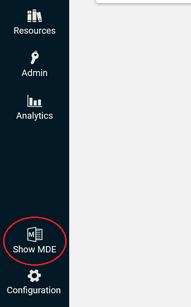
When the MDE is open, click on Templates:
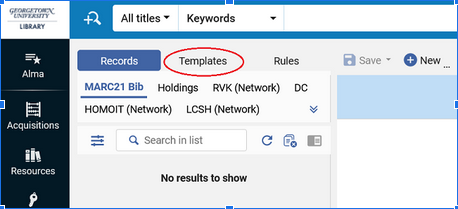
Then click on "MARC21 Bib" if it isn't selected already:
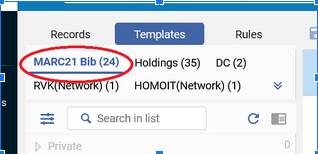
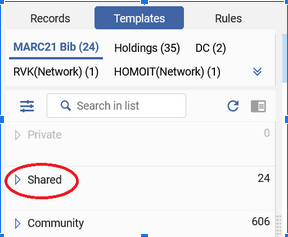
Click to open the Shared section:
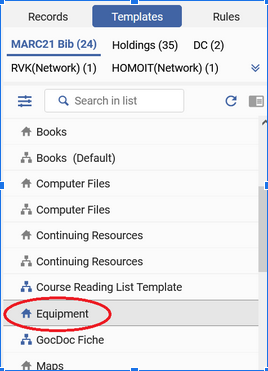
Find the "Equipment" template and click on it:

This will open a new record for you to edit. Add:
-
Name of the piece of equipment (e.g. Table Top Tripod) in the 245 field
-
Any notes you want to record in the 500 field (staff have used this to record the brand/model/etc. of the equipment and the cost) -->NOTE: This is visible in HoyaSearch/Primo
-
If you have a thumbnail image for display, enter the URL of the image in the 956
-
The 996 says "equipment" →leave this alone, it tells HoyaSearch this is equipment rather than a book
SCS ONLY: You will also need to click Record Actions and select "Suppress from Discovery" (keyboard shortcut Alt+Shift+S):
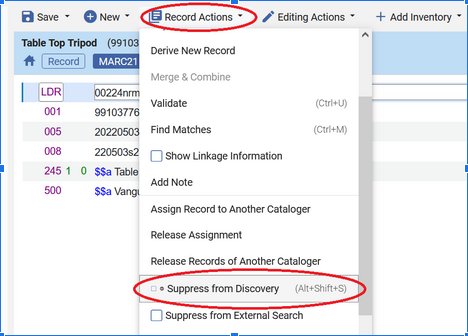
This keeps your equipment from appearing in HoyaSearch.
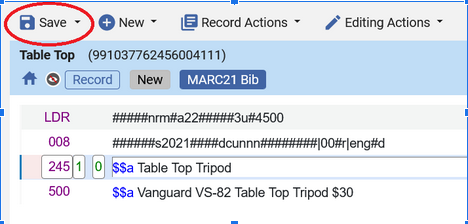
When you're finished, or if you need to step away from the computer without losing your work, click Save.
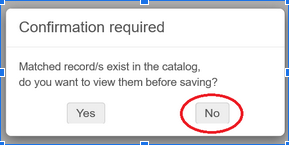
If a warning about matching records pops up, click No to proceed with saving your record.

Add holdings and item(s)
Use the Alma search bar to find the equipment record you want (make sure the left drop-down box is set to "All Titles"):

 When you've found the one you need, click the three dots along the right-hand side of the display for that record: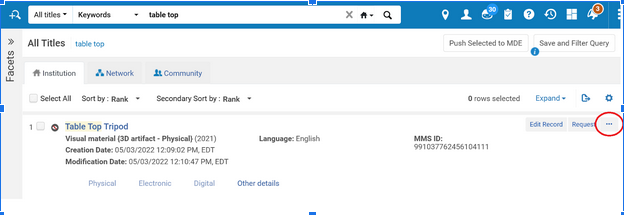
Then click "Add Holdings":

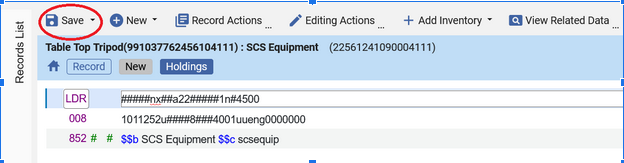
This will open the MDE with a new Holdings record. Enter the appropriate Library and location in $$b and $$c:
-
Lauinger : $$b lau $$c steq
-
SCS : $$b SCS Equipment $$c scsequip
-
Qatar : $$b qatar $$c qequip [Innovation Lab] OR $$c qcirc [Circulation Desk]
Then click Save:
Now click on "Add Inventory":


Select "Add Item":
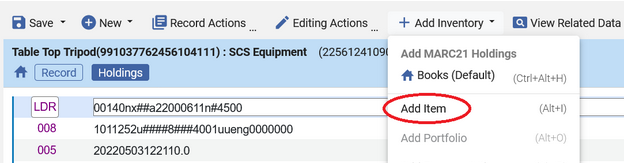
This opens the Physical Item Editor, where you enter the barcode and other needed information.
Required item information
-
Barcode
-
Item Policy and Material Type combinations in use for checkout policy purposes:
-
Lauinger & Capitol Campus
-
Material Type = Equipment
-
Item Policy
-
Equipment (for bookable items), OR
-
3-Day Reserve (for non-bookable items that loan for 3 days), OR 2-Hour Reserve, No Overnight (for power banks) OR 4-Hour Reserve, Overnight (for other non-bookable items like chargers)
-
-
-
SCS (optional)
-
Material Type = Equipment
-
Item Policy = Equipment
-
-
Qatar
-
Material Type
-
Equipment (for non-ereader materials), OR
-
E-reader (for Kindles and their accessories)
-
-
Item Policy = Equipment
-
-
-
Description
-
Lauinger & Capitol Campus : THIS FIELD MUST REMAIN BLANK
-
This field can be used or left blank, as desired, for SCS and Qatar
-
-
Replacement Cost
-
Required if you want patrons to be charged the full cost of an item if they lose/fail to return it
-
Otherwise, they're charged the flat amount (often $110 or $200) for lost items.
-
Optional item information
-
Copy ID : this may be useful if you have multiple items of one type (e.g. tripods).
-
Pieces : For equipment kits involving multiple parts, you can use the Pieces field to record the number of pieces included in the kit. This does not affect anything related to circulation, but can be helpful for recordkeeping.
-
Item Call Number : this can be used in place of, or in addition to, the Copy ID field to distinguish between similar items.
Click Save.
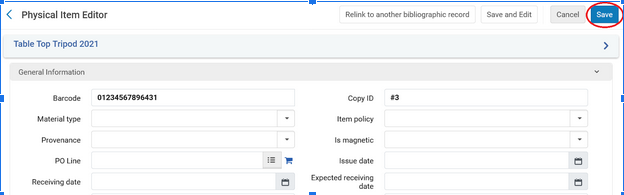
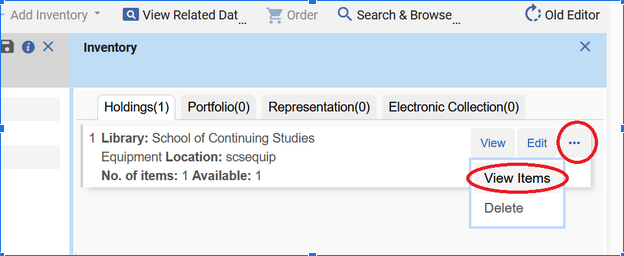
You'll be taken back to an MDE inventory screen.
If you need to add more items (i.e., you have more than one tripod to circulate), click on the three dots and select View Items:

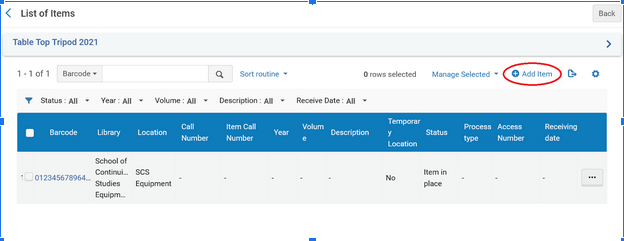
You'll be taken to the List of Items screen where you can click "Add Item" to add another item:

This will take you to the Physical Item Editor where you can enter the second item's information:
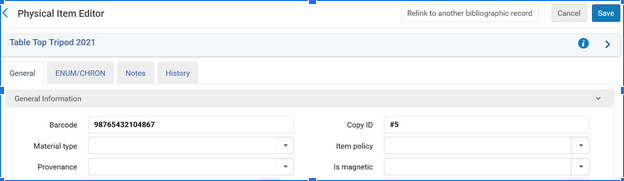
Clicking Save will take you back to the List of Items.
Repeat for each additional item until all are entered into Alma.
Item Notes
If there is information specific to one particular item, you can use the item notes to record that information. The maximum length for most item notes is 4000 characters.
If you're adding notes while creating an item, the item must be saved before the Notes tab is available and a note can be added. You can click the Save and Edit button to save the barcode, etc., and have the Notes tab appear.

Or, if adding a note later, open an item in the Physical Items Editor and you'll see the Notes tab.
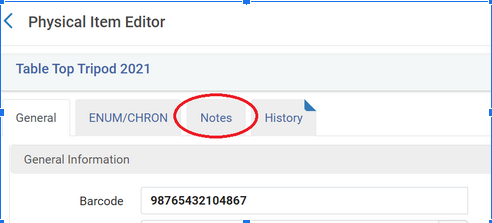
There are several types of notes available: Functional, Internal, and Statistics.
Do not use the Statistics Notes fields; there are specific ways those are used by Lauinger and WRLC.

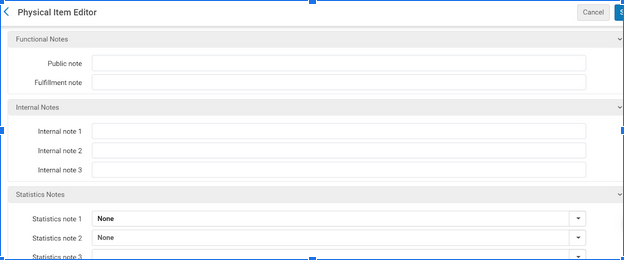
The most relevant for equipment circulation purposes is the Fulfillment note. Anything in this field will pop up when the barcode is checked in or out, so it can be a helpful place to indicate what parts should be present and/or missing pieces.
For example: This is a Fulfillment note to check for a particular piece.


That note will look like this when you're checking out the tripod to a patron:
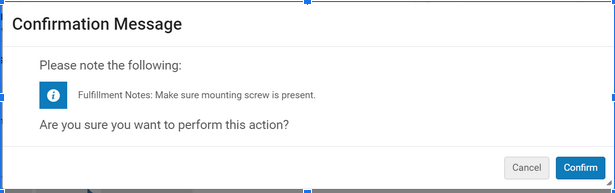
The choice to use fulfillment notes and what to put in them is 100% up to you.
You can use the Internal note fields for information you want to record but that you don't want/need to pop up during circulation.
Resources
Ex Libris documentation
Configuring Physical Fulfillment - Adding Fulfillment Policies
Requests in Alma - Booking Requests
Alma Essentials videos: Booking Requests / Booking Requests Management
Configuring Fulfillment Jobs - Configuring Other Settings (enable_booking_workflow)
Scheduled Jobs - Handle Expired Booking Requests
Cindy's Presentations
2024 ELUNA Annual Meeting : Equipment Booking: What We've Learned (and What We Still Don't Know)
2024 WRLC Annual Meeting (shortened from ELUNA 2024 presentation) : Alma/Primo VE Equipment Booking: What We've Learned So Far
2025 ELUNA Annual Meeting : Booking Revisited: Implementing Room Reservations
All presentations include copious screenshots and links
Primo NDE UI
Updating the Landing Page using Landing Page Configuration
Using the Landing Page tab and Labels to manage your view's landing page, e.g. https://wrlc-gu.primo.exlibrisgroup.com/nde/home?vid=01WRLC_GUNIV%3AGUQ&lang=en
Role required: Discovery Administrator OR View Management
Landing Page tab
To access the Landing Page Configuration tab, navigate to your view: Discovery > Display Configuration: Configure Views > Click the three dots button for your view > Edit
The Landing Page tab is the last one listed:

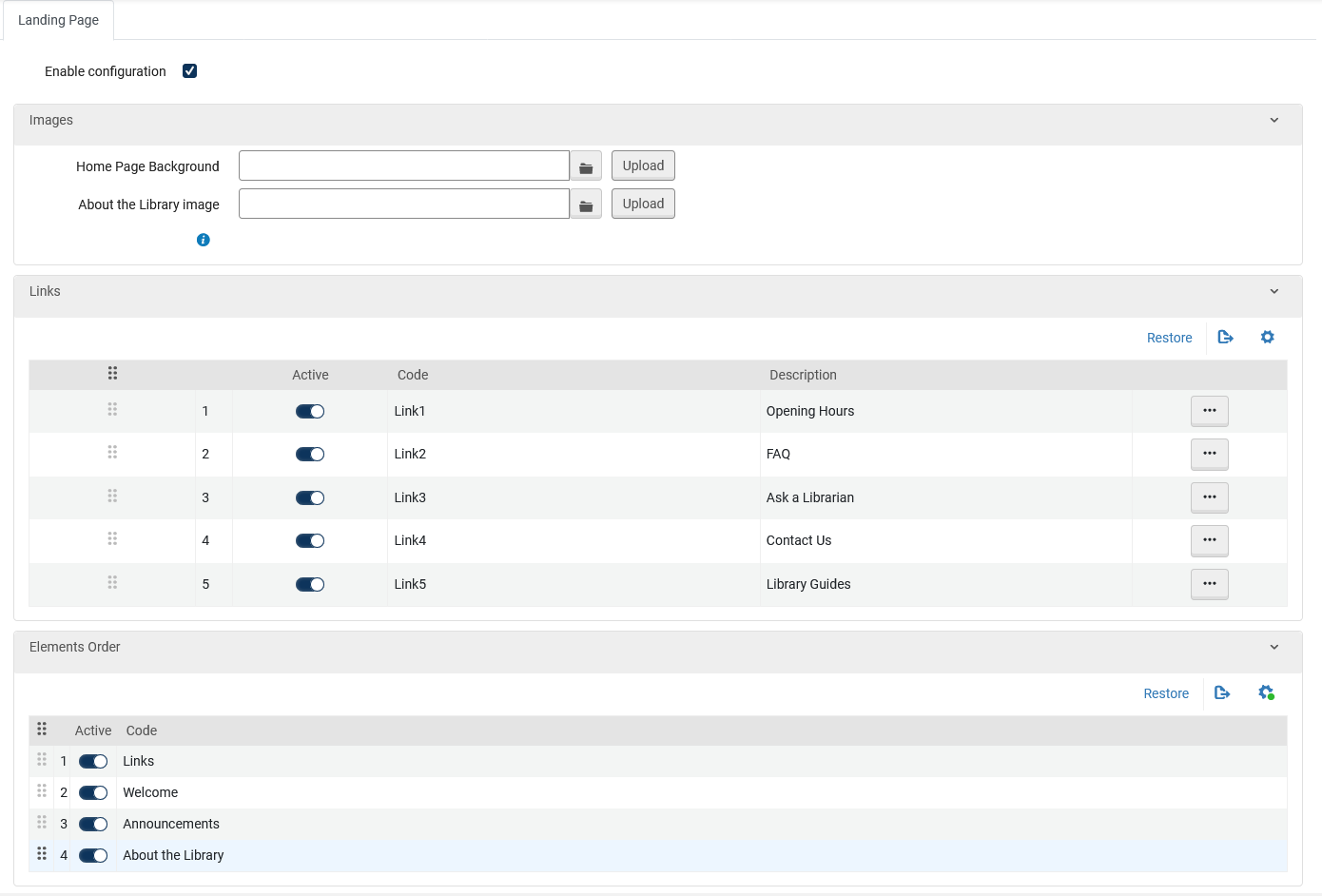
When you click on it, make sure the "Enable configuration" box is checked. Otherwise, your changes won't be visible in Primo.
Images, Links, and Elements
The Images section is for uploading custom images for the Home Page Background (behind the search bar) and the About the Library section. Recommended image dimensions and filetypes are in the Ex Libris documentation about Configuration Changes for the Landing Page (opens in new tab).
The toggles for the Links and Elements controls their visibility; toggling them off is an easy way to hide something that you don't currently need --e.g. if you don't have any Announcements to display right now.
Links
You can do all your Links edits from this page, just click on the three dots button to access the Description (link text), the linked URL, and the icon shown in Primo.

A list of the icons and their filenames is in the Ex Libris documentation about Configuration Changes for the Landing Page (opens in new tab).
Elements
The Elements are the sections on the NDE landing page; the only thing you can do here is turn them on or off. So, for example, if you don't want the Links section to display, you'd toggle it off here rather than turning off each link in the Links section--that would still keep an empty section where the links ought to be on your Landing Page.
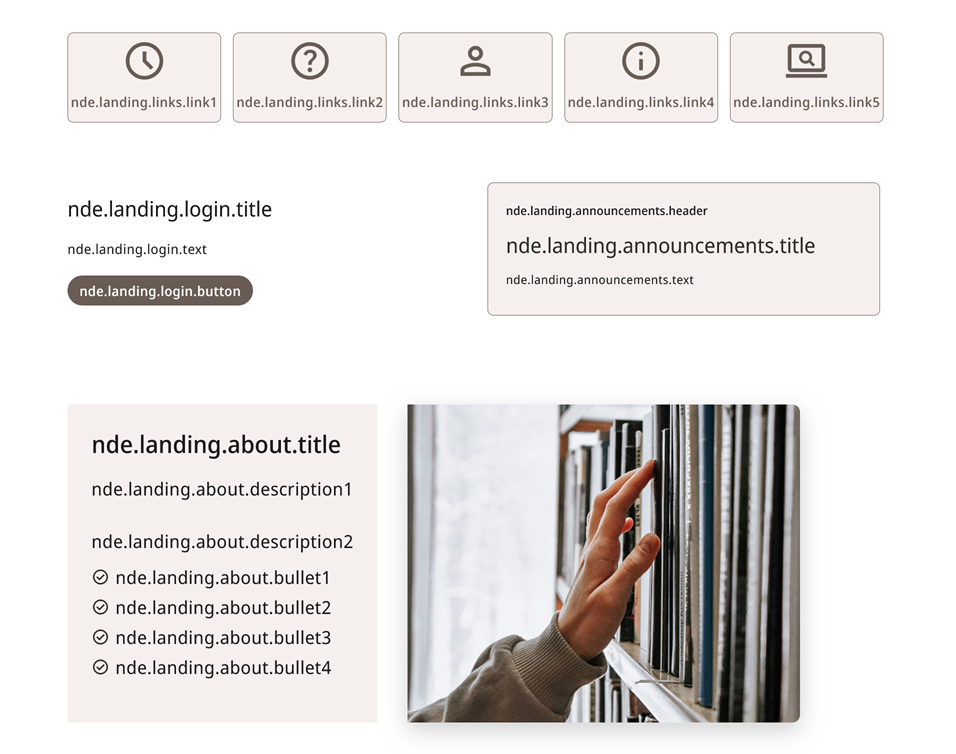
To edit the text that appears within the Welcome, Announcements, and About the Library areas of the page, you need to modify the Labels. You can figure out what label needs to be modified by adding &debugLabels=true to the end of your Primo URL, e.g. https://wrlc-gu.primo.exlibrisgroup.com/nde/home?vid=01WRLC_GUNIV%3AGUQ&lang=en&debugLabels=true
What you'll see looks something like this:
Labels
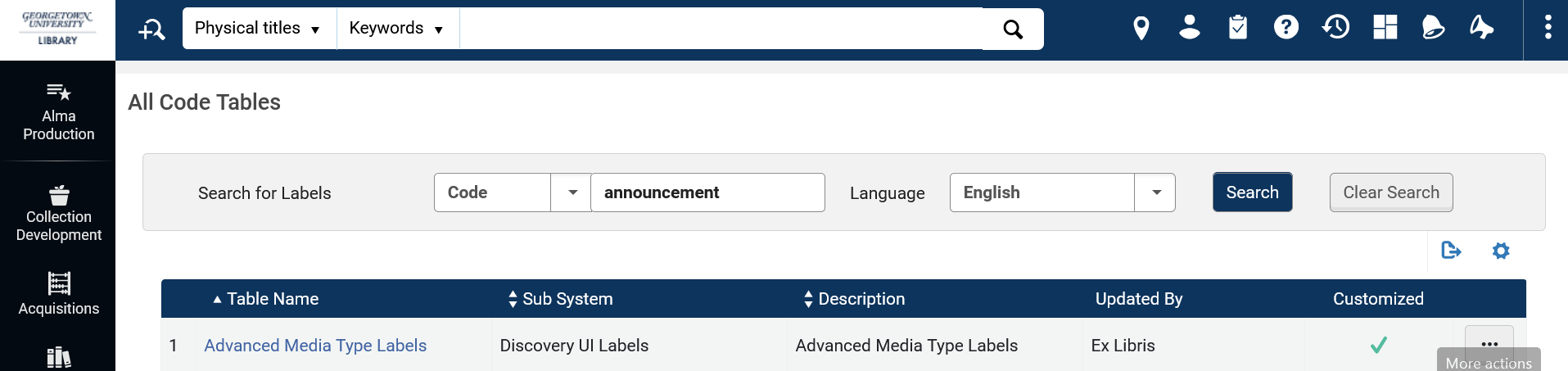
To access the Landing Page Labels table, navigate to: Discover > Display Configuration: Labels > then search for the correct Labels table --in the screenshot, I searched for announcement but you can also search landing, for example.
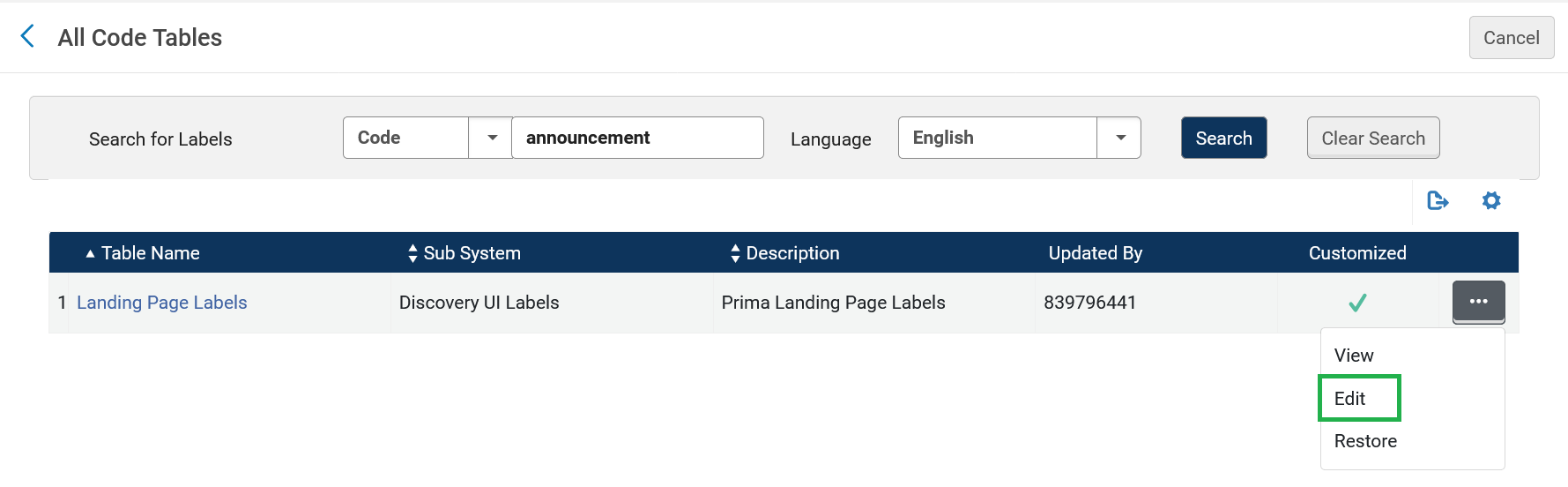
To be able to Edit the labels, you MUST click the three dots and select Edit. Clicking the table name takes you to the read-only view.
The labels in the list often display in a seemingly random order, so you may need to scroll or search for the label you want to edit.
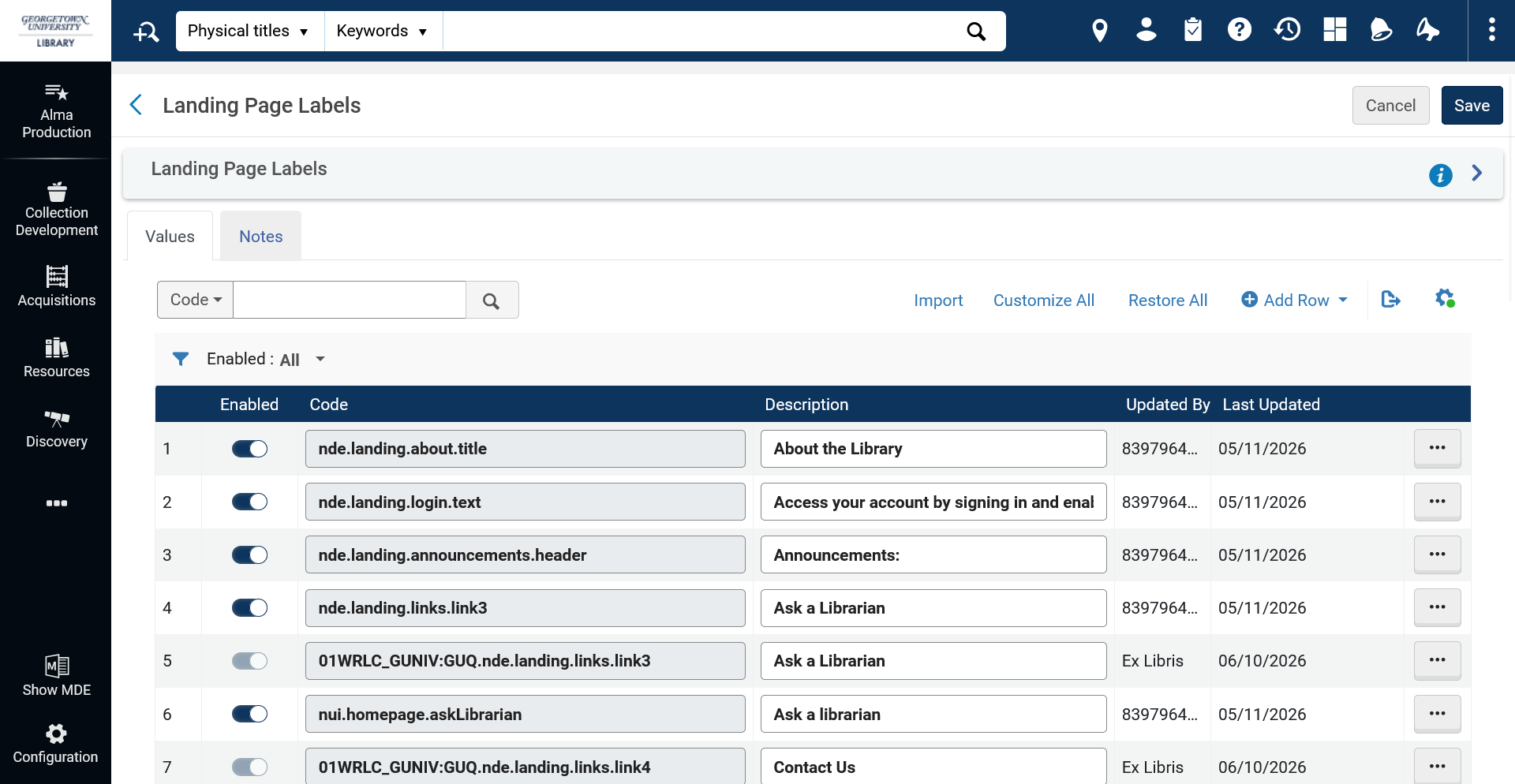
If you've already made changes to your link text, you'll see those added labels in this list, like 01WRLC_GUNIV:GUQ.nde.landing.links.link3 which is "Ask a Librarian"
Notice that this label is preceded by the View Code -- this is important if you have more than one view. Any label that is specific to one view MUST have the View Code at the beginning of the label code.
Adding a View-specific label
We want a different announcement title and text for our GU-Q Library, and the 01WRLC_GUNIV:GUQ.nde.landing.announcements.title label doesn't yet exist. So we need to add a new label by clicking Add Row at the top of the list and entering the label code and the desired text. In this case, I'm adding a new Announcement Title for GUQ:
Code: 01WRLC_GUNIV:GUQ.nde.landing.announcements.title
Description (i.e. visible text): New GU-Q Online Resources
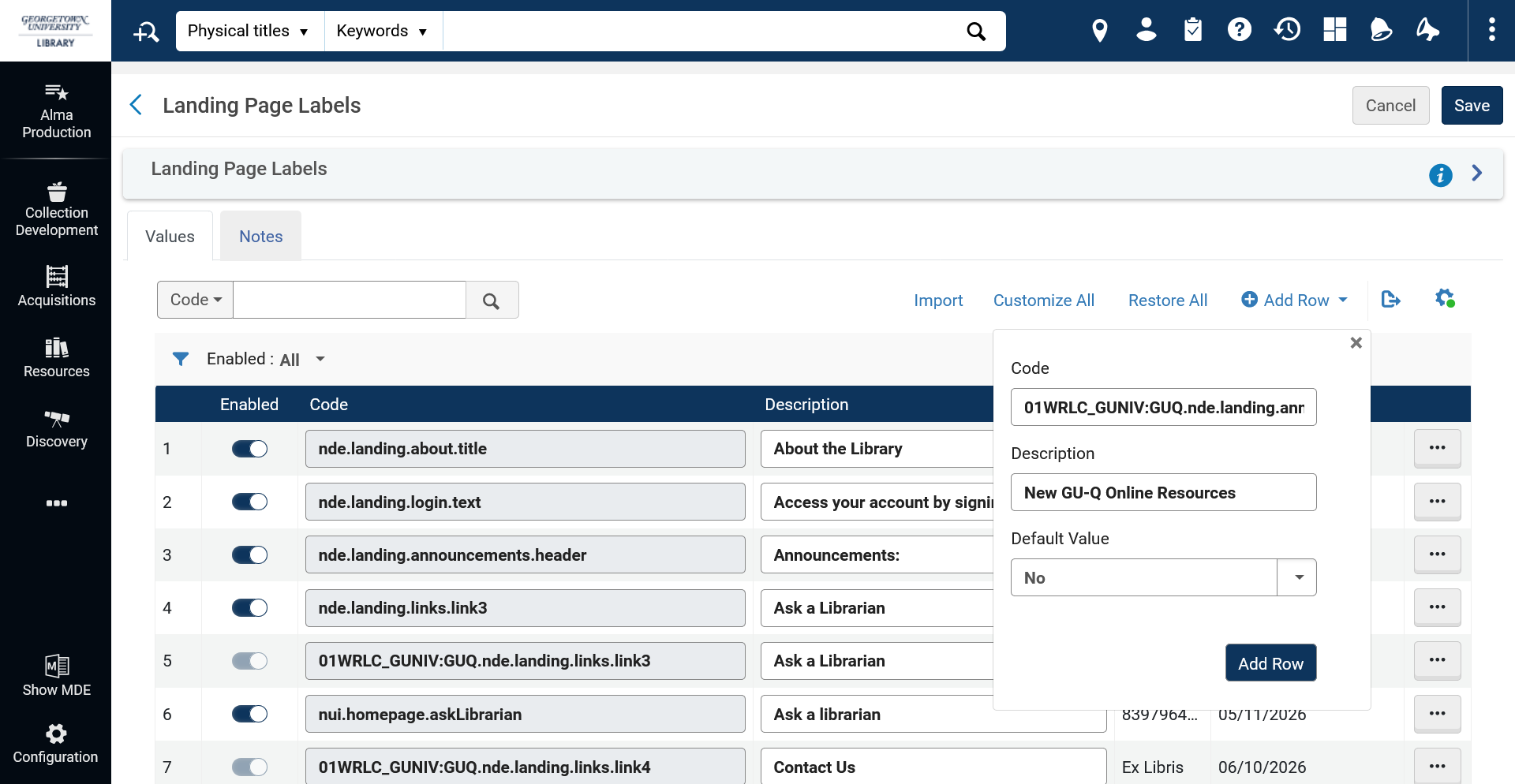
Click Add Row when you're satisfied with your new text, and the added label will appear at the bottom of the list:
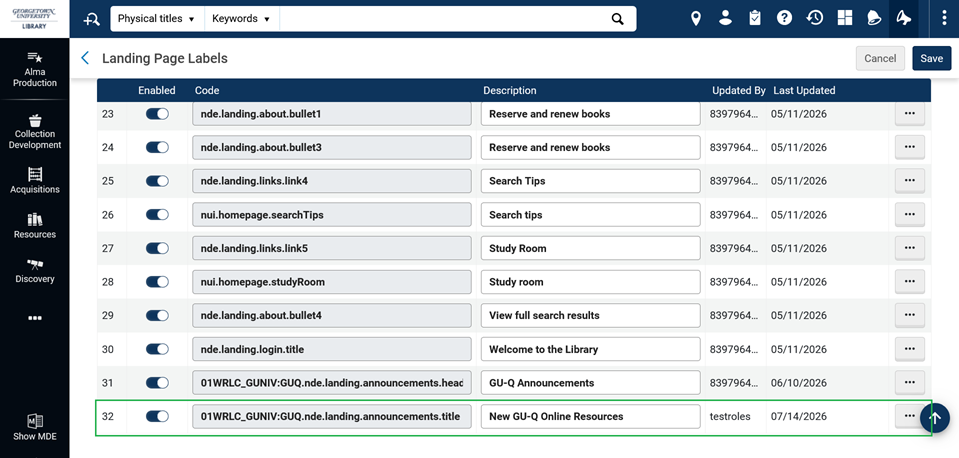
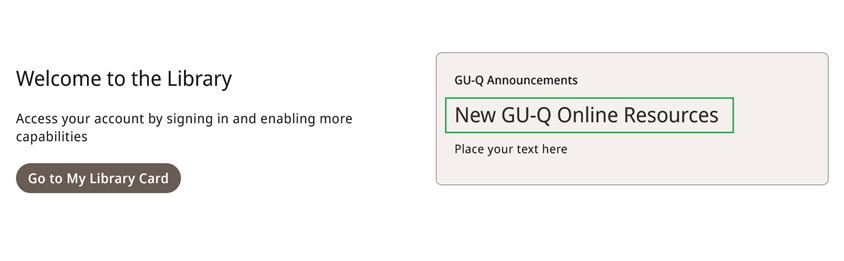
When you're finished making label edits, click Save for the whole table. Reload your Primo page, and the new text should appear:
Once you've added a view-specific label, it will stay there unless you decide to Delete it, so you only have to add them once. After that, you just need to edit the text as desired.
Editing a label
If you only have one view OR want to edit the default text that appears, you can edit the Description for the default code. Otherwise, make sure you're editing the label for the correct View.
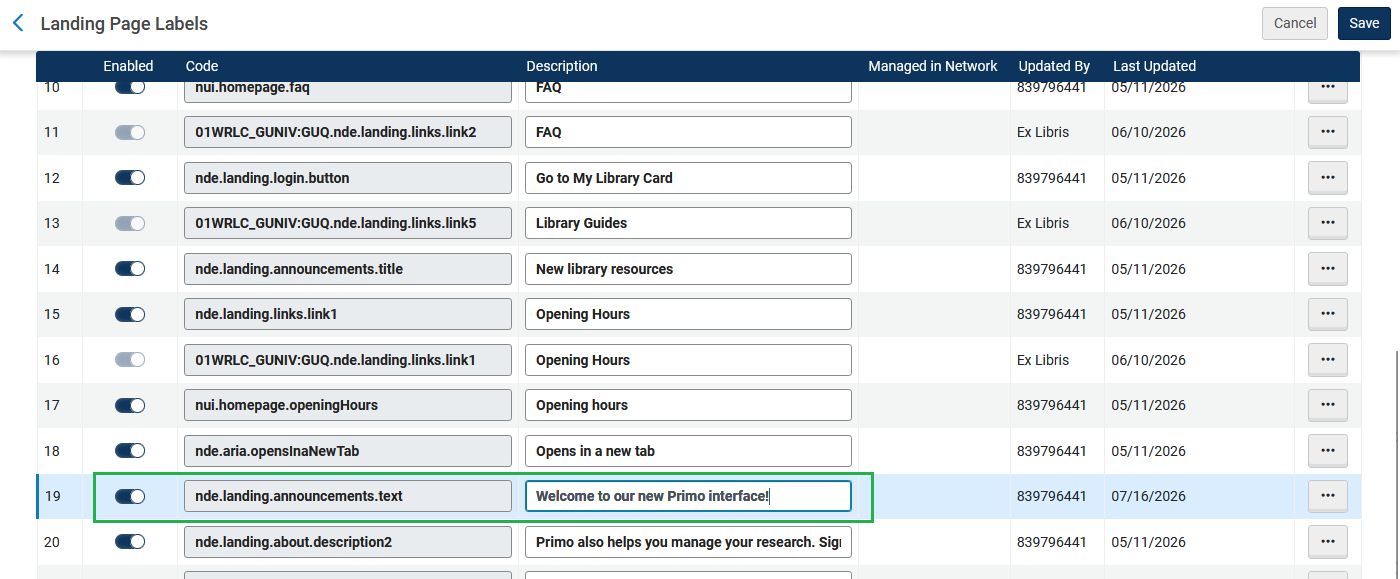
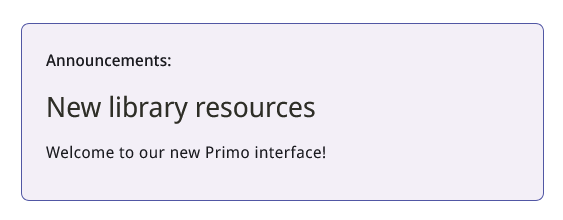
So, for example, if I want the default Announcements text to read "Welcome to our new Primo interface!" I'd edit nde.landing.announcements.text to say that, then click the Save button.
The Announcements section now has the new text:
Any label listed in this table can be edited, just make sure you're editing the correct one.
Label Tips
For labels that have more text than is visible in the text box in Alma (e.g. the announcement text), write your Description text somewhere else first and then copy it in.
If you have multiple labels to add at one time, you can export the list of what exists in Alma, add your new labels to the spreadsheet, and then import the spreadsheet. This has the benefit of re-sorting the labels alphabetically, though it may also change the Updated By and Last Updated field for labels you didn't actually modify.
Unknowns
as of 17 July 2026
HTML
It's not yet documented which labels on the Landing Page allow HTML or which HTML tags are supported. The supported HTML tags don’t all seem to work--for example, links work in the announcement text, but a bulleted list does not display as expected.
Selective label suppression
Generally speaking, if you want a specific label not to display, you change the Description field to NOT_DEFINED and that suppresses it from Primo. However, doing so for the Landing Page Labels leaves behind odd spaces and sometimes built-in formatting, e.g. if 01WRLC_GUNIV:GUQ.nde.landing.about.bullet3 is NOT_DEFINED, it looks like this:
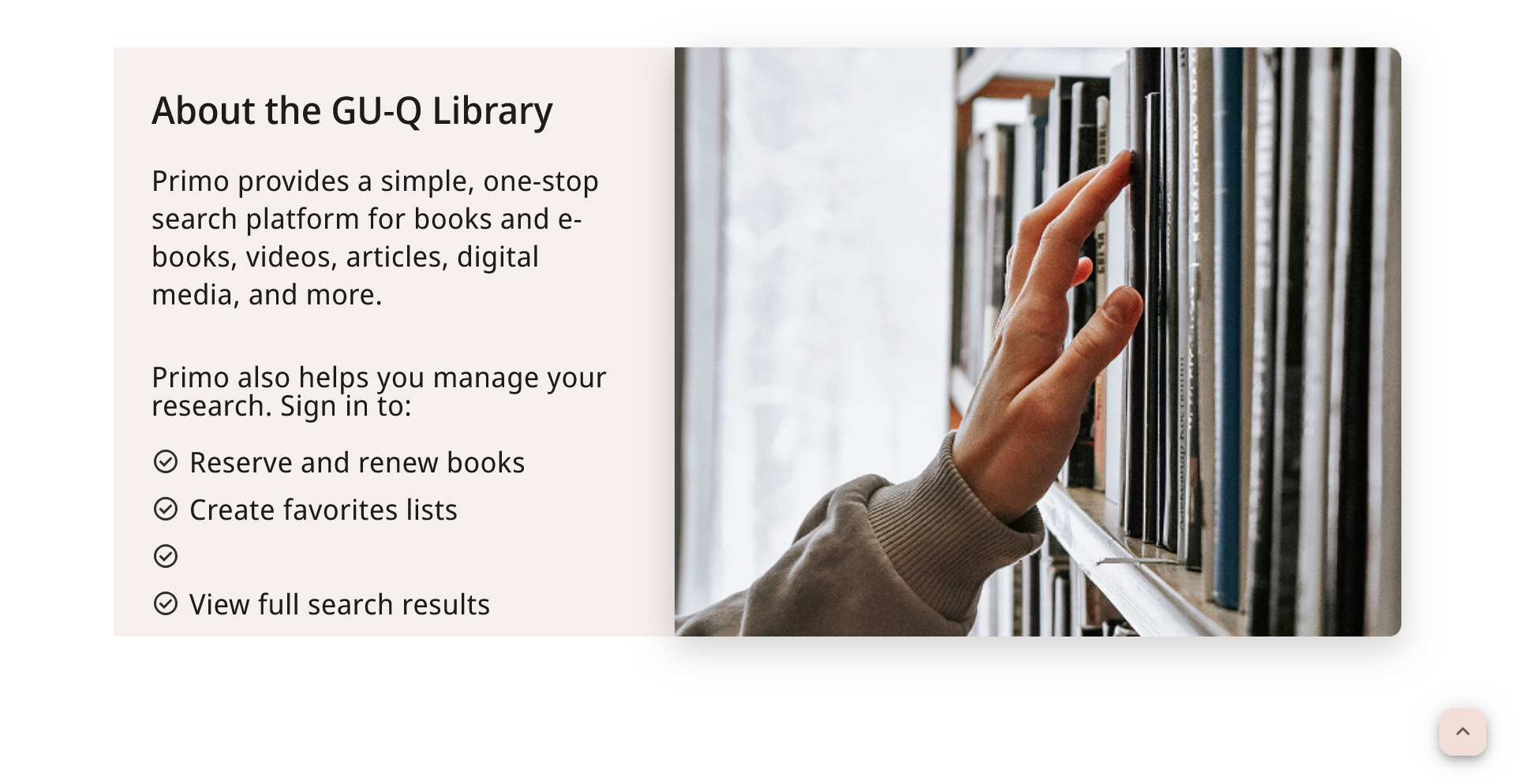
For the moment, it’s recommended to either hide the entire section, or make use of all of the labels that are present.