Renewing Lost Items
This workflow explains how to renew an item that is currently in Lost status on a patron’s account in Alma.
Use this workflow when:
- A patron still has the item and needs more time
- Staff determine the item should remain on loan instead of being billed as lost
- The item was manually or automatically changed to Lost, but the loan should continue
Note: In Alma, a loan in Lost status cannot simply be renewed as-is. Staff must first change the item from Lost back to Normal using <Found Item>, and only then renew the loan or change the due date. Ex Libris documents Found Item as the action used to remove Lost status from an active loan in Manage Patron Services.
Required Roles
- Fulfillment Operator
- Circulation Desk Manager
1: Locate the Patron Record Navigate to Fulfillment > Checkout/Checkin > Manage Patron Services> Search for and open the patron record
Note: The Lost status must be applied to the active loan itself. This step ensures fees and notifications are correctly tied to the borrowing patron.
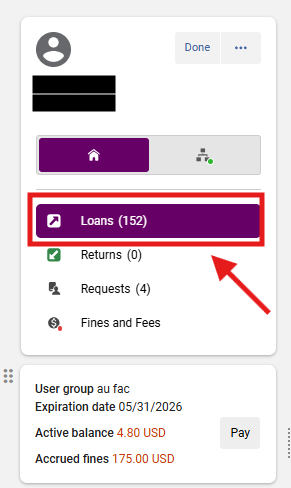
2: Open the Loans Tab Select the <Loans> tab
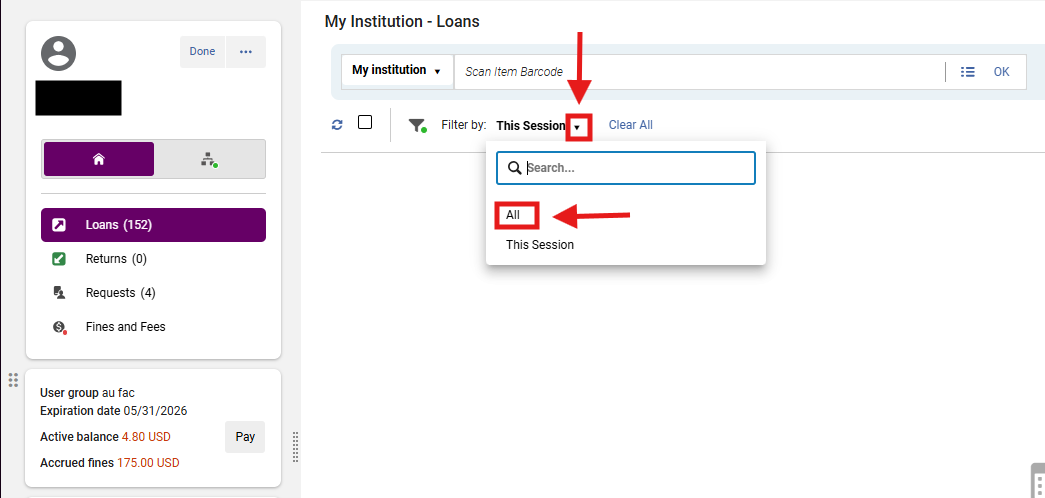
3: Display All Loans In the Loan Display dropdown, select <All>; Locate the item that should be marked Lost
Note: The item may not appear under a filtered session view. Switching to All ensures you are working with the correct active loan.
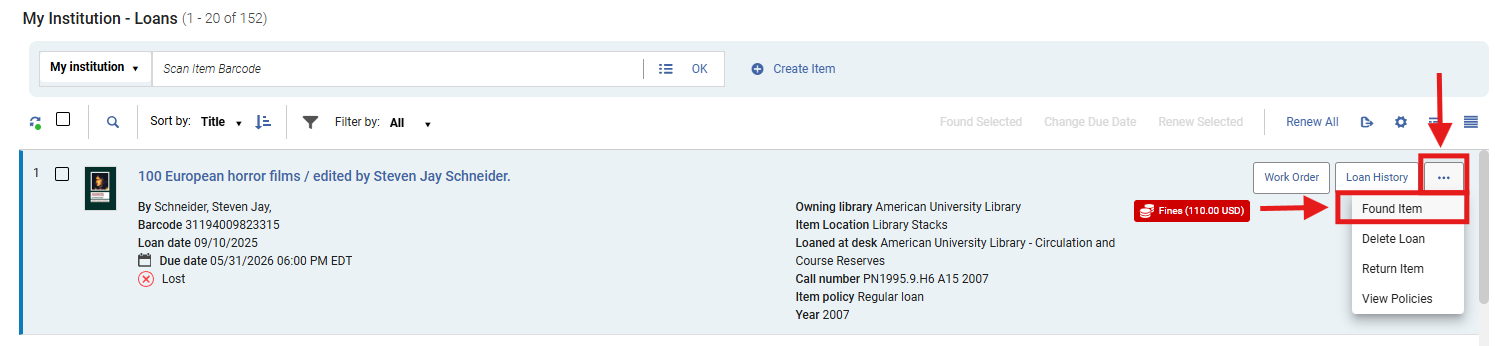
4: Remove the Lost Status In the loan row, open the row action menu (⋯); Select <Found Item>
- This changes the item’s loan status from Lost back to Normal.
Note: A lost item cannot be renewed until Lost status is removed. In Alma, Found Item is the correct action for reversing Lost status on an active loan.
5: System Confirmation Messages After selecting <Found Item>, Alma displays confirmation notifications on the right-hand side of the screen.
- Green (success notification): Loan was successfully declared as found
- Type: Success confirmation
- Meaning: The action completed successfully
- In this case:
- Lost status → successfully removed
- Loan updated
- Blue (informational notification): Lost item check in: 100.0% of 110.00 USD replacement fee will be refunded
- Type: Informational financial notification
- Meaning: A system process occurred (not just status change)
- In this case:
- Refund logic triggered
- Fee adjustment applied
Note: The replacement fees are determined per the Terms of Use configurations
6: Review the Patron’s Charges After using <Found Item>, review the patron’s Active Balance and Fines/Fees tab
If the item became lost in Alma, the replacement charges are typically reversed automatically when the item is marked Found, depending on local configuration. Ex Libris notes that lost-loan refund behavior is configuration-based, including refund ratios and related fee settings.
7: Renew the Loan or Change the Due Date After Lost status is removed: Open the row action menu (⋯) again for the same item
- Choose one of the following:
- <Renew> to apply the normal renewal rules
- <Change due date> to manually set a future due date
Note: Use <Renew> when the loan should follow standard policy. Use <Change due date> when staff need to set a specific exception date.
6: Confirm the Updated Loan Status
- Verify that:
- The item is no longer marked Lost
- The due date has updated correctly
- Any associated fines or fees have been reviewed
Frequently Asked Questions
-
Why can’t I renew the item while it is still marked Lost?
-
Alma treats Lost as a separate loan status. You must first use <Found Item> to return the loan to normal status before renewing. Ex Libris documents Indicating an Item as Found and Renewing Loans as separate actions within Manage Patron Services.
-
-
What is the difference between <Found Item> and <Return Item>?
-
<Found Item> removes the Lost status but keeps the loan active. <Return Item> ends the loan entirely.
-
-
Will Alma always remove the patron’s replacement fee automatically?
-
Not always. Lost-loan refund behavior depends on Fulfillment configuration.
-
-
Should I use <Renew> or <Change due date>?
-
Use <Renew> when standard renewal rules should apply. Use <Change due date> when staff need to set a specific exception date.
-
-
What if the patron still has blocks or other restrictions?
-
Renewal may still fail if Alma detects a patron block or another policy restriction; Renewal behavior is governed by loan rules and blocking preferences.
-
-
Does this apply to automatically lost items too?
-
Yes. Alma changes overdue items to Lost through configured Lost-Loan profiles, and those loans still need to be returned to normal status before ordinary loan actions continue.
-