Item's Home Institution: Marking Items Claimed Return
This workflow explains how to mark an item as Claimed Returned in Alma when a patron states they have already returned an item, but the system still shows it as on loan.
When to Use this Workflow
-
A patron disputes responsibility for an item
-
An item is believed to have been returned but is not accounted for
-
Staff need to pause billing or escalation while investigating
-
The item cannot be immediately located
When an item is marked as Claimed Returned:
-
The loan remains attached to the patron
-
The item status changes to Claimed Returned
-
Investigation can begin without immediately applying Lost status or replacement fees
Note: This status prevents premature billing and supports fair investigation before determining financial responsibility.
Required Roles
- Fulfillment Operator
- Circulation Desk Manager
1: Locate the Patron Record Navigate to Fulfillment > Checkout/Checkin > Manage Patron Services> Search for and open the patron record
Note: The Lost status must be applied to the active loan itself. This step ensures fees and notifications are correctly tied to the borrowing patron.
2: Open the Loans Tab Select the <Loans> tab
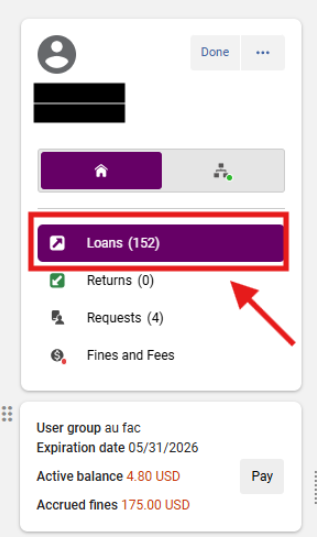
3: Display All Loans In the Loan Display dropdown, select <All>; Locate the item that should be marked Lost
Note: Some items may not appear under <This Session>. Always verify using the full Loan list.

4: Apply Claimed Returned Status Open the row action menu (⋯) for the item; Select <Claimed Return>
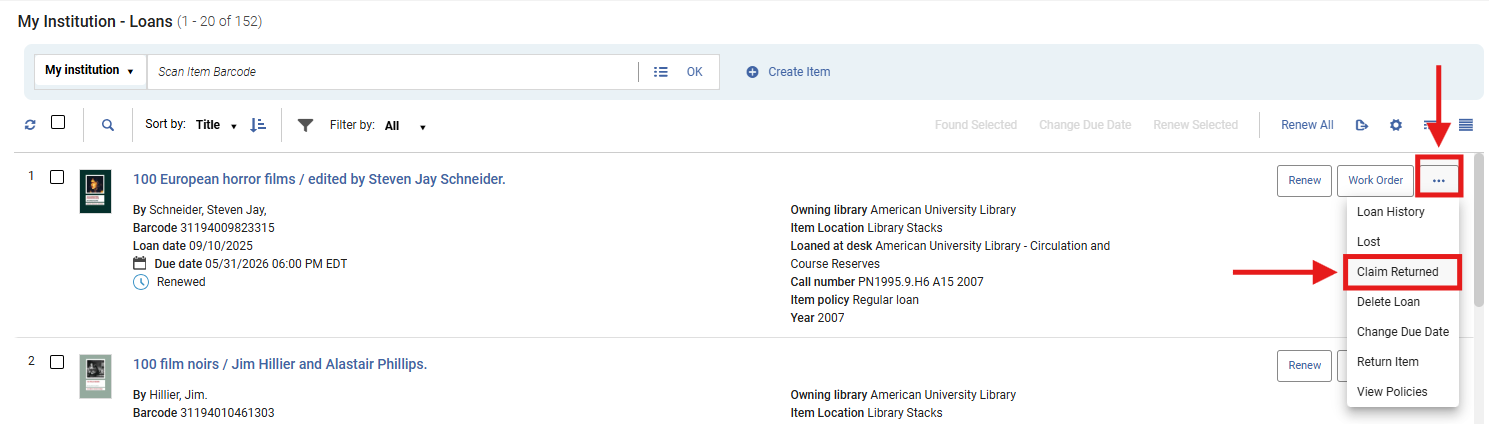
- Optionally, enter a note documenting:
- Patron statement
- Date of claim
- Any relevant context
- Select <Claimed Return>
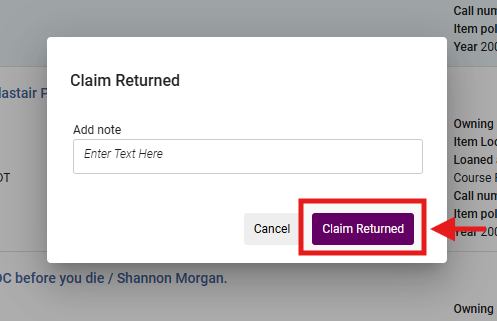
- A dialog box will appear from the right-hand side of the menu stating, "Loan was successfully declared as claimed returned"
- The item status will update to Claimed Returned

If the Item Is Currently Marked Lost
1: Remove Lost Status First Open the row action menu (⋯); Select <Found Item>
Note: Alma does not allow an item to be both Lost and Claimed Returned. The Lost status must be cleared before applying Claimed Returned.
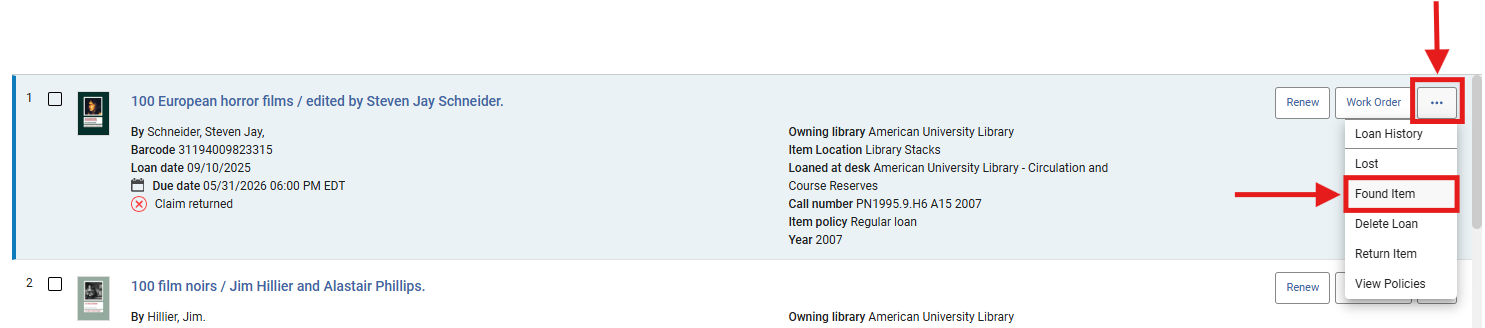
2: Apply Claimed Returned Status Open the row action menu (⋯) again; Select <Claimed Return>
What Happens After Applying Claimed Returned
- The item remains on the patron’s account
- The loan is flagged for investigation
- Automatic lost billing is typically paused (configuration dependent)
- Staff are expected to perform a physical search per their library's in-house policies
Frequently Asked Questions
- What is the difference between Claimed Returned and Lost?
- Claimed Returned = investigation stage
- Lost = final determination with billing
- Does this remove the loan from the patron?
- No. The loan remains active until resolved
- What should I include in the note?
- Date of claim, patron explanation, and any relevant staff observations
- What if the item is later found?
- Simply discharge it using <Return Items>
- What if the item belongs to another consortium library?
- Coordinate with CLS or resource sharing workflows; CLS items can only be marked as Lost within its home IZ
- Can I skip Claimed Returned and mark the item Lost?
- Yes, but be sure to review your library's Claimed Return policies