How to Set an Item Status to Missing
This workflow explains how to manually set a physical item’s status to <Missing> in Ex Libris Alma when the item cannot be found during shelf checks, fulfillment requests, or inventory reconciliation. Manually setting an item to <Missing> ensures accurate holdings information, prevents further requests, and helps maintain the integrity of Catalog and Analytics reports.
- Item records must have a current shelf status of <Item in place> in order to have the <Missing> status applied manually.
- Items in transit, on loan, or under work order cannot be toggled to <Missing> until their current status is resolved.
Required Roles
The options available under the Fulfillment menu are dependent upon your assigned user roles. Your list of options may be different than the screenshots included below. If you do not have the necessary options, you will need to work with your institution's User Administrator to be assigned the appropriate roles for your work.
To complete Fulfillment tasks outlined in this document, you must have one or more of the following roles:
- Fulfillment Operator
- Circulation Desk Manager
- Physical Inventory Operator (optional)
Note: If you do not see <Toggle Missing Status> in the <More actions> menu, your user account may lack the necessary privileges. Contact your supervisor or system administrator for role verification.
1: Search for the Item Record Using the <Physical Items> search ensures you’re retrieving individual item records, not holdings or bibliographic records. This level of specificity allows direct access to item statuses.
- Use the persistent search box at the top of the Alma screen.
- Using the drop-down menu, set the search type to <Physical Items>.
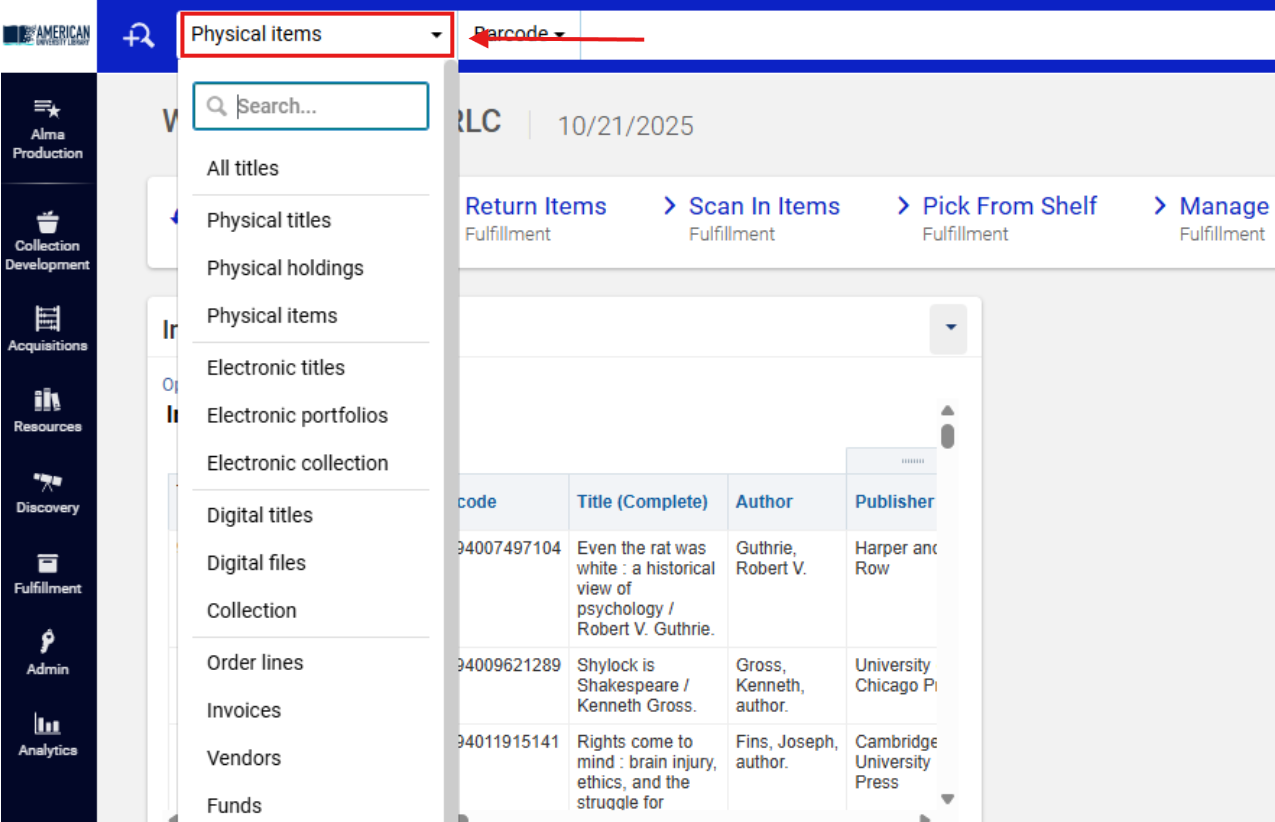
- Using the second search bar filter, Select Title, Barcode or MMS ID of the Missing Item
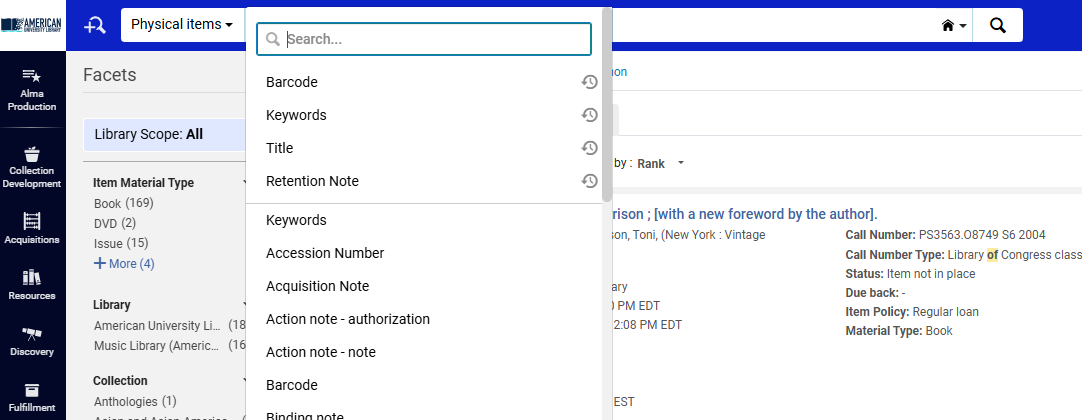
- Enter the title, barcode, or MMS ID of the missing item.

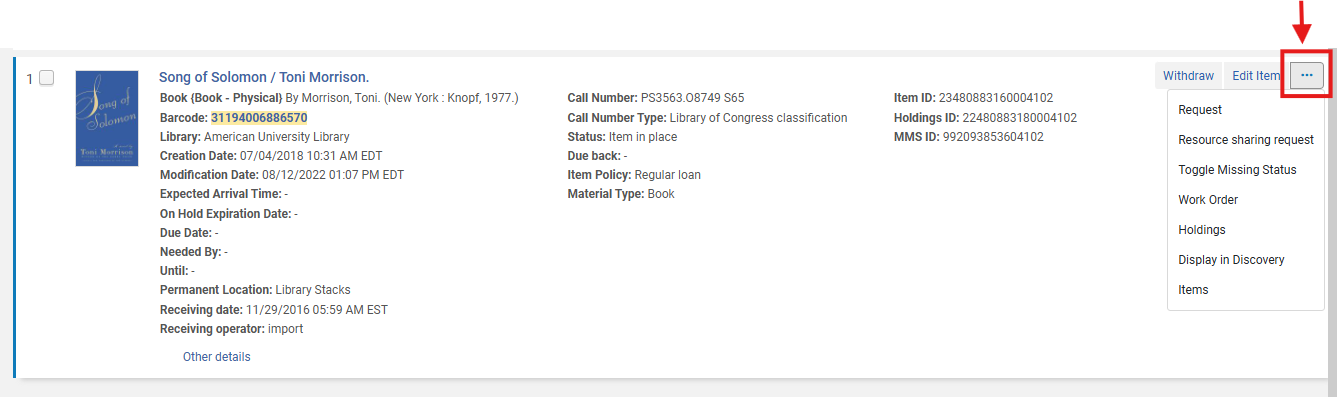
2: Open the <More Actions> Menu When you locate the correct item record, click the row action menu ellipsis (⋯) on the right-hand side of the record line to open the <More actions> menu. The <More actions> menu provides record-level management options such as editing, toggling statuses, and initiating work orders. Only this menu allows manual updates to the <Missing> flag.
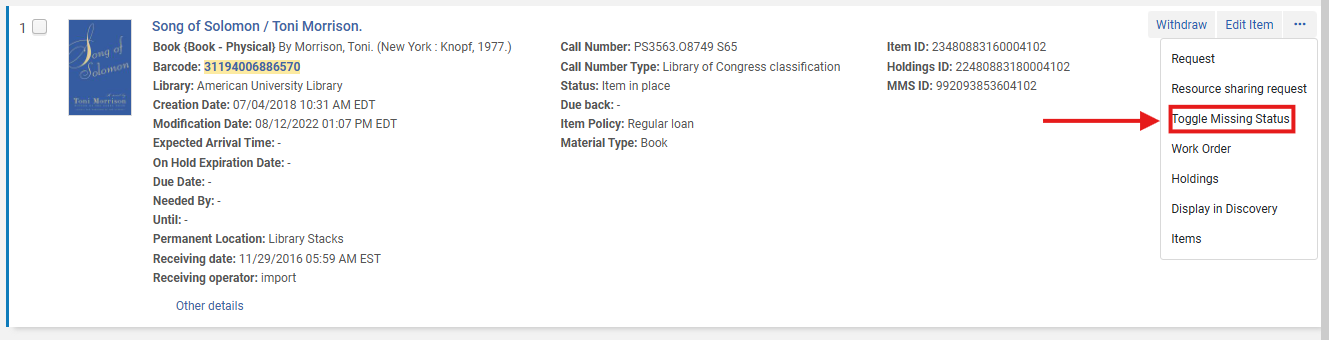
3: Select <Toggle Missing Status> From the drop-down menu, select <Toggle Missing Status>. The item is now recorded as Missing in Alma. This action immediately updates the item’s process type to Missing, removing it from the Item in place inventory count and from active fulfillment requests.
Toggling this status also updates associated availability displays in Primo VE.
4. Missing Status Confirmation Update A pop up window will publish from the right hand sign of the screen- confirming the update has been successfully completed
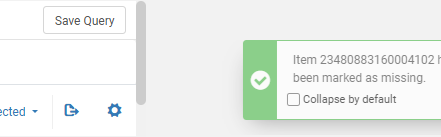
5: Restore the Item When Found If the item is later located, you can revert its status to <Item in place> by:
- Repeating the steps above and selecting <Toggle Missing Status> again, or
- Simply checking the item in using Fulfillment > Checkout/Checkin> Manage Item Returns
Checking an item in automatically clears the Missing status, ensuring the record accurately reflects the item’s physical availability.
Frequents Asked Questions
- What if I can’t toggle the Missing status?
- Check the item’s process type. Only items listed as Item in place can be toggled manually.
-
What if the item doesn’t have a shelf status of Item in place?
-
You must first clear or complete its current process type (e.g., in transit, work order). Items with active requests or transit statuses cannot be toggled to Missing until resolved.
-
- Can I toggle the Missing status for items belonging to another institution?
- No. You can only modify records belonging to your home institution’s Inventory Zone (IZ).
-
Can I mark multiple items as Missing at once?
-
No. Alma’s manual toggle applies to one record at a time. For batch updates, use an import job under: Admin > Manage Jobs> with the <Change Physical Items> profile.
-
-
Does marking an item Missing cancel existing patron requests?
-
Yes. Ex Libris confirms that when an item becomes Missing, Alma automatically cancels open requests for that item
-
-
How soon does the change appear in Primo VE?
-
Almost immediately. The display updates once the daily indexing job runs, usually within 15-30 minutes.
-
-
Can items marked Missing be automatically reinstated?
-
Only when scanned into <Manage Item Returns> or toggled manually.
-
- How can I track missing items over time?
- Use Alma Analytics under Physical Items > Missing Items Report or generate a local fulfillment report.
- Use Alma Analytics under Physical Items > Missing Items Report or generate a local fulfillment report.