How to Renew Items
This workflow explains how to renew checked-out items for a patron in Ex Libris Alma. Renewals extend the due date for eligible items based on fulfillment policies, user groups, and loan terms. Accurate renewals ensure patrons retain needed materials while maintaining compliance with WRLC loan policies and minimizing unnecessary overdue notices.
When to Reference This Document:
- When a patron requests additional time with their borrowed materials.
- When staff process renewals during a desk transaction or remotely by staff intervention.
- When troubleshooting renewal denials or loan policy restrictions.
Required Roles
The options available under the Fulfillment menu are dependent upon your assigned user roles. Your list of options may be different than the screenshots included below. If you do not have the necessary options, you will need to work with your institution's User Administrator to be assigned the appropriate roles for your work.
To complete Fulfillment tasks outlined in this document, you must have one or more of the following roles:
- Circulation Desk Manager
- Circulation Desk Operator
- Circulation Desk Operator - Limited
- Physical Inventory Operator
1: Access the Patron Record Navigate to Fulfillment > Checkout/Checkin> Manage Patron Services
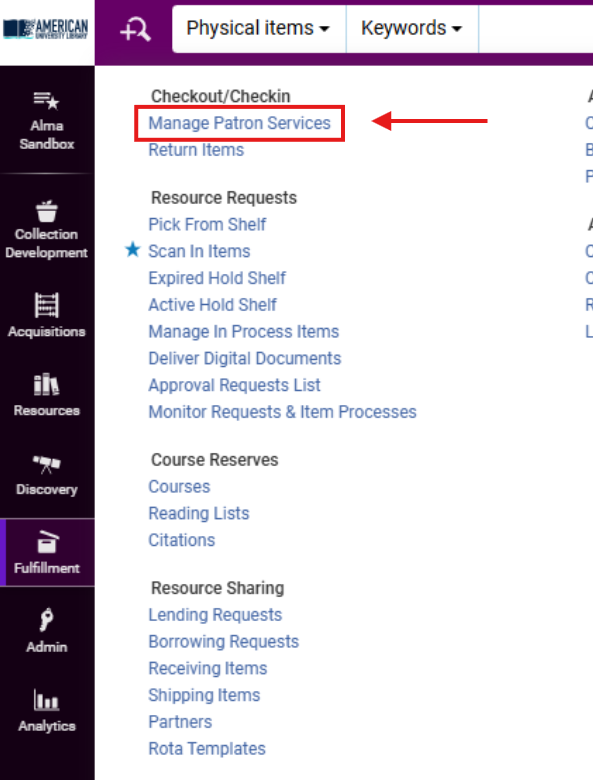
- Look up the patron’s record using their ID, name, or barcode. Accessing the record through Manage Patron Services allows direct control of the patron’s current and historical loans in one interface.


2: Display All Active Loans Confirm that the Loans tab is active on the Patron Services screen. In the Filter by field, change from <This Session> to <All> using the drop-down arrow. Selecting <All> ensures you view every active loan, including those checked out in prior sessions.

3. Renew Items Individually Click on the <Renew> button located within the item's Loan record. Alma applies fulfillment policies and may deny renewal if an item is requested by another patron or restricted by the library’s rules.

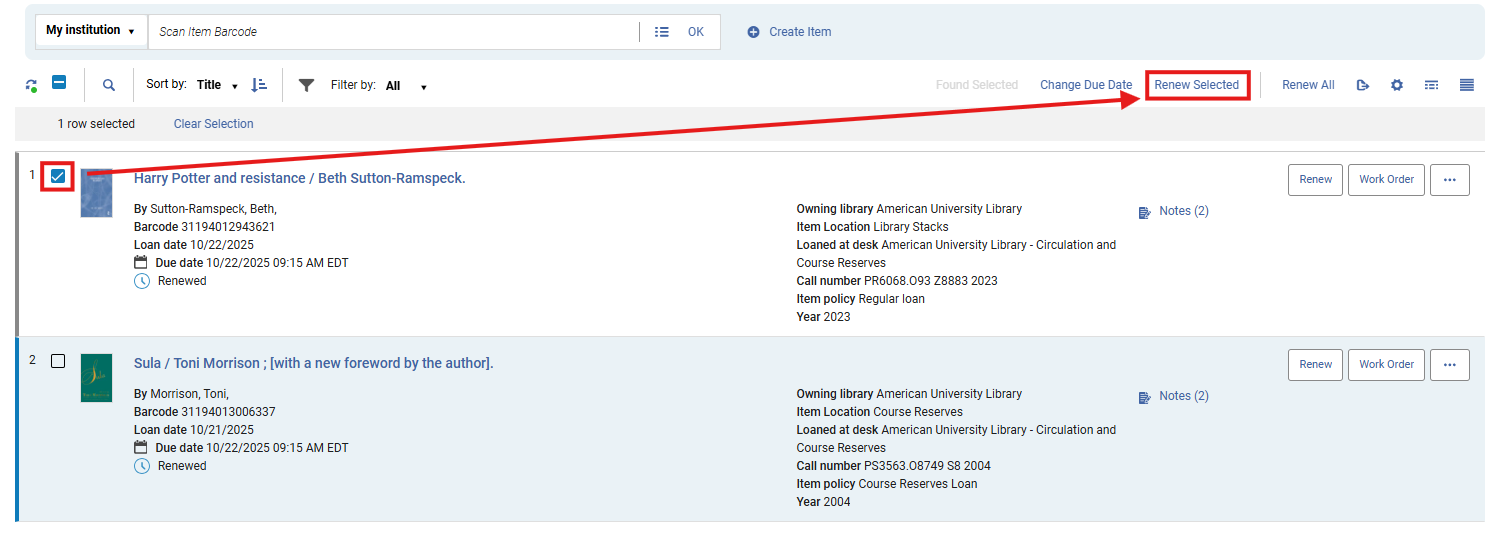
4: Renew Selected Items Click the check boxes to the left of the items to be renewed. Click <Renew Selected>. This renews only the chosen loans.
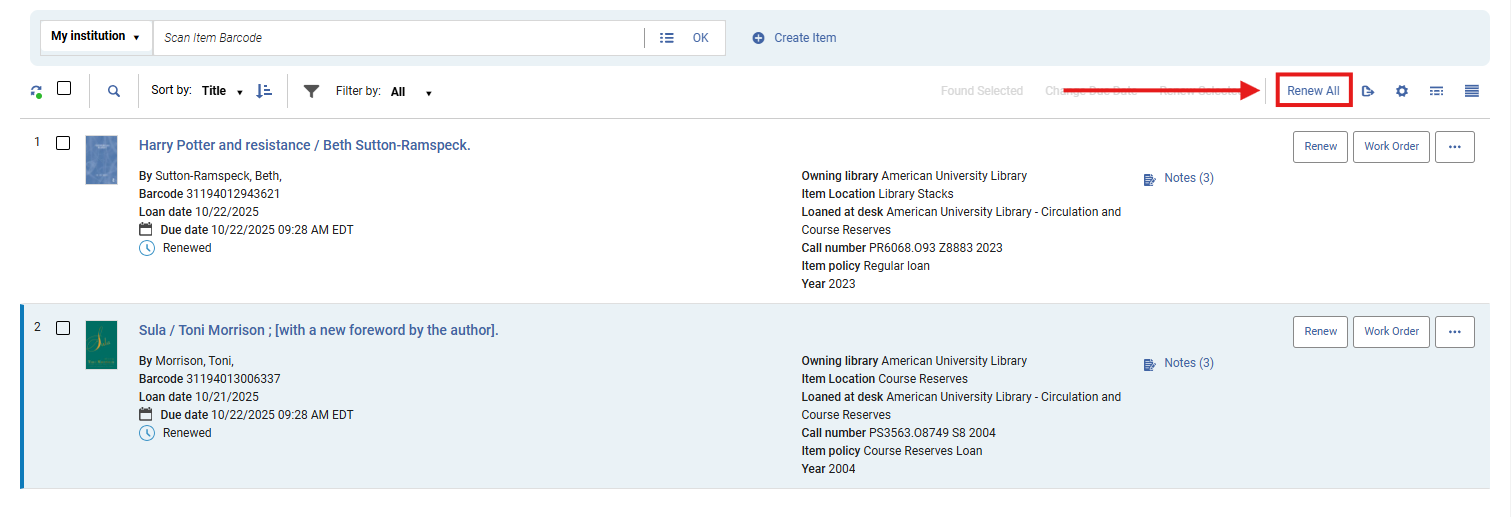
5: Renew All Items To renew all active items, either:
- Click <Renew All>, or
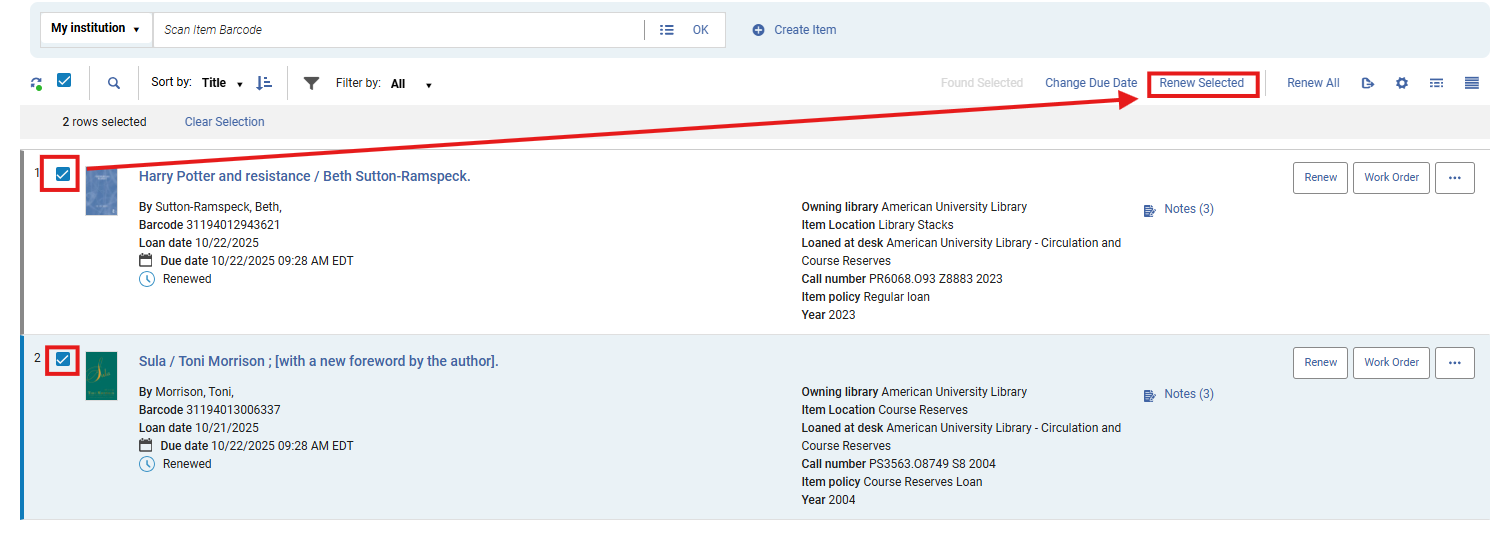
- Select all items using the top check box and click <Renew Selected>. This action streamlines renewals for patrons with multiple eligible items, such as faculty or graduate students with long-term loans.
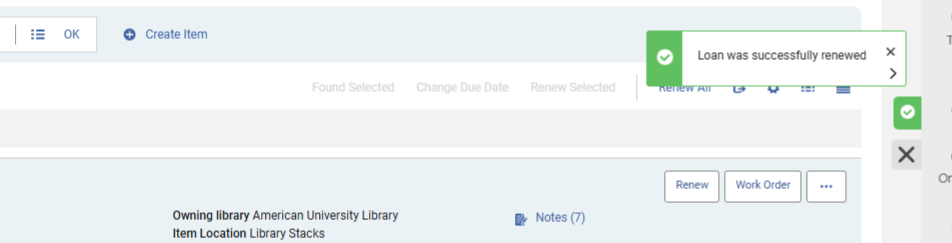
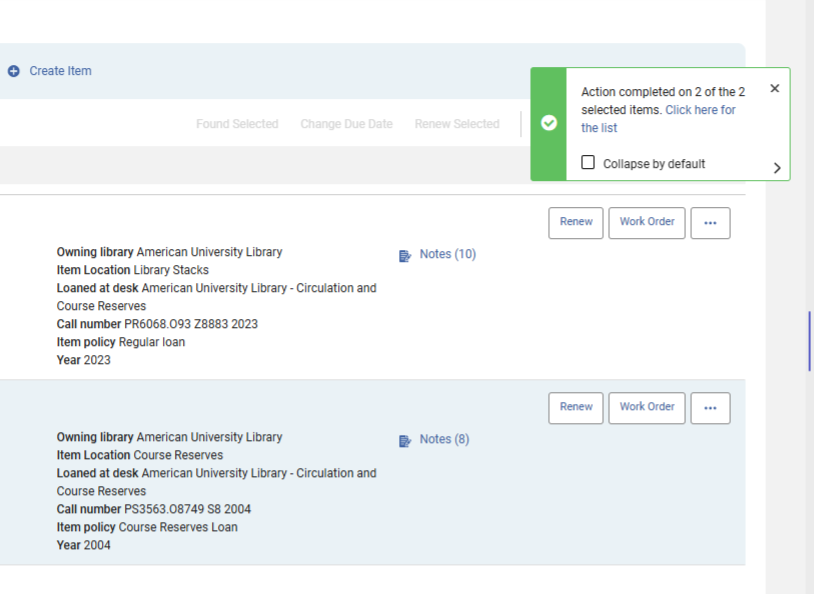
5: Confirm Renewals and Exit Renewed items display updated due dates in the Loans list and a confirmatino pop-up note will also publish from the upper right-hand side of the screen
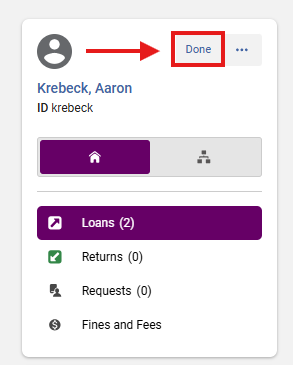
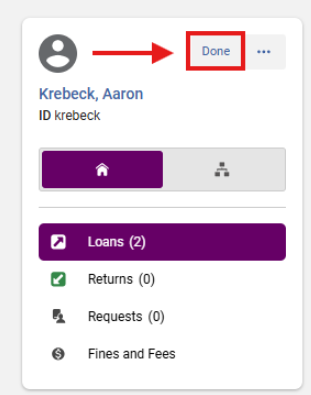
- When finished, continue to other tasks or click <Done> to close the patron session. Closing the session prevents staff from unintentionally editing or renewing another patron’s items.
How to Renew an AFN Loan
Technically, within Alma, only the lending library can renew an item. While patrons have the ability to request a renewal from the My Library account, it may occasionally be helpful to renew an AFN item on behalf of a patron.
1: Access the Patron Record Navigate to Fulfillment > Checkout/Checkin> Manage Patron Services
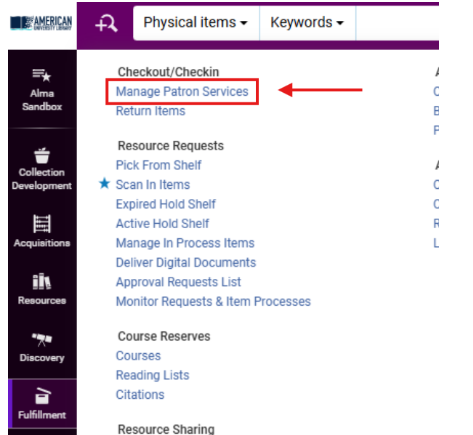
- Look up the patron’s record using their ID, name, or barcode. Accessing the record through Manage Patron Services allows direct control of the patron’s current and historical loans in one interface.

2: Display All Active Loans Confirm that the Loans tab is active on the Patron Services screen. In the Filter by field, change from <This Session> to <All> using the drop-down arrow. Selecting <All> ensures you view every active loan, including those checked out in prior sessions.
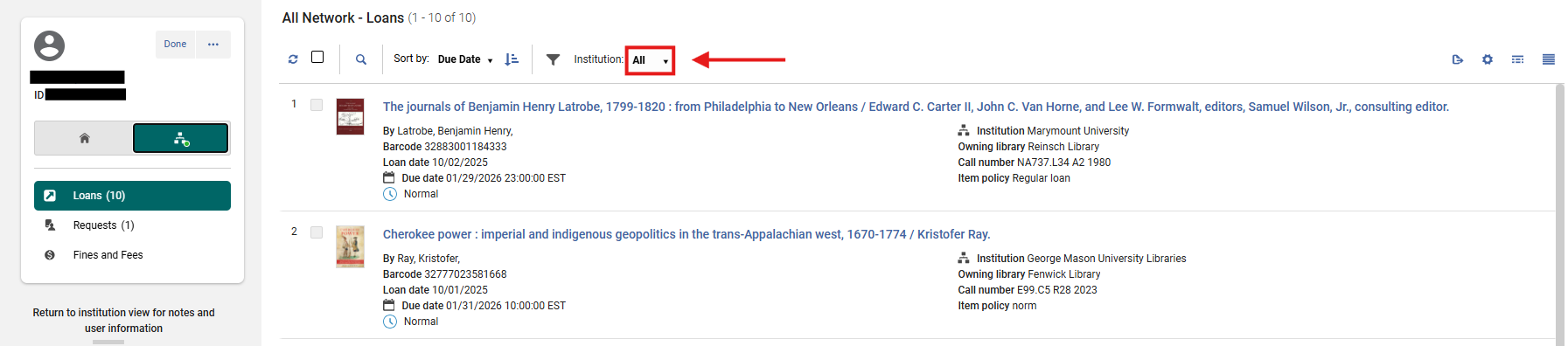
3: Display NZ Loans After ensuring that All loans can be viewed, select the patron's NZ loan account view. If NZ loans exist, a green dot will appear next to the binocular icon
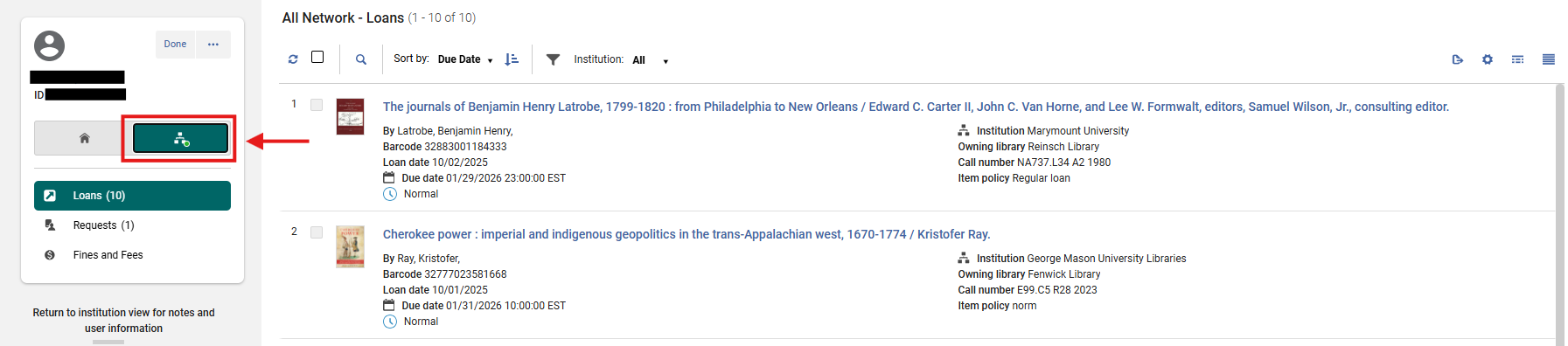
4: Locate the Item to be Renewed Highlight the barcode of the item to be renewed and select the Copy option that appears; take note of the partnering lending institution

5: Select the Patron's Home Institution Once the desired NZ loan's barcode has been copied onto your clipboard, select the home institution Icon to return to the <My Institution> loan field

6: Select AFN Library Click on the My Institution drop-down menu to locate and select the item's home institution
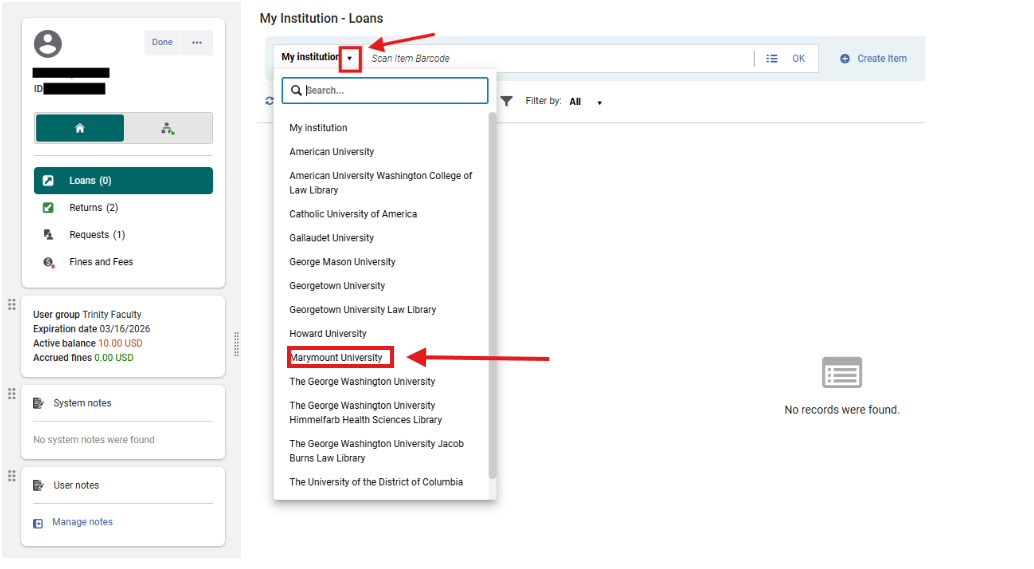
7: Enter the Barcode Paste the copied barcode number into the My Institution-Loans field and select <OK>

8: Confirm Renewals and Exit Renewed items display updated due dates in the Loans list and a confirmatino pop-up note will also publish from the upper right-hand side of the screen

- When finished, continue to other tasks or click <Done> to close the patron session. Closing the session prevents staff from unintentionally editing or renewing another patron’s items.
Frequently Asked Questions
-
What if renewal fails for some items?
-
Alma enforces fulfillment policies: items with holds, recalls, or maximum renewal limits cannot be renewed. Review the on-screen message for specific reasons.
-
-
Can staff override renewal blocks?
-
Yes, if you have the <Circulation Desk Manager> role and local policy allows. Otherwise, renewals denied by loan rules must be handled by authorized staff.
-
-
Will Alma notify patrons of new due dates automatically?
-
Alma sends updated loan notices through the configured Fulfillment notification job.
-
-
Can I renew items from the <Manage Patron Services> screen without viewing “All” loans?
-
You can, but only items from the current session will appear. Selecting <All> ensures no active loans are overlooked.
-
-
Can patrons renew items themselves in Primo VE?
-
Yes, provided no blocks exist and the library’s policies permit patron-initiated renewals.
-
-
What if an item has a fulfillment note?
-
A pop-up message appears when you attempt to renew it. Follow the note’s instructions before proceeding.
-
-
Are renewal actions tracked in Analytics?
-
Yes. Alma logs renewal counts by operator, date, and location for reporting under Fulfillment > Loans > Renewal Events.
-