How to Manage Item Holds
This workflow explains how to process items with hold requests. It covers when to send items to the hold shelf, how to manage active and expired holds, and how to reshelve, forward, or activate subsequent requests.
When to Reference This Document:
- When checking in items that trigger hold requests.
- When reviewing and managing materials currently on the hold shelf.
- When processing expired holds or activating next-in-line requests.
Required Roles
- Fulfillment Operator
- Circulation Desk Manager
1: Identify Items to Send to the Hold Shelf During check-in, if an item has a hold, a pop-up alert will appear indicating the destination (the hold shelf).
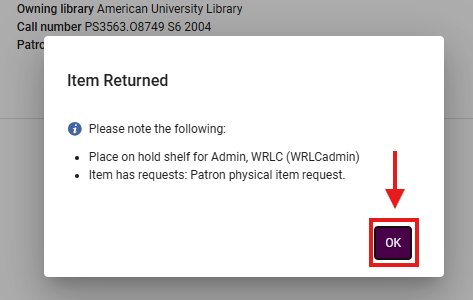
- Click <OK> to confirm the message and continue processing.
Why This Matters: This pop-up is Alma’s prompt that a pending request exists. Routing it correctly ensures the request is fulfilled and the item doesn’t re-enter general circulation.
2: Review Request Details On the Manage Item Returns screen, a <Requests> button appears next to items with active holds. The “Next step” column indicates where each item should be sent.

- Click <Requests> to view detailed information about the hold.
3: Place the Item on the Hold Shelf After verification, place the item on your library’s hold shelf following local procedures (e.g., alphabetical by patron last name or request number).
4: Manage Active Holds To view and manage all current holds, navigate to Fulfillment > Resource Requests> Active Hold Shelf> the Active Hold Shelf Items screen opens.
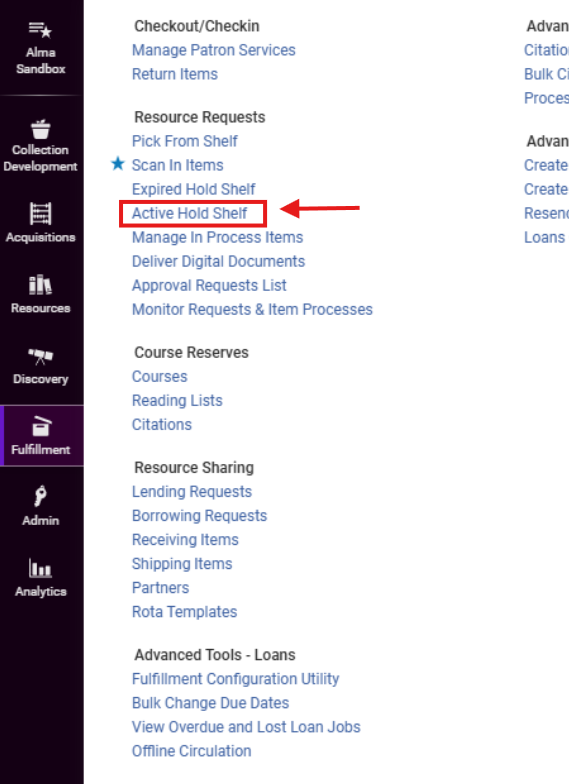
- Available actions include:
- Sort items: Use the <Sort by> drop-down to reorder the list by call number, date received, or patron
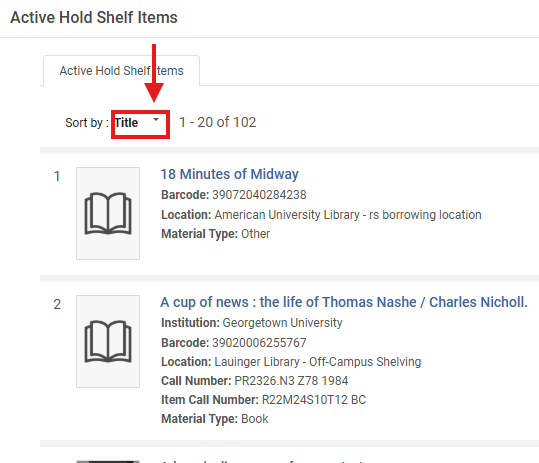

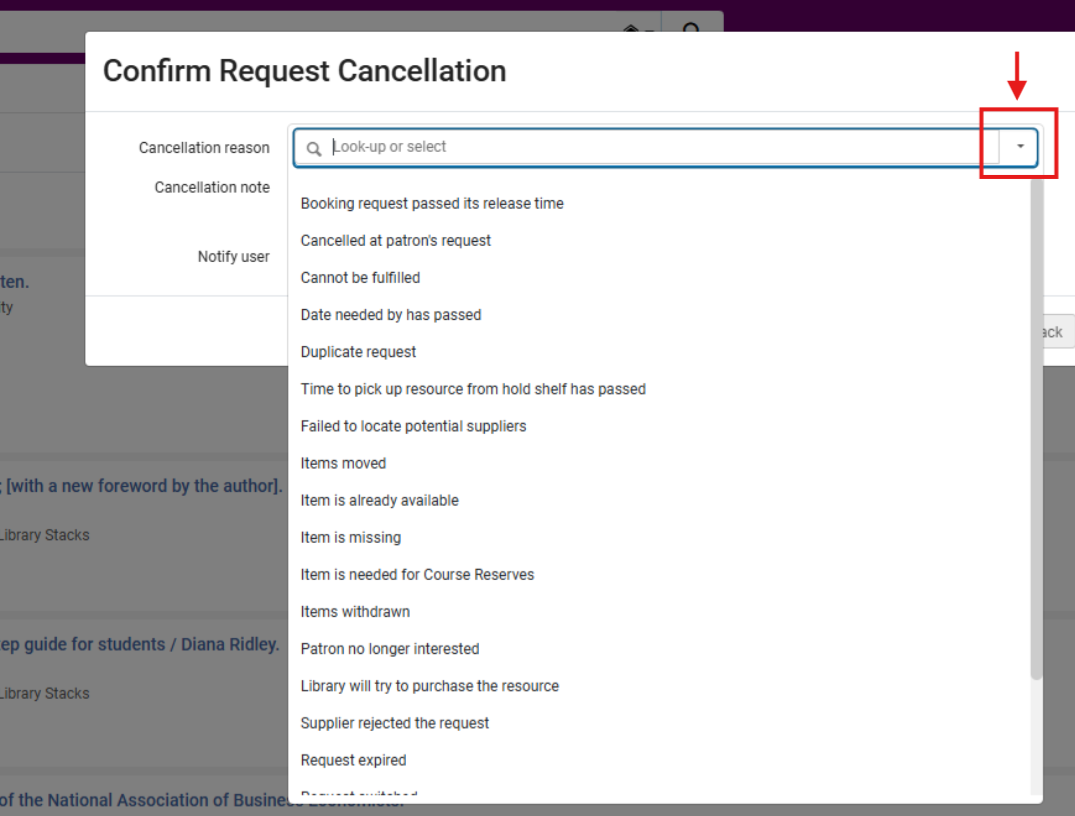
- Cancel a hold: Click <Cancel Request> in the item line.
-
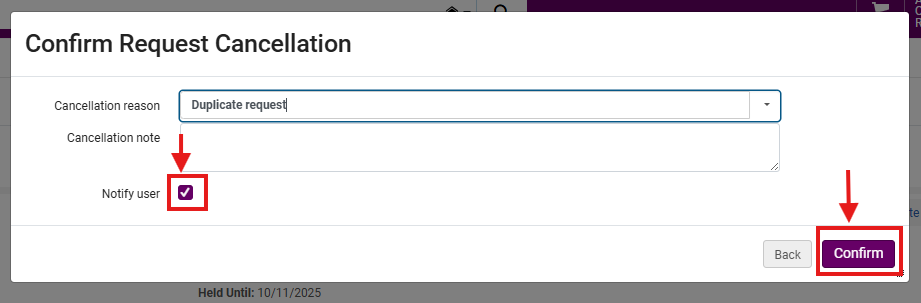
- In the confirmation pop-up, choose a cancellation reason, optionally add a note, uncheck Notify user if appropriate, then click <Confirm>
-
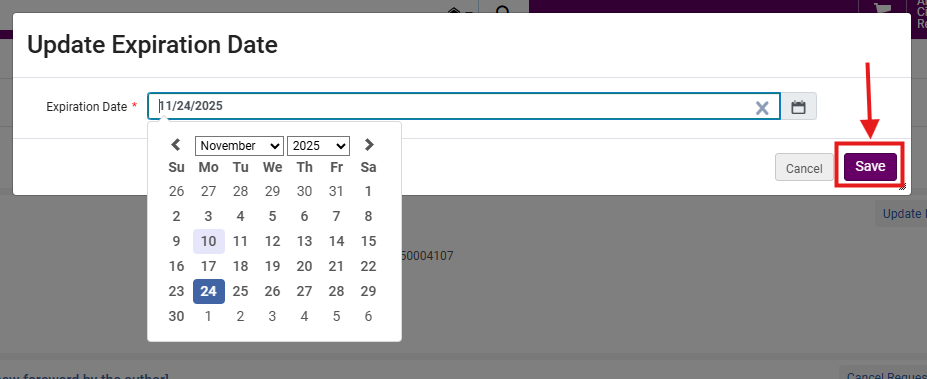
- Change expiration date: Click <Update Expiry>, enter or select the new expiration date, then click <Save>.

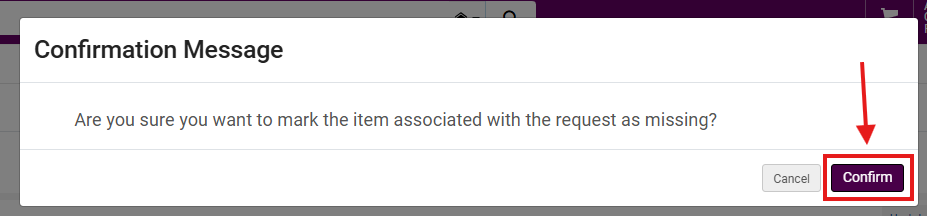
- Mark as missing: From the row action menu ellipses (⋯), select <Mark as Missing>, then click <Confirm> in the pop-up message.

5: Manage Expired Holds Navigate to Fulfillment > Resource Requests> Expired Hold Shelf
- The Expired Hold Shelf Items screen opens, showing items whose hold period has lapsed.

- Available actions include:
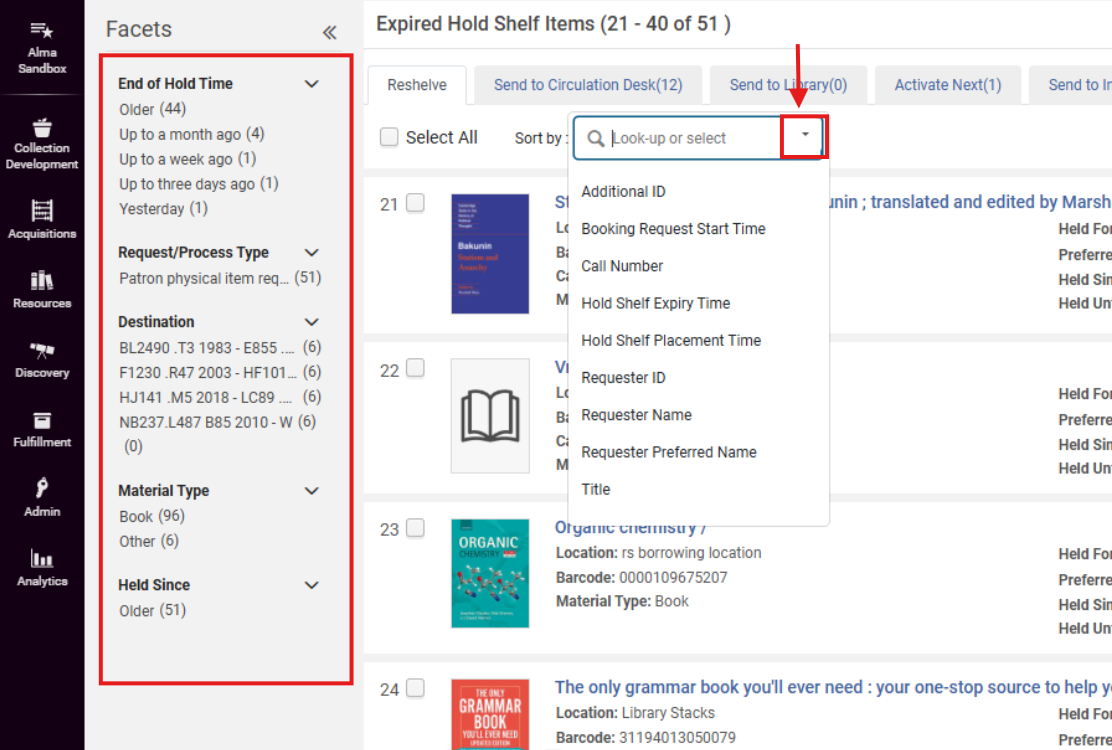
- Sort or filter: Use Facets or the <Sort by> drop-down to organize items.
-
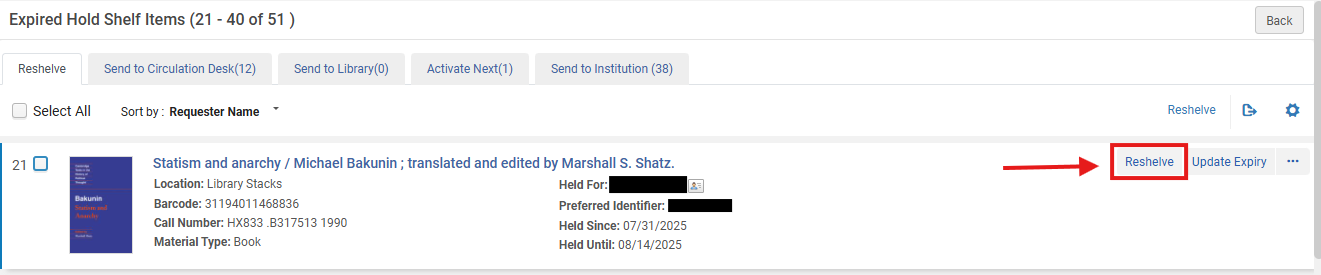
- Reshelve: Click <Reshelve> for individual items
-
-
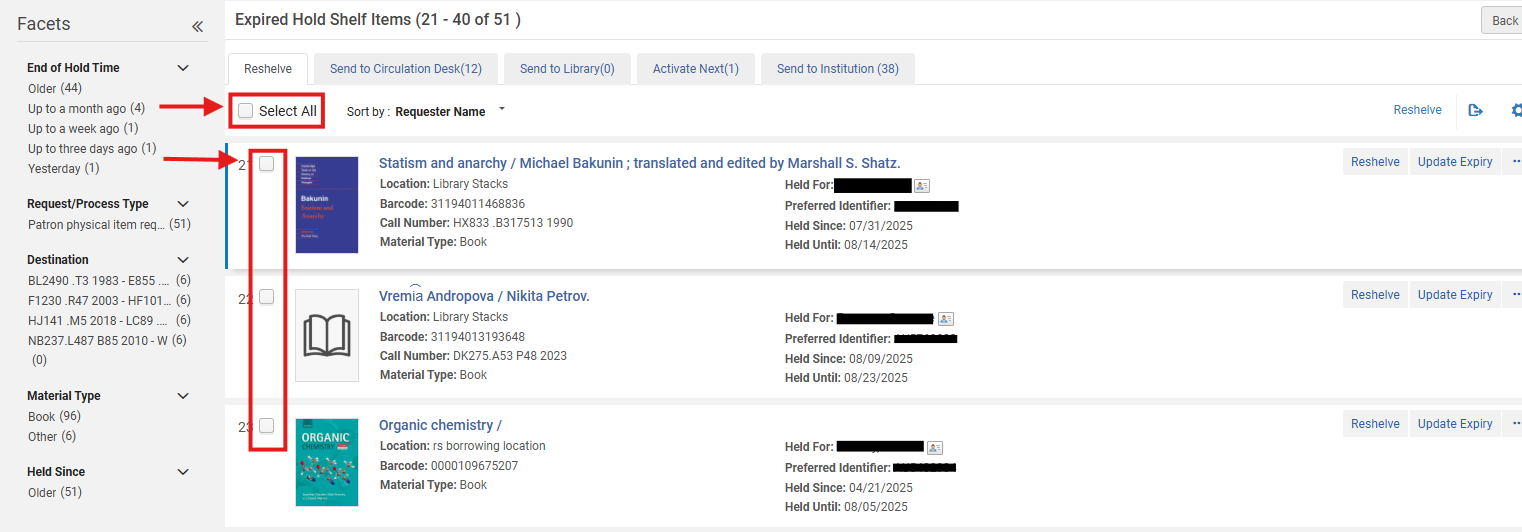
- or select multiple items using check boxes and click the primary <Reshelve> button; this updates item status from On Hold Shelf to Item in Place
-
- Update expiration date: Click <Update Expiry>, choose a future date, and click <Save> to extend the hold.


- Additional actions: From the row action menu (⋯), you can:
- Edit the hold record
- Mark the item as missing
- View the audit trail

- Forward items: Items needing transfer to another desk or library will appear under <Send to Circulation Desk> or <Send to Library> tabs.
-
- Similar to the <Reshelve> function, Click <Transit> to initiate the transfer.

- Activate the next hold: Items with queued requests appear under the <Activate Next> tab.
- Select the item(s) and click <Activate Next> to process the subsequent request.

Frequently Asked Questions
-
When should I send an item to the hold shelf?
-
Whenever the pop-up during check-in or the “Next step” field directs you to do so.
-
-
What if the pop-up doesn’t appear but a request exists?
-
Verify the item’s process type in <Manage Item Returns>. If the <Requests> button appears, follow its guidance to route correctly.
-
-
Can I cancel a hold from the Active Hold Shelf screen?
-
Yes. Click <Cancel Request>, choose a reason, and confirm. Alma logs all cancellations for audit tracking.
-
-
How long do items remain on the hold shelf?
-
Until the expiration date passes. The date is determined by your fulfillment configuration and can be extended via <Update Expiry>.
-
-
What should I do with items under the Expired Hold Shelf that patrons never collected?
-
Reshelve them, forward them to the appropriate location, or activate the next hold using the corresponding tab.
-
-
What if a held item goes missing?
-
From the row action menu (⋯), select <Mark as Missing>. This updates Alma’s status and removes it from the hold queue.
-
-
Will Alma notify patrons when a hold is ready?
-
Yes. Alma automatically sends pickup notices through the Fulfillment notification job when items move to the hold shelf.
-
-
Can I view previous hold shelf actions?
-
Yes. Use <View Audit Trail> from the row action menu (⋯) to review routing and cancellation history.
-
-
How do I handle items that need to move between WRLC libraries?
-
Use <Transit> under <Send to Library> or <Send to Circulation Desk> tabs to ensure correct cross-institution delivery.
-