How to Look Up a Patron Without an ID Card New Page
This workflow explains how WRLC staff can retrieve a patron record in Ex Libris Alma when the patron does not have a physical ID card available for barcode scanning. It integrates best practices from Ex Libris and peer consortia to minimize search errors and ensure successful user identification across local and consortial libraries.
Required Roles
The options available under the Fulfillment menu are dependent upon your assigned user roles. Your list of options may be different than the screenshots included below. If you do not have the necessary options, you will need to work with your institution's User Administrator to be assigned the appropriate roles for your work.
To complete Fulfillment tasks outlined in this document, you must have one or more of the following roles
-
Circulation Desk Manager
-
Circulation Desk Operator
-
Circulation Desk Operator - Limited
-
Physical Inventory Operator
Note: Library staff are advised to always start with <Manage Patron Services> rather than <Search for Users> from the top navigation bar. The latter can display partial results or outdated user records, especially for consortial patrons. Accessing via <Manage Patron Services> also assists with ensuring the workstation logs the action under your currently active circulation desk- a key requirement for acurate analytics and desk-level activity
2: Enter Patron Information In the <Scan patron’s ID or search for patron> field, begin typing the patron’s name, Primary ID, Institution ID, or Barcode.
Alma will display a dropdown list of matching patron accounts; select the correct patron from the list to open their record
Note: Ex Libris’s documentation notes that name searches are case-insensitive but must match character order exactly. Common surnames (e.g., “Smith”) may yield dozens of results; in such cases, use a unique ID number, whenever possible, to avoid opening the wrong record.
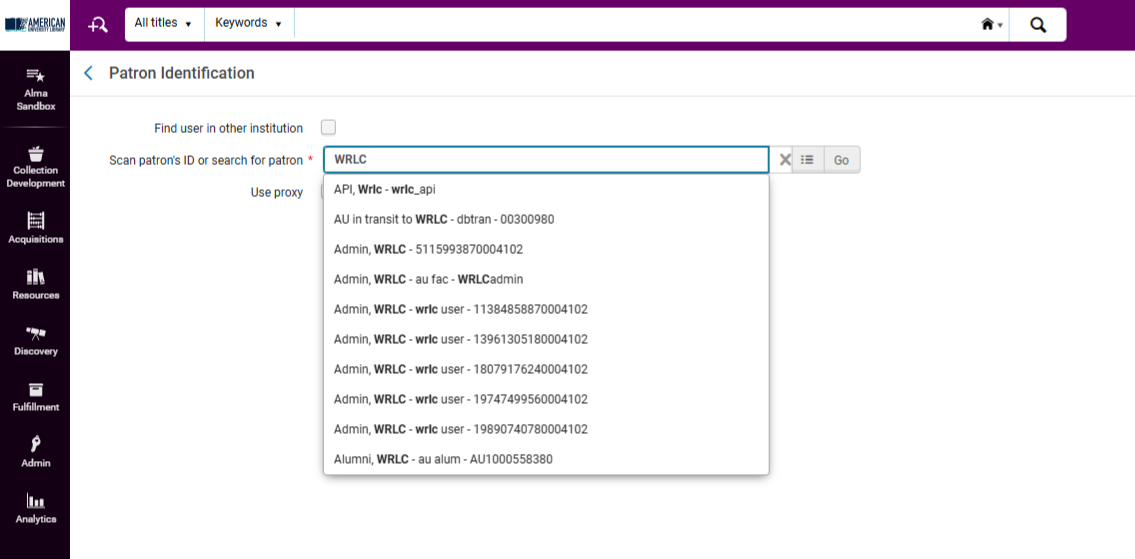
3: Use “Select from a List” for Advanced Searching If typing directly in the search field returns too many or no matches
-
Click the <Select from a list> function
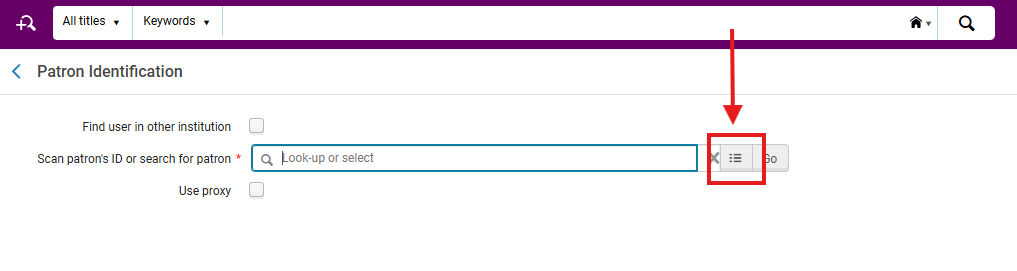
- This opens the <Find and Manage Users> screen
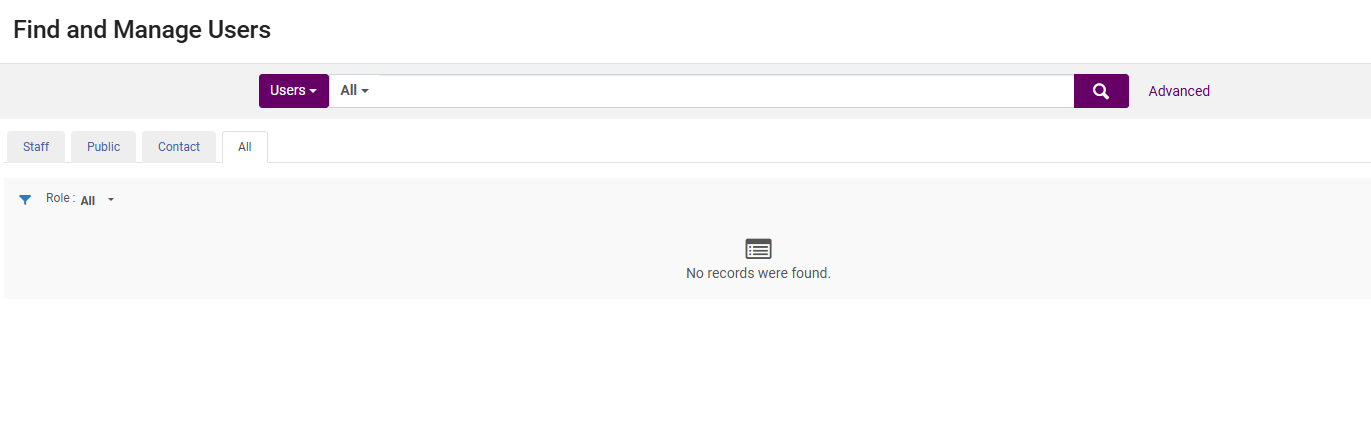
- Here, you can refine your search using additional filters such as:
-
User Group (e.g., Undergraduate, Faculty, Staff)
-
Status (Active, Expired)
-
Identifier Type (Barcode, Primary ID, Institution ID)
-
Owning Institution (for consortium-level searching)
-
Why This Matters: This feature allows targeted searches using fields not available from the quick search bar. It’s especially helpful in consortial environments where duplicate names may exist across institutions; Best practicies reccoments using the <Find and Manage Users> screen for troubleshooting <Patron not Found> errors and to confirm that the record has not expired
4: Select the Correct Patron Record Review the list of returned results carefully
- Verify:
- Institution affiliation
- Patron group (e.g., Faculty, Graduate, Visitor)
- Expiration date
- Primary ID
Once confirmed, click the patron’s name to open the <Manage Patron Services> (Loans) tab
Why This Matters: Accurate user identification ensures correct due dates, fines, and request routing. Selecting the wrong patron account, even one with the same name, can result in loan activity being logged under another individual. In Alma, once an item is checked out to a patron, it cannot be reassigned. The only fix is to return the item and reissue it under the correct user.
Frequently Asked Questions
- What if Alma shows multiple records for the same patron?
- Check which institution each record belongs to. If duplicates exist within your IZ, it is possible to merge accounts
- What if a patron insists they’re registered but can’t be found?
- Confirm their home institution and ID format. If they’re a visiting WRLC patron, search with <Find user in other institution>
- Confirm their home institution and ID format. If they’re a visiting WRLC patron, search with <Find user in other institution>
- Can we use partial names or wildcards?
- Yes. Alma supports partial searches; for example, “smit” retrieves “Smith.” However, too broad a search may slow performance.
- Yes. Alma supports partial searches; for example, “smit” retrieves “Smith.” However, too broad a search may slow performance.
- How do I handle a patron who appears inactive?
- Verify with the patron's home library Circulation Desk whether the record should be reactivated. Only local staff can extend expiration dates; WRLC.org> Programs> Services Portal> WRLC Library Staff Intranet> Categories> Resource Sharing> Consortium Loan Services (CLS) Contact List
- What if multiple institutions share similar patron IDs?
- Alma differentiates users by institution. Always verify the “Institution” column before opening a record.
- What if I accidentally open the wrong record and begin checkout?
- Return any checked-out items and reissue them to the correct patron.
- Return any checked-out items and reissue them to the correct patron.
- Will name searches find patrons with alternate spellings or nicknames?
- No. Alma matches exactly. Use identifiers instead when dealing with known nickname variations.