How to Bring Up a Patron Record and Check Items Out
This workflow guides WRLC library staff through the process of locating a patron record and checking items out in Ex Libris Alma, including both local and consortium patrons.
Required Roles
The options available under the Fulfillment menu are dependent upon your assigned user roles. Your list of options may be different than the screenshots included below. If you do not have the necessary options, you will need to work with your institution's User Administrator to be assigned the appropriate roles for your work.
To complete Fulfillment tasks outlined in this document, you must have one or more of the following roles:
- Circulation Desk Manager
- Circulation Desk Operator
- Circulation Desk Operator - Limited
- Physical Inventory Operator
1: Log in and Select Circulation Location Log into Alma and select the correct Circulation Desk location for your workstation.
Why This Matters: The active desk determines which loan policies, printers, and analytics records apply; an incorrect desk can cause checkouts to route to the wrong library or cause print slip failure
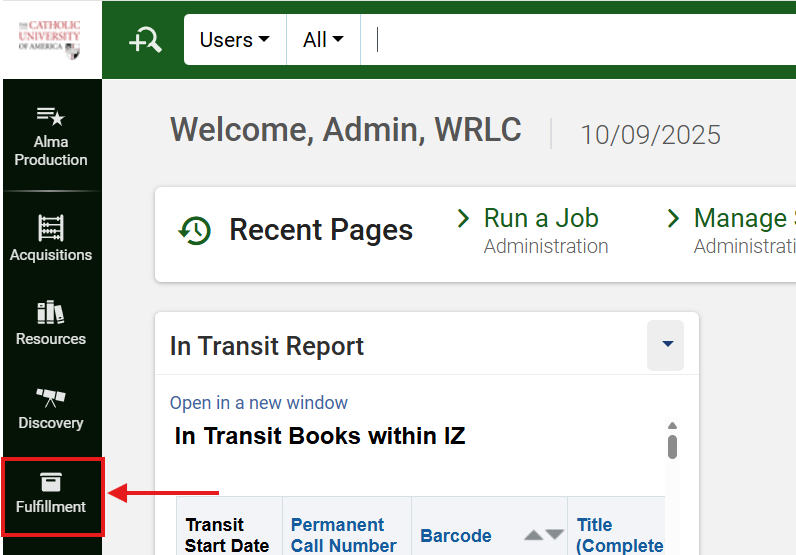
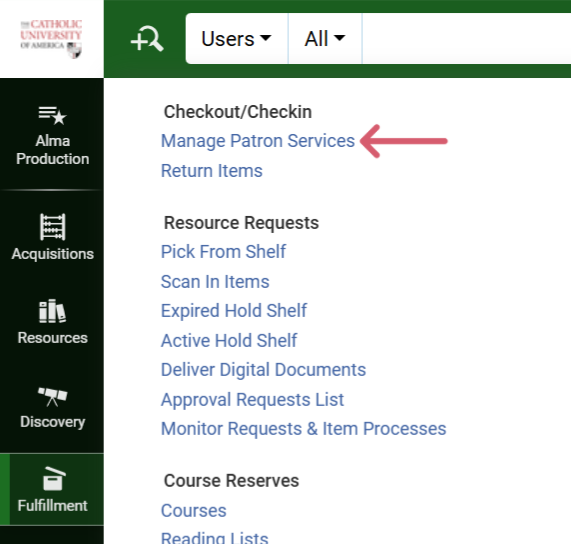
- The Patron Identification screen will open
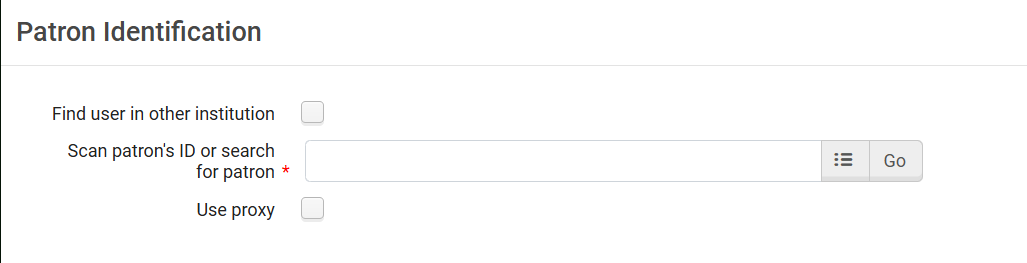
3: Locate the Patron Record Patron records can be retrieved in one of three ways:
- Scan the patron’s ID barcode
- Search by patron name
- Search by identification number
If the patron is a local user, proceed to Step 8
If the patron is from another WRLC institution, continue with Step 4
4: Search for a Patron from Another Institution
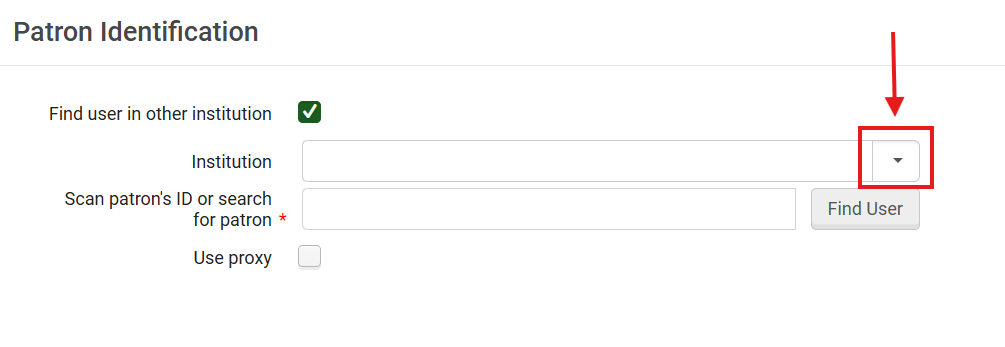
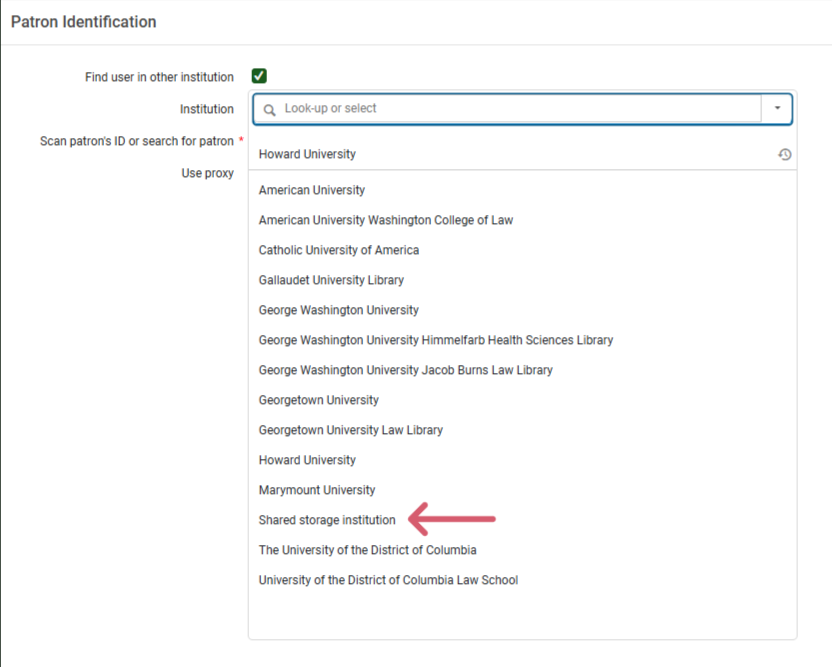
- Check the <Find user in other institution box>
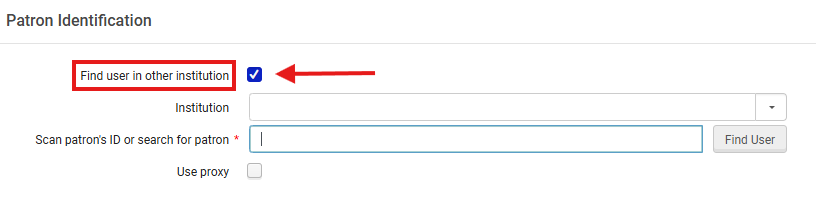
- Click the dropdown arrow beside the <Institution> field to view the list of WRLC member libraries.

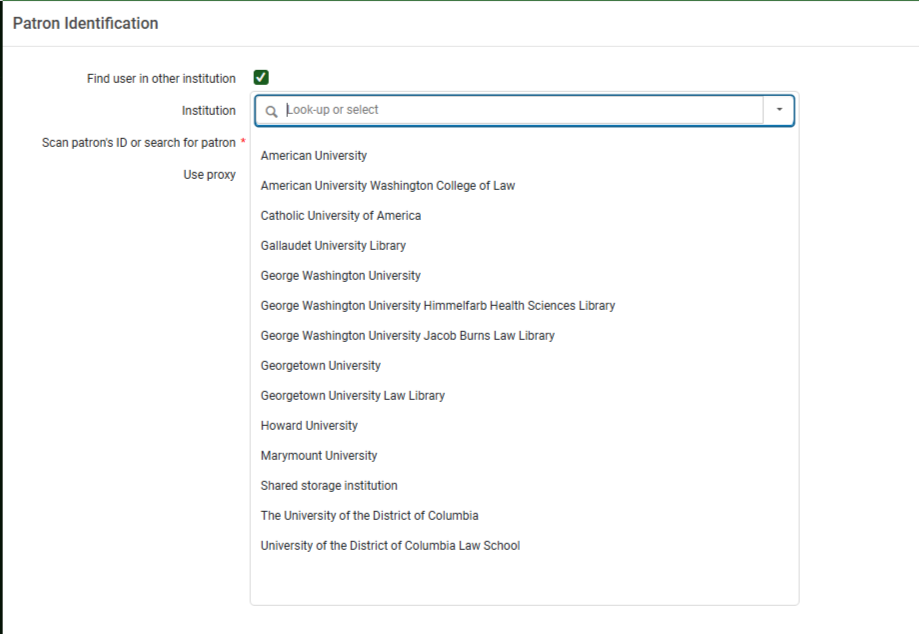
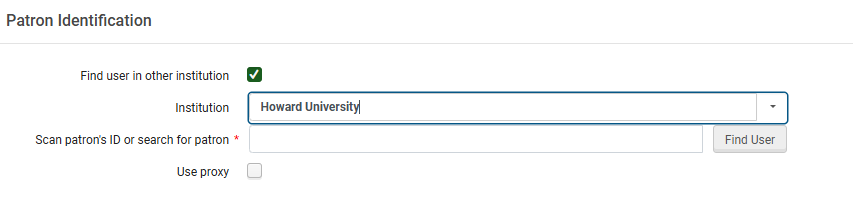
- Select the appropriate institution
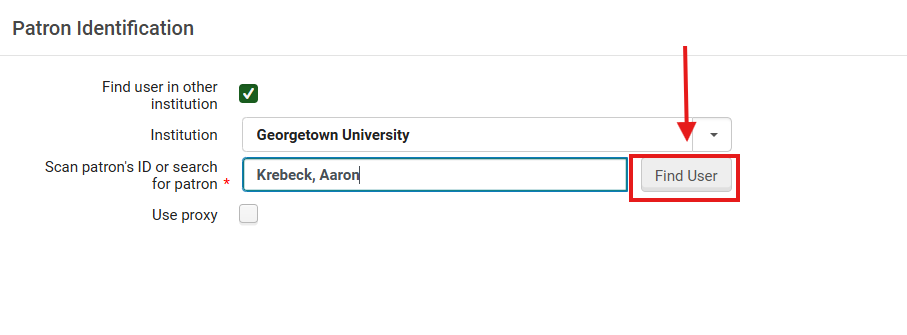
- Enter the patron’s name or identification number, then click <Find User>

Note:
- When searching cross-institutionally, the name or ID must match exactly and must be unique within that institution; it should not apply to more than one account at that institution.
- If a patron has a common name, use their Primary ID, Institution ID, or Barcode for accuracy
- Scan IDs wherever possible instead of using typed name searches, as it reduces match failures
6: Trinity University Patrons Similar to WRLC’s Health and Law professional libraries, Trinity University does not lend its materials to other WRLC institutions. However, under its WRLC agreement, Trinity University patrons may borrow from participating AFN libraries, and courier deliveries include Trinity University.
- TU patrons are expected to follow the same Circulation and Borrowing policies as fellow AFN libraries.
- To facilitate lending, TU faculty, staff and student patrons are uploaded as patrons within the SCF IZ.
- Select <Shared Storage Institution> for Trinity University patrons
7: Handling New or Unsaved Patron Records If the WRLC patron already exists in your Institution Zone, their record will open automatically to the Loans Loans tab, proceed to Step 8
If the patron does not exist locally:
- The Quick User Management screen opens.
- Verify all fields with a red asterisk (*) are filled in correctly, inlcuding expiration date, user group, and email address
- Click Update User to create a temporary local copy of the user record.
Why This Matters: Quick User Management creates a temporary local instance of the remote record, allowing immediate checkout. This avoids unnecessary network delays and keeps circulation seamless
8: Open the Patron’s Loans Tab Once the user record loads, the Loans tab will display automatically- you are now ready to perform checkout actions.
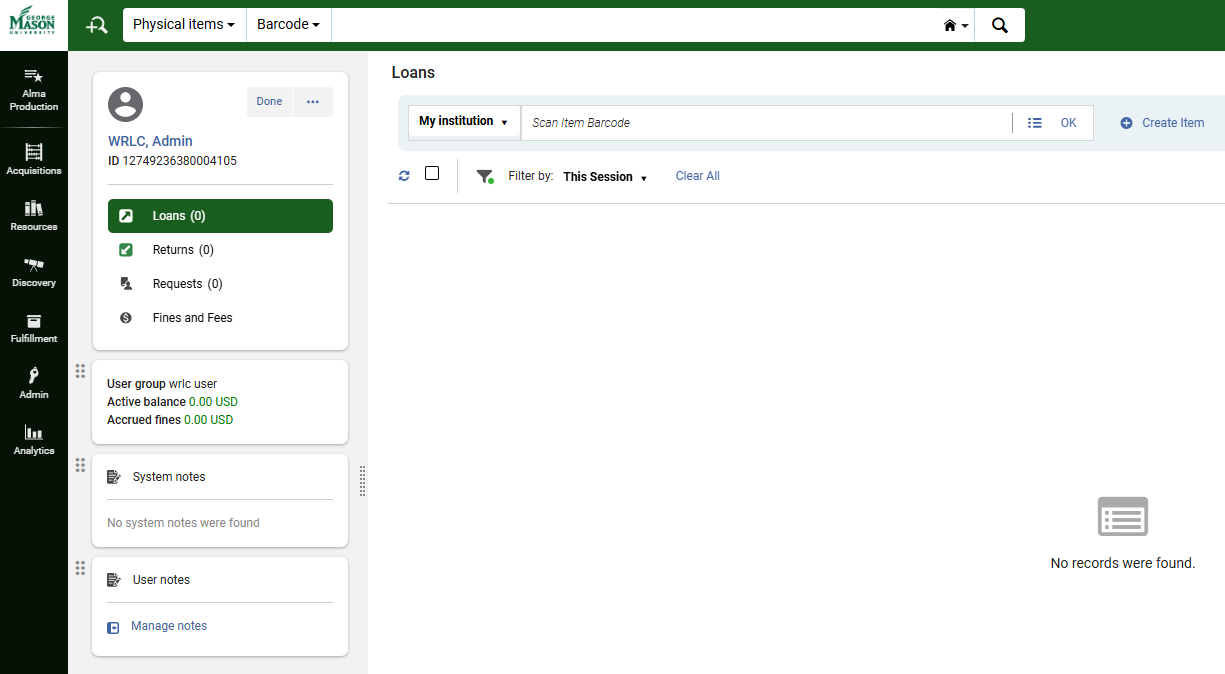
9: Check Out Items to the Patron Items may be checked out using one of the following methods:
- Scan the item’s barcode (recommended)
- Manually enter the barcode
- Search for the item in the catalog
Once the item is identified, click OK to confirm the checkout. The item will appear under the patron’s Loans list.
Note: You are strongly encouraged to scan physical item barcodes to ensure Alma recognizes the correct copy and location. Manual entry increases the chance of transposition errors
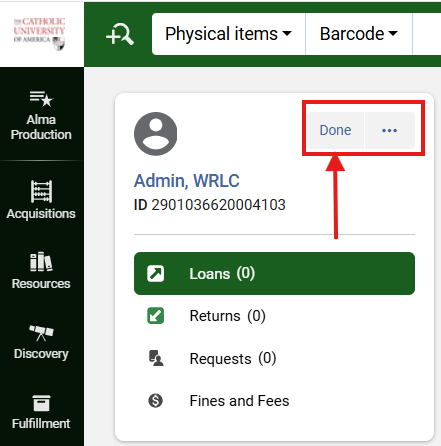
10: Complete the Session When all items have been checked out, click Done to close the patron record and end the session.
Why This Matters: Closing the session resets the workstation for the next user and prevents accidental checkouts under the wrong patron name.. This is particularly critical in shared circulation environments
Frequently Asked Questions
- What if a patron from another WRLC library cannot be found using <Find user in other institution>?
- Check spelling and capitalization. If still unsuccessful, verify the institution selected. If unresolved, contact the patron's library for assistance; WRLC.org> Programs> Services Portal> WRLC Library Staff Intranet> Categories> Resource Sharing> Consortium Loan Services (CLS) Contact List
- Can temporary local users borrow electronic materials?
- No. Quick User records enable physical loans only. E-resource access remains tied to the patron’s home institution.
- No. Quick User records enable physical loans only. E-resource access remains tied to the patron’s home institution.
- What happens if I check out an item under the wrong patron?
- The transaction must be manually reversed by returning the item and re-checking it out under the correct account.
- Are checkout rules (loan length, renewal limits) the same for all WRLC patrons?
- No. They depend on each library’s Fulfillment Unit Rules and Patron Group Policy; WRLC.org> WRLC Intranet> Categories (upper right hand menu ribbon)> Policies and Documentation> Borrowing and Consortium Loan Service (CLS) Policies
- No. They depend on each library’s Fulfillment Unit Rules and Patron Group Policy; WRLC.org> WRLC Intranet> Categories (upper right hand menu ribbon)> Policies and Documentation> Borrowing and Consortium Loan Service (CLS) Policies