How to Add a Pop Up Note to a Patron's Account
A pop-up note is used to alert library staff to important information about a patron when their record is accessed in Alma.
Use a pop-up note when staff need to see time-sensitive or high-importance information before completing circulation actions such as checkout, renewal, or fines processing.
Examples include:
- “Verify photo ID before checkout”
- “Account under review- contact supervisor”
- “Special borrowing permissions apply”
Note:
- Pop-up notes are staff-facing alerts, not enforcement tools.
- They do not block borrowing and do not replace patron blocks.
- Notes should be clear, factual, and professional, as they may be visible to patrons if marked user viewable.
Required Roles
- Fulfillment Operator
- Circulation Desk Manager
1: Locate the Patron Record Navigate to Fulfillment > Checkout/Checkin> Manage Patron Services>. Search for and select the patron’s record

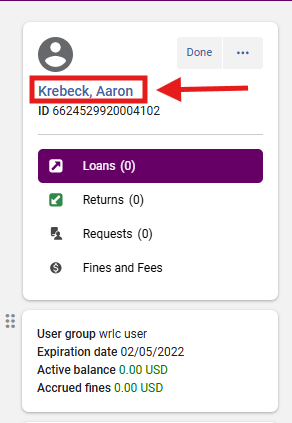
2. Click on the Patron's Name to open the User Details side panel
3. Click on the <Notes> tab
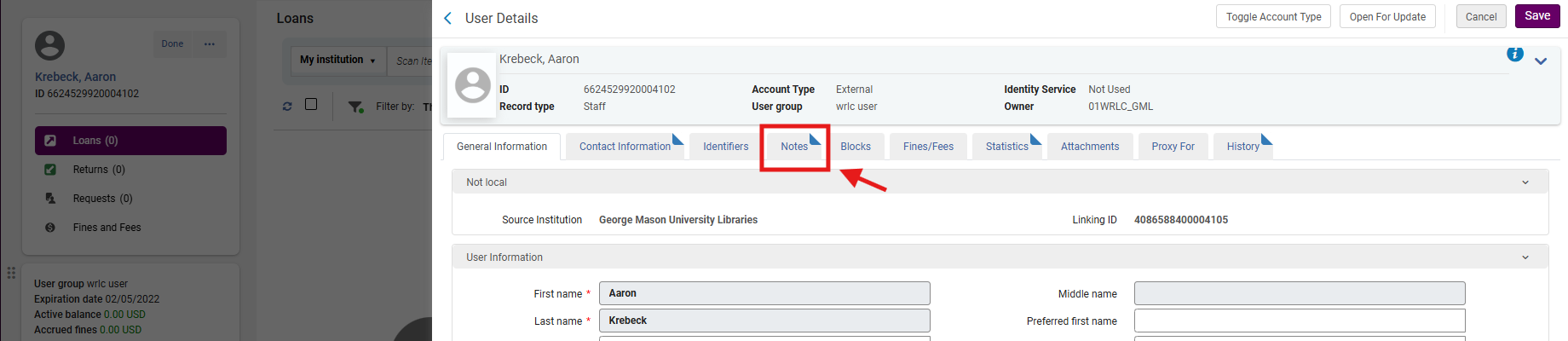
Note: The dog ear on the User Details tab indicates pre-existing information. In this example, the patron already has at least one Note attached to their account. A patron account can include several Notes.
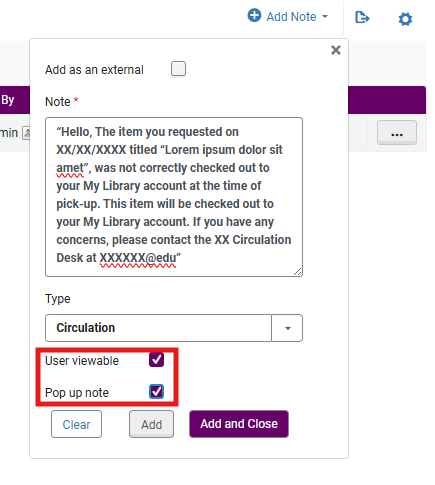
4. Configure the Note Settings
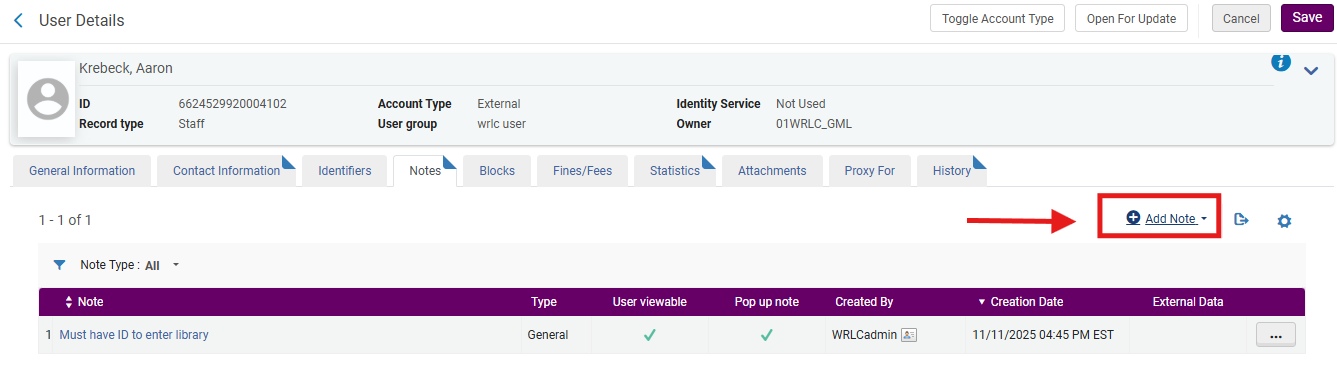
- Select <Add Note>
- Enter the desired information in the <Note> and use the <Type> drop-down menu to select a locally approved option that will help identify the nature of the note.
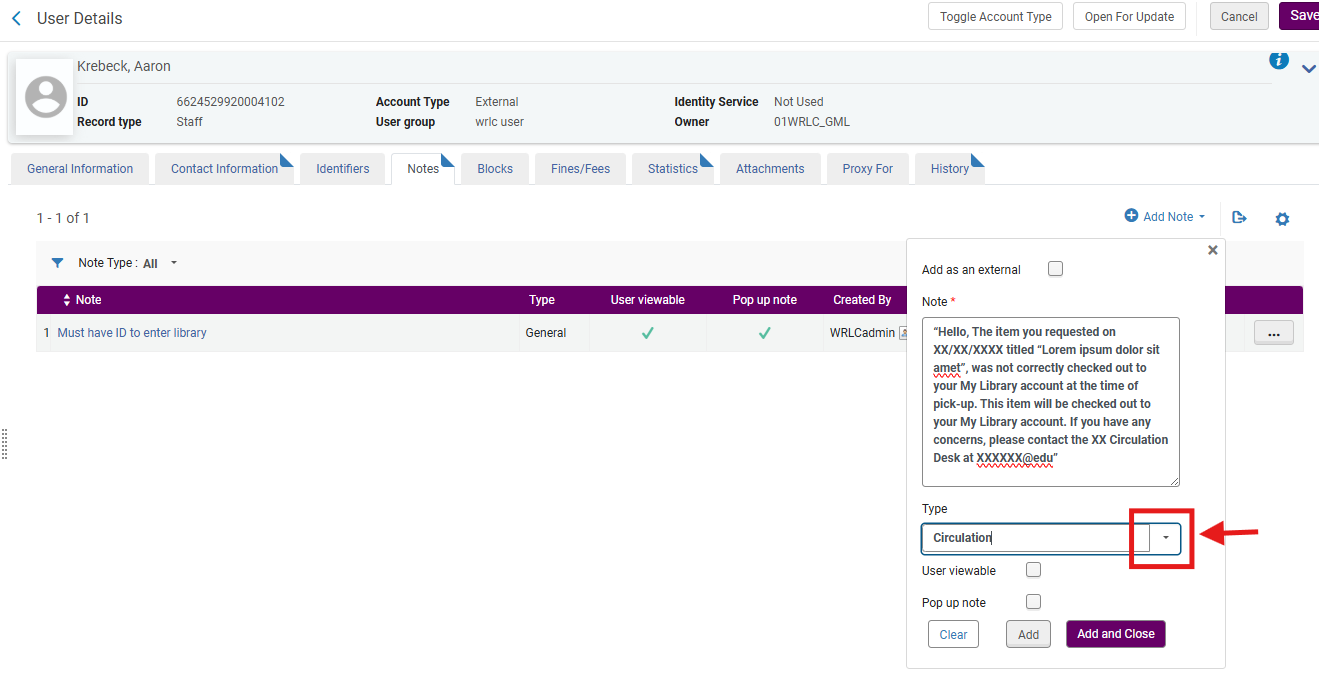
- Check <Pop up note> This ensures the note appears when the patron record is accessed
- Optional: Check <User viewable> Only select this if the patron should see the note in Primo VE
- Most university libraries reserve User viewable pop-up notes for informational messages, not internal staff guidance
5: Save the Note
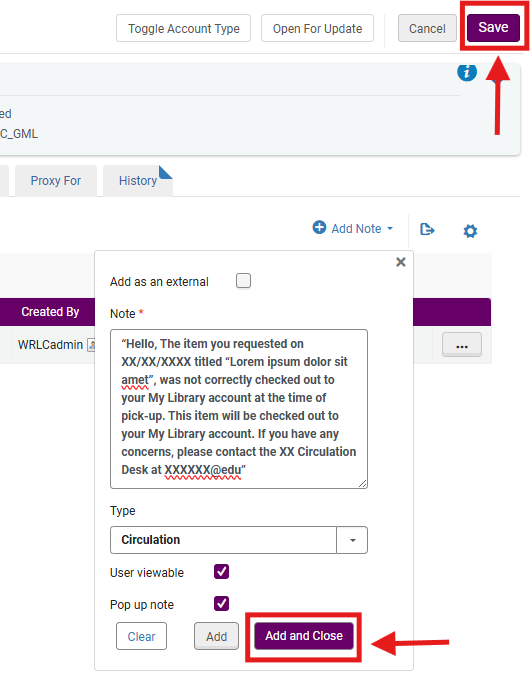
- Click <Add and Close>
- Click <Save> on the User Details screen
- The pop-up note is now active.
6. What Staff Will See
- When the patron’s record is accessed in Alma, the pop-up note appears automatically
- Staff must acknowledge the note before continuing
What Does the External Option Mean in a Patron Pop-Up Note?
- When you add a note to a patron record in Alma, the External checkbox controls who the note is intended for, not how Alma enforces it.
- In simple terms: External = the note is meant for people outside your library staff. Most pop-up notes are internal
Frequently Asked Questions
Does a pop-up note stop checkout?
- No. It only alerts staff. Use a patron block to prevent borrowing.
Can multiple pop-up notes exist on one patron record?
- Yes. All active pop-up notes will display.
Can pop-up notes expire automatically?
- No. They must be edited or deleted manually.
Can I edit or remove a pop-up note later?
- Yes. Use the row action menu (⋯) next to the note and select <Edit> or <Delete>, then <Save>.
Will the note appear in Primo VE within the patron's My Library Account?
- Only if <User viewable> is selected.