How to Add a Patron to the Database
This workflow guides WRLC staff through creating new patron records in Ex Libris Alma.
Required Roles
The options available under the Fulfillment menu are dependent upon your assigned user roles. Your list of options may be different than the screenshots included below. If you do not have the necessary options, you will need to work with your institution's User Administrator to be assigned the appropriate roles for your work.
To complete Fulfillment tasks outlined in this document, you must have one or more of the following roles:
- Circulation Desk Manager
- Circulation Desk Operator
- Circulation Desk Operator - Limited
- Physical Inventory Operator
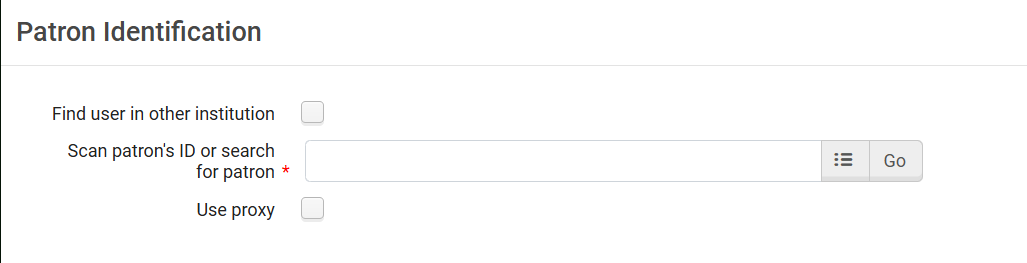
2: Initiate New Patron Registration Click the <Register New User> button at the bottom of the Patron Identification screen

- This opens the Quick User Management screen
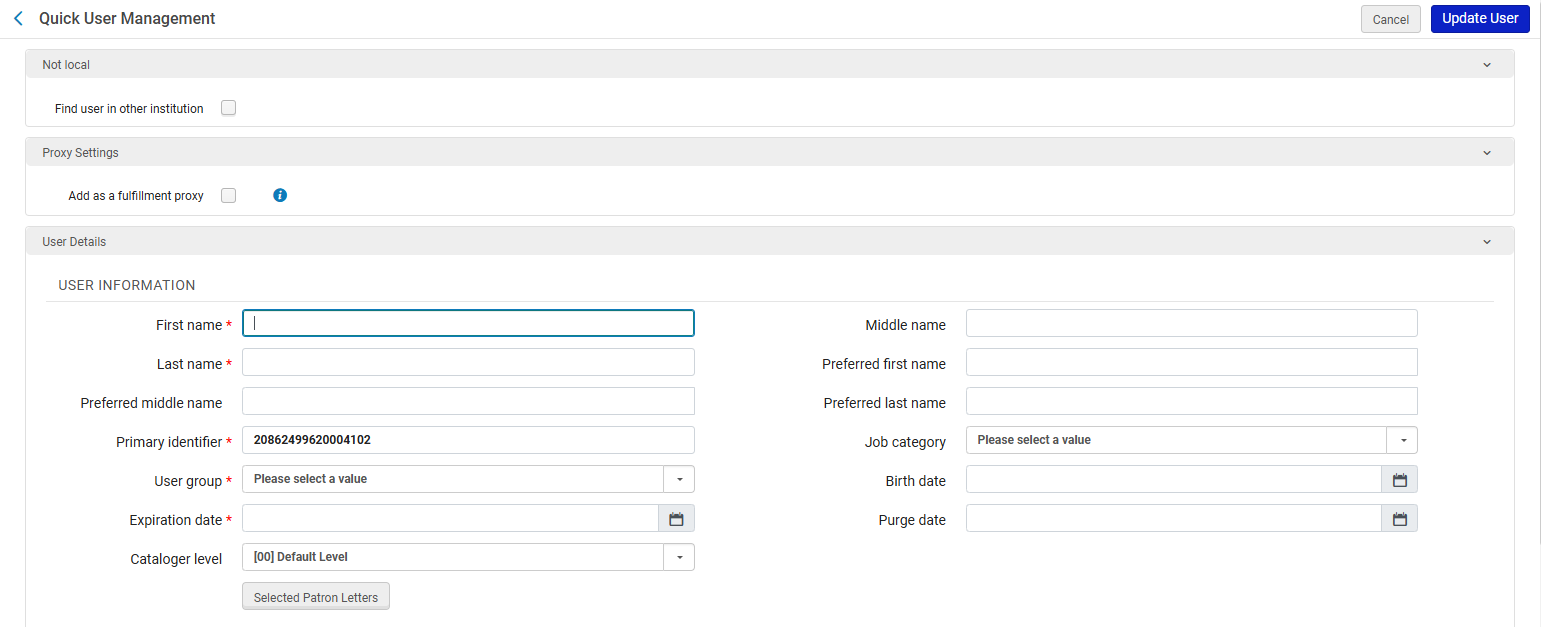
3: Complete Required Fields Fill out all fields marked with a red asterisk (★); these are mandatory for Alma’s user record validation and for Student Information Systems (SIS) matching.
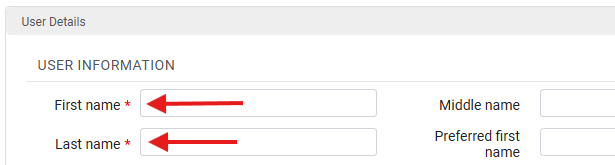
Required Fields Include:
- First Name
- Last Name
- Primary Identifier
- User Group
- Expiration Date
- Purge Date
- Email Type
- Email Address
Why This Matters: Alma validates user data using the Primary Identifier and User Group fields to determine circulation rights.
Incomplete records will fail SIS matching or cause fulfillment errors during checkout.
Note: WRLC agreed best practices include that the Purge Date should align with the institution’s data-retention policy (often one year post-expiration). Setting it too soon may delete active records prematurely.
4: Determine SIS Inclusion
- If the patron will not be included in future Student Information System (SIS) uploads skip to Step 6- Ex:
- Alumni
- Community borrowers
- Library staff internal accounts
- If the patron will be included in future SIS uploads, continue with Step 5- Ex:
- Students, faculty, or staff newly onboarded since the last SIS run
Note: This distinction determines whether Alma should treat the user as a locally managed record <Internal> or one that will later synchronize automatically with the SIS (External). Incorrectly flagging a user as “SIS-managed” may result in their record being overwritten or deleted during the next SIS import.
5: Set the “Patron Has Institutional Record” Flag; for SIS-Managed (External) Users
- Verify that the <Primary Identifier> field is entered correctly; this field is the key matching field for SIS imports and must be identical to the value used in the institutional system
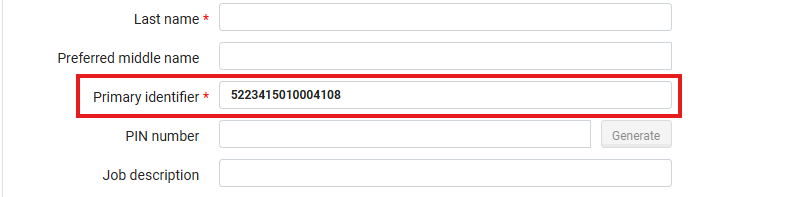
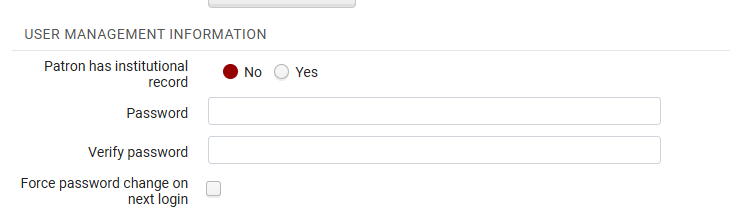
- Change <Patron has institutional record> from No to Yes
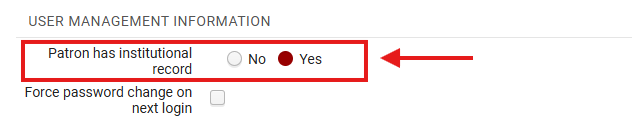
- After changing it, the screen will refresh automatically.
Why This Matters: This tells Alma to expect future updates from your SIS, enabling automatic synchronization of user data (name, contact info, expiry, etc.) and prevents duplicate user creation when future SIS loads occur; incorrect flagging may cause “stale” data issues where patron updates fail to load
6: Set Passwords for Locally Managed (Non-SIS) Users If the patron will not be updated by SIS (e.g., alumni, community, internal accounts). Non-SIS patrons do not receive automatic credential provisioning. This step ensures they can authenticate for library discovery and My Account access:
- Enter a temporary password in the Password and Verify Password fields
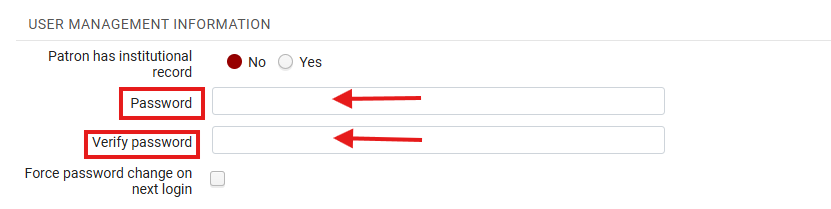
- Optionally check the “Force password change on next login” box; this ensures the patron sets a secure password later
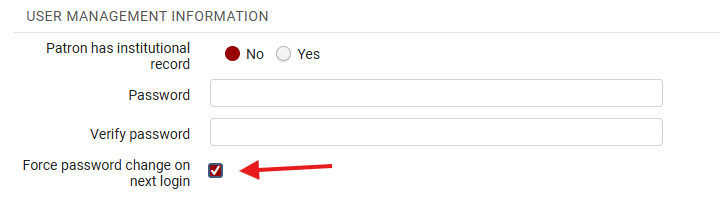
Note: These credentials allow login to Primo VE using their Primary Identifier and password; consider using <Force password change> for all community borrower accounts to prevent password reuse
7: Save the New Record Once all required fields are complete, click <Update User>. The system saves the patron record and returns you to the Manage Patron Services screen with the newly created user loaded automatically. The <Update User> action both commits the record and links it to your current Fulfillment desk for immediate use (e.g., for item checkout).

Frequently Asked Questions
- What happens if I create a record for a patron who later appears in an SIS upload?
- The SIS upload will attempt to match on Primary Identifier. If it differs, a duplicate record will be created. Always use the same ID used by SIS.
- Can I convert a locally managed patron into an SIS-managed one later?
- Yes, by editing the record and switching “Patron has institutional record” to “Yes,” provided the Primary Identifier matches.
- How do I handle staff who need multiple roles (patron + operator)?
- Assign both roles within one account. Do not create separate records. Use the “Roles” tab to add operator permissions.
- Assign both roles within one account. Do not create separate records. Use the “Roles” tab to add operator permissions.
- What if a community borrower forgets their password?
- Use User Management> Reset Password. For security, verify identity before issuing a reset.
- If the SIS field “Patron has institutional record” is set incorrectly, can it be changed safely?
- Yes, but verify SIS configuration first.
- What if I forget to fill in a required field?
- Alma will not save the record; missing fields are highlighted in red. Fill them and retry.
- Alma will not save the record; missing fields are highlighted in red. Fill them and retry.
- How can I import multiple local patrons at once?
- Use the User Load Integration Profile under Admin> Manage Jobs for batch uploads.