How to Add a Patron Note
This workflow explains how to add, edit, and delete notes on a patron’s record in Ex Libris Alma and how those notes appear to patrons in Primo VE.
When to Reference This Document:
- When staff need to record information about patron communication, borrowing conditions, or account restrictions.
- When providing internal reminders for Access Services staff.
- When sharing messages visible to patrons through Primo VE.
Why This Matters: Patron notes enhance communication between staff and users, reduce repeat issues, and document relevant interactions or exceptions in a consistent, visible format.
Required Roles
- Fulfillment Operator
- Circulation Desk Manager
1: Access Patron Notes from Patron Services Fulfillment> Checkout/Checkin> Manage Patron Services
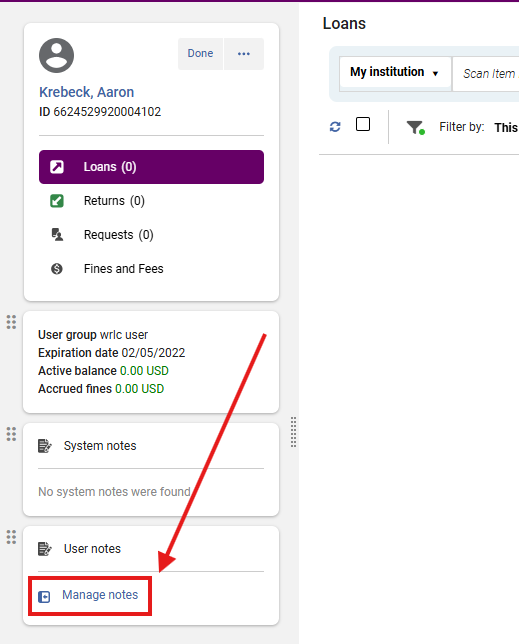
- When you arrive at the Patron Services screen , click on <Manage Notes> within the Patron services panel, this will open the User Details panel from the right-hand side of the screen
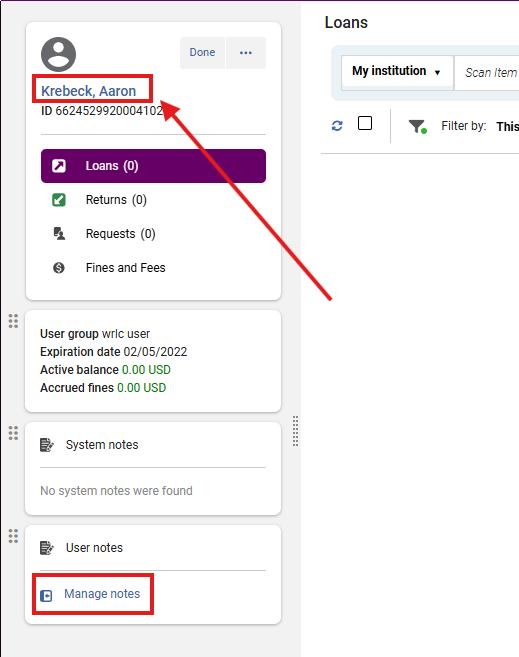
- You can also click on the patron's name to open the User Details panel
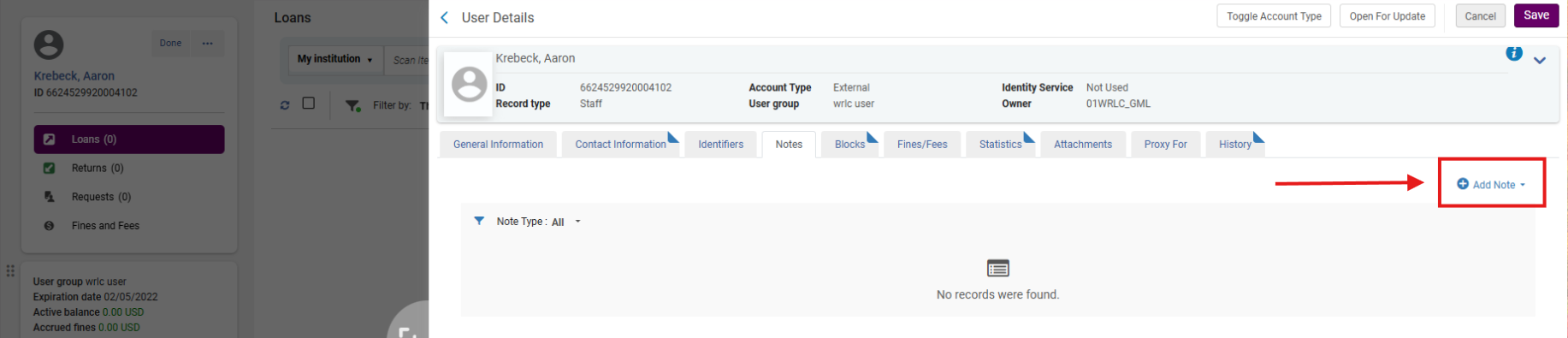
3: Add a New Note From the User Details screen, click on the Notes tab

- Click on <Add Note>
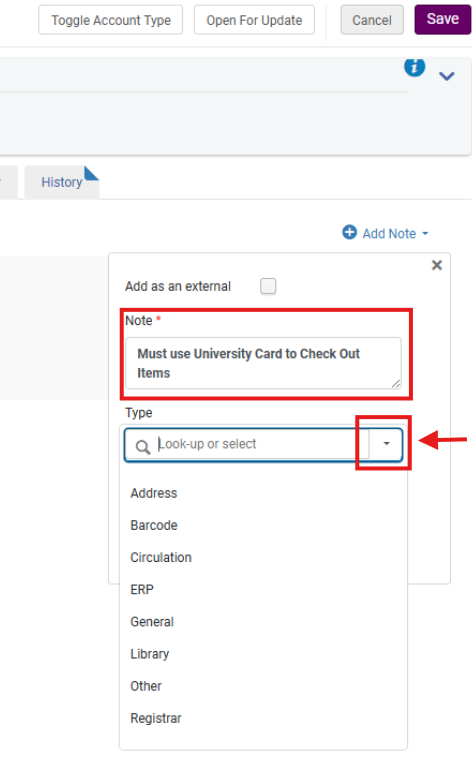
- In the drop-down window:
- Enter text in the <Note> field
- Use the <Type> drop-down to assign a note type (e.g., General, Circulation, Fine-related)
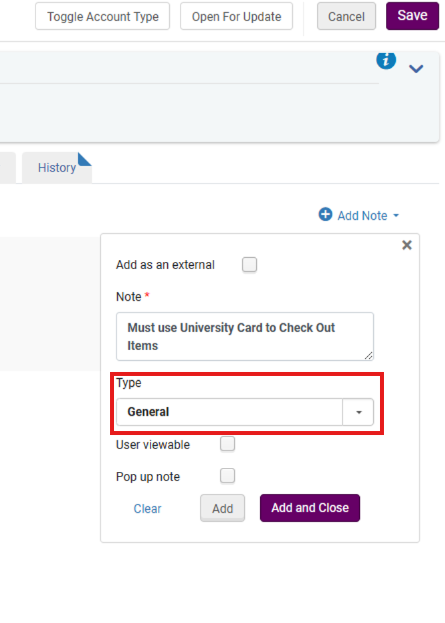
- Optional settings:
- Check <User viewable> to make the note visible to the patron in Primo VE.
- Check <Pop up note> if you want the message to appear as a pop-up when staff access the record.
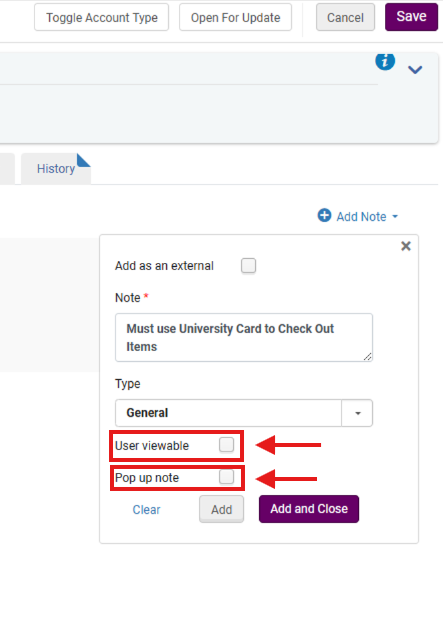
- Click <Add> to create additonal notes or <Add and Close> if you are done
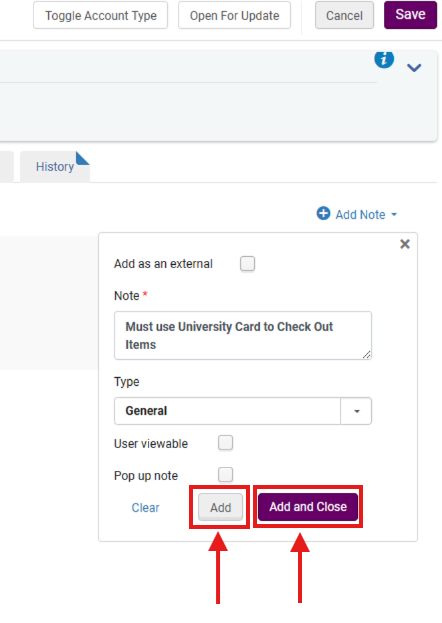
- Be sure to click on <Save> to complete the workflow
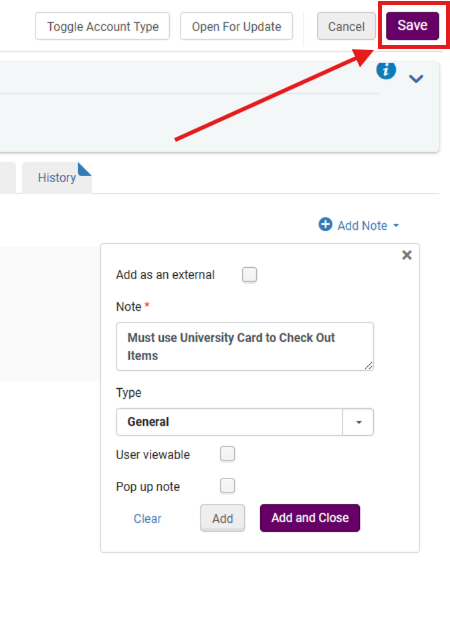
Why This Matters: Adding structured notes ensures consistent visibility and appropriate access levels. Libraries are encouraged to Ex definine local note types to standardize communication across staff roles
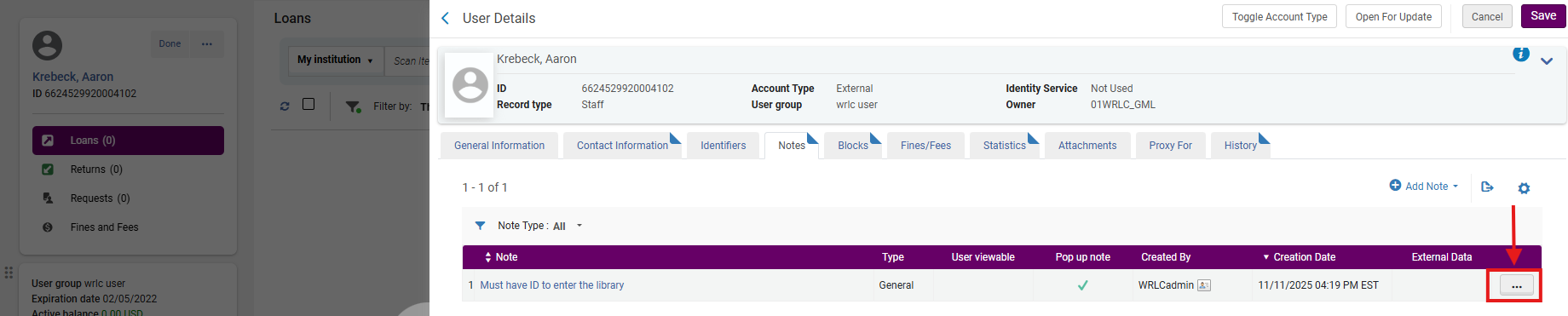
4: Edit an Existing Note On the <Notes> tab, locate the note to be updated.
- From the row action menu (⋯), select <Edit>
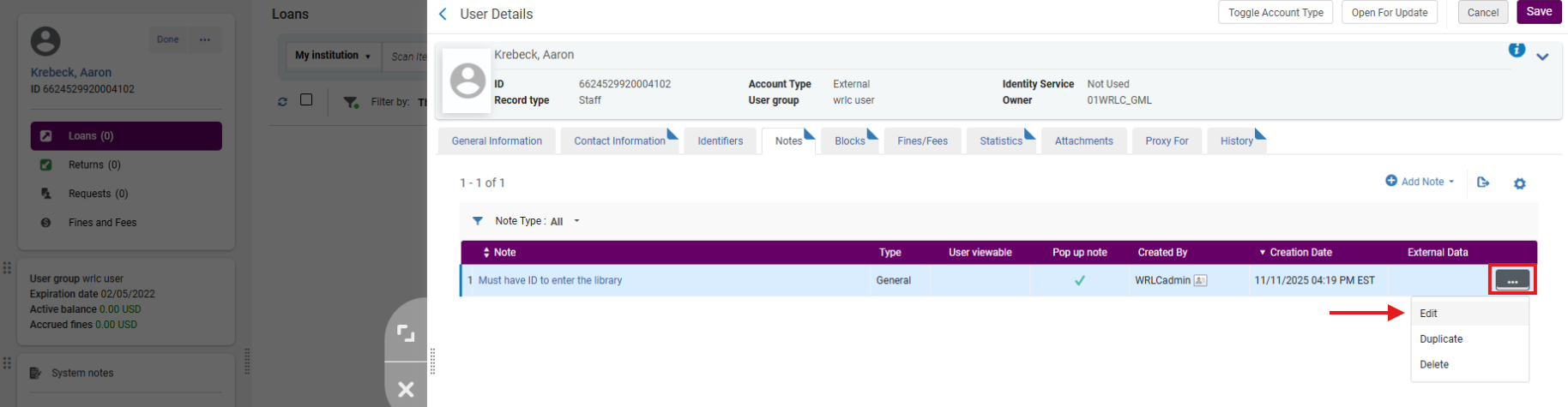
- In the Edit Note screen, make your changes and click <Update Note>.
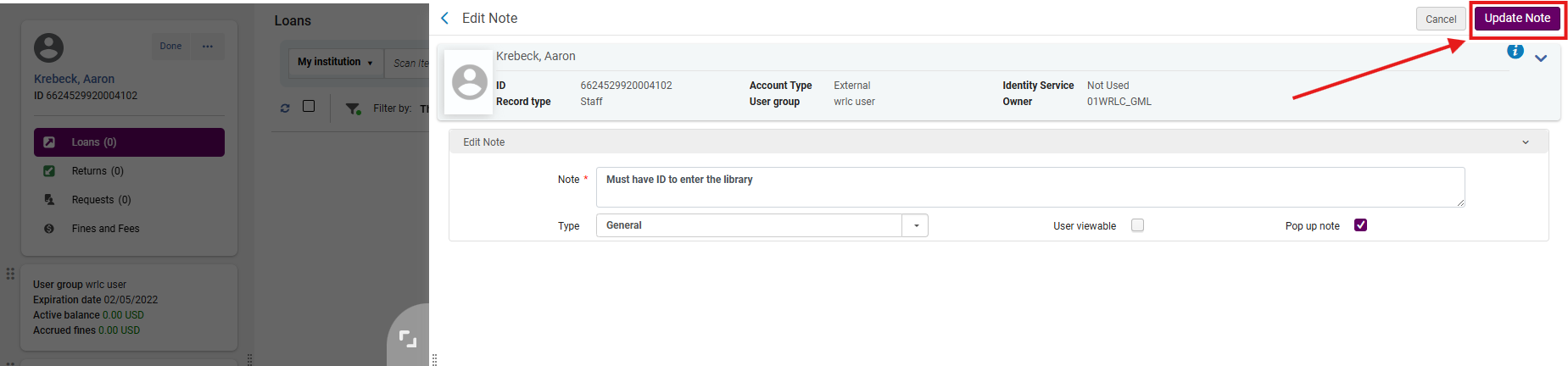
- Click <Save> to finalize.
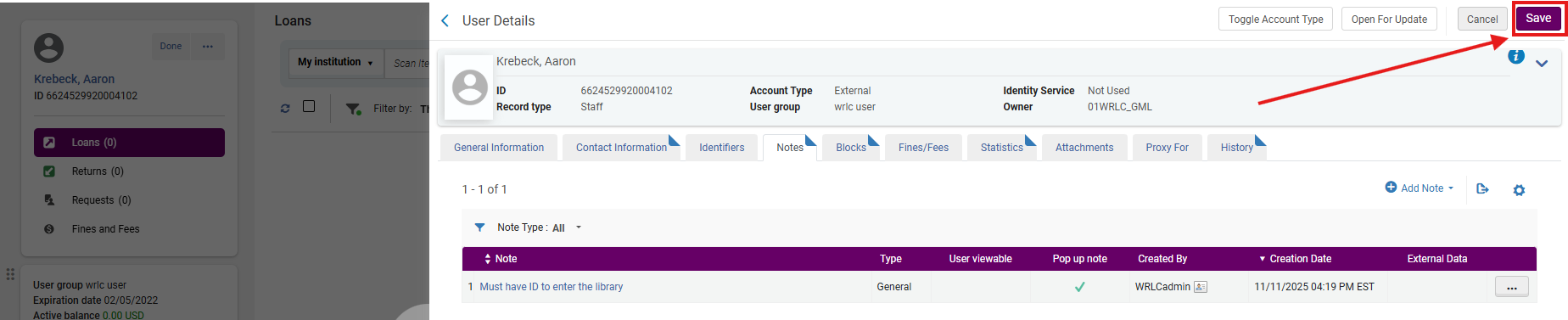
Why This Matters: Editing maintains record accuracy and ensures that temporary or outdated information is promptly revised.
5: Delete a Note On the <Notes> tab, locate the note to be deleted.
- From the row action menu (⋯), select <Delete>.
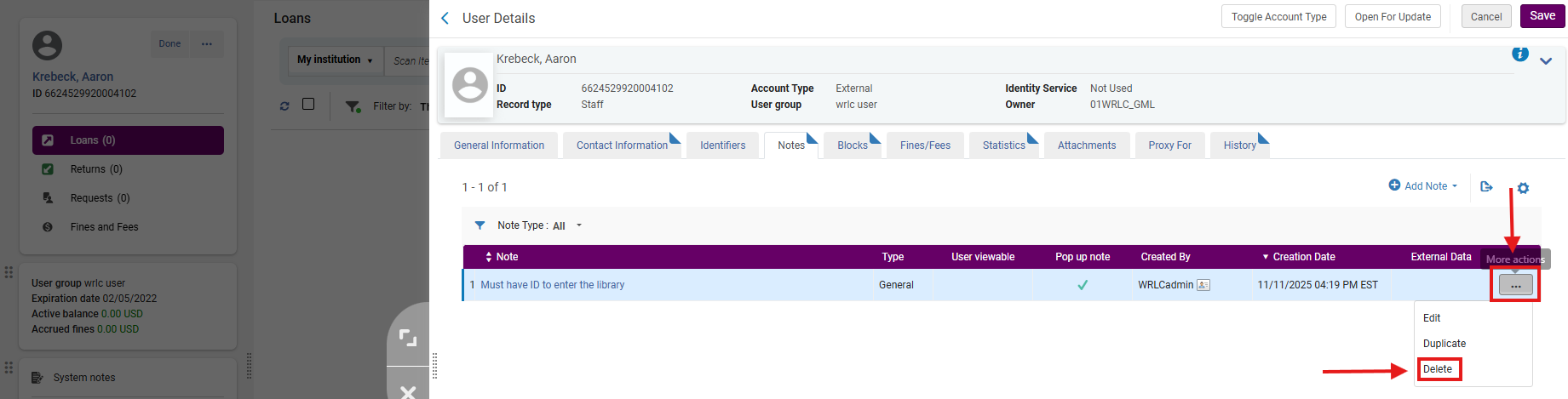
- Click <Save> to complete the workflow
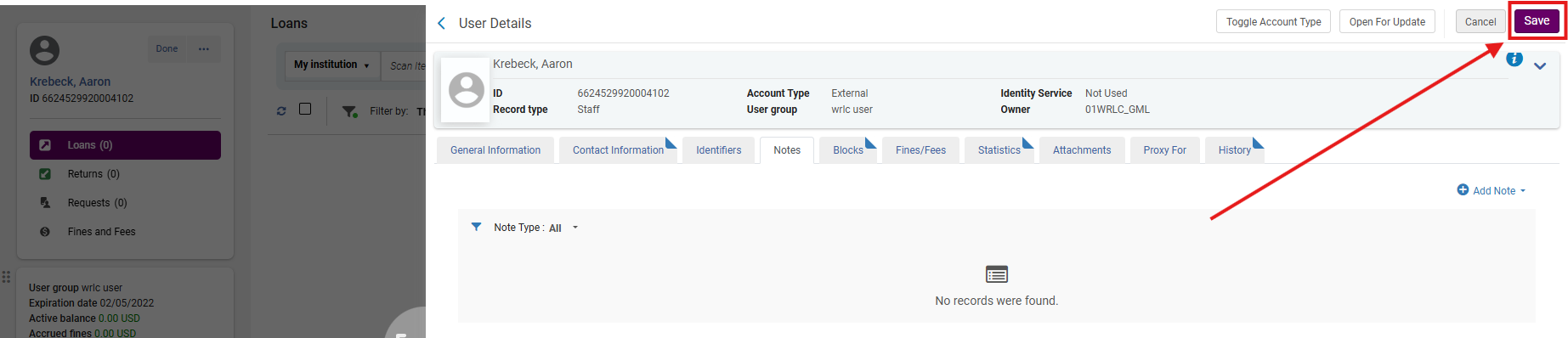
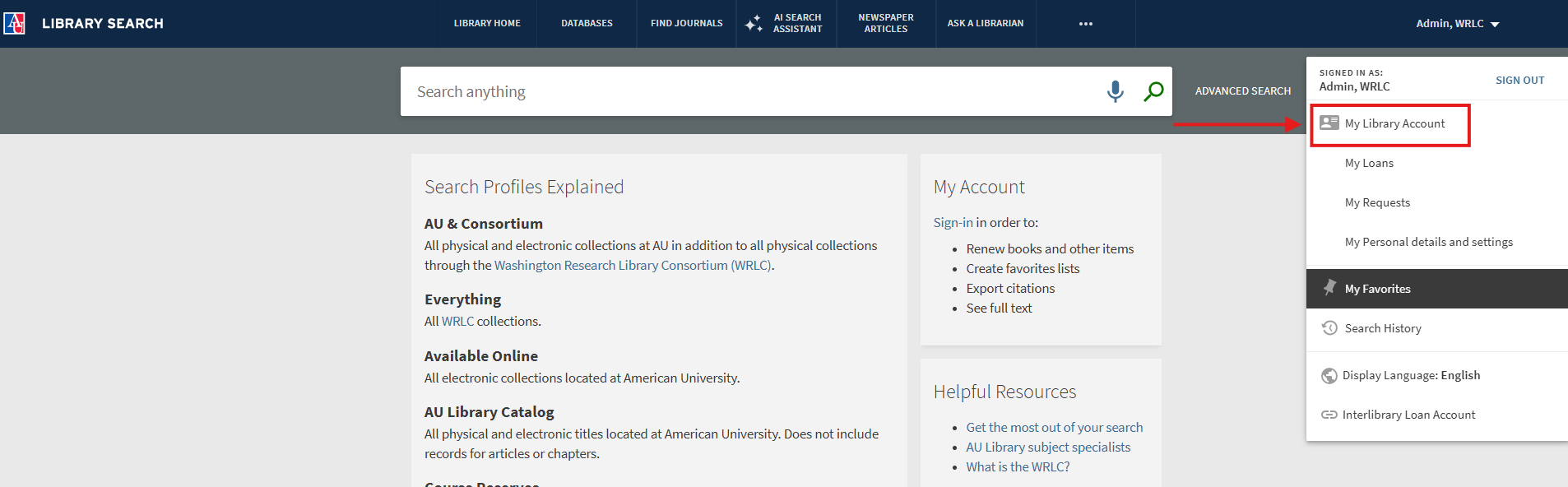
6: View Patron Notes in Primo VE (User Perspective) Patrons can view User Viewable notes via <Library Card> in Primo VE:
After logging in, click their name in the upper-right corner.

Select <My Library Account> from the drop-down menu.
In the <My Library Account> dashboard, notes appear under <Blocks + Messages>.
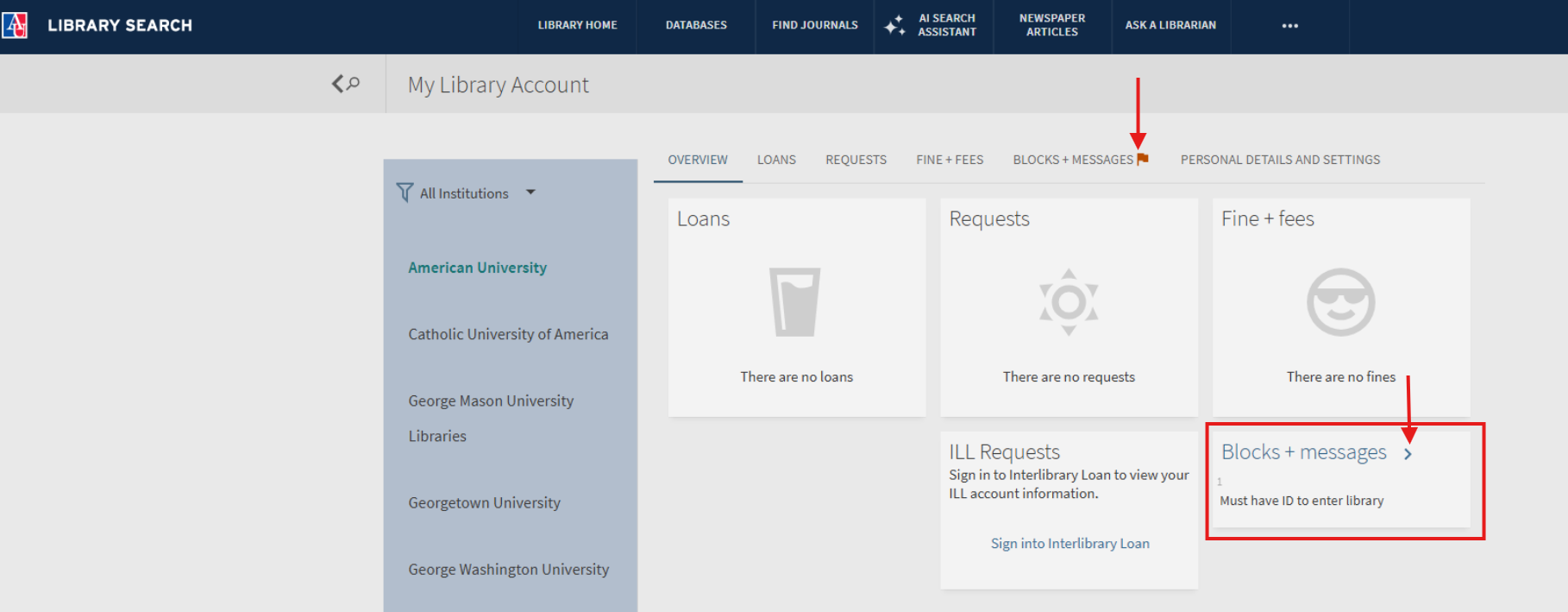
Patrons may also open the <Blocks + Messages> tab for expanded viewing.
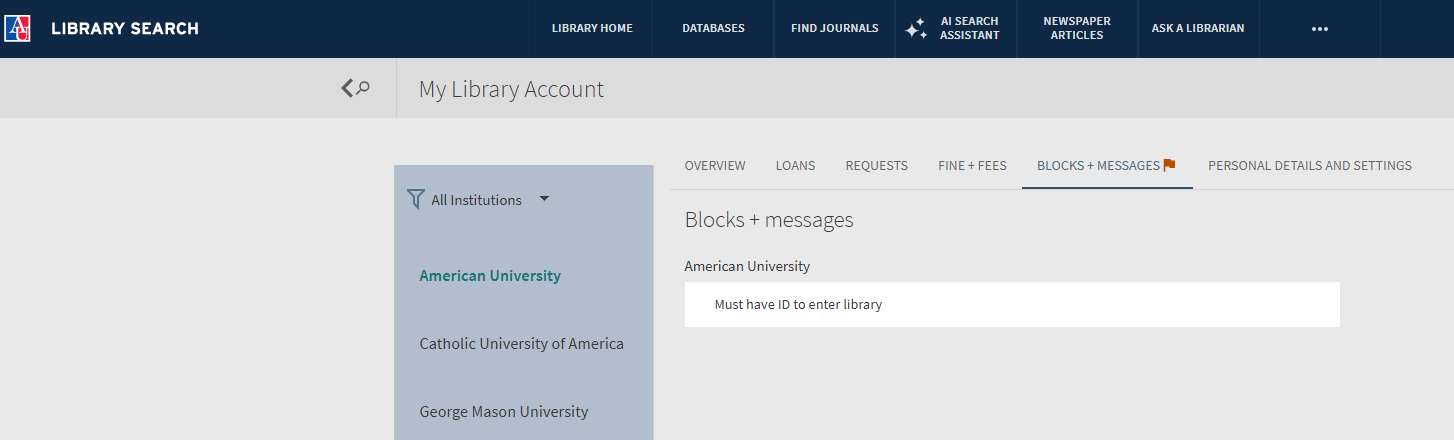
Why This Matters: Transparent communication improves patron trust and reduces service desk confusion. Libraries are encouraged to consider consistent use of User Viewable notes for policy clarifications and notices about account status or pending updates.
Frequently Asked Questions
-
What is the difference between a <User viewable> note and an internal note?
-
<User viewable> notes appear in Primo VE for patrons; internal notes are staff-only and used for internal recordkeeping.
-
-
Can both <User viewable> and <Pop up note> be selected together?
-
Yes. This combination allows a note to appear as a staff pop-up in Alma and be visible to patrons online.
-
-
When should I use <Pop up note>?
-
For time-sensitive or critical alerts such as “Verify ID before checkout” or “Pending fine resolution.”
-
-
Can I edit or delete a note created by another staff member?
-
Yes, if your role includes the <Fulfillment Operator> or <Circulation Desk Manager> permissions. Consider including initials and dates in note text for transparency.
-
-
Do patrons receive a notification when a note is added?
-
No. Notes are visible passively in Primo VE but do not trigger emails or alerts.
-
-
Can I search for patrons by note text?
-
No. Notes are not indexed for searching in Alma. For retrievable communication, use <User Blocks> or <Fulfillment Notes>.
-
-
What happens if a note’s type is left blank?
-
The note defaults to a general type, which can be filtered but not categorized for reporting. SUNY advises assigning a type whenever possible.
-
-
Can notes expire automatically?
-
Not currently. Notes remain on the record until manually edited or deleted.
-