How to Add a Fulfillment Note to an Item
A <Fulfillment Note> in Ex Libris Alma displays a pop-up message whenever an item is checked out or checked in.
This note provides staff with important information or warnings related to that item- such as loan restrictions, condition alerts, or routing instructions. Properly using <Fulfillment Notes> improves communication among Access Services, Technical Services, and Resource Sharing staff. It prevents missed item conditions, patron misunderstandings, or overlooked processing requirements.
Required Roles
To add or edit a <Fulfillment Note>, a staff member must hold one of the following Alma roles:
- Physical Inventory Operator
- Cataloger or Metadata Editor
- Circulation Desk Manager (optional)
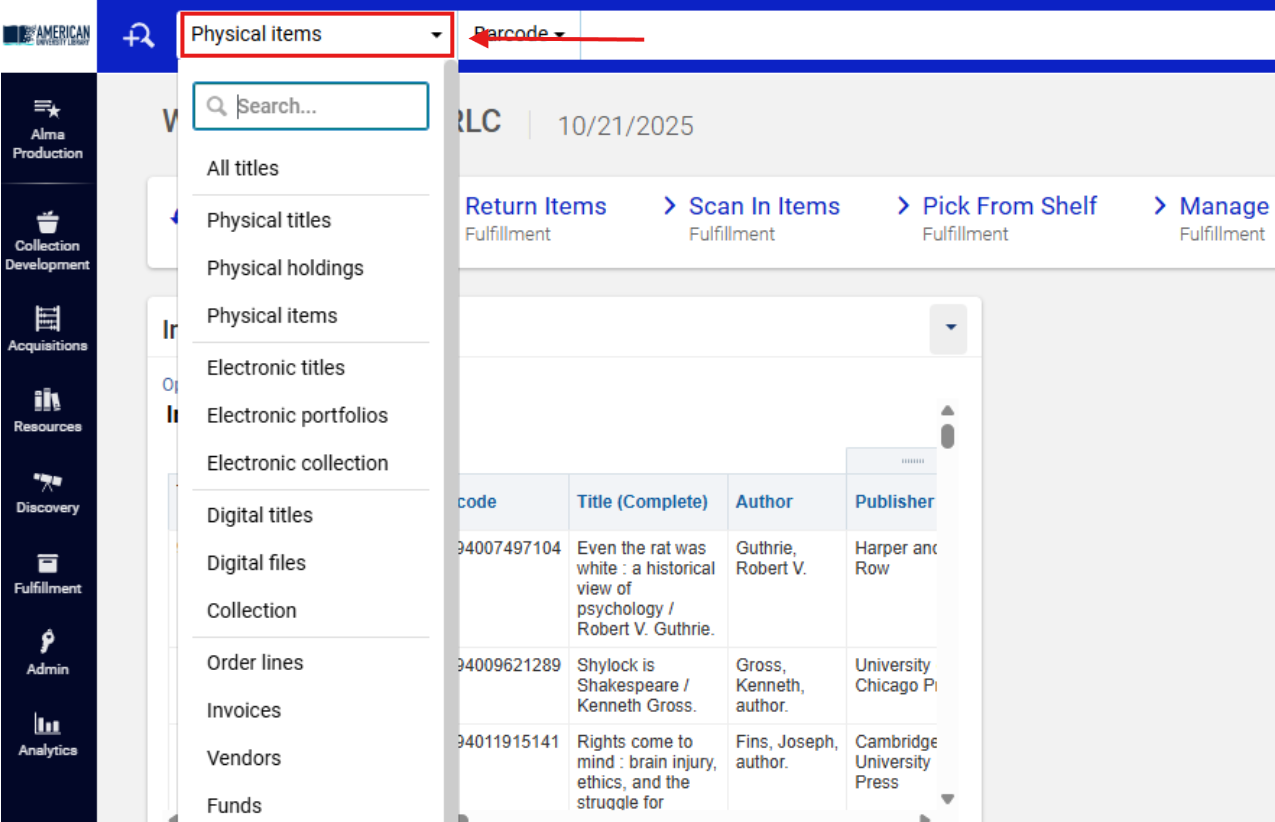
1: Search for the Item Record A <Physical Items> search ensures access to the editable item record (rather than holdings or bibliographic levels). Fulfillment notes are attached to item records only.
- Use the persistent search box and set it to <Physical Items>.

- Enter the item’s title, barcode, or MMS ID and press <Enter> to run the search.

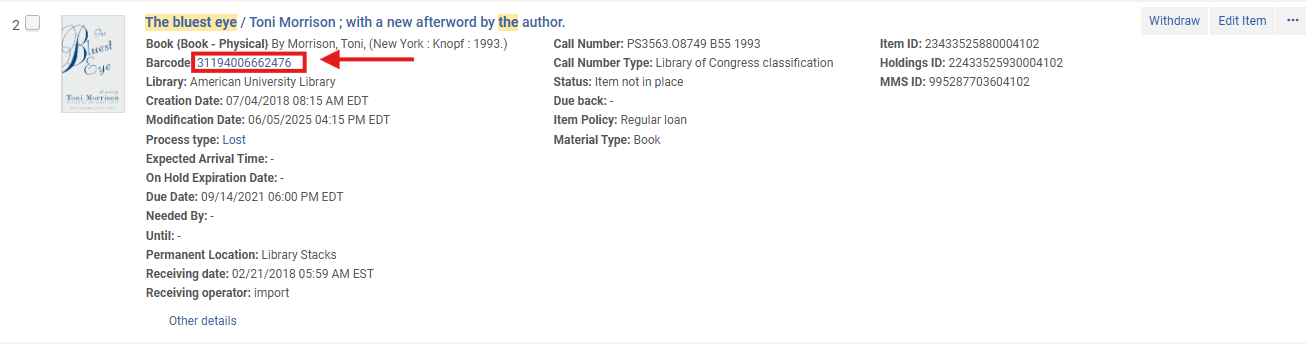
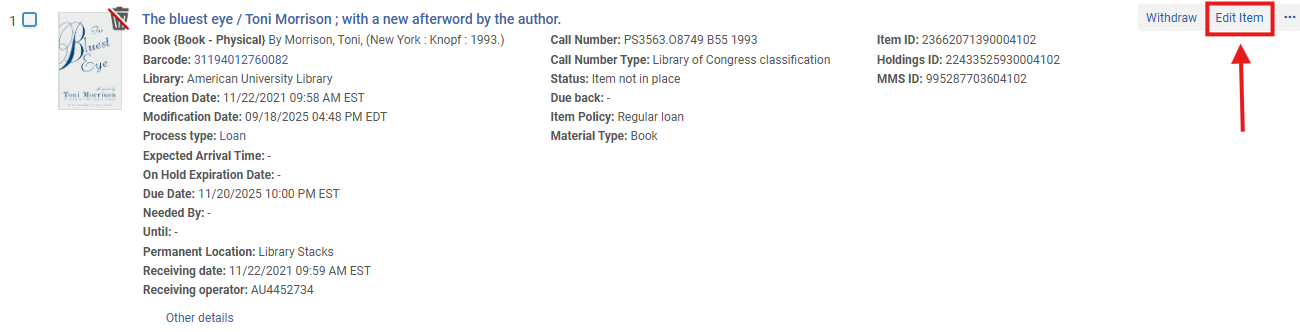
2: Open the Item Record Editor Locate the correct item in the search results. The following two options open the same Physical Item Editor
- Do one of the following:
- Click the barcode link to open the item editor, or
-
- Select <Edit item>
3: Access the <Notes> Tab In the Item Editor, select the Notes tab. The <Fulfillment Note> field controls pop-up alerts that display during checkout and return. Other Notes types, such as Internal or Public Notes, do not trigger circulation prompts.
- Scroll to the <Functional Notes> section.
- Locate the <Fulfillment Note> field.

4: Enter the Fulfillment Note Text In the <Fulfillment Note> field, type a clear, concise message describing the alert (e.g., “Check accompanying CD before reshelving.”). This text becomes the content of the pop-up shown to staff during checkout or check-in.
Per Ex Libris guidance, overly long notes may truncate on smaller screens- keep entries brief but specific.

5: Save the Item Record Click <Save> to record your changes. Saving commits the note to the item record and activates the pop-up message immediately for subsequent Fulfillment actions.

Frequently Asked Questions
-
What if I don’t see the <Fulfillment Note> field?
-
Confirm that you are on the Notes tab and not in the General Information tab. Only the Notes section contains the <Fulfillment Note> field.
-
-
Can multiple fulfillment notes exist for one item?
-
No. Each item supports a single Fulfillment Note. To add new information, edit and update the existing text.
-
-
Will the note appear for all users?
-
Yes. The pop-up displays for any circulation or fulfillment user processing that item, regardless of desk or operator.
-
-
Does the note display for requests and holds?
-
No. It appears only at the moment of checkout or return, not during request routing or scanning into transit.
-
-
Can public users see the Fulfillment Note in Primo VE?
-
No. It is visible only to staff in Alma during fulfillment actions.
-
-
Does removing the note delete transaction history?
-
No. The note only affects staff prompts; it does not alter Analytics or Loan history.
-
-
Can Fulfillment Notes be temporary?
-
Yes. Staff can remove or edit them at any time. Consider dating temporary messages (e.g., “Hold for processing until 2025-04-15”).
-
-
How can I verify that a Fulfillment Note is active?
-
Perform a test checkout. The pop-up should appear when scanning the item barcode.
-