# Configuring Peer to Peer Resource Sharing in the IZ

<span style="font-size: 12.0pt; line-height: 107%;">To fully configure peer to peer resource sharing, you will need to configure the following:</span>

- <span style="font-size: 12.0pt; line-height: 107%;">Temporary Resource Sharing Locations</span>
- <span style="font-size: 12.0pt; line-height: 107%;">Resource Sharing Library</span>
- <span style="font-size: 12.0pt; line-height: 107%;">Resource Sharing Jobs</span>
- <span style="font-size: 12.0pt; line-height: 107%;">Other Resource Sharing Settings</span>
- <span style="font-size: 12.0pt; line-height: 107%;">Workflow Profiles</span>
- <span style="font-size: 12.0pt; line-height: 107%;">Resource Sharing Partner</span>
- <span style="font-size: 12.0pt; line-height: 107%;">Item Policy</span>
- <span style="font-size: 12.0pt; line-height: 107%;">Temporary Item Creation Rule</span>
- <span style="font-size: 12.0pt; line-height: 107%;">Fulfillment Policies</span>
- <span style="font-size: 12.0pt; line-height: 107%;">Loan and Lending Resource Sharing TOUs</span>
- <span style="font-size: 12.0pt; line-height: 107%;">Fulfillment Unit Rules</span>
- <span style="font-size: 12.0pt; line-height: 107%;">Rota Template</span>
- <span style="font-size: 12.0pt; line-height: 107%;">Rota Assignment Rule</span>
- <span style="font-size: 12.0pt; line-height: 107%;">Sending Borrowing Request Rule</span>

<span style="font-size: 12.0pt; line-height: 107%;">All names and descriptions listed in this document are merely suggestions.<span style="mso-spacerun: yes;">  </span>You may use whatever names and descriptions work best for your library.</span>

<span style="font-size: 12.0pt; line-height: 107%;">You will need the **Fulfillment Administrator** and **Resource Sharing Partners Manager** roles to do this configuration work.<span style="mso-spacerun: yes;">  </span><u>All configuration work should be done at the institution level.</u></span>


#### Temporary Resource Sharing Locations

*<span style="font-size: 12.0pt; line-height: 107%; mso-bidi-font-weight: bold;">Temporary item records for items borrowed from other libraries will be housed in your temporary borrowing location, and items loaned to other libraries will be temporarily moved to your temporary lending location.<span style="mso-spacerun: yes;"> </span></span>*

*<span style="font-size: 12.0pt; line-height: 107%; mso-bidi-font-weight: bold;"><span style="mso-spacerun: yes;">As a frame of reference, WRLC's AFN / CLS process uses CLSBORR and CLSLEND as your Institution's temporary resource sharing locations<span style="font-size: 12.0pt; line-height: 107%; font-family: 'Calibri',sans-serif; mso-ascii-theme-font: minor-latin; mso-fareast-font-family: Calibri; mso-fareast-theme-font: minor-latin; mso-hansi-theme-font: minor-latin; mso-bidi-font-family: 'Times New Roman'; mso-bidi-theme-font: minor-bidi; mso-ansi-language: EN-US; mso-fareast-language: EN-US; mso-bidi-language: AR-SA; mso-bidi-font-weight: bold;">.</span></span></span>*

**<span style="font-size: 12.0pt; line-height: 107%;">1.</span>**<span style="font-size: 12.0pt; line-height: 107%; mso-bidi-font-weight: bold;"> Go to Configuration, select the library you’ve designated as your resource sharing library, and then go to Fulfillment \| Locations \| Physical Locations.<span style="mso-spacerun: yes;"> </span></span>

**<span style="font-size: 12.0pt; line-height: 107%;">2.</span>**<span style="font-size: 12.0pt; line-height: 107%; mso-bidi-font-weight: bold;"> Click the Add Location link, enter the values in the first row of the table below into the window that opens, and then click the Add Location button.<span style="mso-spacerun: yes;">  </span>Repeat that process using the values in the second row of the table.</span>

<table border="1" cellpadding="0" cellspacing="0" class="MsoTableGrid" id="bkmrk-code-name-external-n" style="border-collapse: collapse; border: none; mso-border-alt: solid windowtext .5pt; mso-yfti-tbllook: 1184; mso-padding-alt: 0in 5.4pt 0in 5.4pt;"><tbody style="outline-color: rgb(32, 110, 167);"><tr style="mso-yfti-irow: 0; mso-yfti-firstrow: yes;"><td style="width: 65.8pt; border: solid windowtext 1.0pt; mso-border-alt: solid windowtext .5pt; padding: 0in 5.4pt 0in 5.4pt;" valign="top" width="88"><span style="font-size: 12.0pt; mso-bidi-font-weight: bold;">Code</span>

</td><td style="width: 66.85pt; border: solid windowtext 1.0pt; border-left: none; mso-border-left-alt: solid windowtext .5pt; mso-border-alt: solid windowtext .5pt; padding: 0in 5.4pt 0in 5.4pt;" valign="top" width="89"><span style="font-size: 12.0pt; mso-bidi-font-weight: bold;">Name</span>

</td><td style="width: 69.85pt; border: solid windowtext 1.0pt; border-left: none; mso-border-left-alt: solid windowtext .5pt; mso-border-alt: solid windowtext .5pt; padding: 0in 5.4pt 0in 5.4pt;" valign="top" width="93"><span style="font-size: 12.0pt; mso-bidi-font-weight: bold;">External Name</span>

</td><td style="width: 65.35pt; border: solid windowtext 1.0pt; border-left: none; mso-border-left-alt: solid windowtext .5pt; mso-border-alt: solid windowtext .5pt; padding: 0in 5.4pt 0in 5.4pt;" valign="top" width="87"><span style="font-size: 12.0pt; mso-bidi-font-weight: bold;">Type</span>

</td><td style="width: 69.45pt; border: solid windowtext 1.0pt; border-left: none; mso-border-left-alt: solid windowtext .5pt; mso-border-alt: solid windowtext .5pt; padding: 0in 5.4pt 0in 5.4pt;" valign="top" width="93"><span style="font-size: 12.0pt; mso-bidi-font-weight: bold;">Remote Storage</span>

</td><td style="width: 73.3pt; border: solid windowtext 1.0pt; border-left: none; mso-border-left-alt: solid windowtext .5pt; mso-border-alt: solid windowtext .5pt; padding: 0in 5.4pt 0in 5.4pt;" valign="top" width="98"><span style="font-size: 12.0pt; mso-bidi-font-weight: bold;">Fulfillment Unit</span>

</td><td style="width: 69.9pt; border: solid windowtext 1.0pt; border-left: none; mso-border-left-alt: solid windowtext .5pt; mso-border-alt: solid windowtext .5pt; padding: 0in 5.4pt 0in 5.4pt;" valign="top" width="93"><span style="font-size: 12.0pt; mso-bidi-font-weight: bold;">Call Number Type</span>

</td><td style="width: 59.0pt; border: solid windowtext 1.0pt; border-left: none; mso-border-left-alt: solid windowtext .5pt; mso-border-alt: solid windowtext .5pt; padding: 0in 5.4pt 0in 5.4pt;" valign="top" width="79"><span style="font-size: 12.0pt; mso-bidi-font-weight: bold;">Map</span>

</td></tr><tr style="mso-yfti-irow: 1;"><td style="width: 65.8pt; border: solid windowtext 1.0pt; border-top: none; mso-border-top-alt: solid windowtext .5pt; mso-border-alt: solid windowtext .5pt; padding: 0in 5.4pt 0in 5.4pt;" valign="top" width="88"><span style="font-size: 12.0pt; mso-bidi-font-weight: bold;">BORROWING</span>

</td><td style="width: 66.85pt; border-top: none; border-left: none; border-bottom: solid windowtext 1.0pt; border-right: solid windowtext 1.0pt; mso-border-top-alt: solid windowtext .5pt; mso-border-left-alt: solid windowtext .5pt; mso-border-alt: solid windowtext .5pt; padding: 0in 5.4pt 0in 5.4pt;" valign="top" width="89"><span style="font-size: 12.0pt; mso-bidi-font-weight: bold;">Borrowing</span>

</td><td style="width: 69.85pt; border-top: none; border-left: none; border-bottom: solid windowtext 1.0pt; border-right: solid windowtext 1.0pt; mso-border-top-alt: solid windowtext .5pt; mso-border-left-alt: solid windowtext .5pt; mso-border-alt: solid windowtext .5pt; padding: 0in 5.4pt 0in 5.4pt;" valign="top" width="93"><span style="font-size: 12.0pt; mso-bidi-font-weight: bold;">Borrowing</span>

</td><td style="width: 65.35pt; border-top: none; border-left: none; border-bottom: solid windowtext 1.0pt; border-right: solid windowtext 1.0pt; mso-border-top-alt: solid windowtext .5pt; mso-border-left-alt: solid windowtext .5pt; mso-border-alt: solid windowtext .5pt; padding: 0in 5.4pt 0in 5.4pt;" valign="top" width="87"><span style="font-size: 12.0pt; mso-bidi-font-weight: bold;">Open</span>

</td><td style="width: 69.45pt; border-top: none; border-left: none; border-bottom: solid windowtext 1.0pt; border-right: solid windowtext 1.0pt; mso-border-top-alt: solid windowtext .5pt; mso-border-left-alt: solid windowtext .5pt; mso-border-alt: solid windowtext .5pt; padding: 0in 5.4pt 0in 5.4pt;" valign="top" width="93"><span style="font-size: 12.0pt; mso-bidi-font-weight: bold;">leave blank</span>

</td><td style="width: 73.3pt; border-top: none; border-left: none; border-bottom: solid windowtext 1.0pt; border-right: solid windowtext 1.0pt; mso-border-top-alt: solid windowtext .5pt; mso-border-left-alt: solid windowtext .5pt; mso-border-alt: solid windowtext .5pt; padding: 0in 5.4pt 0in 5.4pt;" valign="top" width="98"><span style="font-size: 12.0pt; mso-bidi-font-weight: bold;">Select value ending in “\_FU”</span>

</td><td style="width: 69.9pt; border-top: none; border-left: none; border-bottom: solid windowtext 1.0pt; border-right: solid windowtext 1.0pt; mso-border-top-alt: solid windowtext .5pt; mso-border-left-alt: solid windowtext .5pt; mso-border-alt: solid windowtext .5pt; padding: 0in 5.4pt 0in 5.4pt;" valign="top" width="93"><span style="font-size: 12.0pt; mso-bidi-font-weight: bold;">leave blank</span>

</td><td style="width: 59.0pt; border-top: none; border-left: none; border-bottom: solid windowtext 1.0pt; border-right: solid windowtext 1.0pt; mso-border-top-alt: solid windowtext .5pt; mso-border-left-alt: solid windowtext .5pt; mso-border-alt: solid windowtext .5pt; padding: 0in 5.4pt 0in 5.4pt;" valign="top" width="79"><span style="font-size: 12.0pt; mso-bidi-font-weight: bold;">leave blank</span>

</td></tr><tr style="mso-yfti-irow: 2; mso-yfti-lastrow: yes;"><td style="width: 65.8pt; border: solid windowtext 1.0pt; border-top: none; mso-border-top-alt: solid windowtext .5pt; mso-border-alt: solid windowtext .5pt; padding: 0in 5.4pt 0in 5.4pt;" valign="top" width="88"><span style="font-size: 12.0pt; mso-bidi-font-weight: bold;">LENDING</span>

</td><td style="width: 66.85pt; border-top: none; border-left: none; border-bottom: solid windowtext 1.0pt; border-right: solid windowtext 1.0pt; mso-border-top-alt: solid windowtext .5pt; mso-border-left-alt: solid windowtext .5pt; mso-border-alt: solid windowtext .5pt; padding: 0in 5.4pt 0in 5.4pt;" valign="top" width="89"><span style="font-size: 12.0pt; mso-bidi-font-weight: bold;">Lending</span>

</td><td style="width: 69.85pt; border-top: none; border-left: none; border-bottom: solid windowtext 1.0pt; border-right: solid windowtext 1.0pt; mso-border-top-alt: solid windowtext .5pt; mso-border-left-alt: solid windowtext .5pt; mso-border-alt: solid windowtext .5pt; padding: 0in 5.4pt 0in 5.4pt;" valign="top" width="93"><span style="font-size: 12.0pt; mso-bidi-font-weight: bold;">Lending</span>

</td><td style="width: 65.35pt; border-top: none; border-left: none; border-bottom: solid windowtext 1.0pt; border-right: solid windowtext 1.0pt; mso-border-top-alt: solid windowtext .5pt; mso-border-left-alt: solid windowtext .5pt; mso-border-alt: solid windowtext .5pt; padding: 0in 5.4pt 0in 5.4pt;" valign="top" width="87"><span style="font-size: 12.0pt; mso-bidi-font-weight: bold;">Open</span>

</td><td style="width: 69.45pt; border-top: none; border-left: none; border-bottom: solid windowtext 1.0pt; border-right: solid windowtext 1.0pt; mso-border-top-alt: solid windowtext .5pt; mso-border-left-alt: solid windowtext .5pt; mso-border-alt: solid windowtext .5pt; padding: 0in 5.4pt 0in 5.4pt;" valign="top" width="93"><span style="font-size: 12.0pt; mso-bidi-font-weight: bold;">leave blank</span>

</td><td style="width: 73.3pt; border-top: none; border-left: none; border-bottom: solid windowtext 1.0pt; border-right: solid windowtext 1.0pt; mso-border-top-alt: solid windowtext .5pt; mso-border-left-alt: solid windowtext .5pt; mso-border-alt: solid windowtext .5pt; padding: 0in 5.4pt 0in 5.4pt;" valign="top" width="98"><span style="font-size: 12.0pt; mso-bidi-font-weight: bold;">Select value ending in “\_FU”</span>

</td><td style="width: 69.9pt; border-top: none; border-left: none; border-bottom: solid windowtext 1.0pt; border-right: solid windowtext 1.0pt; mso-border-top-alt: solid windowtext .5pt; mso-border-left-alt: solid windowtext .5pt; mso-border-alt: solid windowtext .5pt; padding: 0in 5.4pt 0in 5.4pt;" valign="top" width="93"><span style="font-size: 12.0pt; mso-bidi-font-weight: bold;">leave blank</span>

</td><td style="width: 59.0pt; border-top: none; border-left: none; border-bottom: solid windowtext 1.0pt; border-right: solid windowtext 1.0pt; mso-border-top-alt: solid windowtext .5pt; mso-border-left-alt: solid windowtext .5pt; mso-border-alt: solid windowtext .5pt; padding: 0in 5.4pt 0in 5.4pt;" valign="top" width="79"><span style="font-size: 12.0pt; mso-bidi-font-weight: bold;">leave blank</span>

</td></tr></tbody></table>

**<span style="font-size: 12.0pt; line-height: 107%;">3. </span>**<span style="font-size: 12.0pt; line-height: 107%; mso-bidi-font-weight: bold;">Go to Fulfillment \| Locations \| Physical Locations, click the ellipsis next to your Borrowing location, scroll down to the Physical Location Circulation Desk List section, click the Attach Existing Circulation Desk link, select your resource sharing library’s circulation desk, make sure the Check In, Check Out, and Reshelve boxes are checked, click Attach Existing Circulation Desk, and then click the Save button.<span style="mso-spacerun: yes;">  </span>Repeat this process for your Lending location.<span style="mso-spacerun: yes;">  </span></span>


#### Resource Sharing Library

*<span style="font-size: 12.0pt; line-height: 107%; font-family: 'Calibri',sans-serif; mso-ascii-theme-font: minor-latin; mso-fareast-font-family: Calibri; mso-fareast-theme-font: minor-latin; mso-hansi-theme-font: minor-latin; mso-bidi-font-family: 'Times New Roman'; mso-bidi-theme-font: minor-bidi; mso-ansi-language: EN-US; mso-fareast-language: EN-US; mso-bidi-language: AR-SA; mso-bidi-font-weight: bold;">Your resource sharing library is the library where your temporary borrowing and lending locations are housed.<span style="mso-spacerun: yes;">  </span>It is possible to use your main library as your resource sharing library, or you can use the stand-alone resource sharing library that was created by Ex Libris.<span style="mso-spacerun: yes;">  </span>If you use the stand-alone resource sharing library, there will be a transit step between your main library and the resource sharing library whenever you receive or return a resource sharing item.<span style="mso-spacerun: yes;">  </span>If you use your main library as your resource sharing library, there is no transit step. </span>*

*As a frame of reference, WRLC's AFN / CLS process uses your institution's Main Library , NOT the r<span style="font-size: 12.0pt; line-height: 107%; font-family: 'Calibri',sans-serif; mso-ascii-theme-font: minor-latin; mso-fareast-font-family: Calibri; mso-fareast-theme-font: minor-latin; mso-hansi-theme-font: minor-latin; mso-bidi-font-family: 'Times New Roman'; mso-bidi-theme-font: minor-bidi; mso-ansi-language: EN-US; mso-fareast-language: EN-US; mso-bidi-language: AR-SA; mso-bidi-font-weight: bold;">esource sharing library created by Ex Libris.</span>*

**<span style="font-size: 12.0pt; line-height: 107%;">1.</span>**<span style="font-size: 12.0pt; line-height: 107%; mso-bidi-font-weight: bold;"> Go to Configuration, select the library you want to be your resource sharing library from the Configuring dropdown, and then go to Fulfillment \| Library Management \| Library Details.</span>

**<span style="font-size: 12.0pt; line-height: 107%;">2.</span>**<span style="font-size: 12.0pt; line-height: 107%; mso-bidi-font-weight: bold;"> Scroll down to the Resource Sharing Information section and make sure the Is Resource Sharing Library box is checked.<span style="mso-spacerun: yes;">  </span>Also, make sure your OCLC symbol is listed in the Symbol field.</span>

**<span style="font-size: 12.0pt; line-height: 107%;">3.</span>**<span style="font-size: 12.0pt; line-height: 107%; mso-bidi-font-weight: bold;"> Scroll down to the Borrowing Information section and check the following :</span>

- <span style="font-size: 12.0pt; line-height: 107%; mso-bidi-font-weight: bold;">Cancel Request on Locate Failure </span>
- <span style="font-size: 12.0pt; line-height: 107%; mso-bidi-font-weight: bold;">Automatically Activate Locate Profile</span>

<span style="font-size: 12.0pt; line-height: 107%; mso-bidi-font-weight: bold;">Next, select your temporary borrowing location from the Default Location dropdown (the one you created in the [Temporary Resource Sharing Locations](https://alma.wrlc.org/books/fulfillment/page/configuring-peer-to-peer-resource-sharing-in-the-iz#bkmrk-temporary-resource-s) section).<span style="mso-spacerun: yes;">  </span>Lastly, select the library that you would like to serve as your default pickup location from the Default Pickup Location dropdown.</span>

<p class="callout info"><span style="font-size: 12.0pt; line-height: 107%; mso-bidi-font-weight: bold;"><span style="mso-spacerun: yes;">For libraries participating in WRLC's AFN, please note that the location configured as the default Borrowing location is already set to a CLS location. In order to use a different location for items borrowed from P2P partners, do not change the location in the Borrowing Information section (leave as is), and instead create a [Temporary Item Creation rule](https://alma.wrlc.org/books/fulfillment/page/configuring-peer-to-peer-resource-sharing-in-the-iz#bkmrk-temporary-item-creat).</span></span></p>

**<span style="font-size: 12.0pt; line-height: 107%;">4.</span>**<span style="font-size: 12.0pt; line-height: 107%; mso-bidi-font-weight: bold;"> Scroll down to the Lending Information section and check the following boxes :</span>

- <span style="font-size: 12.0pt; line-height: 107%; mso-bidi-font-weight: bold;">Automatically Locate Resource</span>
- <span style="font-size: 12.0pt; line-height: 107%; mso-bidi-font-weight: bold;">Reject Request When No Available Items</span>
- <span style="font-size: 12.0pt; line-height: 107%; mso-bidi-font-weight: bold;">Reject Request When No Requestable Items</span>
- <span style="font-size: 12.0pt; line-height: 107%; mso-bidi-font-weight: bold;">Reject Request When Only Electronic Available</span>
- <span style="font-size: 12.0pt; line-height: 107%; mso-bidi-font-weight: bold;">Ignore Electronic Resources</span>
- <span style="font-size: 12.0pt; line-height: 107%; mso-bidi-font-weight: bold;">Automatic Creation boxes</span>

<span style="font-size: 12.0pt; line-height: 107%; mso-bidi-font-weight: bold;">Next, select your temporary lending location from the Default Location dropdown (the one you created in the [Temporary Resource Sharing Locations](https://alma.wrlc.org/books/fulfillment/page/configuring-peer-to-peer-resource-sharing-in-the-iz#bkmrk-temporary-resource-s) section).<span style="mso-spacerun: yes;"> </span></span>

<p class="callout info"><span style="font-size: 12.0pt; line-height: 107%; mso-bidi-font-weight: bold;"><span style="mso-spacerun: yes;">For libraries participating in WRLC's AFN, please note that location configured as the default Lending location is NEVER used for AFN requests. Lending requests in the AFN are regular hold requests instead. For more information, see the [Lending Setup section](https://alma.wrlc.org/books/fulfillment/page/afn-institution-zone-configurations#bkmrk-lending-setup) of the AFN Institution Zone Configurations page.</span></span></p>

**<span style="font-size: 12.0pt; line-height: 107%;">5.</span>**<span style="font-size: 12.0pt; line-height: 107%; mso-bidi-font-weight: bold;"> Scroll down to the bottom of the page, check the Locate By Fields box, click the No button, and then check the Title, Author, ISBN/ISSN, System Control Number, and LCCN (010) boxes.</span>

**<span style="font-size: 12.0pt; line-height: 107%;">6.</span>**<span style="font-size: 12.0pt; line-height: 107%; mso-bidi-font-weight: bold;"> Click the Save button.</span>


#### Resource Sharing Jobs

*<span style="font-size: 12.0pt; line-height: 107%; mso-bidi-font-weight: bold;">This job must be running in order for resource sharing requests to automatically move on to the next lender if they’re not filled within the expiry days value listed in the resource sharing partner.</span>*

**<span style="font-size: 12.0pt; line-height: 107%;">1.</span>**<span style="font-size: 12.0pt; line-height: 107%; mso-bidi-font-weight: bold;"> Go to Configuration \| Fulfillment \| General \| Fulfillment Jobs Configuration, switch the status of the Expired Resource Sharing Requests job to Active, select Every Day at 02:00 from the Schedule dropdown, and then click the Save button.</span>

#### Other Resource Sharing Settings

*Because the setting below are NOT library specific, they apply to all libraries within an institution. When working with multi-resource sharing libraries in a single institution zone, leave the location and library code information blank, and instead 1) assign specific library and locations via the [Lending and Borrowing sections of the Library Information page](#bkmrk-resource-sharing-lib-1), and 2) assign a resource sharing library in the patron record.*

<table border="1" cellpadding="0" cellspacing="0" class="MsoTableGrid" id="bkmrk-setting-value-ill_it" style="border-collapse: collapse; border: none; width: 97.6668%; height: 201.6px;"><tbody><tr style="height: 22.4px;"><td style="width: 0%; border: 1pt solid windowtext; padding: 0in 5.4pt; height: 22.4px;" valign="top" width="360">**<span style="font-size: 12.0pt;">Setting</span>**

</td><td style="width: 0%; border-top: 1pt solid windowtext; border-right: 1pt solid windowtext; border-bottom: 1pt solid windowtext; border-image: initial; border-left: none; padding: 0in 5.4pt; height: 22.4px;" valign="top" width="360">**<span style="font-size: 12.0pt;">Value</span>**

</td></tr><tr style="height: 22.4px;"><td style="width: 0%; border-right: 1pt solid windowtext; border-bottom: 1pt solid windowtext; border-left: 1pt solid windowtext; border-image: initial; border-top: none; padding: 0in 5.4pt; height: 22.4px;" valign="top" width="360"><span style="font-size: 12pt; background: rgb(255, 255, 255);">ill\_item\_creation\_lib\_code</span>

</td><td style="width: 0%; border-top: none; border-left: none; border-bottom: 1pt solid windowtext; border-right: 1pt solid windowtext; padding: 0in 5.4pt; height: 22.4px;" valign="top" width="360"><span style="font-size: 12.0pt; mso-bidi-font-weight: bold;">the code for your resource sharing library</span>

</td></tr><tr style="height: 22.4px;"><td style="width: 0%; border-right: 1pt solid windowtext; border-bottom: 1pt solid windowtext; border-left: 1pt solid windowtext; border-image: initial; border-top: none; padding: 0in 5.4pt; height: 22.4px;" valign="top" width="360"><span style="font-size: 12pt; background: rgb(255, 255, 255);">ill\_item\_creation\_location\_code</span>

</td><td style="width: 0%; border-top: none; border-left: none; border-bottom: 1pt solid windowtext; border-right: 1pt solid windowtext; padding: 0in 5.4pt; height: 22.4px;" valign="top" width="360"><span style="font-size: 12.0pt; mso-bidi-font-weight: bold;">the code for your temporary borrowing location</span>

</td></tr><tr style="height: 22.4px;"><td style="width: 0%; border-right: 1pt solid windowtext; border-bottom: 1pt solid windowtext; border-left: 1pt solid windowtext; border-image: initial; border-top: none; padding: 0in 5.4pt; height: 22.4px;" valign="top" width="360"><span style="font-size: 12pt; background: rgb(255, 255, 255);">rs\_allow\_actions\_on\_scan\_in</span>

</td><td style="width: 0%; border-top: none; border-left: none; border-bottom: 1pt solid windowtext; border-right: 1pt solid windowtext; padding: 0in 5.4pt; height: 22.4px;" valign="top" width="360"><span style="font-size: 12.0pt; mso-bidi-font-weight: bold;">true</span>

</td></tr><tr style="height: 22.4px;"><td style="width: 0%; border-right: 1pt solid windowtext; border-bottom: 1pt solid windowtext; border-left: 1pt solid windowtext; border-image: initial; border-top: none; padding: 0in 5.4pt; height: 22.4px;" valign="top" width="360"><span style="font-size: 12pt; background: rgb(255, 255, 255);">rs\_auto\_request\_lending</span>

</td><td style="width: 0%; border-top: none; border-left: none; border-bottom: 1pt solid windowtext; border-right: 1pt solid windowtext; padding: 0in 5.4pt; height: 22.4px;" valign="top" width="360"><span style="font-size: 12.0pt; mso-bidi-font-weight: bold;">true</span>

</td></tr><tr style="height: 22.4px;"><td style="width: 0%; border-right: 1pt solid windowtext; border-bottom: 1pt solid windowtext; border-left: 1pt solid windowtext; border-image: initial; border-top: none; padding: 0in 5.4pt; height: 22.4px;" valign="top" width="360"><span style="font-size: 12pt; background: rgb(255, 255, 255);">rs\_disable\_borrowing\_auto\_assign</span>

</td><td style="width: 0%; border-top: none; border-left: none; border-bottom: 1pt solid windowtext; border-right: 1pt solid windowtext; padding: 0in 5.4pt; height: 22.4px;" valign="top" width="360"><span style="font-size: 12.0pt; mso-bidi-font-weight: bold;">true</span>

</td></tr><tr style="height: 22.4px;"><td style="width: 0%; border-right: 1pt solid windowtext; border-bottom: 1pt solid windowtext; border-left: 1pt solid windowtext; border-image: initial; border-top: none; padding: 0in 5.4pt; height: 22.4px;" valign="top" width="360"><span style="font-size: 12pt; background: rgb(255, 255, 255);">rs\_disable\_lending\_auto\_assign</span>

</td><td style="width: 0%; border-top: none; border-left: none; border-bottom: 1pt solid windowtext; border-right: 1pt solid windowtext; padding: 0in 5.4pt; height: 22.4px;" valign="top" width="360"><span style="font-size: 12.0pt; mso-bidi-font-weight: bold;">true</span>

</td></tr></tbody></table>

#### Workflow profiles

*<span style="font-size: 12.0pt; line-height: 107%; mso-bidi-font-weight: bold;">Workflow profiles help determine how resource sharing requests behave.</span>*

**<span style="font-size: 12.0pt; line-height: 107%;">1.</span>**<span style="font-size: 12.0pt; line-height: 107%; mso-bidi-font-weight: bold;"> Go to Configuration \| Fulfillment \| Resource Sharing \| Workflow Profiles.</span>

**<span style="font-size: 12.0pt; line-height: 107%;">2.</span>**<span style="font-size: 12.0pt; line-height: 107%; mso-bidi-font-weight: bold;"> Click the Add Workflow Profile link, enter “Peer to Peer Borrowing” into the Workflow Profile field, leave the Type dropdown set to Borrowing, check the boxes listed below, and then click the Add and Close button.</span>

<span style="font-size: 12.0pt; line-height: 107%; font-family: Symbol; mso-fareast-font-family: Symbol; mso-bidi-font-family: Symbol; mso-bidi-font-weight: bold;"><span style="mso-list: Ignore;">·<span style="font: 7.0pt 'Times New Roman';">         </span></span></span><span style="font-size: 12.0pt; line-height: 107%; mso-bidi-font-weight: bold;">Automatic renew, Cancelled By Patron, Cancelled by partner, Cancelled by staff, Conditional, Lender check in, Manual renew, Reject, Renew requested, Request accepted, Will supply</span>

**<span style="font-size: 12.0pt; line-height: 107%;">3.</span>**<span style="font-size: 12.0pt; line-height: 107%; mso-bidi-font-weight: bold;"> Click the Add Workflow Profile link again, enter “Peer to Peer Lending” into the Workflow Profile field, switch the Type dropdown to Lending, check the boxes listed below, and then click the Add and Close button.</span>

<span style="font-size: 12.0pt; line-height: 107%; font-family: Symbol; mso-fareast-font-family: Symbol; mso-bidi-font-family: Symbol; mso-bidi-font-weight: bold;"><span style="mso-list: Ignore;">·<span style="font: 7.0pt 'Times New Roman';">         </span></span></span><span style="font-size: 12.0pt; line-height: 107%; mso-bidi-font-weight: bold;">Borrower recall, Cancel reply, Conditional, Lender check in, Patron renewal, Staff renewal</span>

#### Resource Sharing Partners

*<span style="font-size: 12.0pt; line-height: 107%; mso-bidi-font-weight: bold;">Resource sharing partners allow Alma institutions to send resource sharing requests to each other.</span>*

**<span style="font-size: 12.0pt; line-height: 107%;">1.</span>**<span style="font-size: 12.0pt; line-height: 107%; mso-bidi-font-weight: bold;"> From the main Alma screen, go to Fulfillment \| Resource Sharing \| Partners, click the Community tab, change the search dropdown from Description to Name, and search for the partner, click the ellipsis next to their name, and then click Copy.</span>

**<span style="font-size: 12.0pt; line-height: 107%;">2.</span>**<span style="font-size: 12.0pt; line-height: 107%; mso-bidi-font-weight: bold;"> Click on the Institution tab, click the ellipsis next to the partner's name, and click Edit.<span style="mso-spacerun: yes;">  </span></span>

**<span style="font-size: 12.0pt; line-height: 107%;">3.</span>**<span style="font-size: 12.0pt; line-height: 107%; mso-bidi-font-weight: bold;"> Select the workflow profiles you configured from the Borrowing Workflow and Lending Workflow dropdowns.<span style="mso-spacerun: yes;">  </span></span>

**<span style="font-size: 12.0pt; line-height: 107%;">4.</span>**<span style="font-size: 12.0pt; line-height: 107%; mso-bidi-font-weight: bold;"> Click the Parameters tab, change the Expiry Time (Days) setting to the appropriate number, and then click the Save button.</span>

#### Item Policy

*<span style="font-size: 12.0pt; line-height: 107%;">This Item Policy will be added to the temporary records Alma will create for the items you borrow from SUNY.<span style="mso-spacerun: yes;">  </span>This configuration work must be done at the resource sharing library level.</span>*

**<span style="font-size: 12.0pt; line-height: 107%;">1.</span>**<span style="font-size: 12.0pt; line-height: 107%;"> Go to Configuration, select your resource sharing library from the Configuring dropdown, and then go to Fulfillment \| Physical Fulfillment \| Item Policy.</span>

**<span style="font-size: 12.0pt; line-height: 107%;">2.</span>**<span style="font-size: 12.0pt; line-height: 107%;"> Click the Add Row button.<span style="mso-spacerun: yes;">  </span>The Item Policy configuration window will open.<span style="mso-spacerun: yes;">  </span></span>

<span style="font-size: 12.0pt; line-height: 107%; mso-bidi-font-weight: bold;">**<span style="font-size: 12.0pt; line-height: 107%; font-family: 'Calibri',sans-serif; mso-ascii-theme-font: minor-latin; mso-fareast-font-family: Calibri; mso-fareast-theme-font: minor-latin; mso-hansi-theme-font: minor-latin; mso-bidi-font-family: 'Times New Roman'; mso-bidi-theme-font: minor-bidi; mso-ansi-language: EN-US; mso-fareast-language: EN-US; mso-bidi-language: AR-SA;">3.</span>**<span style="font-size: 12.0pt; line-height: 107%; font-family: 'Calibri',sans-serif; mso-ascii-theme-font: minor-latin; mso-fareast-font-family: Calibri; mso-fareast-theme-font: minor-latin; mso-hansi-theme-font: minor-latin; mso-bidi-font-family: 'Times New Roman'; mso-bidi-theme-font: minor-bidi; mso-ansi-language: EN-US; mso-fareast-language: EN-US; mso-bidi-language: AR-SA;"> Configure the Item Policy as shown in the image below and then click Add Row.<span style="mso-spacerun: yes;">  </span>Once the Item Policy configuration window closes, click the Save button.<span style="mso-spacerun: yes;"> </span></span></span>

#### Temporary Item Creation Rule

*<span style="font-size: 12.0pt; line-height: 107%;">This Temporary Item Creation Rule will add the Item Policy you previously configured to the temporary item records Alma will create for the items you borrow from your peer-to-peer lending institutions.<span style="mso-spacerun: yes;">  </span>It will also determine the temporary item record’s location.<span style="mso-spacerun: yes;">  </span>This configuration work must be done at the resource sharing library level.</span>*

**<span style="font-size: 12.0pt; line-height: 107%;">1.</span>**<span style="font-size: 12.0pt; line-height: 107%;"> Go to Configuration, select your resource sharing library from the Configuring dropdown, and then go to Fulfillment \| Library Management \| Temporary Item Creation Rules</span>

**<span style="font-size: 12.0pt; line-height: 107%;">2.</span>**<span style="font-size: 12.0pt; line-height: 107%;"> Click the Add Rule button</span>

**<span style="font-size: 12.0pt; line-height: 107%;">3.</span>**<span style="font-size: 12.0pt; line-height: 107%;"> Configure the Temporary Item Creation Rule to have the following input parameters </span>

<span style="font-size: 12.0pt; line-height: 107%;">Name = Resource Sharing Partner </span>

<span style="font-size: 12.0pt; line-height: 107%;">Operator = InList</span>

<span style="font-size: 12.0pt; line-height: 107%;">Value = \[List of Resource Sharing Partners\]</span>

**<span style="font-size: 12.0pt; line-height: 107%;">4.</span>**<span style="font-size: 12.0pt; line-height: 107%;"> Make sure this rule is positioned at the top of your Temporary Item Creation rules list.</span>

#### Fulfillment Policies

*<span style="font-size: 12.0pt; line-height: 107%;">These fulfillment policies will be used in the Loan and Lending Resource Sharing TOUs you will configure for items borrowed from and loaned to your peer-to-peer lenders.<span style="mso-spacerun: yes;">  </span>This configuration work should be done at the institution level. </span>*

*<span style="font-size: 12.0pt; line-height: 107%;">Please contact your lending partners to determine the values necessary for your fulfillment policies.</span>*

**<span style="font-size: 12.0pt; line-height: 107%;">1.</span>**<span style="font-size: 12.0pt; line-height: 107%;"> Go to Configuration, select your institution from the Configuring dropdown, and then go to Fulfillment \| Physical Fulfillment \| Advanced Policy Configuration.</span>

**<span style="font-size: 12.0pt; line-height: 107%;">2.</span>**<span style="font-size: 12.0pt; line-height: 107%;"> Click the Add Fulfillment Policy button, select the type of policy you would like to configure, configure the relevant policies, and then click the Save button.</span>

*<span style="font-size: 12.0pt; line-height: 107%;">Note: If you already have policies configured for these resource sharing partnerships, there’s no need to configure additional policies.<span style="mso-spacerun: yes;">  </span>You can use the policies you’ve already configured.</span>*

#### Loan, Borrowing, Resource Sharing, and Lending Resource Sharing TOU's

*<span style="font-size: 12.0pt; line-height: 107%;">These TOUs will determine the loan and renewal periods for the items you borrow from and loan to your peer-to-peer partners.<span style="mso-spacerun: yes;">  </span>They will also determine which user groups are allowed to submit borrowing requests in Primo.<span style="mso-spacerun: yes;">  </span>This configuration work should be done at the institution level.</span>*

*<span style="font-size: 12.0pt; line-height: 107%;">Please contact your lending partners to determine the values necessary for your fulfillment policies.</span>*

**<span style="font-size: 12.0pt; line-height: 107%;">1.</span>**<span style="font-size: 12.0pt; line-height: 107%;"> Go to Configuration, select your institution from the Configuring dropdown, and then go to Fulfillment \| Physical Fulfillment \| Terms of Use and Policies.</span>

**<span style="font-size: 12.0pt; line-height: 107%;">2.</span>**<span style="font-size: 12.0pt; line-height: 107%;"> Click the Add a Terms of Use button.</span>

**<span style="font-size: 12.0pt; line-height: 107%;">3.</span>**<span style="font-size: 12.0pt; line-height: 107%;"> Click the Loan button and then click the Next button.</span>

**<span style="font-size: 12.0pt; line-height: 107%;">4.</span>**<span style="font-size: 12.0pt; line-height: 107%;"> Select the relevant policies in the table below, click the Next button, and then click the Save button.</span>

**<span style="font-size: 12.0pt; line-height: 107%;">5.</span>**<span style="font-size: 12.0pt; line-height: 107%;"> Click the Add a Terms of Use button again.</span>

**<span style="font-size: 12.0pt; line-height: 107%;">6.</span>**<span style="font-size: 12.0pt; line-height: 107%;"> Click the Lending Resource Sharing button and then click the Next button.</span>

**<span style="font-size: 12.0pt; line-height: 107%;">7.</span>**<span style="font-size: 12.0pt; line-height: 107%;"> Select the relevant policies in the table below, click the Next button, and then click the Save button.</span>

**<span style="font-size: 12.0pt; line-height: 107%;">8.</span>**<span style="font-size: 12.0pt; line-height: 107%;"> Click the Add a Terms of Use button again.</span>

**<span style="font-size: 12.0pt; line-height: 107%;">9.</span>**<span style="font-size: 12.0pt; line-height: 107%;"> Click the Borrowing Resource Sharing button and then click the Next button.</span>

**<span style="font-size: 12.0pt; line-height: 107%;">10.</span>**<span style="font-size: 12.0pt; line-height: 107%;"> Select the relevant policies in the table below, click the Next button, and then click the Save button.</span>

#### Fulfillment Unit Rules

*<span style="font-size: 12.0pt; line-height: 107%;">These fulfillment unit rules will determine which Loan and Lending Resource Sharing TOUs are assigned to the items you borrow from and lend to your peer-to-peer partners.<span style="mso-spacerun: yes;">  </span>This configuration work must be done at the resource sharing library level.</span>*

**<span style="font-size: 12.0pt; line-height: 107%;">1.</span>**<span style="font-size: 12.0pt; line-height: 107%;"> Go to Configuration, select your resource sharing library from the Configuring dropdown, and then go to Fulfillment \| Physical Fulfillment \| Fulfillment Units</span>

**<span style="font-size: 12.0pt; line-height: 107%;">2.</span>**<span style="font-size: 12.0pt; line-height: 107%;"> Click the ellipsis next to your resource sharing fulfillment unit and then click Edit.</span>

**<span style="font-size: 12.0pt; line-height: 107%;">3.</span>**<span style="font-size: 12.0pt; line-height: 107%;"> Click the Fulfillment Unit Rules tab, select “Loan” from the Rule Type dropdown, and then click the Add Rule button.</span>

**<span style="font-size: 12.0pt; line-height: 107%;">4.</span>**<span style="font-size: 12.0pt; line-height: 107%;"> Configure the Loan fulfillment unit rule to use your newly created Item Policy, then click the Save button.</span>

**<span style="font-size: 12.0pt; line-height: 107%;">5.</span>**<span style="font-size: 12.0pt; line-height: 107%;"> Make sure the Loan fulfillment unit rule you’ve configured is positioned above any other Loan fulfillment unit rules that could potentially be applied to items borrowed from your peer-to-peer partners and then click the Save button.</span>

**<span style="font-size: 12.0pt; line-height: 107%;">6.</span>**<span style="font-size: 12.0pt; line-height: 107%;"> Click the ellipsis next to your resource sharing fulfillment unit and then click Edit.</span>

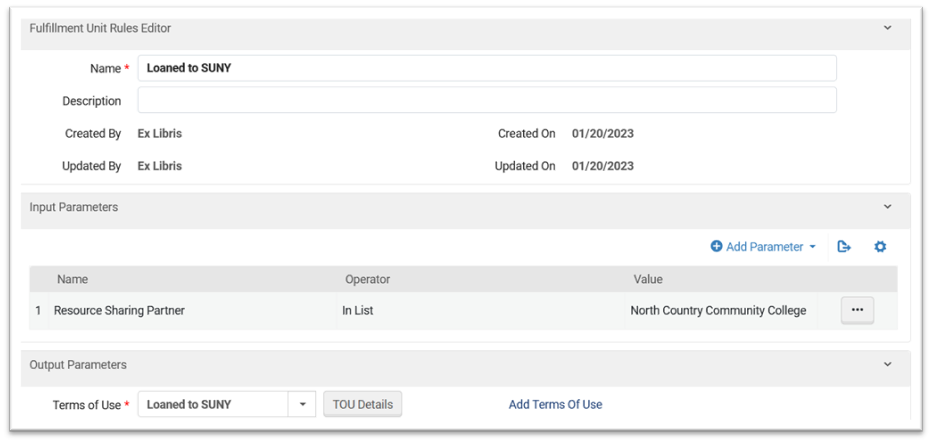
**<span style="font-size: 12.0pt; line-height: 107%;">7.</span>**<span style="font-size: 12.0pt; line-height: 107%;"> Click the Fulfillment Unit Rules tab, select “Lending Resource Sharing” from the Rule Type dropdown, and then click the Add Rule button.</span>

**<span style="font-size: 12.0pt; line-height: 107%;">8.</span>**<span style="font-size: 12.0pt; line-height: 107%;"> Configure the Lending Resource Sharing fulfillment unit rule similar to the image below; in the list, add all of your P2P partners. Then click the Save button.</span>

<span style="font-size: 12.0pt; line-height: 107%;">[![Picture1-lending.png](https://alma-documentation-bookstack.azurewebsites.net/uploads/images/gallery/2025-06/scaled-1680-/picture1-lending.png)](https://alma-documentation-bookstack.azurewebsites.net/uploads/images/gallery/2025-06/picture1-lending.png)</span>

**<span style="font-size: 12.0pt; line-height: 107%;">9.</span>**<span style="font-size: 12.0pt; line-height: 107%;"> Make sure the Lending Resource Sharing fulfillment unit rule you’ve configured is positioned above any other Lending Resource Sharing fulfillment unit rules that could potentially be applied to items loaned to your peer-to-peer partners and then click the Save button.</span>

**<span style="font-size: 12.0pt; line-height: 107%;">10.</span>**<span style="font-size: 12.0pt; line-height: 107%;"> Click the ellipsis next to your resource sharing fulfillment unit and then click Edit.</span>

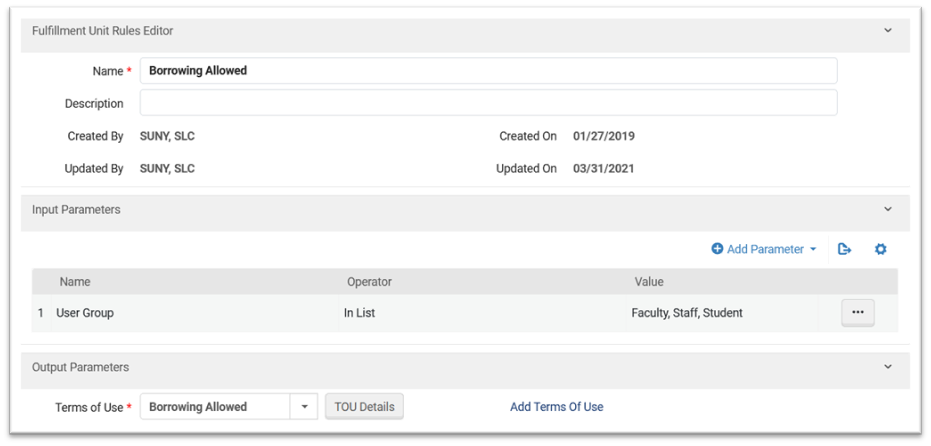
**<span style="font-size: 12.0pt; line-height: 107%;">11.</span>**<span style="font-size: 12.0pt; line-height: 107%;"> Click the Fulfillment Unit Rules tab, select “Borrowing Resource Sharing” from the Rule Type dropdown, and then click the Add Rule button.</span>

**<span style="font-size: 12.0pt; line-height: 107%;">12.</span>**<span style="font-size: 12.0pt; line-height: 107%;"> Configure the Borrowing Resource Sharing fulfillment unit rule similar to the image below (when configuring the input parameter, select the user groups you want to be able to submit borrowing requests) and then click the Save button.</span>

<span style="font-size: 12.0pt; line-height: 107%;">[![Picture3-borrowing.png](https://alma-documentation-bookstack.azurewebsites.net/uploads/images/gallery/2025-06/scaled-1680-/picture3-borrowing.png)](https://alma-documentation-bookstack.azurewebsites.net/uploads/images/gallery/2025-06/picture3-borrowing.png)</span>

**<span style="font-size: 12.0pt; line-height: 107%;">13. </span>**<span style="font-size: 12.0pt; line-height: 107%;">Make sure the Borrowing Resource Sharing fulfillment unit rule you’ve configured is positioned above any other Borrowing Resource Sharing fulfillment unit rules that could potentially prevent users from submitting borrowing requests.</span>

#### Rota Template

*<span style="font-size: 12.0pt; line-height: 107%;">This Rota Template will determine which peer-to-peer libraries are added to your request rotas.<span style="mso-spacerun: yes;">  </span>This configuration work must be done from the main Alma page, not the Configuration page.<span style="mso-spacerun: yes;">  </span></span>*

**<span style="font-size: 12.0pt; line-height: 107%;">1.</span>**<span style="font-size: 12.0pt; line-height: 107%;"> Go to Fulfillment \| Resource Sharing \| Rota Templates</span>

**<span style="font-size: 12.0pt; line-height: 107%;">2.</span>**<span style="font-size: 12.0pt; line-height: 107%;"> Click the Add Template button.</span>

**<span style="font-size: 12.0pt; line-height: 107%;">3.</span>**<span style="font-size: 12.0pt; line-height: 107%;"> Configure the Rota Template and then click the Save and Add Members button.</span>

**<span style="font-size: 12.0pt; line-height: 107%;">4.</span>**<span style="font-size: 12.0pt; line-height: 107%;"> Click the Add Partners button, select your peer-to-peer partners, and then click the Save Button.</span>

#### Rota Assignment Rule

*<span style="font-size: 12.0pt; line-height: 107%;">This Rota Assignment Rule will determine where peer-to-peer libraries will be positioned in your request rotas.<span style="mso-spacerun: yes;">  </span>This configuration work should be done at the institution level.</span>*

**<span style="font-size: 12.0pt; line-height: 107%;">1.</span>**<span style="font-size: 12.0pt; line-height: 107%;"> Go to Configuration, select your institution from the Configuring dropdown, and then go to Fulfillment \| Resource Sharing \| Rota Assignment Rules.</span>

**<span style="font-size: 12.0pt; line-height: 107%;">2.</span>**<span style="font-size: 12.0pt; line-height: 107%;"> Click the Add Rule button.</span>

**<span style="font-size: 12.0pt; line-height: 107%;">3.</span>**<span style="font-size: 12.0pt; line-height: 107%;"> Configure the Rota Assignment Rule according to the terms of your lending agreement, and then click the Save button.</span>

**<span style="font-size: 12.0pt; line-height: 107%;">4.</span>**<span style="font-size: 12.0pt; line-height: 107%;"> Make sure the Rota Assignment Rule is positioned at the top of your rota assignment rules list.<span style="mso-spacerun: yes;"> </span></span>

#### Sending Borrowing Request Rule

*<span style="font-size: 12.0pt; line-height: 107%;">This rule will make sure borrowing requests assigned to your peer-to-peer libraries are sent automatically.<span style="mso-spacerun: yes;">  </span>This configuration work may not be necessary given how your other Sending Borrowing Request rules are configured.<span style="mso-spacerun: yes;">  </span>This configuration work should be done at the institution level.</span>*

**<span style="font-size: 12.0pt; line-height: 107%;">1.</span>**<span style="font-size: 12.0pt; line-height: 107%;"> Go to Configuration, select your institution from the Configuring dropdown, and then go to Fulfillment \| Resource Sharing \| Sending Borrowing Request Rules. </span>

**<span style="font-size: 12.0pt; line-height: 107%;">2.</span>**<span style="font-size: 12.0pt; line-height: 107%;"> Click the Add Rule button.</span>

**<span style="font-size: 12.0pt; line-height: 107%;">3.</span>**<span style="font-size: 12.0pt; line-height: 107%;"> Configure the Sending Borrowing Request rule according to the terms of your lending agreement, and then click the Save button.</span>