AFN Digitization Workflow
This workflow defines the WRLC-wide, institution-neutral procedure for submitting, processing, and fulfilling digitization requests for materials housed at the Shared Collections Facility (SCF) using:
-
ILLiad as the staff-facing request management system
-
The WRLC Digitization Add-on within ILLiad
-
Ex Libris Alma as the fulfillment and digitization platform
This workflow applies only to digitization requests for materials confirmed to be located at the SCF and intentionally routes requests through Alma to support AFN/remote storage operations.
How the Request Moves Between ILLiad and Alma Systems
-
ILLiad is the primary working interface for library staff
-
The WRLC Digitization add-on/tab inside ILLiad is used to submit the digitization request.
-
The submission creates an Alma request in the library’s IZ (institution zone).
-
Through WRLC remote storage publishing jobs), the request is copied to SCF’s IZ on a schedule (noon and midnight).
-
SCF staff scans and uploads the PDF in Alma, which triggers Alma to email the “requester” (generic library ILL email address). The requester is library ILL staff, not the patron.
-
Once received from the generic library ILL email address, library staff then uploads the PDF into ILLiad to fulfill the request for outside borrowing institutions
- For requests from a library's home patrons, follow in-house fulfillment procedures
Use this workflow only when a patron needs a digitized portion of an item that you already know is stored at the Shared Collections Facility (SCF).
Required Roles
- ILL Staff
- Fulfillment Operator
Part 1: Submitting the Digitization Request (ILLiad → Alma)
The AFN Digitization workflow is used specifically when library staff know/confirm the item is in SCF
1: Open the request in ILLiad and Locate Requested Item (Borrowing or Lending request)
The simplest way to locate these numbers is to use the Persistent Search Bar in Alma, conducting a “Physical Items” search. If you are searching for a periodical volume, it is helpful to put the year in the search bar to ensure the correct item is retrieved.
- You will require two critical pieces of information from the item's record
- MMS ID
- Item ID
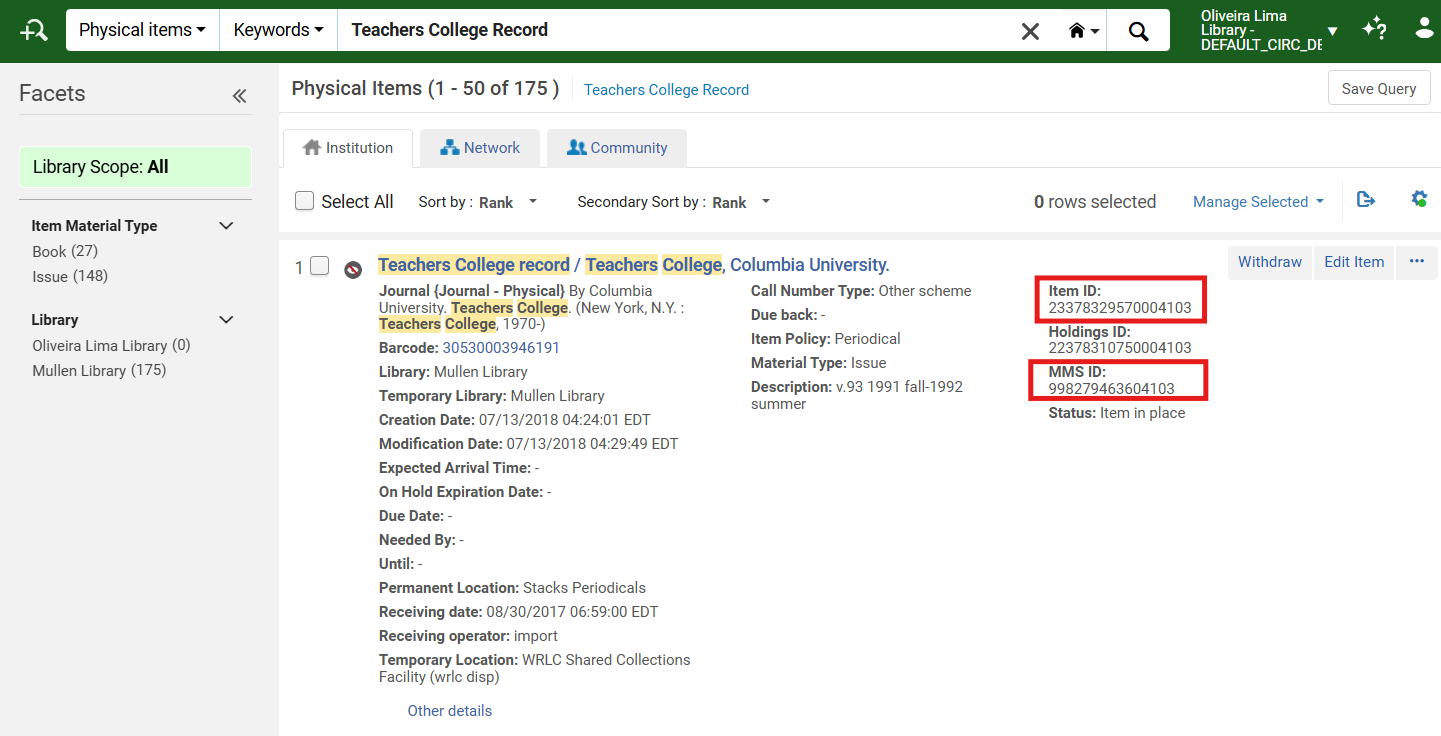
- Within the ILLiad Request page, enter the Item Id and MMS ID into the following fields:
- Item ID → Reference Number
-
MMS ID → Call Number
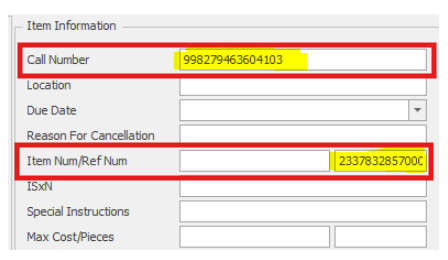
Why This Matters: ILLiad sends these numbers to Alma so SCF staff knows exactly which item to scan.
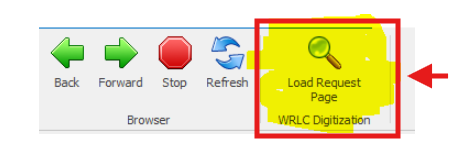
2: Open WRLC Digitization Form in ILLiad and Load Request Click the <WRLC Digitization> tab within the ILLiad request; the tab will initially appear blank

- Click <Load Request Page> to load the application
- This will bring up a web form that will be populated from ILLiad; confirm the ILLiad Request Form is auto-populated with available data from the ILLiad request details
- If MMSID/Item ID were already entered into the ILLiad request fields, they should now auto fill in the form fields
- If not, they can be entered manually in the form (but they are required either way)
-
MMS ID → Call Number
-
Item ID → Reference Number
-
- Page Range (Required): Enter Start Page and End Page; if the page range is unknown: use 1–1
- Do not enter 0–0. Alma will reject the request
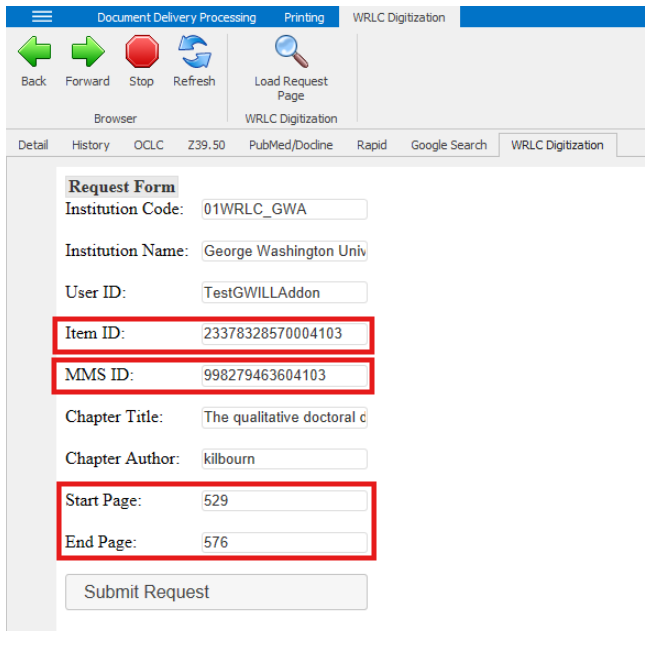
3: Submit the Request Click <Submit Request> When the confirmation screen appears, note the Alma Request ID
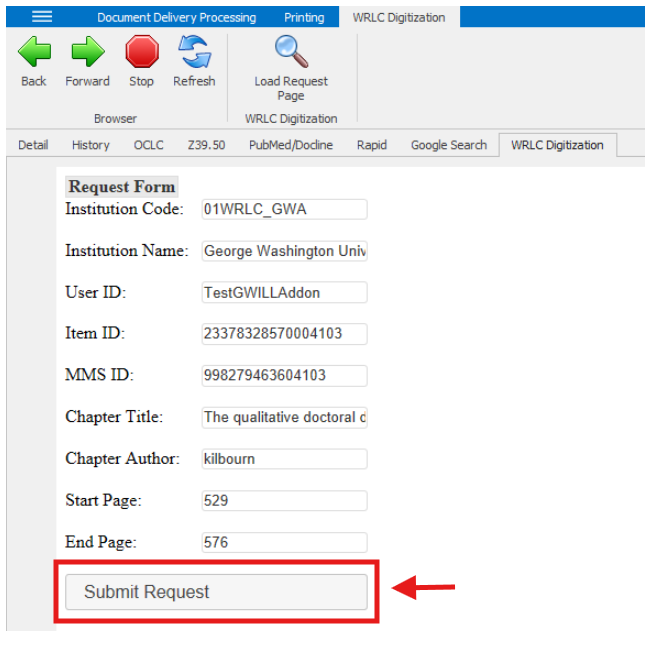
4: Recordkeeping in ILLiad Return to the ILLiad request details page and add a note such as “Sent to SCF” and enter the returned Request ID
Why This Matters: This creates a local breadcrumb for tracking
5: Route the Request Correctly in ILLiad
- For library’s own home patron (local chapter/article from SCF) Convert the ILLiad request to a Document Delivery Request
- Place into Document Delivery Stacks Searching (status used while waiting for PDF)
- Leave in that status until the scan arrives.
- Place into Document Delivery Stacks Searching (status used while waiting for PDF)
- Library lending request (Library scanning for an institution)
- Keep the ending workflow active in ILLiad
- Manually route the ILLiad request to whichever queue is appropriate in your libraries' ILLiad instance, i.e. “Awaiting Return from WRLC" or "Lending Stacks" searching queue
Note: You are now waiting for the scan.
Part 2: What Happens Next (SCF and Alma)
You do not need to take action in this section. This information is included to help understand the process:
After ILLiad submission migrates, an Alma request exists in the library’s IZ (often identifiable by the Request ID pattern). The request is copied into SCF’s IZ via the remote storage publishing process (often referred to as the scf app) on a schedule (noon and midnight); Simplified Digitization Workflow
- Alma sends the request to SCF automatically.
- SCF staff accesses request from the <Pull from Shelf queue>; Pull Slip documents are similar to non CLS/AFN requests but will include notes such as ILL TN#
- SCF staff will locate requested item in the SCF, and then scan and upload the PDF in Alma.
- Alma emails the PDF attachment to the requester In this model, the requester is the library’s ILL staff, so the PDF goes to the library’s generic ILL email inbox.
Part 3: Receiving the Scan and Completing the Request
1: Monitor the ILL Email Inbox Watch for an email from requests@wrlc.org (the SCF staff) with a PDF attachment.
- The cover page includes key transaction information to help the library staff match the attachment to the open request
- Alma Request ID
- ILLiad Transaction Number
2: Deliver the Scan
- For library’s own patron (local chapter/article from SCF) Library staff downloads the PDF and uploads/imports the PDF into ILLiad to fulfill the request
- Fulfillment> Resource Requests> Deliver Digital Documents> Deliver Digital Documents>Document Delivery
- Fulfillment> Resource Requests> Deliver Digital Documents> Deliver Digital Documents>Document Delivery

- Library lending request (Library scanning for another institution) Library staff upload it into ILLiad and send it via Odyssey or Article Exchange
Exceptions and Error Handling
No Scan Received If no scan is received after several business days:
- Confirm the Alma request exists and note its current status
- Verify the request was successfully published to SCF’s IZ
- Contact SCF staff for status confirmation
Alma Error or Update Notifications Monitor for Alma-generated emails indicating issues such as:
- Invalid page range
- Item not found