# Peer to Peer Resource Sharing
Instructions and information on how to set up peer-to-peer resource sharing in Alma.
# Peer-to-Peer (P2P) Resource Sharing at WRLC
Peer-to-Peer (P2P) resource sharing is a library-to-library lending model that enables academic libraries to share physical materials directly with one another using the Alma library services platform. At the WRLC, P2P resource sharing expands traditional consortium borrowing by connecting WRLC libraries to a broader national network of partner institutions, while maintaining a single, integrated workflow for discovery, requesting, lending, and returns.
Unlike legacy interlibrary loan systems that rely on external brokers or multiple platforms, P2P resource sharing operates entirely within Alma. Requests are placed by patrons through Primo, WRLC’s discovery interface, and are automatically routed by Alma to eligible lending partners based on predefined lending agreements and availability rules.
---
##### **History and Development at WRLC**
WRLC’s engagement with Peer-to-Peer resource sharing began in 2020 as part of a Resource Sharing Committee (RSC) initiative to explore scalable, cost-effective ways to expand access to collections beyond the consortium. Three WRLC member libraries, George Washington University, American University, and Marymount University, participated in an initial pilot with the State University of New York (SUNY).
Although the formal pilot concluded, the partnerships it established continued to grow. These collaborations evolved into what is now known as Libraries Optimizing Alma Networks (LOAN), a multi-consortial peer-to-peer lending community comprised of nearly 100 academic libraries. The LOAN network includes institutions from regional and statewide consortia such as the Partnership Among South Carolina Academic Libraries (PASCAL), the Florida Virtual Campus (FLVC), the Independent Colleges and Universities of Florida (ICUF), the Virtual Library of Virginia (VIVA), and others.
Through LOAN, WRLC libraries participate in a distributed lending ecosystem that extends well beyond local and regional boundaries while preserving shared expectations around loan policies and service levels.
---
##### **How Peer-to-Peer Resource Sharing Works**
From a patron perspective, Peer-to-Peer resource sharing is largely invisible. Users submit a standard request through Primo without selecting a specific fulfillment pathway. Alma automatically evaluates the request and attempts fulfillment in the following order:
1. WRLC consortium partners
2. Peer-to-Peer (LOAN) partners
3. Traditional interlibrary loan systems, such as ILLiad, if configured as a lender of last resort
For staff, P2P lending uses the same Alma fulfillment workflows as local and consortium lending. Items appear in pick lists, circulate like local materials, and require no separate systems. Alma verifies lender eligibility and item loanability before routing requests, reducing manual triage and staff mediation.
---
##### **Benefits to Libraries and Patrons**
**Expanded Access to Collections**
Peer-to-Peer resource sharing significantly increases the pool of available materials by extending borrowing access to nearly 100 partner libraries beyond WRLC. This improves the likelihood of successful fulfillment, particularly for specialized or low-circulation titles.
**Faster and More Efficient Fulfillment**
Large lending rotas allow requests to roll automatically between partners, minimizing delays caused by staff intervention. Libraries report faster turnaround times compared to traditional interlibrary loan workflows.
**Reduced Staff Burden**
Because P2P operates entirely within Alma, staff avoid maintaining parallel systems or manually routing requests. The streamlined workflow supports efficient processing by both permanent staff and student workers.
**Cost Containment**
Peer-to-Peer lending does not carry per-transaction fees. Participating libraries incur only shipping costs, reducing reliance on paid interlibrary loan services and supporting long-term sustainability, particularly as some institutions move away from OCLC-based systems.
**Improved Transparency**
Borrowers benefit from clearer request statuses and shipment visibility, often with more transparency than traditional consortium borrowing models.
---
##### **Strategic Value for WRLC**
Peer-to-Peer resource sharing directly supports WRLC’s strategic priority to maximize access to collections through innovative, cost-effective mechanisms. By leveraging existing Alma infrastructure and staff expertise, WRLC libraries scale resource sharing without introducing new platforms or long-term financial commitments.
P2P also complements broader cooperative initiatives pursued by WRLC committees such as the Coordinated Collections Committee (CCC). A stronger, more reliable borrowing network enhances the practical impact of shared collection strategies by increasing borrowing options, reducing dead ends, and reinforcing policy alignment across partner institutions.
Additionally, P2P serves as a flexible bridge toward more advanced resource sharing models, such as Rapido, without requiring immediate adoption or additional cost.
---
##### **Relationship to Other Resource Sharing Models**
Peer-to-Peer resource sharing at WRLC is distinct from both traditional consortium borrowing and Rapido-based networks. While some LOAN partners use Rapido, participation in P2P does not require it. Instead, WRLC libraries use Alma’s native resource sharing functionality, maintaining compatibility with a diverse set of partners and workflows.
# Configuring Peer to Peer Resource Sharing in the IZ
To fully configure peer to peer resource sharing, you will need to configure the following:
- Temporary Resource Sharing Locations
- Resource Sharing Library
- Resource Sharing Jobs
- Other Resource Sharing Settings
- Workflow Profiles
- Resource Sharing Partner
- Item Policy
- Temporary Item Creation Rule
- Fulfillment Policies
- Loan and Lending Resource Sharing TOUs
- Fulfillment Unit Rules
- Rota Template
- Rota Assignment Rule
- Sending Borrowing Request Rule
All names and descriptions listed in this document are merely suggestions. You may use whatever names and descriptions work best for your library.
You will need the **Fulfillment Administrator** and **Resource Sharing Partners Manager** roles to do this configuration work. All configuration work should be done at the institution level.
#### Temporary Resource Sharing Locations
*Temporary item records for items borrowed from other libraries will be housed in your temporary borrowing location, and items loaned to other libraries will be temporarily moved to your temporary lending location. *
*As a frame of reference, WRLC's AFN / CLS process uses CLSBORR and CLSLEND as your Institution's temporary resource sharing locations.*
**1.** Go to Configuration, select the library you’ve designated as your resource sharing library, and then go to Fulfillment | Locations | Physical Locations.
**2.** Click the Add Location link, enter the values in the first row of the table below into the window that opens, and then click the Add Location button. Repeat that process using the values in the second row of the table.
| Code
| Name
| External Name
| Type
| Remote Storage
| Fulfillment Unit
| Call Number Type
| Map
|
| BORROWING
| Borrowing
| Borrowing
| Open
| leave blank
| Select value ending in “\_FU”
| leave blank
| leave blank
|
| LENDING
| Lending
| Lending
| Open
| leave blank
| Select value ending in “\_FU”
| leave blank
| leave blank
|
**3. **Go to Fulfillment | Locations | Physical Locations, click the ellipsis next to your Borrowing location, scroll down to the Physical Location Circulation Desk List section, click the Attach Existing Circulation Desk link, select your resource sharing library’s circulation desk, make sure the Check In, Check Out, and Reshelve boxes are checked, click Attach Existing Circulation Desk, and then click the Save button. Repeat this process for your Lending location.
#### Resource Sharing Library
*Your resource sharing library is the library where your temporary borrowing and lending locations are housed. It is possible to use your main library as your resource sharing library, or you can use the stand-alone resource sharing library that was created by Ex Libris. If you use the stand-alone resource sharing library, there will be a transit step between your main library and the resource sharing library whenever you receive or return a resource sharing item. If you use your main library as your resource sharing library, there is no transit step. *
*As a frame of reference, WRLC's AFN / CLS process uses your institution's Main Library , NOT the resource sharing library created by Ex Libris.*
**1.** Go to Configuration, select the library you want to be your resource sharing library from the Configuring dropdown, and then go to Fulfillment | Library Management | Library Details.
**2.** Scroll down to the Resource Sharing Information section and make sure the Is Resource Sharing Library box is checked. Also, make sure your OCLC symbol is listed in the Symbol field.
**3.** Scroll down to the Borrowing Information section and check the following :
- Cancel Request on Locate Failure
- Automatically Activate Locate Profile
Next, select your temporary borrowing location from the Default Location dropdown (the one you created in the [Temporary Resource Sharing Locations](https://alma.wrlc.org/books/fulfillment/page/configuring-peer-to-peer-resource-sharing-in-the-iz#bkmrk-temporary-resource-s) section). Lastly, select the library that you would like to serve as your default pickup location from the Default Pickup Location dropdown.
For libraries participating in WRLC's AFN, please note that the location configured as the default Borrowing location is already set to a CLS location. In order to use a different location for items borrowed from P2P partners, do not change the location in the Borrowing Information section (leave as is), and instead create a [Temporary Item Creation rule](https://alma.wrlc.org/books/fulfillment/page/configuring-peer-to-peer-resource-sharing-in-the-iz#bkmrk-temporary-item-creat).
**4.** Scroll down to the Lending Information section and check the following boxes :
- Automatically Locate Resource
- Reject Request When No Available Items
- Reject Request When No Requestable Items
- Reject Request When Only Electronic Available
- Ignore Electronic Resources
- Automatic Creation boxes
Next, select your temporary lending location from the Default Location dropdown (the one you created in the [Temporary Resource Sharing Locations](https://alma.wrlc.org/books/fulfillment/page/configuring-peer-to-peer-resource-sharing-in-the-iz#bkmrk-temporary-resource-s) section).
For libraries participating in WRLC's AFN, please note that location configured as the default Lending location is NEVER used for AFN requests. Lending requests in the AFN are regular hold requests instead. For more information, see the [Lending Setup section](https://alma.wrlc.org/books/fulfillment/page/afn-institution-zone-configurations#bkmrk-lending-setup) of the AFN Institution Zone Configurations page.
**5.** Scroll down to the bottom of the page, check the Locate By Fields box, click the No button, and then check the Title, Author, ISBN/ISSN, System Control Number, and LCCN (010) boxes.
**6.** Click the Save button.
#### Resource Sharing Jobs
*This job must be running in order for resource sharing requests to automatically move on to the next lender if they’re not filled within the expiry days value listed in the resource sharing partner.*
**1.** Go to Configuration | Fulfillment | General | Fulfillment Jobs Configuration, switch the status of the Expired Resource Sharing Requests job to Active, select Every Day at 02:00 from the Schedule dropdown, and then click the Save button.
#### Other Resource Sharing Settings
*Because the setting below are NOT library specific, they apply to all libraries within an institution. When working with multi-resource sharing libraries in a single institution zone, leave the location and library code information blank, and instead 1) assign specific library and locations via the [Lending and Borrowing sections of the Library Information page](#bkmrk-resource-sharing-lib-1), and 2) assign a resource sharing library in the patron record.*
| **Setting**
| **Value**
|
| ill\_item\_creation\_lib\_code
| the code for your resource sharing library
|
| ill\_item\_creation\_location\_code
| the code for your temporary borrowing location
|
| rs\_allow\_actions\_on\_scan\_in
| true
|
| rs\_auto\_request\_lending
| true
|
| rs\_disable\_borrowing\_auto\_assign
| true
|
| rs\_disable\_lending\_auto\_assign
| true
|
#### Workflow profiles
*Workflow profiles help determine how resource sharing requests behave.*
**1.** Go to Configuration | Fulfillment | Resource Sharing | Workflow Profiles.
**2.** Click the Add Workflow Profile link, enter “Peer to Peer Borrowing” into the Workflow Profile field, leave the Type dropdown set to Borrowing, check the boxes listed below, and then click the Add and Close button.
· Automatic renew, Cancelled By Patron, Cancelled by partner, Cancelled by staff, Conditional, Lender check in, Manual renew, Reject, Renew requested, Request accepted, Will supply
**3.** Click the Add Workflow Profile link again, enter “Peer to Peer Lending” into the Workflow Profile field, switch the Type dropdown to Lending, check the boxes listed below, and then click the Add and Close button.
· Borrower recall, Cancel reply, Conditional, Lender check in, Patron renewal, Staff renewal
#### Resource Sharing Partners
*Resource sharing partners allow Alma institutions to send resource sharing requests to each other.*
**1.** From the main Alma screen, go to Fulfillment | Resource Sharing | Partners, click the Community tab, change the search dropdown from Description to Name, and search for the partner, click the ellipsis next to their name, and then click Copy.
**2.** Click on the Institution tab, click the ellipsis next to the partner's name, and click Edit.
**3.** Select the workflow profiles you configured from the Borrowing Workflow and Lending Workflow dropdowns.
**4.** Click the Parameters tab, change the Expiry Time (Days) setting to the appropriate number, and then click the Save button.
#### Item Policy
*This Item Policy will be added to the temporary records Alma will create for the items you borrow from SUNY. This configuration work must be done at the resource sharing library level.*
**1.** Go to Configuration, select your resource sharing library from the Configuring dropdown, and then go to Fulfillment | Physical Fulfillment | Item Policy.
**2.** Click the Add Row button. The Item Policy configuration window will open.
**3.** Configure the Item Policy as shown in the image below and then click Add Row. Once the Item Policy configuration window closes, click the Save button.
#### Temporary Item Creation Rule
*This Temporary Item Creation Rule will add the Item Policy you previously configured to the temporary item records Alma will create for the items you borrow from your peer-to-peer lending institutions. It will also determine the temporary item record’s location. This configuration work must be done at the resource sharing library level.*
**1.** Go to Configuration, select your resource sharing library from the Configuring dropdown, and then go to Fulfillment | Library Management | Temporary Item Creation Rules
**2.** Click the Add Rule button
**3.** Configure the Temporary Item Creation Rule to have the following input parameters
Name = Resource Sharing Partner
Operator = InList
Value = \[List of Resource Sharing Partners\]
**4.** Make sure this rule is positioned at the top of your Temporary Item Creation rules list.
#### Fulfillment Policies
*These fulfillment policies will be used in the Loan and Lending Resource Sharing TOUs you will configure for items borrowed from and loaned to your peer-to-peer lenders. This configuration work should be done at the institution level. *
*Please contact your lending partners to determine the values necessary for your fulfillment policies.*
**1.** Go to Configuration, select your institution from the Configuring dropdown, and then go to Fulfillment | Physical Fulfillment | Advanced Policy Configuration.
**2.** Click the Add Fulfillment Policy button, select the type of policy you would like to configure, configure the relevant policies, and then click the Save button.
*Note: If you already have policies configured for these resource sharing partnerships, there’s no need to configure additional policies. You can use the policies you’ve already configured.*
#### Loan, Borrowing, Resource Sharing, and Lending Resource Sharing TOU's
*These TOUs will determine the loan and renewal periods for the items you borrow from and loan to your peer-to-peer partners. They will also determine which user groups are allowed to submit borrowing requests in Primo. This configuration work should be done at the institution level.*
*Please contact your lending partners to determine the values necessary for your fulfillment policies.*
**1.** Go to Configuration, select your institution from the Configuring dropdown, and then go to Fulfillment | Physical Fulfillment | Terms of Use and Policies.
**2.** Click the Add a Terms of Use button.
**3.** Click the Loan button and then click the Next button.
**4.** Select the relevant policies in the table below, click the Next button, and then click the Save button.
**5.** Click the Add a Terms of Use button again.
**6.** Click the Lending Resource Sharing button and then click the Next button.
**7.** Select the relevant policies in the table below, click the Next button, and then click the Save button.
**8.** Click the Add a Terms of Use button again.
**9.** Click the Borrowing Resource Sharing button and then click the Next button.
**10.** Select the relevant policies in the table below, click the Next button, and then click the Save button.
#### Fulfillment Unit Rules
*These fulfillment unit rules will determine which Loan and Lending Resource Sharing TOUs are assigned to the items you borrow from and lend to your peer-to-peer partners. This configuration work must be done at the resource sharing library level.*
**1.** Go to Configuration, select your resource sharing library from the Configuring dropdown, and then go to Fulfillment | Physical Fulfillment | Fulfillment Units
**2.** Click the ellipsis next to your resource sharing fulfillment unit and then click Edit.
**3.** Click the Fulfillment Unit Rules tab, select “Loan” from the Rule Type dropdown, and then click the Add Rule button.
**4.** Configure the Loan fulfillment unit rule to use your newly created Item Policy, then click the Save button.
**5.** Make sure the Loan fulfillment unit rule you’ve configured is positioned above any other Loan fulfillment unit rules that could potentially be applied to items borrowed from your peer-to-peer partners and then click the Save button.
**6.** Click the ellipsis next to your resource sharing fulfillment unit and then click Edit.
**7.** Click the Fulfillment Unit Rules tab, select “Lending Resource Sharing” from the Rule Type dropdown, and then click the Add Rule button.
**8.** Configure the Lending Resource Sharing fulfillment unit rule similar to the image below; in the list, add all of your P2P partners. Then click the Save button.
[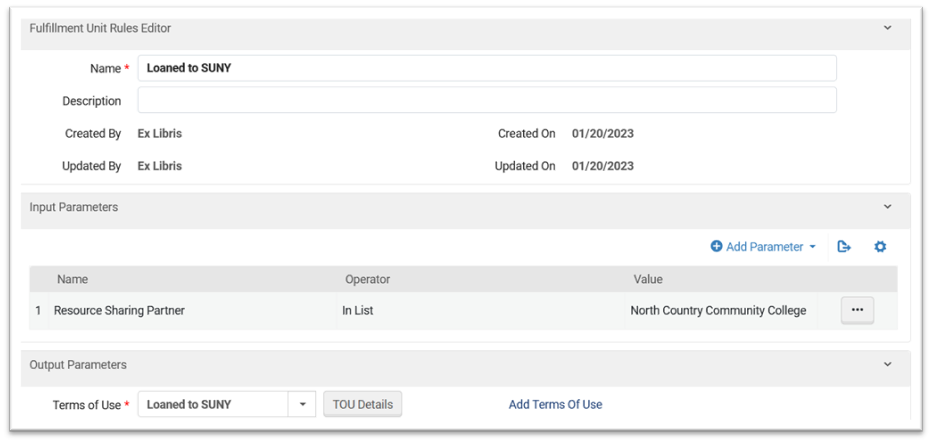](https://alma-documentation-bookstack.azurewebsites.net/uploads/images/gallery/2025-06/picture1-lending.png)
**9.** Make sure the Lending Resource Sharing fulfillment unit rule you’ve configured is positioned above any other Lending Resource Sharing fulfillment unit rules that could potentially be applied to items loaned to your peer-to-peer partners and then click the Save button.
**10.** Click the ellipsis next to your resource sharing fulfillment unit and then click Edit.
**11.** Click the Fulfillment Unit Rules tab, select “Borrowing Resource Sharing” from the Rule Type dropdown, and then click the Add Rule button.
**12.** Configure the Borrowing Resource Sharing fulfillment unit rule similar to the image below (when configuring the input parameter, select the user groups you want to be able to submit borrowing requests) and then click the Save button.
[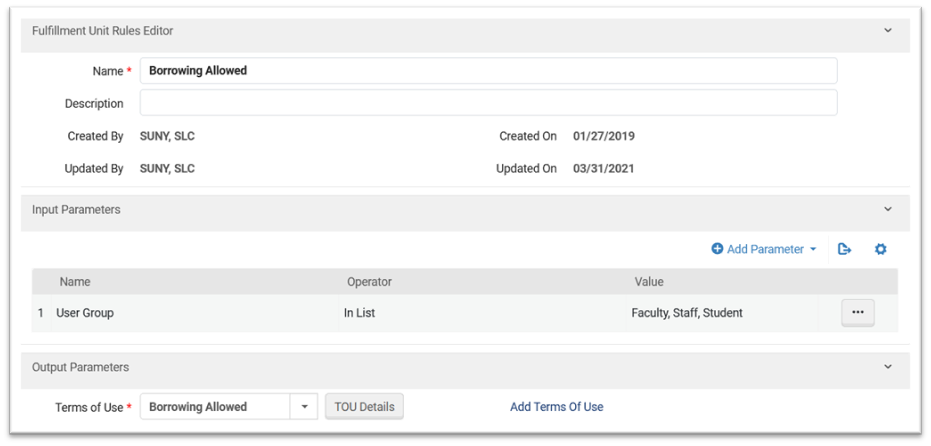](https://alma-documentation-bookstack.azurewebsites.net/uploads/images/gallery/2025-06/picture3-borrowing.png)
**13. **Make sure the Borrowing Resource Sharing fulfillment unit rule you’ve configured is positioned above any other Borrowing Resource Sharing fulfillment unit rules that could potentially prevent users from submitting borrowing requests.
#### Rota Template
*This Rota Template will determine which peer-to-peer libraries are added to your request rotas. This configuration work must be done from the main Alma page, not the Configuration page. *
**1.** Go to Fulfillment | Resource Sharing | Rota Templates
**2.** Click the Add Template button.
**3.** Configure the Rota Template and then click the Save and Add Members button.
**4.** Click the Add Partners button, select your peer-to-peer partners, and then click the Save Button.
#### Rota Assignment Rule
*This Rota Assignment Rule will determine where peer-to-peer libraries will be positioned in your request rotas. This configuration work should be done at the institution level.*
**1.** Go to Configuration, select your institution from the Configuring dropdown, and then go to Fulfillment | Resource Sharing | Rota Assignment Rules.
**2.** Click the Add Rule button.
**3.** Configure the Rota Assignment Rule according to the terms of your lending agreement, and then click the Save button.
**4.** Make sure the Rota Assignment Rule is positioned at the top of your rota assignment rules list.
#### Sending Borrowing Request Rule
*This rule will make sure borrowing requests assigned to your peer-to-peer libraries are sent automatically. This configuration work may not be necessary given how your other Sending Borrowing Request rules are configured. This configuration work should be done at the institution level.*
**1.** Go to Configuration, select your institution from the Configuring dropdown, and then go to Fulfillment | Resource Sharing | Sending Borrowing Request Rules.
**2.** Click the Add Rule button.
**3.** Configure the Sending Borrowing Request rule according to the terms of your lending agreement, and then click the Save button.
# Moving P2P partner profiles from the NZ to the IZ (Cancelled)
##### **NOTE: Ex Libris has changed their original assessment of the issue; after some testing, they now believe there is no way to move NZ partner profiles to an individual IZ without disruption of services to patrons. For that reason, WRLC is cancelling this project.**
**Problem**: The NZ-managed partners have the same Codes as the equivalent partners in the RS Directory. This prevents an IZ from downloading the Directory partners until the NZ partners are removed.
**Solution**: To circumvent this roadblock, *new* NZ-managed partners will be created as temporary replacements. They will have new, unique codes that will not conflict with those in the directory. This will make the cleanup a longer process, but it prevents any service disruptions to your patrons (as well as with SUNY).
### Phase One
#### Configuration in the Network Zone
1. Create the new Replacement Partners in the NZ
- As I mentioned, the only data that needs to be unique is the Code; make this unique in whatever way you like, as long as it doesn't match the Directory. But all other details within the partners can be identical to the current NZ partners.
2. Once they have been created, distribute these Replacement partners to the IZs by running the "Distribute Resource Sharing Configuration" job in the NZ
3. After which, the IZs should update any/all Rota Templates, replacing the Original NZ partners with the Replacement partners
4. When the IZs are fully configured to use the Replacement partners, return to the NZ and mark the Original partners as Inactive,
5. Then Distribute the changes again by running the "Distribute Resource Sharing Configuration" job in the NZ
- This is just an extra step to ensure that no new requests are created with these Original partners
At this point, all new incoming/outgoing requests will be using the Replacement partners. Since this is the case, you will be free to begin removing the Original partners piece-by-piece from all remaining Active requests. This process will take a while, as any request (Borrowing or Lending) that has one of these Original SUNY partners as the Active partner will need to finish organically, waiting for the patron to return the item and/or ship the item back to the lender. But it's at this point that the cleanup can begin.
#### Initial Network Zone Cleanup
6\. Once you have confirmed that Replacement partners are all working as expected (and I see no reason why they wouldn't), delete the Original partners from the NZ
- This will remove the Original partners from some but not all IZs, but this is expected
7\. Then distribute the deletion of the original partners by running the "Distribute Resource Sharing Configuration" job in the NZ
8\. Wait 24 hours for these changes to be visible in Alma Analytics, then run a Lending and a Borrowing Analytics report (see image below) in the Network Zone; send to participants.
#### Partner Borrowing & Lending Request Cleanup
It is recommended to go one partner at a time. For example: start by removing SUNYBUF from American, and once that is done move on to SUNYALB, and so on\*
##### A. Clean up Lending Requests
1. For Lending Requests with the following statuses, nothing needs to be done. We will let the lending workflow run its course until the request finally has a status of *Completed*
- Being processed
- Received by partner
- Returned by partner
- Shipped physically
- Overdue request
2. Lending Requests with the statuses below still have an "active" status according to Alma. Their status needs to be changed to one that Alma considers Inactive: *Request Completed*, *Deleted*, or any of the various *Cancelled* statuses
- Expired
- Locate failed
- Rejected the borrower request
To change a status manually, follow the steps below in the Lending Requests Task List. Filter your results appropriately, expand the results to show 50 at a time, and you will be able to update requests in batches of 50 (there is no job that can do this in Alma)

1. For Borrowing Requests that A) have the following statuses, and B) the ***active*** partner is one of the 4 SUNY schools, nothing needs to be done. We will let the lending workflow run its course until the request finally has a status of *Complete*
- Loaned item to patron
- Physically received by library
- Ready to be sent
- Renewed by partner
- Returned by patron
- Returned item to partner
- Shipped physically
2. For ***all other borrowing requests***, you can complete one of the following workflows:
1. For Borrowing Requests that A) have the following statuses, and B) the ***active*** partner is NOT one of the 4 SUNY schools, we will need to remove the Original SUNY partners from each BR's Rota. Active partners cannot be removed; only Pending and Rejected. This method, though, can only be one manually one request at a time, but allows you to cleanup the SUNY partners from any active BRs
- Loaned item to patron
- Lost communicated
- Physically received by library
- Ready to be sent
- Renewed by partner
- Returned by patron
- Returned item to partner
- Shipped physically
2. For borrowing requests with a status listed below, you can follow the workflow outlined in ***Cleaning up Lending Requests*** to change the status of these borrowing requests
- Expired
- Exported to third party
- Rejected by partner
##### C. Wait until all active lending and borrowing requests (those with items checked out to patrons) have a status of *Completed*
13\. Once one (or more) of the Original partners have been cleaned up from an IZ, run the Distribute job in the NZ once again
- - If all of the requests were cleaned up, that partner will be removed
- If not, you'll see the same error message indicating if any Borrowing and/or Lending requests remain
This is effectively the entire process. Over time, clean up all of the Original partners as much as possible. As we discussed, a there will be requests that are still actively sharing with one of the SUNY partners, so we'll have to wait for these to finish via normal means. But, the upside is that once these requests finish, they won't need to be cleaned up - they'll be in the Completed status, so no longer active in the system.
Eventually, all traces of the Original SUNY partners will be removed, and they will finally be fully deleted. Once that has occurred, it's time for the next phase.
### Phase Two Cleanup
- Once you're ready to begin, this is where you'll finally create the IZ-managed partners, as desired. Since the Original NZ partners are now deleted, each IZ can download the SUNY partners from the Directory, as desired
- And in doing so, any Rotas and Rules can be updated to use these Directory partners
- Once the IZs have fully switched to using Directory partners, the Replacement partners can now be deleted. The replacement partners will be marked as Inactive
- Then distribute these Replacement partners to the IZs by running the "Distribute Resource Sharing Configuration" job in the NZ
Then you will follow the remaining steps in Phase One, [Initial Network Zone Cleanup](https://alma.wrlc.org/books/fulfillment/page/moving-p2p-partner-profiles-from-the-nz-to-the-iz#bkmrk-phase-one-cleanup-st) and [Partner Borrowing & Lending Request Cleanup](https://alma.wrlc.org/books/fulfillment/page/moving-p2p-partner-profiles-from-the-nz-to-the-iz#bkmrk-partner-borrowing-%26-), this time slowly removing requests associated with the temporary profiles.
Additional Notes:
- Like we discussed, this is going to be a *long* process. This is mostly due to having to wait on some requests to finish organically before partners can be deleted. But the advantage to all of the extra steps means that there will be functionally no disruptions of service to any/all patrons. And your RS staff will see little-to-no difference in their day-to-day work.
- Some requests might be troublesome - you can't find them when searching in Alma, they won't let you update their status, etc.
- If these pop up, Ex Libris has methods to find and correct them, or just outright delete them if they are not needed
- Lastly, I would not recommend bothering with this process in your PSBs.
- If you don't need the PSBs for active Resource Sharing testing, it would be best to just wait for the August refresh, which will automatically copy Production settings to the PSBs
*The "one IZ at a time, one partner at a time" method is for ease of tracking progress. By focusing on a single partner within a single IZ, you can fully complete the cleanup for that partner, then run the Distribute job to remove them, and then move on to the next partner on the list. But this is far from the only approach to this cleanup; this is just how I would approach the situation were I in your shoes.
In reality, this cleanup can be handled by whatever method is most convenient for you all. You could focus on only Borrowing first, then do Lending second. Or you could work on both at the same time. You could focus on cleaning up one IZ at a time, or you could handle it as one large project for the whole network. Each IZ could be in charge of their own cleanup, performing it as quickly or as slowly as they need, and it wouldn't affect any of the other IZs.
# SUNY P2P partners Stony Brook, Binghamton, Albany, and Buffalo
Although the policy is for all Peer to Peer configuration to exist in the Institution Zone only, the following partner profiles are configured and managed in the WRLC Network Zone:
- Stony Brook University, SUNY
- Binghamton University, SUNY
- University at Albany, SUNY
- University at Buffalo, SUNY
If any WRLC institution wishes to make changes to the partner profiles above, please send in a Service Desk ticket at servicedesk@wrlc.org
#### Background
When the WRLC first started peer to peer lending in Alma, all of the configurations for this workflow were set in the Alma Network Zone; our four original partners were the schools listed above. The policy changed in 2025 to move P2P to be IZ-only, but the only part of configuration we were unable to move were the partner profiles.
This is because partner profiles need a unique code and a unique ISO symbol; our NZ profiles shared an ISO symbol with the partner profiles in the Community tab, so the Community profiles cannot be copied to the IZ. And if the NZ partner profiles were to have different ISO symbols, none of the requests attached to that particular partner profile would work. Moving the partner profiles to the IZ would result in service disruption for patrons.
More information on this issue can be found in Salesforce case #07877638
# Adding P2P Partners from the Resource Sharing Directory
#### Downloading a P2P Partner from the Resource Sharing Directory
To download a new P2P partner and add them to the rota template, follow the instructions below:
1. In Alma, go to **Fulfillment > Resource Sharing > Partners**
2. Choose the **Community** tab
3. Search for the relevant partner. In this view, you can search for the partner by **Description**, **Name**, **Pods I'm Part Of**, or **Symbol**
4. Once you've found the correct institution, click on the box next to their name to checkmark the profile. Then click **Copy** on the top right-hand corner OR click on the **ellipsis button (...)** next to their name, then choose **Copy.** By copying them to your instance of Alma, you have downloaded both the institution's Partner Profile and Locate Profile.
5. To add them to the rota, go to **Fulfillment > Resource Sharing > Rota Templates**
6. Find the appropriate Rota from the list. Click on the **ellipsis button (...)**, then choose **Edit**
7. Choose the **Template Members** tab
8. Click + **Add Partners** on the top right-hand corner. Then search for the relevant partner, and click **Add Partners**
9. Then choose the **Save** button at the top right-hand corner to save the rota template
---
#### Add Partner to the Temporary Item Creation Rule
The Temporary Item Creation Rule assigns a specific location and item policy to item records borrowed by your patrons from your P2P libraries. Adding the new partner to the list in the Temporary Item Creation Rule guarantees that items borrowed from your new P2P library will be given the correct location and item policy.
1. In Alma go to **Configuration**. Choose your designated Resource Sharing Library (for most WRLC institutions, it is your main library) from the drop down menu, then **Fulfillment > Library Management > Temporary Item Creation Rules**
2. Choose the temporary item creation rule that your Library uses for P2P partners. Click on the **ellipsis button (...)**, then choose **Edit**
3. Under **Input Parameters**, edit the **Parameter Resource Sharing Partner | In List**
4. Add your new P2P institution to the list, then click **Save** to save the input parameter
5. Click **Save** again to save the entire temporary item creation rule
---
#### Add Partner to your P2P Terms of Use (TOU)
1. In Alma go to **Configuration**. Choose your designated Resource Sharing Library (for most WRLC institutions, it is your main library) from the drop down menu, then **Fulfillment > Physical Location > Fulfillment Units**
2. Choose the Fulfillment Unit your Library uses for P2P from the list. Click on the **ellipsis button (...)**, then choose **Edit**
3. Choose the **Fulfillment Unit Rules tab**. Then choose the Rule Type of **Lending Resource Sharing** from the drop down menu.
4. Edit the appropriate rule from the Institution Rules List (for the original participants of the SUNY pilot project, it will be called **SUNY Lending**
5. Under **Input Parameters**, edit the **Parameter Resource Sharing Partner | In List**
6. Add your new P2P institution to the list, then click **Save** to save the input parameter
7. Click **Save** again to save the entire fulfillment unit rule
8. Then click **Save** again to save the entire fulfillment unit
---
#### Review the Partner Profile
It is always best practice to review the information in a recently downloaded partner profile, just to make sure that the correct configurations are in place. Workflows and Expiry times will vary depending on the set agreements between borrowing institutions; you will want to find out what these settings should be before making changes to partner profiles.
1. In Alma, go to **Fulfillment > Resource Sharing > Partners**
2. Find the relevant institution under the **Institution** tab (this is the tab that automatically appears when first opening this page). Click on the **ellipsis button (...)**, then choose **Edit**
3. Under the **General Information** tab, choose the appropriate **Borrowing** and **Lending Workflows** from the drop-down menu. These settings will vary depending on your agreement with the institution.
4. Under the **Parameters** tab, make sure the **Request Expiry** option is correct, as well as the **Expiry Time**. These settings will vary depending on your agreement with the institution.
A partner's Expiry Time setting determines how long the partner school has to respond to your school's borrowing requests. If your borrowing request isn't updated to shipped within the expiry period, the request will be automatically rejected the next time the Expired Resource Sharing Requests job runs in the partner school's IZ (it runs daily at 2:00am).
5. Then choose the **Save** button at the top right-hand corner to save the edited partner profile
---
#### Review the Locate Profile
It is also best practice to review the information in a recently downloaded locate profile, just to make sure that the correct configurations are in place. These settings will vary depending on the set agreements between borrowing institutions; you will want to find out what these settings should be before making changes to locate profiles.
1. In Alma, go to **Configuration > Fulfillment > Resource Sharing > Locate Profiles**
2. Find the relevant institution in the list. Click on the **ellipsis button (...)**, then choose **Edit**
3. Choose the **Locate Profile Parameters** tab
4. Check the settings (for example, **Ignore Electronic and Digital Resources**) to make sure these are correct. These settings will vary depending on your agreement with the institution.
5. Then choose the **Save** button at the top right-hand corner to save the edited locate profile
---
#### Check other relevant configurations
1. Make sure the **Expired Resource Sharing Requests** job is running daily (especially if you have configured Expiry Time)
1. Go to **Configuration > Fulfillment > General > Fulfillment Jobs Configuration**
2. Check to see that the **Expired Resource Sharing Requests** is Active and running everyday.
2. Make sure the **Resource Sharing Working Days** list includes the days your staff do not process ILL
1. Go to **Configuration > Fulfillment > Resource Sharing > Resource Sharing Working Days**
2. Add the days of the week your staff do NOT process ILL to the list
3. Then click **Save**
# How to Process Borrowed Peer to Peer (P2P) Items
This workflow explains how to process books borrowed from partnering Peer to Peer (P2P) libraries.
Thank you George Washington University for sharing your workflow processes.
**When to Reference This Document:**
- When books arrive via delivery or mail from partnering P2P institutions.
- When processing newly received items so they can be placed on the hold shelf for WRLC patrons.
- When returning borrowed item to partnering P2P institutions.
- When ensuring paperwork, routing slips, and Alma request metadata all match.
##### **Required Roles**
- Fulfillment Operator
- Circulation Desk Manager
##### **Part I: Incoming Books**
**1: Verify Paperwork and Item Barcode**
- Locate paperwork inside the P2P-loaned item
- Confirm barcode on book matches the barcode on the accompanying paperwork
**2: Open Receiving Items** Navigate to Fulfillment > Resource Sharing > Receiving Items>
**3: Enter the External Identifier** Locate the External Identifier information provided on the paperwork and click <OK>.
[](https://alma-documentation-bookstack.azurewebsites.net/uploads/images/gallery/2025-12/diTimage.png)
**Note:** Ex Libris identifies the External Identifier as the primary matching key between the item and the borrowing request.
**4: Assign a Temporary Barcode** The temporary barcode ties the physical item to the local inventory system while maintaining the lending institution’s original barcode.
- A pop-up will appear prompting for a Temporary barcode.
- Enter the item’s actual barcode.
- Click <Save>
[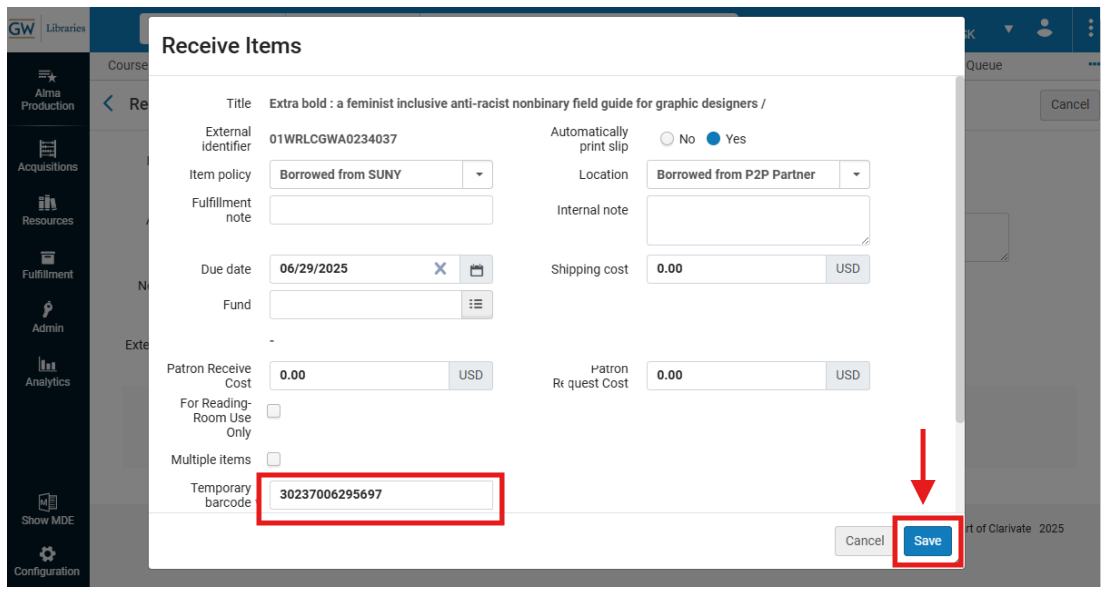](https://alma-documentation-bookstack.azurewebsites.net/uploads/images/gallery/2025-12/Vg3image.png)
**5: Print the Book Slip** After saving, Alma generates the Resource Sharing Receive Slip (if Quick Printing is enabled); Click <Print>
**6: Prepare the item for the Hold Shelf** Follow your libraries' procedures to prepare the item for the Hold Shelf
- **Note GW Procedures:** Create the Hold Strap
- Cut the printed slip lengthwise to form a strap.
- Tape it around the item’s cover so the patron name and Hold Until Date are visible.
**7: Place Item on the Hold Shelf** Follow your libraries' Hold Shelf procedures to shelve the incoming item for patron pickup.
##### **Part II: Returning Books**
**1: Open Return Items** Navigate to Fulfillment > Checkout/Checkin> Return Items>
**2: Scan the Item Barcode** Ensure My Institution is selected and Scan the item barcode
- Select <OK>
**Note:** Be sure to not use the External Identifier
[](https://alma-documentation-bookstack.azurewebsites.net/uploads/images/gallery/2025-12/Jyjimage.png)
**3: Confirm Transit Destination** Alma displays a pop-up indicating Transit Destination to the lending partner; Click <OK>
[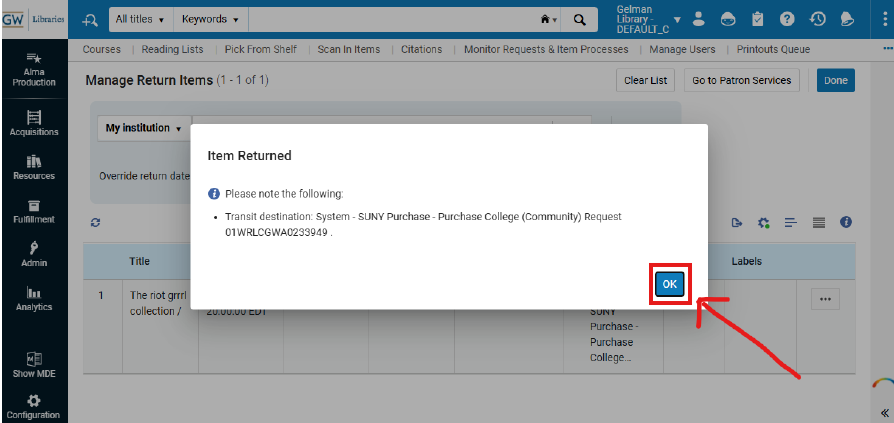](https://alma-documentation-bookstack.azurewebsites.net/uploads/images/gallery/2025-12/iXJimage.png)
**Note:** This step triggers Alma’s Resource Sharing workflow to update to In Transit for the lending library- acknowledging transit is essential for accurate tracking.
**4: Print the Return Slip** If you have enabled Quick Printing, Alma should automatically generate the "Resource Sharing Return Slip Letter; Click Print.
[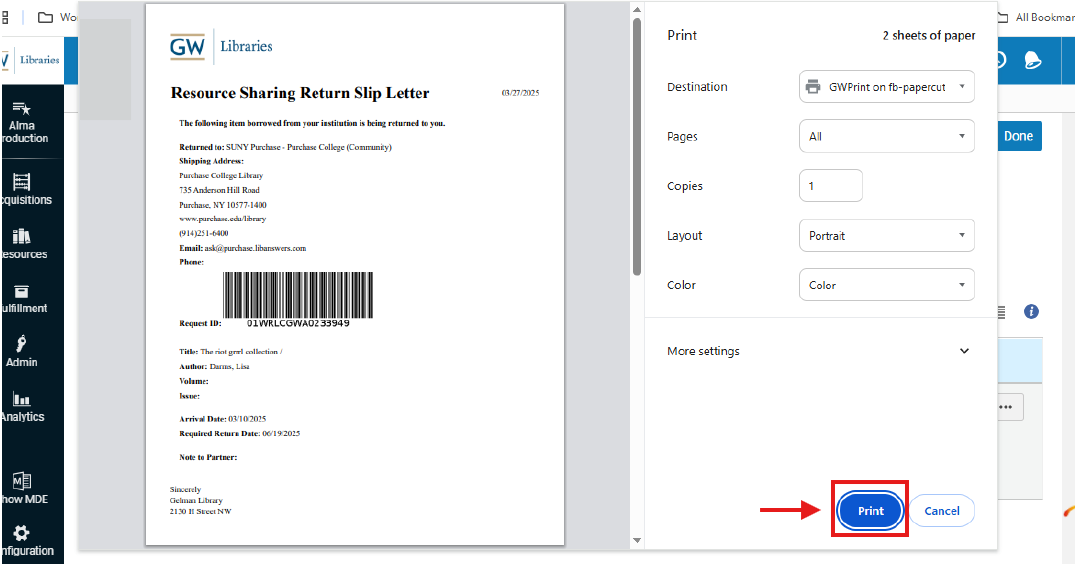](https://alma-documentation-bookstack.azurewebsites.net/uploads/images/gallery/2025-12/GeBimage.png)
**5: Prepare the Item for Shipment or Shelf Routing** Insert the printed slip into the item. Follow your libraries' mailing procedures
##### **Frequently Asked Questions**
- *What is the External Identifier and why is it important?*
- It links the borrowing request to the item; Ex Libris defines it as an essential Resource Sharing match point.
- *Why must the item barcode match the paperwork?*
- Alma uses the barcode to create the temporary item record and maintain lending consistency.
- *What happens if I scan the wrong barcode when returning an item?*
- Alma will fail to match the item to the correct P2P request; Rescanning and verifying identifiers can help ensure correct matches
- *Why is Quick Printing recommended?*
- It minimizes misrouting, aligns with Ex Libris slip workflows, and ensures slips print automatically at each step.
- *Do we need to keep both borrowing and lending slips?*
- No. Use only the slips generated *during the current Alma workflow step.*
- *What if Alma does not generate a slip?*
- Verify Quick Printing is enabled and that a default printer is available. Check Fulfillment > Configuration > Printing>.
- *Can we reuse previous P2P pull slips?*
- Discarding old slips because request data changes after each workflow stage.
- *Why is the Transit Destination message important?*
- It confirms the item has moved to the correct stage in the Resource Sharing lifecycle.
# How to Process Loaned Peer to Peer (P2P) Items
This section covers how to process outgoing P2P lending requests: printing pull slips, retrieving items, and shipping them to the borrowing library. Alma relies on consistent slip printing, item scanning, and shipment processing to maintain the lending side of the Resource Sharing workflow.
Thank you to George Washington University for sharing their workflow processes.
##### **Required Roles**
- Fulfillment Operator
- Circulation Desk Manager
**1: Print Pull Slips for Lending Requests** Navigate to Fulfillment > Resource Requests> Pick From Shelf>
- Verify you are at the correct Circulation Desk location and that Quick Printing, if available, is enabled; Quick Printing functionality provides streamlined print-based workflows
[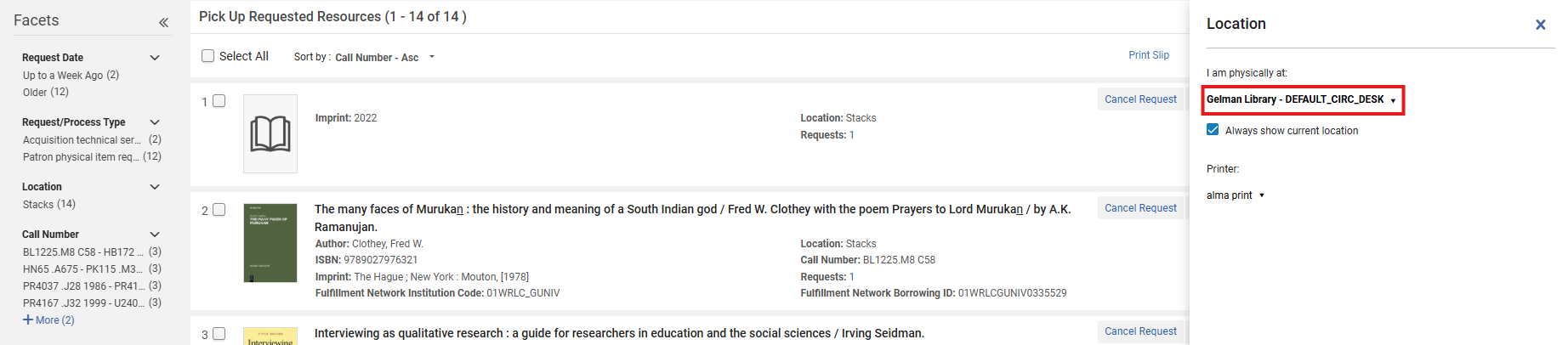](https://alma-documentation-bookstack.azurewebsites.net/uploads/images/gallery/2025-12/JSMimage.png)
- From the top menu ribbon check <Select all> or individual requests; Click <Print Slip>
[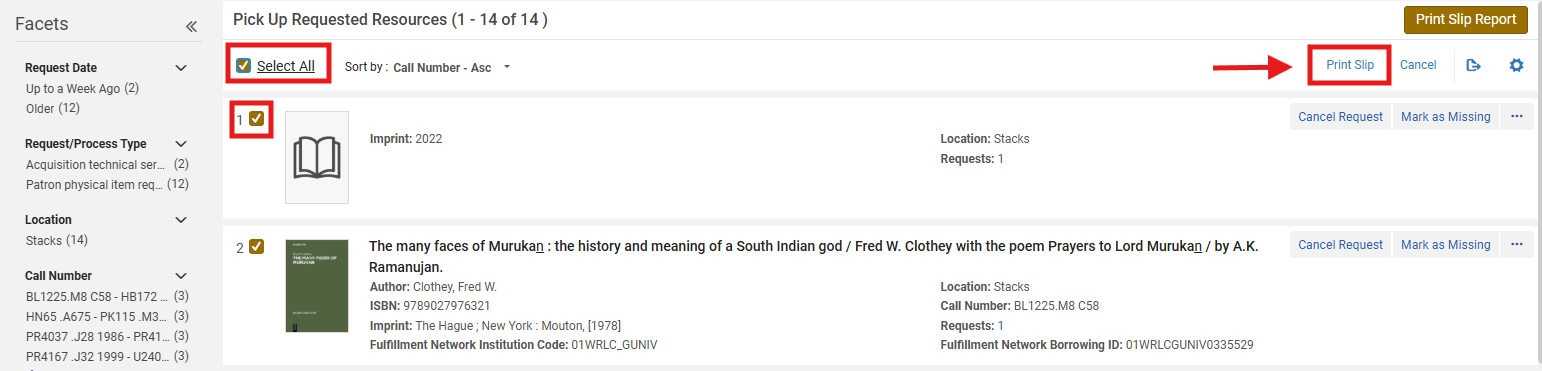](https://alma-documentation-bookstack.azurewebsites.net/uploads/images/gallery/2025-12/Aktimage.png)
**2: Retrieve Items from the Shelves** Use printed pulling slips to gather items.
[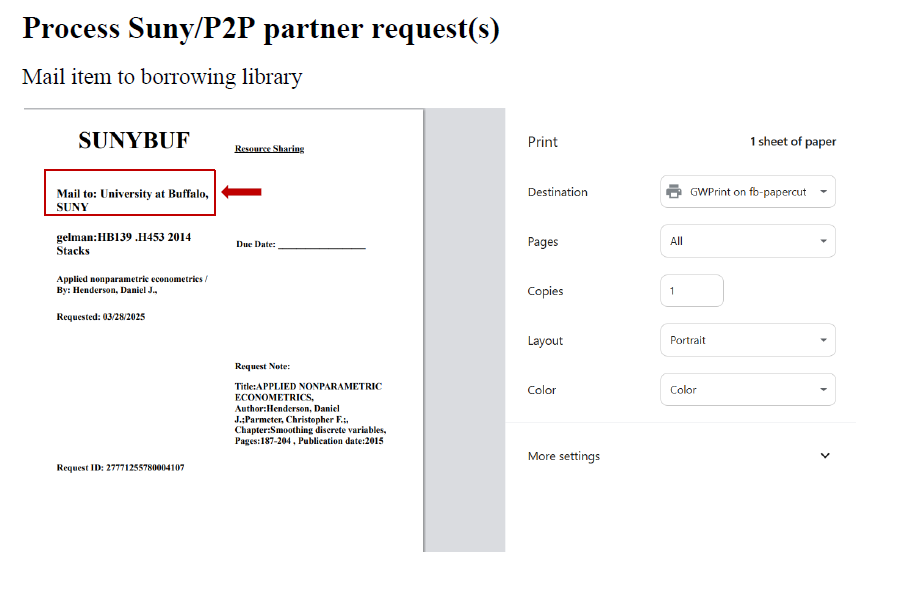](https://alma-documentation-bookstack.azurewebsites.net/uploads/images/gallery/2025-12/uanimage.png)
**3: Begin the Shipping Workflow** Navigate to Fulfillment > Resource Sharing > Shipping Items
**4: Configure Quick Printing for Shipping Slips** Set Automatically print slip to Yes; Enable Quick Printing.
[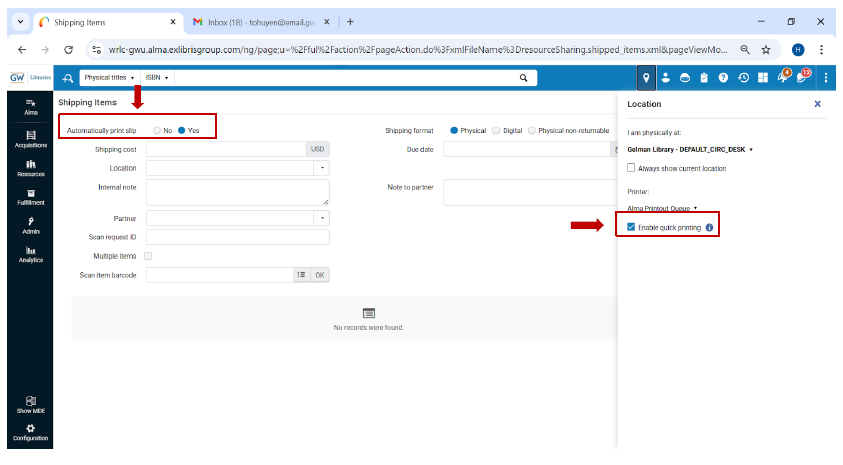](https://alma-documentation-bookstack.azurewebsites.net/uploads/images/gallery/2025-12/09pimage.png)
**5: Prepare Item for Shipping** Insert the Resource Sharing Shipping Slip Letter generated by Alma Shipping Slip; Follow yoru library's local workflow for mailing Resource Sharing items
##### **Frequently Asked Questions**
- *What is the External Identifier and why is it important?*
- It links the borrowing request to the item; Ex Libris defines it as an essential Resource Sharing match point.
- *Why must the item barcode match the paperwork?*
- Alma uses the barcode to create the temporary item record and maintain lending consistency.
- *What happens if I scan the wrong barcode when returning an item?*
- Alma will fail to match the item to the correct P2P request; Rescanning and verifying identifiers can help ensure correct matches
- *Why is Quick Printing recommended?*
- It minimizes misrouting, aligns with Ex Libris slip workflows, and ensures slips print automatically at each step.
- *Do we need to keep both borrowing and lending slips?*
- No. Use only the slips generated *during the current Alma workflow step.*
- *What if Alma does not generate a slip?*
- Verify Quick Printing is enabled and that a default printer is available. Check Fulfillment > Configuration > Printing>.
- *Can we reuse previous P2P pull slips?*
- Discarding old slips because request data changes after each workflow stage.
- *Why is the Transit Destination message important?*
- It confirms the item has moved to the correct stage in the Resource Sharing lifecycle.