# Discovery - Primo VE

# Discovery - Primo VE Configuration

# Secondary Resource Types

<span style="font-size: 11pt; font-family: Arial,sans-serif; color: #000000; background-color: transparent; font-weight: 400; font-style: normal; font-variant: normal; text-decoration: none; vertical-align: baseline; white-space: pre-wrap;">In August of 2022, Ex Libris introduced a new feature for Primo VE - secondary resource types. This feature allows records to have at least two resource types. The main resource type will continue to appear in the record view in Primo. The secondary resource type allows records to be found using filters and search pre-filters.</span>

<span style="font-size: 11pt; font-family: Arial,sans-serif; color: #000000; background-color: transparent; font-weight: 400; font-style: normal; font-variant: normal; text-decoration: none; vertical-align: baseline; white-space: pre-wrap;">WRLC configured secondary resource types for records of government documents in the WRLC Network Zone. The secondary resource type of </span><span style="font-size: 11pt; font-family: Arial,sans-serif; color: #000000; background-color: transparent; font-weight: 400; font-style: italic; font-variant: normal; text-decoration: none; vertical-align: baseline; white-space: pre-wrap;">Government Document </span><span style="font-size: 11pt; font-family: Arial,sans-serif; color: #000000; background-color: transparent; font-weight: 400; font-style: normal; font-variant: normal; text-decoration: none; vertical-align: baseline; white-space: pre-wrap;">is applied to the following main resource types:</span>

- <span style="font-size: 11pt; font-family: Arial,sans-serif; color: #000000; background-color: transparent; font-weight: 400; font-style: normal; font-variant: normal; text-decoration: none; vertical-align: baseline; white-space: pre-wrap;">Audios</span>
- <span style="font-size: 11pt; font-family: Arial,sans-serif; color: #000000; background-color: transparent; font-weight: 400; font-style: normal; font-variant: normal; text-decoration: none; vertical-align: baseline; white-space: pre-wrap;">Books</span>
- <span style="font-size: 11pt; font-family: Arial,sans-serif; color: #000000; background-color: transparent; font-weight: 400; font-style: normal; font-variant: normal; text-decoration: none; vertical-align: baseline; white-space: pre-wrap;">Computer Files</span>
- <span style="font-size: 11pt; font-family: Arial,sans-serif; color: #000000; background-color: transparent; font-weight: 400; font-style: normal; font-variant: normal; text-decoration: none; vertical-align: baseline; white-space: pre-wrap;">Images</span>
- <span style="font-size: 11pt; font-family: Arial,sans-serif; color: #000000; background-color: transparent; font-weight: 400; font-style: normal; font-variant: normal; text-decoration: none; vertical-align: baseline; white-space: pre-wrap;">Journals</span>
- <span style="font-size: 11pt; font-family: Arial,sans-serif; color: #000000; background-color: transparent; font-weight: 400; font-style: normal; font-variant: normal; text-decoration: none; vertical-align: baseline; white-space: pre-wrap;">Maps</span>
- <span style="font-size: 11pt; font-family: Arial,sans-serif; color: #000000; background-color: transparent; font-weight: 400; font-style: normal; font-variant: normal; text-decoration: none; vertical-align: baseline; white-space: pre-wrap;">Video/Film</span>

The mapping for government document uses the 008 code for government documents (position 28) with the following regular expression string:

```
^.{28}[acfilmos].*
```

<span style="font-size: 11pt; font-family: Arial,sans-serif; color: #000000; background-color: transparent; font-weight: 400; font-style: normal; font-variant: normal; text-decoration: none; vertical-align: baseline; white-space: pre-wrap;">Because this is configured in the Network Zone, it is only applicable to Network Zone records. If your institution would like to recreate these configurations for Institution Zone records, the settings would need to be configured in your Institution Zone.</span>

<span style="font-size: 11pt; font-family: Arial,sans-serif; color: #000000; background-color: transparent; font-weight: 400; font-style: normal; font-variant: normal; text-decoration: none; vertical-align: baseline; white-space: pre-wrap;">Once saved, the secondary resource type is automatically added to new records. In order to apply the label to pre-existing records in the catalog, a Recalculate Local Resource Type job must be run on the pertinent records; this job re-indexes the records for Primo VE, thereby updating their labels.</span>

### <span style="font-size: 20pt; font-family: Arial,sans-serif; color: #000000; background-color: transparent; font-weight: 400; font-style: normal; font-variant: normal; text-decoration: none; vertical-align: baseline; white-space: pre-wrap;">Institution Zone Instructions :</span>

<span style="font-size: 11pt; font-family: Arial,sans-serif; color: #000000; background-color: transparent; font-weight: bold; font-style: normal; font-variant: normal; text-decoration: none; vertical-align: baseline; white-space: pre-wrap;">Use the following instructions below if you wish to recreate the NZ settings in your own IZ</span>

#### <span style="font-size: 16pt; font-family: Arial,sans-serif; color: #000000; background-color: transparent; font-weight: 400; font-style: normal; font-variant: normal; text-decoration: none; vertical-align: baseline; white-space: pre-wrap;">User Roles Needed :</span>

- <span style="font-size: 11pt; font-family: Arial,sans-serif; color: #000000; background-color: transparent; font-weight: 400; font-style: normal; font-variant: normal; text-decoration: none; vertical-align: baseline; white-space: pre-wrap;">Discovery - Administrator</span>
- <span style="font-size: 11pt; font-family: Arial,sans-serif; color: #000000; background-color: transparent; font-weight: 400; font-style: normal; font-variant: normal; text-decoration: none; vertical-align: baseline; white-space: pre-wrap;">Catalog Administrator OR Catalog Manager</span>

#### Instructions :

1. ##### <span style="font-size: 11pt; font-family: Arial,sans-serif; color: #000000; background-color: transparent; font-weight: 400; font-style: normal; font-variant: normal; text-decoration: none; vertical-align: baseline; white-space: pre-wrap;">Configure secondary resource types</span>
    
    
    1. <span style="font-size: 11pt; font-family: Arial,sans-serif; color: #000000; background-color: transparent; font-weight: 400; font-style: normal; font-variant: normal; text-decoration: none; vertical-align: baseline; white-space: pre-wrap;">Go to </span><span style="font-size: 11pt; font-family: Arial,sans-serif; color: #000000; background-color: transparent; font-weight: 400; font-style: italic; font-variant: normal; text-decoration: none; vertical-align: baseline; white-space: pre-wrap;">Configuration &gt; Discovery &gt; Search Configuration &gt; Secondary Resource Type</span>
    2. <span style="font-size: 11pt; font-family: Arial,sans-serif; color: #000000; background-color: transparent; font-weight: 400; font-style: normal; font-variant: normal; text-decoration: none; vertical-align: baseline; white-space: pre-wrap;">Follow the steps below for each of the Main Resource Types listed in the summary section above:</span>
        1. <span style="font-size: 11pt; font-family: Arial,sans-serif; color: #000000; background-color: transparent; font-weight: 400; font-style: normal; font-variant: normal; text-decoration: none; vertical-align: baseline; white-space: pre-wrap;">Select </span><span style="font-size: 11pt; font-family: Arial,sans-serif; color: #000000; background-color: transparent; font-weight: 400; font-style: italic; font-variant: normal; text-decoration: none; vertical-align: baseline; white-space: pre-wrap;">Add Secondary Resource Type</span>
        2. <span style="font-size: 11pt; font-family: Arial,sans-serif; color: #000000; background-color: transparent; font-weight: 400; font-style: normal; font-variant: normal; text-decoration: none; vertical-align: baseline; white-space: pre-wrap;">Choose the </span><span style="font-size: 11pt; font-family: Arial,sans-serif; color: #000000; background-color: transparent; font-weight: 400; font-style: italic; font-variant: normal; text-decoration: none; vertical-align: baseline; white-space: pre-wrap;">Main Resource Types</span><span style="font-size: 11pt; font-family: Arial,sans-serif; color: #000000; background-color: transparent; font-weight: 400; font-style: normal; font-variant: normal; text-decoration: none; vertical-align: baseline; white-space: pre-wrap;"> from the list in the summary above</span>
        3. <span style="font-size: 11pt; font-family: Arial,sans-serif; color: #000000; background-color: transparent; font-weight: 400; font-style: normal; font-variant: normal; text-decoration: none; vertical-align: baseline; white-space: pre-wrap;">Choose the </span><span style="font-size: 11pt; font-family: Arial,sans-serif; color: #000000; background-color: transparent; font-weight: 400; font-style: italic; font-variant: normal; text-decoration: none; vertical-align: baseline; white-space: pre-wrap;">Secondary Resource Type</span><span style="font-size: 11pt; font-family: Arial,sans-serif; color: #000000; background-color: transparent; font-weight: 400; font-style: normal; font-variant: normal; text-decoration: none; vertical-align: baseline; white-space: pre-wrap;"> of </span><span style="font-size: 11pt; font-family: Arial,sans-serif; color: #000000; background-color: transparent; font-weight: 400; font-style: italic; font-variant: normal; text-decoration: none; vertical-align: baseline; white-space: pre-wrap;">Government Documents</span><span style="font-size: 11pt; font-family: Arial,sans-serif; color: #000000; background-color: transparent; font-weight: 400; font-style: italic; font-variant: normal; text-decoration: none; vertical-align: baseline; white-space: pre-wrap;"><span style="border: none; display: inline-block; overflow: hidden; width: 674px; height: 341px;">![](https://lh5.googleusercontent.com/MH5BB7CnBMWo3QcS9Dw_eyuecQ1z90_yHkPxbSSX9DpU0hnFrotTWKORCDen_buAasl8ZiopwMaWJnWC-Je3ZYOWECU02b2r88ePvsc-bnZBXVvdNXsNRynomWuwVuetSKudH-ZG-EdEm2y4Z3k2ANg)</span></span>
        4. <span style="font-size: 11pt; font-family: Arial,sans-serif; color: #000000; background-color: transparent; font-weight: 400; font-style: normal; font-variant: normal; text-decoration: none; vertical-align: baseline; white-space: pre-wrap;">Under </span><span style="font-size: 11pt; font-family: Arial,sans-serif; color: #000000; background-color: transparent; font-weight: 400; font-style: italic; font-variant: normal; text-decoration: none; vertical-align: baseline; white-space: pre-wrap;">Mapping from MARC Records</span><span style="font-size: 11pt; font-family: Arial,sans-serif; color: #000000; background-color: transparent; font-weight: 400; font-style: normal; font-variant: normal; text-decoration: none; vertical-align: baseline; white-space: pre-wrap;">, select </span><span style="font-size: 11pt; font-family: Arial,sans-serif; color: #000000; background-color: transparent; font-weight: 400; font-style: italic; font-variant: normal; text-decoration: none; vertical-align: baseline; white-space: pre-wrap;">Add Condition</span>
        5. <span style="font-size: 11pt; font-family: Arial,sans-serif; color: #000000; background-color: transparent; font-weight: 400; font-style: normal; font-variant: normal; text-decoration: none; vertical-align: baseline; white-space: pre-wrap;">For the </span><span style="font-size: 11pt; font-family: Arial,sans-serif; color: #000000; background-color: transparent; font-weight: 400; font-style: italic; font-variant: normal; text-decoration: none; vertical-align: baseline; white-space: pre-wrap;">MARC Field and Subfield</span><span style="font-size: 11pt; font-family: Arial,sans-serif; color: #000000; background-color: transparent; font-weight: 400; font-style: normal; font-variant: normal; text-decoration: none; vertical-align: baseline; white-space: pre-wrap;">, type 008</span>
        6. <span style="font-size: 11pt; font-family: Arial,sans-serif; color: #000000; background-color: transparent; font-weight: 400; font-style: normal; font-variant: normal; text-decoration: none; vertical-align: baseline; white-space: pre-wrap;">For the </span><span style="font-size: 11pt; font-family: Arial,sans-serif; color: #000000; background-color: transparent; font-weight: 400; font-style: italic; font-variant: normal; text-decoration: none; vertical-align: baseline; white-space: pre-wrap;">Value in MARC Field</span><span style="font-size: 11pt; font-family: Arial,sans-serif; color: #000000; background-color: transparent; font-weight: 400; font-style: normal; font-variant: normal; text-decoration: none; vertical-align: baseline; white-space: pre-wrap;"><span style="font-size: 11pt; font-family: Arial,sans-serif; color: #000000; background-color: transparent; font-weight: 400; font-style: normal; font-variant: normal; text-decoration: none; vertical-align: baseline; white-space: pre-wrap;">, copy and paste the regular expression : </span></span>```
            ^.{28}[acfilmos].*
            ```
        7. <span style="font-size: 11pt; font-family: Arial,sans-serif; color: #000000; background-color: transparent; font-weight: 400; font-style: normal; font-variant: normal; text-decoration: none; vertical-align: baseline; white-space: pre-wrap;">For </span><span style="font-size: 11pt; font-family: Arial,sans-serif; color: #000000; background-color: transparent; font-weight: 400; font-style: italic; font-variant: normal; text-decoration: none; vertical-align: baseline; white-space: pre-wrap;">Use Regular Expression</span><span style="font-size: 11pt; font-family: Arial,sans-serif; color: #000000; background-color: transparent; font-weight: 400; font-style: normal; font-variant: normal; text-decoration: none; vertical-align: baseline; white-space: pre-wrap;">, click the checkmark</span>
        8. <span style="font-size: 11pt; font-family: Arial,sans-serif; color: #000000; background-color: transparent; font-weight: 400; font-style: normal; font-variant: normal; text-decoration: none; vertical-align: baseline; white-space: pre-wrap;">Select </span><span style="font-size: 11pt; font-family: Arial,sans-serif; color: #000000; background-color: transparent; font-weight: 400; font-style: italic; font-variant: normal; text-decoration: none; vertical-align: baseline; white-space: pre-wrap;">Add Condition</span><span style="font-size: 11pt; font-family: Arial,sans-serif; color: #000000; background-color: transparent; font-weight: 400; font-style: normal; font-variant: normal; text-decoration: none; vertical-align: baseline; white-space: pre-wrap;"><span style="border: none; display: inline-block; overflow: hidden; width: 691px; height: 349px;">![](https://lh4.googleusercontent.com/zrY7vFYgFdJbiQsgwnB_tDRArYJs1oWSIhUFSzlah_LoxQWVITq9Mozy-oEvW0Swn38Wc1O7DT6rLa9VKW4N4K1XzYaMzrVdPFZQxbIb_lmW5EMQXc2CiFF7MHQRVIfVekY5EJfAd6WTO6fJQfI24Jw)</span></span>
        9. <span style="font-size: 11pt; font-family: Arial,sans-serif; color: #000000; background-color: transparent; font-weight: 400; font-style: normal; font-variant: normal; text-decoration: none; vertical-align: baseline; white-space: pre-wrap;">Select </span><span style="font-size: 11pt; font-family: Arial,sans-serif; color: #000000; background-color: transparent; font-weight: 400; font-style: italic; font-variant: normal; text-decoration: none; vertical-align: baseline; white-space: pre-wrap;">Save</span><span style="font-size: 11pt; font-family: Arial,sans-serif; color: #000000; background-color: transparent; font-weight: 400; font-style: normal; font-variant: normal; text-decoration: none; vertical-align: baseline; white-space: pre-wrap;"> at the top right-hand side of the screen to save the Secondary Resource Type rule</span>
        10. <span style="font-size: 11pt; font-family: Arial,sans-serif; color: #000000; background-color: transparent; font-weight: 400; font-style: normal; font-variant: normal; text-decoration: none; vertical-align: baseline; white-space: pre-wrap;">Repeat these steps for each of the Main Resource Types listed in the </span>[<span style="font-size: 11pt; font-family: Arial,sans-serif; color: #1155cc; background-color: transparent; font-weight: 400; font-style: normal; font-variant: normal; text-decoration: underline; -webkit-text-decoration-skip: none; text-decoration-skip-ink: none; vertical-align: baseline; white-space: pre-wrap;">Summary</span>](https://alma.wrlc.org/books/discovery-primo-ve/page/secondary-resource-types#bkmrk-secondary-resource-t)<span style="font-size: 11pt; font-family: Arial,sans-serif; color: #000000; background-color: transparent; font-weight: 400; font-style: normal; font-variant: normal; text-decoration: none; vertical-align: baseline; white-space: pre-wrap;"> portion of this document.</span>
2. ##### <span style="font-size: 11pt; font-family: Arial,sans-serif; color: #000000; background-color: transparent; font-weight: 400; font-style: normal; font-variant: normal; text-decoration: none; vertical-align: baseline; white-space: pre-wrap;">Create an indication rule to find Institution Zone records cataloged as government documents</span>
    
    
    1. <span style="font-size: 11pt; font-family: Arial,sans-serif; color: #000000; background-color: transparent; font-weight: 400; font-style: normal; font-variant: normal; text-decoration: none; vertical-align: baseline; white-space: pre-wrap;">Go to the </span><span style="font-size: 11pt; font-family: Arial,sans-serif; color: #000000; background-color: transparent; font-weight: 400; font-style: italic; font-variant: normal; text-decoration: none; vertical-align: baseline; white-space: pre-wrap;">Metadata Editor</span>
    2. <span style="font-size: 11pt; font-family: Arial,sans-serif; color: #000000; background-color: transparent; font-weight: 400; font-style: normal; font-variant: normal; text-decoration: none; vertical-align: baseline; white-space: pre-wrap;">In the upper left-hand corner, select </span><span style="font-size: 11pt; font-family: Arial,sans-serif; color: #000000; background-color: transparent; font-weight: 400; font-style: italic; font-variant: normal; text-decoration: none; vertical-align: baseline; white-space: pre-wrap;">Rules</span><span style="font-size: 11pt; font-family: Arial,sans-serif; color: #000000; background-color: transparent; font-weight: 400; font-style: normal; font-variant: normal; text-decoration: none; vertical-align: baseline; white-space: pre-wrap;"> and then select </span><span style="font-size: 11pt; font-family: Arial,sans-serif; color: #000000; background-color: transparent; font-weight: 400; font-style: italic; font-variant: normal; text-decoration: none; vertical-align: baseline; white-space: pre-wrap;">Indication</span><span style="font-size: 11pt; font-family: Arial,sans-serif; color: #000000; background-color: transparent; font-weight: 400; font-style: normal; font-variant: normal; text-decoration: none; vertical-align: baseline; white-space: pre-wrap;"> to view all Indication Rules</span>
    3. <span style="font-size: 11pt; font-family: Arial,sans-serif; color: #000000; background-color: transparent; font-weight: 400; font-style: normal; font-variant: normal; text-decoration: none; vertical-align: baseline; white-space: pre-wrap;">Search for the Indication Rule titled </span><span style="font-size: 11pt; font-family: Arial,sans-serif; color: #000000; background-color: transparent; font-weight: 400; font-style: italic; font-variant: normal; text-decoration: none; vertical-align: baseline; white-space: pre-wrap;">Government Documents</span><span style="font-size: 11pt; font-family: Arial,sans-serif; color: #000000; background-color: transparent; font-weight: 400; font-style: normal; font-variant: normal; text-decoration: none; vertical-align: baseline; white-space: pre-wrap;">. Right-click on the name of the rule, then choose </span><span style="font-size: 11pt; font-family: Arial,sans-serif; color: #000000; background-color: transparent; font-weight: 400; font-style: italic; font-variant: normal; text-decoration: none; vertical-align: baseline; white-space: pre-wrap;">Duplicate</span><span style="font-size: 11pt; font-family: Arial,sans-serif; color: #000000; background-color: transparent; font-weight: 400; font-style: normal; font-variant: normal; text-decoration: none; vertical-align: baseline; white-space: pre-wrap;"><span style="border: none; display: inline-block; overflow: hidden; width: 693px; height: 307px;">![](https://lh6.googleusercontent.com/0BPRygHiJpKmB4iM3v70KTRtC3Gjtioj8gpC8QGoHMxJ5CEYy1Wd-qATnfAoQeawDJmqPlmYG5bOiwwNnC2JCZ_0JC-OaeH4OQq2Q-NqKLwWlXgYCx9loQ3wowYQzsswOvN6FQkMdM_a9fL1KvU8fhs)</span></span>
    4. <span style="font-size: 11pt; font-family: Arial,sans-serif; color: #000000; background-color: transparent; font-weight: 400; font-style: normal; font-variant: normal; text-decoration: none; vertical-align: baseline; white-space: pre-wrap;">A </span><span style="font-size: 11pt; font-family: Arial,sans-serif; color: #000000; background-color: transparent; font-weight: 400; font-style: italic; font-variant: normal; text-decoration: none; vertical-align: baseline; white-space: pre-wrap;">Duplicate Rule </span><span style="font-size: 11pt; font-family: Arial,sans-serif; color: #000000; background-color: transparent; font-weight: 400; font-style: normal; font-variant: normal; text-decoration: none; vertical-align: baseline; white-space: pre-wrap;">save page will appear. Click </span><span style="font-size: 11pt; font-family: Arial,sans-serif; color: #000000; background-color: transparent; font-weight: 400; font-style: italic; font-variant: normal; text-decoration: none; vertical-align: baseline; white-space: pre-wrap;">Save</span><span style="font-size: 11pt; font-family: Arial,sans-serif; color: #000000; background-color: transparent; font-weight: 400; font-style: normal; font-variant: normal; text-decoration: none; vertical-align: baseline; white-space: pre-wrap;">.</span>
    5. <span style="font-size: 11pt; font-family: Arial,sans-serif; color: #000000; background-color: transparent; font-weight: 400; font-style: normal; font-variant: normal; text-decoration: none; vertical-align: baseline; white-space: pre-wrap;">The new indication rule is saved to the Institution Zone, and can be used on Institution Zone records.</span><span style="font-size: 11pt; font-family: Arial,sans-serif; color: #000000; background-color: transparent; font-weight: 400; font-style: normal; font-variant: normal; text-decoration: none; vertical-align: baseline; white-space: pre-wrap;"><span style="border: none; display: inline-block; overflow: hidden; width: 689px; height: 313px;">![](https://lh5.googleusercontent.com/fCl7Pxo5qMNV_s3u3jbs737RuudrRd7PI_CqlrT9rNnugw-YlOAcnTkxy713hWyZjdCp_iCnbIeRLsbG1iIKYBOJYviDnTNmQagnMLA0XYZqqVyVoiNgrC7HU9ffZr7ip_9RmIRpQXnNVm9iDihnIcU)</span></span>
3. ##### <span style="font-size: 11pt; font-family: Arial,sans-serif; color: #000000; background-color: transparent; font-weight: 400; font-style: normal; font-variant: normal; text-decoration: none; vertical-align: baseline; white-space: pre-wrap;">Filter all Institution Zone records by the </span><span style="font-size: 11pt; font-family: Arial,sans-serif; color: #000000; background-color: transparent; font-weight: 400; font-style: italic; font-variant: normal; text-decoration: none; vertical-align: baseline; white-space: pre-wrap;">Government Documents</span><span style="font-size: 11pt; font-family: Arial,sans-serif; color: #000000; background-color: transparent; font-weight: 400; font-style: normal; font-variant: normal; text-decoration: none; vertical-align: baseline; white-space: pre-wrap;"> indication rule</span>
    
    
    1. <span style="font-size: 11pt; font-family: Arial,sans-serif; color: #000000; background-color: transparent; font-weight: 400; font-style: normal; font-variant: normal; text-decoration: none; vertical-align: baseline; white-space: pre-wrap;">Perform an Advanced Search in Alma by clicking the magnifying glass icon in the top left-hand corner of the Alma homepage</span>
    2. <span style="font-size: 11pt; font-family: Arial,sans-serif; color: #000000; background-color: transparent; font-weight: 400; font-style: normal; font-variant: normal; text-decoration: none; vertical-align: baseline; white-space: pre-wrap;">Select an </span><span style="font-size: 11pt; font-family: Arial,sans-serif; color: #000000; background-color: transparent; font-weight: 400; font-style: italic; font-variant: normal; text-decoration: none; vertical-align: baseline; white-space: pre-wrap;">All Titles</span><span style="font-size: 11pt; font-family: Arial,sans-serif; color: #000000; background-color: transparent; font-weight: 400; font-style: normal; font-variant: normal; text-decoration: none; vertical-align: baseline; white-space: pre-wrap;"> search</span>
    3. <span style="font-size: 11pt; font-family: Arial,sans-serif; color: #000000; background-color: transparent; font-weight: 400; font-style: normal; font-variant: normal; text-decoration: none; vertical-align: baseline; white-space: pre-wrap;">Choose the parameters </span><span style="font-size: 11pt; font-family: Arial,sans-serif; color: #000000; background-color: transparent; font-weight: 400; font-style: italic; font-variant: normal; text-decoration: none; vertical-align: baseline; white-space: pre-wrap;">Is Linked Equals No</span><span style="font-size: 11pt; font-family: Arial,sans-serif; color: #000000; background-color: transparent; font-weight: 400; font-style: normal; font-variant: normal; text-decoration: none; vertical-align: baseline; white-space: pre-wrap;">, then click </span><span style="font-size: 11pt; font-family: Arial,sans-serif; color: #000000; background-color: transparent; font-weight: 400; font-style: italic; font-variant: normal; text-decoration: none; vertical-align: baseline; white-space: pre-wrap;">Search</span><span style="font-size: 11pt; font-family: Arial,sans-serif; color: #000000; background-color: transparent; font-weight: 400; font-style: normal; font-variant: normal; text-decoration: none; vertical-align: baseline; white-space: pre-wrap;"><span style="border: none; display: inline-block; overflow: hidden; width: 687px; height: 186px;">![](https://lh5.googleusercontent.com/DV0xToLFLRWJIIz8PUfAyxj_V8C_k-G5QZrwP-F1Lrv_xgUpA86bVxFnxcaC3qw_OXUNXdiYBhMivs0kwbbVOiw3zwt4r21wLwPUXOahx-CJXmt1SPQBN4SoYU2uaGAyeSiXfiQglRiWmsK3uMe2BpI)</span></span>
    4. <span style="font-size: 11pt; font-family: Arial,sans-serif; color: #000000; background-color: transparent; font-weight: 400; font-style: normal; font-variant: normal; text-decoration: none; vertical-align: baseline; white-space: pre-wrap;">Once the results are listed, select </span><span style="font-size: 11pt; font-family: Arial,sans-serif; color: #000000; background-color: transparent; font-weight: 400; font-style: italic; font-variant: normal; text-decoration: none; vertical-align: baseline; white-space: pre-wrap;">Save and Filter Query</span><span style="font-size: 11pt; font-family: Arial,sans-serif; color: #000000; background-color: transparent; font-weight: 400; font-style: normal; font-variant: normal; text-decoration: none; vertical-align: baseline; white-space: pre-wrap;"><span style="border: none; display: inline-block; overflow: hidden; width: 688px; height: 295px;">![](https://lh4.googleusercontent.com/Iby8pyw4FNhPwB_-0dps7aQfxnpTY1XEd2tbrU7mY_o66_ZOvTU2wY-qGjgIG0HNmujR2gkhD5DtIINLl5jKcou9ZaITa9wBwShAlocsNPF9tjE5sv_HTEWvzNk_sRiqG6ZzOr6MVvutvNkD1TLARSg)</span></span>
    5. <span style="font-size: 11pt; font-family: Arial,sans-serif; color: #000000; background-color: transparent; font-weight: 400; font-style: normal; font-variant: normal; text-decoration: none; vertical-align: baseline; white-space: pre-wrap;">Type in a </span><span style="font-size: 11pt; font-family: Arial,sans-serif; color: #000000; background-color: transparent; font-weight: 400; font-style: italic; font-variant: normal; text-decoration: none; vertical-align: baseline; white-space: pre-wrap;">Set Name</span>
    6. <span style="font-size: 11pt; font-family: Arial,sans-serif; color: #000000; background-color: transparent; font-weight: 400; font-style: normal; font-variant: normal; text-decoration: none; vertical-align: baseline; white-space: pre-wrap;">Select </span><span style="font-size: 11pt; font-family: Arial,sans-serif; color: #000000; background-color: transparent; font-weight: 400; font-style: italic; font-variant: normal; text-decoration: none; vertical-align: baseline; white-space: pre-wrap;">Save and Filter</span><span style="font-size: 11pt; font-family: Arial,sans-serif; color: #000000; background-color: transparent; font-weight: 400; font-style: normal; font-variant: normal; text-decoration: none; vertical-align: baseline; white-space: pre-wrap;"><span style="border: none; display: inline-block; overflow: hidden; width: 686px; height: 283px;">![](https://lh6.googleusercontent.com/M-ME-Pof7trCPMZ12g3QrMSKftGPZ4duWMaDwv8eT5-SAaohgxVnierUeNqbNtduo1-S56LcgU9pnFHbCMOyWxEEKkEZ7KmbxFX1MJsiZxA2HJJVSpknnI5p3yPNDmWTlwxVFYWN7abYmuBEn6-9PB0)</span></span>
    7. <span style="font-size: 11pt; font-family: Arial,sans-serif; color: #000000; background-color: transparent; font-weight: 400; font-style: normal; font-variant: normal; text-decoration: none; vertical-align: baseline; white-space: pre-wrap;">Choose the Indication Rule created earlier, then select </span><span style="font-size: 11pt; font-family: Arial,sans-serif; color: #000000; background-color: transparent; font-weight: 400; font-style: italic; font-variant: normal; text-decoration: none; vertical-align: baseline; white-space: pre-wrap;">Filter Set</span><span style="font-size: 11pt; font-family: Arial,sans-serif; color: #000000; background-color: transparent; font-weight: 400; font-style: normal; font-variant: normal; text-decoration: none; vertical-align: baseline; white-space: pre-wrap;"><span style="border: none; display: inline-block; overflow: hidden; width: 693px; height: 359px;">![](https://lh3.googleusercontent.com/OHYY7WZZxidu8YG73_SA8HP87H13G6w2vqNhiFIcsAgeghNpFo6ky8AyShmSTdCHcKffwwndihbIyY8C5ya-_T15r5qO1vQiVtlNpz011gn9rNwKtZxnrQaQy_Rlc3-jsLvsKz2nk8IeyXy_-4UkfZg)</span></span>
    8. <span style="font-size: 11pt; font-family: Arial,sans-serif; color: #000000; background-color: transparent; font-weight: 400; font-style: normal; font-variant: normal; text-decoration: none; vertical-align: baseline; white-space: pre-wrap;">Select </span><span style="font-size: 11pt; font-family: Arial,sans-serif; color: #000000; background-color: transparent; font-weight: 400; font-style: italic; font-variant: normal; text-decoration: none; vertical-align: baseline; white-space: pre-wrap;">Confirm</span><span style="font-size: 11pt; font-family: Arial,sans-serif; color: #000000; background-color: transparent; font-weight: 400; font-style: normal; font-variant: normal; text-decoration: none; vertical-align: baseline; white-space: pre-wrap;"> to filter the set</span>
4. ##### <span style="font-size: 11pt; font-family: Arial,sans-serif; color: #000000; background-color: transparent; font-weight: 400; font-style: normal; font-variant: normal; text-decoration: none; vertical-align: baseline; white-space: pre-wrap;">Run the </span><span style="font-size: 11pt; font-family: Arial,sans-serif; color: #000000; background-color: transparent; font-weight: 400; font-style: italic; font-variant: normal; text-decoration: none; vertical-align: baseline; white-space: pre-wrap;">Recalculate local resource types</span><span style="font-size: 11pt; font-family: Arial,sans-serif; color: #000000; background-color: transparent; font-weight: 400; font-style: normal; font-variant: normal; text-decoration: none; vertical-align: baseline; white-space: pre-wrap;"> job on the above filtered set</span>
    
    
    1. <span style="font-size: 11pt; font-family: Arial,sans-serif; color: #000000; background-color: transparent; font-weight: 400; font-style: normal; font-variant: normal; text-decoration: none; vertical-align: baseline; white-space: pre-wrap;">Once the filtered set has been created, go to </span><span style="font-size: 11pt; font-family: Arial,sans-serif; color: #000000; background-color: transparent; font-weight: 400; font-style: italic; font-variant: normal; text-decoration: none; vertical-align: baseline; white-space: pre-wrap;">Admin &gt; Run a Job</span>
    2. <span style="font-size: 11pt; font-family: Arial,sans-serif; color: #000000; background-color: transparent; font-weight: 400; font-style: normal; font-variant: normal; text-decoration: none; vertical-align: baseline; white-space: pre-wrap;">Select the </span><span style="font-size: 11pt; font-family: Arial,sans-serif; color: #000000; background-color: transparent; font-weight: 400; font-style: italic; font-variant: normal; text-decoration: none; vertical-align: baseline; white-space: pre-wrap;">Recalculate Local Resource Types</span><span style="font-size: 11pt; font-family: Arial,sans-serif; color: #000000; background-color: transparent; font-weight: 400; font-style: normal; font-variant: normal; text-decoration: none; vertical-align: baseline; white-space: pre-wrap;"> job from the Job List, then select </span><span style="font-size: 11pt; font-family: Arial,sans-serif; color: #000000; background-color: transparent; font-weight: 400; font-style: italic; font-variant: normal; text-decoration: none; vertical-align: baseline; white-space: pre-wrap;">Next</span>
    3. <span style="font-size: 11pt; font-family: Arial,sans-serif; color: #000000; background-color: transparent; font-weight: 400; font-style: normal; font-variant: normal; text-decoration: none; vertical-align: baseline; white-space: pre-wrap;">Select the filtered set created earlier, then select </span><span style="font-size: 11pt; font-family: Arial,sans-serif; color: #000000; background-color: transparent; font-weight: 400; font-style: italic; font-variant: normal; text-decoration: none; vertical-align: baseline; white-space: pre-wrap;">Next</span>
    4. <span style="font-size: 11pt; font-family: Arial,sans-serif; color: #000000; background-color: transparent; font-weight: 400; font-style: normal; font-variant: normal; text-decoration: none; vertical-align: baseline; white-space: pre-wrap;">Select </span><span style="font-size: 11pt; font-family: Arial,sans-serif; color: #000000; background-color: transparent; font-weight: 400; font-style: italic; font-variant: normal; text-decoration: none; vertical-align: baseline; white-space: pre-wrap;">Submit</span>

### <span style="font-size: 20pt; font-family: Arial,sans-serif; color: #000000; background-color: transparent; font-weight: 400; font-style: normal; font-variant: normal; text-decoration: none; vertical-align: baseline; white-space: pre-wrap;">Alma Resources :</span>

- [<span style="font-size: 11pt; font-family: Arial,sans-serif; color: #1155cc; background-color: transparent; font-weight: 400; font-style: normal; font-variant: normal; text-decoration: underline; -webkit-text-decoration-skip: none; text-decoration-skip-ink: none; vertical-align: baseline; white-space: pre-wrap;">Primo VE 2022 Release Notes</span>](https://knowledge.exlibrisgroup.com/Primo/Release_Notes/002Primo_VE/2022/010Primo_VE_2022_Release_Notes)
- [<span style="font-size: 11pt; font-family: Arial,sans-serif; color: #1155cc; background-color: transparent; font-weight: 400; font-style: normal; font-variant: normal; text-decoration: underline; -webkit-text-decoration-skip: none; text-decoration-skip-ink: none; vertical-align: baseline; white-space: pre-wrap;">Configuring Secondary Resource Types for Primo VE</span>](https://knowledge.exlibrisgroup.com/Primo/Product_Documentation/020Primo_VE/Primo_VE_(English)/040Search_Configurations/Configuring_Secondary_Resource_Types_for_Primo_VE)
- [<span style="font-size: 11pt; font-family: Arial,sans-serif; color: #1155cc; background-color: transparent; font-weight: 400; font-style: normal; font-variant: normal; text-decoration: underline; -webkit-text-decoration-skip: none; text-decoration-skip-ink: none; vertical-align: baseline; white-space: pre-wrap;">MARC21 008 field</span>](https://www.loc.gov/marc/bibliographic/bd008.html)
- [<span style="font-size: 11pt; font-family: Arial,sans-serif; color: #1155cc; background-color: transparent; font-weight: 400; font-style: normal; font-variant: normal; text-decoration: underline; -webkit-text-decoration-skip: none; text-decoration-skip-ink: none; vertical-align: baseline; white-space: pre-wrap;">Working with Indication Rules</span>](https://knowledge.exlibrisgroup.com/Alma/Product_Documentation/010Alma_Online_Help_(English)/Metadata_Management/016Working_with_Rules/020Working_with_Indication_Rules)
- [<span style="font-size: 11pt; font-family: Arial,sans-serif; color: #1155cc; background-color: transparent; font-weight: 400; font-style: normal; font-variant: normal; text-decoration: underline; -webkit-text-decoration-skip: none; text-decoration-skip-ink: none; vertical-align: baseline; white-space: pre-wrap;">Managing Search Queries and Sets</span>](https://knowledge.exlibrisgroup.com/Alma/Product_Documentation/010Alma_Online_Help_(English)/050Administration/080Managing_Search_Queries_and_Sets)<span style="font-size: 11pt; font-family: Arial,sans-serif; color: #000000; background-color: transparent; font-weight: 400; font-style: normal; font-variant: normal; text-decoration: none; vertical-align: baseline; white-space: pre-wrap;"> </span>
- [<span style="font-size: 11pt; font-family: Arial,sans-serif; color: #1155cc; background-color: transparent; font-weight: 400; font-style: normal; font-variant: normal; text-decoration: underline; -webkit-text-decoration-skip: none; text-decoration-skip-ink: none; vertical-align: baseline; white-space: pre-wrap;">Manual Jobs</span>](https://knowledge.exlibrisgroup.com/Alma/Product_Documentation/010Alma_Online_Help_(English)/050Administration/070Managing_Jobs/020Manual_Jobs_on_Defined_Sets)

<span style="font-size: 10pt; font-family: Arial,sans-serif; color: #000000; background-color: transparent; font-weight: 400; font-style: normal; font-variant: normal; text-decoration: none; vertical-align: baseline; white-space: pre-wrap;">Posted 09/19/2022 by Jackie Saavedra (WRLC Network Zone Manager)</span>

<span style="font-weight: normal;">  
</span>

# Resource Types Configuration

Below is a list of all custom resource types currently configured in the WRLC NZ.

<p class="callout info">Please note that the rules below only affect records linked to the Network Zone. In order to apply new resource types to IZ-only records and to IZ-linked CZ records, you will need to create and save Resource Type rules in your own Institution Zone.</p>

1. Audio LP's 
    - Code : AUDIOLP
    - Display Singular Label : Audio LP
    - Display Plural Label : Audio LPs
    - RIS Type : Sound recording
    - Genre : Unknown
    - Metadata format : Book
    - Logic 
        - MARC field and subfield : 007
        - Value in MARC subfield (regular expression): ```
            ^s.{2}b.*
            ```
2. Journals (the rules below **are added to** the [out-of-the-box configuration for Journals](https://knowledge.exlibrisgroup.com/Primo/Product_Documentation/020Primo_VE/Primo_VE_(English)/120Other_Configurations/Mapping_to_the_Display%2C_Facets%2C_and_Search_Sections_in_the_Primo_VE_Record#Resource_Type_Mapping)) 
    - Replace existing rules : No
    - Logic 
        - MARC field and subfield : LDR
        - Value in MARC subfield (regular expression): ```
            ^.{6}a[bis].*
            ```

AND

- - - MARC field and subfield : 008
        - Value in MARC subfield (regular expression): ```
            ^.{21}m.*
            ```

 3. Book Chapters (the rules below **replace** the [out-of-the-box configuration for Book Chapters](https://knowledge.exlibrisgroup.com/Primo/Product_Documentation/020Primo_VE/Primo_VE_(English)/120Other_Configurations/Mapping_to_the_Display%2C_Facets%2C_and_Search_Sections_in_the_Primo_VE_Record#Resource_Type_Mapping))

- - Replace existing rules : Yes
    - Logic 
        1. MARC field and subfield : LDR
        2. Value in MARC subfield (regular expression): ```
            ^.{6}aa.*
            ```

 4. Books (the rules below **replace** the [out-of-the-box configuration for Books](https://knowledge.exlibrisgroup.com/Primo/Product_Documentation/020Primo_VE/Primo_VE_(English)/120Other_Configurations/Mapping_to_the_Display%2C_Facets%2C_and_Search_Sections_in_the_Primo_VE_Record#Resource_Type_Mapping))

- - Replace existing rules : Yes
    - Logic 
        - MARC field and subfield : LDR
        - Value in MARC subfield (regular expression): ```
            ^.{6}a[cdm].*
            ```

#### Resources

- <span style="text-decoration: underline;">[Configuring Resource Types for Primo VE](https://knowledge.exlibrisgroup.com/Primo/Product_Documentation/020Primo_VE/Primo_VE_(English)/050Display_Configuration/Configuring_Resource_Types_for_Primo_VE)</span>
- <span style="text-decoration: underline;">[Out-of-the-box MARC Mapping of Resource Types for Primo VE](https://knowledge.exlibrisgroup.com/Primo/Product_Documentation/020Primo_VE/Primo_VE_(English)/120Other_Configurations/Mapping_to_the_Display%2C_Facets%2C_and_Search_Sections_in_the_Primo_VE_Record#Resource_Type_Mapping)</span>

# How to hide / change / add MARC fields for display in Primo (Primo VE Display Rules, and DEI - List of terms to exclude)

#### Editing Primo VE Display Fields

This workflow is for editing the display of specific MARC fields that are already configured in Primo to be displayed to patrons. For a full list of the MARC fields associated with each pre-configured display field, please see this [Primo Knowledge Center page](https://knowledge.exlibrisgroup.com/Primo/Product_Documentation/020Primo_VE/Primo_VE_(English)/120Other_Configurations/Mapping_to_the_Display%2C_Facets%2C_and_Search_Sections_in_the_Primo_VE_Record#MARC21_and_KORMARC_Display_Section_Mapping).

1. Go to ***Configuration &gt; Discovery &gt; Display Configuration &gt; Manage display and local fields***
2. Choose ***+ Add Field &gt; Add Display Field***
3. Under ***Field to edit***, choose the field you wish to edit from the dropdown menu. 
    - To see which MARC fields are associated with which display field, please see this [Primo Knowledge Center page](https://knowledge.exlibrisgroup.com/Primo/Product_Documentation/020Primo_VE/Primo_VE_(English)/120Other_Configurations/Mapping_to_the_Display%2C_Facets%2C_and_Search_Sections_in_the_Primo_VE_Record#MARC21_and_KORMARC_Display_Section_Mapping).
    - If you do not see the specific field you are looking for, it could be because your IZ already has a localized display rule for this field. If that's the case, go back to the previous screen and ***Edit*** the correct display field.
4. Under ***MARC21 Normalization Rules***, click on the ellipsis button, then choose ***Edit***.
5. From here, make the necessary changes to the display normalization rules, then click ***Save***. 
    - Suggested display rules for WRLC Subject Headings can be found on the following page: [https://alma.wrlc.org/books/discovery-primo-ve/page/recommended-wrlc-primo-display-norm-rules#bkmrk-subjects](https://alma.wrlc.org/books/discovery-primo-ve/page/recommended-wrlc-primo-display-norm-rules#bkmrk-subjects)
6. To configure this local field to appear in Primo to patrons, see the section below, [Adding a display of local field to a Primo VE View](https://alma.wrlc.org/books/discovery-primo-ve/page/how-to-hide-change-add-marc-fields-for-display-in-primo-primo-ve-display-rules-and-dei-list-of-terms-to-exclude#bkmrk-adding-a-display-or-)

Suggested MARC21 Primo norm rules for WRLC Institutions can be found on the following page:

[https://alma.wrlc.org/books/discovery-primo-ve/page/recommended-wrlc-primo-display-norm-rules#bkmrk-subjects-display-rul](https://alma.wrlc.org/books/discovery-primo-ve/page/recommended-wrlc-primo-display-norm-rules#bkmrk-subjects-display-rul)

For more information on Normalization Rule Syntax, see the following Primo Knowledge Center page:

[https://knowledge.exlibrisgroup.com/Primo/Product\_Documentation/020Primo\_VE/Primo\_VE\_(English)/050Display\_Configuration/Configuring\_Normalization\_Rules\_for\_Display\_and\_Local\_Fields#Normalization\_Rule\_Syntax ](https://knowledge.exlibrisgroup.com/Primo/Product_Documentation/020Primo_VE/Primo_VE_(English)/050Display_Configuration/Configuring_Normalization_Rules_for_Display_and_Local_Fields#Normalization_Rule_Syntax)


####  

#### Configuring a Primo VE Local Field

This workflow is for adding MARC fields for display that are NOT already part of one of the pre-configured Primo display fields. If the field you wish to add is not in the list found on this [Primo Knowledge Center page](https://knowledge.exlibrisgroup.com/Primo/Product_Documentation/020Primo_VE/Primo_VE_(English)/120Other_Configurations/Mapping_to_the_Display%2C_Facets%2C_and_Search_Sections_in_the_Primo_VE_Record#MARC21_and_KORMARC_Display_Section_Mapping), then you need to follow the steps below to configure the MARC field for Primo as a local field. <span style="font-variant-ligatures: normal; font-variant-caps: normal; font-weight: 400; font-size: 14px; font-family: -apple-system, BlinkMacSystemFont, 'Segoe UI', Oxygen, Ubuntu, Roboto, Cantarell, 'Fira Sans', 'Droid Sans', 'Helvetica Neue', sans-serif;">Only 009, 09X, 490, 5XX, 69X, and 9XX fields are allowed to be added as local fields</span>

1. Go to ***Configuration &gt; Discovery &gt; Display Configuration &gt; Manage display and local fields***
2. Choose ***+ Add Field &gt; Add Local Field***
3. Under ***Field to edit***, select the local field you wish to use (Alma allows an institution to configure up to 100 local fields) 
    - To see which MARC fields are associated with which display field, please see this [Primo Knowledge Center page](https://knowledge.exlibrisgroup.com/Primo/Product_Documentation/020Primo_VE/Primo_VE_(English)/120Other_Configurations/Mapping_to_the_Display%2C_Facets%2C_and_Search_Sections_in_the_Primo_VE_Record#MARC21_and_KORMARC_Display_Section_Mapping).
    - If you do not see the specific field you are looking for, it could be because your IZ already has a localized display rule for this field. If that's the case, go back to the previous screen and ***Edit*** the correct display field.
4. Choose a ***Display label***
5. Add one or more MARC fields under ***MARC21 Fields***
    - *Only 009, 09X, 490, 5XX, 69X, and 9XX fields are allowed to be added as local fields*
6. Under ***MARC21 Normalization Rules***, click on the ellipsis button, then choose ***Edit***.
7. From here, make the necessary changes to the display normalization rules, then click ***Save***. 
    - Suggested display rules for WRLC local NZ fields can be found on the following page: [https://alma.wrlc.org/books/discovery-primo-ve/page/recommended-wrlc-primo-display-norm-rules#bkmrk-local-field-rules](https://alma.wrlc.org/books/discovery-primo-ve/page/recommended-wrlc-primo-display-norm-rules#bkmrk-local-field-rules)
8. To configure this local field to appear in Primo to patrons, see the section below, [Adding a display of local field to a Primo VE View](https://alma.wrlc.org/books/discovery-primo-ve/page/how-to-hide-change-add-marc-fields-for-display-in-primo-primo-ve-display-rules-and-dei-list-of-terms-to-exclude#bkmrk-adding-a-display-or-)

Suggested MARC21 Primo norm rules for WRLC local NZ fields can be found on the following page:

[https://alma.wrlc.org/books/discovery-primo-ve/page/recommended-wrlc-primo-display-norm-rules#bkmrk-local-field-rules](https://alma.wrlc.org/books/discovery-primo-ve/page/recommended-wrlc-primo-display-norm-rules#bkmrk-local-field-rules)

For more information on Normalization Rule Syntax, see the following Primo Knowledge Center page:

[https://knowledge.exlibrisgroup.com/Primo/Product\_Documentation/020Primo\_VE/Primo\_VE\_(English)/050Display\_Configuration/Configuring\_Normalization\_Rules\_for\_Display\_and\_Local\_Fields#Normalization\_Rule\_Syntax ](https://knowledge.exlibrisgroup.com/Primo/Product_Documentation/020Primo_VE/Primo_VE_(English)/050Display_Configuration/Configuring_Normalization_Rules_for_Display_and_Local_Fields#Normalization_Rule_Syntax)


####  

#### Adding a display or local field to a Primo VE View

Once you have configured a display or local field, you can follow this workflow to add the field to a Primo VE View, specifically under the Full Display details of a resource.

1. Go to ***Configuration &gt; Discovery &gt; Display Configuration &gt; Configure Views***
2. Find the view you would like to edit from the list. Click on the ellipsis button for that view, then choose ***Edit***.
3. Choose the ***Full Record Services*** tab
4. Click on the ellipsis button for ***Record Details***, then choose ***Configure***.
5. Here you will see a list of all display and local fields that are displayed to a patron in this Primo view; to add a new field, click ***+ Add Field*** and choose the correct one from the drop down menu. 
    - You can change the order of the fields by using the up and down arrow buttons
6. Once you've added the field(s), the view will automatically be saved. Now the field(s) should appear to the patron in Primo VE under the Details section of the record view.


####  

#### DEI - List of Terms to exclude from heading

1. Go to ***Configuration &gt; Discovery &gt; Other &gt; DEI - List of terms to exclude***
2. Enter list of terms you wish to exclude in the ***Content*** box, then press ***Save***.

<span id="bkmrk--5" style="font-weight: normal;">![Filename : dei list of terms to exclude from subject heading. Content - nutrition.](https://lh7-rt.googleusercontent.com/slidesz/AGV_vUcaHi-xQ1Y7rQ3kce0gD0jRrYVWzAZC4MMns9hiuqrr5AJ3mGvh_qAh3QFKIokC9xrj5QrziorxwEiMftsRSE66fmY52qn7E6NuzuMuRXp2W41x8f0usOxp_i7skPtaC2GAf9gFxvi0D95gR76rKp8=s2048?key=T3FlmZrztDTD-eXMRSII-xOU)</span>

<p class="callout warning"><span style="font-weight: normal;">Although much easier than editing display rules, it is not as precise simply because subjects containing only the word listed will not display, but subjects that contain the word as part of a phrase WILL continue to display. If you want to be thorough, you will have to list the problematic terms AND all possible variations and subfields.</span></p>

# Recommended WRLC Primo Display Norm Rules

The following are various Primo VE display normalization rules that can be used by WRLC institutions to display local WRLC Network Zone fields (for a full list, see the [Local Network Zone MARC Fields wiki page](https://alma.wrlc.org/books/resources-metadata/page/local-network-zone-marc-fields)). It is not a requirement to have these configured in a WRLC Institution Zone, but they can be helpful, depending on your institution's policies.

For instructions on how to configure new display and local fields for Primo VE, see the following Wiki page:

[https://alma.wrlc.org/books/discovery-primo-ve/page/how-to-hide-change-add-marc-fields-for-display-in-primo-primo-ve-display-rules-and-dei-list-of-terms-to-exclude](https://alma.wrlc.org/books/discovery-primo-ve/page/how-to-hide-change-add-marc-fields-for-display-in-primo-primo-ve-display-rules-and-dei-list-of-terms-to-exclude)

## Display Field MARC21 Norm Rules

<span style="color: rgb(68, 68, 68); font-family: -apple-system, BlinkMacSystemFont, 'Segoe UI', Oxygen, Ubuntu, Roboto, Cantarell, 'Fira Sans', 'Droid Sans', 'Helvetica Neue', sans-serif; font-size: 14px; font-style: normal; font-variant-ligatures: normal; font-variant-caps: normal; font-weight: 400;">See this page on the workflow for editing Primo VE display fields : </span><span style="font-size: 14px;">[https://alma.wrlc.org/books/discovery-primo-ve/page/how-to-hide-change-add-marc-fields-for-display-in-primo-primo-ve-display-rules-and-dei-list-of-terms-to-exclude#bkmrk-editing-primo-ve-dis](https://alma.wrlc.org/books/discovery-primo-ve/page/how-to-hide-change-add-marc-fields-for-display-in-primo-primo-ve-display-rules-and-dei-list-of-terms-to-exclude#bkmrk-editing-primo-ve-dis)</span><span style="color: rgb(68, 68, 68); font-family: -apple-system, BlinkMacSystemFont, 'Segoe UI', Oxygen, Ubuntu, Roboto, Cantarell, 'Fira Sans', 'Droid Sans', 'Helvetica Neue', sans-serif; font-size: 14px; font-style: normal; font-variant-ligatures: normal; font-variant-caps: normal; font-weight: 400;"> </span>

### Subjects

For all of the Subjects display norm rules below, first delete the pre-existing code for the specific field (in this case, either 650 or 651) ***before the "then" portion of the code*** in the out-of-the-box Primo norm rules, then replace it with the appropriate block of code below.

[![primo-display-field.PNG](https://alma-documentation-bookstack.azurewebsites.net/uploads/images/gallery/2025-03/scaled-1680-/primo-display-field.PNG)](https://alma-documentation-bookstack.azurewebsites.net/uploads/images/gallery/2025-03/primo-display-field.PNG)
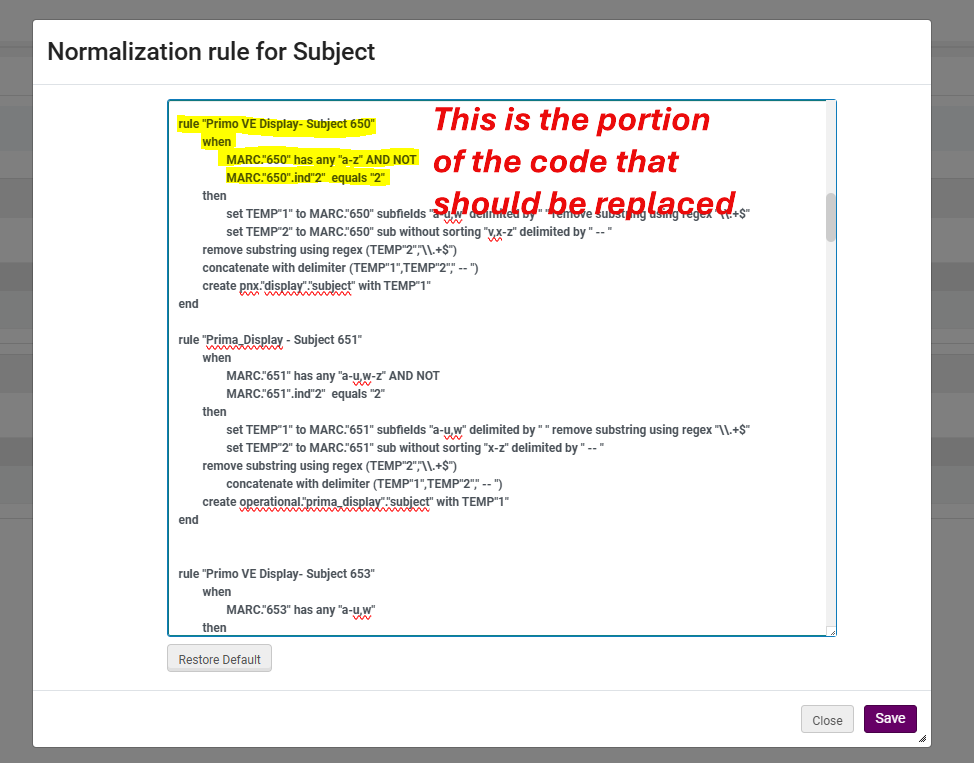
---

#### Hide "America, Gulf of" in a 650 subfield $$z

```
rule "Primo VE Display - Subject 650 (hide 650 $$z Gulf of America LCSH heading)"
	when
		MARC."650" has any "a-u,w-z" AND NOT
		MARC."650"."z" match "America, Gulf of*" AND NOT
		MARC."650".ind"2"  equals "2"
```

#### Hide "Illegal aliens" and other related LCSH in a 650 subfield $$a

```
rule "Primo VE Display - Subject 650 (hide 650 $$a Illegal aliens and related LCSH headings)"
	when
		MARC."650" has any "a-u,w-z" AND NOT
		MARC."650"."a" match "Illegal alien.*" AND NOT
		MARC."650"."a" match "Alien criminals" AND NOT
		MARC."650"."a" match "Alien detention centers" AND NOT
		MARC."650"."a" match "Alien property" AND NOT
		MARC."650"."a" match "Church work with aliens" AND NOT
		MARC."650".ind"2"  equals "2"
```

#### All 650 field rules listed above combined

```
rule "Primo VE Display - Subject 650 (display 650 local supplement WRLC headings and hide 650 $$z Gulf of America, $$a Illegal aliens, and related LCSH headings)"
	when
		MARC."650" has any "a-u,w-z" AND NOT
		MARC."650"."z" match "America, Gulf of*" AND NOT
		MARC."650"."a" match "Illegal alien.*" AND NOT
		MARC."650"."a" match "Alien criminals" AND NOT
		MARC."650"."a" match "Alien detention centers" AND NOT
		MARC."650"."a" match "Alien property" AND NOT
		MARC."650"."a" match "Church work with aliens" AND NOT
		MARC."650".ind"2"  equals "2"
```

#### Hide "Gulf of America", "America, Gulf of", and "McKinley, Mount (Alaska)"in a 651 subfield $$a

```
rule "Prima_Display - Subject 651 (hide 651 $$a Gulf of America and Mount McKinley LCSH headings)"
	when
		MARC."651" has any "a-z" AND NOT
        MARC."651"."a" match "America, Gulf of*" AND NOT
        MARC."651"."a" match "Gulf of America*" AND NOT
        MARC."651"."a" match "McKinley, Mount (Alaska)*" AND NOT
		MARC."651".ind"2"  equals "2"  
```


### Local Field MARC21 Norm Rules

See this page on the workflow to configuring a Primo VE local fields : https://alma.wrlc.org/books/discovery-primo-ve/page/how-to-hide-change-add-marc-fields-for-display-in-primo-primo-ve-display-rules-and-dei-list-of-terms-to-exclude#bkmrk-configuring-a-primo-

#### Display local WRLC subject headings in a 690 field (these are added to CZ records)

First delete the ***entire*** pre-existing code for the local field in the out-of-the-box Primo norm rules, then replace it with the block of code below.

```
rule "Primo VE - display local WRLC subject headings in CZ records, 690 field"
	when
		MARC "XXX" has any "a-z"
	then
		set TEMP"1" to MARC."XXX" subfields "a-w" delimited by " " remove substring using regex "\\.+$"
		set TEMP"2" to MARC."XXX" subfields "x-z" delimited by " -- " remove substring using regex "\\.+$"
		concatenate with delimiter (TEMP"1",TEMP"2"," -- ")
        create pnx."display"."subject" with TEMP"1"
end
```

### Resources

For more information on Normalization Rule Syntax, see the following Primo Knowledge Center page:

[https://knowledge.exlibrisgroup.com/Primo/Product\_Documentation/020Primo\_VE/Primo\_VE\_(English)/050Display\_Configuration/Configuring\_Normalization\_Rules\_for\_Display\_and\_Local\_Fields#Normalization\_Rule\_Syntax ](https://knowledge.exlibrisgroup.com/Primo/Product_Documentation/020Primo_VE/Primo_VE_(English)/050Display_Configuration/Configuring_Normalization_Rules_for_Display_and_Local_Fields#Normalization_Rule_Syntax)

For instructions on how to configure new display and local fields for Primo VE, see the following Wiki page:

[https://alma.wrlc.org/books/discovery-primo-ve/page/how-to-hide-change-add-marc-fields-for-display-in-primo-primo-ve-display-rules-and-dei-list-of-terms-to-exclude](https://alma.wrlc.org/books/discovery-primo-ve/page/how-to-hide-change-add-marc-fields-for-display-in-primo-primo-ve-display-rules-and-dei-list-of-terms-to-exclude)

# Deduplication / FRBR

Primo uses Deduplication and FRBR (Functional Requirements for Bibliographic Records) processes to combine or group redundant records in the brief search results.

Dedup and FRBR settings are configured <span style="text-decoration: underline;">**per view**</span> under **Alma Configuration &gt; Discovery &gt; Display Configuration &gt; Configure Views &gt; Edit the View &gt; Brief Results tab**

More information can be found in the following Primo Knowledgebase pages :

- [Understanding the Dedup and FRBR Processes (Primo VE)](https://knowledge.exlibrisgroup.com/Primo/Product_Documentation/020Primo_VE/Primo_VE_(English)/090Dedup_and_FRBR_for_Primo_VE/010Understanding_the_Dedup_and_FRBR_Processes_(Primo_VE))
- [Configuring FRBR/Dedup Display Options](https://knowledge.exlibrisgroup.com/Primo/Product_Documentation/020Primo_VE/Primo_VE_(English)/050Display_Configuration/010Configuring_Discovery_Views_for_Primo_VE#Configuring_FRBR.2FDedup_Display_Options)
- [Configuring the Dedup and FRBR Complete Keys in Primo VE](https://knowledge.exlibrisgroup.com/Primo/Product_Documentation/020Primo_VE/Primo_VE_(English)/090Dedup_and_FRBR_for_Primo_VE/Configuring_the_Dedup_and_FRBR_Complete_Keys_in_Primo_VE)
- [Dedup and FRBR Analysis Tool for Primo VE](https://knowledge.exlibrisgroup.com/Primo/Product_Documentation/020Primo_VE/Primo_VE_(English)/090Dedup_and_FRBR_for_Primo_VE/Dedup_and_FRBR_Analysis_Tool_for_Primo_VE)

---

#### Prevent FRBR and/or <mark class="highlight">Dedup</mark> in Discovery

Alma gives you the ability to prevent dedup/FRBR on specific records. This can be done in one of two ways : create a rule, or run a job on a set of records (the *Prevent FRBR and/or Dedup in Discovery* job). More information can be found in the following Primo Knowledgebase pages :

- [Suppressing Groups of Records from Dedup/FRBR for Primo VE](https://knowledge.exlibrisgroup.com/Primo/Product_Documentation/020Primo_VE/Primo_VE_(English)/090Dedup_and_FRBR_for_Primo_VE/Suppressing_Groups_of_Records_from_Dedup%2F%2FFRBR_for_Primo_VE)
- [Manual Jobs and Their Relevant Parameters ](https://knowledge.exlibrisgroup.com/Alma/Product_Documentation/010Alma_Online_Help_(English)/050Administration/070Managing_Jobs/020Manual_Jobs_on_Defined_Sets#Manual_Jobs_and_Their_Relevant_Parameters)(look for *Prevent FRBR and/or Dedup in Discovery* under the list of jobs)

For both workflows, dedup/ FRBR suppression completed in the IZ are applied to local records only. If local records are linked in the NZ, they cannot be suppressed in the NZ unless you also create the same suppression rules in the NZ.

<p class="callout info">If there are specific NZ records for which you need Dedup or FRBR suppressed, please send an email to servicedesk@wrlc.org</p>

In the WRLC NZ, we have two Suppress Dedup/FRBR Rules configured for the NZ-linked records in our shared catalog:

- Uniform title Bible 
    - IF Uniform Title (field 130 in the MARC record) contains "Bible", then suppress Dedup and FRBR
- Journal of applied behavior analysis 
    - IF Title contains "Journal of applied behavior analysis", then suppress Dedup
    - This was configured for Salesforce case #00833444 with George Mason University

# Resource Sharing Form (Delivery Fields)

The Delivery Fields section of the Resource Sharing Form configuration determines which (if any) pickup locations are displayed to patrons when they request items in Primo VE.

The following are the recommended configurations for WRLC institutions participating in our AFN network.

<p class="callout warning">Keep in mind that our [NZ Terms of Use for requesting](https://alma.wrlc.org/books/fulfillment/page/afn-network-zone-configurations#bkmrk-wrlc-fn-requesting-1) are configured to be Pick up Anywhere. This allows staff members to choose any pickup location for patrons when they request items <span style="text-decoration: underline;">**in Alma**</span>. Our consortia uses the Discovery configuration below to only show IZ-only locations for patrons when they request items in <span style="text-decoration: underline;">**Primo**</span>.</p>

1\. Go to ***Configuration &gt; Discovery &gt; GetIt Configuration &gt; Resource Sharing Request.*** Scroll down to the ***Delivery Fields*** section

IF your institution only has only <span style="text-decoration: underline;">**one pickup location**</span>, then you can configure the following:

[![discovery-configs-1.PNG](https://alma-documentation-bookstack.azurewebsites.net/uploads/images/gallery/2025-07/scaled-1680-/discovery-configs-1.PNG)](https://alma-documentation-bookstack.azurewebsites.net/uploads/images/gallery/2025-07/discovery-configs-1.PNG)
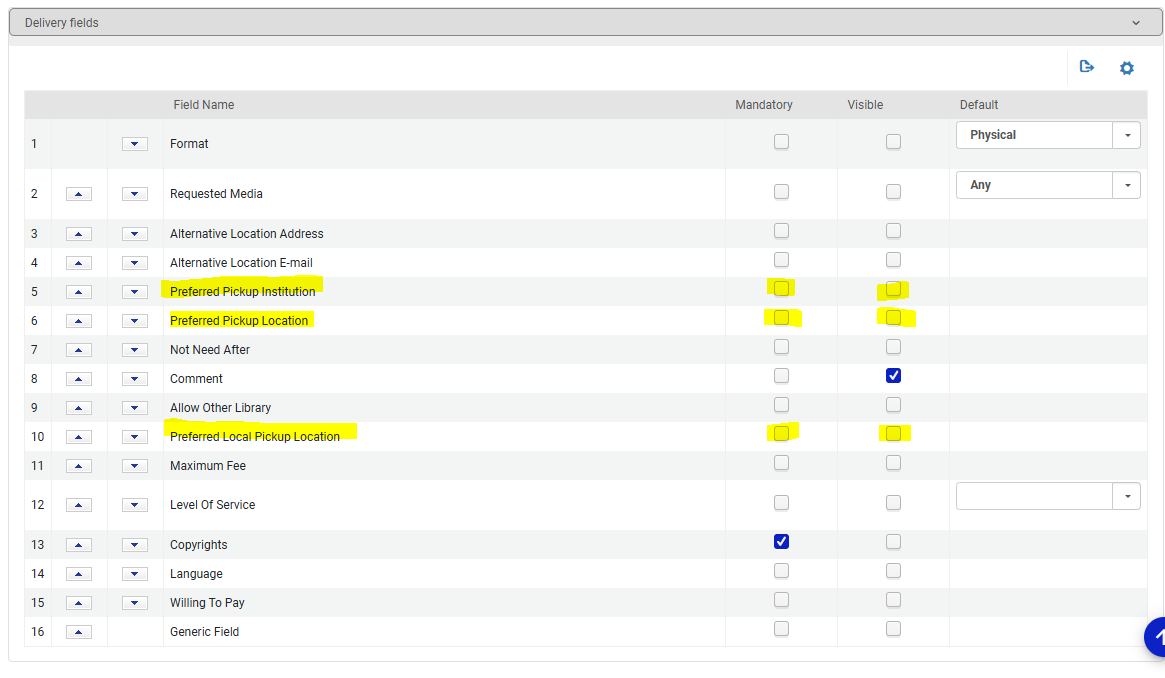
Leave the following options **blank** (no checkmarks):

- Preferred Pickup Institution (if checked, this will list all institutions in our NZ)
- Preferred Pickup Location (if checked this will list all libraries in our NZ)
- Preferred Local Pickup Location

The Primo request form will then not display a pickup location option for patrons.

[![discovery-configs-2.PNG](https://alma-documentation-bookstack.azurewebsites.net/uploads/images/gallery/2025-07/scaled-1680-/discovery-configs-2.PNG)](https://alma-documentation-bookstack.azurewebsites.net/uploads/images/gallery/2025-07/discovery-configs-2.PNG)
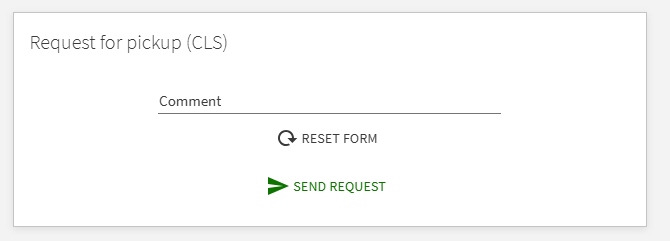
IF your institution has <span style="text-decoration: underline;">**multiple pickup locations**</span> for patrons, you can configure the following:

[![discovery-configs-3.PNG](https://alma-documentation-bookstack.azurewebsites.net/uploads/images/gallery/2025-07/scaled-1680-/discovery-configs-3.PNG)](https://alma-documentation-bookstack.azurewebsites.net/uploads/images/gallery/2025-07/discovery-configs-3.PNG)
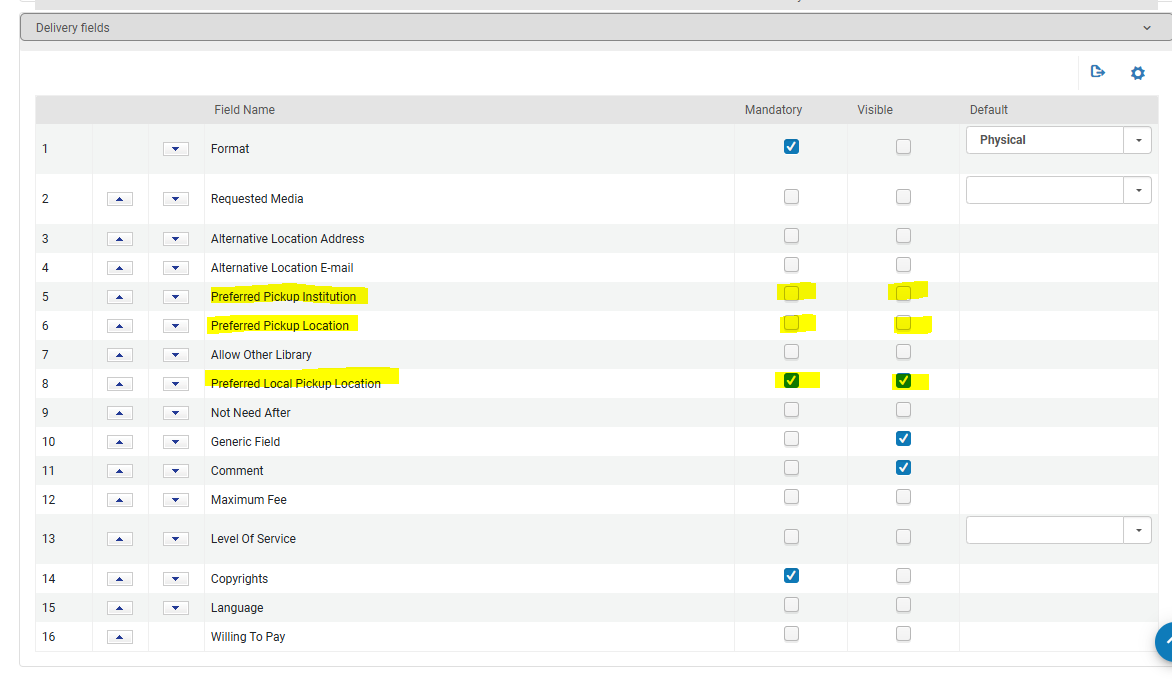
Leave the following options **blank** (no checkmarks):

- Preferred Pickup Institution (if checked, this will list all institutions in our NZ)
- Preferred Pickup Location (if checked this will list all libraries in our NZ)

Check **Mandatory** and **Visible** for the following option:

- Preferred Local Pickup Location

The Primo request form will then display a drop down menu of all pickup locations in your Institution Zone

[![discovery-configs-4.PNG](https://alma-documentation-bookstack.azurewebsites.net/uploads/images/gallery/2025-07/scaled-1680-/discovery-configs-4.PNG)](https://alma-documentation-bookstack.azurewebsites.net/uploads/images/gallery/2025-07/discovery-configs-4.PNG)
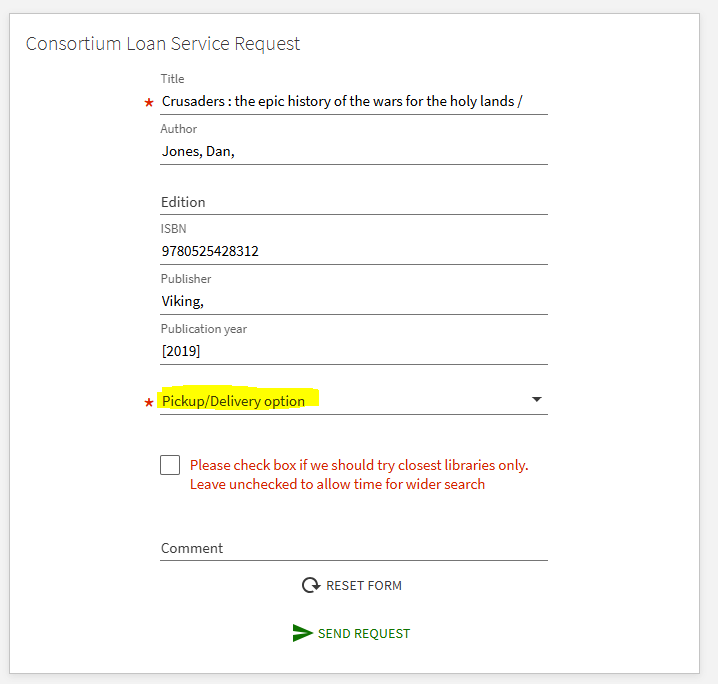
[![discovery-configs-5.PNG](https://alma-documentation-bookstack.azurewebsites.net/uploads/images/gallery/2025-07/scaled-1680-/discovery-configs-5.PNG)](https://alma-documentation-bookstack.azurewebsites.net/uploads/images/gallery/2025-07/discovery-configs-5.PNG)
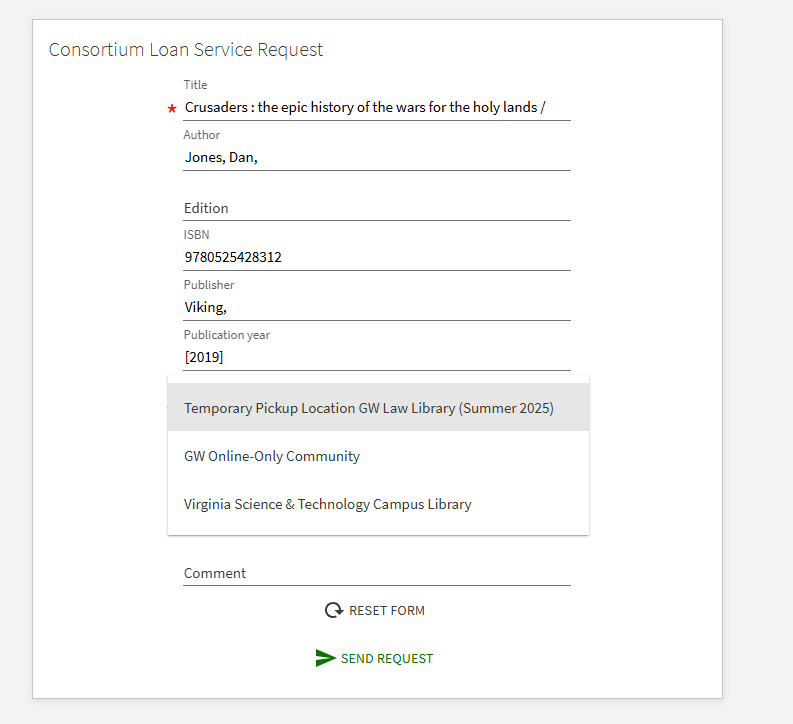
### A note about Rapido Institutions

For Rapido institutions, the Request TOU setting (specifically the "Pickup at Institution" value) controls the pickup options that appear in both Alma AND Primo. When you set the TOU to "Pickup at Institution" Rapido will only show the patron's own institution as a valid pickup option, and other institutions in your network won't appear on the list.   
  
For non-Rapido institutions, however, Primo does NOT use the TOU settings when displaying pickup locations in the Primo request form; it uses the Resource Sharing Form configuration (described above) instead. Unlike Rapido institutions, TOU settings for non-Rapido institutions pertains to staff-side requests in Alma, not to patron-side requests in Primo. In this case, the list of AFN partner institutions will still appear in Primo regardless of the request TOUs unless you explicitly restrict them using the Resource Sharing Request Form configuration.

Please see Salesforce case #08203423 for more details.

# Display Logic Rules for the AFN/CLS Request Form in Primo

Information about configuring the display logic rules for the AFN/CLS Request Form displayed in Primo can be found on the [Display Logic Rules for the AFN/CLS Request Form in Primo](https://alma-documentation-bookstack.azurewebsites.net/books/fulfillment/page/display-logic-rules-for-the-afncls-request-form-in-primo) page of the WRLC Alma Wiki. These configuration settings determine when and for whom various Primo links appear for patrons, including the link to the CLS Request Form.

# How To Suppress Chapter-Level Records in Primo (CDI Content)

For detailed instructions on how to suppress chapter-level records in Primo VE, please see the corresponding page in the E-Resources section of the WRLC Alma Wiki.

[How To Suppress Chapter-Level Records in Primo (CDI Content)](https://alma-documentation-bookstack.azurewebsites.net/books/resources-electronic/page/how-to-suppress-chapter-level-records-in-primo-cdi-content)

# Managing Custom Banner Notifications in Primo VE

To include an alert banner message in your institution's Primo VE discovery interface, simply fill out the information for your university in **[this spreadsheet](https://docs.google.com/spreadsheets/d/1ycVxLuY5LYwsFbGX-n_TlJPAF-wI73Lf_aJiZKzm0vI/edit#gid=0)**.

Below is an example of the fields you may configure.

- For "Message", type the information you wish to display in the banner message.
- For "link", include a URL if applicable. You may leave this field blank.
- For "expirationdate", set the end date for when you want the message to expire.
- You may ignore the remaining fields as they are used by the backend to determine how and when messages are displayed.

<table border="1" cellpadding="0" cellspacing="0" data-sheets-root="1" dir="ltr" id="bkmrk-%C2%A0-message-link-show-" style="width: 104.568%;"><colgroup><col style="width: 9.02349%;" width="100"></col><col style="width: 28.1829%;" width="312"></col><col style="width: 22.2497%;" width="247"></col><col style="width: 9.02349%;" width="100"></col><col style="width: 16.1872%;" width="129"></col><col style="width: 15.3332%;" width="220"></col></colgroup><tbody><tr><td> </td><td data-sheets-value="{"1":2,"2":"message"}">message</td><td data-sheets-value="{"1":2,"2":"link"}">link</td><td data-sheets-note="Do Not edit.  This cell changes based on the expiration date in column E." data-sheets-value="{"1":2,"2":"show"}">show</td><td data-sheets-value="{"1":2,"2":"expirationdate"}">expirationdate</td></tr><tr><td data-sheets-value="{"1":2,"2":"au"}">au</td><td data-sheets-value="{"1":2,"2":"Links to Proquest Congressional and Supreme Court Insight databases are not working correctly. Please click here to access these resrouces from the A-Z Database list. "}">Links to Proquest Congressional and Supreme Court Insight databases are not working correctly. Please click here to access these resrouces from the A-Z Database list.</td><td data-sheets-hyperlink="https://subjectguides.library.american.edu/az.php" data-sheets-value="{"1":2,"2":"https://subjectguides.library.american.edu/az.php"}">[https://subjectguides.library.american.edu/az.php](https://subjectguides.library.american.edu/az.php)</td><td data-sheets-formula="=IF(AND(R[0]C[2]>=R[0]C[1]),"FALSE","TRUE")" data-sheets-value="{"1":2,"2":"FALSE"}">FALSE</td><td data-sheets-numberformat="{"1":5,"2":"mm/dd/yy","3":1}" data-sheets-value="{"1":3,"3":45279}">12/19/23</td></tr></tbody></table>

If you do not have access to the spreadsheet linked above, please contact Joel Shields at <joel.shields@wrlc.org>.

# Primo Date Handling

*Compiled in September 2025; examples taken from questions asked by Georgetown library staff*

Summary of the current understanding of MARC date fields and their use by Primo date-related functions, based on documentation and explanations provided in Ex Libris Support case #08147923.

## Advanced Search by Date

Date fields are used in this order: 008 pos. 7-10 --&gt; 260 c --&gt; 264 c

A 008 start date (pos 7-10) of 9999 is disregarded and a 26x date is used instead. There's an internal rule that ignores "9999" in this field since it's the maximum value and can't be treated as a start date, so the system instead uses MARC 260c or 264c for the date portion of the search.

## Publication Date Facet

Date fields are used in this order: 260 c --&gt; 264 c --&gt; 008

The facet starts by using the 26x fields (the date field(s) that are visible to patrons), and only reverts to the 008 if those are empty or unknown.

## Sort By Date

Date fields are used in this order: 008 pos. 7-10 --&gt; 260 c --&gt; 264 c

The rule for skipping "9999" (when applying a date range as part of an Advanced Search) does not apply to sorting, so records with 9999 will be at the top of a Date-Newest sort.

This means that when the 008 date is unsortable (i.e., completely unknown like #### or ||||), Primo will fall back to 260c or 264c for sorting. If multiple fallback fields exist, it chooses the lower field according to the sort logic.

For partial dates like 19## or 19uu, the rule replaces the unknown elements with 0, so 19uu becomes 1900 for sorting purposes. This allows partially known dates to be sorted according to the 008, whereas completely unknown dates will trigger the fallback to 260c or 264c.

## Examples

### Example 1: Record a publication date and copyright date

A record with an 008 Date 1 of 2021, a 264c of 2021 (publication date), and a 264c of 2020 (copyright date) will use 2021 for the Advanced Search date range and for Date sorting. The Publication Date facet checks BOTH 2020 and 2021, so a 2020-2020 Publication Date range will include this record, as will a 2021-2021 Publication Date range.

[![This is Big brief record view (click to view result in HoyaSearch)](https://alma-documentation-bookstack.azurewebsites.net/uploads/images/gallery/2026-05/scaled-1680-/shiuntitled.png)](https://wrlc-gu.primo.exlibrisgroup.com/permalink/01WRLC_GUNIV/319hln/alma991037924426104111)

<div class="rich-media-item mediaSingleView-content-wrap image-center css-16pk4ql" data-layout="center" data-media-vc-wrapper="true" data-node-type="mediaSingle" data-renderer-start-pos="2006" data-ssr-placeholder="Eb7Gh:EfLS5:z8NN7:qz-Pe:OP-5u-0" data-vc="media-single" data-width="760" data-width-type="pixel" id="bkmrk--1"><div class="css-1a92b04"></div></div>[Source record view](https://wrlc-gu.primo.exlibrisgroup.com/discovery/sourceRecord?vid=01WRLC_GUNIV:01WRLC_GUNIV&docId=alma991037924426104111&recordOwner=01WRLC_NETWORK "https://wrlc-gu.primo.exlibrisgroup.com/discovery/sourceRecord?vid=01WRLC_GUNIV:01WRLC_GUNIV&docId=alma991037924426104111&recordOwner=01WRLC_NETWORK")

### Example 2: Record with a reprint date and copyright date

A record with an 008 Date 1 of 2020 (reprint/reissue date), a 264c of \[2020\] (approximate release date), and a 264c of 1958 (copyright date) will use 2020 for the Advanced Search date range and for Date sorting. The Publication Date facet checks BOTH 1958 and 2020, so an entered date range including one or the other date will include this record.

![Bank of Canada Operations and Policy brief record view (click to view result in HoyaSearch)](https://alma-documentation-bookstack.azurewebsites.net/uploads/images/gallery/2026-05/scaled-1680-/KYHuntitled.png)

[Source record view](https://wrlc-gu.primo.exlibrisgroup.com/discovery/sourceRecord?vid=01WRLC_GUNIV:01WRLC_GUNIV&docId=alma9913058737404101&recordOwner=01WRLC_NETWORK "https://wrlc-gu.primo.exlibrisgroup.com/discovery/sourceRecord?vid=01WRLC_GUNIV:01WRLC_GUNIV&docId=alma9913058737404101&recordOwner=01WRLC_NETWORK")

### Example 3: Largely unknown date

A record with an 008 Date 1 of 1uuu and no 264 dates will use 1000 (normalized from 1uuu) for the Advanced Search range, Date sorting, and the Publication Date facet.

[![Calendars of the U.S. House of Representatives… brief record view (click to view result in HoyaSearch)](https://alma-documentation-bookstack.azurewebsites.net/uploads/images/gallery/2026-05/scaled-1680-/6xkuntitled.png)](https://wrlc-gu.primo.exlibrisgroup.com/permalink/01WRLC_GUNIV/319hln/alma991011227809704111)[Source record view](https://wrlc-gu.primo.exlibrisgroup.com/discovery/sourceRecord?vid=01WRLC_GUNIV:01WRLC_GUNIV&docId=alma991011227809704111&recordOwner=01WRLC_NETWORK "https://wrlc-gu.primo.exlibrisgroup.com/discovery/sourceRecord?vid=01WRLC_GUNIV:01WRLC_GUNIV&docId=alma991011227809704111&recordOwner=01WRLC_NETWORK")

### Example 4: Nonspecific date (9999)

A record with an 008 Date 1 of 9999 and a 260c date of 1970 will use 1970 for the Advanced Search date range and for the Publication Date facet. It will use 9999 for Date sorting, which puts it at the top of a Date-Newest listing.

(Such records are typically from e-resource vendors and do not conform to typical cataloging practice.)

[![In Pride and With Promise brief record view (click to view result in HoyaSearch)](https://alma-documentation-bookstack.azurewebsites.net/uploads/images/gallery/2026-05/scaled-1680-/WAHuntitled.png)](https://wrlc-gu.primo.exlibrisgroup.com/permalink/01WRLC_GUNIV/319hln/alma991037640650904111)

[Source record view](https://wrlc-gu.primo.exlibrisgroup.com/discovery/sourceRecord?vid=01WRLC_GUNIV:01WRLC_GUNIV&docId=alma991037640650904111&recordOwner=01WRLC_NETWORK "https://wrlc-gu.primo.exlibrisgroup.com/discovery/sourceRecord?vid=01WRLC_GUNIV:01WRLC_GUNIV&docId=alma991037640650904111&recordOwner=01WRLC_NETWORK")

## Documentation

Ex Libris documentation of mappings: [https://knowledge.exlibrisgroup.com/Primo/Product\_Documentation/020Primo\_VE/Primo\_VE\_(English)/120Other\_Configurations/Mapping\_to\_the\_Display%2C\_Facets%2C\_and\_Search\_Sections\_in\_the\_Primo\_VE\_Record](https://knowledge.exlibrisgroup.com/Primo/Product_Documentation/020Primo_VE/Primo_VE_(English)/120Other_Configurations/Mapping_to_the_Display%2C_Facets%2C_and_Search_Sections_in_the_Primo_VE_Record "https://knowledge.exlibrisgroup.com/Primo/Product_Documentation/020Primo_VE/Primo_VE_(English)/120Other_Configurations/Mapping_to_the_Display%2C_Facets%2C_and_Search_Sections_in_the_Primo_VE_Record")

Library of Congress documentation about the MARC date fields:

- [008](https://www.loc.gov/marc/bibliographic/bd008a.html "https://www.loc.gov/marc/bibliographic/bd008a.html")
- [260](https://www.loc.gov/marc/bibliographic/bd260.html "https://www.loc.gov/marc/bibliographic/bd260.html")
- [264](https://www.loc.gov/marc/bibliographic/bd264.html "https://www.loc.gov/marc/bibliographic/bd264.html")